A:AnswerHave you tried adjusting the sensitivity in the games options menu? Thrustmaster Tech Support can likely guide you thru this process. You can reach out to them thru https://support.thrustmaster.com/en/contact-en/
A:AnswerIt depends on the game but every flying game should have it set so that pushing forward makes the nose go down and pulling backwards makes the nose go up as default or as an option in the settings. The flight stick is only a controller and the buttons and actions can be modified in game.
A:AnswerUnless you get the foot pedals then you control the rotor by twisting the stick if you get the foot pedals you can do it that way. If you’re using it on PC it’s two different modes to enable one of them gives a stick more functionality depending on the game.
A:AnswerI tested with mine, and it doesn't work. as chromebooks cannot run .exe files, it is impossible to download the drivers, unless you can get them to run through linux. as far as i am aware, it only runs on pc and xbox, as intended.
A:AnswerHello,
Thank you for your interest in our products !
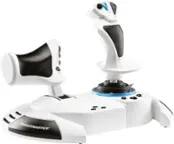
The T.Flight Hotas One includes a XBOX QUICK RELEASE breakaway cable with a USB connector.
You can connect the T.Flight Hotas One on a computer with Windows 11 and use it with games that support joysticks. Some games may require to map the controls manually.
We wish you a good day,
The Thrustmaster team
A:AnswerHello,
The T.Flight Hotas One is not compatible with Playstation 5. This joystick is for Xbox One, Xbox Series X|S and PC. For the Playstation 5, we recommend the T.Flight Hotas 4.
We wish you a good day,
The Thrustmaster team
A:AnswerHello,
Thank you for your interest with our products !
The T.Flight Hotas One is compatible with Windows 11.
We wish you a good day,
The Thrustmaster Team
A:AnswerHello,
Thank you for your interest in our products !
The T.Flight Hotas One is compatible with Windows 11.
We wish you a good day, The Thrustmaster Team