A:AnswerThis TV has the Fire TV experience already built-in, it does not require an external streaming device to stream Movies and TV Shows.
However, you can connect an external streaming device at any time.
David M. - Toshiba Support
A:AnswerNo, this TV does not have AirPlay for Apple Screen Mirroring.
You can connect your iPhone to the TV using an AV Lightning to HDMI adapter.
David M. - Toshiba Support
A:AnswerHere is the link for the User Guide: https://tvna.compal-toshiba.com/us/wp-content/uploads/sites/2/2020/06/Toshiba_FireTVEdition_WEB_20-0300_V4_EN_Final_lr.pdf
A:AnswerRoku is a different streaming connection - it's own "company", as opposed to the Amazon fire brand. There are Roku televisions, as with the Fire TV, and a Roku stick, like the fire stick. Just which you prefer.
A:AnswerTry the Power On feature, when enabled, the TV turns on displaying the last used input. To activate it, go Home > Settings > Display & Sounds > Power On and select Last Input.
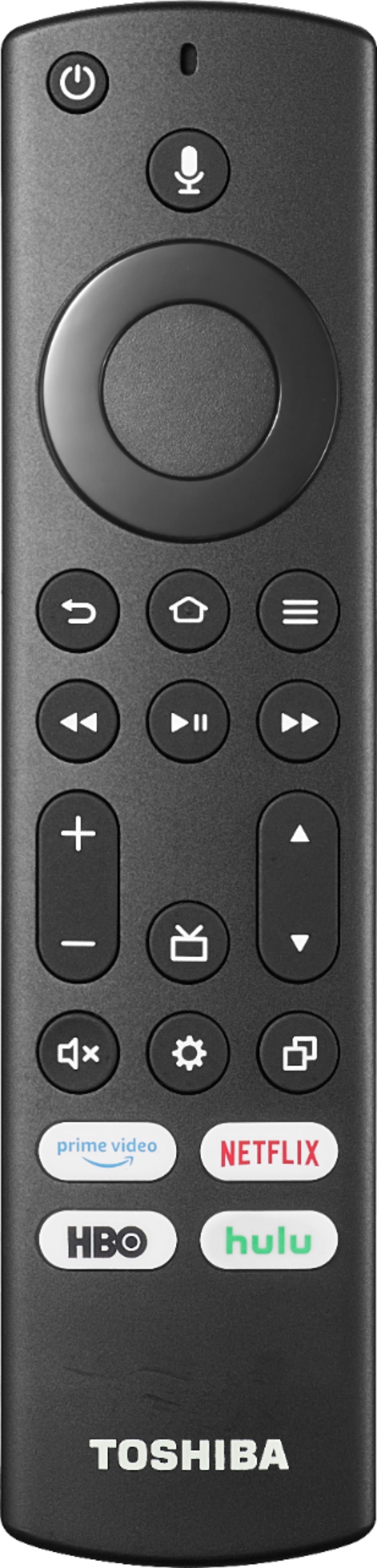
A:AnswerTry this, to Factory Reset the Remote, press and hold at the same time the DPAD-left, Back (↩) and Menu (≡) buttons for at least 10 seconds. To pair the remote again, press the Home button for up to a minute. If the issue persists, please call 1 (855) 527-2411 available from 8 am to 9 pm CT everyday.
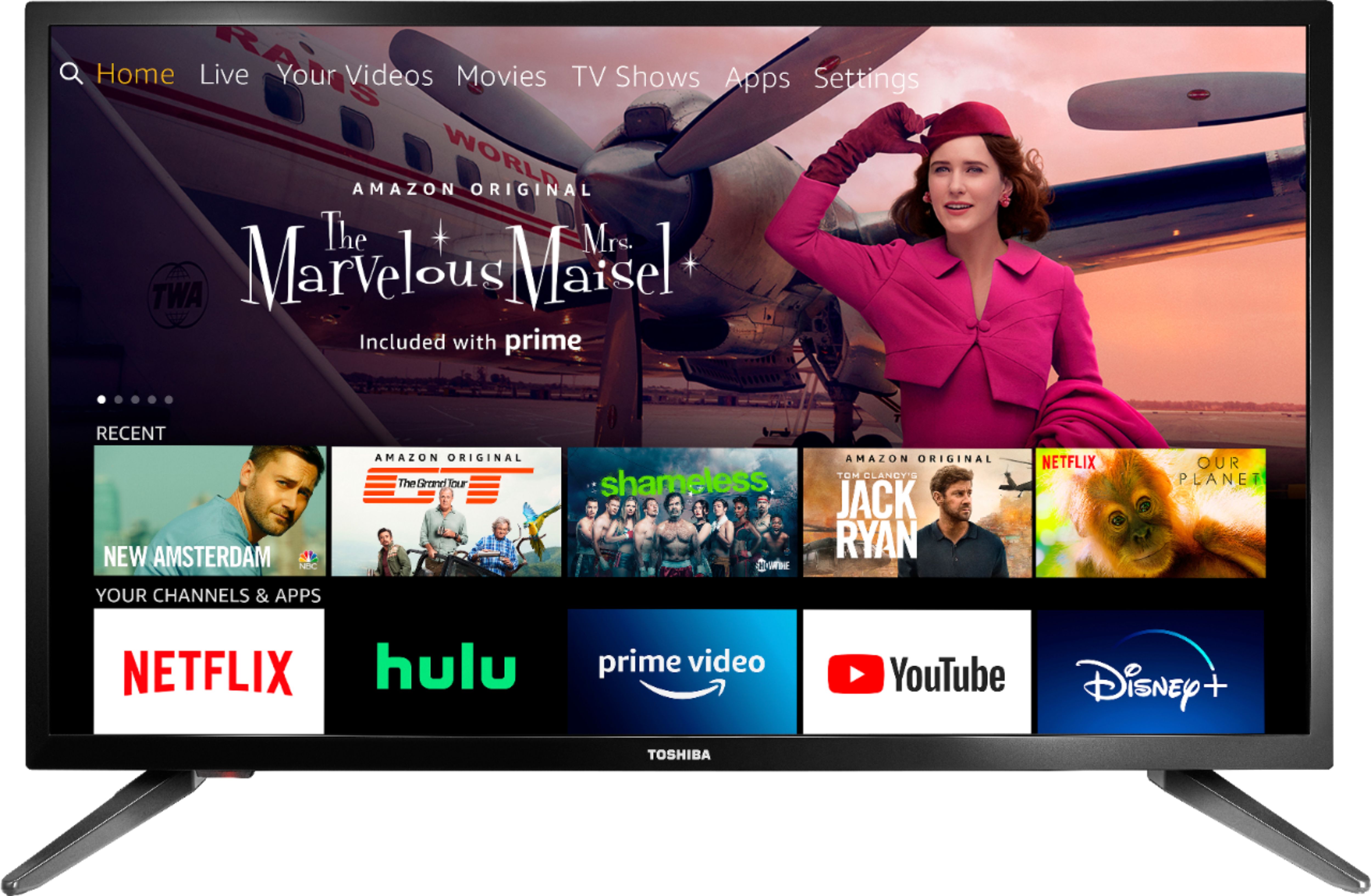
A:AnswerNo, all you need to do is plug this in and connect it to your home wi-fi.
You don’t need cable to get started. But some off the apps will require you to login with your cable TV provider account information. Otherwise, you will have to subscribe to services like Hulu or Netflix. You can sign up for what you want once you’ve connected the TV.
A:AnswerTry the Power On feature, when enabled, your TV turns on displaying the last used input: go Home > Settings > Display & Sounds > Power On and select Last Input.