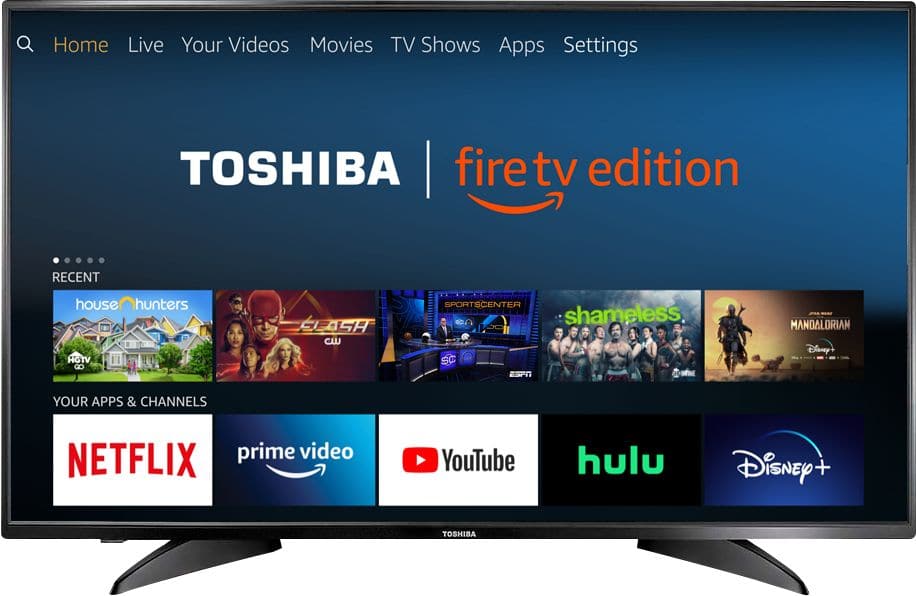
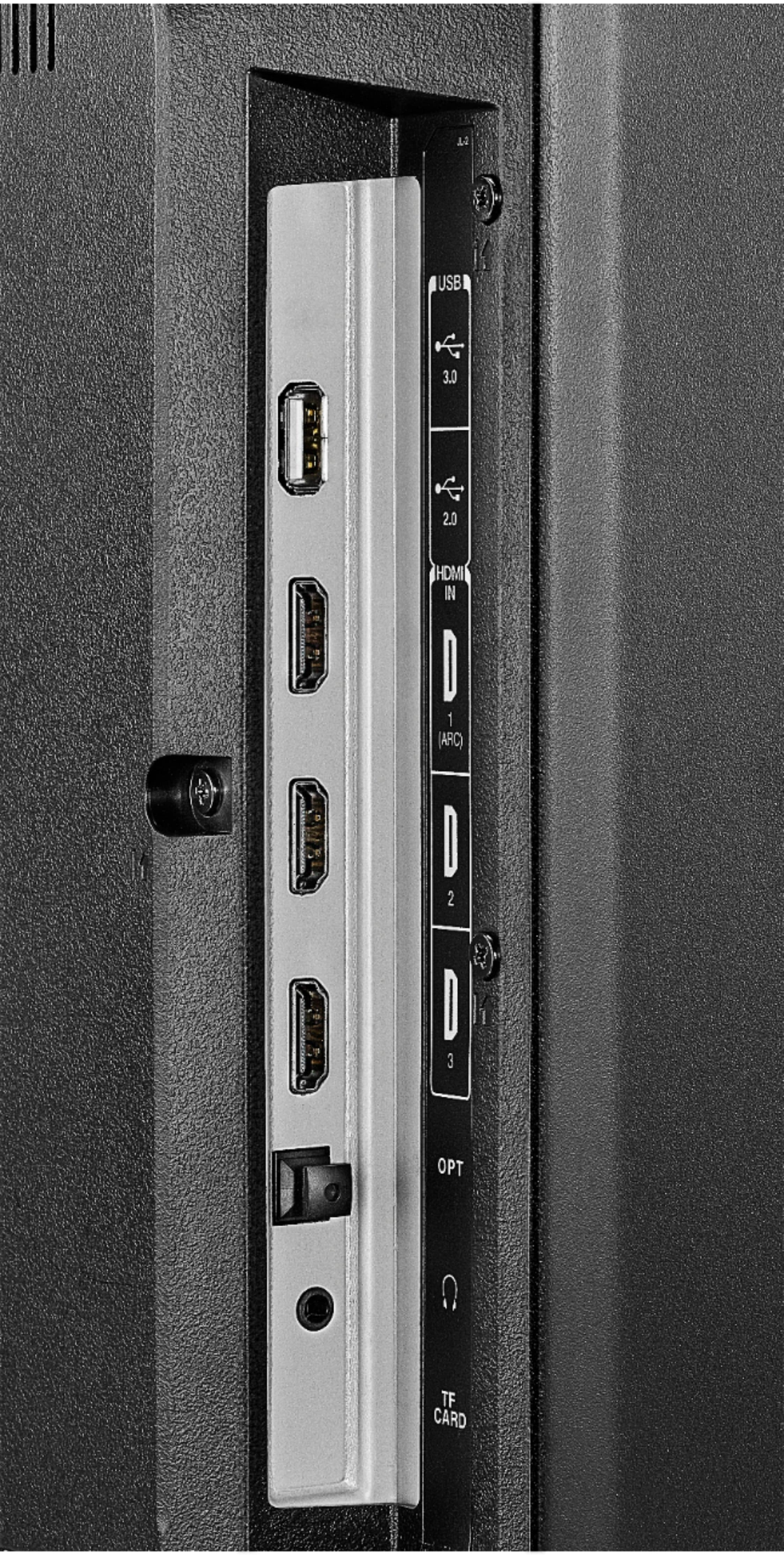
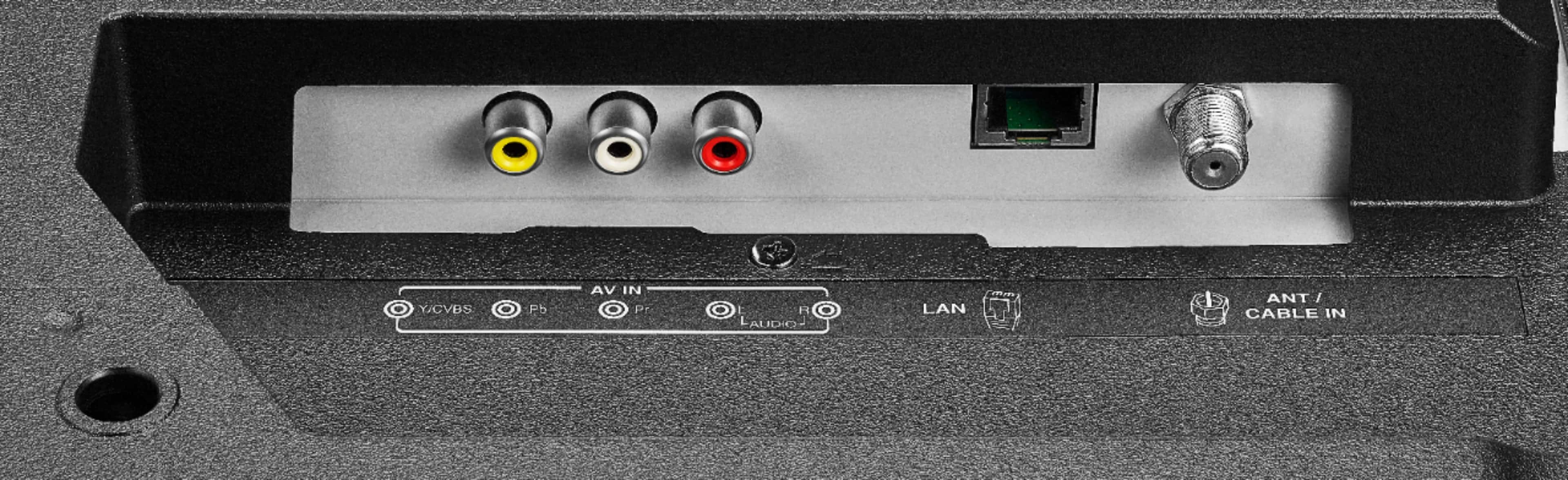
A:AnswerIf you own an Apple TV, connect it to your Toshiba Fire TV edition with an HDMI cable. Turn it and your TV on. On your iPhone, go into Control Center by swiping up from the bottom of the screen. Find Screen Mirroring and click on that. You will then be shown devices that you can mirror to, including Apple TV. Select it, and you should see whatever is being displayed on your iPhone screen also being displayed on your Toshiba Fire TV edition screen. If you don’t have Apple TV, you can try downloading a third party app on your TV App Store called Airplay Receiver Pro For Fire TV, cost of which is $2.99. It purports to be a substitute for Apple TV..
A:AnswerYou can. It’s natively embedded with Fire TV so you don’t really need it unless the Roku does something the Fire TV can’t. There are other TVs I’d recommend instead of this one if you want to attach a Roku, or just get a Roku embedded TV...
A:AnswerTry to change the HDMI Mode, press and hold the home button for 3 seconds to launch the Quick Access menu, go to Picture > Advanced Settings > HDMI Mode and select 2.
David M. - Toshiba Support

A:AnswerTo watch Videos from a USB Flash Drive on your Fire TV Edition television, you need to download the Media Player app VLC for Fire.
The app VLC for Fire supports the following formats:
MKV, MP4, AVI, MOV, Ogg, FLAC, TS, M2TS, Wv and AAC
David M. - Toshiba Support