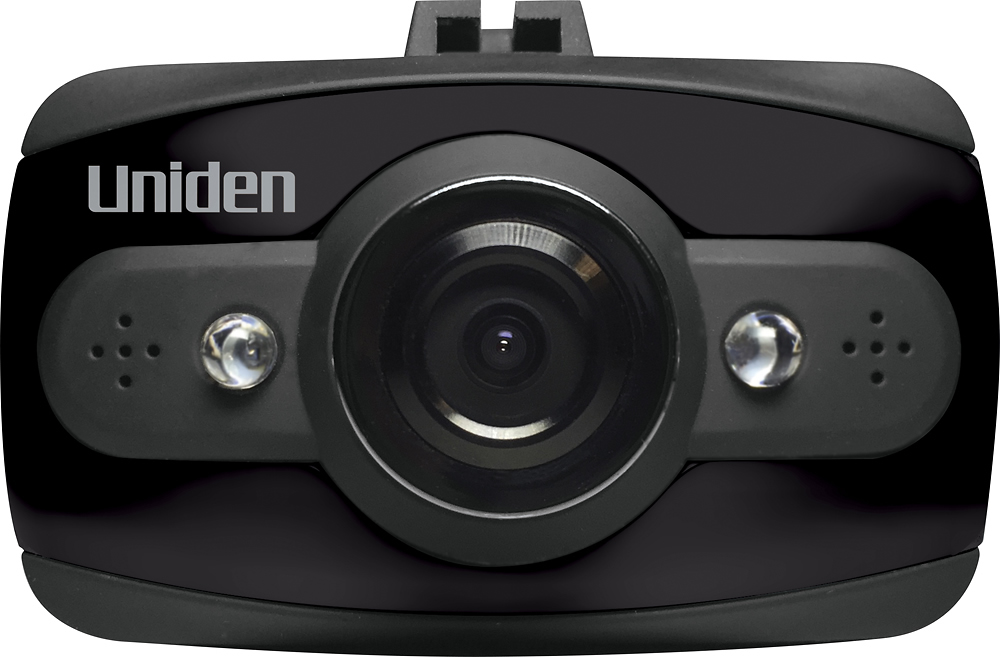
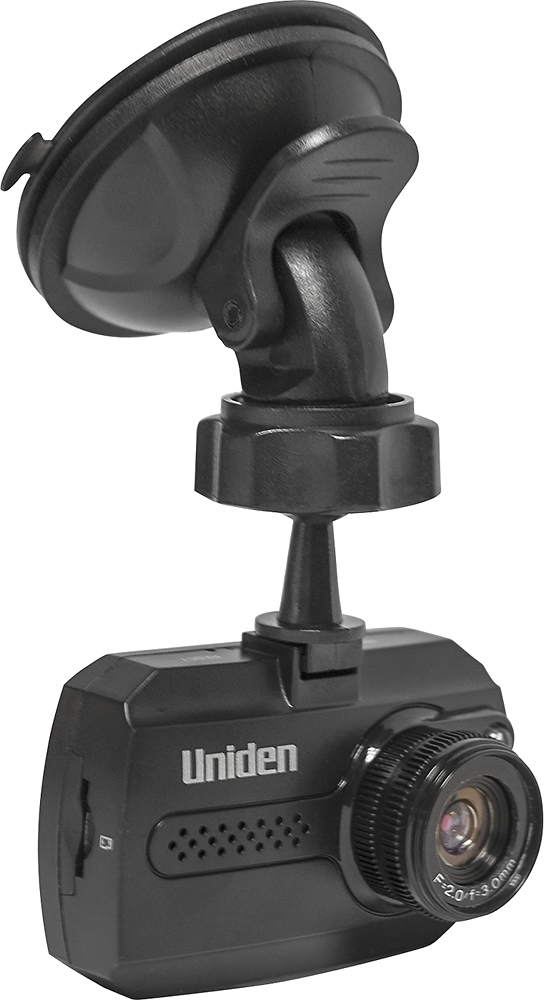
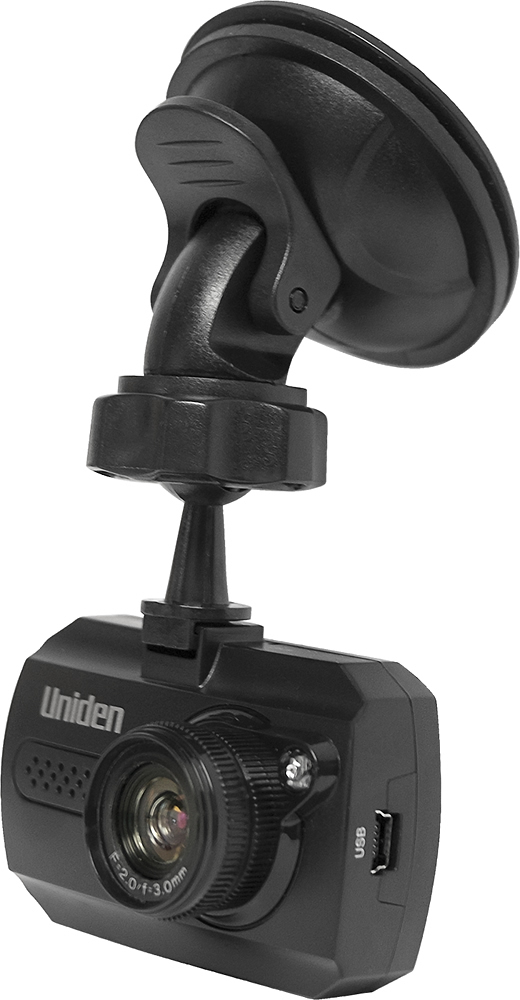
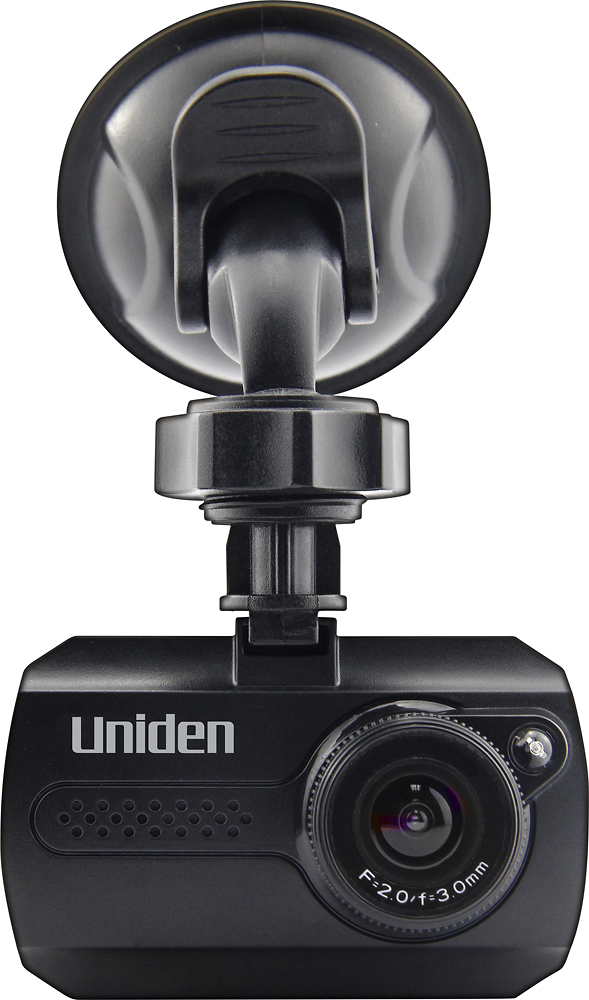
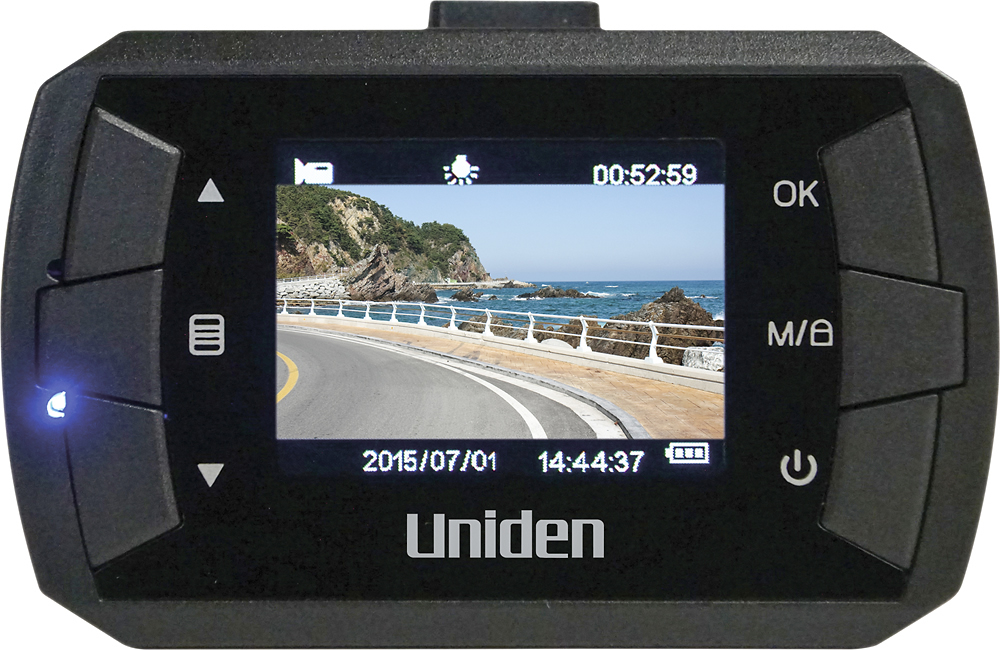
A:AnswerThe iWitness from Uniden. It sure has a swivel that is sturdy and yet the mount stays strongly on the windshield. This is a really good deal for just $30.00 if it is still on sale. Merry Christmas!
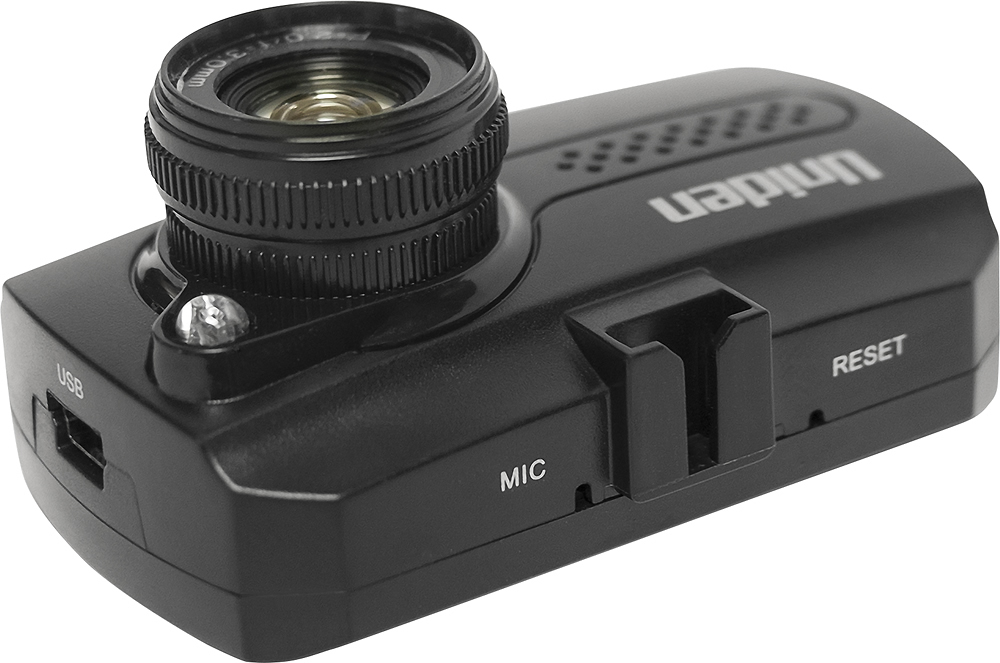
A:AnswerThe camera has only one USB port . When in use the power cord is connected in that port and plugged to a 12 volt supply . After recording your driving travels the camera is removed from the vehicle and connected to the PC with a USB cable for viewing on your PC screen .
A:AnswerThe camera will stay on as long as it is plugged into a 12 volt outlet that is powered on. Up until the memory card is full. Or you could put the camera on 2g sensing and it will save the video and wven lock it so it can't be erased until you view the footage.
A:AnswerMODEL DCCAM: Yes it's easy to transfer from on vehicle to another but it's annoying. It's best to have one for each vehicle I do, this way I won't forget to have the dash cam left at the other vehicle.
A:AnswerMODEL DCCAM: It really depends on how long is the trip. If you are traveling more than 6 hours maybe you will need an extra MicroSD card with more than 8 GB.
A:AnswerOn the left side the middle button press twice and scroll until you see format. Press that and it will ask if you want to format answer yes. Or put the sad card in your PC and delete/format the content off of the card.
A:AnswerThis depends on whether you use an outlet that turns on or off with the ignition switch. We always disconnect the charger when we turn the car off to avoid problems.
A:AnswerBy Shaunia > I have the same problem. I have hit the menu button twice and then the up and down arrow buttons. The only thing that does is makes the screen go in and out up to 4.0.
Okay, based on what you two seem to be saying.....
TTime - Make sure you press the Menu button (left middle) TWICE. If you only push once, you get the "Video" menu, where you can turn the "Date Stamp" on or off. The second push gets you to the "Setup" menu, where you can SET the time and date.
Shaunia - Make sure you're not recording a video while trying to use the Menu key. It won't do anything. The external blue light should NOT be flashing, and there should NOT be a flashing red dot at the top left of the screen. If they are, press the OK button to stop recording. The blue light should then stay on steady, and the red should be gone. Then, the first Menu push should change to a "Video" options screen, the second to a "Setup" screen. From there, use the arrows and OK to navigate and change things, Menu again to save the new settings and exit.
Good luck, everyone!