A:AnswerThe projector itself is not Bluetooth/wifi compatible. Screen mirroring still can be done you'll just required a adapter and wifi connection to complete the wireless connection.
A:AnswerYes, the projector can work with MacBook Air. But since the MacBook doesn't have an HDMI port on it, you will need an extra USB-C to HDMI adapter.
A:AnswerSorry, I don't exactly know what you mean by optical cable. If you want to hook up an external speaker, you can do that via the 3.5 mm headphone jack on the projector.
A:AnswerTo connect your phone to the projector, you need to use an HDMI to Type-C / Lightning / Micro USB adapter according to which port your phone has. And it's recommended to use an adapter that requires an additional power supply.
A:AnswerHi Nick, to connect your phone to the projector, you need to use an HDMI to Type-C / Micro USB adapter according to which port your phone has. And it's recommended to use an adapter that requires an additional power supply.
A:AnswerHi there,
Thanks for asking. Sorry to tell you that there is no separate bulb for sale at the moment, and it is not suggested that you replace the bulb yourself.
If you have any questions, please feel free to contact our customer service at [email protected]. - Vankyo Support Team
A:AnswerHi Gab,
Thanks for asking. To connect your phone to the projector, you need to use an HDMI to Lightning adapter for your iPhone. And it's recommended to use an adapter that requires an additional power supply.
While using the adapter for connection, the adapter itself also requires an additional power supply. Here are the detailed steps to connect your phone to the projector.
1. Turn on your mobile device and projector.
2. Prepare an HDMI adapter according to the port your phone has.
3. Connect the HDMI port of the cable to the projector.
4. Connect the other end with the Lightning port of your mobile device.
5. Select HDMI as the input source on the projector.
Hope this helps.- Vankyo Support Team
A:AnswerHi there,
Thanks for asking.
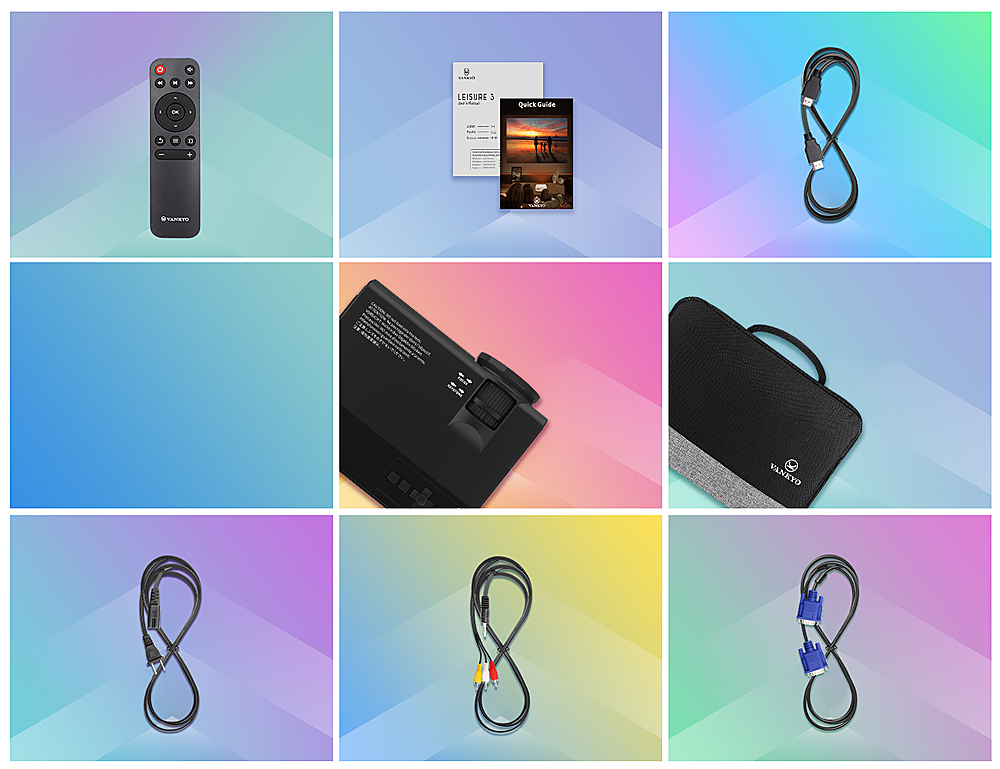
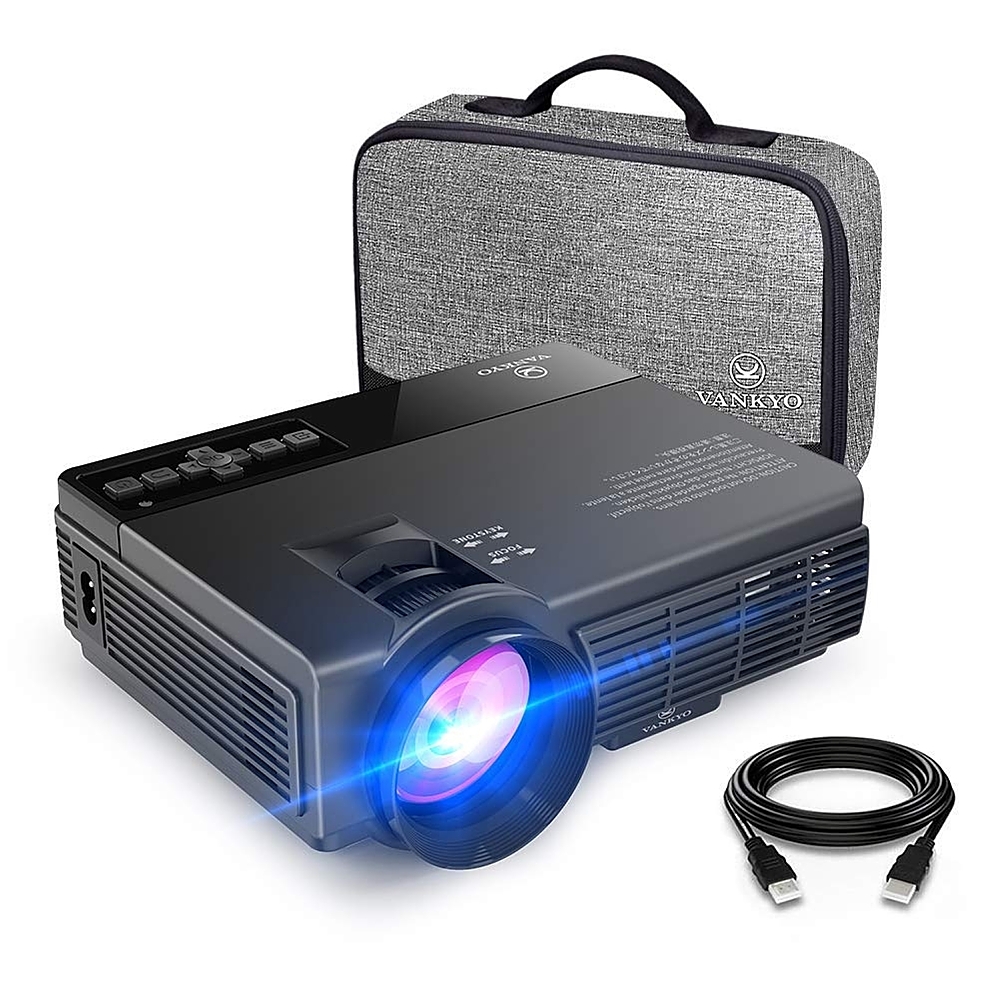
You can use the packaged HDMI cable to connect your PS5 to the projector directly. Please select HDMI as the input source.
- Vankyo Support Team

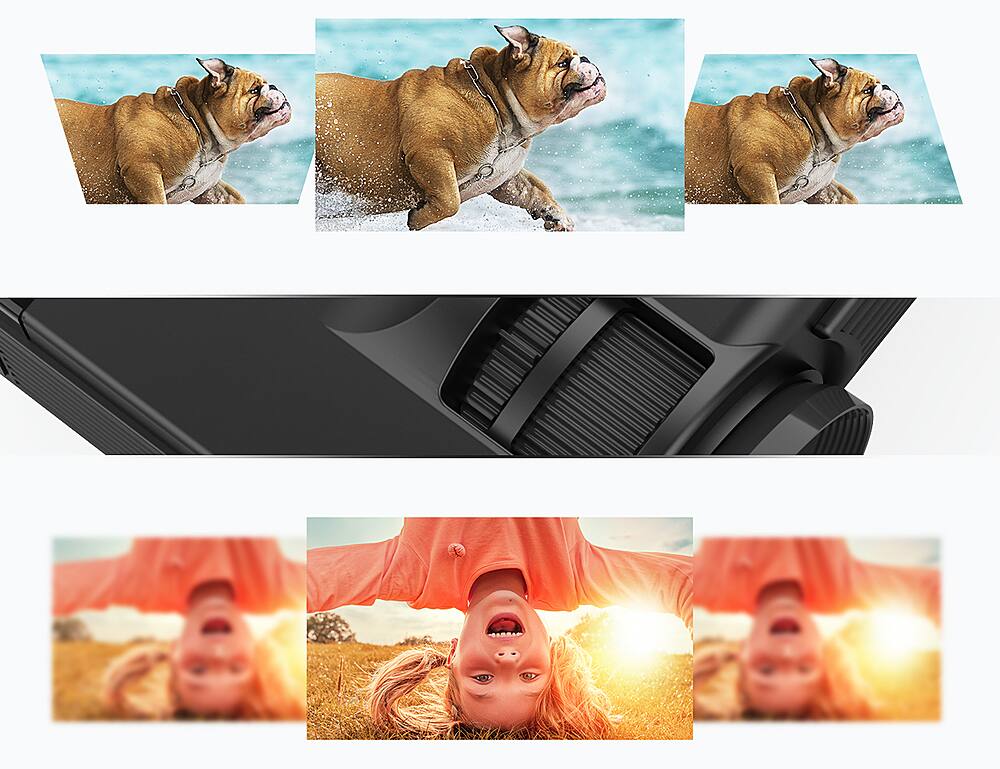
A:AnswerDo you mean the size of the image on the projector screen? Because you can't really change the size of it, it just allows you to re-focus it so it isn't blurry. I'm sure placing it far from the screen would reduce the image slightly but it's big enough to not need to put it closer like I have it below.