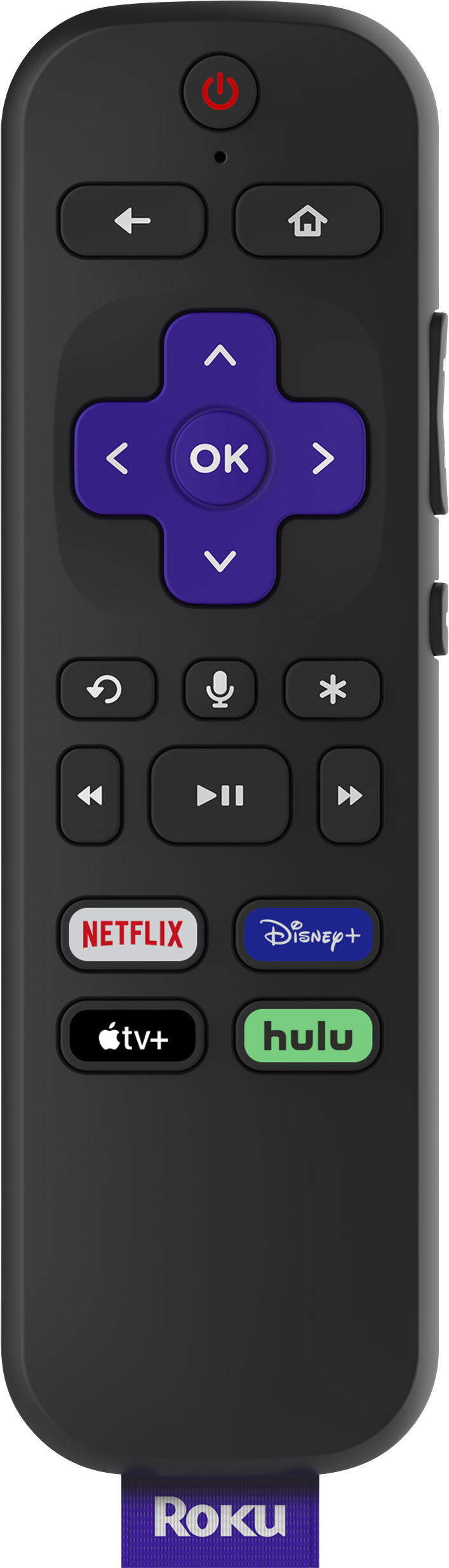
A:AnswerHello CatL! At this time, using voice commands to navigate through DirecTV Stream channels and menus is not supported and is best done using the Directional Pad on the remote. If you would like a way to explore the Voice Command functionality without purchasing a new remote, check out the free Roku Mobile App which has a digital remote feature that includes a Voice Command button. The Roku Mobile App can be downloaded for both Android and Apple devices at : https://www.roku.com/mobile-app
A:AnswerHi Jj! The Roku Voice remote is not compatible with a Roku 2 XD. However, the Roku Simple remote is compatible with a Roku 2 XD. In addition, the free Roku mobile app available for iOS and Android supports both remote control and voice search using a mobile device with the app installed.
A:AnswerHi, Chrissy! The Roku Voice remote is compatible with all Roku TV models, Roku audio products, and most recent Roku players. Unfortunately the Roku Voice Remote is not compatible with your non-smart Insignia TV. However you can always add a Roku player, Roku Streambar Pro or Roku Streambar to your Insignia TV. In regards to accessing local channels on Roku, there are several options. Channels like NewsON and Haystack News are must-haves if you want to watch live and local news. Additionally, be sure to browse the News & Weather category of the Roku Channel Store and look for a dedicated channel for your local affiliates. For regional sports networks, your best bet is to try a Live TV service like fuboTV, Hulu with Live TV, or Sling TV. For a monthly subscription fee, these channels offer access to various local sports channels throughout the country. Roku devices don’t have DVR functionality, but some streaming services on the Roku platform offer a cloud DVR, allowing you to record and watch your favorite movies and TV shows on-demand.
To browse or compare Roku players use this link: https://www.roku.com/products/players
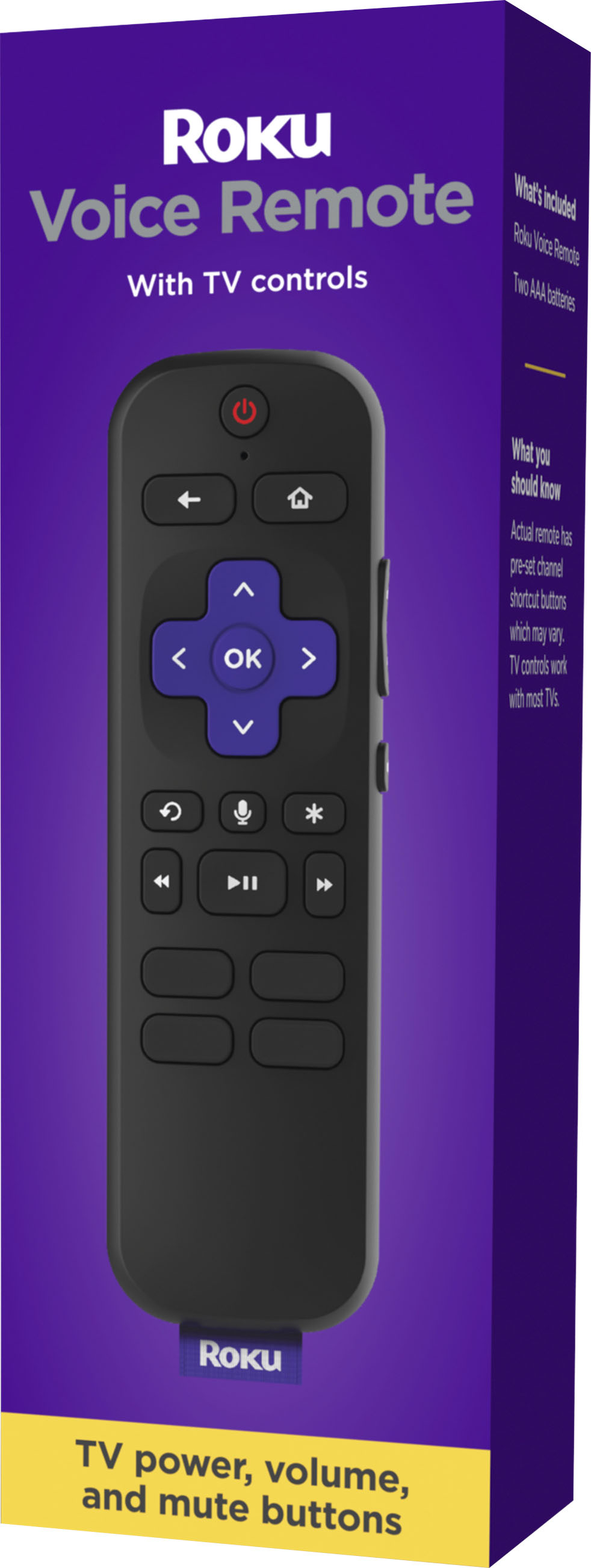
A:AnswerHi Mike, the Roku Voice Remote will work with any Roku TV. For more on how to pair your remote control with your Roku TV, check out https://support.roku.com/article/115013019828
A:AnswerHi, Les! Sorry to hear your experiencing issues with your Roku Remote volume. We released a software version that we believe will fix the TV control issue for customers who were affected by the previous update. Follow these instructions to manually update your software. Start by Navigating to Settings > Select System > Select System update > Select Check now. Confirm the dialogue box to proceed with download and and installation. Note that your Roku player will automatically download the latest software the next time when it checks for update. After the Roku player finishes restarting, if TV control has not been restored, setup your remote for TV control again by doing the following. Start by navigating to Settings > Select Remotes & devices > Select Remotes followed by your remote > Select Set up remote for TV control. For additional information on trouble shooting the Roku Remote visit the guide linked here https://support.roku.com/article/1500010864801