“How can I copy information from my current WD external hard drive to this one should I purchase it?”
Answer This Question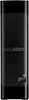
1-4 of 4 Answers
Here is how I would do it: I am assuming this is a Windows computer to which the old drive is attached 1. Power off computer 2. Remove any “unnecessary” USB devices attached to the computer - those devices will be reconnected when data migration (copy data from old drive to new drive) is complete. 3. Connect only the old drive (SOURCE, or the drive with the data on it) to the computer 4. Power on the computer 5. Once the computer is fully booted, and you have logged on, Open the “My Computer” or “This PC” application by double clicking the icon 6. Make a note of the drive letter assigned to the SOURCE drive 7. Connect the new drive (TARGET) to the computer. When you do this, a new icon should appear in the My Computer or This PC application window for the new drive - make note of the drive letter assigned new (TARGET) drive 8. Double click the icon associated with the old (SOURCE) drive - this will reveal the contents (data) of the old drive. If the drive appears empty, you have likely opened the wrong drive 9. Once you see the contents of the old drive, hold down the Ctrl key, and hit A - this will select all contents of the old drive 10. Once all the contents of the old drive are selected, click the RIGHT mouse button on the selected contents of old drive - this will bring up a menu - look for the option: Send To, and move the mouse cursor over it - do not click...yet 11. This will bring up another menu, and one of the options should contain the drive letter/designation for the new, or TARGET drive. Click that option. The data should now start COPYING from the old drive SOURCE to the new drive TARGET. This process could take several hours depending on how much data is stored on the SOURCE drive. A progress indicator should appear on the screen, with an estimate to how long the copy process will take. 12. When the copy process is completed, power off or shutdown the computer, and disconnect the old, or SOURCE drive. Data will remain on old drive. Do not erase or format drive until you verify that all data on the old drive has been successfully copied to the new drive 13. Reconnect any USB devices disconnected in step 2 - leave new drive connected. 14. Power on the computer 15. Once booted, and you have logged on, verify that the data has indeed been copied to the new drive. If so, the process is complete
Sorry, there was a problem. Please try again later.Hi, Please be informed that the WD Easystore drive is a plug and play device tested and designed for Windows and Mac computers for seamless operation. You may connect both the drives to PC and copy-paste or drag and drop the required files. Need Help? Please see our "'Contact Us" page for information.
Sorry, there was a problem. Please try again later.I was unable to do exactly that as I bought a larger model. Since the data on the hard drive I was backing up was still intact, I removed the backup profile, created a new profile with the new drive and let it run overnight. I verified the data was there when it was done and then wiped the old backup drive. If your original data is missing, you’d need to restore it. Not sure if you can restore from one backup to the other...
Sorry, there was a problem. Please try again later.If you don't know how to do a simple drag and drop operation, you shouldn't be buying any external drives.
Sorry, there was a problem. Please try again later.