Early Black Friday DealsNew Doorbusters every Friday.Shop now

Skip to content
Gift Ideas
26 Cypress St
Williston, VT 05495
Opens at 9 am
Find Another Store
Main Content

Questions & Answers

Page Showing 1-10 of 10 questions
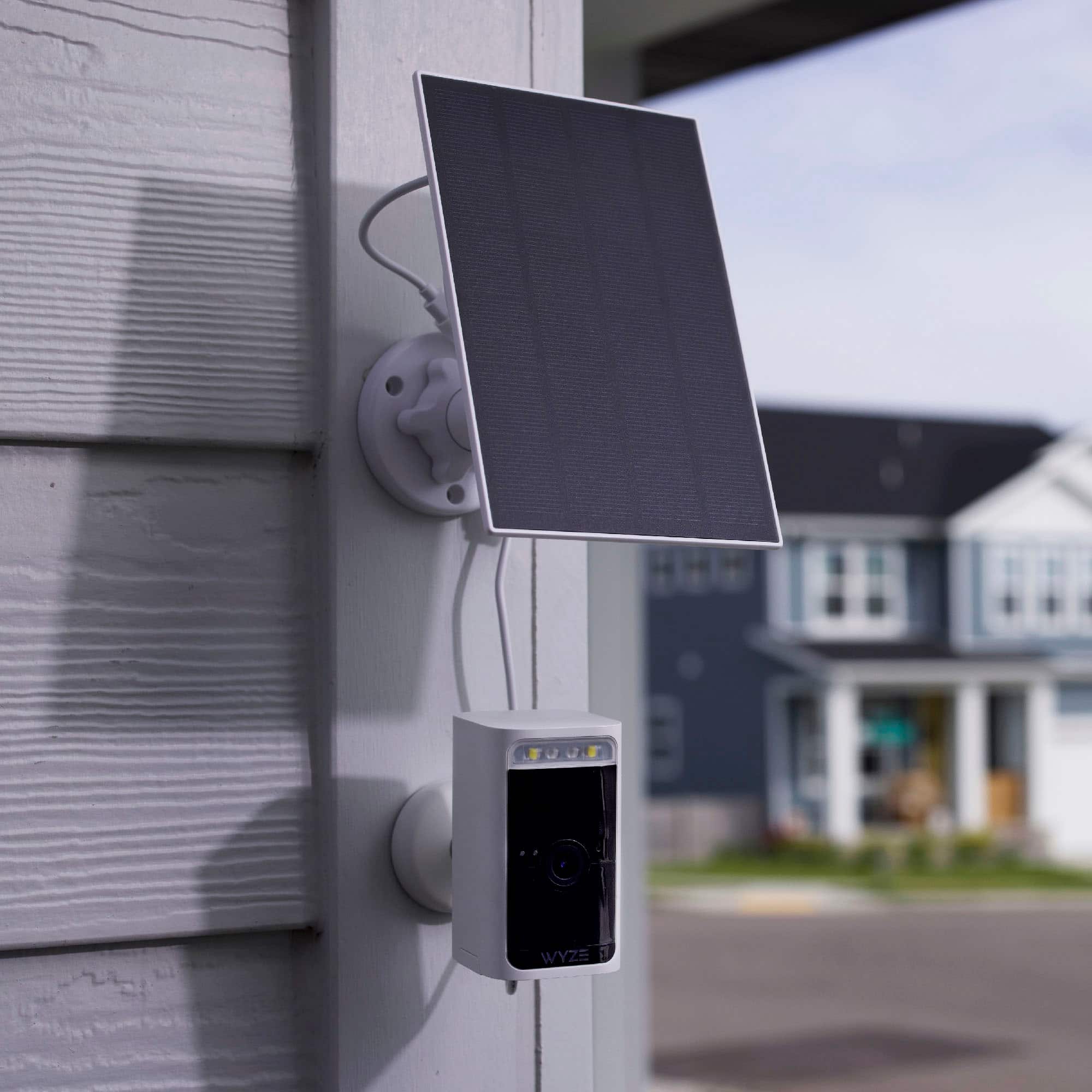
  • QuestionCan this camera be used with a solar panel?

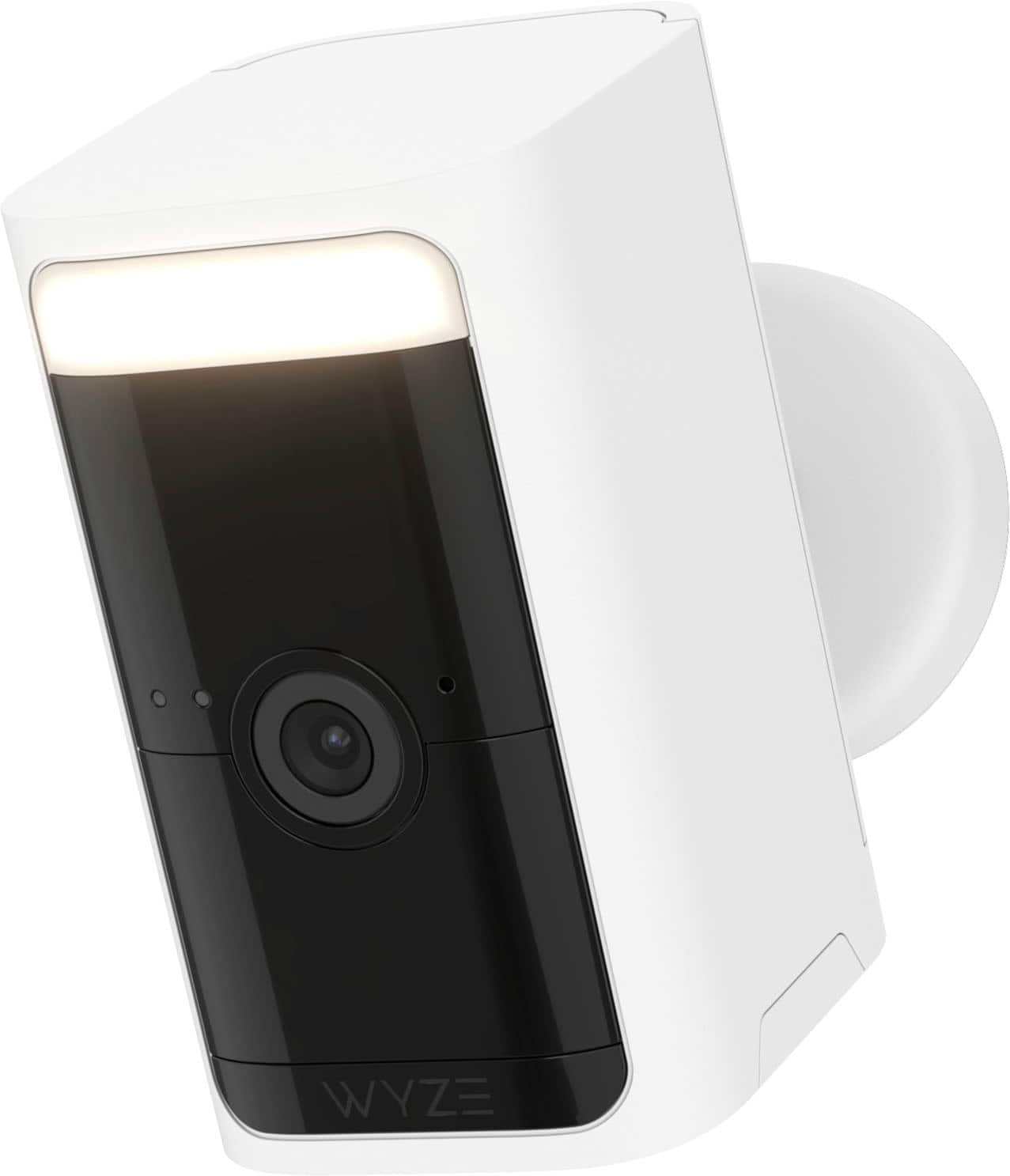
    • Answer Yes, you can connect this camera to a Wyze Solar Panel for continuous charging.
    This question and answer was generated by AI based on customer and product data.
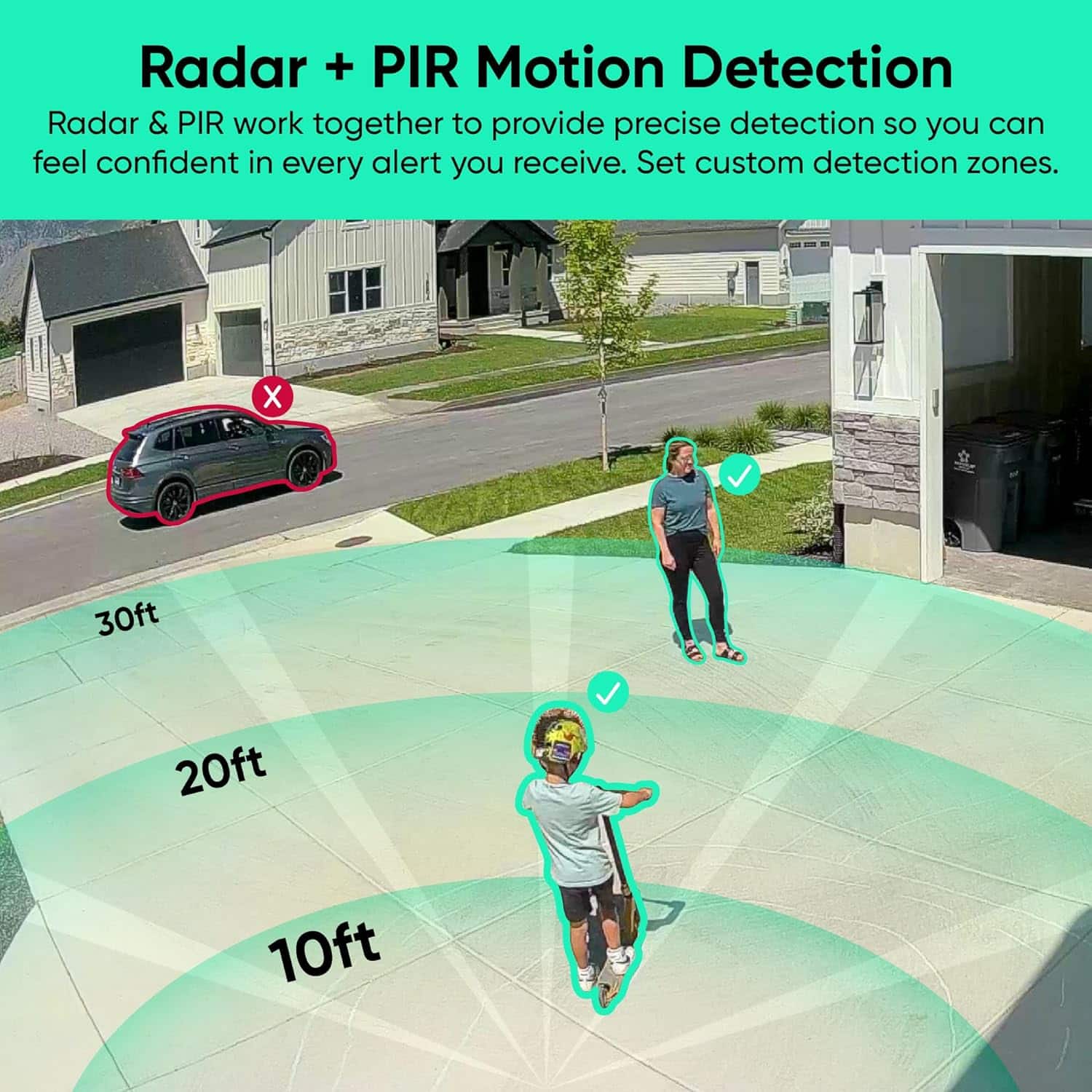
  • QuestionWhat is the maximum range for motion detection with this camera?

    • Answer This camera has a motion detection range of up to 100 feet.
    This question and answer was generated by AI based on customer and product data.
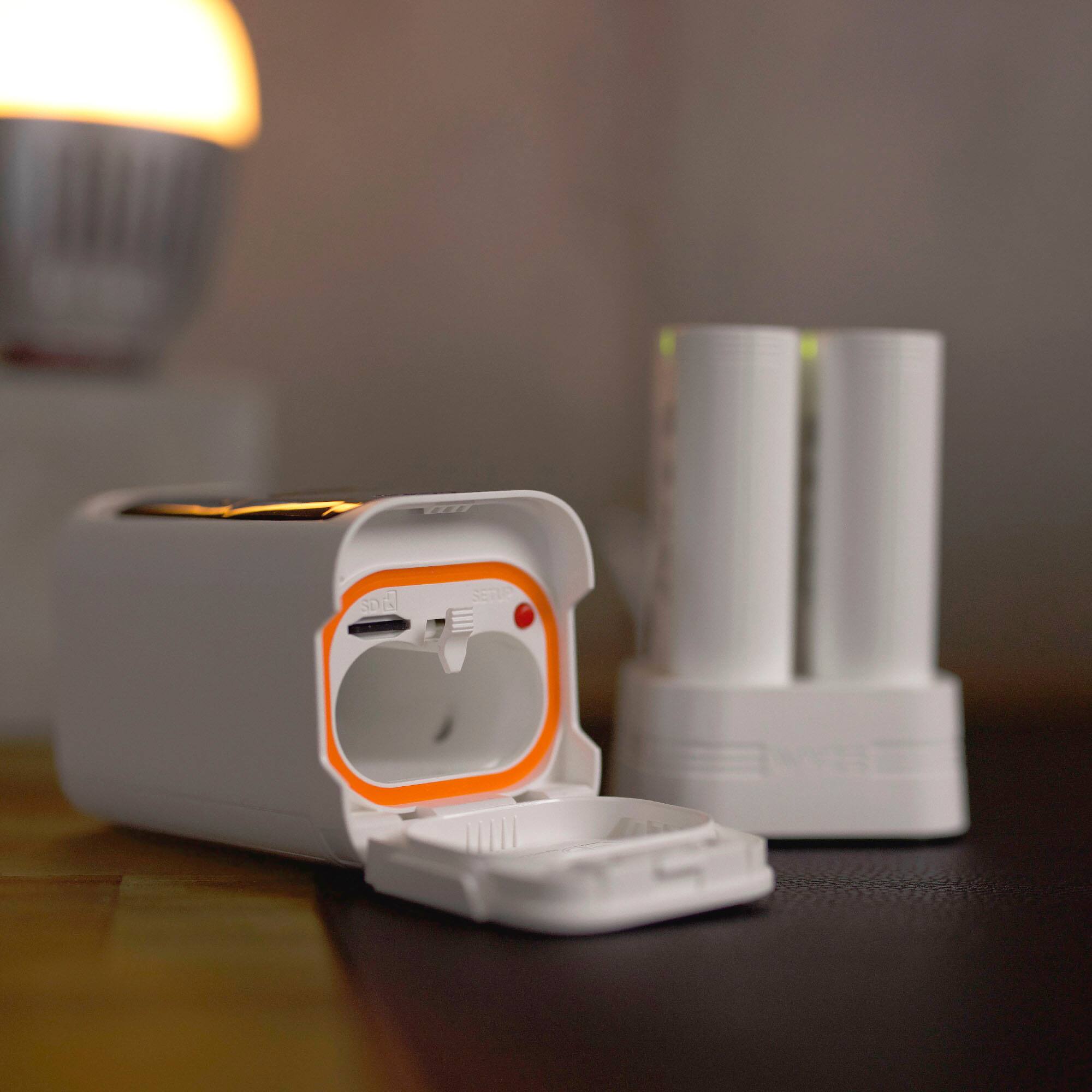
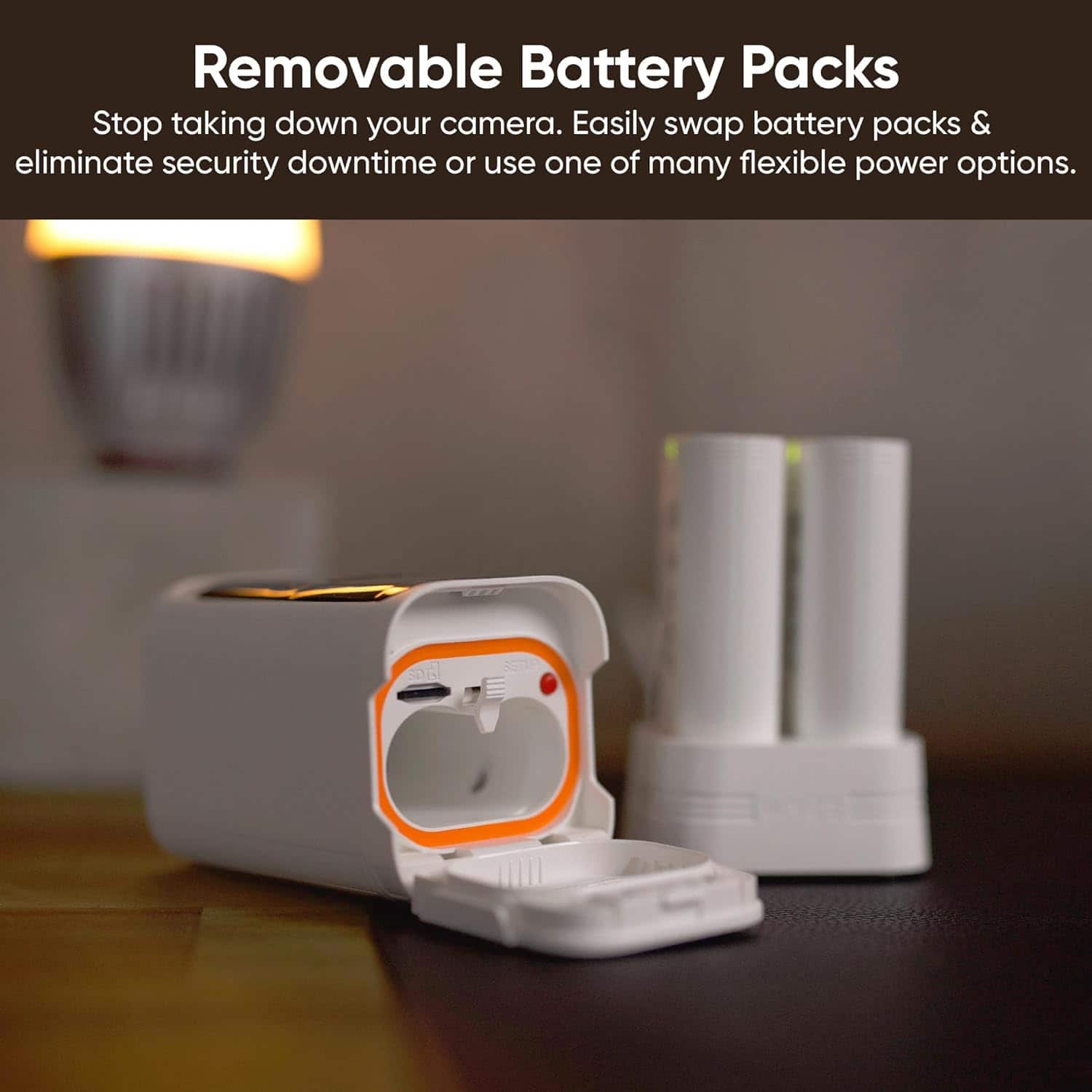
  • QuestionHow long does the battery last on this camera?

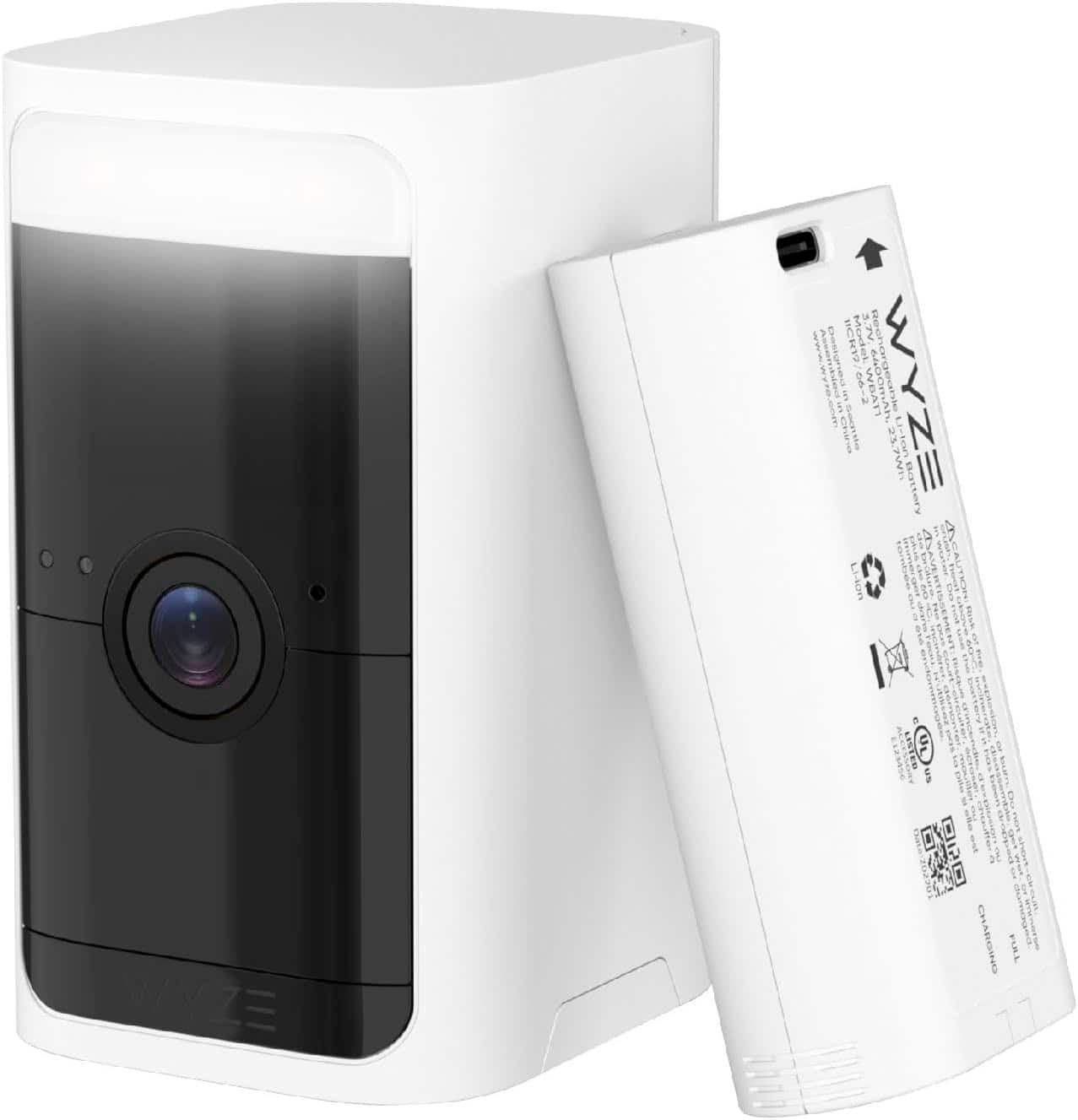
    • Answer The camera has a battery life of up to 6 months.
    This question and answer was generated by AI based on customer and product data.
  • QuestionWhat is the field of view for this camera?

    • Answer This camera has a 135° field of view.
    This question and answer was generated by AI based on customer and product data.
  • QuestionDoes this security camera require a hub?

    • Answer No, this camera does not require a hub for setup or use.
    This question and answer was generated by AI based on customer and product data.
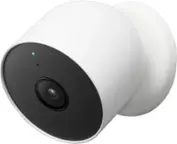
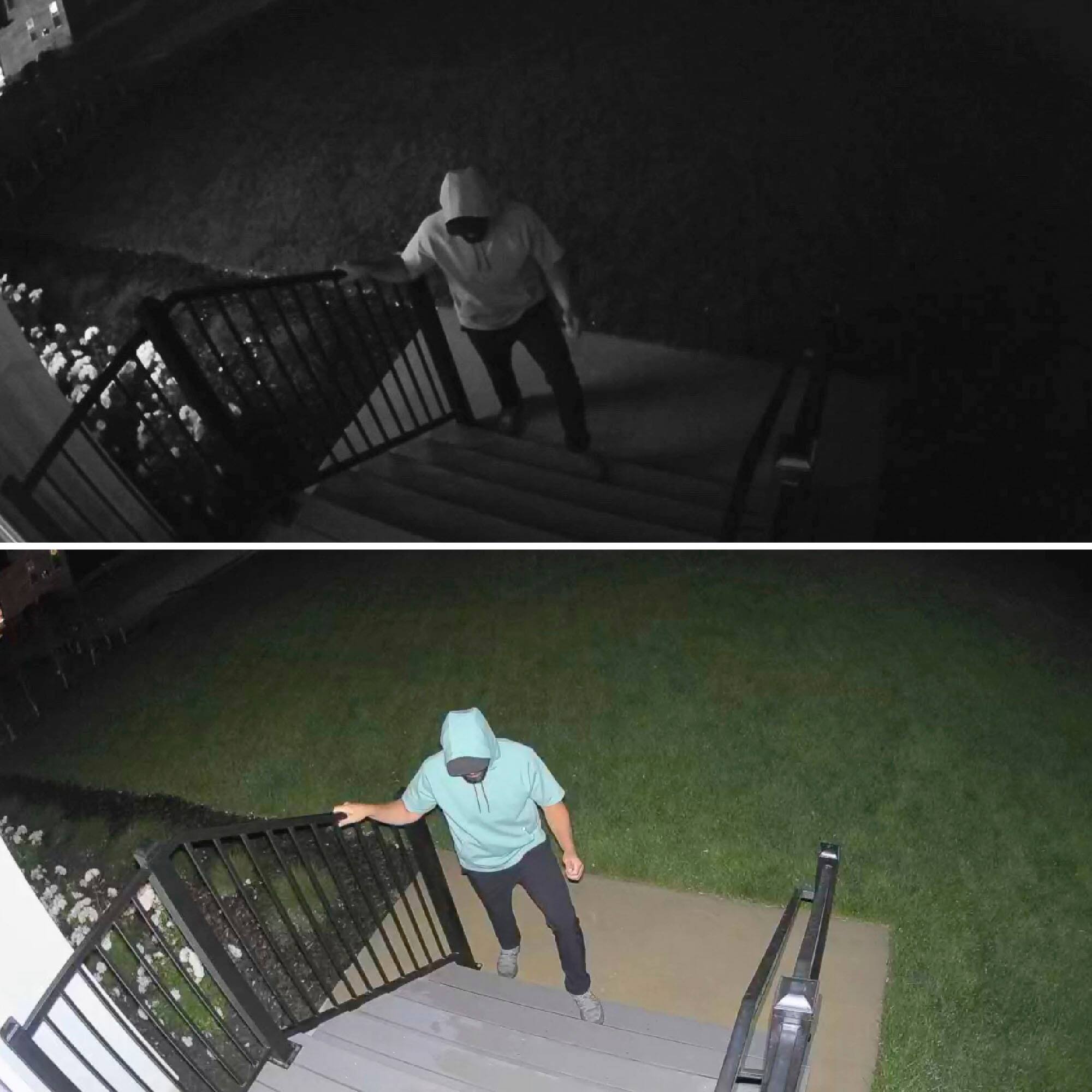
  • QuestionWhat type of night vision does this camera have?

    • Answer This camera features color night vision.
    This question and answer was generated by AI based on customer and product data.
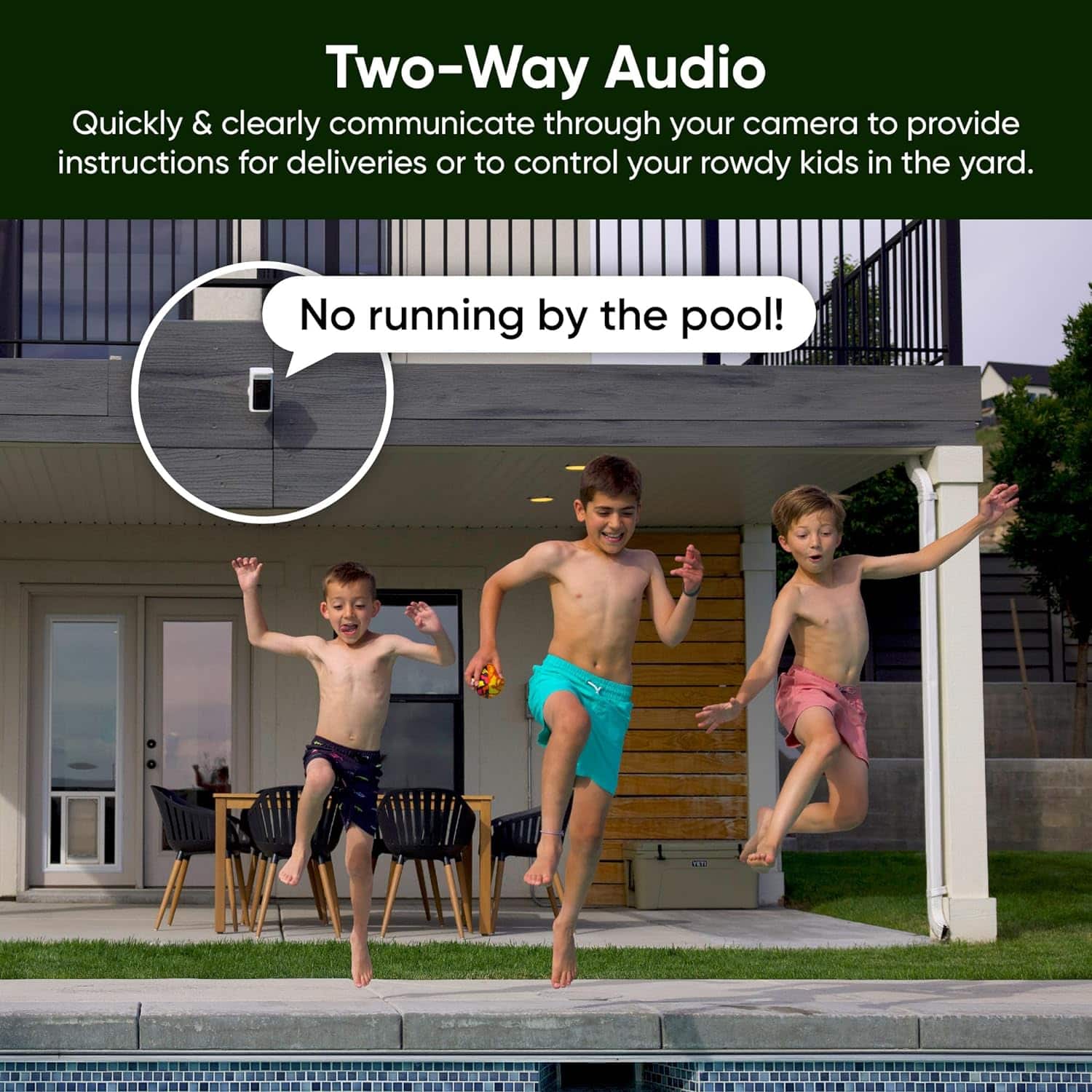
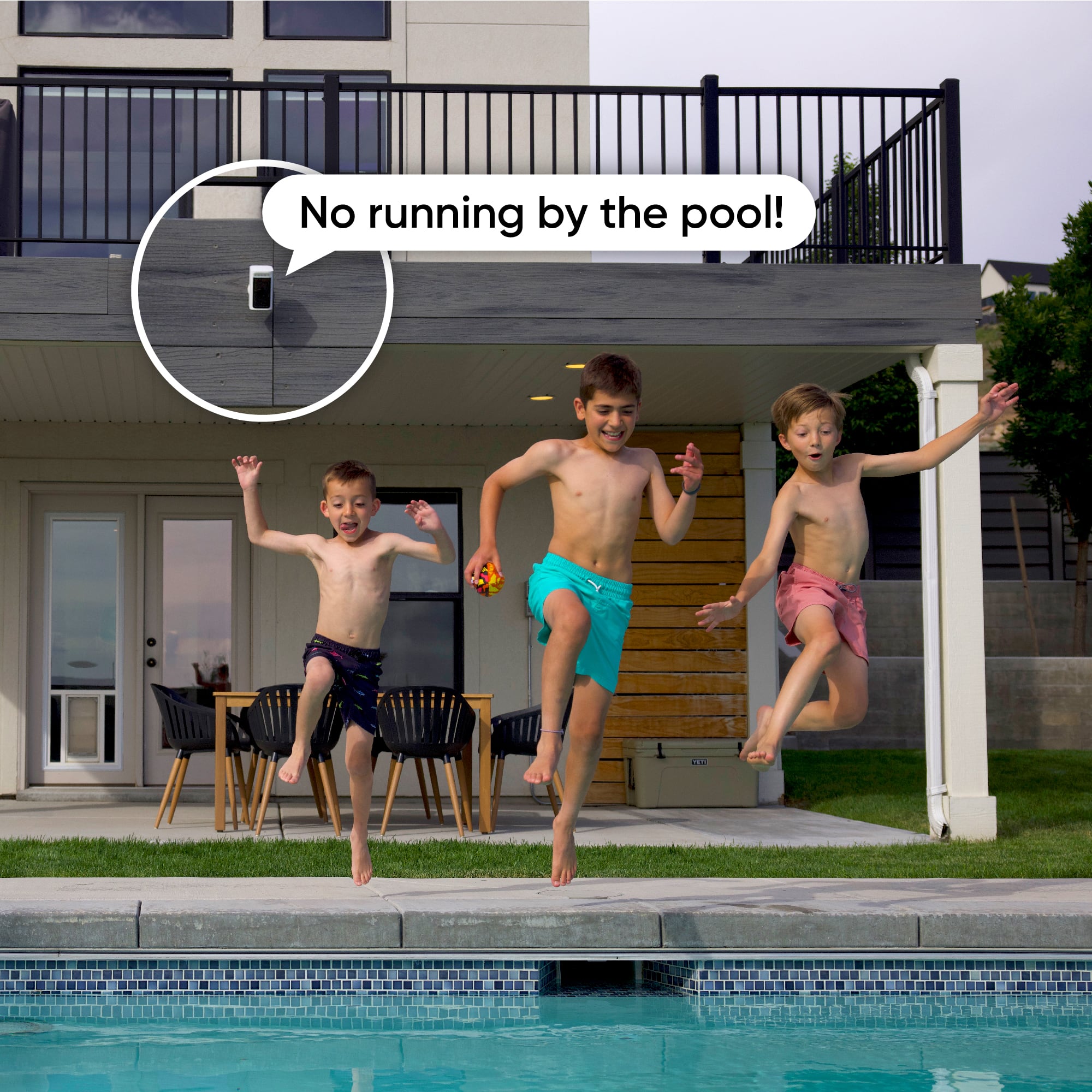
  • QuestionCan I speak to someone through the camera?

    • Answer Yes, the camera has two-way audio, allowing you to communicate with anyone on the other end.
    This question and answer was generated by AI based on customer and product data.
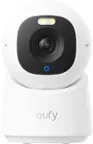
  • QuestionCan you turn the camera through the app?

    Asked by 360.

    • Answer Hi there! Yes, you can control the Wyze Battery Cam Pro through the Wyze app using Automations. Here's how you can turn it on or off: Using Automations to Turn On/Off the Camera 1. Open the Wyze app. 2. Tap on the Home tab. 3. Tap the plus sign (+) in the top right corner. 4. Select Automation > Shortcut. 5. Add a name for the shortcut (e.g., "Turn Camera On" or "Turn Camera Off"). 6. Tap Add Action and select your Wyze Battery Cam Pro from the list. 7. Choose the action you want (e.g., Turn On or Turn Off). 8. Tap Save to finalize the shortcut. This allows you to control the camera with a single tap in the app. You can also set up schedules or triggers to automate turning the camera on or off at specific times or under certain conditions.

      Answered by Wyze Labs

  • QuestionWhat is the return policy in the event I'm not happy with it? Is there a restock fee? Can I return it to the store?

    Asked by Anonymous.

    • Answer Thank you for giving us a chance, we are sorry to hear Wyze Battery Cam Pro was giving you so much trouble. You can check our return policy here - https://support.wyze.com/hc/en-us/articles/360047138971-What-is-your-return-policy If you choose to try our products again in the future and experience any issues please reach out to our Wizards team (https://support.wyze.com/) so we may help diagnose the issue you are experiencing. Thank you for your feedback and have a great day!

      Answered by Wyze Labs