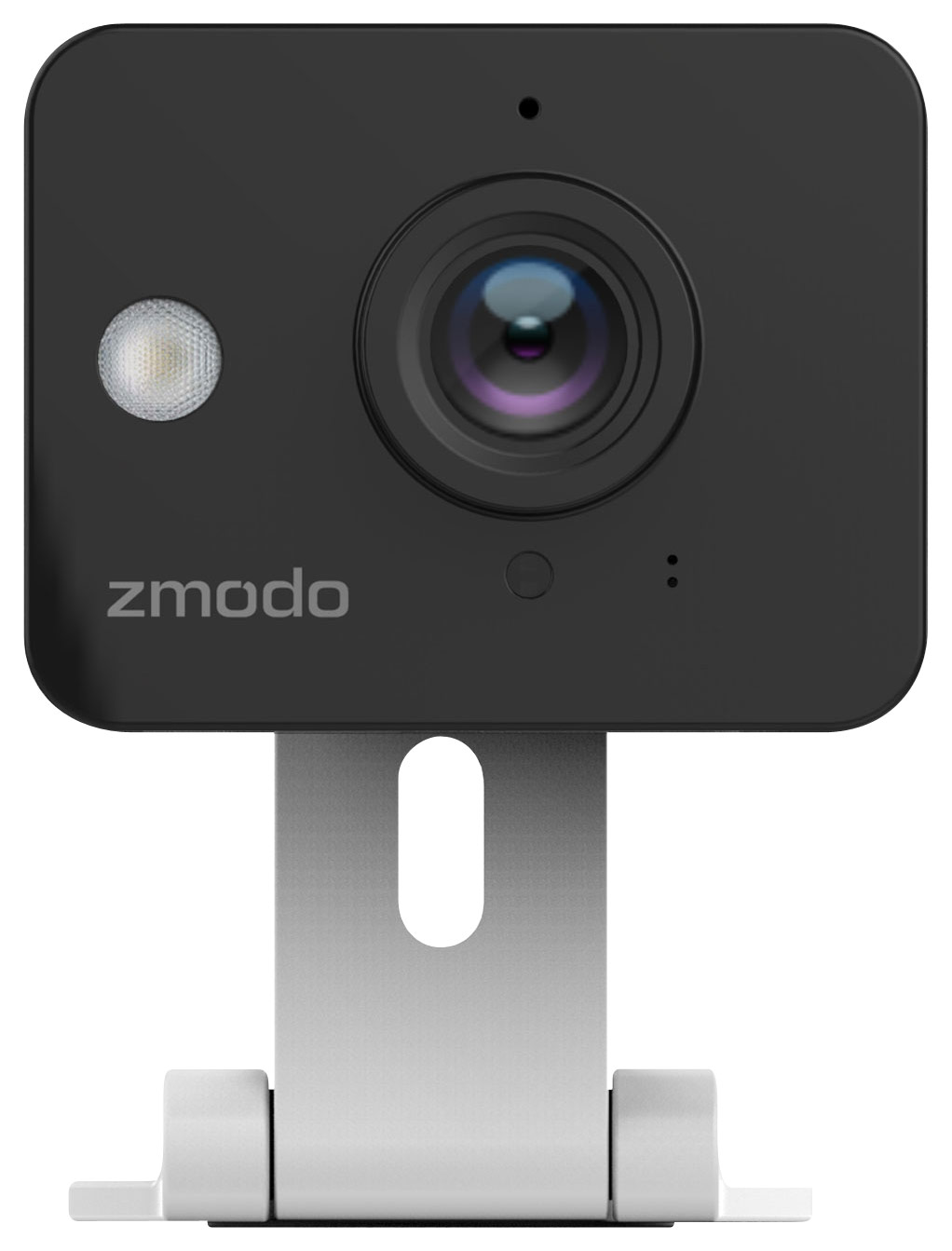
A:AnswerYou can add multiple cameras and system to one account. If you are haveing trouble. Please feel free to contact our live tech support at 217-903-5037 Monday - Friday 8 a.m. to 8 p.m. CT
A:AnswerYes, To adjust your setting in the app go to device settings, mode settings, and change the status to "Home". There you can adjust your settings accordingly.
A:AnswerFor security reasons, there is no way to physically reset the username and password for the camera. Please contact our technical support at 217-903-5037 Mon - Fri 8:00AM -8:00PM Central Time. They will need the ID number from your camera.
A:AnswerThis will definitely depend on your usage but I wouldn't recommend using this device without a home internet connection with a large allotment of data.
A:AnswerThis camera will only work with a 2.4GHz network. Please make sure that the network names are clearly identified so you can connect to the 2.4GHz one.
A:AnswerNo code is needed to connect this camera. You will just need to enter your WiFi network name (SSID) and your network password. If you have other questions about this, please call our support team at 217-903-5037 Monday through Friday from 8 a.m. to 8 p.m. Central time.
A:AnswerThere are detailed directions on connection your phone to the camera temporarily before you train your camera to be on your network. As long as your router is set-up with a wpa key it's pretty straight forward.
A:AnswerThe device itself captures still frames when motion or sound is detected, usually a series of 5. The live feed is what is streaming so if you don't check / view the live feed you may be able to accomplish what you want. Keep in mind though, there is no external storage so if you don't sign up for their cloud storage monthly, they only temporarily store your captures for 24 hours. I've taken screenshots off my phone when I've wanted to save something without issue.