Customer Ratings & Reviews
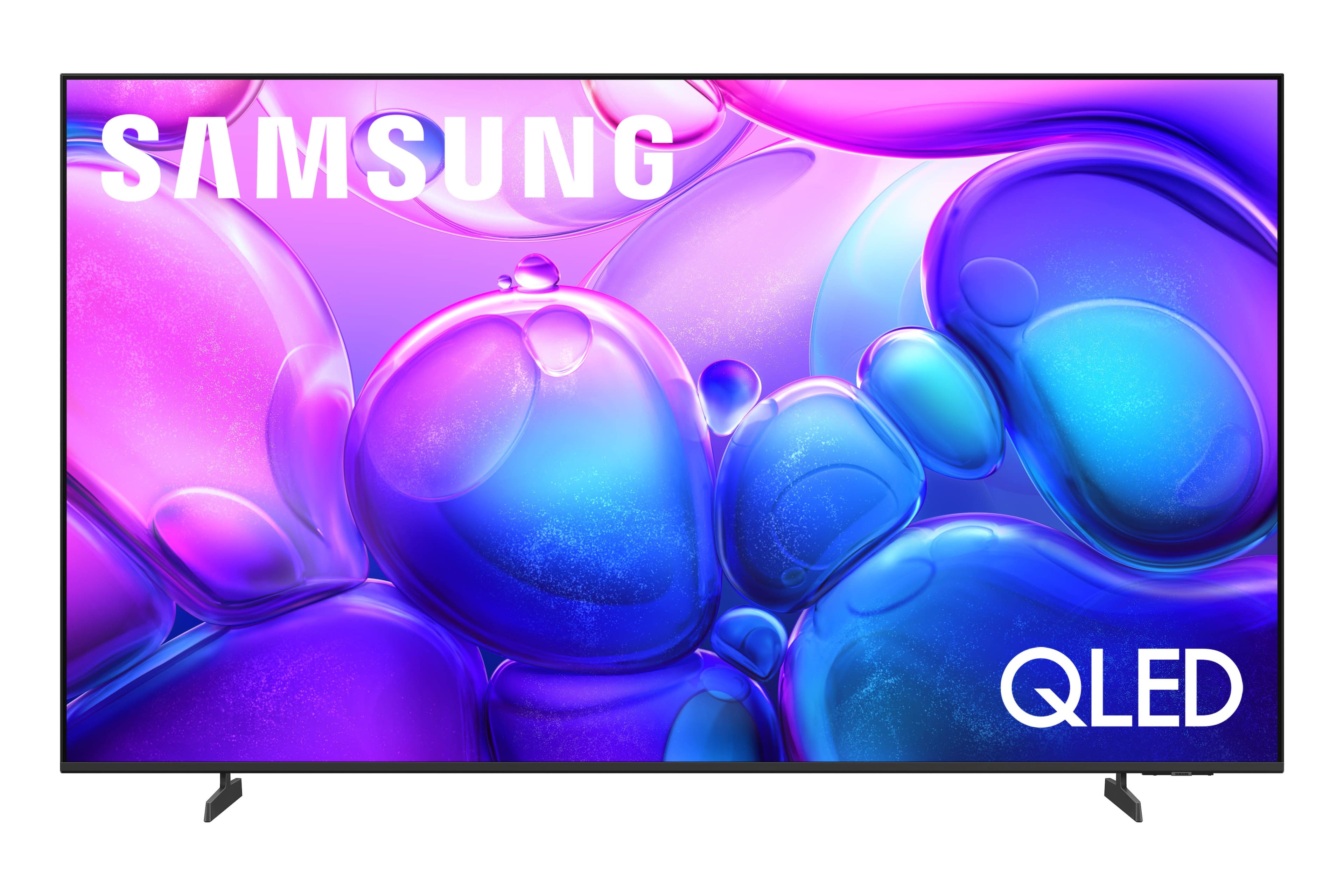
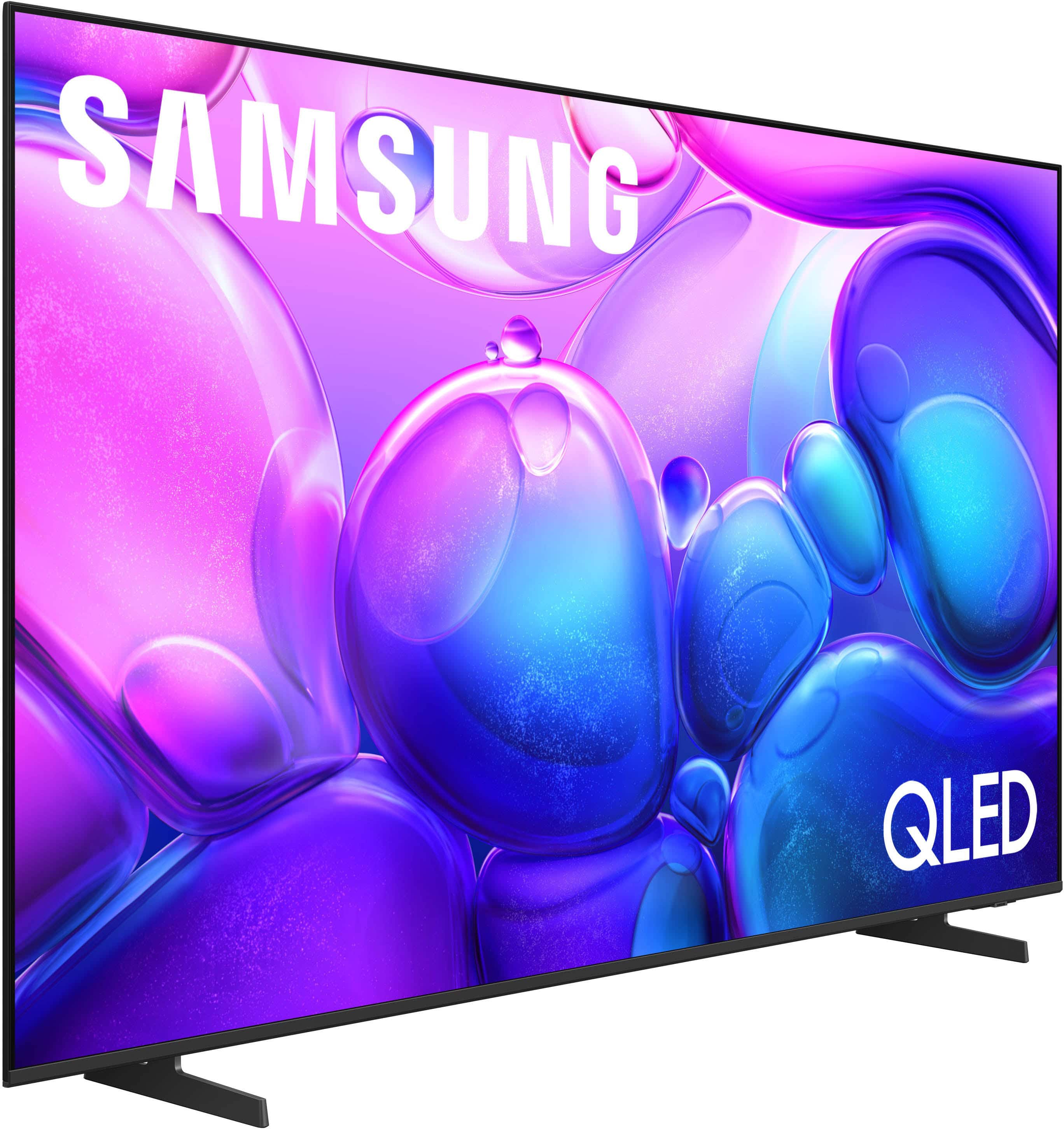
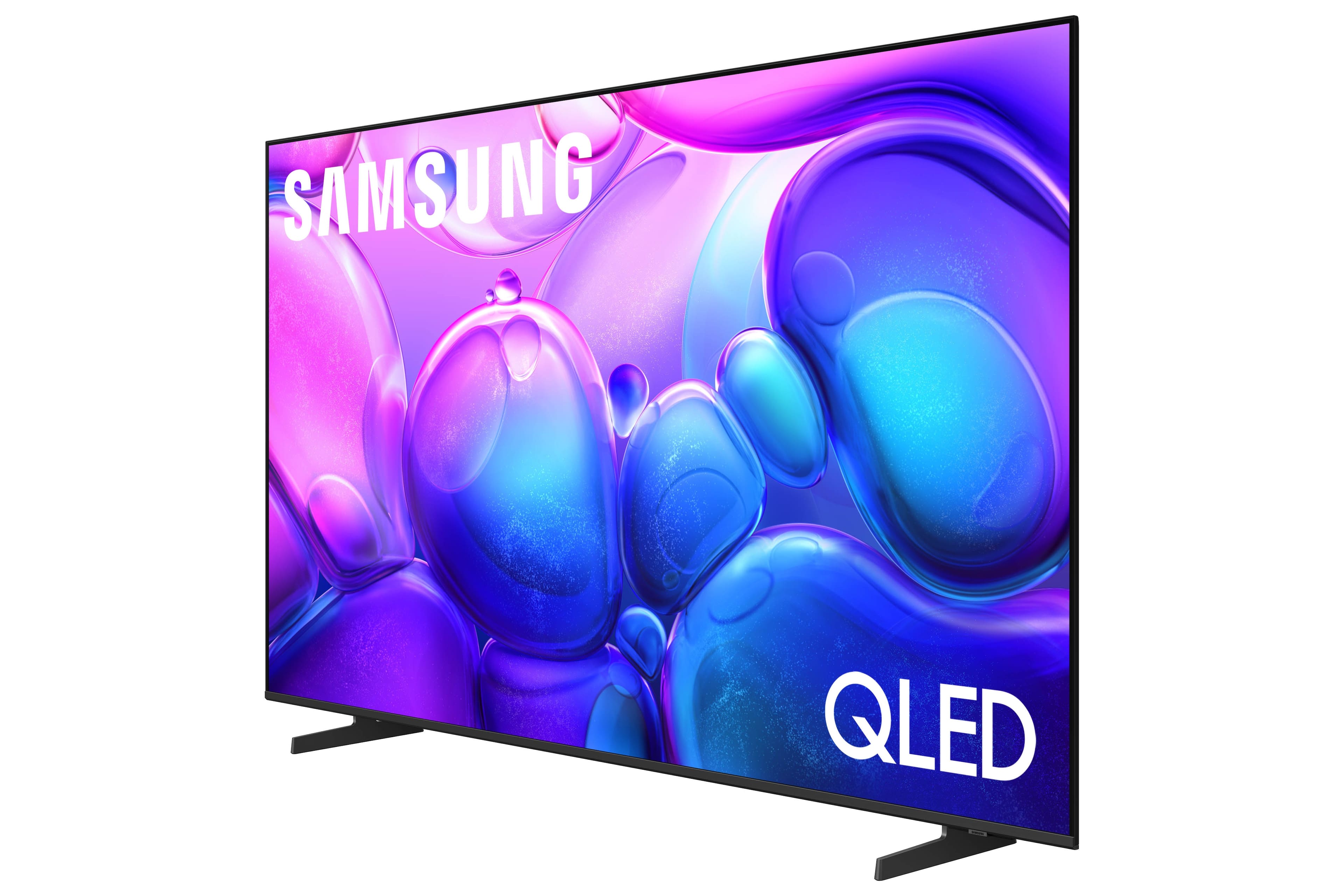



- Model:
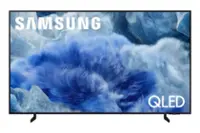
- QN75Q6FAAFXZA
- SKU:
- 10844519
Rating by feature
- Picture Quality
Rating 4.8 out of 5 stars
- Sound Quality
Rating 4.7 out of 5 stars
- Brightness
Rating 4.8 out of 5 stars
Great job
Posted .This reviewer received promo considerations or sweepstakes entry for writing a review.Love my tv. They did a great job putting it together for me
I would recommend this to a friend75 inch tv
Posted .This reviewer received promo considerations or sweepstakes entry for writing a review.satisfied with quality with easy connection and instructions
I would recommend this to a friendExcellent Samsung HDTV
Posted .This reviewer received promo considerations or sweepstakes entry for writing a review.Just love Samsung, I have other 4 year old 55 Samsung is still running.
I would recommend this to a friendGreat Purchase
Posted .This reviewer received promo considerations or sweepstakes entry for writing a review.One of the best TVs you can get at this price point!
I would recommend this to a friendGreat price for quality
Posted .This reviewer received promo considerations or sweepstakes entry for writing a review.Bought for my mother in law as gift and she loved it
I would recommend this to a friendIt’s good
Posted .This reviewer received promo considerations or sweepstakes entry for writing a review.Good tv for the price. I just wish I could move it around easier
I would recommend this to a friendReview
Posted .This reviewer received promo considerations or sweepstakes entry for writing a review.Easy to navigate. Seems user friendly. Enjoying this tv.
I would recommend this to a friendPoor Delivery
Posted .This reviewer received promo considerations or sweepstakes entry for writing a review.I have ordered this Tv and delivered a damaged tv and got a replacement one that is damaged as well
No, I would not recommend this to a friendBrand response from Samsung
Posted .Kumar,
We appreciate you sharing your delivery experience and are sorry to hear that your TV arrived damaged. For issues related to shipping or delivery, we recommend reaching out to Best Buy directly so they can assist in resolving the situation.
Once your issue is resolved, if you have any questions about setup, usage, or features, please don’t hesitate to contact Samsung Support at 1-800-SAMSUNG (8AM – 9PM EST Mon – Fri, 8AM – 6PM Sat – Sun)or connect with a LiveChat agent via the ‘Support’ link on our website.
~ Samsung Specialist
Disappointed with this AI QLED model
Posted .This reviewer received promo considerations or sweepstakes entry for writing a review.Disappointed with this AI QLED model. My old Samsung 70' Crystal UHD is more better that this AI QLED version.
No, I would not recommend this to a friendBrand response from Samsung
Posted .HOSEA,
We appreciate your feedback on the picture quality of Samsung’s Q6F TV. If the image doesn’t quite match your preferences, there are several adjustments you can make to better suit your viewing environment and content type.
First, please ensure your TV is running the latest firmware, as updates may include important picture quality enhancements. Go to: Home > Left directional button > Settings > Support > Software Update > Update Now
To explore picture mode options, navigate to: Home > Left directional button > Settings > All Settings > Picture > Picture Mode. Options include:
• Standard – Ideal for general viewing
• Dynamic – Brighter and more vibrant for well-lit spaces
• Eco – Optimized for energy efficiency
• Movie – Best for viewing in low light
• Filmmaker Mode – Preserves the content creator’s intent and disables motion smoothing for supported content
You can further customize your image by going to: Settings > All Settings > Picture > Expert Settings, where you can adjust Brightness, Contrast, Color Tone, Sharpness, Contrast Enhancer and more.
If you’d like help finding the best picture settings for your preferences, please don’t hesitate to contact Samsung Support at 1-800-SAMSUNG, available 8AM – 12AM EST, 7 days a week. You can also LiveChat with an agent or explore additional resources on our website by clicking the ‘Support’ link.
~ Samsung Specialist