Customer Ratings & Reviews
- Model:
- AW2725QF
- SKU:
- 12327464
Rating by feature
- Display Quality
Rating 4.4 out of 5 stars
- Ease of Use
Rating 4.9 out of 5 stars
- Features
Rating 4.8 out of 5 stars

Dual Purpose Technological Beast
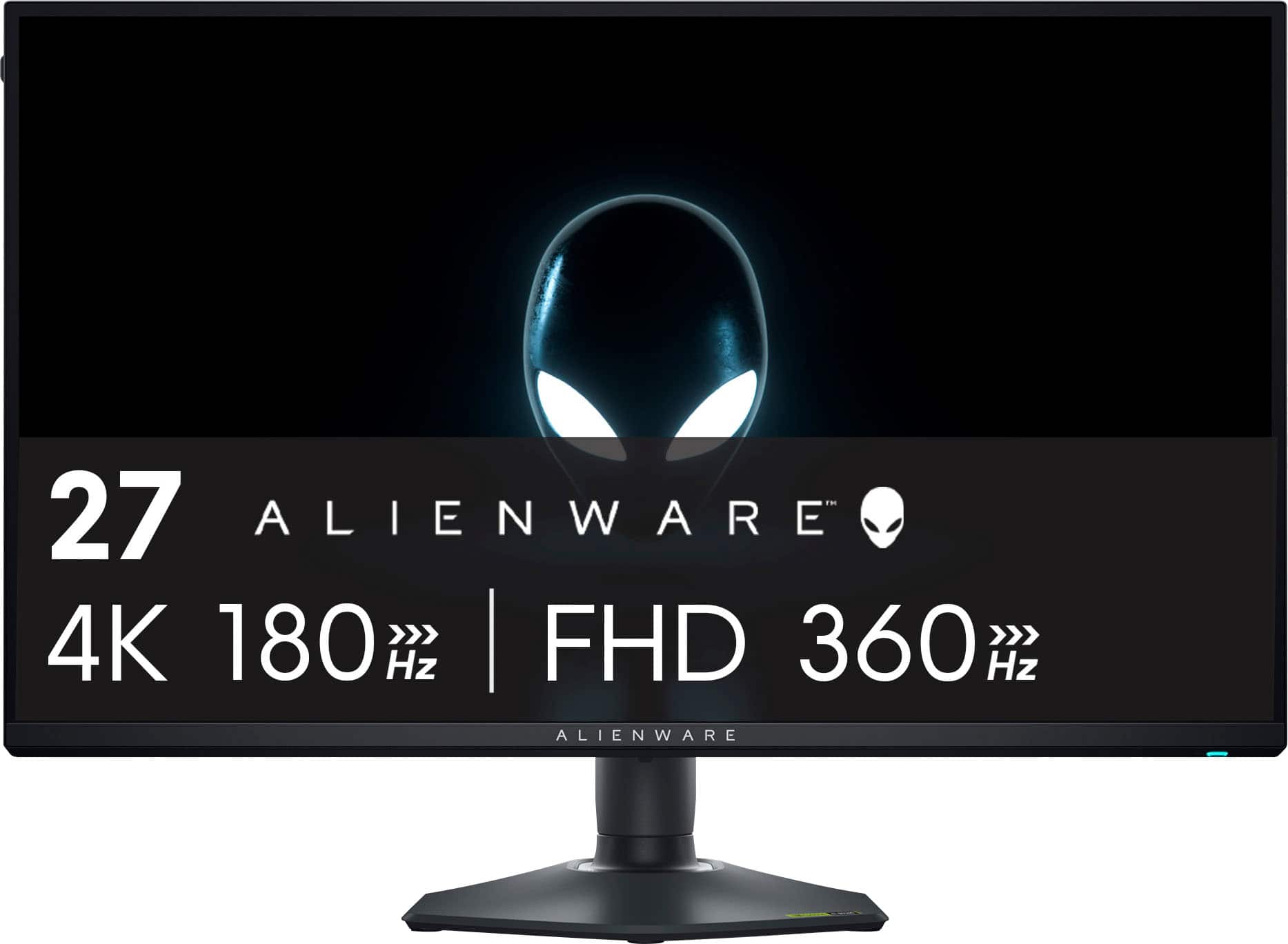
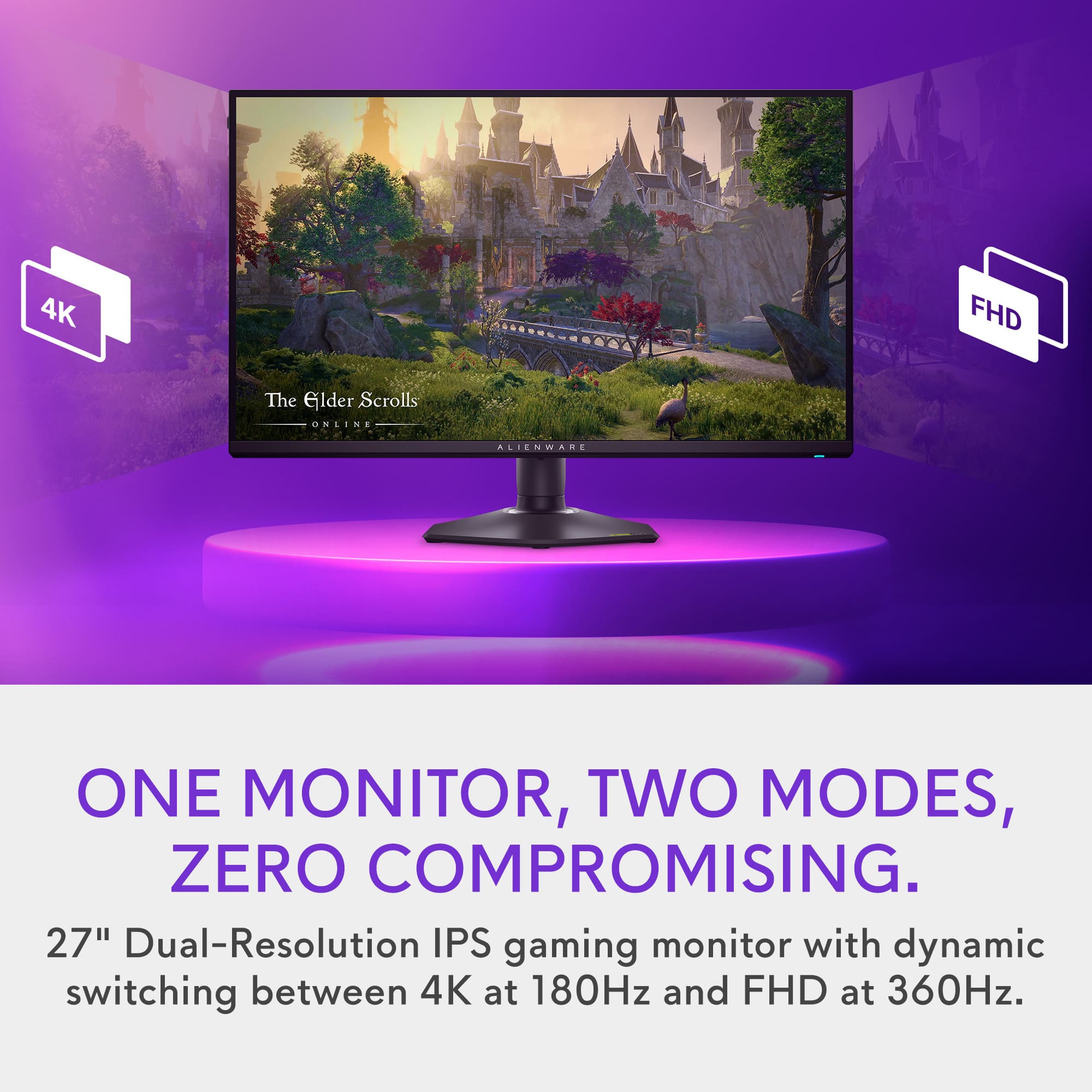
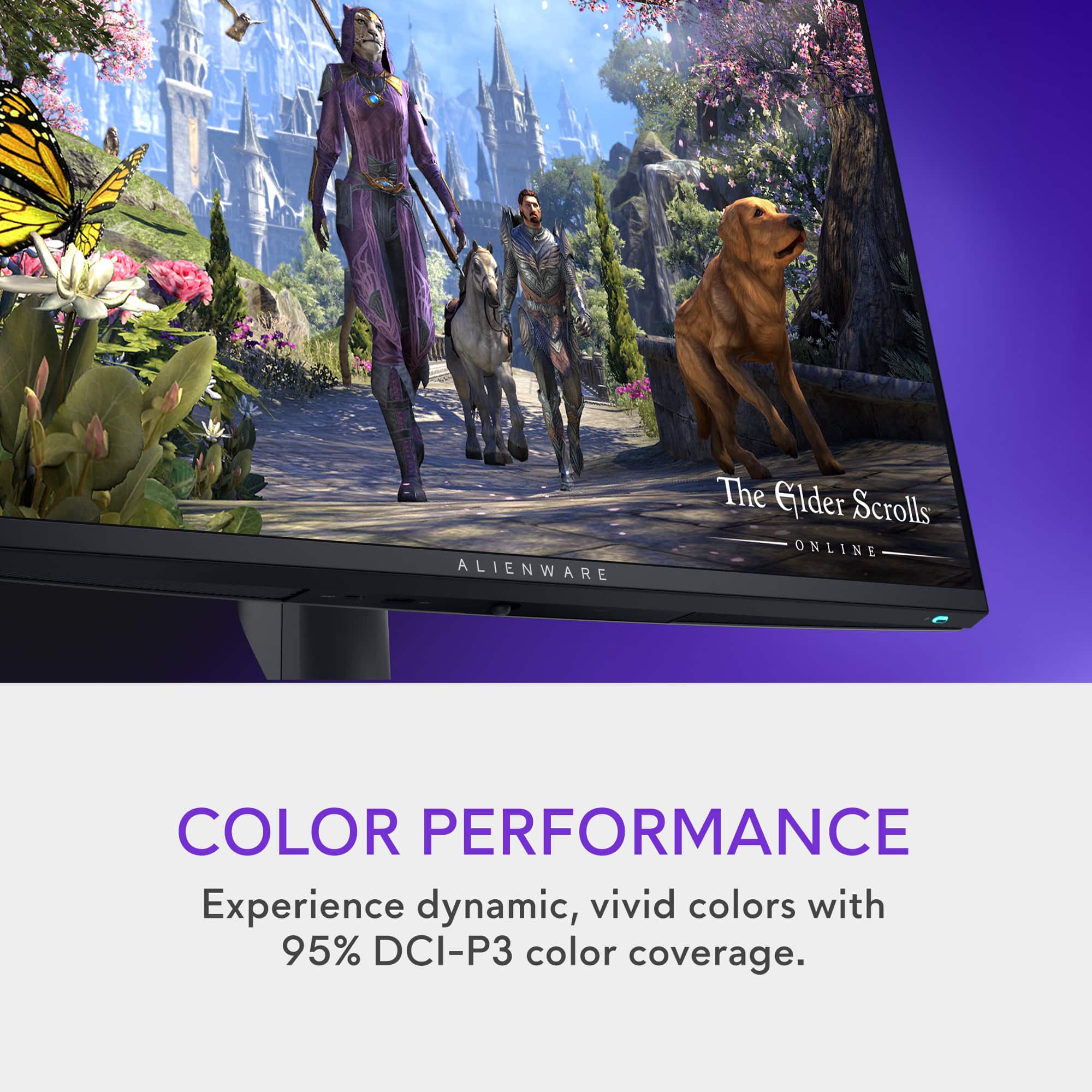
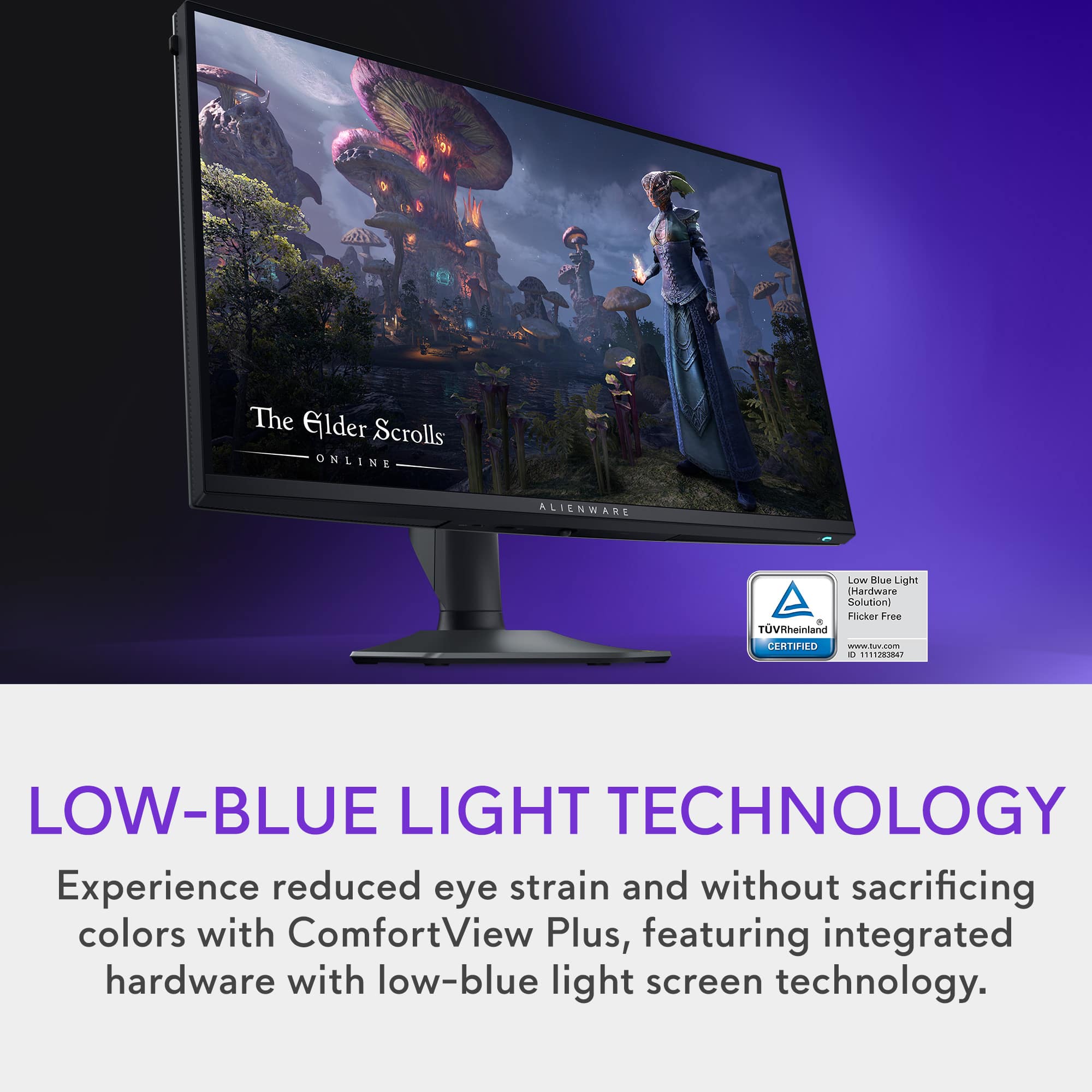
|Posted .This reviewer received promo considerations or sweepstakes entry for writing a review.The Alienware AW2725QF 27" IPS LED 4K UHD 180Hz monitor is a beautiful monitor that brings dual resolution in either 4k at 180 Hz or 1080P at 360 Hz. It has a side headset pull out mount as well! This monitor is an IPS or In-Plane Switching panel that uses liquid crystals to display its image. This is the best panel you can get with out going to OLED in my opinion. This type of panel allows for wider viewing angles and brings the deep rich colors to life. This is because of the DCPI 95% color accuracy certification is has. It even has Dolby Vision to bring games and viewing content to life! When you first hook up the monitor you are greeting with a very stylish look that Alienware is known for. The monitor fades away s the rich screen colors pop out. I had to tweak the settings to get to the 180 Hz at 4K because it defaults at 160Hz. This can be achieved in the menu on the monitor. I paired this with a 4080 Super to brink out the beautiful 4K UHD resolution and all them amazing frames. It was buttery smooth in Cyberpunk, Call of Duty and Witcher 3. The screen showed no issues handling the high frames and even managed the HDR colors very well. In my gaming room its very dark so the true blacks were near perfect with minimal edge light bleed or washing of the pure black ( so not much greying from edge lights). Gaming is where this monitor excels, and the dual purpose works very well for eSports titles such as APEX and CSGO. Those titles had me maxing out my frames and this monitor looked phenomenal in 1080p as well. Overall if you're in the market for the best of both worlds in a gaming monitor, that has low latency which was 1ms or less then this is the monitor for you.
I would recommend this to a friendI'm happy I upgraded
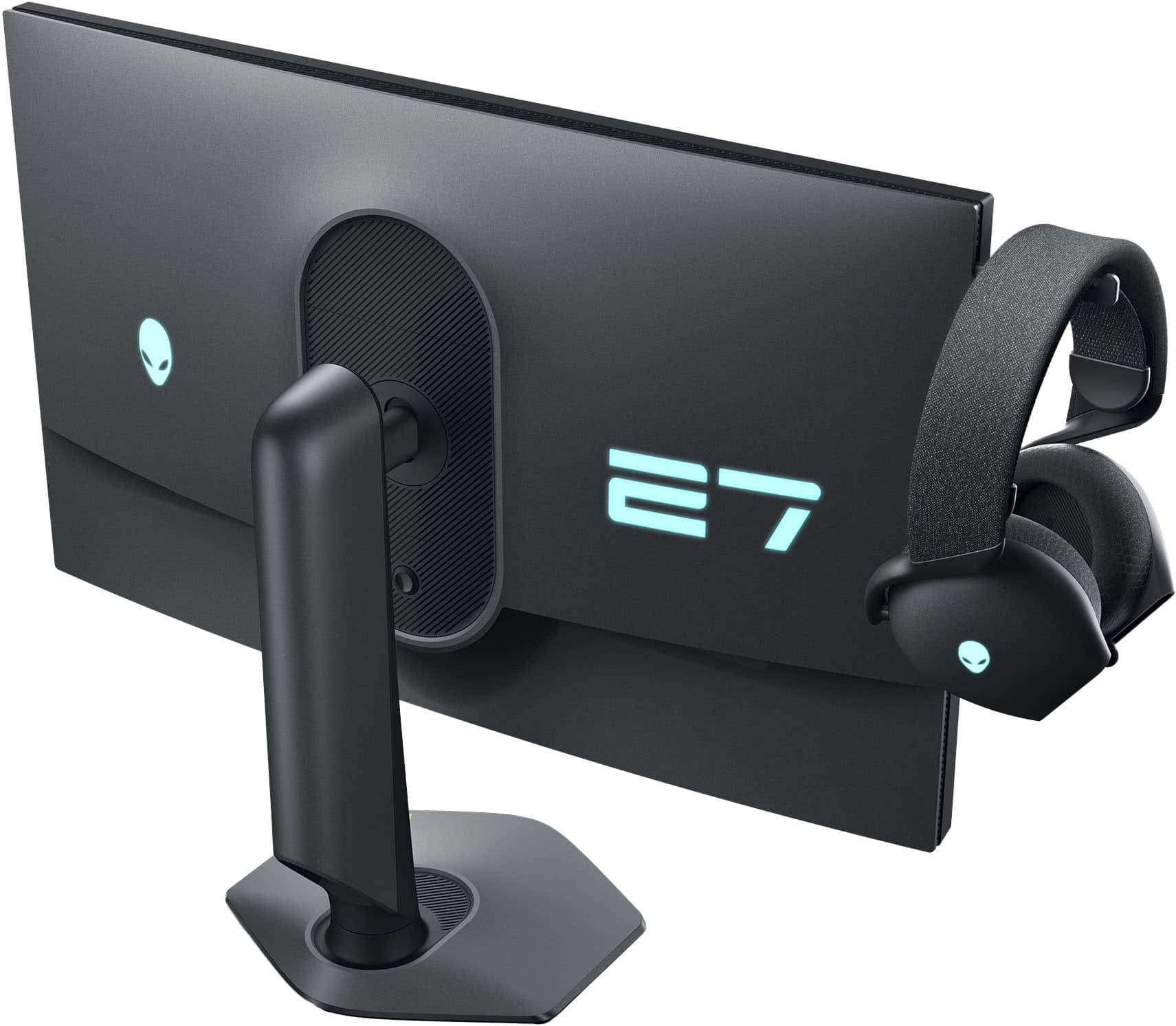
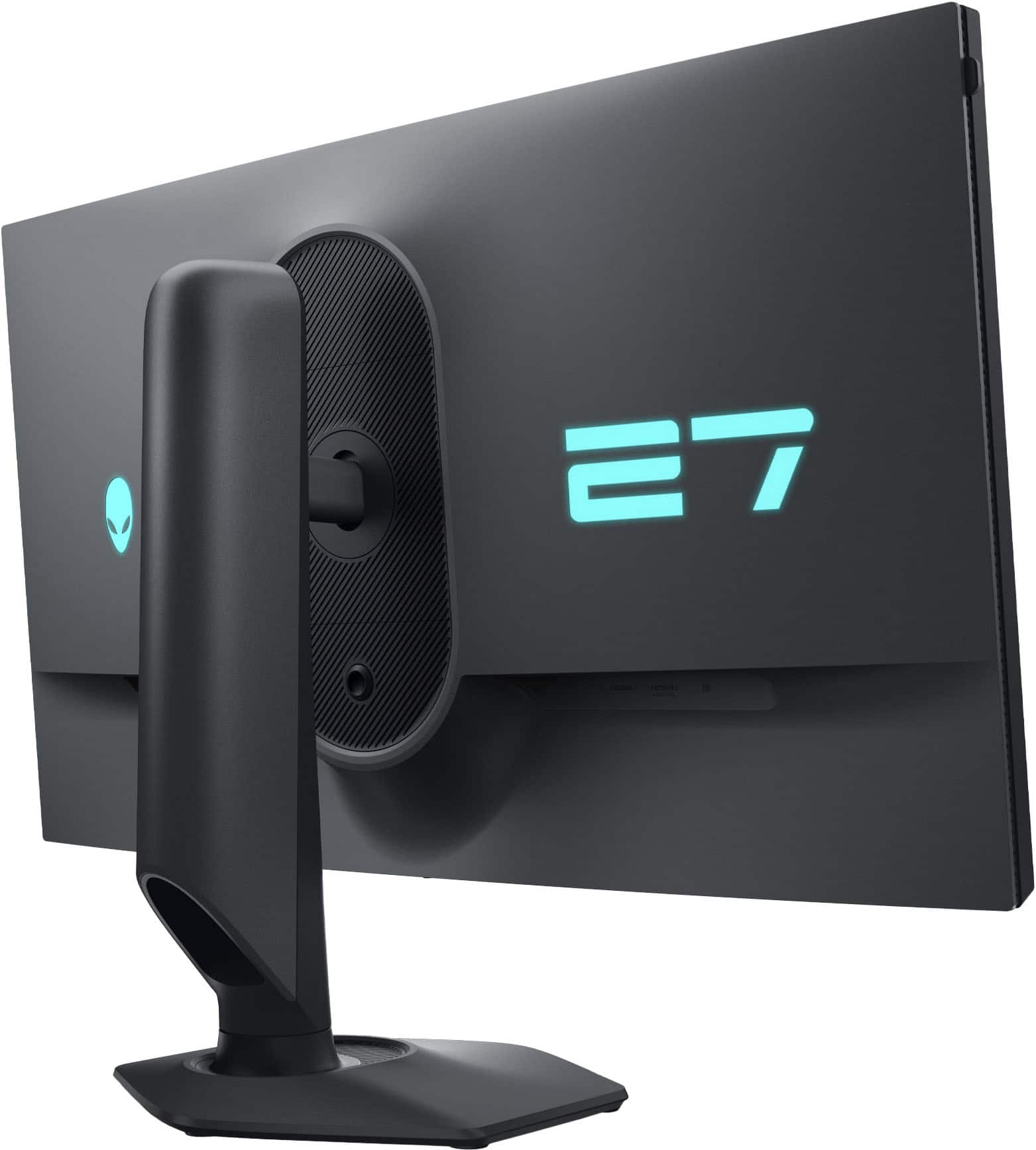
|Posted .This reviewer received promo considerations or sweepstakes entry for writing a review.How much does size really matter in a display? My primary display is a 34” UltraWide and the thought of dropping down to 27” had me worried. Yes I would be upgrading to 4K resolution and the potential of 180hz gaming, but to be fair I’m already gaming at 120Hz on my PS5 using my 133” 4K laser projector. At 133” I noticed a huge impact moving from 60Hz to 120hz when gaming. Am I going to notice anything different moving from 120Hz to 4K 180hz on a 27” inch screen? Or 360Hz at 1080P? Doubtful. More brightness? Less visual artifacts? Less eye-strain? With this in mind I unboxed the Alienware to find out. I was surprised that the 27” Alienware comes in almost the exact same size box as the 34” Dell UltraWide I have. This box is massive, and it took quite a beating from Fedex. So much so that it arrived with the masking tape holding it shut cut and the lid of the box almost popping open making me wonder if someone had stolen something from inside the display before it was delivered. Dell’s eggshell packaging meant while the outside looked terrible the monitor and display stand were intact with no visible wear and tear. I use a VESA mount monitor stand so I did not unbox the display stand just know that the stand takes up most of the weight of this box. The monitor came with an HDMI cable, a DisplayPort Cable, power cable and a USB cable that supports the USB-A and USB-C port on the center underside of the monitor. The monitor has dual HDMI ports that support HDMI 2.1 (1 for HDCP 1.4 and a second for HDCP 2.2) along with displayPort 1.4. If you don’t already have a place to store your gaming headset, the display includes a built-in retractable stand for this purpose. I dig the Alienware logo, but it is hidden on the backside of this monitor along with a giant number 27 brightly displayed in a Dell Blue that seems silly to me. Why would you want advertise that you are using a 27” monitor? Advertising a cool blue alien is great, but the number 27 is just silly. Placing it on the back means for people like me that have their desks pushed up against a wall it will never be visible. I do get to stare at the non-animated non-backlight word “Alienware” on the front bottom bezel though. Directly under that is the control knob for getting to the settings. I’m not going going to geek out on the settings. There are lots of them for lots of specific use cases and you can go a bit crazy tweeting things, which is helpful for a select few. Holding the button down to swap refresh rates from 4K @ 180Hz to FHD @ 360Hz is a nice feature. It took a couple of days for me to adjust to the smaller overall screen size, but the increase in resolution meant I can pretty much have the same layout and number of open windows as I had previously with a bit more visual clarity than I had previously so this is a welcome change. The display is crisp and bright and I’ve grown quite fond of the higher resolution for my daily computing tasks. As to gaming, the benchmark tests tell me I’m achieving higher frames per second on this monitor but I really don’t notice anything all that different when I compare my usual gaming experience on the 133” compared to this display when playing the same games. The games look great and maybe I’ve killed a few more opponents in my FPS games than previously thanks to the faster refresh rates, but overall I’m not seeing anything significantly better than before. On paper this monitor has a great deal of advantages and is worth your consideration for purchase, but at least for my eyes, the advantage of this monitor is less about speeds and feeds and more about the visual clarity that comes with a resolution bump up to 4K.
I would recommend this to a friendMy first 4K monitor and it's great
|Posted .This reviewer received promo considerations or sweepstakes entry for writing a review.The Alienware AW2725QF is my first 4K monitor. I have connected to an Intel Core i7-10700K processor with EVGA GeForce RTX 3070 XC3 Ultra. I am currently using driver version 566.36. Not many monitors have 3 outputs. This monitor has 2x HDMI and 1x DisplayPort (DP). I am currently running a three monitor set up. This monitor is my main one connected to the DisplayPort. The other two displays are vertically, using the HDMI ports. Those two are maxed at 1440p and 60Hz. When I am not gaming, I am using the three monitors. When gaming, I mainly use this monitor. It maxes out at 165Hz with GSync. I am currently play Black Myth: Wukong on Steam. I have Ray Tracing enabled to medium. When playing, the FPS display ranges from 62 to 74. When fighting NPCs, it hovers around 60 FPS. It is smooth. I don’t experience any frame loss or lag. As far as scaling, the default is set to 150%. On the other monitors, it is at 100%. I think this is fine. I can read the text without issues. The stand is built well. I can raise the monitor up and down with ease. I can tilt it. The monitor has VESA mounts but I do like the stand it comes with. The base does not take too much space on my desk. It is a hexagonal shape (6 sides). My other monitors have rectangular base and takes up a little more space. This monitor has USB3 ports. You can use it to charge devices or connect devices. I do not use them but is convenient if your tower is not next to the monitor. You can have access to USB ports in front of you. For being my first 4K monitor, it has been a great experience so far. Prior to this, I was gaming on 1440p monitors. I can see why many prefer 4K. This is also IPS. View angles are great. You do not have to look at the monitor directly. You can view it at an angle and it is still visible. Finally, navigating the on-screen menus are easy. It has a joystick directional control at the bottom center of the monitor. Press it and it selects the highlighted menu. Other monitors wants you to press directional buttons for navigation. It is more cumbersome. This joystick control is quicker to use. I really like this monitor and recommend it.
I would recommend this to a friendFor a Select Audience it Does the Job
|Posted .This reviewer received promo considerations or sweepstakes entry for writing a review.It has taken me a long time to evaluate and put together my thoughts on the new Alienware AW2725QF. Why you ask? Well, because I think it is fantastic, but struggle to understand who it is for exactly. I get what Alienware is going for here and they aren't the first to do the pixel ganging to pare down 4K to 1080P. For most competitive gamers the speed is almost more important than the resolution at least to an extent anyways. And the IPS panel in the monitor is fast. At 1080P it is 360Hz and paired with my 4090 I can easily hit those speed in a game whether it is competitive or a AAA with DLSS turned on. I did not notice any weird abnormalities visually despite having four pixels doing the job of one. I expected the subpixel structure would cause issues with font rendering, but I didn't notice anything other than maybe slightly more jagged text. That said, you are probably going to want to use it in the 4K mode for general computing anyways so it really shouldn't be a big issue. At 4K the speed splits in half, but 180Hz is quite a bit more of a lift for even a 4090 unless you are cranking settings down in game to hit that frame rate. Again, nothing to report in terms of visual weirdness, but I wouldn't expect it since it is the native panel resolution. Color in both modes is excellent and this can be attributed to the IPS type panel. Unfortunately, the downside to IPS is contrast ratio and usually local dimming techniques are used to improve it. This panel has no local dimming and is probably due in part to the refresh rate the screen is achieving. Blacks do suffer, but unless you are playing in the dark most likely won't notice the grayer black. Overall, it is a handsome looking monitor per typical Alienware. Yes, it is expensive and to be honest, unless you are a competitive gamer and looking for one monitor to do it all this is a tough recommend for the average gamer. The only thing I could think of that might make it more interesting for the normal user might be if you have a lower end graphics card and want a monitor you can grow into. This would satisfy that need in my opinion.
No, I would not recommend this to a friendNext Level from the best to do it
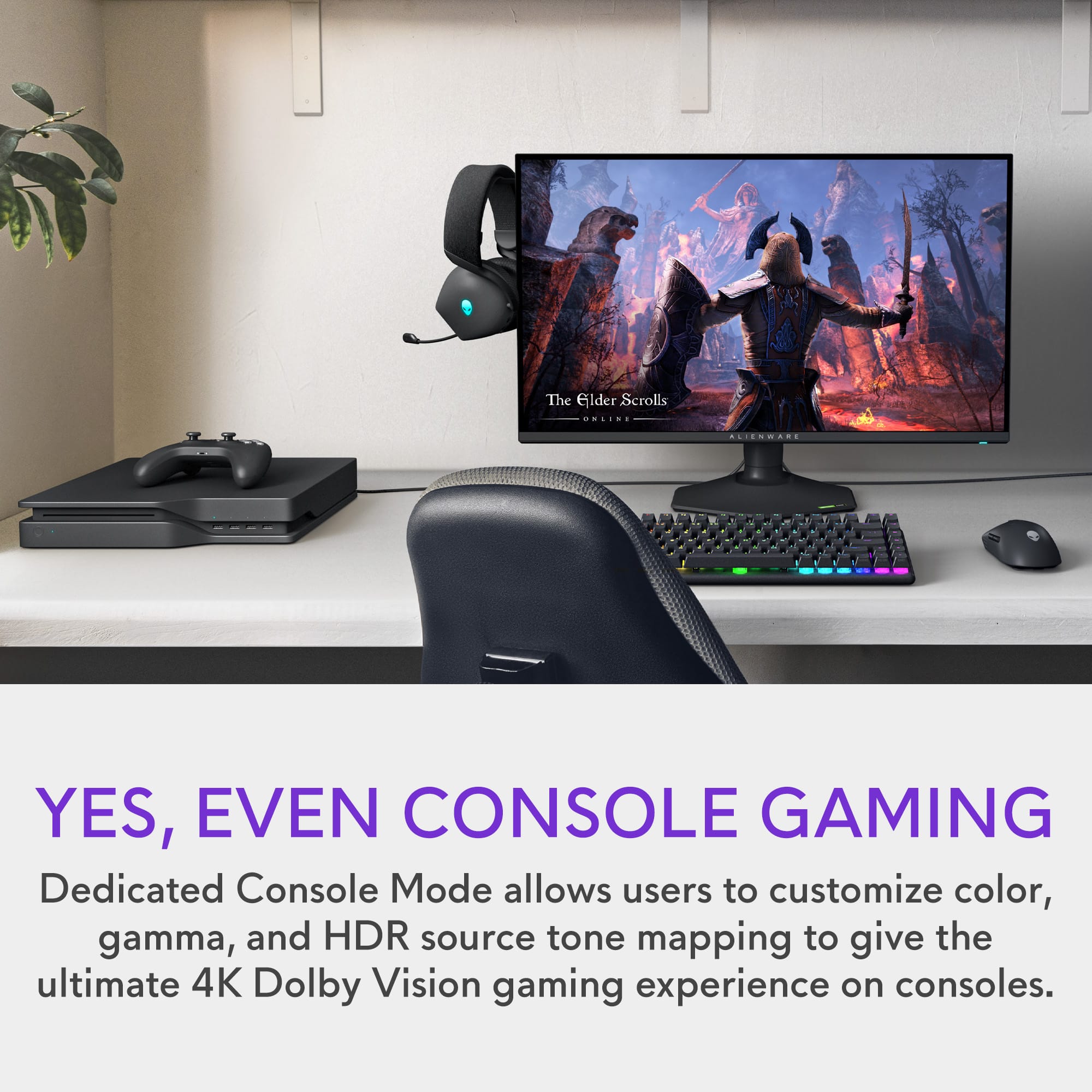
|Posted .This reviewer received promo considerations or sweepstakes entry for writing a review.Its standout feature is the ability to switch between 4K/180Hz and 1080p/360Hz modes. Of course I stayed on 4K. This offers incredible flexibility, allowing gamers to prioritize either stunning visuals or lightning-fast response times depending on the game. In both modes, the AW2725QF delivers exceptional performance. The 4K mode provides incredible detail and immersion, while the 1080p mode offers incredibly smooth gameplay. The IPS panel boasts excellent color accuracy and vibrant visuals, making games and other content come to life. Alienware is known for its premium aesthetics, and the AW2725QF doesn't disappoint with its sleek design and robust construction. I connected my PlayStation 5 to this monitor and I wish somebody would have told me to buckle up. The frame rate, the detail and the level of clarity made. It seemed like it was PC gaming. Or what I imagine PC gaming to be. I've seen it a few times, but what I saw on this monitor from my PS5 was next level. This definitely holds up to whatever PC gaming can do. Because if it makes my PlayStation 5 look that good. I can only imagine what a high level PC game looks like. The Alienware AW2725QF is a top-tier gaming monitor that offers a unique and compelling combination of features. Its dual-mode functionality, exceptional performance, and vibrant display make it a strong contender for serious gamers. However, the high price and somewhat limited HDR performance may be factors to consider.
I would recommend this to a friendHigh-end, High-performance monitor
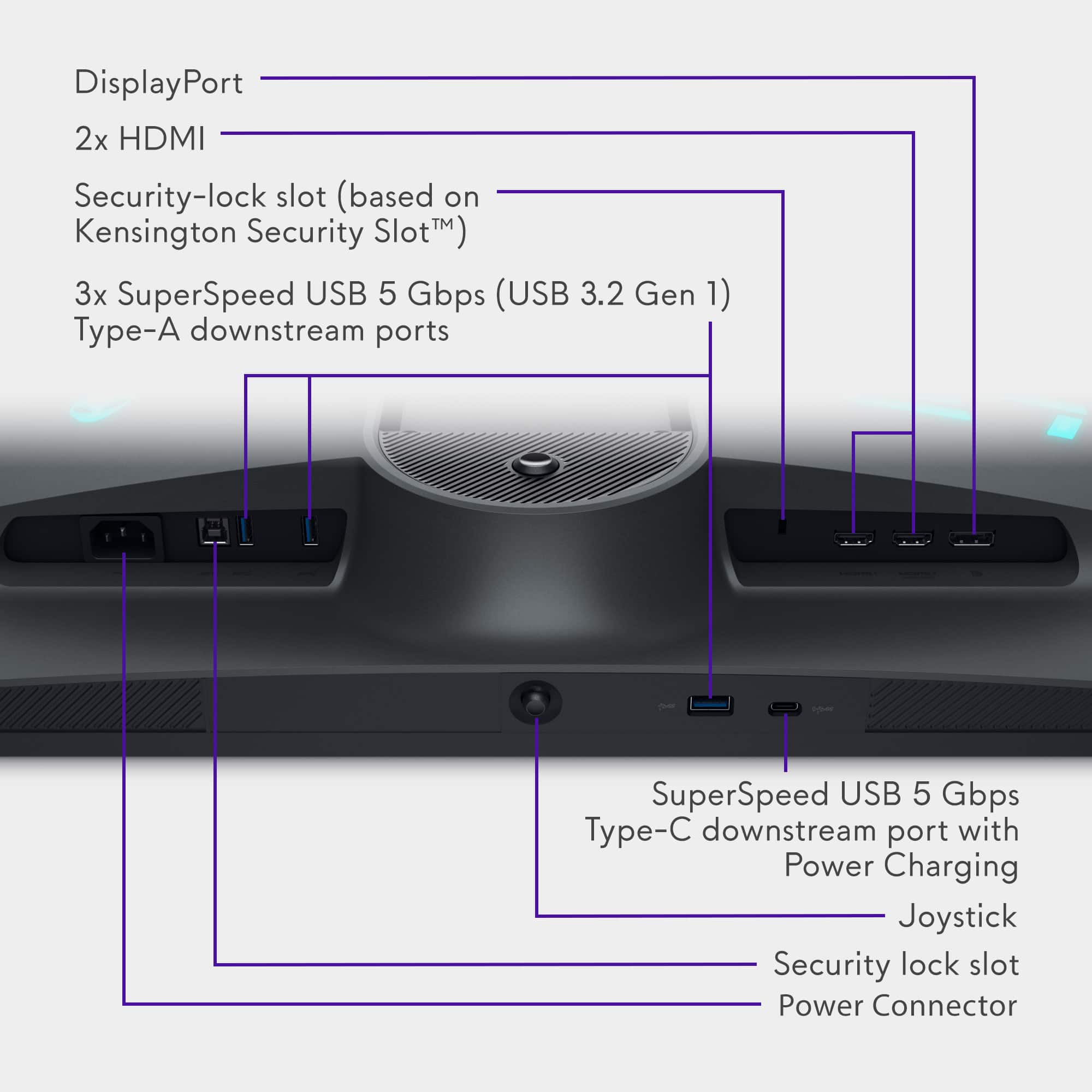
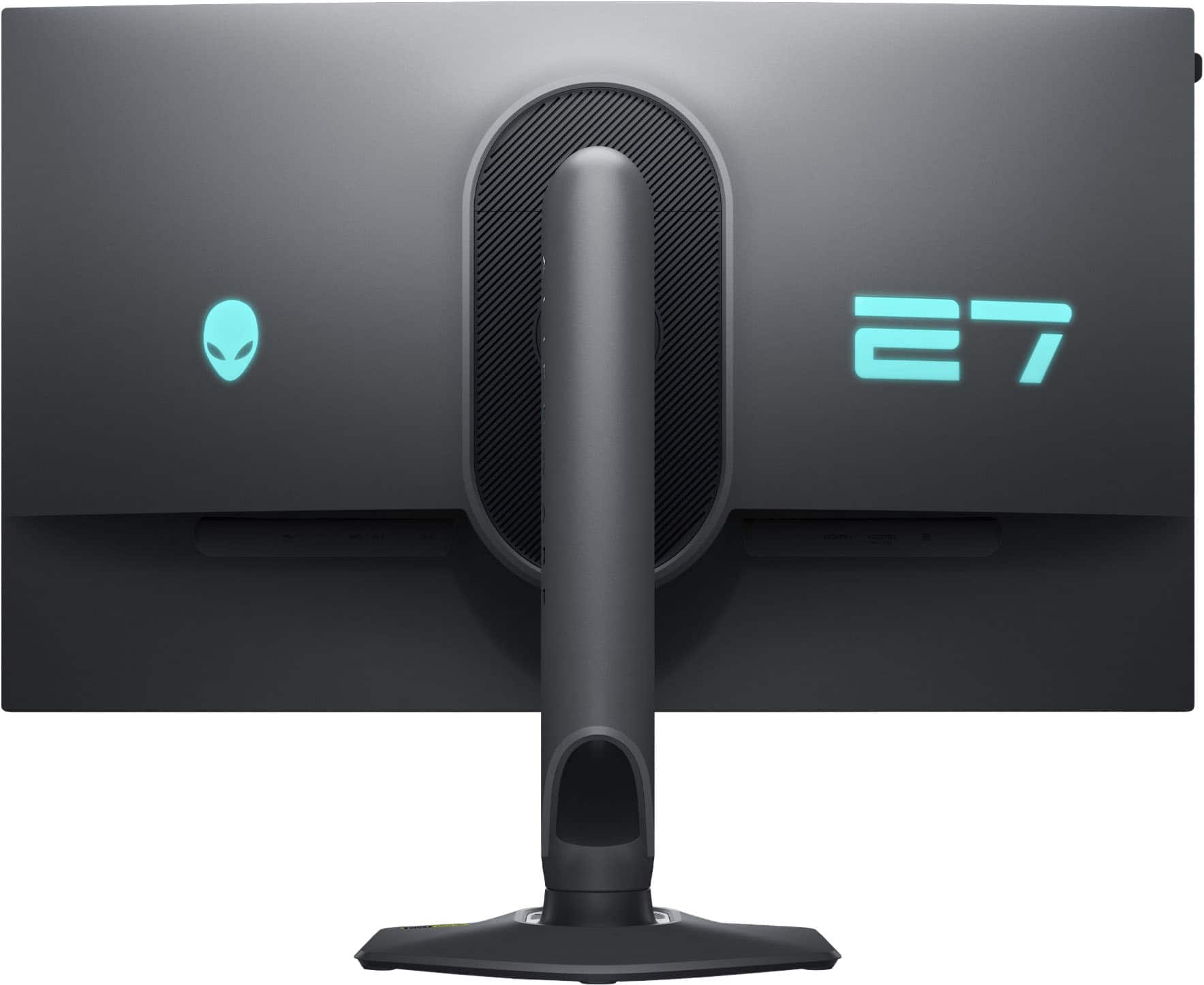
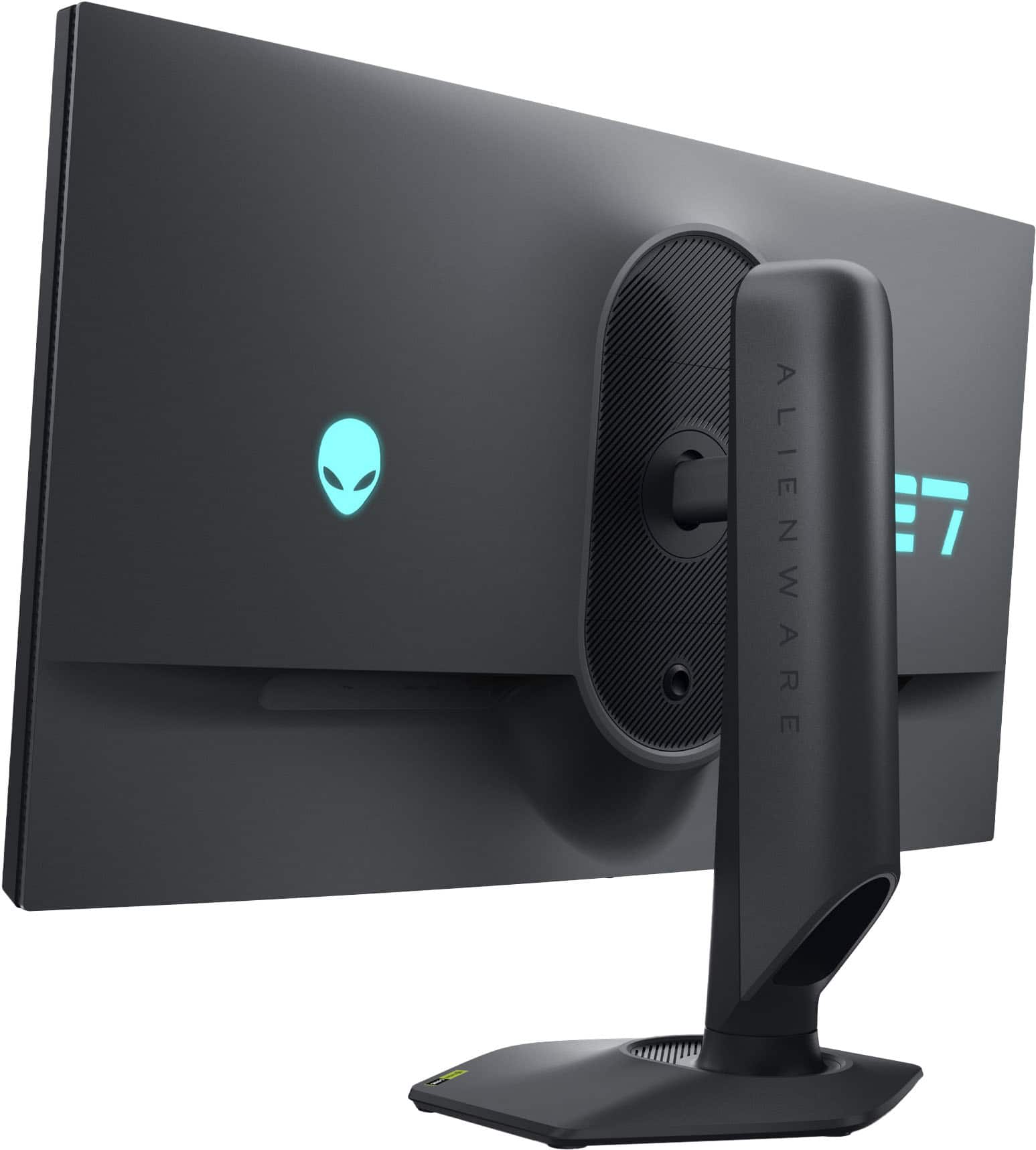
|Posted .This reviewer received promo considerations or sweepstakes entry for writing a review.This Alienware monitor is an interesting product. The dual-resolution feature was my primary interest. I play mostly older first-person shooting games, mixed with newer stuff like Microsoft Flight Simulator. The older games play beautifully at 4k resolution and really maxxed-out game visual settings. Flight simulator chokes my computer running at 4k resolution, so being able to step down to HD resolution without compromise is fantastic. Image quality is great. Nice and crisp. Colors look accurate to me. HDR content is displayed well. The display panel is essentially edgeless - the top and side edges are virtually non-existent, and the bottom ls narrow but lends a nice balance. Perceived brightness and contrast are top-notch. There are 2 HDMI inputs and one DisplayPort input. There is a USB Type B input that feeds the built-in USB hub which then provides 3 high-speed USB-A ports and 1 USB-C port. There are no speakers built in. Build quality is great. The monitor is heavy and sturdy. The stand is very nice, and adjustable in every axis, plus height. The back side of the unit has an illuminated Alienware logo and an illuminated, stylized "27" that look pretty neat and complement the lighting on my Alienware laptop. This is not an inexpensive monitor but it is worth the price.
I would recommend this to a friendExcellent for gaming and more, amazing features
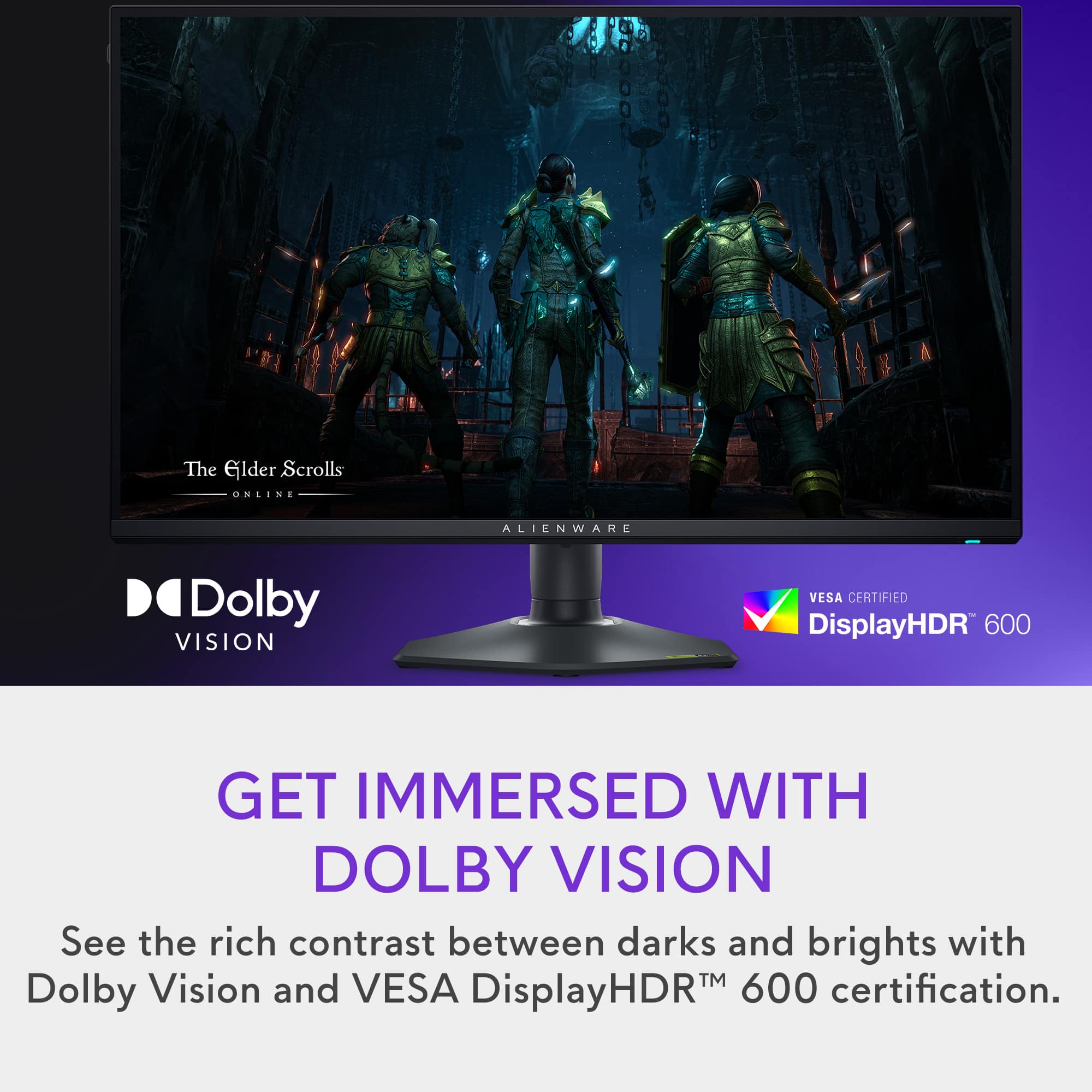
|Posted .This reviewer received promo considerations or sweepstakes entry for writing a review.Alienware has been on fire lately in the computer monitor space. While I haven't had the chance to enjoy one of their monitors personally, the word on the street on their QD-OLED displays has been awesome. The AW2725QF 27" Dual mode display is a really interesting monitor in a few different ways. As far as I know, this is the first non OLED monitor that attempts the dual resolution/refresh rate thing. As someone who uses their gaming setup when they work from home, the Alienware AW2725QF seems like the perfect display. #Out of the box impressions# The Alienware AW2725QF came with a good amount of accessories for a gaming monitor. The included stand is height adjustable and allows you to easily rotate between portrait and landscape modes. Included with the monitor are a USB3 -B cable to connect the built-in USB hub, a DP 1.4 cable, and an HDMI 2.1 cable. The monitor has a ton of connectivity - 1 DP port, 2 HDMI ports (one with eARC!), 3 USB-A ports, and one USB-C port. Unfortunately the USB-C port doesn't support video connectivity but it does charge at 15W for phones or an iPad. Also, I love that the monitor has a retractable hook for a headset on the left side of the display. If you want to use it for a headset, just pop it out. If you have no need for this, click it back in. Very cool that there's enough room for this. Finally, I am glad the monitor has a standard computer power cable (C13) without needing an external brick. #Using the Monitor# It's super easy to switch back and forth between 4K and 1080p modes from the monitor itself. When clicking the menu stick on the bottom of the monitor, the default landing spot is the dual mode switch, so it's just one or two clicks. In Windows, I set my monitor layout up with both resolutions so the transition is pretty seamless. You do want to make sure that you are not in a game when you make the switch, otherwise you'll possibly have to force close the game and restart it. I play a pretty wide variety of games regularly, as well as using my personal monitor setup when I'm working from home. This is exactly the kind of setup where this Alienware Dual mode monitor is perfect. For eSports titles, most people prefer to get as high a framerate as it's possible to get. I play Overwatch 2 and in this game, setting the monitor to 1080p mode (and setting it to overclock mode) makes a 360hz refresh rate possible. You do have to have a fairly powerful PC to keep that kind of framerate steady but with a 7800X3D and 7900XT GPU it's possible. Personally I am not a good enough gamer to benefit from improving my framerate from 240fps (my previous monitor) to this one at 360hz, but it is notable how smooth it is.Same goes for Assetto Corsa Competizione, which runs buttery smooth at this resolution. I also fired up Dragon Age: Veilguard and Baldur's Gate 3 to experience the 4K 180hz mode in some RPG titles, and here the monitor was amazing as well. These titles have some textures and environmental design that really benefit from 4K, and it's really impressive to see 4K running at such a high framerate. My GPU can manage over 100fps in these titles at 4K but not all the way to 180, but you still get plenty of benefit thanks to adaptive sync. The fact that the Alienware AW2725QF supports Dolby Vision is just amazing. There was no need to calibrate HDR in Windows 11 as it already had a profile configured for the monitor. To enable DV playback in Windows and configure different modes you use the same "Dolby Access" app that you use for Dolby Atmos, from the Windows store. My go-to HDR scene for demos is the "Waiting on a Miracle" scene from Encanto and the Alienware monitor simply looks phenomenal. I say that without qualification that this is an edge-lit IPS display and not an ultra-high end Mini LED or OLED panel. I think it looks awesome. After about a week of using this Alienware display, I've really come to appreciate the connectivity for USB that I think a lot of users will make use of. There are two USB-A ports on the back that I feel are pretty standard now, and then a USB-A and USB-C port that are easily accessible on the bottom of the monitor. Having easy access to these ports is a small boon but it's noticeable especially if you are like me and have one too many hubs cluttering up your desk. I stuck the dongle for my mouse into the underside port to give it easy LOS to the mouse. #Final Thoughts# Who is the Alienware Dual Mode 27" display for? Anyone who plays eSports games (Overwatch, CS2, R6, etc) but doesn't want to commit to a 1080p HFR monitor for every other thing they use their computer for. I think Dell/Alienware have been pretty clever to build a display with this capability at this price point - it's basically the perfect monitor for college student gamers and young professionals who are hybrid or fully WFH. At half the price of the "dual mode" OLED monitor on the market, it accomplishes much of the benefit without the price tag. I wouldn't hesitate recommending this monitor to anyone needing a 27" display.
I would recommend this to a friendSmooth picture quality
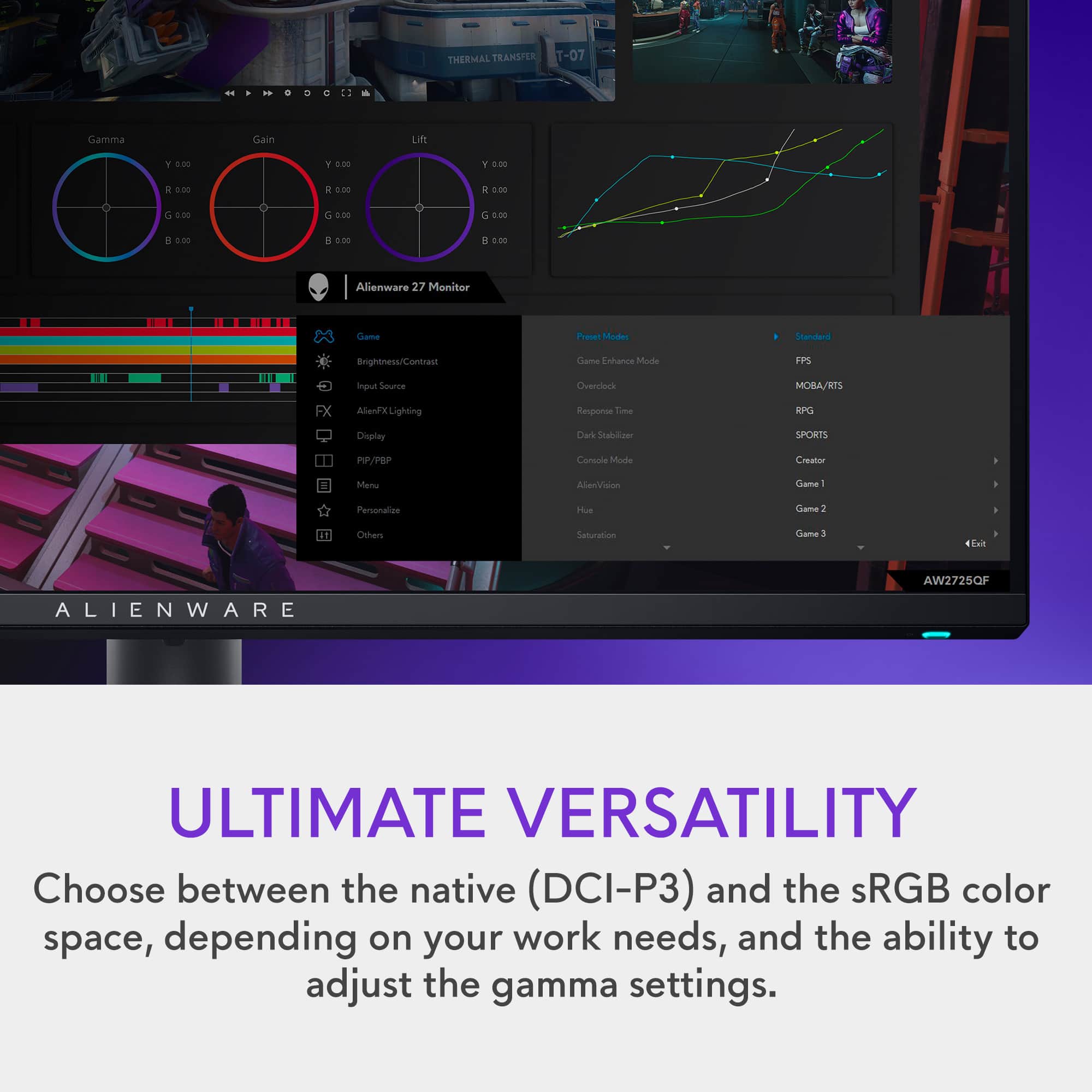
|Posted .This reviewer received promo considerations or sweepstakes entry for writing a review.A very powerful IPS 4K monitor. Aside from it's resolution, one of its dominant marketing points is it's dual resolution, that can be easily accessed by a flip of a button. The frame has a nearly invisible bezel with a thickness of about 0.5", all while maintaining a sleek and stylish appearance. The bezel blends with the screen along the top and sides only leaving a raised edge. About 3/8" along the edge of the screen is part of this, meaning that while it looks like screen, this section does not illuminate with the picture on the screen. The monitor comes with a very sturdy stylish stand, but can be mounted as well. This creates an excellent screen by itself or with a multi-monitor setup. Getting off the ground and going is very straightforward. I only referenced the highlighted product points on the packaging and later the documentation to confirm I found every major feature. The OSD menu options are well organized and easy to locate. I initially found it odd that the PIP feature isn't really detailed in the product details page, heck, the hidden headset holder is only depicted in use in an image or 2 as well. The monitor offers 2 HDMI ports, 1 displayport, and several USB ports for a versatile configuration. At 1080p resolution, you can go up to 360Hz. At 4K resolution, you can go up to 180Hz. These are both incredibly fast and when paired with the screens vivid colors, this makes for a good combination for both fast paced games and visually driven game scenery. The panel offers some preset color modes, from fps, moba, vivid, standard and such. But while it includes those, it's 100% customisable to whatever picture quality you need. The lights found on the monitor are a little bright for my tastes, luckily you can turn off both rear lights and the light on the button. All 3 are fully customisable; 2 on the rear and the power button, which can be set to a fixed color on each or spectrum. With its high refresh, vivid colors and one of the game visual presets, playing anything I've tested gives it impressive visuals. Vivid colors, sharp images, fluid motion, little to no blur, darks that are dark and brights that are... well, you get the idea. All in all, this hits all the right boxes, giving you an impressive image quality and a speed that keeps you competitive. You may need to tinker with it, between games and profiles, but this puts other panels in the same price range to shame. The recessed headset holder makes for a nice extra add-on. This is worth 5-stars.
I would recommend this to a friendEasy setup and feature packed
|Posted .This reviewer received promo considerations or sweepstakes entry for writing a review.Alienware keeps with the tradition of Dell computer monitors is super simple to setup. All you do is connect the base to the stand by screwing in the attached screw. The screw knob folds flat once tightened and can be popped back out easily if you need to ever disassemble. The stand simply snaps in place and can be removed just as easy. It includes both a DVI and HDMI monitor cable. You will need to use DVI to get full 4K resolution and the highest screen refresh rate. There is an included USB sync cable they you will need to connect to get the full benefits of Nvidia G-sync. Once you have it connected to your PC it is recognized instantly. I did a Windows update, and the latest driver was automatically installed. Adjustment is easy vertically and horizontal to get your preferred height. The color calibration looks great right out of the box. Make sure the Windows display settings has HDR set to on and pick either the default full 4k resolution or 1920 HD if you prefer the fastest refresh rate. I prefer the picture quality of full 4k. It is advertised to run at 180 hz 4K and a blazing 360 hz in HD. My system only supported a max refresh rate of 165 hz in 4k. This is still faster than most 2K 1440 monitors. The picture is amazing, and you can choose presets for FPS games, movies are the standard default setting. Action scenes in games are fluid and smooth. It will really give you an edge over your competition and give you the best visual experience possible.
I would recommend this to a friendJust buy it
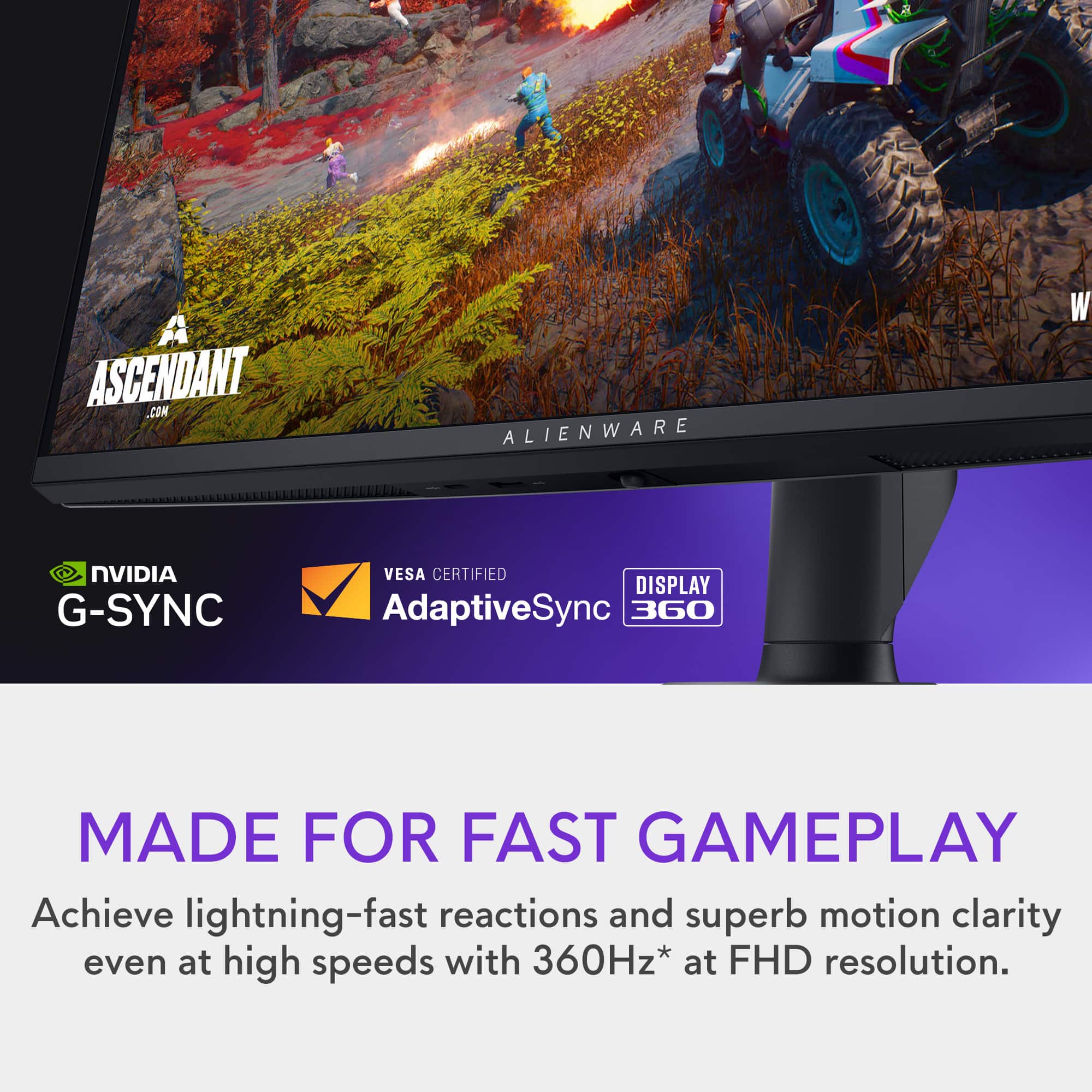
Posted .This reviewer received promo considerations or sweepstakes entry for writing a review.I did not buy this from best buy i bought mine from alienware website..Now if you saw any reviews for this most of them will say this is a nich moniter for certain type of gamers. For me its my do it all moniter..so what do u get for the price tag well you get solid true 4k UHD [3840x2160] plus built in Dolby vision Plus built in HDR600 now the great thing is you can be in 4k or 1080p and still have dolby vision and HDR600..Now there is a catch when you go into windows settings and switch on HDR you will not be able to change the brightness on the moniter control panel or contrast ether you can use the windows hdr brightness slider to adjust the brightness in sdr content.. Now with HDR switch on in windows there is a setting called auto HDR leave that on because when you are gaming it will auto switch your game into HDR you dont have to go into game settings to do so.. now as for the factory preset modes i did not like the standard mode i use the MOBA/RTS setting i really like the way it looks . Now in HDR mode you can go to dolby vision setting on the moniter and choose bright ,,,dark ,,,game then you do have a option called user setting so if you are gaming you can push over to the right in menu and adjust the contrast and sharpness it has 3 levels to choose from The con is when you are Not in HDR mode you are just stuck with normal settings and you can not adjust anything .. the refresh rate in this moniter has built in overclocking so the normal highest refesh rate is 160hz but you can overclock to 180hz if need be and if you are still needing to go faster then switch to 1080p the flip of a swtich and you get 360hz.. To wrap things up for the price you are paying you are getting a IPS 27inch moniter with built in dolby vision and HDR600 True 4k uhd ..with a refresh rate of 160hz . with a flip of switch you can be full 1080p refresh rate of 360hz and have dolby vision and hdr 600 also .. so if you wont to stream any streaming service that has dolby vision or HDR you can with this moniter For the price its a no brainer at all the only thing i truly wish is Alienware make a 32inch and a ultra wide just like this ...Just think about it a 34inch Ultra wide with all this in it ..
I would recommend this to a friendExcellent for work and play
|Posted .This reviewer received promo considerations or sweepstakes entry for writing a review.This is an excellent monitor for gaming or really day to day life. I find myself using 4K more often than not. Yes for gaming it is awesome being in 4K. Spreadsheets in 4K look better too, even if they suck your soul out like a space zombie. Setup was painless. Very intuitive and easy to follow instructions. Really, if you have ever put the stand on a monitor, it is just like any other. Images are crips and smooth flowing. It pairs perfectly with our Alienware Aurora R16 Desktop. The refresh rates means you are not going to see any flicker, even through a camera lens. My only complaint, and this is true with most modern monitors and TVs. I despise the single button/joystick control. Inadvertent clicks, scrolling the wrong direction, entering the wrong menu item. Please bring back the old multi-button controls. Or at a minimum, have enter be a separate button. Overall, this is an outstanding monitor with excellent refresh rates and resolutions. I think you will end up just using 4K more often than not, but if you are using with multiple computers, the FHD might be needed if your other machine can't drive a 4K monitor. I have not tried with a Intel onboard video card.
I would recommend this to a friendCrisp, clean gaming views at full 4k/UHD, nice add
|Posted .This reviewer received promo considerations or sweepstakes entry for writing a review.Alienware; being a product of Dell these days while maintaining the original line up, follows traditional ease of use with their equipment. This display goes from an out of the box state to ready to use in less than 5-minutes. Connect the base to the panel stand and tighten the screw, folding the tab flat when finished. Final step is to snap the stand into place on the screen. Within the box, there’s a DVI, HDMI, and USB 3.2 cables for use with connection to your system and for upstreaming via NVIDIA G-Sync. Screen adjustment to can be tuned via a center joystick module in the bottom center of the screen for easy access and use. Initial connection to your Windows machine pulls the drivers immediately and updates to the screen. The images and screen views are nice and crisp, with preset options for first-person view games, movies, and standard default view when not gaming. Depending on your setup, you may need to switch on HDR in your Windows Display settings and make some display adjustments in your resolution to hit the refresh rates you are looking for as well as in NVIDIA settings for each game you are playing.
I would recommend this to a friendIn a weird benefit to price point group
|Posted .This reviewer received promo considerations or sweepstakes entry for writing a review.This monitor on paper checks a bunch of boxes. It does 4k 180Hz, it does 1080p 360hz, it has DisplayHDR600 certification, it has a built in USB hub and a headphone holder. However, it seems like it is trying to do everything any not really offering a competitive reason to choose this over something that is only doing some of the items. So to start out, gaming on this monitor is nice, but so is gaming on almost any 300+ Hz display. If your video card can keep up, things are going to be buttery smooth. Out of the box, getting it ready from unpack to gaming took almost no time. The packaging was also eco friendly in that everything is basically cardboard. It included all the cables I needed, including a USB-B cable to hook the monitor up to my PC for an additional hub. And that's sort of where the stand out features end. This monitor did pass a HDR600 test, but I found that images weren't sharp and crisp around the edges in extreme light changes. I suspect this is due to them using edge lighting instead of true back lighting. The USB hub can be useful, but all the USB ports point straight down. This does make it easy to mount on a monitor arm, but I like monitors that have a few ports on the left and right sides. The headphone holder works well, but it is mounted on the left side of the screen. This is OK if you're left handed, but most of the population is not, nor are most desks laid out this way. This makes it hard for any of these stand out features to be a full selling point. And at the time of this writing, they are charging a premium for these add-ons. All of this and not even speakers if you wanted to use this portable gaming with a console system. If you really need something that is all in one, this might suit your needs. However, for most people, I would say find the 2-3 features you really want and find something tailor made for those. You'll enjoy the benefits much more.
No, I would not recommend this to a friendMonitor
Posted .This reviewer received promo considerations or sweepstakes entry for writing a review.Great monitor! Highly recommend Alienware monitors!
I would recommend this to a friend