Customer Ratings & Reviews





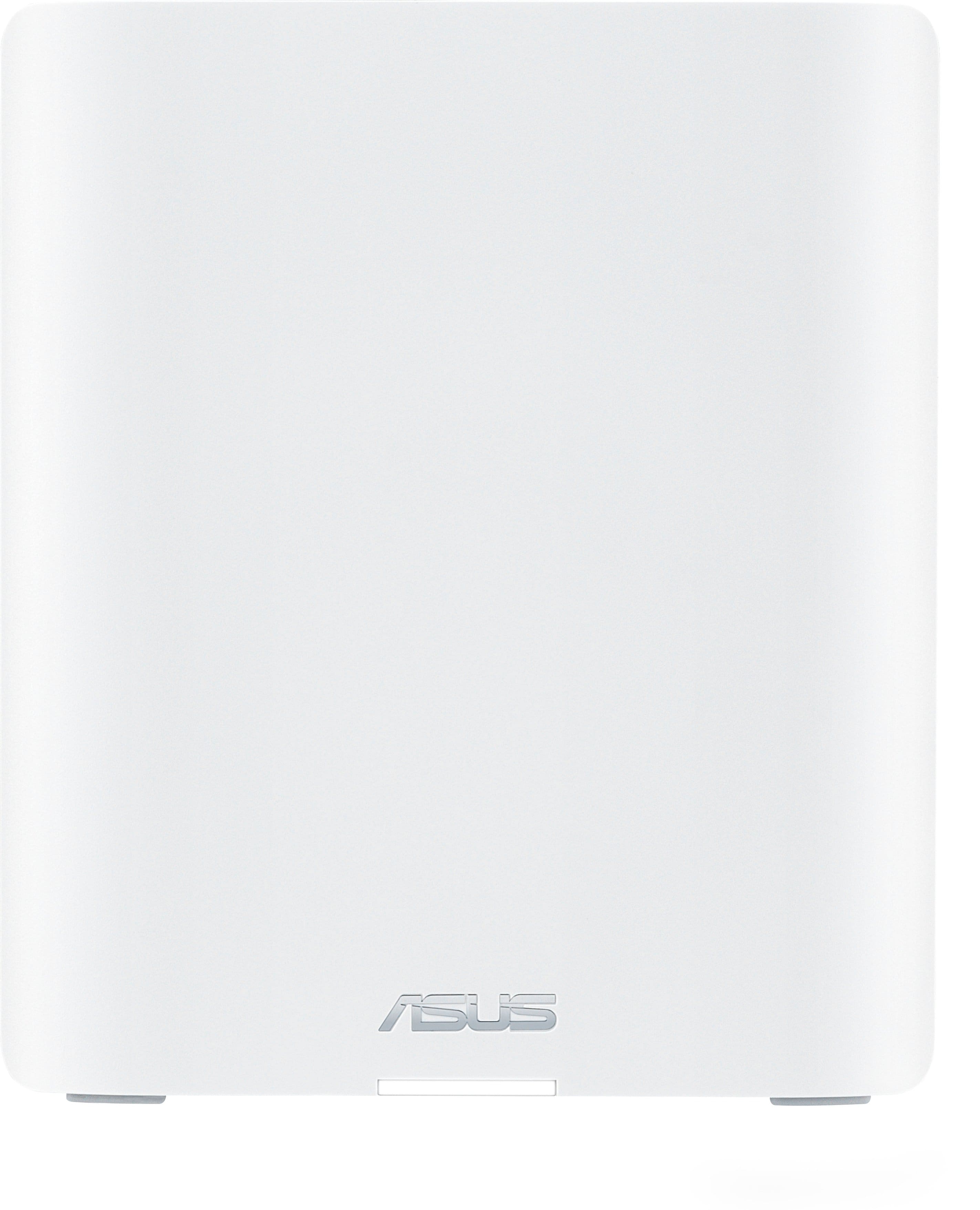
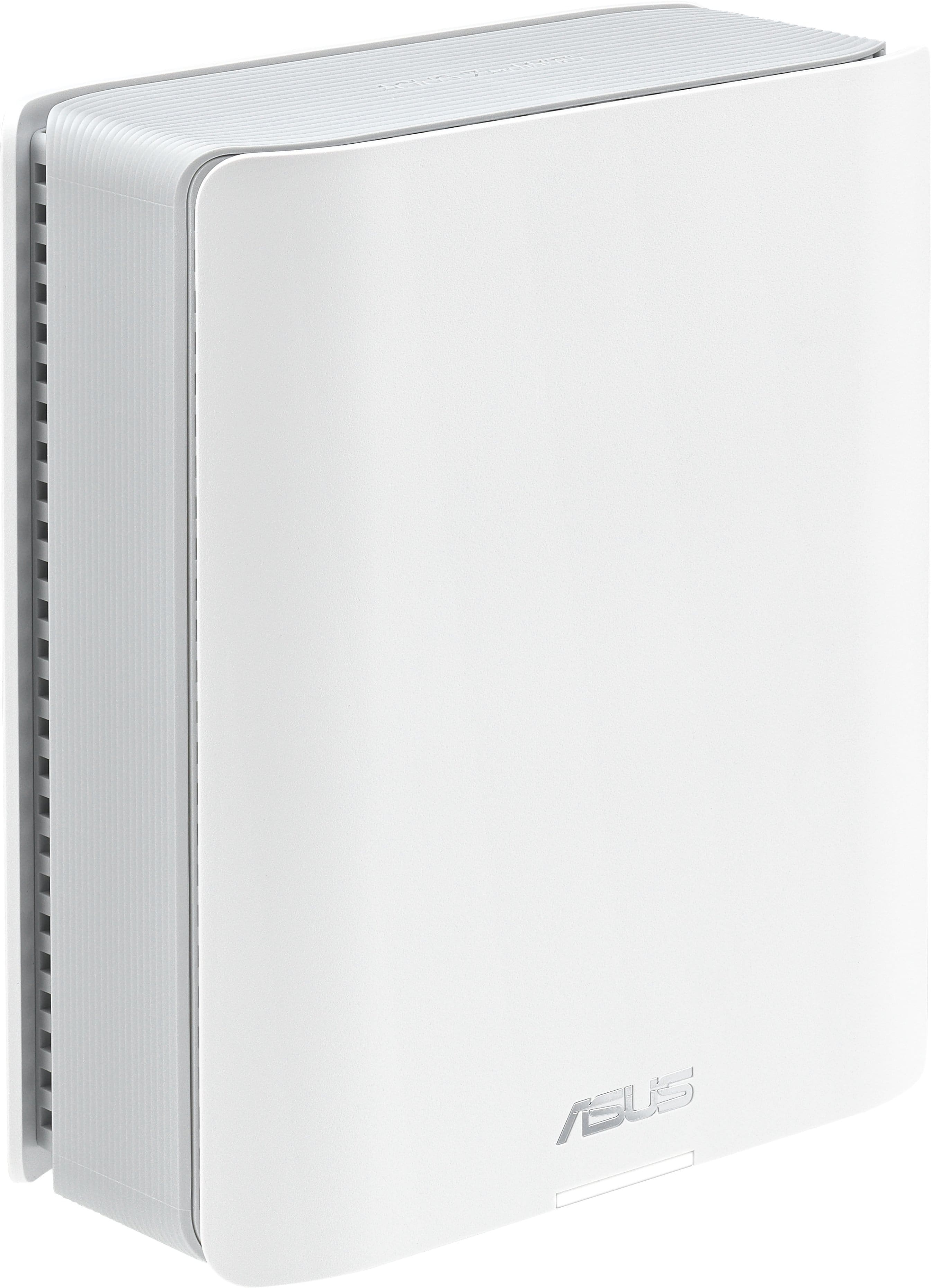
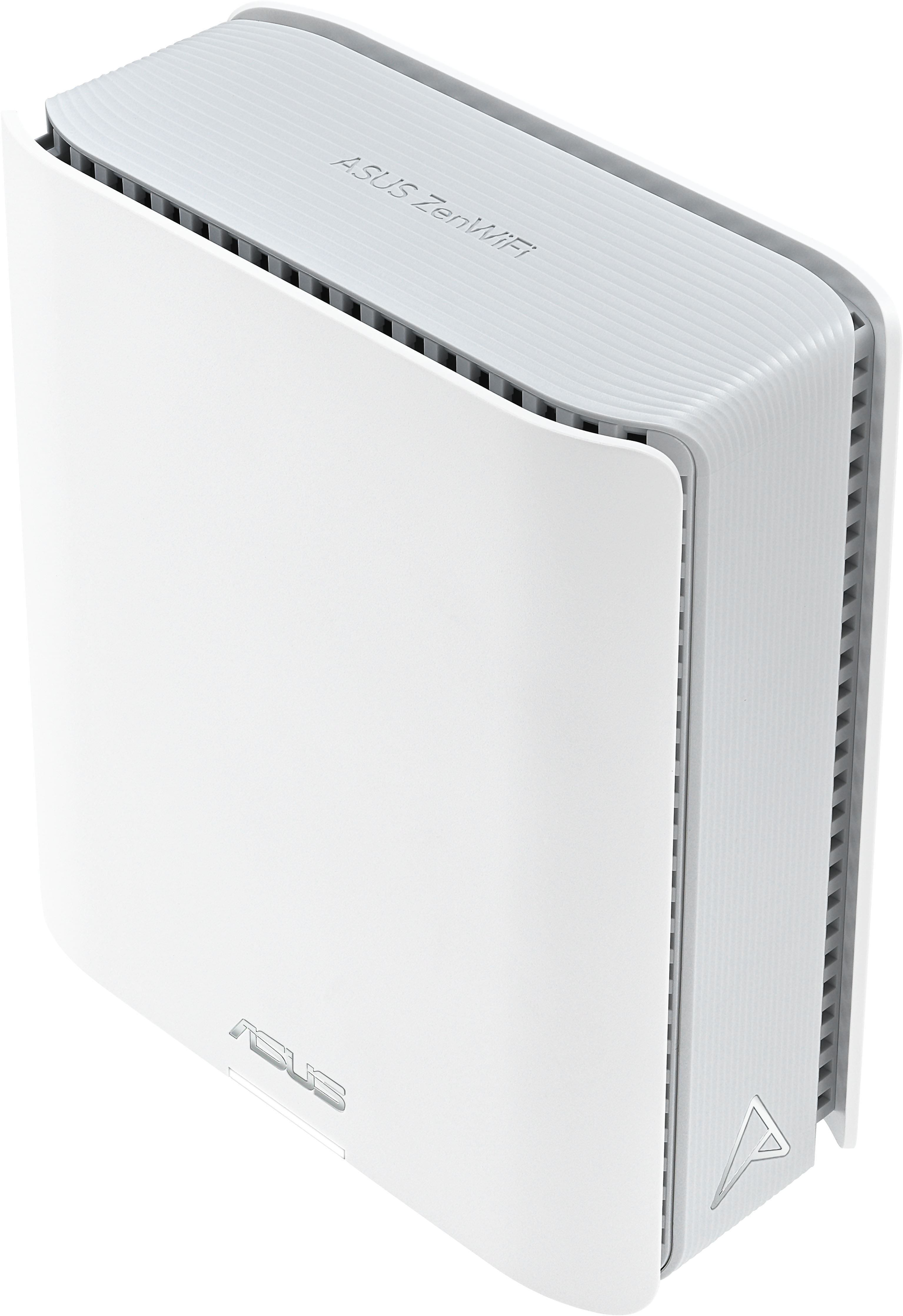


- Model:
- ZenWifi BE14000 3-PK
- SKU:
- 6594278
Rating by feature
- Setup
Rating 4.2 out of 5 stars
- Range
Rating 4.3 out of 5 stars
- Signal Strength
Rating 4.3 out of 5 stars
Customers are saying
Customers often highlight the product's impressive speed, fantastic coverage, and overall strong performance, praising its easy setup and good range. The inclusion of WiFi 7 is also noted, though some customers observe that only very current devices fully support it. However, a significant number of users report frequent connectivity issues and dropping connections, with some also suggesting that the firmware is holding the product back.
This summary was generated by AI based on customer reviews.
- Pros mentioned:Performance
Happy I went this route!
||Posted . Owned for 2 weeks when reviewed.This reviewer received promo considerations or sweepstakes entry for writing a review.Simple, effective and great speeds! I read the reviews and am very happy with the performance. I went from Linksys mesh to Asus and the results are better than anticipated.
I would recommend this to a friend - Pros mentioned:Coverage, Setup, SpeedCons mentioned:Connectivity

Ultra Fast Speeds
|Posted .This reviewer received promo considerations or sweepstakes entry for writing a review.The Asus ZenMesh System is my first router to feature WiFi 7 and a 6GHz band. Although not all devices support WiFi 7, it’s fully backward compatible, meaning you can use it with older WiFi devices. However, to fully experience the benefits—faster speeds, wider bandwidth, and more reliable connections—you'll need a WiFi 7-compatible device. If you’re curious about compatibility, please refer to the section at the bottom of my review. Connection Speeds - I’ve been blown away by the speeds this system delivers. Both my iPhone 16 Pro Max and Asus Zenbook support WiFi 7, and I’m consistently achieving wireless speeds I’ve never come close to before. My internet plan is capped at 1Gbps, and despite never reaching this even when hardwired, I’m seeing speeds up to 907 Mbps on my iPhone and nearly the same on my Zenbook. Mesh Setup - The setup is straightforward, with one router acting as the “Main” and the other two serving as satellites or "nodes" that create the mesh network. These nodes can work wirelessly, but I highly recommend hardwiring them to your router if possible, as this greatly improves both speed and coverage. I have Ethernet cables built into my walls, so I hardwired my nodes for an ultra-fast mesh setup. To do this, just connect an Ethernet cable from one of your router’s LAN ports to the WAN ports on your nodes. App & Interface - The Asus app is a standout feature. It’s intuitive, much more so than other systems I’ve used, and offers great customization options. You get free parental controls, a firewall, and other useful features without extra costs. WiFi Setup - Upon setup, Asus creates two networks: one for general use and another specifically for IoT devices like smart lights, soundbars, and robot vacuums. IoT devices generally don’t require fast speeds but need a stable connection. I recommend limiting the IoT network to 2.4GHz, as most IoT devices don’t support higher bands. Issues - While the setup process was mostly smooth, I did face some initial struggles. The startup time for the router can take up to 5 minutes during a reboot, and I’ve experienced intermittent disconnections (lasting less than 1 second). This happens a couple of times a day, though it’s not a major issue yet. It could be related to my existing modem or possibly a router configuration issue (IP address renewal). I’m confident I can resolve it, but I’m still surprised it’s happening at all. The Ultimate Test - Over the weekend, I put the system to the test with my 9-year-old son, who’s vocal about internet performance. He reported faster speeds on his iPad and had only a couple of disconnections while playing Roblox. I’ve also encountered similar issues with my TV and WiFi devices, though they seem rare. Despite these minor hiccups, my son is happy with the system, giving it two thumbs up. Conclusion - Overall, I’m thrilled with the Asus ZenWifi System. The speeds are unprecedented, and the coverage is exceptional. If it weren’t for the occasional disconnections, this would easily be a 5-star product. I’m confident that with a little troubleshooting, I can resolve the issues, and I’ll likely consider adding another node for even better performance. Compatibility Concerns - I was initially concerned about compatibility with my Orbi Modem/Router, especially since routers typically can’t connect to other routers without causing NAT issues. The good news is that Asus routers are compatible with most modems—a crucial point for anyone with a modem/router combo. To use the Asus system, simply log into your modem/router and switch it to Bridge Mode, which disables the router function and makes it act solely as a modem. I’m experienced with networking, but Orbi systems can be tricky due to their proprietary nature. In my case, I ran into an issue where the Asus router was receiving a private IP on the WAN port instead of a public IP (which is needed for proper routing). After some troubleshooting, including rebooting both the modem and the router, I got everything working properly. While this may not be an issue for most people, I hope this info helps anyone facing similar challenges.
I would recommend this to a friend - Pros mentioned:Coverage, Ease of use, Performance
Truly Wonderful!
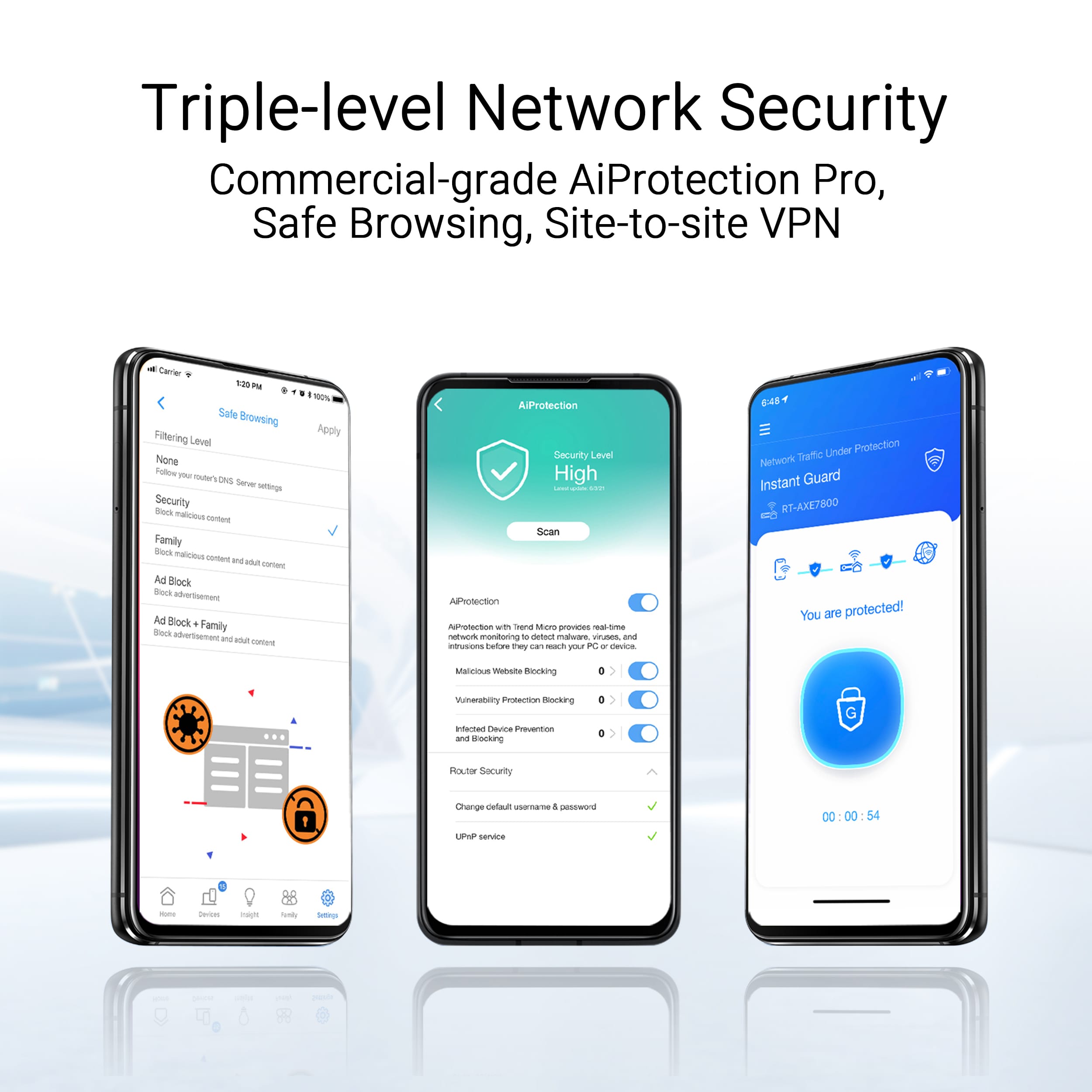
||Posted . Owned for 3 weeks when reviewed.This reviewer received promo considerations or sweepstakes entry for writing a review.I’ve used a lot of routers and mesh systems over the years, including ISP-provided equipment, gaming routers, and older mesh setups, and this ASUS ZenWiFi BE14000 system is by far one of the best networking upgrades I’ve made. The performance, stability, and ease of use have honestly exceeded my expectations. The setup process was surprisingly simple. ASUS did an excellent job with the app and onboarding experience. I expected to spend an hour troubleshooting firmware updates and node pairing, but the entire system came together very quickly. I connected the main router, powered on the additional nodes, and the app basically walked me through the rest. The mesh nodes synced automatically, firmware updates installed smoothly, and the whole house was covered with strong WiFi within a short amount of time. One thing that really impressed me is how well this system handles smart home and IoT devices. We have a pretty crowded network with phones, tablets, TVs, gaming systems, smart plugs, and a full Eufy camera ecosystem. A lot of routers struggle with 2.4 GHz devices or force smart home products onto unstable connections, but this system has been incredibly reliable. My Eufy cameras load quickly in the app now and rarely buffer when viewing live feeds. Notifications come through faster as well, which has made the cameras much more usable overall. The speed from this system is absolutely insane. On compatible devices, I’m consistently getting over 1000 Mbps down and up over WiFi. What’s even crazier is that I’m actually seeing speeds higher than what I officially pay my provider for. Wireless performance feels almost like being plugged directly into Ethernet. Large downloads finish quickly, cloud backups happen much faster, and multiple people can stream or game simultaneously without slowing things down. Coverage throughout the house has also been excellent. Areas that used to have weak signal or random disconnects are now fully covered. Roaming between nodes is seamless, and devices transition without interruptions. One feature that ended up being incredibly useful was the mobile tethering backup option. Our internet provider recently had an outage, and instead of losing connectivity throughout the house, I tethered my cell phone directly to the main ASUS router. Within minutes, the entire mesh network was back online through my phone connection. Our cameras stayed connected, TVs still streamed, and we didn’t have to reconnect every device individually. That feature alone made this system feel worth the investment. I also love the built-in security features. ASUS includes AiProtection and a surprisingly robust set of security tools without forcing you into another subscription. That was a huge plus for me. You get network monitoring, malicious site blocking, parental controls, and device management built right into the system. With so many smart devices connected these days, having that extra protection included gives real peace of mind. Overall, this has been an outstanding mesh system. It combines incredibly fast speeds, reliable coverage, excellent smart home compatibility, and premium security features into a setup that’s actually easy to use. It genuinely feels like a future-proof upgrade for a modern connected home.
I would recommend this to a friend - Pros mentioned:CoverageCons mentioned:Connectivity, Firmware
Too Buggy & Impossible to Set-Up with Android
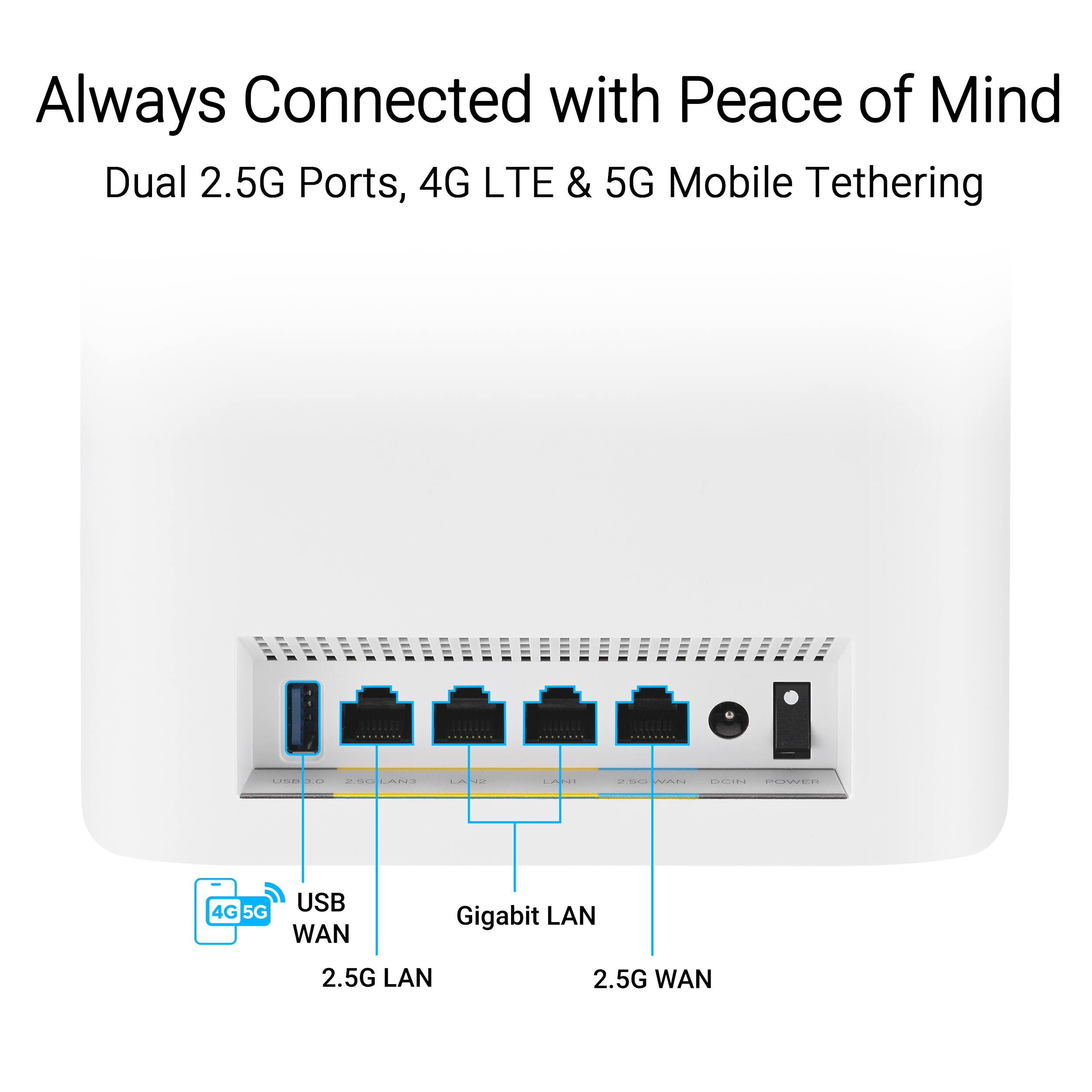
|Posted .This reviewer received promo considerations or sweepstakes entry for writing a review.TLDR: After using Asus routers for years, the ZenWiFi is a marked step back for the manufacturer. The app is laggy & buggy, not to mention it does not work correctly with Android devices. The entire system is unfriendly to set-up and too unstable for use. Wait for a substantial app update and at least one more firmware update before purchase. PROS Strong Wi-Fi Coverage Included AiProtection Pro Included Advanced Parental Controls Ability to Operate 3 Independent Networks CONS Asus Router App Slow & Laggy Interface UPnP and WPS toggles create endless reboots Only 1GB of RAM (Normal RAM usage is consistently around 70%) Only 3 Core CPU (Fine for the system’s use, but slow and laggy when accessing the router via the app or via a web browser) INTRODUCTION I’ve been using Asus routers for more than a decade now. They have proven to be rock-solid, reliable workhorses that require nearly no attention and operate reliably and invisibly in the background. The Asus ZenWiFi could technically be considered a step down from my current Wi-Fi 7 based system I received for review almost a year ago. The system from Asus’ number one competitor started out buggy, became better over the course of the year, but has recently started having random connection issues and drop-outs, making for a poor spousal acceptance factor. Throw in a potential Government ban on these devices due to security issues and vulnerabilities, it was due time for a change. Seeing the Asus ZenWiFi come up for review and my positive experience with their products in the past, I jumped at the opportunity to use their Wi-Fi 7 based whole home mesh network. Supporting 3 nodes and coverage claims of up to 8000 square feet, I had no issues going from a claimed BE22000 product to the Asus BE14000. CONNECTIONS 1 x 2.5Gb WAN Port 1 x 2.5Gb LAN Port 2 x 1Gb LAN Ports 1 x USB 3.2 Gen 1 Port SET-UP There is no other way to say it. Asus, you dropped the ball with your Asus Router app. IT SUCKS! I tried initial configuration and set-up using my Galaxy S24. No go. The app refused to properly connect to my main node. Force closes, numerous reboots of the phone and router, nothing. The phone would connect to the Zen, but the app wouldn’t recognize the connection and therefore prevented set-up. Frustrating, but no worries, I pulled out my Galaxy A9 tablet. What happened next? Same thing. The ZenWiFi would not connect no matter what I tried. Restarts, reboots, updates, nothing worked. Thankfully, I also have an older iPad. After installing the Asus Router app, it finally started showing signs of life. It wasn’t easy, but it was working. Nearly an hour later. Ugh. To make matters worse, once it started working, the app is not intuitive. Not only is it not streamlined, I had to enter most everything via the manual set-up, as even the iOS based app doesn’t function properly either. Better than Android, but still not without its issues. After numerous attempts, I finally got through the initial set-up. But the frustrations didn’t end there. Things like after initial connection to the main unit; the app starts looking for the nodes. This is yet another issue I have with the app. Once you add the other nodes, the app doesn’t respond that they are installed and available. Nope. No form of recognition. To be fair, the main router will immediately see the nodes and update them to the network, but you don’t know that. You are just left guessing as the LED indicators repeatedly change colors. Nearly 10 minutes of waiting, hoping that what is going on the background is successful, because you sure can’t see it in the app and the main router failed to automatically update the remote nodes to the latest firmware. Attempting to save a great deal of time, I carried over my existing SSID and password. I know. That is not the correct way to do it. But when I installed my previous Wi-Fi 7 system (coming from an Asus router), using the same SSID and password worked flawlessly and saved me tremendous amounts of time. Devices came back online like nothing happened. It was great. No going around to close to 100 devices and reconnecting them. I am close to 2 hours into this endeavor at this point. So, I open the app and look at the network, its status, and its clients. Client devices online: 32. What? I have at least 70. Not only that, according to the Asus Router app, the ZenWiFi has assigned 5 devices the exact same IP address (these devices were set up as DHCP and were not issued static IP addresses). Sure enough, nearly half of my devices aren’t registered with the ZenWiFi. Even with using the same SSID, same password, same encryption protocol. Same, same, same. They show on the Asus Router app, just unavailable, forcing me to return to the devices' native apps for re-configuring. Fast forward. I am now in hour 3 of set-up, trying to get everything to work. Most things are coming around, but like I said above, I must reset many of the devices and manually add them back to my network. I didn’t have to do this with my last system. I still have devices that are refusing to connect to the ZenWiFi. My Notion leak detectors? Nope. My LG soundbars? Nope. Older Amazon Alexa devices? Nope. Some things just aren’t working. Even turning off MLO doesn’t solve the issues. How do I know this is a ZenWiFi problem and not some other issue? Because my previous Wi-Fi 7 system replaced an Asus non-mesh system. Those devices all functioned properly on my old Asus system and the Wi-Fi 7 system that replaced it (from another manufacturer). Some things don’t work with the ZenWiFi. It’s an Asus mesh issue. Next, I decided to run the Asus Security advisor via the web browser. Sure enough (as I knew it would) it identified 2 security vulnerabilities. UPnP and WPS (both enabled by default). As recommended, I disabled UPnP and WPS. Upon doing so, several of my connected devices got kicked back off the network and the remote nodes went into multiple reboots with unstable connections. As of this writing, I gave up after 3 reboots of the node this computer connects to. Toggling UPnP and WPS back on was the only way to eliminate the rebooting issue and the remote node not coming back online. Now back to manually adding all these devices back to the network once again. For my main / primary devices on my network, I’ve always like adding DHCP address reservations for them. I don’t assign static IP’s to my devices as it can lead to HUGE problems when switching systems like I’ve done, but I find address reservations a good compromise. Like I said, not all devices get reservations, just important devices and especially devices belonging to my teenager. Makes for easier administration of rules and parental controls, not mention the ease in troubleshooting. Here in lies another major issue I have with the ZenWiFi. There is no listing in the Asus Router app to assign a reservation. Oh wait, yes there is. It’s called IP Binding. Why can’t you just name the feature like EVERY single other network in the world does? EVERY networking person knows what an IP Address Reservation is. So, I attempt to assign one of my kid’s devices to an unassigned IP address and start the reservation process. Nope. Not going to do that again. What was a simple process with my non-mesh Asus system from a couple years ago & my recently replaced system, it is an epic debacle with the ZenWiFi. Why? Because simply adding an IP reservation aka IP Binding in Asus speak, forces a complete system reboot. A REBOOT with EACH and EVERY entry. CONCLUSIONS In a nutshell, this is the MOST disappointing product from Asus in a LONG time. I have always placed Asus routers on a pedestal & aside from a commercial or prosumer investment, always considered the Asus products as the gold standard. No longer. To be fair, the Asus ZenWifi has as good or better coverage in my house than my much more expensive previous Wi-Fi 7 system. I appear to be getting better 6E coverage with my Galaxy phone than I did with the Zen’s predecessor. So far, the slow connections experienced with my previous system seems to be markedly better. All my laptops, desktops, and streaming devices have connected immediately to the network after having to manually re-add the exact same network credentials. My prior system would often take up to 1 minute to assign an IP address and permit a device on the network. The ZenWifi appears to be doing a much better job, with re-connections almost instantly after waking or booting up. Stability seems to be fair at this point, better than after first starting. I’m still experiencing random devices showing offline, but they often come back with no intervention on my behalf. My MyQ garage door openers and Eufy products are prime examples. The ZenWiFi kicks them offline frequently, but after 30 minutes or so they magically come back. I’m hoping it is just a teething issue and something I overlooked, but I will keep monitoring. This ZenWifi changes my opinion of the Asus networking products. I have NEVER had so many issues or difficulties setting up a network. I set-up my last 2 networks in this house in half the time (combined) as it has taken me to work through the issues with the ZenWifi. I have my CompTIA Network+ certification and even though it is only an entry-level certification, I have quite a bit of experience setting up networks. Glad I do. It’s been needed to be able to work through all the issues with this system. NOT RECOMMENDED
No, I would not recommend this to a friendBrand response from ASUS Answers
Posted .Dear NAMO,
Thank you for your comment.
We appreciate your feedback. Information coming from valuable customers, like you, will help us improve our future product offering. Typically, the coverage of this ZenWIFI is up to 8000 sq. ft. To resolve a weak or unstable WIFI signal, place the routers in a central location within your home, away from walls and obstructions, keep it elevated off the floor and away from electronic devices that may cause interference. Check if the routers' settings matches with your ISP’s modem credentials, verify if the PC or device connecting to the router is working properly and within range to the routers, the router is within 30 feet to the ISP's modem, if not wired with a network cable, and ISP's internet service or connection is working properly or stable. Legacy devices may not work properly with WIFI-7, please check updates for these devices. Also, try connecting this manually to either 2.4GHz or 5GHz. Try resetting the mesh routers and reconfigure or set up the devices. Also, we recommend updating the Mesh router firmware if it is running with an older version. Firmware is available for download at: https://www.asus.com/supportonly/zenwifi%20be14000/helpdesk_bios/ . Should you need further assistance with the product, please email me at cl-rodel@asus.com and I would be more than happy to help. Or you are most welcome to call Product Support Hotline at: 1(888) 678-3688. Also, you can chat with an ASUS live support agent from the link: https://www.asus.com/us/support/article/1135/.
Thank you for choosing an ASUS product. Regards,
Rodel
ASUS Customer Loyalty
- Pros mentioned:Coverage, Setup, Speed
Great For Big Homes
|Posted .This reviewer received promo considerations or sweepstakes entry for writing a review.If you have a big home with lots of technology using WiFi, then the 8000 sq ft Dead zone free coverage from the ASUS Zen WiFi BE14000is for you. It’s super simple to set up with the ASUS app which gives you so many options right at your finger tips. It is built for the future of WiFi with it’s triple-band WiFi 7 AiMesh which is great as technology advances offering speeds up to 14 GBPs which is ideal for me who enjoys 8K streaming and intense gaming. Its AiOptimization is incredible, automatically prioritizing my internet traffic in my home for the best possible performance. The Nodes/towers look nice which can be placed anywhere in your home and fit in nicely with any decor. No problem blending in. One thing I like is the two 2.5 gig ports that are available so I can get the wired connection speeds of over 2 gigs that I pay for to game. The app makes it pretty simple to set up and offers tons of features to fine tune your needs that other mesh systems may lack. Although I may not take advantage of all the features and benefits of the Zen WiFi system, I do like the fact that the options are available for future needs. If you are not good with tech, then some of these features might feel a bit hard. If you are in a smaller home with just simple streaming needs at 1 gig or less, then this might be a lot more than you probably need. Other features that I like are the AiProtction Pro for my network security, VPN, and the option for parental controls. Great if you would like to limit what your kids are streaming these days. I have had this for a handful of days now and everything is working great and I am very happy.
I would recommend this to a friend - Pros mentioned:Setup, Speed
Solid Mesh System with Advanced Technology
|Posted .This reviewer received promo considerations or sweepstakes entry for writing a review.I have been fortunate enough to use several different mesh systems in my home. I’ve found them to be incredibly useful especially when it comes to ensuring all my smart devices get a strong WiFi signal. For the past couple of years, I’ve been using a premium wireless router designed for gaming and smart home management. It’s been great, but I thought this ASUS system would be a good step up from the single router setup. The setup for this system is fairly straightforward. First, you unbox the units, their power cables, and the Ethernet cable. Then, you power all of the ZenWiFi units up in the same room. Once the units are connected, you can move them to your desired location, but they will connect best if you do it in the same room as your modem. Next, you will use the provided Ethernet cable (or one of your own) to connect the main unit to your ISP service. In my case, this was an AT&T Fiber Gateway. Once the LED turns solid blue, the ZenWiFi is ready for set up and you can connect to the app. The three units that come in the box are essentially identical. There is a sticker on the main unit that reads, “Hi! I’m the Main Unit. Start with me.” While the ZenWiFi units are not enormous, they aren’t particularly small either. Mesh system units I’ve had in the past are much taller than the ASUS ZenWiFi units. The general aesthetic of the units is modern with a technological flare. Once I got the system set up, the signal was very strong throughout our house. This system will reportedly cover more than 8000 square feet. Our house is around 1500 square feet, but I noticed that I had a very strong WiFi signal in our garage and even out into our yard. This was great because it meant that our outdoor lights and cameras didn’t have to struggle to maintain a connection to our home network. As far as speed goes, I was getting between 700 - 900 MB/s consistently throughout the house. The service we have only provides up to 1Gig so even though the ZenWiFi system can support 2.5Gig service, 1Gig was the max we could get. Overall, I think this is a good system for someone who wants a mesh network. It has a lot of advanced features through the app and it’s easy to maintain.
I would recommend this to a friend - Pros mentioned:Ease of use, Speed
WiFi7 Mesh packs a Punch!, easy setup
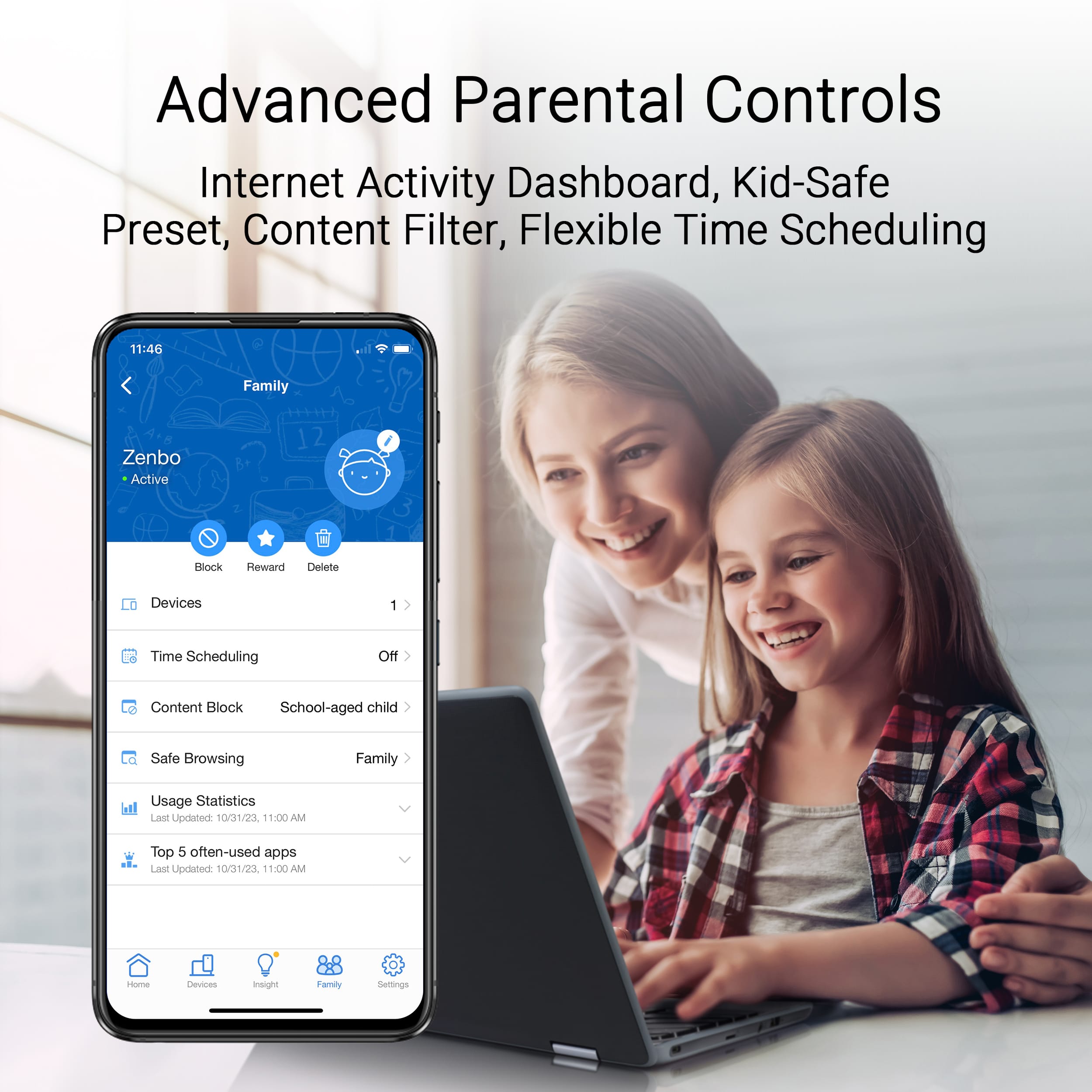
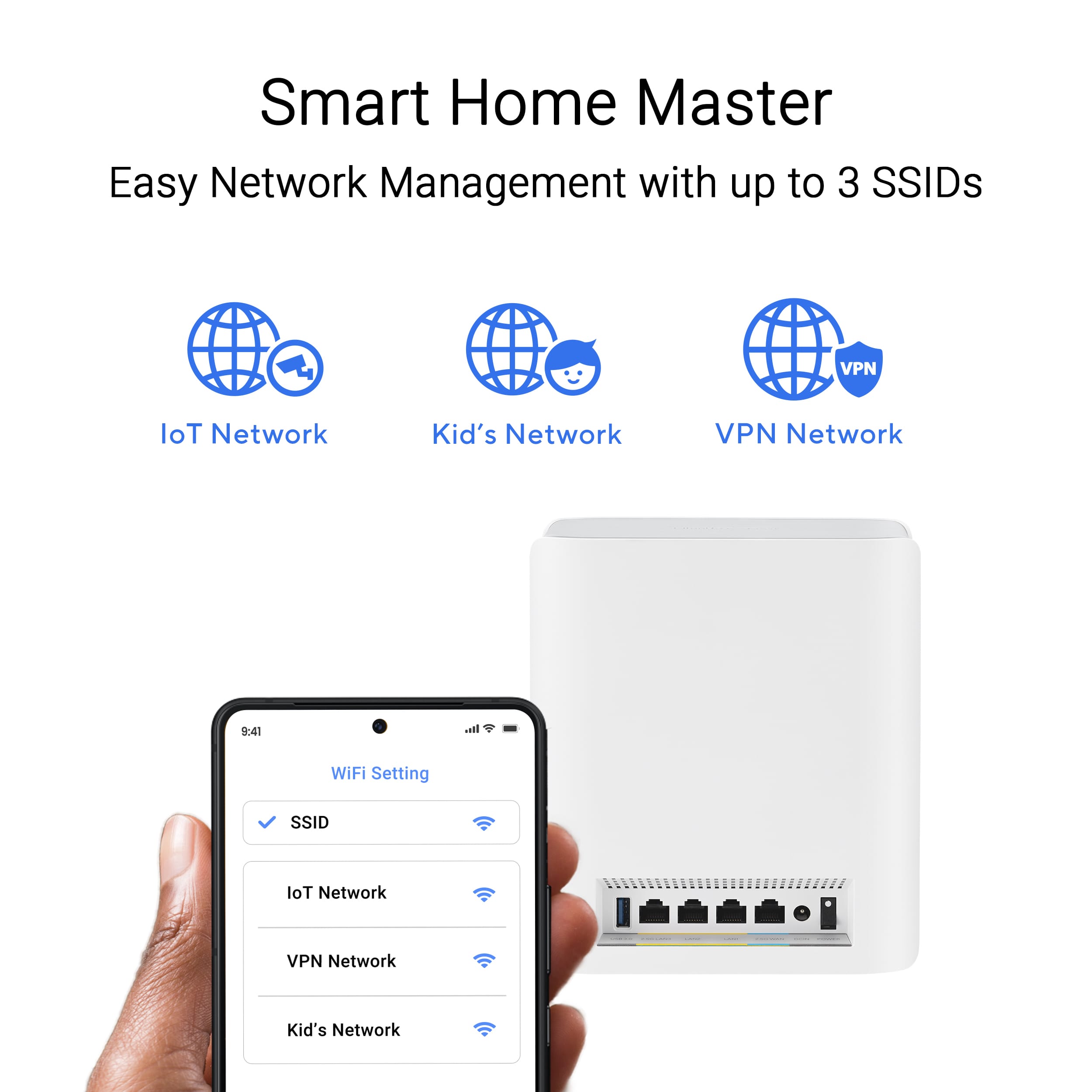
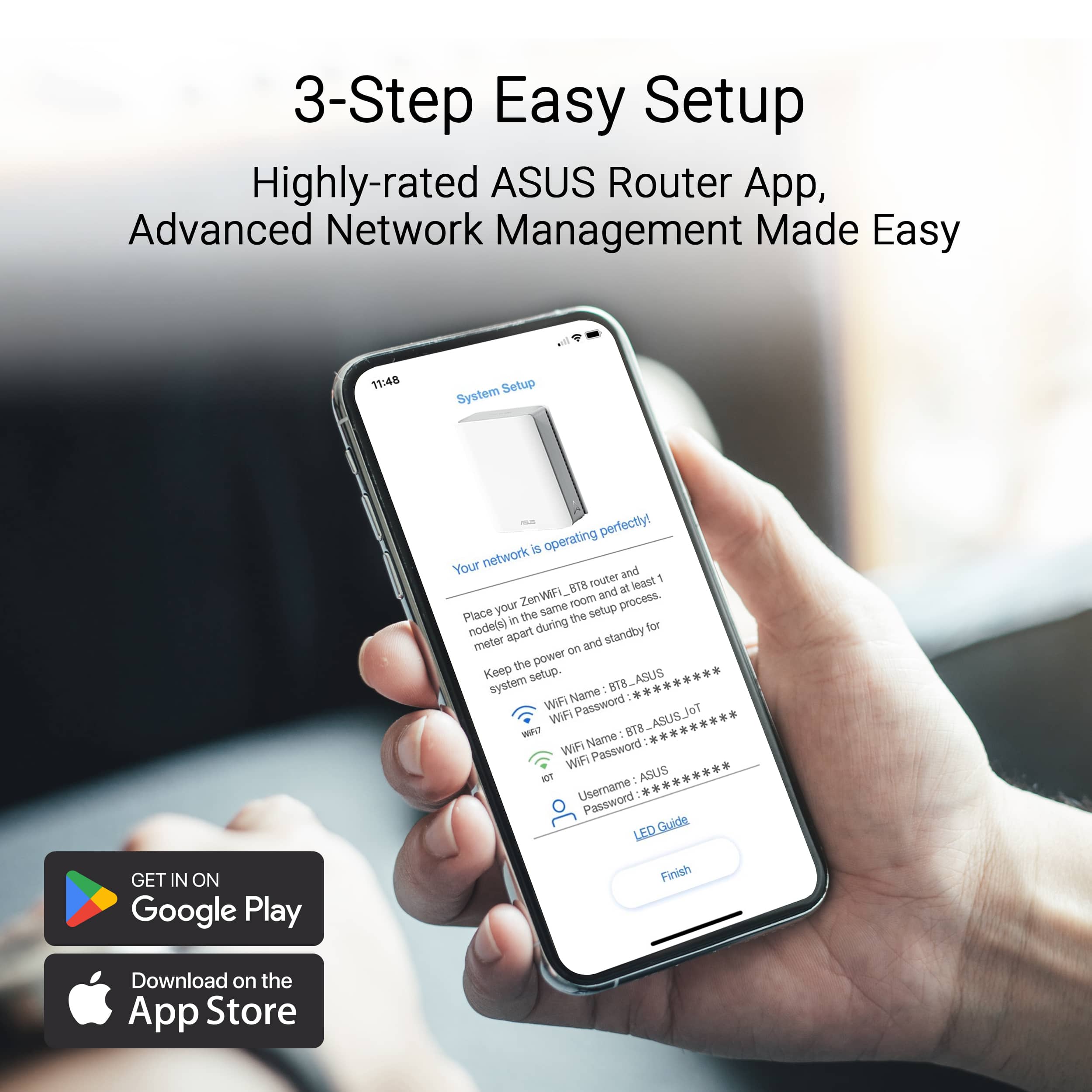
|Posted .This reviewer received promo considerations or sweepstakes entry for writing a review.The Zen Wi-Fi BE14000 is a new tri-band Wi-Fi 7 mesh router system from Asus. This consists of three units which come pre-paired any one of which can be used as the base unit. This means that the routers work right out of the box. All you need to do is download the app from Asus and plug the base unit into your existing router or modem and do the setup. This is definitely an advanced routing system not only containing basic Wi-Fi functions, but can be used as an SMB server, a universal plug and Play AV server and an FTP server for file sharing. Asus also includes an AI cloud 2.0 application that allows you to use a USB drive as a cloud storage that you can access remotely. Each unit includes a USB 3.0 port, a 2.5 GB WAN port , a 2.5 GB LAN port , two 1 GB LAN ports, and a DC power connection Port. Setup is easy. You take one of the access points. Plug an ethernet cable into the WAN port iand the other end to your router or modem! You can use either a wired connection from a laptop or a Wi-Fi connection from a laptop or a smartphone. To set it up for wired connection you enter www.asusrouter.com in your browser and it will open the sign in page. If you use Wi-Fi, then you'll have to connect to the router wirelessly by using the SSID on the tag on the back of the Asus module, you can then connect to the GUI when you open your web browser by going to www.asusrouter.com at this point you can enter a new password and you're ready to go. The router should auto detect your ISP connection. If it fails, you'll have to manually do this by getting the settings needed from the web or from your internet provider. Next, you'll assign your SSID, wireless login name and password. After you get this all set, go ahead and set up the wireless security and the bands that you're going to use; 2.4, 5 or 6 GHz or all three. Most people use WPA2/WPA3 personal with wireless security, but there are also radius settings if you'd like. Just a tip. Do not use WEP or WPA tkip if you want fast speeds because the data rate will automatically drop to 54 megabits per second If you try to use that type of encryption. Azus allows you to see a list of the clients in your network and you can selectively block any one you'd like If that's needed. You can also look at all the nodes in your mesh Network and any USB devices. If you are going to use a USB device you have to create shares. So make sure you read about how to do that. Just like any USB storage device, be sure to eject the disc from the router web interface before you remove them otherwise you could corrupt the data. You can use the USB outputs to do other things like a network printer or a 3G or 4G USB wireless dongle. You can use QOS settings to prioritize traffic. The router allows you to have sort of an automatic QOS called adaptive QOS or traditional QRS which you set up the priorities yourself. In cases where you have a large building and you need or if you need a second Wi-Fi network, you can add this set of routers as in access point mode to create a new wireless network. AI mesh mode allows you to add it to an existing mesh networks. I am unsure if this works with other brands, but certainly we work with other Asus mesh network routers. I would recommend updating the firmware to make sure that the router is protected from as many current threats as possible from the external internet as well as providing enhancements to function, reliability and speed. Asus does offer a service called AI cloud 2.0 that allows you to access USB attached disks and even samba on network PCS on your network. I would be careful with this as it allows external access to the network and you may want to use more secure third-party methods but in a pinch this will work. Asus includes AI protection for real-time monitoring from spyware and unwanted access. You can also filter unwanted websites and apps and schedule the max time that a device is able to access the internet. There is also Network protection that prevents Network exploits and will secure your network from outside access. For families with younger children, the Asus GUI includes parental controls that can filter the web sites as well as apps. You can filter by content category as well. Time scheduling is also included. A robust firewall is included and access through the router can be finally adjusted using the many settings. The router allows you to create several VLANS including a guest Network, a kids network, an IOT Network, a VPN network, or any other type of network you may want. This is all done using what Asus calls a smart home Master. This lets you have different SSIDs for each VLAN. There are system logs and traffic monitors so you can analyze the data flowing through the router if you need to. This router offers a lot of fine control that can be used in a more advanced way if you desire. For most general users, you will never touch these settings, but for advanced use if you have multiple servers or other applications running on your network, these will be a boon to allow easy configuration. The router can even be set up for dual Wan with the failover. If one of your internet connections goes down keeping your business or critical use application connected. These routers set up easily have powerful Wi-Fi that allows a strong fast signal throughout your entire house or business using Wi-Fi7. The advanced features make these great for people who need professional features or us regular people who just want coverage everywhere in out home at the fastest speed possible. The setup is easy, especially if you just need a basic WiFi mesh router network. They're essentially plug and play.
I would recommend this to a friend - Pros mentioned:Coverage, Ease of use, Speed
Get the full potential of your internet
|Posted .This reviewer received promo considerations or sweepstakes entry for writing a review.The Asus Zenwifi is the best best choice for people with large homes looking to expand to full coverage and utilize every bit of their internet speed. What makes this unit a great pick is the fact that with 3 units included you get more than enough coverage for up to a 8000 sq ft. home which in turn eliminates dead spots. Out of the box you get everything you need to get you set up and going. Aside from the internals this wifi set up works and feels like most wifi units out there. Simply put, set up is a breeze which can all be done via the free mobile app. Through the app you have roughly the same features as most units in the way of parental controls, limiting usage, and prioritizing connected units. You can set up your wifi name and password along with admin controls and guest access. What makes this unit shine, at least in my eyes, is the 3 band mesh set up which future proofs your home with up to 6g speeds. The biggest problem that i am having right now with my current wifi set up is that i am paying for over 1 gig internet speed but my current wifi is only putting out about 500 mbps depending on usage. I have a house with two highschool kids, a wife who does 3-d modeling from home and i use the speed for streaming, gaming and work. So much bandwidth and speed are taken up that is frustrating to realize the limitations of our house hold. With the current Asus set i get speeds averaging about 800 mbps with speeds reaching up to 980. The wifi uses its own AI sensing feature, (which most units do anyways) to switch between bands depending on usage and speed needed. What seems to be different about this feature vs most others is the consistency and accuracy of this feature. What i simply mean is that internet speeds are maintained in a more consistent and linear fashion rather than getting large fluctuations of 300 to 600 mbps. All in all from a consumer stand point this is a must have for large families or large family homes that require consistent usage and reliability with little to no dead spots or dropped speeds. Pros: -Remarkable speeds -Large coverage -Future proof -Easy set up -Good security features Cons: -Price
I would recommend this to a friend - Cons mentioned:Connectivity
Asus mesh router with great features/performance
|Posted .This reviewer received promo considerations or sweepstakes entry for writing a review.Asus’s ZenWifi BE14000, featuring WiFi 7 and 2.4,5, and 6Ghz support, is a very good, but not flawless, mesh router system. It offers a good value in specs, and there’s a lot to like with regards to the very full-featured app/web administration tools. The bandwidth, if you can get the MLO wireless backhaul working, can be astonishingly good. However, I found the devices finicky at times, and I am still fiddling with this to correct what seems to be some periodic latency issues and compatibility with a few devices. I tested this mesh system in a house with a coverage area of about 4000sq feet with a network of well over 25 devices, ranging from phones, laptops, desktops, IoT devices, Chromebooks, to smart TVs. The router comes in an attractive package that folds upwards to reveal the three basically identical units. One of them has a sticker designating it as the main unit, but there’s otherwise nothing to distinguish it, and the satellites are already paired. You’re encouraged to download the excellent Asus router app to begin setup, and the included setup documentation is relatively sparse and somewhat confusingly written. I would recommend you read the entirety of the setup process (it’s not long) before beginning, rather than going step by step. Each unit is identical, with power, a power switch, 2.5Gbps WAN, 2.5Gbps LAN, 2 1Gbps LAN, and a USB 3.0 port for attached storage. There’s no 10Gbps port available, but very few people even have 1Gbps internet, let alone 2.5Gbps, so the vast majority of people will be more than covered with these connectivity options. Setup consists of connecting these up in the same room, at least 1 meter apart. You’ll need your main unit to be wired to your ISP’s modem. You’ll scan a QR code on the main unit to begin the setup process through the app. This is pretty straightforward stuff: create your admin account, setup your main wireless network (you have the option to create separate networks for various bands) plus an optional network for IoT devices (which I did, as I put my doorbell camera and robot vacuum on those). At the end, it’ll check for firmware updates. Though it said it completed, I ended up finding one of my satellites did not in fact update, which may be the reason that one gave me trouble. I had to update that one later. After that process is done, you can place the satellites wherever you need in the house. If your house is wired, you have the option of having these used the wired connection as the backhaul. Otherwise it uses wireless connection as the backhaul, and in the best connectivity state it will use MLO (Multi-Link Operation), which uses multiple frequencies and bands simultaneously. When MLO is active, it will show up in the app as a dark green line with an MLO tag in the network diagram showing the connections between the units. If it’s not present, you’ll have a fainter green line, or if you don’t have a solid connection, you may see it grayed out (as well as having the yellow light indicated on the satellite unit rather than the normal white). I have a 1Gbps fiber connection, and if you get MLO to work, you can get great throughput. I hit speed tests of 800-900Mbps with my wireless devices, just about maxing out my connection. The trick is getting the MLO connection to kick in, because performance is not nearly as good if you don’t. One of my satellites connected perfectly, and the other (which was the one that didn’t get its firmware updated initially) had trouble connecting at all. After finally getting it updated, I found I had to move it all over the place in order to finally get an MLO connection. I ultimately did but I had to place it in a less than optimal position. As I said, it works fantastically well if you get MLO operating. But not all of my devices seem to play nice with it. Most of them work fine, but while my Galaxy S23 Ultra stays solidly connected, my wife’s Pixel 7 Pro drops constantly, as does my daughter’s Samsung Galaxy A23. I don’t know if this is a handoff issue between the units or what, but I haven’t been able to pin down the cause. On some devices, I can experience a laggy feel–sometimes, clicking a link will take forever to load, but then bandwidth tests come back extraordinarily fast. I’ve done the network optimization within the app, but maybe I’ll find I need to separate the network bands into distinct networks for those particular devices. The IoT network is rock solid–I get a notification from my door camera any time there’s a connectivity drop–and it’s stayed consistent throughout. As for the management software (either the web-based portal or the Asus Router app), it’s great. First, you don’t have to have an Asus account for it to work (just your local admin account you make during setup).That’s a plus right off the bat. There are tons of configuration options, and the layout is well-organized. Secondly, there are nice security and family features (AiProtection) which are included, unlike others who charge hefty subscription fees for basically the same features. I really feel Asus’s software here is top notch and offers great value, and it has everything for novices to experts to dig into. I’ve been using this for five days and I’m still finding new things in the menus. My final conclusion about this router is that it's an excellent product, but with a lot of devices on my network, I still need some tweaking here and there to get a few of those devices happy with it. It’s got great administration software, the latest WIFI standards, and the MLO backhaul provides incredible wireless backhaul, finally allowing my wireless clients to pull down just about all of my ISP’s available bandwidth. I did have to fiddle with some positioning, and there’s clearly some further tinkering for me to do to clear up these residual connectivity drops with a few clients. I think for people who have to cover a lot of square footage and benefit from a mesh router system like this, I think Asus has a very compelling product that offers great value.
I would recommend this to a friend - Pros mentioned:Ease of use, Performance
Great Speed and Coverage
|Posted .This reviewer received promo considerations or sweepstakes entry for writing a review.Super easy setup. I cannot believe how easy ASUS has made custom network configuration. It really is as simple as powering on the router and nodes and downloading/running the ASUS Router app. Setup requests basics like your desired SSIDs and passwords, and you’re up and running. Including firmware updates to the router and nodes, the entire process took about 45 minutes. While initial setup is easy as entering SSID and password, digging into the ASUS Router app reveals the plethora of options one expects in router management. You can get as granular as you want. The ability to designate multiple SSIDs is the reason I opted to upgrade our existing mesh system. I have a handful of older devices that are only compatible with the 2.4GHz. Being able to have them operate on their own network and easily access and control them makes the upgrade worth it. The ASUS Router app clearly identifies connected devices and makes it easy to tell at a glance which band your devices are using or if they have a wired connection (see image). It eliminates the detective work (or just plain trial and error) when trying to determine what band your device is on. Our home is two stories over a full basement. I have the router and a node located on the main floor with the second node upstairs. Coverage is excellent at all locations within the home with no dead spots or discernible slowdowns in media streaming or PC gaming. We have an outdoor WiFi camera about 75 feet from the home connected to the new wireless network and it has good signal. Overall, I am very pleased with the ASUS - ZenWifi BE14000. Its performance meets all of my expectations; its ease of use exceeds all of my expectations.
I would recommend this to a friend - Pros mentioned:Speed
Verizon Fios 1G Users Beware Slow UPLOAD speeds
|Posted .This reviewer received promo considerations or sweepstakes entry for writing a review.For any Verizon Fios Gigabit (1Gb) subscribers, you may run into slow upload speed issues with this router, or any other WiFi7 router system. I wanted to put this out front so that you can potentially save yourself some headaches, but I also wanted to be clear that this issue does not appear to be limited to only Asus routers or the BE14000. However, until Verizon and other WiFi7 Mesh system manufacturers resolve this issue, it will absolutely impact you and may be a potential problem that prevents you from using these very expensive mesh systems. It is also worth mentioning that changing out Mesh WiFi systems can be VERY time-consuming now with all of the Smart and IoT devices we now have in our homes. While we spend 5-20 minutes setting up each device it doesn't seem like a lot, but if you have to update ALL of your devices because you updated your home WiFi system and had to change your home SSID, then you can imagine how much of a pain this can be just to run into this upload speed issue. Also, even if you keep the same SSID as your old router system, some devices and ecosystems will not automatically transfer over and the devices will need to re-added individually. So to further describe the issue, I tested my old Atlas Max 6E WiFi which has for the most part, worked flawlessly for years. Upload and download speeds while both wired and on mobile were more or less symmetrical and on wired, near capping the 1Gb advertised speeds of Verizon. Wireless from phone and laptop were less due to the speeds of WiFi 6E, but still symmetrical and matched at 700+Mbps. After changing to the BE14000 WiFi7 mesh, download speeds were great! Both wired and wireless on WiFi7 was nearly the full Gigabit, which is fantastic, but upload speeds were abysmal, at only 10-30Mbps. This is PROBLEMATIC for anyone who works from home and needs to have live video streams and conference calls like Teams or Zoom, or uploads files/images to the cloud for work. It just isn't fast enough especially if you have any other upstream traffic, like Security Camera feeds, whatever. I did some research and found on Reddit and Verizon forums this is NOT an issue limited to Asus ZenWifi, but likely an issue with Verizon Fios internet, and 1Gb service specifically and also only for connections directly from the ONT. If you use their supplied router, upload speeds are fine, but this is not great because you are then running a double NAT'd network and possibly paying for a Verizon router (although lately they have been free or included in your subscription). I found the following potential workarounds: 1. Put an unmanaged switch from the ONT in front of the ASUS. This actually works for a variable amount of time before everything falls apart and there’s no internet. 2. Disable IPv6 on the router. Seemed hit or miss on other forums/threads (25-30% success rate). Asus support also recommended this to me but it was already disabled on my BE14000 and did not work. 3. Upgrade to Verizon 2Gb plan. Either the equipment update to the ONT or the firmware to support 2Gb fixes the handshake with 3rd party routers. My best guess is that the older 1Gb ONT and/or firmware does not know how to negotiate the speeds for the newer Wifi7 802 spec, so it falls back to 10/100 speeds. Scenario 1 and 3 kind of point in this direction too. I contacted Asus and they were responsive and helpful in testing some additional settings, like multi-WAN and trying different ports on the Asus BE14000 itself, but none resolved the issue for me. I believe there's only 2 real solutions here, which is running double-NAT'd network from the Verizon router or upgrading to Verizon Fios 2G, which would more or less double my internet bill, which is overkill for my needs. As for the router and system itself, the install went fine, overall the system is robust and seems to work well. Firmware and GUI is solid. Sorry not spending a lot of time covering this as I'm kind of at a loss on the system and not using it as my daily. A few more observations, there's only a 2.5G WAN and 1 of 3 LAN ports is 2.5G. I would've liked to have seen at least 1 more LAN port and all ports being 2.5G and maybe the WAN at 5G. Asus' highest end model does have 10G and 5/2.5 on all ports I believe, so if you have edge devices, NAS and networking that can utilize 2.5G or better, that will save you some money on a 2.5G+ edge router. Next steps for me are to see if Asus has anything else I can try. I was a bit surprised that they were not able to tell me whether or not they had seen other reports of this issue with Verizon Fios 1G. Verizon isn't the biggest ISP in the US, but they are pretty big in the NorthEast and MidAtlantic corridors, so I would've expected them to know about this and at least tell me if its a known issue or not. If you google search Verizon Gigabit slow upload speeds ONT you'll see quite a few hits and not much solutions. The best lead I have as mentioned is the 2G upgrade seems to fix whatever the negotiated speeds are for the WiFi7 protocol. If Asus provides an update with a fix that works, or if anyone else finds a fix, please respond in the comments and I will do the same with an update if I find a fix, thanks!
No, I would not recommend this to a friendBrand response from ASUS Answers
Posted .Dear TechBuyer,
Thank you for your comment.
We appreciate your feedback. Information coming from valuable customers, like you, will help us improve our future product offering and services. Should you need further assistance with the product, please email me at cl-rodel@asus.com and I would be more than happy to help. Or you are most welcome to call Product Support Hotline at: 1(888) 678-3688. Also, you can chat with an ASUS live support agent from the link: https://www.asus.com/us/support/article/1135/.
Thank you for choosing an ASUS product.
Regards,
Rodel
ASUS Customer Loyalty
- Pros mentioned:Coverage, Speed
ASUS ZenWiFi BE14000 Tri-Band Mesh Wi-Fi 7
||Posted . Owned for 2 weeks when reviewed.This reviewer received promo considerations or sweepstakes entry for writing a review.Overall, the ASUS ZenWiFi BE14000 Tri-Band Mesh Wi-Fi 7 System is an excellent choice for large homes seeking superior coverage and speed. Its incredible range is a major highlight, and the setup process is manageable. If you are looking for a high-end, future-proof networking solution and are prepared for the investment, this system delivers impressive results.
I would recommend this to a friend - Pros mentioned:Ease of use, Setup
Replaced a failed wifi6 system
||Posted . Owned for 3 months when reviewed.This reviewer received promo considerations or sweepstakes entry for writing a review.Replaced a failed whole house mesh wifi 6 system with the Asus Zenwifi 7 triband system. I love the triband architecture, and the system was easy to setup, and repair my whole smart house to. I still have an old Asus wifi router (which still works), and was disappointed with my previous netgear wifi 6, so I decided to spend the money and get the zenwifi system. The zenwifi system does NOT disappoint. I run my whole smart home system through it. I was pleasantly surprised with the 6G connection for our phone and some of our newer devices. The base unit has a large number of physical connections, enough to connect my desktop PC and PS5 hardwire. I would recommend the Zenwifi triband whole house mesh wifi system to anyone, especially someone with a large number of connected devices in their home.
I would recommend this to a friend - Pros mentioned:Setup
ASUS - Key to Speed, Cyper Security & reliability
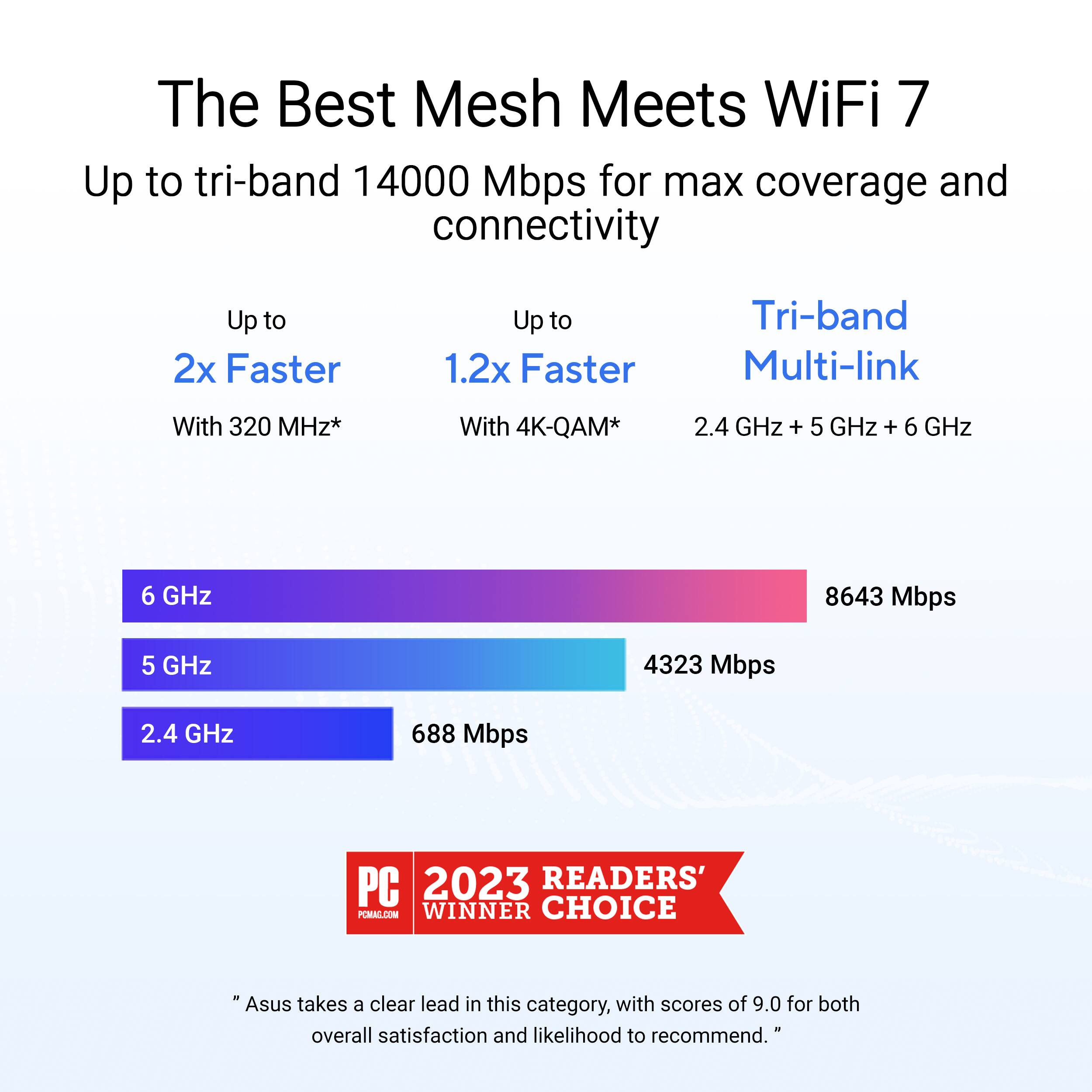
|Posted .This reviewer received promo considerations or sweepstakes entry for writing a review.The new ASUS ZenWifi BE14000 is a welcome addition to my network to play a critical role in our system, that being the capacity to manage security throughout our complex network. Comes with Tri-Band Wi-Fi 7 Mesh system, a seriously compelling system pushing Wi-Fi speed up to 14,000 Mbps, 8850 sq ft coverage, and latest Multi-Link Operation (MLO). The next welcoming feature is the style of the devices, which fit nicely with the décor throughout our home. Compared to my Asus ROG Rapture GT-AX11000 PRO Gaming router the ASUS ZenWifi style is elegant and arrives with network and Wi-Fi punch. The fact is I am replacing another advanced model Router Mesh system with the ASUS ZenWifi BE14000. Discovered when I received the other router that you must pay $99.99 a year to use the Firewall, which is built in. Subscriptions have become a de facto business model. An exception being ASUS, which has for many years included a Commercial Level Firewall “AiProtection Pro powered by Trend Micro” and “Triple-Level Protection Network Security” that are included in their router. In today’s world you need the defenses of effective firewalls to protect you and your family from cyber threats. ASUS has long history of Reliable and Robust Network security. One seamless capability of the ASUS ZenWifi BE14000 is the support of IoT device(s) isolation to a separate Wi-Fi network (SSID), this is a key feature for increasing security. On the Asus ZenWiFi BE14000 It is as easy as setting up a Guest Network on your system, it takes just a few minutes. This helps prevent potential security threats by placing IoT devices on an IoT Wi-Fi network isolated from your main network. This is one of the main reasons I am all in on the ASUS ZenWifi BE14000. Other approaches to isolating IoTs are quite technical and costly, such as Subnets and VLANS. Adding the ASUS ZenWifi BE14000 to my existing system was as simple as connecting ethernet cable to my system and setting up through the Web Interface. Set up and managing ZenWifi BE14000 can be handled both through the ASUS Router APP or with their Web Interface, both are at the top of their game and offer the best of both worlds The ASUS Router app offers the convenience of quick and easy setup, as well as remote management. It is an amazingly simple setup, one that anyone can clearly use to set up the MESH system quickly and effectively. The APP and the Web Interface provide a thorough set of management options and tools readily available to fine-tune your system to your requirements. ASUS’s Router APP and Web Interface management tools are a Win Win for everyone. My MESH setup has backhauled ethernet cabling from main office node (router) to the next node in middle of my home at the living room entertainment center. The third node connects to Wi-Fi and is located on the far side of the house in the master bedroom. Throughput speed: - Office 2.9Gbps wired - Living room 1.9Gbps - 2.5Gbps wired - Bedroom 1.4Gbps Wi-Fi The ASUS - ZenWifi BE14000 is a “Key” addition to my network, a real game-changer, it has simply solved project of isolating IoT devices on my network. Isolating IoT devices is a challenge, and I spent a fair amount of time looking for a solution. Protecting your family's online activity is crucial today and the risks have never been greater, I sleep easier now. The ASUS ZenWifi BE14000 is a winner and checks all the boxes for our online activity, and I love the stable and fast wireless bandwidth in my bedroom for evening gaming sessions!
I would recommend this to a friend - Pros mentioned:Coverage, SpeedCons mentioned:Connectivity
Strong Coverage, Minor iPhone Device Quirks
||Posted .This reviewer received promo considerations or sweepstakes entry for writing a review.Overall, the ZenWiFi system delivers solid coverage and consistent speeds across most of the home. Setup was straightforward, and performance has been reliable for the majority of use cases. However, there are occasional hiccups—particularly with iPhones, which tend to disconnect intermittently and require manual reconnection.
I would recommend this to a friend - Pros mentioned:Speed
Incredible performance at great value when on sale
||Posted . Owned for 1 week when reviewed.This reviewer received promo considerations or sweepstakes entry for writing a review.Great product, specially now with the stable firmware, this is intended for more tech savy people than deco or eero, when you consider that this system beats both of those brands easy, specially on range and speed far away, this thing is a monster for the price WHEN ON SALE, usually gets down to 549 or 499, a steal!
I would recommend this to a friend Great Coverage and Fast Speeds
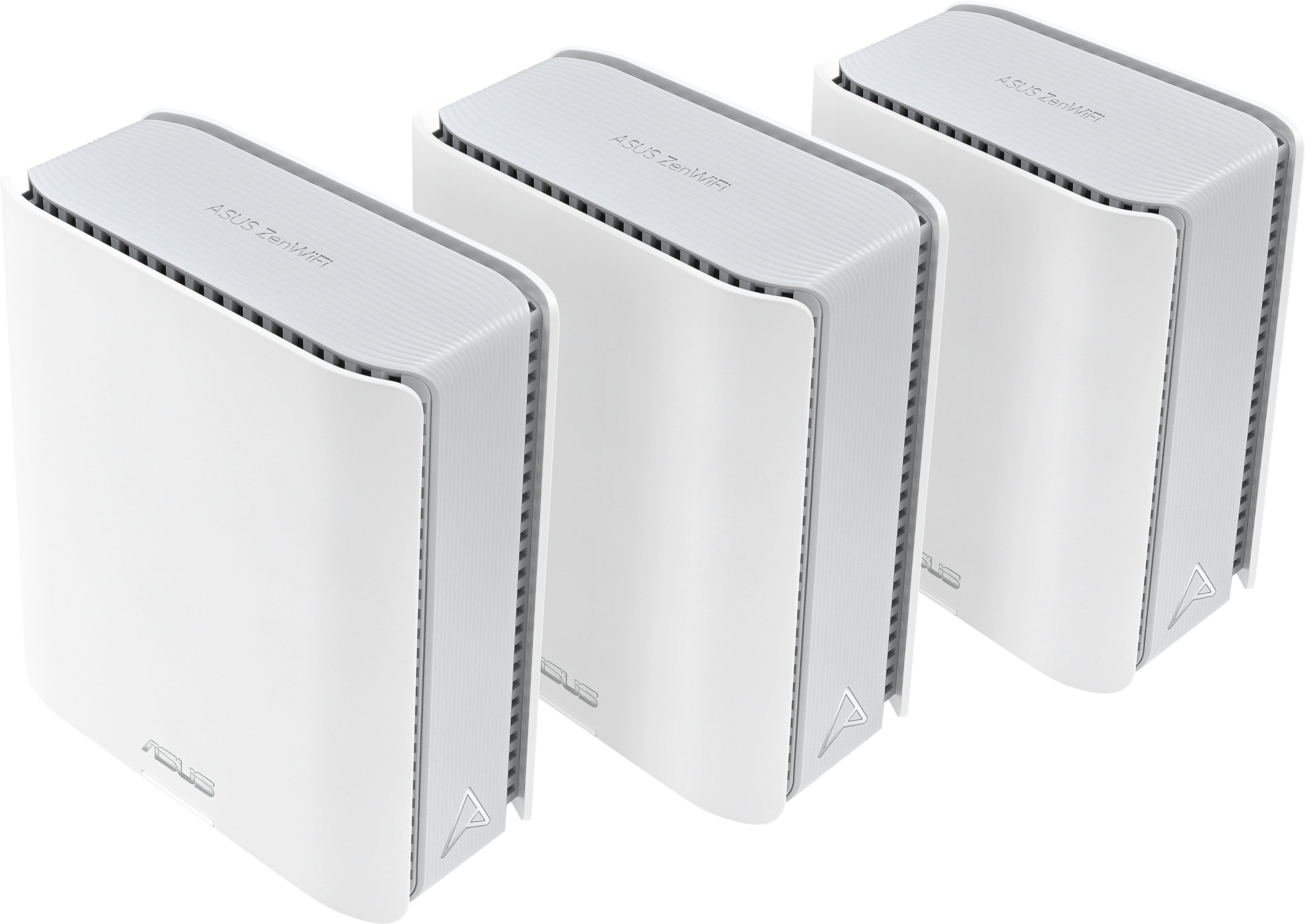
|Posted .This reviewer received promo considerations or sweepstakes entry for writing a review.The Asus BE14000 Wi-Fi 7 Mesh system is great for larger homes. You get 3 wireless units, 3 power cords, and 1 ethernet cable. The system is designed to have one base unit wired, and everything else wireless by default. The units aren’t too big at 7.48x6.14x2.91 inches and weigh 1.87 pounds. You can place them on bookshelves, in nooks, or find some 3D printer mounts to wall mount them. They have a single light in the lower front to give the status of the unit. This is a Tri-band, 2.4, 5, and 6GHz, Wi-Fi 7 (802.11be) system. To keep up with the higher wireless speeds and provide more throughput, you get one each 2.5GB WAN and LAN ports, with two more 1GB LAN ports, and a USB 3.0 port per unit. The remaining inputs are power and an on/off switch. The units are setup as a head unit with two nodes attached to it out of the box. When you first setup, make sure to check for a firmware upgrade as one is out. Upgrading one unit will upgrade all of them if they are in a mesh. Also, there is another Asus system called the BT8 BE14000, these are not the same. At this time, the BE14000 here didn’t have product webpage on the Asus website, but does have a support site for manuals and software/firmware. Make sure to use that page. First I did a default setup. From the BE14000 support page, download the Asus Discovery Tool, it can come in handy. On a phone or tablet, download the Asus router app. When unpacking the 3 units, one will have a sticker denoting it as the main unit and should be plugged in first. Make sure you find this unit and plug it in as your first and main router. This can be behind your ISP or another router if you desire. Then plug in the other two units (nodes). The main unit came up fine, and then the nodes came up and connected to the unit with no issues. Using the App you can find and connect to the system to setup passwords, wireless networks, and get the system going. You can’t change the router to another type of operation. The default IP address is 192.168.50.1. You can set the unit to find an IP by DHCP or make a static setting. If the unit IP is on your network, you should be able to connect to it to setup all of the functions in your network. If you can’t find it, the Discovery Tool will find and list the IPs of all of the units and connect you to them by selecting them. The default setting will get all of your wireless networks up, with security, and good functionality. The mesh system is using wireless to connect all the units together. This will take away from the bandwidth you have for your devices. By default, you can setup a network just for your IoT devices. As a router it has the functionality you’d expect, monitoring, MAC filtering, blocking, DMZ, QoS, etc. You can even setup for dual WAN. To get all of the features quickly, I found connecting to the main unit with a computer by a LAN port the easiest way. Once in the GUI, you have more options, and it’s easier to use than the App. The app gets you started, the GUI lets you fine tune and setup exactly how you want. I already had an existing system and didn’t need to use the BE14000 as a router, but as an Access Point (AP). I also want to use all of the wireless bandwidth available and not have a wireless backbone eat it up. As I have 2.5GB LAN connections available for each node, my wire network could take over the backbone functionality. To do this and keep the mesh system going you have to setup a little differently. This page from Asus, gives the basics and links to other information you may need. https://www.asus.com/support/faq/1044151/ This webpage will show you how to setup the system with it not being a router, behind and using switches etc. In this scenario, the connection to the router goes to the LAN of the main unit and the nodes wires connect to their WAN ports. Different setups will require connecting to different ports. I turned my head router into “Access Point(AP) mode / AiMesh Router in AP mode”. Then you have to select wired as the first option in the “Backhaul Connection Priority” under AI Mesh Management. Last, under AI Mesh System Settings, select “Ethernet Backhaul Mode” and turn it on. Now, my wired network is where all of the Mesh information is passed freeing up my wireless network to provide full bandwidth to all my wireless devices. Handoffs and roaming work fine and my wireless devices have all of the bandwidth for more and better performance. It’s not always intuitive, but it’s a great option. When you set the system to AP mode, you lose some router functions, but whatever you as for your router is doing those functions. If you have the network to do it, keeping your Mesh and using your wired network as the backhaul is a great option. The GUI has lots of options. If you aren’t used to them, you can stick with the auto setup and be up and running. But, you can dive into it and setup a lot of options. In addition to the security and other router functions I mentioned before, you also have the ability to connect to cloud services, or act as your own cloud using the AiCloud 2.0 options. Internal to the devices, you can plug in a USB device, thumb drive, printer, etc, and use the devices for UPnP, iTunes, FTP and Network Place (Samba), a print server, Time Machine, and download location. I use mine an additional music server. If you’ve never used a shared drive, the manual will step you through it. Uploads to the USB drive can be slow, but retrieving information is at a good speed. My network was previously segmented in the 2.4, 5, and 6GHz, and I kept it that way. You can combine the three different frequences to obtain more speed. By itself, 6GHZ got me sustained 180-190 MB/s throughput speeds using the 2.5GB port on a 10GB wired network. Transferring files it not an issue. If you only have a 1GB connection to the nodes, you’ll be limited to 100-110 MB/s throughput. Once I set my SSID to my old network’s, all of my devices came up with no issues, even older ones. Overall, with the speed, coverage, and versatility the BE14000 provides, it’s a great option for router or AP. Used wirelessly, you also get 3 ports to use for other wired devices per node. I am glad to see Asus has provided user with many options to setup the device the way they want. The GUI covers a lot of information, but is not hard to manage. This will serve you well as a beginner or advanced user. With 3 nodes, I have seamless coverage throughout my house with no gaps. The app is a good start for setting up and getting online quickly and being done with setup. But, the GUI will let you fine tune and setup the system the way you want.
I would recommend this to a friend- Pros mentioned:Speed
Excellent home mesh router
||Posted . Owned for 2 weeks when reviewed.This reviewer received promo considerations or sweepstakes entry for writing a review.I bought this 3 pack mesh system to replace my current 4 pack Nest mesh router. It has excellent range and speed to cover a large home. In fact, I was getting very close to the wired speed when connecting to wifi from upstairs. Very happy with it. However, I ran into few issues.My main use case was to create separate VLANs for IOT, Guest, and Home networks to minimize the thread cause by less trustworthy IOT devices. This devices already has built in support for iot iot VLAN. I moved all my iot devices to this VLAN successfully. But the issue is that it doesn't allow inter-vlan communication. So, when my mobile phone is connected to the home network, it doesn't allow me to access/control devices in the iot vlan. The only workaround is to connect the mobile phone to the IOT network. This defeats the whole purpose. I contacted Asus support team and they were unable to address this issue. So I returned the product and bought Unifi UDR7 router with few U7 Pro WiFi 7 access points. Very happy with it so far.
I would recommend this to a friend Great value, performance and security features
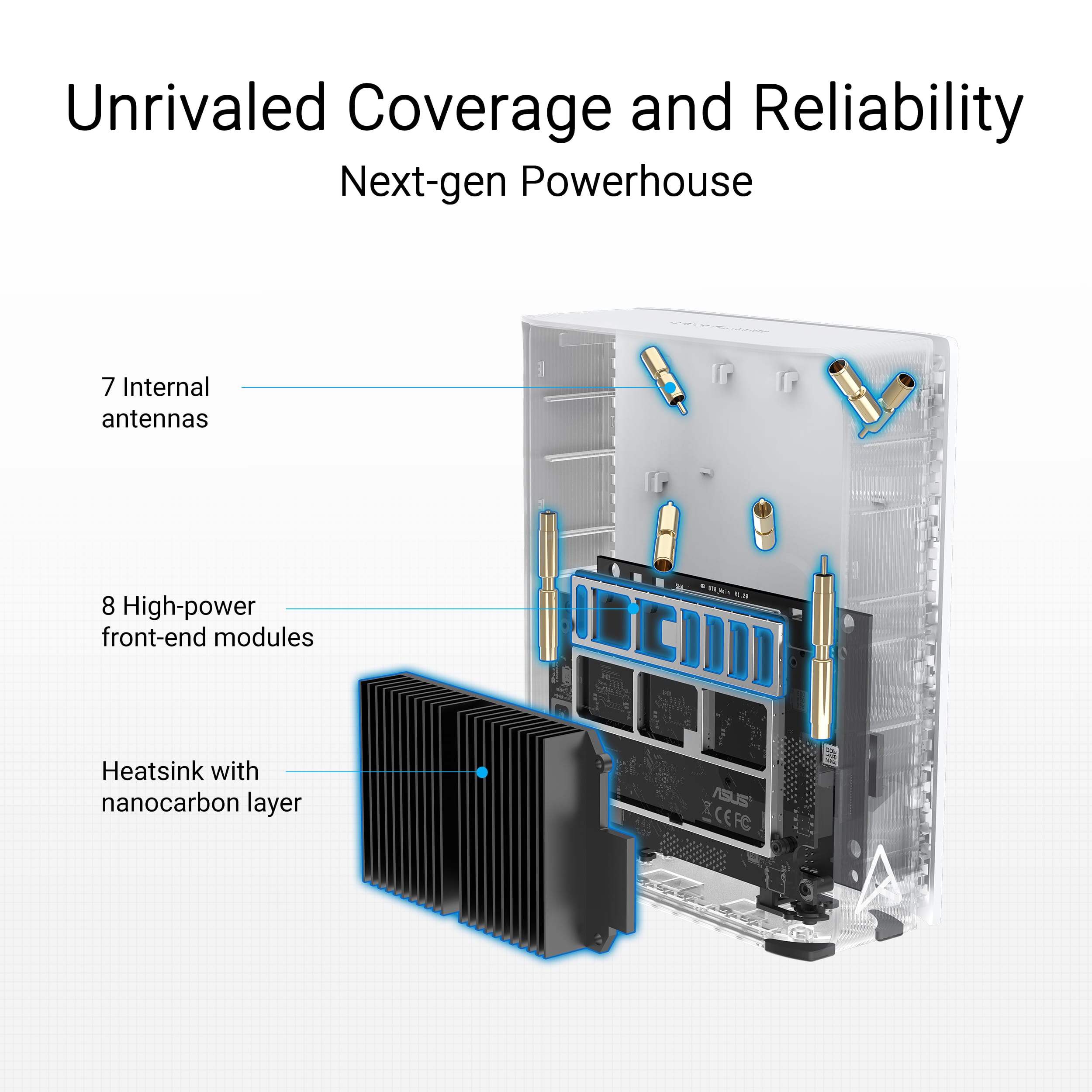
|Posted .This reviewer received promo considerations or sweepstakes entry for writing a review.Just got the ASUS - ZenWifi BE14000 3-PK Tri-band WiFi 7 Smart AiMesh Extendable Router a few days ago and put it through its paces this weekend. I only have a 1 Gb fiber ISP at the moment, but with this upgraded router I’ll be tempted to upgrade to 2 Gb. This Asus system is basically 3 identical Mesh routers packed with the latest future-proof technology that can meet your most demanding networking needs. These units are not as big as the TP-Link Mesh system it’s replacing, so they’ll blend in the decor more easily. They include 2x 2.5 Gb and 2x 1Gb Ethernet ports and one USB 3.2 port that transforms this router into a powerful NAS just by adding a USB hard drive. Moreover each unit has 7 high powered internal antennas that guarantee the multi-band 2.4 GHz, 5 GHz and 6 GHz signals penetrate through walls and other obstacles. The setup is pretty straight forward, just plug the first unit in, then use the Asus Router App from your smart phone or you can also use a web browser on your PC at asusrouter.com. It will automatically detect your WAN connection type, prompt you to create your Wi-Fi SSIDs for each wireless band if you so choose. I ended up using the same Wi-Fi name and passphrase as my old router so I wouldn’t have to reconfigure nearly 40 devices on my new network, just make sure to power off your old router first so you don’t cause Wi-Fi conflicts. Next, the setup prompted me to plug in the additional satellites at least 3 feet away from the main unit. The status LED blinked blue for a few minutes until they connected and autoconfigured, then turned solid white at which point you can unplug them and move them at strategic locations in your house to maximize coverage and speed. I have ethernet runs between the main floor and the 2nd floor, as well as the finished basement, so I ended up using the wired backhaul feature. The wireless backhaul also works very well by bonding all frequencies (2.4, 5 and 6Ghz) using an MLO link. The AsusWRT 5.0 software platform is very well developed, intuitive, feature rich and offers tons of information such as network map,hardware status of all ports, CPU/RAM utilization, AIMesh and security reports, etc. There are also additional advanced security and parental control features that are included for free, unlike the competitors that force you into a monthly subscription for the additional functionality - thumbs up to ASUS for not being greedy like the other guys. I ran most of the speed tests from multiple wired Windows 11 PCs, one being an ASUS ROG tower with Wi-Fi 7 connectivity and a Samsung Galaxy S23 Ultra Android phone that supports Wi-Fi 6e. The range coverage and signal strength is unbelievably good. With my gigabit fiber ISP, I max out at around 950 Mbps. Up until now, that was only achievable with the wired systems. With this ASUS ZenWiFi BE14000 Wi-Fi 7 Mesh system I could not believe it when I got Wi-Fi downloads/uploads in the 900 Mbps just like being plugged in to Ethernet. Ping times were below 5ms which is quite good for Wi-Fi as well. In conclusion I would recommend this ASUS ZenWiFi 7 Mesh system over its direct TP-Link competitors that are comparable in price and performance, for two important reasons - ASUS includes all additional/advanced security features for free, and is not at risk of being banned in the US. ASUS also stands behind their products with a 3-year warranty.
I would recommend this to a friendPricey, but one of the best out there
||Posted . Owned for 1 week when reviewed.This reviewer received promo considerations or sweepstakes entry for writing a review.I've been an Asus user for almost 10 years. Was very happy with one of their first ZenWifi Mesh router sets, but after upgrading to gigabit internet I had to switch. Originally decided to go with 2 RT-BE92U routers in a mesh format but never worked well. So decided to go with this setup and definitely amazing, which will cover a 3-story, 3000 sq-ft home. Love the fact that I was able to separately purchase wall mounts (which improves range and eliminates cable clutter) to make a clean setup. The Asus app is second to none, allowing for remote operation and statistics. One main reason I've always chosen this over a TP-Link for example is the fact that I can easily setup Open VPN to have certain devices running through a VPN while others are using my normal setup. Finally, latest Asus ZenWifi devices also allow for an IOT network, which really comes in useful when I go to connect some of my kitchen appliances that just don't like to connect to my mixed band network. Finally, Yes, it's pricey, but I think I've future-proofed my household for a least a few years, which is always a plus with all the devices and services we commonly use in our home.
I would recommend this to a friend