Customer Ratings & Reviews


- Model:
- I3585-A831BLK-PUS
- SKU:
- 6391785
Rating by feature
- Battery Life
Rating 4.2 out of 5 stars
- Speed
Rating 4.2 out of 5 stars
- Display
Rating 4.4 out of 5 stars
Customers are saying
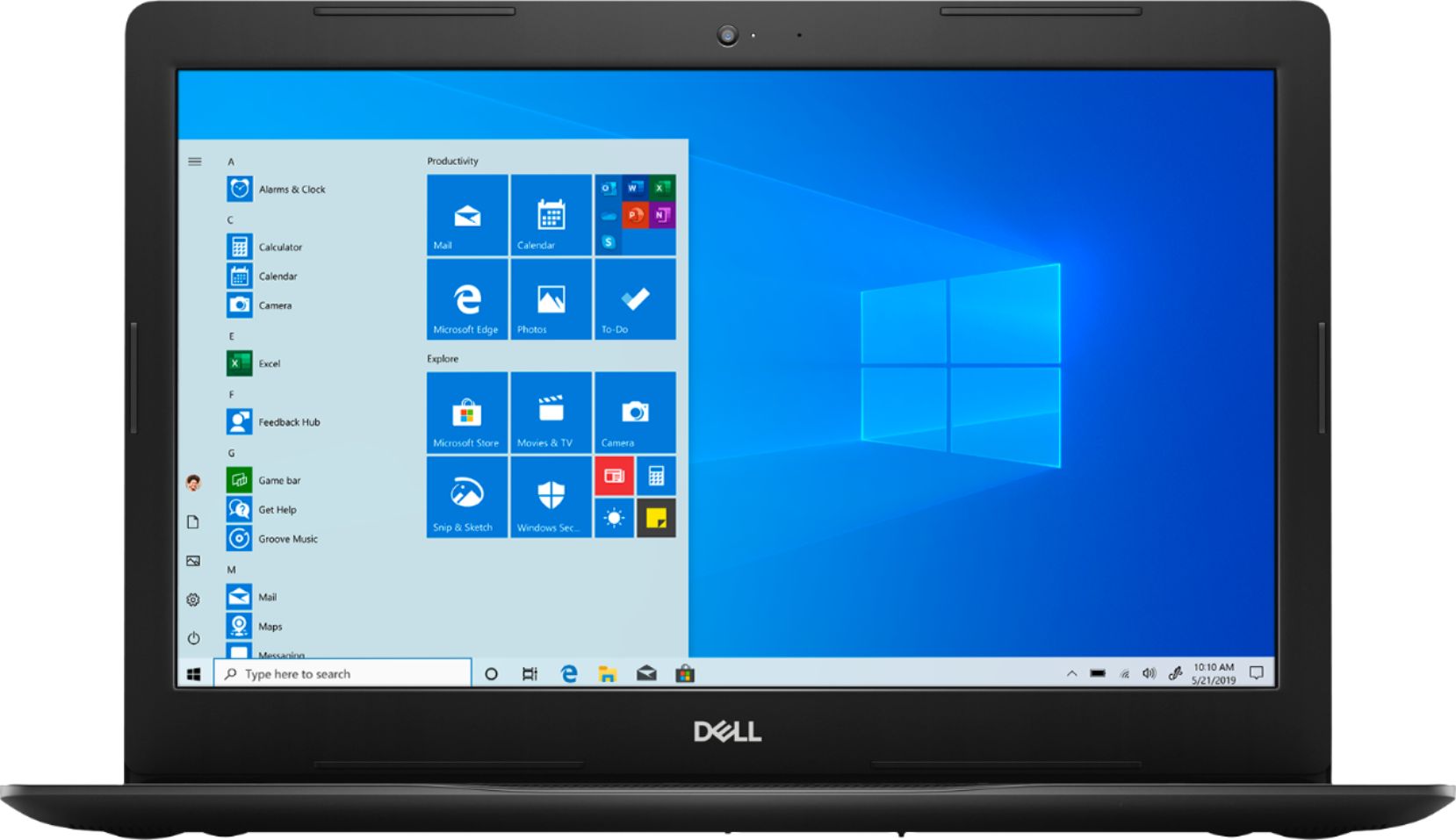
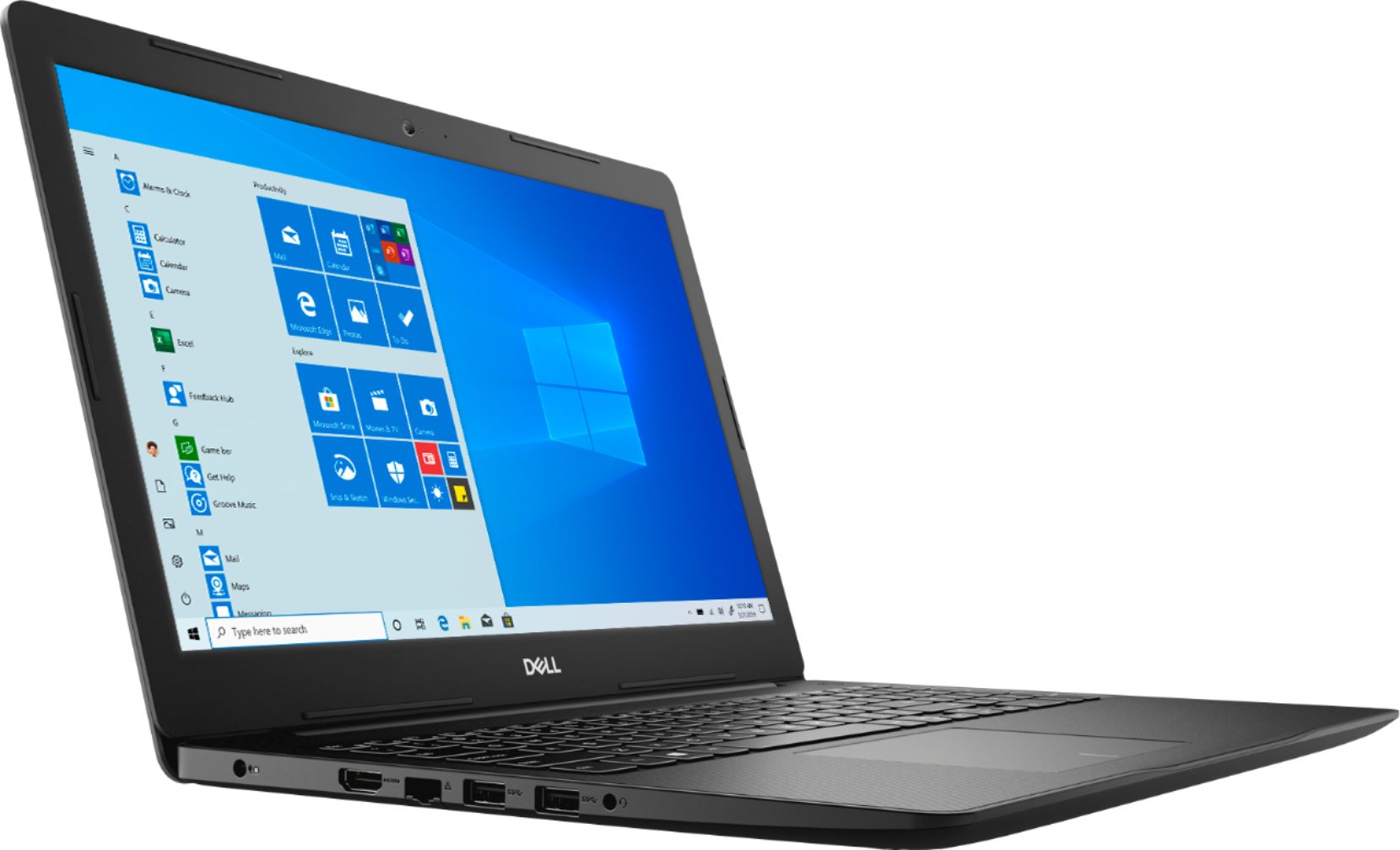
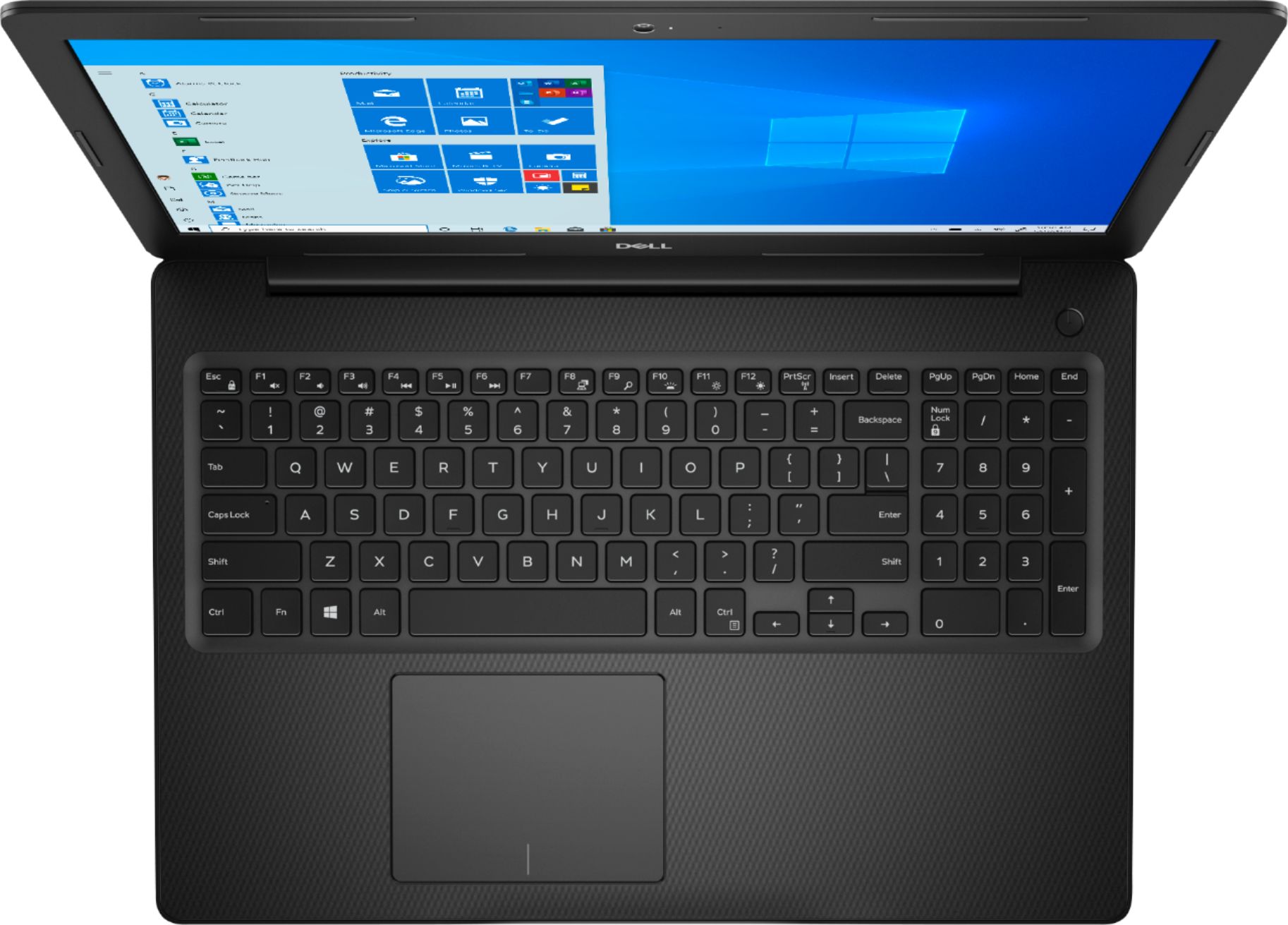
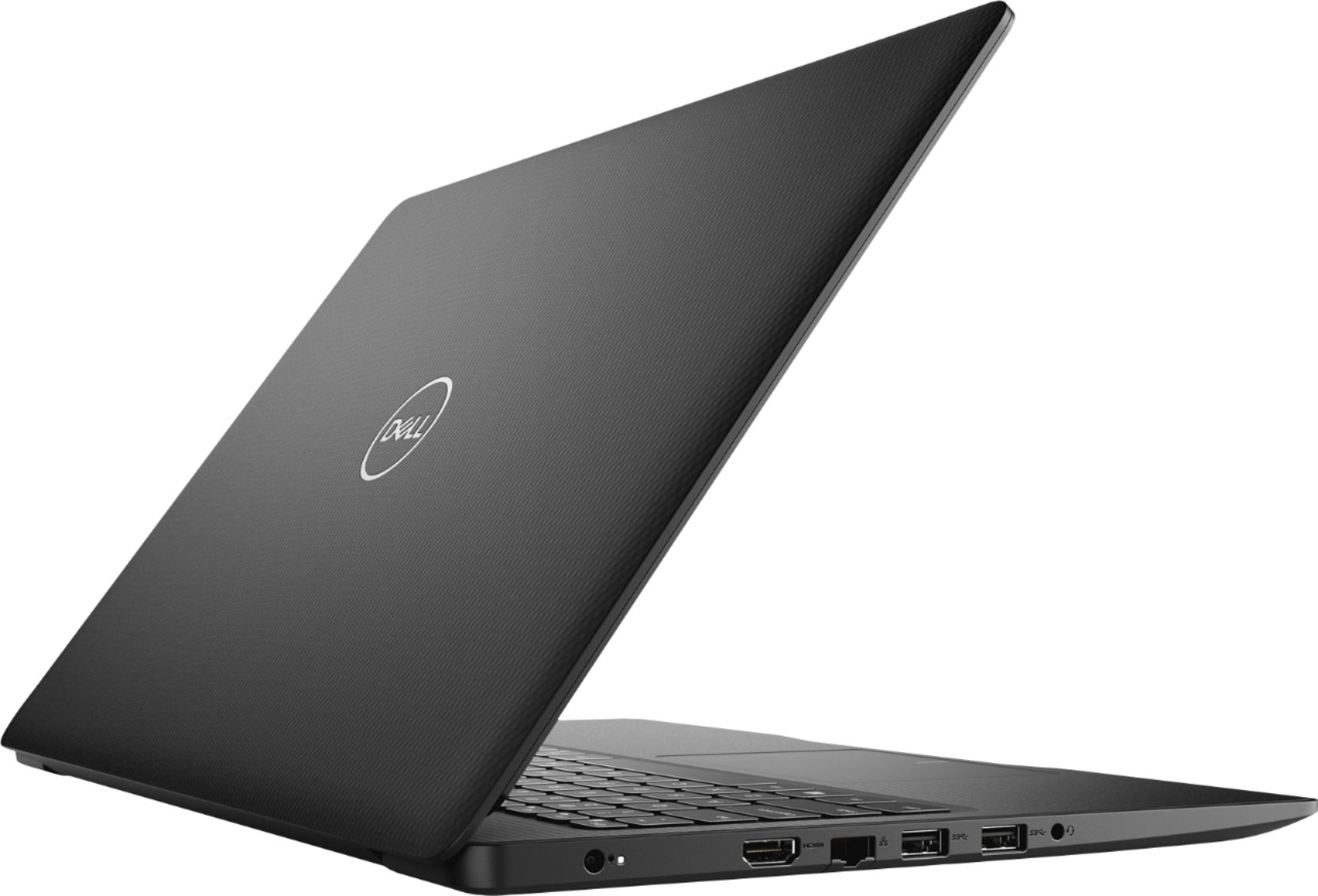
Customers appreciate the Inspiron 15.6" Touch-Screen Laptop for its reasonable price, user-friendly interface, and responsive touch screen. Many customers mentioned that it is a great laptop for basic tasks, working from home, and even gaming. However, some users have concerns about its battery life, limited storage capacity, and tendency to overheat.
This summary was generated by AI based on customer reviews.
Good computer for price
Posted .This reviewer received promo considerations or sweepstakes entry for writing a review.Works great for college student. Works fast and long battery life
I would recommend this to a friendGreat buy!!!
Posted .This reviewer received promo considerations or sweepstakes entry for writing a review.Excellent laptop. I’ve used it for 4 years for work and school with no issues!
I would recommend this to a friend- Pros mentioned:Touch screen
Great laptop for school
Posted .This reviewer received promo considerations or sweepstakes entry for writing a review.Great laptop, that I needed for school . Love that it’s touch screen and I got it on sale
I would recommend this to a friend - Pros mentioned:Work from home
Best
Posted .This reviewer received promo considerations or sweepstakes entry for writing a review.I've been working from home during this DOVID-19 crisis and my new Dell Laptop has been working out very well.
I would recommend this to a friend - Cons mentioned:Memory
Sluggish to boot
Posted .This reviewer received promo considerations or sweepstakes entry for writing a review.A $299 piece of junk. I should have checked the ratings before purchasing. For a supposed 8G memory, 256G processor it runs more like a bad 10-yr old hard drive. Everything is slow as crap and freezes or lags, including the keyboard as I'm typing this. The Outlook won't connect to my email servers... At least my old Toshiba Satellite ran on Turbo charge for 8 years, before the hard drive crashed, compared to this garbage. Returning this for something better.
No, I would not recommend this to a friendBrand response from YourDellTeam
Posted .Nettie,
Thanks for your feedback on your new computer. We'd recommend running the Windows Performance Troubleshooter to see if there are ways for your computer to perform better for you:
1. Close all open windows.
2. Press the Windows logo key + X key on the keyboard.
3. Click Control Panel.
4. Click System and Security.
5. Under Security and Maintenance, select Troubleshoot common problems.
6. Under System and Security, click Run maintenance tasks.
7. Follow the on-screen instructions and prompts to complete the process.
8. Restart the PC.
You can read the full article here - http://dell.to/2tSulGV.
If you'd like to diagnose the freezes on your computer you can try these steps:
1. Run a Computer Diagnostic. To determine if your computer is experiencing a hardware problem, run the Dell Preboot System Assessment (PSA) Diagnostics. For information on how to run Diagnostics, and to determine the issue, refer to Dell Knowledge Base Article: http://dell.to/2iaiujA.
2. Check Safe Mode for Symptoms. To boot into safe mode, please follow the instructions below:
a) Start the computer.
b) Tap 'F8' on the keyboard immediately and every one second until the Dell logo screen disappears. From there you will see the Windows Advanced Options Menu on the screen. (If the Windows Advanced Options Menu does not appear, restart the system and try again.)
c) Select Safe mode with Networking and press Enter.
d) Log on as the administrator or as a user with administrative access.
e) Open applications and test the computer in safe mode. If the symptoms exist in safe mode, please continue the troubleshooting steps in this article. If the symptoms do not exist in safe mode, the issue is likely related to a driver or software and you may wish to complete step 3 to see if you are able to resolve the lockups or freezing.
3. Check for Malware. Malware (Virus, Spyware, etc.) can definitely cause a Windows system to lock up or appear to hang. To check for malware on your system and to ensure that your computer is up to date on security software, visit Dell Knowledge Base Article: http://dell.to/2wWP1zI.
You can read the full article here - http://dell.to/2tW5m33.
We hope that these troubleshooting tips will help your computer run better for you.
Best,
Bryan
1-800-624-9896
- Cons mentioned:Battery life
Nice display but
Posted .This reviewer received promo considerations or sweepstakes entry for writing a review.Very nice display and set up on the laptop itself but overall slow. Runs quickly in the beginning but once you start getting into projects and different tasks the slow down is very noticeable. Battery life was only about 4 hrs.
No, I would not recommend this to a friendBrand response from YourDellTeam
Posted .TSMunoz,
Thank you for the feedback on your new Dell laptop. We are glad to hear that you are pleased with the display and with the overall set up of the computer. We're sorry to hear that you've experienced issues with the speed of your computer. We would like to suggest several ways to help improve the speed of your computer. If you have not already done so, we would recommend removing S Mode from Windows 10 on your computer. Here is the background about Windows 10 S Mode as well as the steps to help with the removal:
'Windows 10 in S mode is designed for security and performance, exclusively running apps from the Microsoft Store. If you want to install an app that isn't available in the Microsoft Store, you'll need to switch out of S mode. Switching out of S mode is one-way. If you make the switch, you won't be able to go back to Windows 10 in S mode. There's no charge to switch out of S mode.
1. On your PC running Windows 10 in S mode, open Settings > Update & Security > Activation.
2. In the Switch to Windows 10 Home or Switch to Windows 10 Pro section, select Go to the Store. (If you also see an "Upgrade your edition of Windows" section, be careful not to click the "Go to the Store" link that appears there.)
3. On the Switch out of S mode (or similar) page that appears in the Microsoft Store, select the Get button. After you see a confirmation message on the page, you'll be able to install apps from outside of the Microsoft Store.
We would also suggest that you limit the background applications that could be running on your computer while you are using it, these would include virus scanners and other applications that may be running automatically in the background of your computer.
Since you have been using your computer for some time now we'd also recommend the following tips to help with your computer's overall performance and speed:
Delete temporary files and directories:
1. Click Start, then in the search bar type "disk". Disk Cleanup should appear on the menu above the search box.
2. Run disk cleanup and eliminate unneeded temporary files (Search results, Internet Cache and other windows temp files you may no longer need)
3. Select files you want to delete then click OK to start the cleanup process.
Uninstall applications you no longer use
1. Open the Programs and Features application in Control Panel.
2. Scan the list of applications installed for ones that you no longer use.
3. Highlight any application you no longer use and then click the uninstall button at the top of the list. Follow the prompts to uninstall.
4. Repeat for each application you want to uninstall.
5. Move large files and/or seldom used files to backup media (Photos, Music you seldom listen to, application downloads after the application has been installed etc.).
6. Empty the Recycle Bin.
Lastly, here are some suggested tips to help with extending the life of your computer's battery:
Change the Power Plan:
1. On the notification area of the taskbar, right-click the Battery icon.
2. On the options list, click Power Options.
3. Select a power plan on the battery meter, such as Power Saver or Balanced. Windows 10 has a built in 'Battery Saver' mode that can be activated to extend your system's battery life. The Battery Saver mode will monitor and limit background activity and other features such as push notifications. You do have the option to enable or disable this mode within settings or within advanced Battery Saver settings, you can customize the mode to best suit your needs.
a) Click on the Action Center icon in the taskbar and select the tile for Battery Saver.
b) If running Cortana then type Battery Saver into the search box and select from the results.
Within the Battery Saver settings page, you will be able to turn on and off the feature and customize the feature to best meet your needs.
c) Turn Battery Saver On or Off.
d) Additional settings available via the Battery use and Battery saver settings links.
e) Battery use shows further info on apps and their power usage.
f) Battery Saver Settings screen allows you to customize further Battery Saver feature.
You can read the full article here - http://dell.to/2vfXWf4.
We hope that these troubleshooting tips will help improve your computer's performance so that it can better fit your needs. If you need any additional assistance you can always reach out to Dell's Technical Support Team here: http://dell.to/2sH7Qlm.
Best,
Bryan
1-800-624-9896
Too loud
Posted .This reviewer received promo considerations or sweepstakes entry for writing a review.I was excited to get this product for the price. It's a little bulky. The fan is so loud. I couldn't concentrate on what I was doing. My laptop didn't do this. I will be returning this back. It is not for me.
No, I would not recommend this to a friendBrand response from YourDellTeam
Posted .Desi,
Thanks for your review. If you have not returned your computer yet we'd suggested updating the BIOS on your computer to help with the fan noise that you're experiencing:
An out-of-date BIOS can cause loud fan noises by having an outdated temperature table for the system. Refer to update BIOS and follow the instructions to update the BIOS on your computer. You can also follow up with our Technical Support Team here - 1-800-624-9896.
You can read the full article here - http://dell.to/2ENlXfz.
Best,
Bryan
1-800-624-9896
Noisy Fan
Posted .This reviewer received promo considerations or sweepstakes entry for writing a review.Bought this laptop today. Turned it on and got it all set up. It is bulky but I can work with that because it was a good deal. After about 30min of use the fan kicked on. The fan is so loud I can’t concentrate, I can hear it from across the room. I red the other reviews and Dell’s reply about updating the BIOS. I should not have to do that out of the box. My Lenovo is 5 years old and never makes a sound.I will be returning tomorrow and unfortunately buying a more expensive laptop. #notadell
No, I would not recommend this to a friendBrand response from YourDellTeam
Posted .Erock263,
Thanks for your review and we're sorry that you're not happy with the fan noise on your new laptop. It is important to check for updates to your computer when you first set it up since updates may have been released between the time that your laptop was manufactured and you purchased it. We hope that you understand that updating the BIOS on your computer may be necessary to help alleviate the noise that you're experiencing from your fan.
Best,
Bryan
1-800-624-9896