Customer Ratings & Reviews





- Model:
- XPS9365-7002SLV-PUS
- SKU:
- 5709803
to a friend
Customers are saying
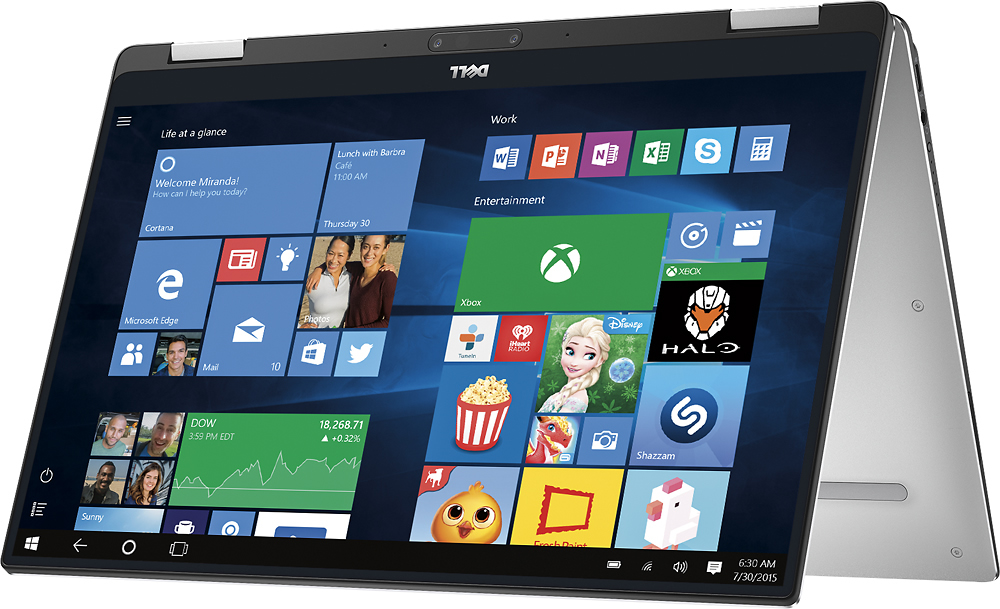
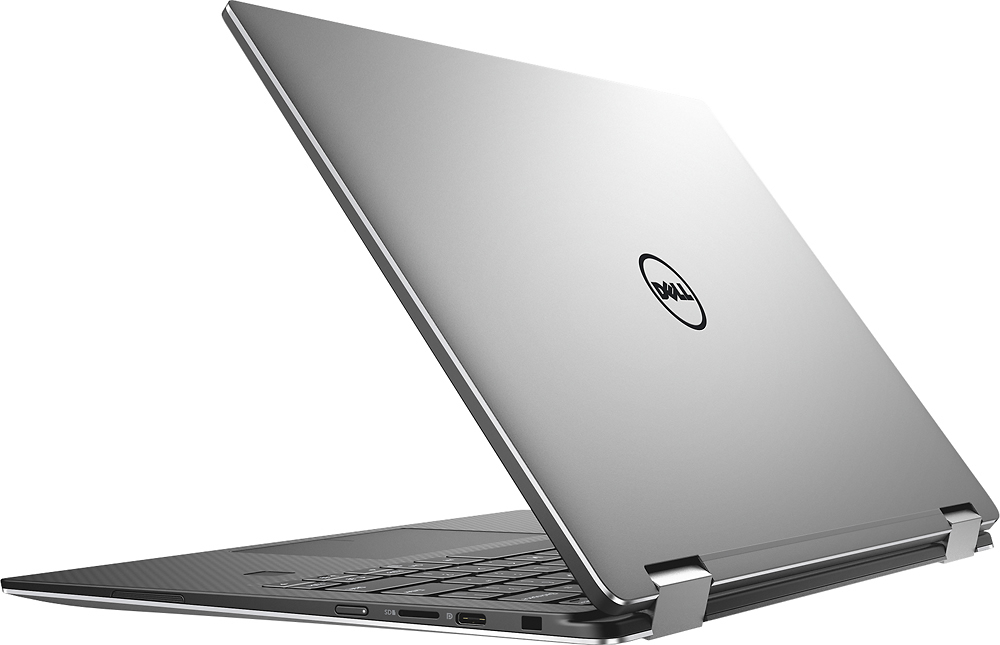
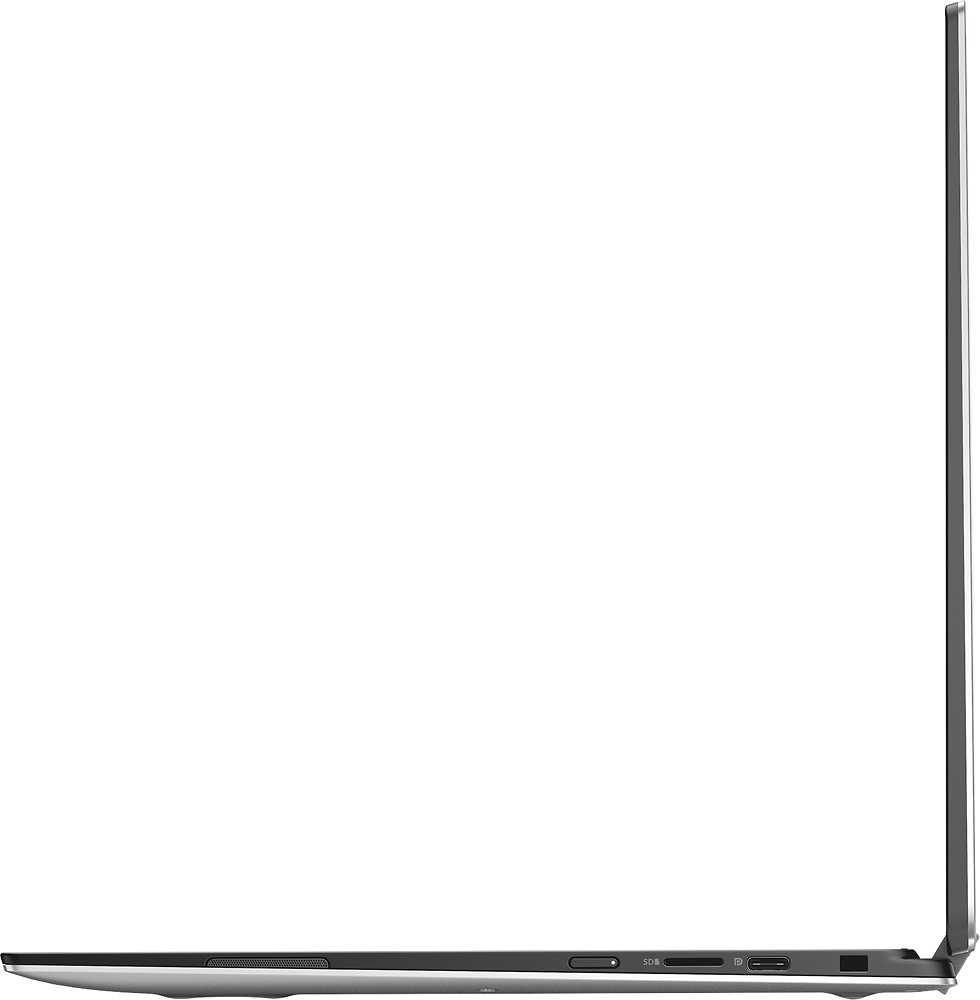
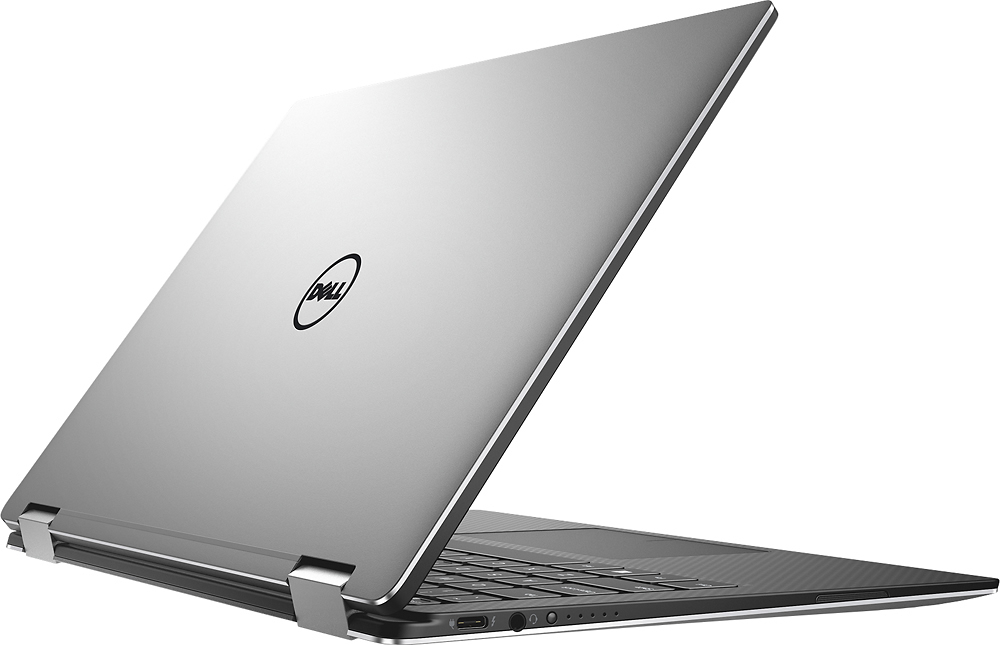
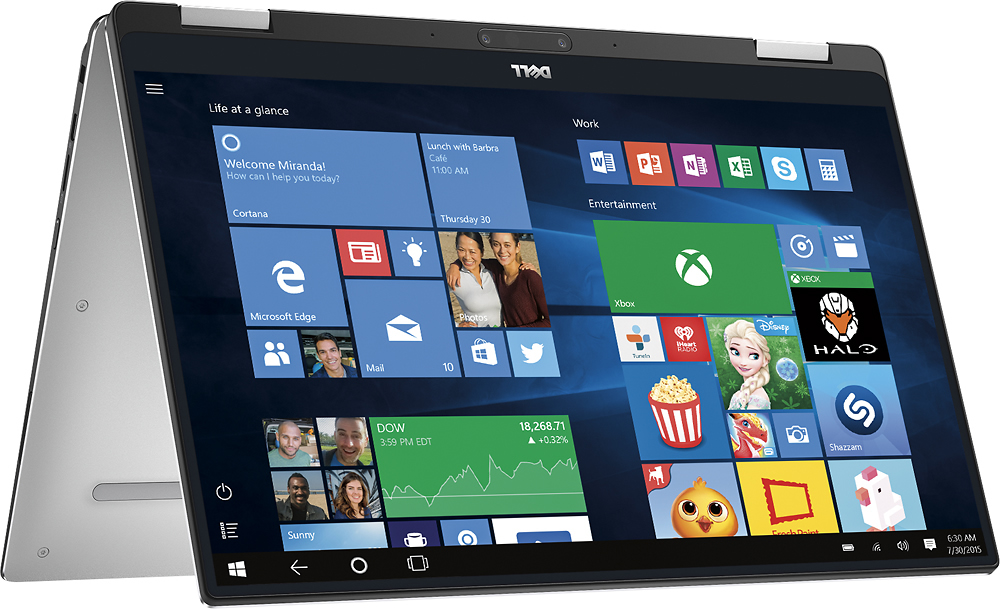
Customers recognize the XPS 2-in-1 laptop for its exceptional display, lightweight design, and fast performance. They appreciate the excellent performance and small size of the laptop, making it highly portable. However, some users have concerns about the battery life not meeting expectations and the laptop heating up quickly.
This summary was generated by AI based on customer reviews.
Overheating = Lack of Functionality
||Posted .This reviewer received promo considerations or sweepstakes entry for writing a review.Laptops are great because they are portable and allow you do work remotely. I can be in a park, hospital or coffee shop, but the Dell's design lacks sufficient cooling mechanisms. It can be hot outside in Hawaii (and other States) and one cannot truly use laptop wherever you want due to overheating.
No, I would not recommend this to a friendBrand response from YourDellTeam
Posted .Username - We're sorry to hear that you are having trouble with your new laptop overheating. We'd recommend the following tips to help with overheating on your device:
Tips for Proper Usage:
1. Dell does not recommend placing portable systems directly on your lap. Due to reductions in the thickness of modern portable systems, heat transfer can be an issue.
2. Using a portable system (Laptop) on a hard, flat, non-cloth surface will increase airflow and reduce heat from underneath and inside the system.
Using the portable system on blanket, pillow, or other type of cloth will cover up the fan cause the computer to overheat and can cause permanent damage.
3. It is recommended to use the portable system in a Room temperature of 0°C to 35°C (32°F to 95°F) with a Humidity level no greater than 90%.
4. Use compressed air to clean the vents on a regular basis.
5. Using a cooling pad can decrease heat and increase performance.
6. If you want to know the temperature limitations for your system, go to the Dell Support Website, look up your system model then open the user guide under the manuals link.
For the full article, you can view it here - http://dell.to/2uJ8AdG.
We hope these tips help you with the overheating that you're experiencing. - Bryan
Don’t bother with Dell anymore
||Posted . Owned for 1.5 years when reviewed.This reviewer received promo considerations or sweepstakes entry for writing a review.Poorly made. Dell really dropped in quality. The build is poor so the specks of the machine are hide the lack of solid engineering. They refused to fix. Skip Dell and get something better. Returned.
No, I would not recommend this to a friendWorst computer ever!!!
||Posted .This reviewer received promo considerations or sweepstakes entry for writing a review.Computer crashed 3 times in two weeks. Reloaded twice and still would crash. Returned to store, thanks to Best Buy support and return policy. Exchanged for a Lenovo and hope for a much better experience.
No, I would not recommend this to a friendBoard was bad
||Posted .This reviewer received promo considerations or sweepstakes entry for writing a review.This item had been held too long and board went bad
No, I would not recommend this to a friendBrand response from YourDellTeam
Posted .Momof4,
We'd recommend contacting Best Buy to see what your options are for your computer: http://bit.ly/2v2IVhI.
Best,
Bryan
1-800-624-9896
- Cons mentioned:Battery life, Customer service
AVOID DELL AT ALL COSTS
Posted .This reviewer received promo considerations or sweepstakes entry for writing a review.So here it goes, I just graduated high school and was offered the opportunity to study abroad in Dublin for my first semester. I am taking 6 classes and decided my HP Envy was a little too bulky to bring. It was time for an upgrade. My Best Buy salesman was terrible and knew absolutely nothing about computers. He kept telling me facts about them and I'D have to correct him because I knew more. I really wanted someone who would listen to my needs and suggest a worthwhile upgrade. He hovered over me the entire time and kept suggesting computers that didn't fit my criteria in the slightest. Anyway I decide on this seemingly beautiful Xps. When all was set and done it cost about $2k, which is no chump change. I bring it home to set it up and it's acting strange but I don't think much of it and figure it just needs an update. Now I'm in Ireland and am ready to use it for class (the school uses lots of online software and office 365 for all their work) and realize the computer is suffering some serious issues. The two thousand dollar laptop is ONE WEEK OLD and I am unable to use it. It has a mind of its own. Here are the problems: Some days it won't start up. I'll press the Power button and it will light up for a few seconds but the screen will stay black no matter how many times I try to start it. When I do get it started (rarely), I am greeted by the sound of crackling. It sounds like bacon on the griddle and the computer gets hot in a matter of seconds. If I try to use it, it closes out of my windows randomly making me lose all of my work. When I try to open then back up I'll get a not responding message. The computer randomly shuts down on its own. Not just "windows is shutting down," the computer randomly just goes black in the middle of school work. The touch screen randomly presses the right side of the screen and opens the notification screen and will not let me close so whatever work I'm doing is cut off by my notifications. When I close the computer it either force shuts down instantly or stays on, killing the battery. Wifi drops at least every half hour and will not start working until I restart the computer. The computer also loves to freeze and lock up when I'm doing something important and will become completely unresponsive for hours at a clip until it finally sputters back to life and shuts itself down after crashing windows. The screen also flashes and flickers, triggering migraines that I'm prone to. There's more problems but you get the gist. So I live chat with Dell USA and after a half hour of going nowhere the lady tells me I must call. I call and after another half hour I'm told I have to call Dell UK. Great, I already used up all of the minutes on my phone so I have to top up $50. I call dell international and am treated so poorly that I'm still shocked. I was very polite saying I know it's not your fault and such but I'm very disappointed and they all tell me they can't do anything for me. THE LAPTOP COST $2000 AND IS 1 WEEK OLD AND DOES NOT WORK IN THE SLIGHTEST. I don't see the problem. That phone call took 90 minutes. Finally after being transferred EIGHT TIMES I'm told I have to upgrade to an international warranty to get coverage which will cost approximately $300 for ONE YEAR and doesn't even include accidental. They said if I pay 300 I am more than welcome to bring it to a service center on my own time. So now I have to go out of my way again? Right as he was speaking with a manager my phone ran out of minutes again so I lost the call. Here goes another $50 out the window for my top up. So I call again and go through the whole process and ask to speak with the same gentleman and am told they can't do that I have to start over. So this time I am transferred ELEVEN TIMES and finally I get a hold of an agent named Vinu who was the only helpful person I dealt with and she said that she's never seen someone get transferred this many times and that I must be frustrated. But none the less she said there's nothing she can do. After anther hour on the phone she tells me I can apply for an ownership transfer and have the address changed to Ireland and then they might be able to help but no guarantees. I did that 4 days ago and Dell still won't help so now I'm stuck with a 2,000 paperweight. SAVE YOURSELF THE HEADACHE!! DELL DOES NOT CARE ABOUT YOU!
No, I would not recommend this to a friendBrand response from YourDellTeam
Posted .Dear Bestbuybuyer8, We are very sorry to hear about all of the troubles that you are having with your new laptop as well as will Dell support. We'd like to offer several tips to help with some of the issues that you are facing. With regards to your computer not powering up all of the time:
1. If the computer is displaying the Dell logo and does not move past that point, it has probably failed POST.
2. If the power indicator lights up and it is amber or orange, this is usually an indicator that it has failed POST.
3. If you see text on a black screen, the computer is currently performing the POST. If the computer stays in that condition and does not move past it, it has probably failed POST.
4. If the video screen displayed anything at all during the startup process but is now black, this probably indicates that the computer failed POST.
5. If the computer is beeping or if Caps/Num/Scroll Locks are flashing, note if there is a particular pattern in which it beeps or flashes.
6. If the computer is not beeping and caps/num/scroll locks are not flashing, unplug all connections and remove all media communication devices (e.g. external monitors); reconnect one at a time and check if the computer functions.
7. For a notebook, press and hold the Fn key and then press the power button. This starts the pre-boot testing and will launch ePSA. In case you have a Desktop at the Dell logo screen tap the F12 key to enter One Time Boot Menu and use the arrow keys to highlight Diagnostics and press enter.
You also mentioned that your laptop was overheating. We'd suggest some of the following tips: Tips for Proper Usage:
1. Dell does not recommend placing portable systems directly on your lap. Due to reductions in the thickness of modern portable systems, heat transfer can be an issue.
2. Using a portable system (Laptop) on a hard, flat, non-cloth surface will increase airflow and reduce heat from underneath and inside the system.
Using the portable system on blanket, pillow, or other type of cloth will cover up the fan cause the computer to overheat and can cause permanent damage.
3. It is recommended to use the portable system in a Room temperature of 0°C to 35°C (32°F to 95°F) with a Humidity level no greater than 90%.
4. Use compressed air to clean the vents on a regular basis.
5. Using a cooling pad can decrease heat and increase performance.
6. If you want to know the temperature limitations for your system, go to the Dell Support Website, look up your system model then open the user guide under the manuals link.
If you continue to experience Blue Screen shut downs:
1. At the desktop, click the Search the web and Windows box and type "problem reports".
2. Select View all problem reports to view a list of errors that have occurred on your computer and possible solutions for them, such as updating drivers, flashing your system BIOS, or checking for updates to software.
3. Under the Source column, look for Windows and under Summary, look for Shut down unexpectedly. 4. Right-click the line item and select Check for a solution. For help calibrating your touchscreen please use the following steps:
1. Restart the Computer and the Monitor
2. Recalibrate the touch-screen. Steps to calibrate touch-screen:
3. Go to Control Panel and select Tablet PC Settings.
4. Under Display tab, select Calibrate....
5. Choose Pen or Touch input.
6. Perform the point calibration that appear on the screen to correct the linearity problems.
7. Save the calibrated data.
You had mentioned that connectivity was also a concern with your new laptop. Please consider the following: 1. Run the Network Troubleshooter. a) Touch and hold or right-click the network icon (Available Networks or Network Icon, located in the lower right-hand corner). b) Touch or click Troubleshoot problems, and then follow the prompts.
Lastly, if you continue to experience lock-ups and freezes please try this:
1. Run a Computer Diagnostic. To determine if your computer is experiencing a hardware problem, run the Dell Preboot System Assessment (PSA) Diagnostics. For information on how to run Diagnostics, and to determine the issue, refer to Dell Knowledge Base Article: http://dell.to/2iaiujA.
2. Check Safe Mode for Symptoms. To boot into safe mode, please follow the instructions below: 1) Start the computer. 2) Tap 'F8' on the keyboard immediately and every one second until the Dell logo screen disappears. From there you will see the Windows Advanced Options Menu on the screen. (If the Windows Advanced Options Menu does not appear, restart the system and try again.) 3) Select Safe mode with Networking and press Enter. 4) Log on as the administrator or as a user with administrative access. 5) Open applications and test the computer in safe mode. If the symptoms exist in safe mode, please continue the troubleshooting steps in this article. If the symptoms do not exist in safe mode, the issue is likely related to a driver or software and you may wish to complete steps 6 and 7 to see if you are able to resolve the lock ups or freezing.
3. Check for Malware. Malware (Virus, Spyware, etc.) can definitely cause a Windows system to lock up or appear to hang. To check for malware on your system and to ensure that your computer is up to date on security software, visit Dell Knowledge Base Article: http://dell.to/2wWP1zI.
We hope these tips are helpful to you and your new XPS laptop so that you can have it run the way you intended it to.
- Pros mentioned:Display
Close to perfection
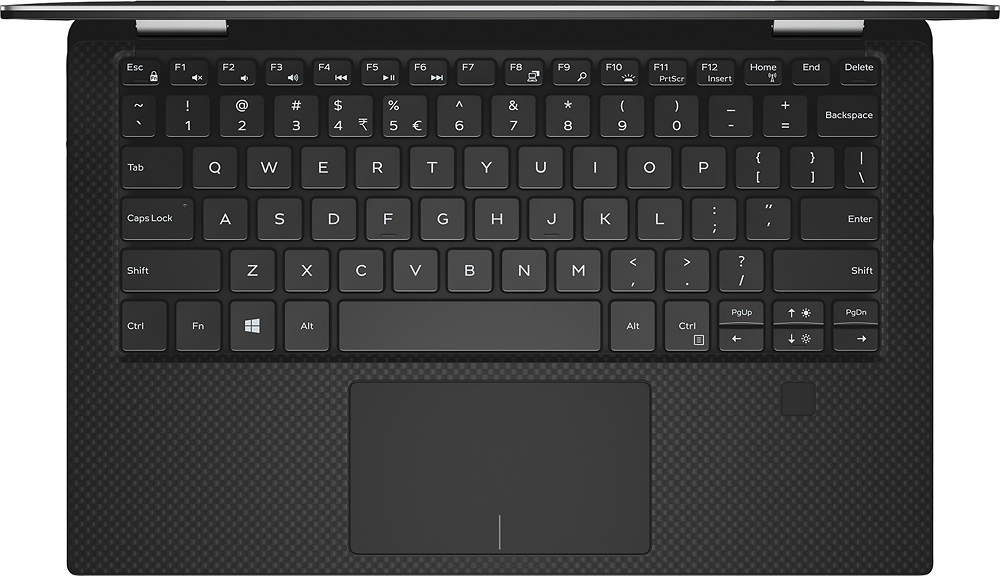
Posted .This reviewer received promo considerations or sweepstakes entry for writing a review.I am a very experienced technology user and have purchased and used dozens of Windows and Apple laptops and other devices. After using the Dell XPS 2-in-1 for about a week now I can confidently say that this is an excellent device and I highly recommend it. I haven't experienced the issues reported on the other reviews. I suspect that they may not have downloaded the most recent updates. Keyboard & Trackpad - just as good as the standard Dell XPS 13 laptop. Display - Beautiful - have the QHD version. Performance - Surprising better than I expected. Probably won't be doing much video editing or gaming on it but that's really not what it's designed for. For browsing, video watching and Office it should be fine. Battery - Good but can't compare to the standard Dell XPS laptop. Build Quality - Excellent - similar to it's XPS sibling. In my opinion this is the best Windows 2-in-1 you can buy right now period.
I would recommend this to a friend - Cons mentioned:Heats up quickly
Very portable but performance suffers
Posted .This reviewer received promo considerations or sweepstakes entry for writing a review.I love the 13" XPS 2-in-1 for its style and ultra portability. It's very light and makes using a Windows Ink stylus easy compared to some of the bulkier rivals from other manufacturers. Unfortunately, the performance on this machine suffers from its design. The Core i7-7Y75 processor is a very low power dual-core chip from Intel that has a base clock speed of 1.3Ghz. With Turbo Boost it can reach up to 3.6Ghz, but in real world scenarios, it usually doesn't get much higher than 2.3Ghz. Under full load, the clock speed stays around 2GHz to keep the thermals in check and it's VERY noticeable. Using applications like Spotify or Outlook is choppy and occasionally I get audio playback distortion/choppiness because of resource contention. Major turnoff for a $1600 laptop. This is a fanless chassis and it heats up quickly. Also, the positioning of the webcam at the bottom is horrible. While I would be happy to use this laptop as my secondary laptop for situations where I need ultra portability, it isn't meeting my needs as a primary laptop. I haven't decided yet if I'm going to keep it or return it for something newer that has better performance like the upcoming Lenovo Yoga 920 in October.
No, I would not recommend this to a friendBrand response from YourDellTeam
Posted .- liltechdude, Thanks for your recent Dell laptop purchase. We're sorry to hear that it's not meeting all of your needs. If you'd like some tips on your device overheating we'd suggest you read the following:
Tips for Proper Usage:
1. Dell does not recommend placing portable systems directly on your lap. Due to reductions in the thickness of modern portable systems, heat transfer can be an issue.
2. Using a portable system (Laptop) on a hard, flat, non-cloth surface will increase airflow and reduce heat from underneath and inside the system.
Using the portable system on blanket, pillow, or other type of cloth will cover up the fan cause the computer to overheat and can cause permanent damage.
3. It is recommended to use the portable system in a Room temperature of 0°C to 35°C (32°F to 95°F) with a Humidity level no greater than 90%.
4. Use compressed air to clean the vents on a regular basis.
5. Using a cooling pad can decrease heat and increase performance.
6. If you want to know the temperature limitations for your system, go to the Dell Support Website, look up your system model then open the user guide under the manuals link.
If you are experiencing slow speed on your computer please consider: Delete temporary files and directories
1. Click Start, then in the search bar type "disk". Disk Cleanup should appear on the menu above the search box.
2. Run disk cleanup and eliminate unneeded temporary files (Search results, Internet Cache and other windows temp files you may no longer need) 3. Select files you want to delete then click OK to start the cleanup process. Uninstall applications you no longer use 1. Open the Programs and Features application in Control Panel. 2. Scan the list of applications installed for ones that you no longer use.
3. Highlight any application you no longer use and then click the uninstall button at the top of the list. Follow the prompts to uninstall.
4. Repeat for each application you want to uninstall.
5. Move large files and/or seldom used files to backup media (Photos, Music you seldom listen to, application downloads after the application has been installed etc.).
6. Empty the Recycle Bin. For the full article please view it here - http://dell.to/2tSulGV. We hope these tips help you.
Wifi and screen problems
Posted .This reviewer received promo considerations or sweepstakes entry for writing a review.Purchased this yesterday after my local store unexpectedly had stock. Build quality, keyboard, trackpad etc are all fantastic. I haven't thrown anything intensive at it yet but so far the Y series processor is keeping up despite being lower powered than the usual U series chips in most ultrabooks. However I am having 1 major and 1 minor issue with it which has me very close to returning it unless Dell or someone can fix these issues. 1) Randomly and frequently disconnects from WiFi or loses internet connection. I'll be using it quite happily when suddenly nothing on the web will load. It has lost internet connectivity. Sometimes I get a visible notification (exclamation mark in wifi icon on taskbar) but sometimes the wifi icon looks fine and there's no visible indication of any problem, despite a complete loss of connectivity. When the wifi issue happens, if I bring up a command prompt, I'm unable to even ping my WiFi router (eg 192.168.1.1) . Sometimes the pings are inconsistent, sometimes they fail completely. The only solution I've found is to click on the wifi icon and disconnect then reconnect to the wifi access point. That will recover the problem, but sometimes it's only a few minutes until it spontaneously happens again. This issue has happened frequently - literally every few minutes - since I got the machine yesterday and if there's not some easy fix then this unit is unusable and I will return it. It's a shame because this is such a lovely computer in all other ways, but if it can't reliably perform its most basic task, it's a no-go. Perhaps I just have a defective unit. I have many other wifi devices and computers in the house and none of them exhibit issues like this, so I don't believe the problem is on my router or internet side. 2) The screen brightness visibly adjusts itself before my eyes despite my having explicitly turned off "adaptive brightness" in the Power control panel. I understand from reading around that this might be a deliberate "feature" but I find it unsightly and I DO NOT WANT IT. If this can be turned off, I'd love to know how to do that. If not, it's another reason to return the machine. To summarize, I want to love this machine and if the above issues could be fixed I'm sure I would. Otherwise, I will be returning it, which is a shame. The amount of love and care Dell's designers and engineers have put into this machine is obvious, it doesn't deserve to be marred by these issues.
No, I would not recommend this to a friendXPS 13 2-in-1 vs HP Spectre x360 vs Surface Book
Posted .This reviewer received promo considerations or sweepstakes entry for writing a review.After purchasing an HP Spectre x360 which turned out to be a disappointment due to a loose trackpad issue (apparently a common quality control issue), I opted for this Dell XPS 13 2-in-1 instead. Initial interaction with this laptop was very favorable. The choice of materials gives it a nice feel. The way the screen snaps into place when you fully close it or fully open it is a nice touch (Some people complain that it’s hard to open one-handed which is true but a non-issue to me). The QHD+ screen on this model definitely seemed of higher quality than the HP Spectre x360 QHD, even though it has a few less pixels. The coloring and backlighting is more even and accurate than the HP. The infinity display with small bezels is pretty cool, even though it relegates the camera to the bottom. Not ideal, but I could have put up with it. The keyboard is mushy. I don’t know a better way to describe it. It’s quiet, so that’s nice, but bottoms out quickly while typing. I would have been okay with it, just might expect better on such an expensive laptop. The trackpad leaves a lot to be desired. Even after installing all the updates I found the cursor to be very jumpy. I read others had this complaint as well. I was willing to put up with this too, if it wasn’t for the fatal flaw: Coil whine. I’d read a few people talk about coil whine, but I didn’t know what it was. Then I heard it, a strange little colony of aliens living under my keyboard. In a quiet room with the laptop plugged in to AC power, one would be liable to hear all sorts of unintelligible squeaks, beeps, gurgles and odd sounds, especially if the CPU went under load such as to index the Dropbox folder. After some reading online, I learned that this is an exceedingly common problem with Dell laptops that many people have complained about. Supposedly Dell says that such coil whine is often ‘within their acceptable standard’ and thus is not considered a problem to them. I suppose if you’re always in a noisy environment you might not notice the coil whine. But if you’re in a quiet space such as bedroom, you too may quickly find such hardware noises unacceptable. Returning the Dell XPS 13 2-in-1 led me to my 3rd and final laptop which I’ve had for a month and thoroughly enjoy: A Microsoft Surface Book. Sure it has less RAM and SSD for a similar price, and there’s no USB-C ports, but when I realized how many quality issues were on the Dells and HPs I searched for something with better build quality. The keyboard, trackpad and screen are all of exceptional quality on the Microsoft Surface Book. I would say it’s also as much ‘fanless’ as the Dell in that the fan never kicks on during normal web browsing and word processing tasks. The advantage is the Surface Book has a fan when needed, whereas the Dell suffers performance-wise under load.
No, I would not recommend this to a friendgood laptop but poor technical support
Posted .This reviewer received promo considerations or sweepstakes entry for writing a review.I bought this laptop as a display model from best buy. a few weeks into using it i found out it shuts down randomly. i looked and looked for a solution and even reached out to dell support. but they gave me solutions that did not work. eventualy i did a full system wipe that took about 5 hours to restore to factory mode. I wish bestbuy would do this before it sells the laptop! I also updated the faulty bios. So long story short, when buying open box from best buy, check to see if its been reset properly and buy geek squad.
I would recommend this to a friend- Cons mentioned:Battery life
WINDOWS BUGS AND DISAPPOINTING BATTERY
Posted .This reviewer received promo considerations or sweepstakes entry for writing a review.I bought this 2 weeks ago and spent the first week trying to figure out several issues. One was the hotkeys for the volume/esc/others not working and solved it by updating windows. Next, the touchscreen wasn't working, at first I thought it as due to an old driver and found out that the issue was merely a calibration one through the DELL self diagnosis software. Another issue was a disappointing fingerprint scanner, it took me several attempts to record my prints (definitely not as precise as the ones on smartphones). So, after almost 2 weeks of enabling some of the features that should come READILY available, I've found out that the battery only lasts 2-3 hours tops!? Battery life is rated at 15 hours according to BestBuy's website and this is one of the MAIN reasons I bought this ULTRABOOK. What use do I have with a 2-3 hour battery time? its useless. According to the internet, this issue is due to the new update to the BIOS and it was not an issue before, people were claiming battery life of 16 hours consistently. I charged the laptop COMPLETELY last night, left it inside my bag and after 4 hours I use if for the first time during the day and my battery is at 30% with 1 hour left to use it? I WANT MY MONEY BACK.
No, I would not recommend this to a friendBrand response from YourDellTeam
Posted .Hello Wjs29,
We're sorry that your connectivity and battery runtime are not what you had hoped for. We'd recommend the following tips to help extend the life of your computer's battery -
Change the Power Plan:
1. On the notification area of the taskbar, right-click the Battery icon.
2. On the options list, click Power Options.
3. Select a power plan on the battery meter, such as Power Saver or Balanced. Windows 10 has a built in 'Battery Saver' mode that can be activated to extend your system's battery life. The Battery Saver mode will monitor and limit background activity and other features such as push notifications. You do have the option to enable or disable this mode within settings or within advanced Battery Saver settings, you can customize the mode to best suit your needs.
a) Click on the Action Center icon in the taskbar and select the tile for Battery Saver.
b) If running Cortana then type Battery Saver into the search box and select from the results.
Within the Battery Saver settings page, you will be able to turn on and off the feature and customize the feature to best meet your needs.
c) Turn Battery Saver On or Off.
d) Additional settings available via the Battery use and Battery saver settings links.
e) Battery use shows further info on apps and their power usage.
f) Battery Saver Settings screen allows you to customize further Battery Saver feature.
You can read the full article here - http://dell.to/2vfXWf4. If you experience connectivity issues again you can follow these steps:
1. Run the Network Troubleshooter.
a) Touch and hold or right-click the network icon (Available Networks or Network Icon, located in the lower right-hand corner).
b) Touch or click Troubleshoot problems and then follow the prompts.
You can read the full article here - http://dell.to/2sLtwRh.
We hope that your computer will perform the way you'd like it to soon.
Best,
Bryan
1-800-624-9896
unreliable
Posted .This reviewer received promo considerations or sweepstakes entry for writing a review.I used this laptop for graduate school work and we started off with a bang! the night before a huge exam, it kept shutting down randomly. so i had no option but to reset it completely and wipe it. I should say i bought a display model that was marked down. Best buy did not properly wipe it or reset to full factory. So after a thorough wipe, i thought the problems would go away. wrong. I even updated to BIOS, and ran a self service check. I have to say Dell's self service system is awesome and doesnt need much user input. It is pricey however and customer support is poor. fearing i might have issues after my warranty runs out, i decided to buy extended warranty. I emailed dell (from the product support website)twice and I heard nothing back. I knew i had to do something as i cant have this level of unreliability during an exam or a presentation. So i sold it and got a macbook. This is just my experience and it could be an isolated incident. Ive never had such problems with the HP and Toshibas ive owned during undergrad years. Also, why is an ultrabook like this one worth almost half in 6 months or so? they dont hold any value.
No, I would not recommend this to a friendI hate it. I hate everything about it.
Posted .This reviewer received promo considerations or sweepstakes entry for writing a review.It is heavy. it is hard to use. It is slow. It will not hold charge. Every few minutes i have to deal with pop ups trying to sell me virus protection. It frequently shuts down without my permission to update, and has happened numerous times when I have been in the middle of school assignments and even class. I got this for an engineering course after my professor insisted that I sell my mac, and I hate everything about it. I refuse to do any work on it because it is so inconvenient. Currently trying to sell it to buy a mac, as they are cheaper, more user friendly, and all around better in everyway. I hate this.
No, I would not recommend this to a friendBrand response from YourDellTeam
Posted .Hi Ally,
Thanks for your review. We're sorry to hear that your new computer is not completely meeting your needs. If you'd like to try to speed up your computer we'd suggest running the Windows Performance Troubleshooter:
1. Close all open windows.
2. Press the Windows logo key + X key on the keyboard.
3. Click Control Panel.
4. Click System and Security.
5. Under Security and Maintenance, select Troubleshoot common problems.
6. Under System and Security, click Run maintenance tasks.
7. Follow the on-screen instructions and prompts to complete the process.
8. Restart the PC.
You can read the full article here - http://dell.to/2tSulGV.
If you'd like to extend your battery life you can follow these steps:
Change the Power Plan:
1. On the notification area of the taskbar, right-click the Battery icon.
2. On the options list, click Power Options.
3. Select a power plan on the battery meter, such as Power Saver or Balanced. Windows 10 has a built in 'Battery Saver' mode that can be activated to extend your system's battery life. The Battery Saver mode will monitor and limit background activity and other features such as push notifications. You do have the option to enable or disable this mode within settings or within advanced Battery Saver settings, you can customize the mode to best suit your needs.
a) Click on the Action Center icon in the taskbar and select the tile for Battery Saver.
b) If running Cortana then type Battery Saver into the search box and select from the results.
Within the Battery Saver settings page, you will be able to turn on and off the feature and customize the feature to best meet your needs.
c) Turn Battery Saver On or Off.
d) Additional settings available via the Battery use and Battery saver settings links.
e) Battery use shows further info on apps and their power usage.
f) Battery Saver Settings screen allows you to customize further Battery Saver feature.
You can read the full article here - http://dell.to/2vfXWf4.
We hope these tips help your computer perform better for you.
Best,
Bryan
1-800-624-9896