Customer Ratings & Reviews

- Model:
- 914-000087
- SKU:
- 6606903
to a friend
Customers are saying
Customers regard the MX Ink stylus as easy to use, lightweight, and precise, with good battery life and tracking performance. Users appreciate the pressure sensitivity, ergonomics, and haptic feedback, which contribute to a realistic experience. However, some customers have found the initial connectivity setup to be less than intuitive. Overall, the stylus is well-received for its functionality and design.
This summary was generated by AI based on customer reviews.
- Pros mentioned:PrecisionCons mentioned:Connectivity
Review of Logitech MX Inc Mixed-Reality stylus
||Posted . Owned for 3 weeks when reviewed.This reviewer received promo considerations or sweepstakes entry for writing a review.As an artist exploring the creative possibilities offered by the Meta Quest line, I recently tried the Logitech MX Inc Mixed-Reality (MR) Stylus with Charging Dock Combo. This stylus aims to enhance accuracy for painting, drawing, and sculpting apps, and while it excels in some areas, it also presents a few significant drawbacks. Comfort and Design One of the first things I noticed was the thickness of the stylus, which makes it incredibly comfortable to hold. Transitioning from the bulkier headset controllers to a stylus that fits comfortably between my fingers was a pleasant surprise. The ergonomic design allows for extended creative sessions without discomfort. Precision and Performance The level of accuracy delivered by the stylus is impressive. The gimbal processor provides a seamless experience that almost tricks your mind into thinking you're using a traditional brush or pen. The strokes feel natural and responsive, closely mimicking the sensation of drawing on paper. This level of precision is particularly beneficial for artists looking to create intricate designs or detailed sculptures in virtual reality. Connectivity Issues However, the stylus does have some flaws. As a third-party device intended for use with the Meta Quest, it requires a separate smartphone app to connect to the headset. This reliance on a third device feels counterintuitive, especially when compared to how easily Xbox controllers can connect to the headset. The need to use a phone to establish this connection can be a hassle, significantly slowing down the user experience. It would be much more efficient if users could switch between the stylus and other input devices seamlessly without having to disconnect and reconnect multiple times. Pros and Cons On the plus side, the stylus offers a very comfortable interface for creative tasks, making it an excellent tool for drawing, painting, and sculpting. However, the inability to quickly switch back to gaming or other applications without going through the cumbersome connection process detracts from the overall enjoyment. I often found myself wanting to hop between creative work and gaming but had to remove the headset and fiddle with my phone to reconnect, which disrupted the flow of my session. Comparative Experience In terms of comparison, the only similar device I can think of is the Apple Pencil for tablets. The MX Inc Stylus provides similar touch sensitivity, allowing for variations in pressure and angle, which is essential for an immersive creative experience. Target Audience This stylus is clearly designed for those who are serious about the creative aspects of virtual reality. I find it less suited for casual users who may not require such specialized input. However, for artists and creatives, this tool shows great potential and could become a regular part of their toolkit in the future. Conclusion In conclusion, I rate the Logitech MX Inc Mixed-Reality Stylus an 8 out of 10. The device itself works beautifully and delivers a fantastic creative experience. However, the cumbersome connectivity process and lack of streamlined functionality hinder its overall appeal. I would recommend this stylus to those who enjoy drawing, painting, and sculpting in VR, as it offers a level of immersion that enhances the creative process. Casual users, however, may find the connectivity issues frustrating and may prefer a more straightforward input method.
I would recommend this to a friendBrand response from Logitech
Posted .Thank you for sharing your feedback on the MX Ink MR Stylus. We appreciate you taking the time to highlight both the strengths and weaknesses of the product. We understand your concern regarding the connectivity process and are actively working on improving this experience for future updates. We strive to continuously enhance the user experience and appreciate your valuable input as we continue to refine this innovative product.

- Pros mentioned:Precision, Pressure sensitivity

Almost as good as other MX products
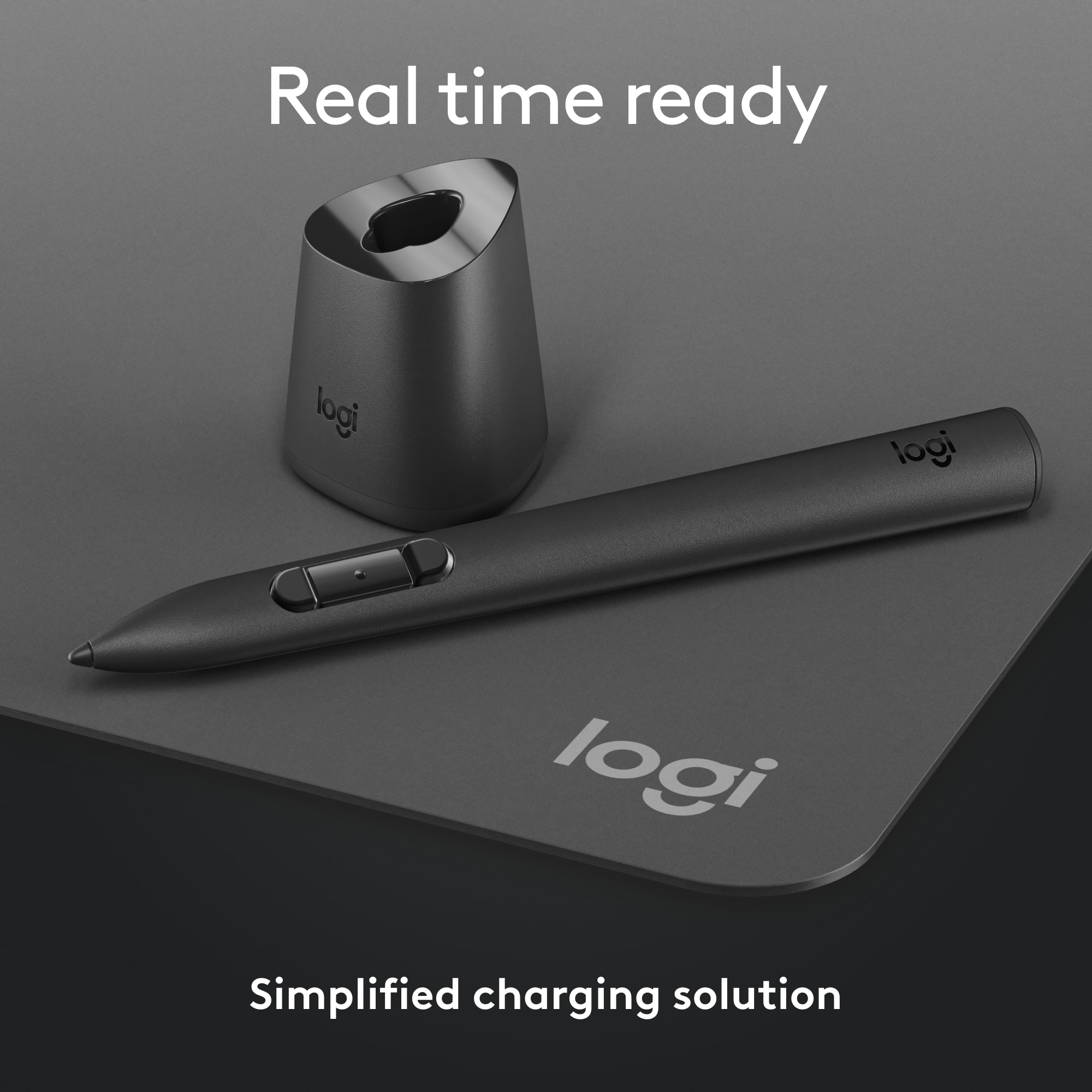
|Posted .This reviewer received promo considerations or sweepstakes entry for writing a review.If you’re stuck with a Quest headset to do 3D design work, this stylus makes the process much more intuitive. I have been a fan of Logitech’s other MX series products, so I was excited to give this a try. While it doesn’t quite live up to my experience with the other MX products, it’s a precision input device that works well. I have used MX Keys and MX Master for a few years, and I’ve come to really appreciate the precision operation and quality feel of these products. MX Ink is constructed with a type of plastic that feels standard for a disposable pen, so it’s familiar and easy to hold. However, with the MX branding I would have expected it to have a more substantial feel, maybe with rubbery grips to make it easier and more pleasurable to hold. Similarly, for me, MX is synonymous with precision input ability for professionals to be able to control the precise location of objects and to facilitate fluid control with things like pressure sensitivity. While it seems that MX Ink does all this, it is limited by the Quest optics for position information and visual resolution. Quest is definitely not a professional-quality device, so it seems odd to pair a top-of-the-line brand stylus with a VR headset that is essentially a toy. The stylus itself has several buttons to provide various controls, and they are customizable (depending on the app you use) to perform various tasks. Some of the buttons are pressure-sensitive, including a pressure-sensitive tip, which makes artistic input possible. Having a pressure-sensitive tip is essential, but working in 3D it feels a little bit weird because a lot of the time you don’t have a physical surface to press against—so you’ll always need switch to an alternative method of input when you don’t have a physical surface to use. Even when you do, Quest does not seem to always understand when you’re working on a flat surface and that the input should then be limited to that plane. In other words, even when the tip is pressed against a flat surface, Quest still uses its optics to estimate the position of the stylus in 3D—so location information isn’t always exactly on that surface. Finally, the MX Ink comes with a dock they call the MX Inkwell. Cute name, but I’m not sure if it serves a useful purpose. They’ve handily included a USB-C port on the stylus itself for charging, so there’s no need to use the dock to charge (although you can). Granted the dock gives you a handy place to put the stylus, assuming you have room on your desk for it. However, that’s all it does. The kit comes with a couple alternative/replacement tips, but there’s no place to store them when they’re not on the stylus. Why doesn’t the dock have a place to store the extra tips? Overall, this is a good start at a professional-grade input device for 3D creative work. Now we need to wait for a headset that operates at the same level.
I would recommend this to a friendBrand response from Logitech
Posted .Thank you for your thoughtful and detailed review of the MX Ink. We appreciate your comparison to other MX products and your insights on its strengths and limitations within the Quest environment. Your feedback on the build quality, pressure sensitivity in 3D space, and the MX Inkwell's design is especially valuable as we continue to develop and refine our products.
- Pros mentioned:Battery life, Pressure sensitivity
A Happy Little Stylus
|Posted .This reviewer received promo considerations or sweepstakes entry for writing a review.I have greatly enjoyed the MX Ink from Logitech. Syncing the stylus with the Quest 3S was super easy. Painting in Vermillion with the MX Ink was super intuitive and the haptic feedback made it really feel like I was painting. This partnership between Meta and Logitech is off to a good start and I hope to see more haptic accessories in the future. Setup: Inside the box you get the stylus, a charging “ink well,” and two replacement stylus tips. Should note there is no USB-C cable, although you will need a USB-C cable to either charge the stylus or to keep plugged into the ink well for charging. You will need to pair the MX Ink from within the META Horizons app on your mobile device. Once connected, you will have some options within the META VR environment to tweak the functionality of the stylus. Experience: The MX Ink is a specialized controller for the Quest. The Quest 3S I assessed the MX Ink on does an excellent job of tracking and mapping the stylus in my virtual space. As mentioned, the MX Ink has a pressure sensitive tip, three buttons towards the front of the stylus and a meta button on the back of the stylus. I evaluated the MX Ink primarily in Gravity Sketch and Vermillion. Gravity Sketch is a virtual sketching studio while Vermillion recreates a painting experience. I enjoyed the painting in Vermillion quite a bit. I am not going to claim to be remotely skilled, but the stylus performed very well in both applications. As is, I am hoping for more applications to take advantage of the pressure sensitive tip on the stylus. Right now, I use that very little. I could draw on the wall or on a pad, but the haptics have been so good that I have not felt the need to do so. It is easier to just sketch and write in the air. But I could see a good argument that sketching on a hard surface with the MX Ink gives you a bit more precision. Battery life has been good. The MX Ink has easily outlasted my headset in terms of battery life. Based on my usage, 7 to 8 hours of battery life seems about right. Conclusion: I hope the MX Ink is the start of even more accessories for the Meta Quest headsets. I have really enjoyed my experience with the stylus. I hope more apps take advantage of the pressure sensitive tips. But as is, this is still a fun tool. Any budding artists looking to create art with their Meta Quest 2, 3S, or 3 headsets should definitely pick one of these up. 4.5/5
I would recommend this to a friendBrand response from Logitech
Posted .Thank you for your enthusiastic and detailed review of the Logitech MX Ink. We're thrilled you enjoyed the easy syncing, intuitive painting experience in Vermillion, and the haptic feedback. We appreciate your insights on setup, battery life, and the potential for more apps to utilize the pressure sensitivity. We're glad you see the MX Ink as a valuable tool for artists and appreciate your overall positive assessment.
- Pros mentioned:Ease of use, Precision, Pressure sensitivity
Great addition to the Meta Quest 3!
|Posted .This reviewer received promo considerations or sweepstakes entry for writing a review.The Logitech MX Mixed Reality Stylus is a great addition to the Meta Quest 3 system, offering a much more fluid way of interacting with your virtual environment. When setting it up, it took a moment to get used to the buttons, as they do work differently to the controller. It took me about 3 tries to get it paired to the Meta Quest 3, but when I did so the tracking and motion was very fluid indeed. I did notice that the physical size was replicated in VR as a smaller controller when used in mixed reality, making it look smaller than the actual controller/stylus was, but it does not affect the way that you use it at all. The motion is very accurate and reactive, very fluid and smooth at the same time. Moving menus, interacting with panels and buttons was done very intuitively and very easily as well. When paired with the Meta app you get connectivity notifications and updates etc, so I recommend doing that first. There was an update right out of the box that took about a minute or two to upload. The great thing about this is the accuracy that you get within 3D rendering software over and above the standard Meta Quest controller. That works fine, but when working on tighter detail and intricate elements, this stylus is a game changer. The pressure sensitive buttons make a nice addition to the environment, helping to create those more realistic visuals. Overall, this is more than a gimmick or a toy add on to the Meta Quest 3, it’s a tool, a controller, a stylus - a valid addition to your VR system if you are using it to create 3D objects or environments. There is no lag, it performed flawlessly for me, very happy with it!
I would recommend this to a friendBrand response from Logitech
Posted .Thank you for your detailed and enthusiastic review of the Logitech MX Ink Stylus with Charging Dock! We're thrilled you find it a valuable addition to your Meta Quest 3 setup and appreciate you highlighting its fluid interaction, accurate tracking, and intuitive use with menus and applications. We're especially pleased you found it to be a game-changer for detailed 3D rendering and appreciate your recommendation for those creating 3D objects or environments.
- Pros mentioned:Battery life
And interesting tool that needs more software
|Posted .This reviewer received promo considerations or sweepstakes entry for writing a review.The MX Ink is very interesting addition to VR creative workflows. The idea of using a familiar feeling tool in VR is appealing to me. It feels good in my hand, and is nicely designed. However, I think the software that you would want to utilize it in needs some optimization to allow it to work more effectively. In my experience, I think the best implementation I found so far has been Gravity Sketch. And while I was enjoying using it in there, I still had some hurdles I needed to overcome. That being said, overall it worked well, and using a pen in VR felt intuitive. - Setup - Getting the MX Ink set up was not very difficult. You just open the Meta Horizon app on your phone, pair it to the headset you want to use it with, and you're pretty much ready to go. There is a lot of deeper customization you can do as well, like pressure sensitivity. But, getting started was easy. - Hardware - The MX Ink feels very good in my hand. Even during some extended use. The pressure sensitive button is a cool addition to the pen, and the location of them feels good to how I was holding the pen. The top Meta button is useful too, since I'm right-handed, it replaces the right controller and having that Meta button on top is useful for re-centering, or returning to the Meta home. I do wonder how left-handed users may be affected when replacing the left controller. - Software - This, I think, is the hardest part of using the MX Ink so far. It seems the adoption of it into apps is a bit of a mixed experience. Again, my time with it in Gravity Sketch was what I found to be the best. But, even in it, I had some trouble to overcome. As I was trying to sketch, I was unable to sketch sometimes. It took me a minute to realize that the reason I wasn't able to sketch was because my thumb was ever so slightly resting on the middle button. I found rotating the pen to position the buttons to be under my pointer finger to be a bit of a better solution. Other apps didn't seem to have that problem. Painting on a 2d surface is a unique experience too. While I think I may prefer still doing that outside of VR, it was cool to be able to use the pressure sensitive tip on an actual surface and see the results in VR. Pros: nicely designed, feels good in my hand, good batter life Cons: software doesn't seem like it's all quite ready for the pen, a bit pricey
I would recommend this to a friendBrand response from Logitech
Posted .Thank you for your thorough and insightful review of the MX Ink Stylus. We appreciate you highlighting the positive aspects such as the design, ergonomics, and easy setup, as well as the challenges you encountered with software integration and button placement. Your detailed feedback on the software experience, particularly in Gravity Sketch, is especially valuable as we work with developers to improve compatibility and functionality. We also appreciate your mention of the hardware pros and cons, which helps us refine future designs.
- Pros mentioned:Pressure sensitivity
Works great
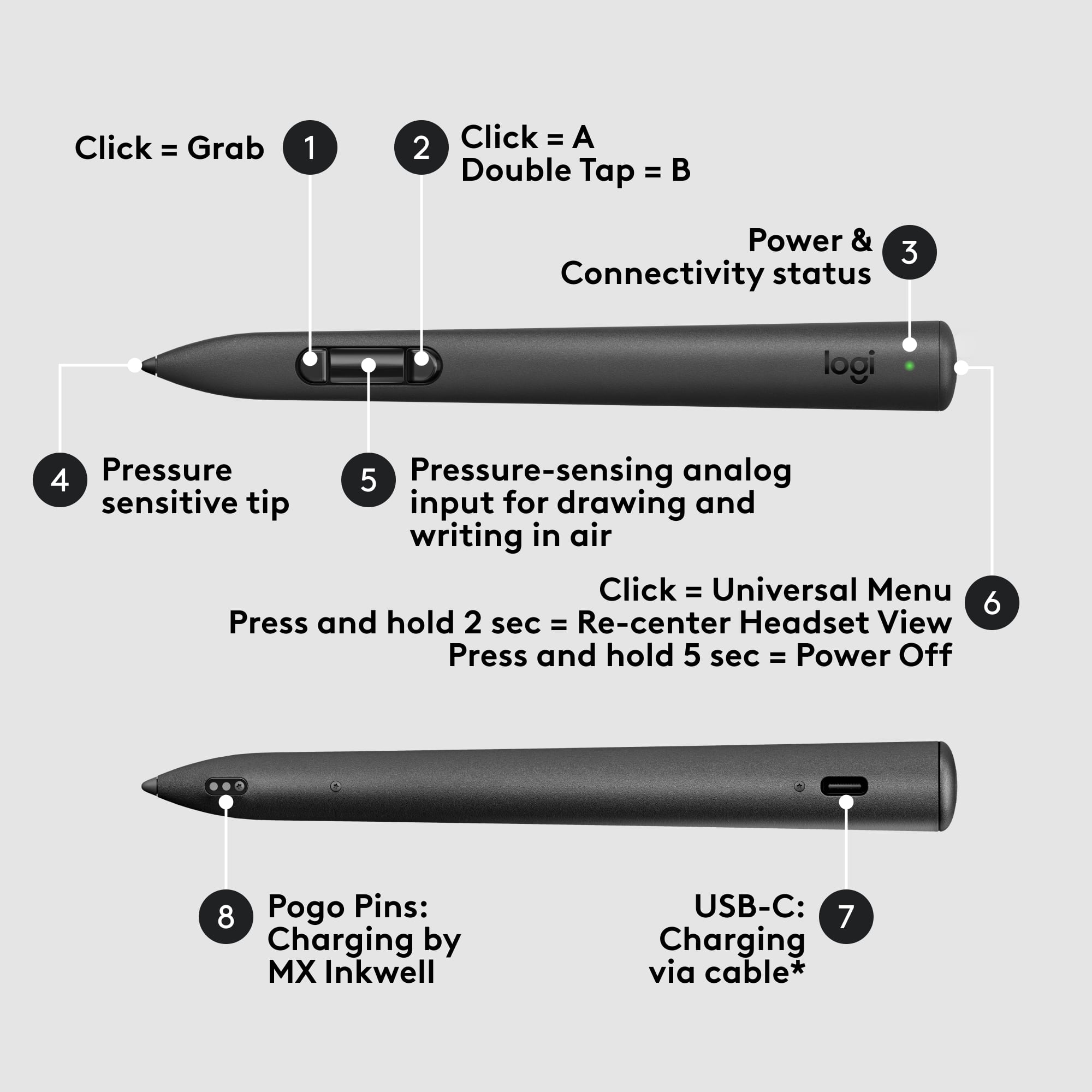
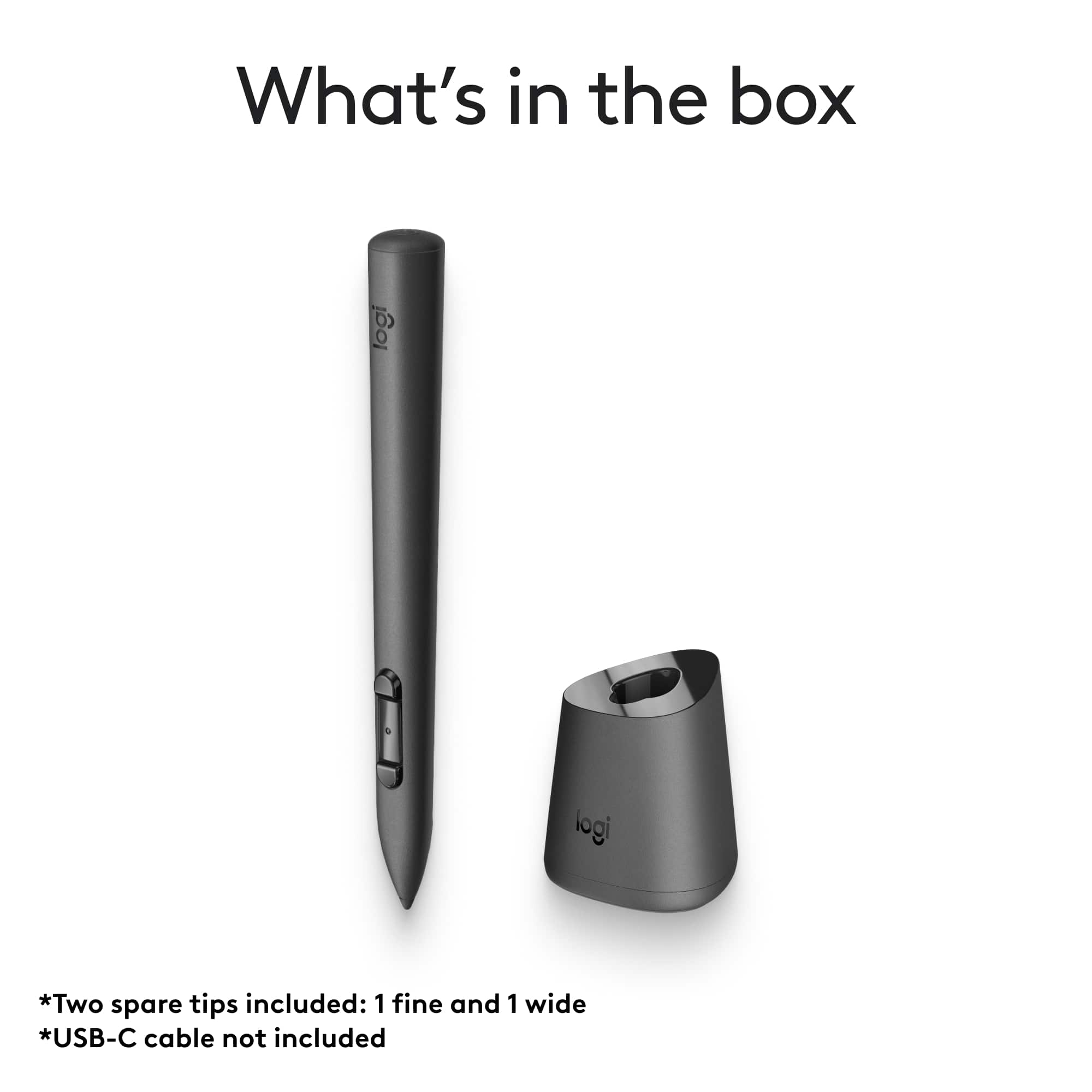
|Posted .This reviewer received promo considerations or sweepstakes entry for writing a review.I use Logitech MX devices on a daily basis and to me these are among the very best. The MX Ink is different because it doesn't work on computers, as it's made specifically for Meta Quest 3/3S. Once I figured out how to pair it, which is more difficult that needs be, it works very well. It needs to be paired from the mobile app while the headset is on, and then hold the Meta and Rear buttons on the stylus for four seconds. I spent time trying to set it up from the Bluetooth menu on the headset but it would not work. Worked the first time using the Horizon mobile app. Once paired, it updated the firmware and it works as well as the Meta controllers. Tracking of the stylus works as well as with the controllers and the headset accurately displays its shape. Charging is via USB-C on the top of the stylus. Got the version with the stand, which makes it more convenient by allowing an USB-C cable on the base and it charges while docked. Note that there is no USB-C cable included, which would've been useful. I can charge it with the charger that came with the headset. The stylus is more advanced than originally thought: It has an array of buttons: The top has the Meta button, used to access the main menu like in the right controller. Close to the tip where the index finger would rest, there is a front and rear buttons. The rear is usually mapped to B, the front is works like the trigger in many apps. The middle button is actually an analog pressure-sensitive button. A drawing app can use it to control the stroke width. The tip is replaceable, it comes with two extra tips, and is of course, pressure-sensitive. The headset can track both controllers and the stylus simultaneously. While Meta did a great job integrating the stylus, it's up to the individual apps to offer support for this. Gesture VR, which is a great app to learn to paint, fully supports the pressure-sensitive tip. Other apps support drawing in the air, so it really depends on the app itself. Gravity VR for example lets you design in 3D. Overall, great stylus, very well implemented by both Logitech and Meta. The charging dock is a nice convenience.
I would recommend this to a friendBrand response from Logitech
Posted .Thank you for your thorough review of the Logitech MX Ink Stylus. We appreciate you detailing the pairing process, the stylus's features (buttons, pressure sensitivity, replaceable tips), and its performance within various apps. Your feedback on the charging dock and the lack of an included USB-C cable is also valuable. We're glad you find it a great stylus overall and appreciate your insights on its implementation by both Logitech and Meta.
Amazing 3D stylus - fills the specific need well
|Posted .This reviewer received promo considerations or sweepstakes entry for writing a review.This pen is just about flawless, but it’s also probably not for everyone. The Quest 3/3s already have fantastic hand tracking, and great controllers, but this still manages to fill the very specific need you might have for a stylus for sketching or sculpting - or even just white-boarding - in 3D space. And it delivers… So well, in fact, that it feels like a whole new wave of abilities being unlocked in VR and AR, at scale. I found that my Quest 3 had no issue pairing and tracking this pen very well. Just like the official controllers, Meta also perfectly replicates the pen as a 3D model in VR modes - it’s almost treated as a first-class citizen within the ecosystem. The OS has been updated to track the pen as an alternative to one of the two controllers, allowing it to identify if you swap controllers for this new form factor. This is necessary since the stylus has many less buttons and most apps have been designed with navigation via the official controllers. When you’d benefit from the ever-classic pen form factor for precise pointing or drawing, this replicates it incredibly well - and the benefit is really noticeable at times. Within apps, it not only opens up 3D sculpting and drawing, but is useful for marker-style writing and white boarding. With passthrough modes, you’ll find yourself sketching or writing on walls or desk surfaces. This is effectively makes it as if you’re working in 2D virtually. It all feels very natural and interesting, with haptic feedback for added realism. Overall, I was surprised by how useful a pen in VR could be, it opens up a whole new world of interaction and precision, and while it’s still best for virtual creative art, it’s nice to have for jotting down notes or annotation as well. Like all Logitech products, it’s well made and buttons are easy to feel for. I’m loving it.
I would recommend this to a friendBrand response from Logitech
Posted .This is an exceptional review! You've captured the essence of the Logitech MX Ink Mixed-Reality Stylus perfectly. Thank you for sharing your in-depth experience. We're thrilled to hear that you're finding the MX Ink to be such a valuable tool for your creative work in VR.
- Pros mentioned:Ease of use, Pressure sensitivity
A Great Creative Tool
|Posted .This reviewer received promo considerations or sweepstakes entry for writing a review.In our household, we primarily use our Meta Quest 2 and 3 for gaming. However, my son and I have also explored some creativity apps and have enjoyed the experience. When I discovered that Logitech had released a stylus/pen, I was excited about how it would improve our creative projects. I must say, right out of the box, we both love this little pen. The control it offers is great and very precise. The pressure-sensitive button is particularly useful for adjusting the thickness of brushes in apps that support this feature. Essentially, this button functions like the trigger on the standard controller. It works wonderfully, and after just a few minutes of use, my son and I were able to really take advantage of it. So far, we’ve been using it without a surface, but I’m eagerly waiting for our MX Mat to arrive so we can use it on an actual surface. We’ve primarily used it in painting and drawing apps that feature a floating canvas, and we also experimented with some sculpting and modeling apps. The control in these apps is again very nice and precise. Setting up the stylus was a breeze. We simply launched the app on my phone and paired the pen with the Quest. The app even started updating the stylus immediately after pairing. I really appreciate the Inkwell (Docking Station); once you finish using the stylus, you can set it back in the Inkwell, and it will recharge wirelessly. I love this stylus! My son and I have stopped using the regular controller and now solely rely on the MX Ink stylus. It’s much easier to use and feels more natural compared to the traditional controller. I’m looking forward to using the MX Mat when it arrives. If you or someone you know is a creative individual with a Meta Quest, this stylus would be a fantastic upgrade to their setup.
I would recommend this to a friendBrand response from Logitech
Posted .Thank you for your kind words and for sharing your positive experience with the MX Ink Stylus! We're thrilled to hear that you and your son are enjoying its precision and ease of use in your creative endeavors within the Meta Quest ecosystem. We hope you continue to enjoy creating amazing art with the MX Ink!
- Pros mentioned:Battery life, Pressure sensitivity, Weight
A Game-Changer for Mixed Reality Creativity
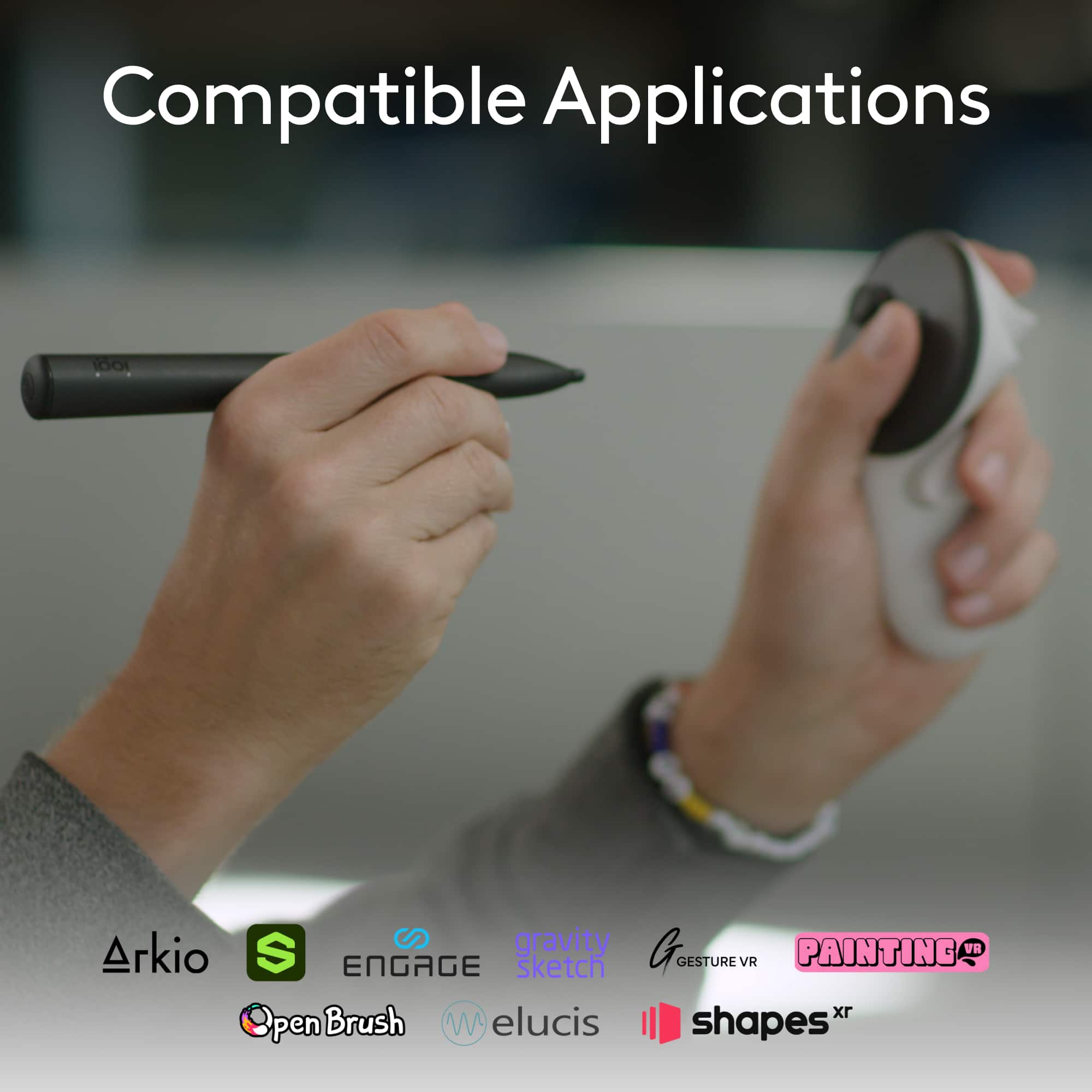
||Posted .This reviewer received promo considerations or sweepstakes entry for writing a review.As someone who spends countless hours in mixed‑reality creation, the Logitech MX Ink MR Stylus with Charging Dock has exceeded all my expectations. This stylus delivers a natural, intuitive experience, truly transforming how I draw, design, and interact within my Meta Quest headset. Natural and Precise Controls From the first draw, MX Ink felt like a real pen. The pressure-sensitive tip and barrel button enable nuanced line-width control—whether drawing on a virtual canvas, tracing over real-world surfaces, or sculpting in 3D, making every stroke feel deliberate and authentic. Expert Tracking and Comfort With IR LEDs integrated along the barrel and near the tip, tracking remains flawless even when my hand covers the stylus . At just ~29 g, it’s comfortable to hold for hours, and the well-placed buttons feel intuitive and responsive. Seamless Setup & App Integration Pairing via the Meta Horizon mobile app took seconds, with no hassle. It appears in headset settings with full customization options—hand preference, pressure curves, and button mapping. Support across apps like Vermillion, Gravity Sketch, Open Brush, ShapesXR, and more enhances its versatility out of the box. Long Battery & Smart Charging Logging up to 7 hours of battery life under typical use and recharging via USB‑C or the included “ink‑well” dock is ultra‑convenient. Even with haptic feedback enabled, it sustains multi‑hour creative sessions. Room for Growth A few users noted occasional missteps with closely spaced buttons near the tip, but I found this easy to adapt to. With growing app support, this stylus will only get more powerful, and developers are beginning to embrace its capabilities. Bottom line: For anyone serious about mixed-reality art, design, or 3D modeling, the Logitech MX Ink MR Stylus is a game-changer. Its precision, comfort, and intuitiveness elevate extended‑reality creation in ways regular Quest controllers can’t match. Highly, highly recommended.
I would recommend this to a friendBrand response from Logitech
Posted .That's absolutely incredible feedback! We're thrilled to hear that the Logitech MX Ink Mixed-Reality (MR) Stylus has exceeded all your expectations and is truly a "game-changer" for your mixed-reality creation. It's fantastic to know that its natural precision, expert tracking, comfort, and seamless integration are enhancing your workflow and allowing you to create with such authenticity. Thank you for such a detailed and enthusiastic recommendation!
- Pros mentioned:Ease of use
Works well - A must for painting apps!
|Posted .This reviewer received promo considerations or sweepstakes entry for writing a review.I have a MetaQuest 3S and this stylus works really well with it. While you can use it in some games as a replacement for the controllers that come with MetaQuest 3S, it’s really meant to be used with painting apps. That’s where it really shines! I used it with Open Brush, a free app, and it works as well as I had expected. You can paint in 3D and, while you can use the MetaQuest controllers to do that, it feels absolutely more natural to use this stylus! I’m not at all an artist, but I wish I was as painting in 3D gives a very unique and fun experience! And you’re Not limited by the typical brushes and colors, you can also select to paint using animated brushes, such as fire, snow, bubbles, lightning… the entire space is your canvas! You can bring anything to life and not just still paintings but with some animations! Again, it’s a truly unique experience and super fun for the entire family! As a plus, I found the stylus can be very handy when using it outside of a game for things like opening and resizing the internet browser, for typing, changing settings, etc. Given it’s a lot smaller than the regular controllers, I’ve found myself preferring to use it when watching movies through the browser for example. The stylus paired up easily with MetaQuest 3S by following the small printed instructions. Without these instructions, I would not have been able to figure out how to pair it up though, as it’s not intuitive the fact that you need to press both the “Meta” button and the “Rear” button for 4 seconds. While the stylus works really well, I wish it came with more instructions on how to properly use it. A small video tutorial would have been very helpful. That’s because I made some beginner mistakes. For example, the instructions clearly said to open the Horizons app “on your phone” to pair it up. Instead, I misread and put the headset on and tried to pair it there. After I realized my mistake, it paired up well and even its firmware got updated automatically. However, I didn’t really know what to do after that. The instructions didn’t say anything about the ability to configure a lot of settings, such as using it as right or left handed, which you can do by selecting the stylus under “Devices”. Another rookie mistake I made was that, the second time I used the stylus, I forgot to turn it on by pressing its back button (the “Meta” button) for a few seconds. It wasn’t very straightforward to figure out it was off because once I had the headset on, your fingers can also be used as pointers. Given I was holding the stylus as a pen, my fingers were pointing almost in the exact same direction as the stylus. So, I thought it was the stylus the one pointing and not my fingers. That meant that selecting things was a little off, closing a window was awkward because pressing the button was not working properly but it would eventually work, because in MetaQuest, you can click on things by pressing your index and your thumb, which is exactly how you hold the stylus! Anyways, lesson learned, if the stylus doesn’t seem to be working properly, just make sure it’s actually on!
I would recommend this to a friendBrand response from Logitech
Posted .Thank you for sharing your experience with the MX Ink Stylus! We appreciate your feedback, especially regarding the initial setup and user guidance. We're always looking for ways to improve our products and documentation. We're glad you found the stylus to be a valuable tool for your VR experiences, particularly with painting apps. We hope you continue to enjoy using it!
Perfectly designed for the Meta Quest!!
|Posted .This reviewer received promo considerations or sweepstakes entry for writing a review.The Logitech MX Ink Stylus arrived quickly and was perfectly packaged in a small cardboard box that’s fully recyclable. Inside the box, everything was packed neatly, making unpacking quick and easy. Alongside the stylus, you’ll find a small fold-out quick-start guide with a QR code for additional setup support. The box also includes the MX Inkwell charging base, the stylus itself, and two additional stylus tips, one fine tip and one wide tip. The spare tips are securely pushed into a removable piece of cardboard inside the box. Getting the stylus paired with my Meta Quest headset was a smooth process. To start, I turned on my headset and pressed the Meta button on the MX Ink Stylus for two seconds to power it on. Using the Meta Horizon app on my phone, I navigated to Headset Settings, selected Controllers, and then tapped Pair New Controller, followed by Pair Stylus. To put the stylus into pairing mode, I pressed and held the Rear button and the Meta button for four seconds. The stylus paired seamlessly without any issues. The quick-start guide made the process simple and easy to follow. Before I started using it with any apps, I took a few minutes to configure the stylus settings, per the quick start guide. This is an important step that can help to give you the best experience possible with your new stylus. You can adjust haptics, left- or right-hand use, the pressure curve, initial activation force, and button mapping to fit your preferences. The customization process is straightforward and easy to follow. By default, the settings are configured for haptics on and right-handed use, so if your a leftie, or you want to extend the battery life by turning haptics off, this is an important step. I tested the stylus in three different drawing apps: Gravity Sketch, Open Brush, and Gesture VR. Each app offered a unique experience, and I felt the stylus performed best in Open Brush. Drawing and painting in 3D space in the metaverse felt almost natural, and the haptic feedback really does add an extra layer, giving you a fully immersive experience. The pressure-sensitive tip worked beautifully, especially when working with the finer details. In Gravity Sketch, I was challenged by a slightly steeper learning curve, one that I’m still working through, but that’s because there is so much you can do in that app, and the learning curve would be the same if I used the standard Quest controllers in both hands. Gesture VR was another solid choice for practice and learning, offering intuitive controls and smooth input. While I’ve only tested it in creative apps so far, it’s clear that the potential for this stylus goes beyond drawing and design. I’m excited to explore more uses for it in the future when I have more time to test it with more apps. I’m really impressed with the overall performance of the MX Ink Stylus. The precision and responsiveness are excellent, and there is no latency that I’ve noticed . The ability to switch between drawing in the air to drawing on virtual surfaces in VR is really cool and has lots of use potential. I do have a couple small suggestions for improvement. For example, I wish the stylus had a built-in way to store the spare tips, like a small compartment or a few holes in the base. This would help prevent losing them over time. I also think it would be helpful to have a clip, magnet, or some other way to attach the stylus to my clothing when I’m not actively using it, as putting it down in VR can sometimes interrupt the flow if I’m in an app with the pass thru off. The design of the stylus is well thought out, the buttons are perfectly placed for easy use and it’s comfortable to grip and hold. It’s extremely lightweight and I could use it for hours without any problems. I appreciate the two charging options, the MX Inkwell base, which keeps the stylus charged and ready to go, and the USB-C port on the stylus itself, which allows for convenient charging during use. The battery life is longer than what I’ll ever need, lasting about seven hours under normal use, though heavy haptic feedback can reduce it to around three hours. Either way, that’s longer than I plan to use it for one continual session. It’s important to take breaks every couple hours when getting into a project or serious gaming. As someone just starting with drawing and designing in VR, I know I have a lot to learn. The MX Ink Stylus can do a lot and there is so much potential, now it’s up to me to make good use of all that potential. I’m excited to practice and hopefully improve! While I’m not creating award winning masterpieces just yet, I can see this stylus as an invaluable tool that grows with me as I refine my skills. I’m really happy to have this stylus as part of my setup now and I look forward to using it more, not just for art but for other applications as I continue exploring what possibilities it unlocks for me in the metaverse.
I would recommend this to a friendBrand response from Logitech
Posted .Thank you for such a detailed and enthusiastic review of the MX Ink Stylus! We're thrilled you found the setup seamless, the customization options useful, and the performance in various apps impressive. We especially appreciate your insights on the haptic feedback, tracing capabilities, and suggestions for improvement regarding tip storage and a clip for the stylus. Your feedback is invaluable as we continue to develop and refine our products.
Not perfect, but super easy to understand!
|Posted .This reviewer received promo considerations or sweepstakes entry for writing a review.I had a great experience with this! First and foremost I’m not a professional artist… well I may not be an artist at all lol, but I love to draw and create things as a way to unwind and slow down from time to time. I love doing art and stuff especially with my kiddos. And lately we’ve been really into making things in VR and surprising each other with whatever we create! We only have one Meta Quest 3 headset and that’s okay. So this review isn’t from a professional artist’s standpoint, but just a guy that likes to draw and create things from time to time and spend time with his kiddos making silly art in VR! The very first thing I did was open up Open Brush and started painting, this is the app I’m most familiar with and the one me and my kiddos use. It’s a free app and doesn’t require an account to use. It also is very compatible with this stylus which is a major win! The pen is so intuitive and makes the learning curve so little! I was right at home from the beginning. I started with fancy letters and trying to do some calligraphy in the air, and not gonna lie, it looked really impressive to me. The pen really helped. And the natural way it felt was pretty awesome! The stylus would benefit from some sort of… “thing” to keep the stylus in your hands when you’re standing and creating art! For the lack of better words, I’m just gonna say I wish it had a strap to cling to your wrist or a thumb strap to allow you to not be constantly holding it. In apps like Open Brush you’re kind of not in your room, aka passthrough isn’t enabled by default. So putting the pen down for a second to admire your work is not easy. Granted the Quest 3 and Open Brush itself has ways around this, but I’d prefer it if I could just let the pen/stylus go and give my wrists a break while I move around my creation. I also tried this Gravity Sketch and it works well there too. However by default the buttons are weird and doesn’t seem to utilize any pressure sensitivity. The pressure sensitivity took some getting used to when doing so in the air. It felt a little easier for me to understand using an analog trigger, but the precision I think is easier to master on the stylus. Back to Open Brush we ended up going into passthrough mode and copying a page from my daughter's coloring book and it worked so well! We felt like we had control over the entire thing. It didn’t feel bad at all. However I did run into issues! First it kind of glitched with my right controller. It kept switching between my right controller and the stylus. And this was happening repeatedly until I rebooted the Quest 3. To clarify, when I stopped using my pen, and went back to my controller, my controller would pop into view, then disappear suddenly! I’d have to wake it again just for it to die out basically. Even when I pressed and held the Meta button on the stylus to turn it off, it’d still do that with my right controller. So at this point the pen is off, not detected by the headset at all, yet my right controller kept turning off and then back on when I pushed it. I’m suspecting this was a weird issue with the headset itself or MetaOS, not necessarily the pen, but I wonder if it is struggling because now there’s three controllers connected to it vs the standard two. It is pretty repeatable for me, and can almost make it happen on demand. Another issue is holding it like a drumstick or a laser pointer. Where the base is in my palm, and my thumb is resting on the buttons. It will lose tracking when using it like this. I ended up noticing that the lights on the pen happen to be around the top of the pen. So when I’m holding it this way, it is effectively blocked by my hand so the headset struggles to track it. I also experienced an issue in Gravity Sketch, where the stylus would sometimes start skipping despite me holding it properly. I suspect this is an app issue more than the stylus itself, but I can’t verify that. This behavior didn’t happen in Open Brush though, so I feel like it’s an app issue. Overall, I really like this thing! It’s fun, easy to understand, my kiddos and I are having a great time creating pictures for each other. Silly stuff, and in 3D. I recommend it, but due to the issues I’ve experienced, it’s not a perfect device!
I would recommend this to a friendBrand response from Logitech
Posted .Thank you for such a detailed and insightful review of the Logitech MX Ink! We especially appreciate your perspective as a casual artist enjoying the stylus with your children. Your feedback on the intuitive design, the experience in Open Brush and Gravity Sketch, and the specific issues you encountered (controller switching, tracking issues with certain grips, and potential app glitches) is incredibly valuable. We'll be sure to share this with our development team for future improvements.
Unleash Your Imagination and Creativity
|Posted .This reviewer received promo considerations or sweepstakes entry for writing a review.The Logitech MX Ink Combo is a stylus and charging dock made for the Meta Quest 3, 3S and 2. In the box you get the stylus with 2 extra tips (1 fine and 1 wide) in addition to the fine tip already installed, the charging stand and a quick start guide. My stylus came mostly charged, but I topped it off before I got started. You can also charge the stylus without the charging dock as it has a usb-c port built in. However, the charging dock keeps the stylus ready for you to use at any time, makes it easy to find your stylus on a crowded desk and looks good on any desk. The pairing instructions in the quick guide are easy to follow. The stylus gets set up and paired in the Meta Horizons app.There is a Meta button at the top of the stylus to power it on and off. There is a 3 section button near the tip whose controls can vary depending on the app you are using, Basically they are used for grabbing, writing with variable pressure and erasing. The stylus also becomes a controller which allows you to make selections. You can scan the QR code in the quick start guide. This will take you to a Logitech page that fully explains the pairing, setup, and lists many of the apps that are designed to work with the stylus. I randomly chose to install 3 of these apps, Gravity Sketch, Shapes XR and Open Brush. The stylus felt very comfortable in my hand and was very intuitive to use. I was so impressed with how natural it felt. In fact it felt better than a real writing instrument or paint brush. So much so that my handwriting was substantially better using the stylus. Simple things like my signature never looked so good. The strokes are so smooth and there is no noticeable latency at all. Logitech and Meta did a wonderful job of fully integrating the stylus into the Meta Quest system. It feels like a product that was made by Meta. The uses of this product are only limited by your imagination and creativity. This is a terrific product for adults and children alike, as well as a useful work tool. I highly recommend this product for anyone who owns the Meta Quest.
I would recommend this to a friendBrand response from Logitech
Posted .Thank you for such a detailed and enthusiastic review of the Logitech MX Ink Stylus for Meta Quest. We're thrilled to hear you found it comfortable, intuitive, and seamlessly integrated with the Meta Quest system. Your feedback on the natural feel, improved handwriting, and overall experience is greatly appreciated and affirms our commitment to creating high-quality, immersive tools. We're delighted you're enjoying unleashing your creativity with the MX Ink!
- Pros mentioned:Ease of use

Great add on
|Posted . Owned for 2 months when reviewed.This reviewer received promo considerations or sweepstakes entry for writing a review.[Employee of bestbuy] Amazing add on for oculus quest really useful for applications that use the stylus
I would recommend this to a friendBrand response from Logitech
Posted .That's fantastic to hear! We're so glad you're finding the Logitech MX Ink such an amazing and useful add-on for your Oculus Quest, especially for applications that utilize a stylus. It's great to know it's enhancing your mixed-reality experience. Thanks for the positive feedback! We appreciate you choosing Logitech for your VR needs.
Over priced device short return window
||Posted . Owned for 2 weeks when reviewed.This reviewer received promo considerations or sweepstakes entry for writing a review.Device is very mid for the high price tag. Would have returned it but they only have a 2 week windows. This is the last big purchase I make with best buy. Shouldn't have bought this.
No, I would not recommend this to a friendBrand response from Logitech
Posted .We’re really sorry to hear about your experience. We'll share this with the relevant team to investigate further and see what steps can be taken to improve.
- Pros mentioned:Battery life, Ease of use, Pressure sensitivity
Unique and Easy to Use
|Posted .This reviewer received promo considerations or sweepstakes entry for writing a review.The Logitech MX Ink Combo is a lightweight stylus and charger designed to be used with the Meta Quest 2 and 3 headsets. Although seemingly targeted for artists it can be used by anyone for navigation and to design, draw, and paint in 3D space. It has pressure sensitivity and offers six degrees of freedom spatial tracking for accurate movement in 3D space. This makes it very useful for both mixed and virtual reality environments. The stylus was easy to setup and use. I have a Meta Quest 3S and the initial setup and pairing was very quick. Battery life can vary greatly depending how you are using the stylus. In general, I could get over 6 hours of use, but this reduced greatly when using haptic feedback. However, I consider the battery life more than adequate considering the usage time of the Quest and the included charger. The Combo also includes both wide and narrow tips for the stylus, further increasing its usefulness. Overall I recommend the Logitech MX Ink Combo for anyone looking to add more fun to their Quest 3 experience and to artist types who could benefit from the more precise control and movement in 3D virtual and mixed environments. Sent from my iPad
I would recommend this to a friendBrand response from Logitech
Posted .Thank you for your insightful review of the Logitech MX Ink Mixed-Reality Stylus! We're thrilled to hear that you're finding it to be a valuable tool for your VR experiences. We appreciate your detailed feedback on its accuracy, ease of use, and how it's opening up new creative possibilities within the VR environment.
- Pros mentioned:Battery life, Weight
Great controller addition
|Posted .This reviewer received promo considerations or sweepstakes entry for writing a review.The Logitech MR Stylist for Meta Quest is a nice addition to the available controllers. Unlike the standard Touch Plus controllers, this controller is sleek and lightweight. It fits well in hand; its soft triangular shape makes it more easily held, and the buttons are comfortable and easy to locate. There are three buttons on the side of the stylist and a Meta button on the end. A pressure-sensitive tip is also used in applications that can utilize this capability. This is an excellent alternative to the Touch Plus controllers for applications requiring point-and-select. I can put it in my pocket while in the Metaverse and always know where it is. The battery life is from 3 – 7 hours based upon the frequency of use. The stylus has a USB-C port for charging. Additionally, you can purchase a charging dock that allows the USB-C to be connected to the dock and the stylus to charge while placed in the dock. Beyond being a great alternative to the standard controllers, the stylist has the potential to add drawing capabilities to a host of applications. The possibilities are based on what software developers choose to implement. Drawing can occur in free space or in augmented reality, where the drawing is on real objects like walls and tables. Such capabilities are specific to how each application decides to implement them. I have been happy to have this stylus as an alternative to the Touch Plus controller. It is not a one-or-other situation; all the controllers, the two Touch Plus, and the stylus can be used simultaneously.
I would recommend this to a friendBrand response from Logitech
Posted .Thank you for your comprehensive review of the Logitech MX Ink! We're thrilled you appreciate its sleek design, comfortable grip, and precise point-and-select capabilities. It's great to hear you're exploring its potential for drawing and creative applications within the Metaverse. We appreciate you highlighting its simultaneous use with the Touch Plus controllers and the convenient charging options.
- Pros mentioned:Precision, Weight
Great for 3d art, but wanting more useful apps
|Posted .This reviewer received promo considerations or sweepstakes entry for writing a review.While setting up my new Quest 3, I noticed that there was an option to pair a stylus. A stylus?! Like, a pen to use… in VR? So when the box came and I opened it up, I still wasn't quite sure what to make of it. For starters, it's large. And for some reason, it came with a box of tips, like I was going to be wearing out the nubs writing in mid-air. So, I donned my headset and tried to pair the new device in the settings menu, but there didn't seem to be an option to initiate pairing. I looked through every menu I could find, then settled on a reddit search to try and figure out how to get it to be recognized by the Quest. Of course, had I read the manual first, I would have learned that you pair through the Meta Horizon phone app. So with that settled and out of the way, I cleared some space around me and booted up the Open Brush app, the community-led continuation of Google's TiltBrush. I also tried using the pen in Gravity Sketch. Painting in 3d using the Logitech MX Ink Stylus versus using the stock Quest controller is like the difference between a surgeon using a scalpel versus a chainsaw. The precision, especially with fine lines, is unmatched with the stylus. I prefer the Open Brush implementation of the pen, that uses the middle button for "releasing the ink" vs the implementation of Gravity Sketch which uses the button nearest the tip. Since it weighs much less than the controller, if you are a serious 3D VR artist, this stylus is a game changer for keeping your arms from tiring out. There is a pressure sensitive tip, and in the demo app from Logitech, you can "see" notes taken on real surfaces inked in Mixed Reality. I can see the potential in future apps, especially for artists used to more traditional tools, to be able to create in VR/MR while retaining the tactile feedback that drawing in the real world offers. Imagine being able to virtually write or draw on a piece of paper then have it saved as a document, or in a virtual notebook that you can maybe search since there is word recognition. At least, that's the type of app I would want to have. Maybe it could even see use in a 3D photogrammetry/scanner app that, in addition to using the cameras, uses the pressure sensitive tip and the pens position in space as another way to read depth? I don't know, I'm not really an app maker, I just want the kind of VR that we were promised in that Aerosmith video about riding a motorcycle with the girl from Clueless. I wish that there was a better way to manage putting the stylus down, especially when immersed in an app like Open Brush. Virtual tools allow you to just "float" them when not in use, or will have them disappear altogether. But if you want to put your stylus down, especially on the floor if you cleared your area for safety, you'll have to come out of VR to find it again. If there was some sort of way to attach a lanyard or something, that would have helped a lot. It doesn't feel right just sticking it in my pocket. Basically, the stylus is useful if you are already creating in 3D using the controllers and want a better way to draw that feels more natural. I hope more apps appear that provide true utility, like maybe one that takes a still image from a file and automatically maps it as a layer over a real surface that you can then draw on and have your markings transfer to the file that you can then export and share. I'm also wanting those apps that do support the stylus to refine their implementation to better leverage the physical advantages it has over the controller. And maybe can someone make the app with the experience from that Aerosmith video, because who doesn't love sky surfing?
No, I would not recommend this to a friendBrand response from Logitech
Posted .Thank you for such a comprehensive and enthusiastic review of the Logitech MX Ink Stylus! We truly appreciate you taking the time to detail your experience, from the initial setup to its use in creative applications like Open Brush and Gravity Sketch. Your insights on its precision, ergonomics, and potential for future applications are invaluable. We especially appreciate your suggestions for improved app integration and practical features like a lanyard – this kind of feedback helps us shape future product development.
- Pros mentioned:Ease of use
The Perfect Companion for Drawing in VR
|Posted .This reviewer received promo considerations or sweepstakes entry for writing a review.I didn’t know what to expect with the MX INK Mixed-Reality Stylus as it’s my first point of entry into drawing in VR, but after trying it on my Quest 3S, I’m hooked. If you’ve ever felt like controllers just don’t cut it for certain tasks…like drawing, sculpting, or even just writing stuff down, this stylus is a total game-changer. Let’s start with the obvious; it’s super easy to set up. I paired it with my Quest 3S in seconds, and it worked flawlessly right out of the box. The tracking is spot-on, and using it feels way more natural than trying to get precision with a controller. If you’re someone who likes the idea of fine-tuned accuracy without the bulk of holding a controller, this thing is exactly what you need. The first time I used it for 3D drawing, I was blown away. It’s so much easier to sketch in VR with a pen in hand - it’s like it was designed specifically for the creative apps I tried. But it’s not just for artists. I even found myself using it to jot down quick notes or mark things up, and it felt incredibly natural. What really surprised me was the passthrough mode. You can actually write or draw on real surfaces, like your desk, and see it show up in VR. It’s so cool and makes everything feel way more interactive. Plus, the haptic feedback adds just enough “realism” to make it feel like you’re actually writing or sketching. Now, the stylus doesn’t have all the buttons you’d get on a regular controller, but honestly, it doesn’t need them. The system swaps it in seamlessly, and for the stuff it’s meant to do, like precision drawing or pointing, it’s way better than a controller anyway. Logitech also nailed the design. The pen feels solid, and the buttons are easy to find without even looking. It’s simple, but in all the right ways. I’ve been so impressed with Logitech over the last several years and their ability to make tools and accessories that feel like they came from the manufacturer. If you’re into VR for letting the creative juices flow or you just hate trying to draw with controllers, this is definitely worth checking out. It’s not for everyone, but if precision is what you’re after, you’ll wonder how you ever managed without it. For me, it’s already become one of my favorite VR tools and my kids can’t get enough of the endless possibilities to create with mixed reality.
I would recommend this to a friendBrand response from Logitech
Posted .We're glad you're enjoying the creative possibilities of the MX Ink Stylus with your Quest 3S! We designed it to provide a natural and intuitive drawing experience in VR, and it's fantastic to hear that it's exceeding your expectations. We appreciate you sharing your positive experience with others.
- Pros mentioned:Battery life, Weight
Intuitive and well done
|Posted .This reviewer received promo considerations or sweepstakes entry for writing a review.My hand feels so familiar and at home using the Logitech MX Ink stylus while using Meta Quest apps that are better suited for the pen shape controller. I have tried the stylus in OpenBrush, ShapesXR and Gravity Sketch. The stylus is light weight, lighter than the Meta Quest 3 controller. The width of the pen is the right size, and the buttons' placement is perfect. However, the body is a bit slippery for me. I wish it had a dent at the bottom so the stylus can rest on my ring finger better and stay in place. Also if the pen is shorter like a regular pen, pressing the top end button can be done faster and easier. The MX Ink stylus is very easy to setup, but you will need to use your phone to pair the pen with the Quest headset. I have a Quest 3 headset and it paired on the first try. The stylus has very low latency as advertised, responding as fast as the Quest controller. The MX Ink stylus can be used as a controller to interact with or navigate the Quest's user interface just like the Quest controller. I find it better at times like using the stylus to type on the virtual keyboard. Also, once the MX Ink stylus is paired, it is very easy to switch between Meta Quest controllers and the MX Ink stylus. In the Meta Settings, you get a dedicated stylus customization page. From there, you can change the direction of the pointer, change your primary hand from right to left-hand or vice versa. You can also customize the button mapping. I find pointer direction perpendicular to the stylus does not work for me though some people will like to draw holding a paint brush like that and MX Ink can accommodate that. I can use the stylus in passthrough mode and immersive mode, drawing or writing on a physical real 2D hard surface like a real notepad. This is possible because of the pressure-sensitive tip for work on 2D surfaces. It is also spatially trackable, allowing for complete full-motion 6DoF (six degrees of freedom) work like drawing in 3D space or in the air. When drawing in the air, instead of using the tip, you use the middle button to provide pressure input. So far, I have not found any app that make full use of the pressure sensitive button or the tip. The button and tip still act like a regular on-off button to the Quest apps I used. As for haptics feedback, I only notice it while switching the stylus on and off and poking on the virtual keyboard. Hopefully, future newer version of the apps I used will fully support MX Ink. The battery life is very good. Charging is very convenient especially with the charging dock. One big con is that the package/bundle does not come with a usb-c charging cable.
I would recommend this to a friendBrand response from Logitech
Posted .We appreciate you taking the time to share your detailed experience with the MX Ink and its integration with the Meta Quest platform.