Customer Ratings & Reviews
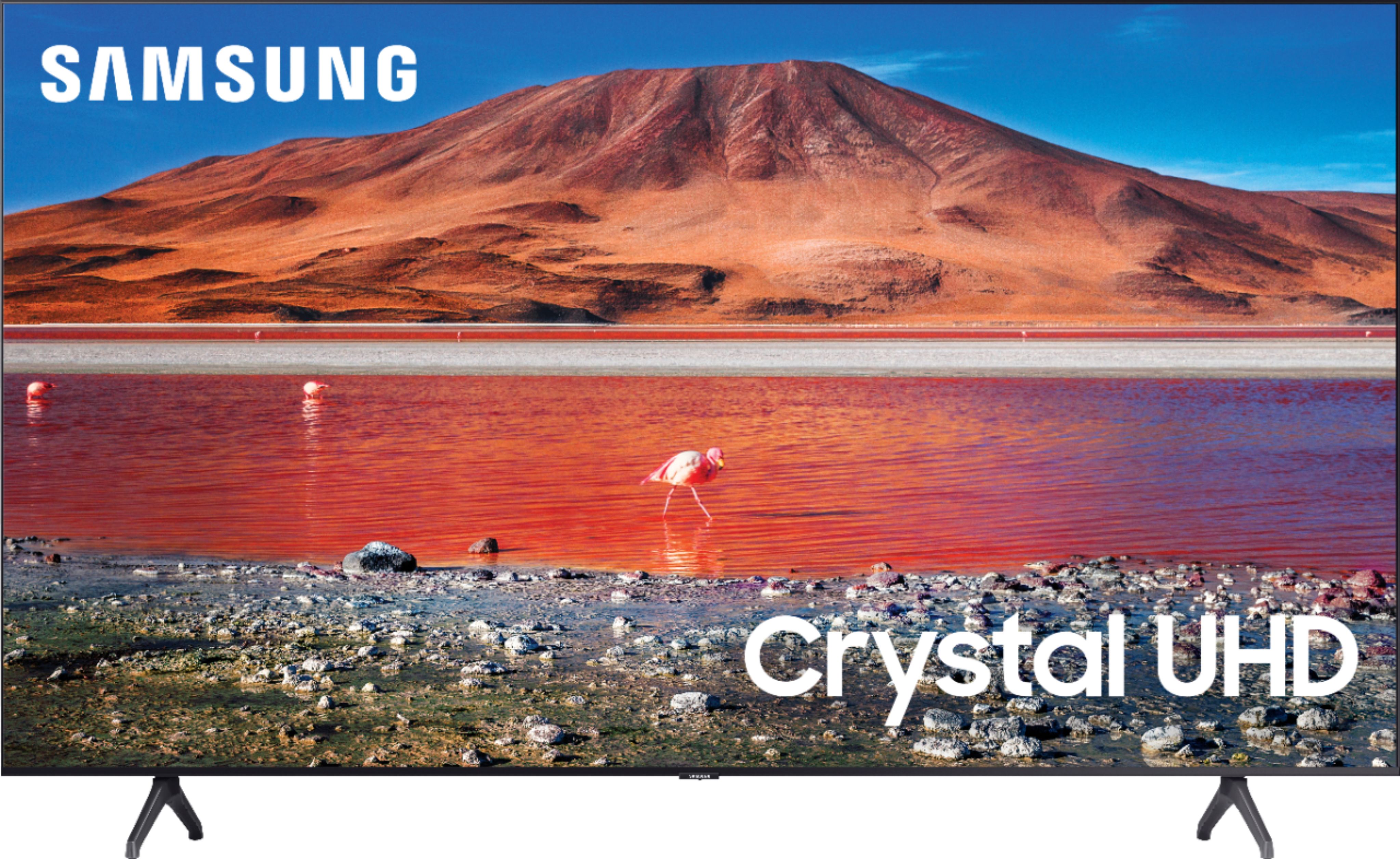








- Model:
- UN43TU7000FXZA
- SKU:
- 6401740
Rating by feature
- Picture Quality
Rating 4.7 out of 5 stars
- Sound Quality
Rating 4.5 out of 5 stars
- Brightness
Rating 4.7 out of 5 stars
Customers are saying
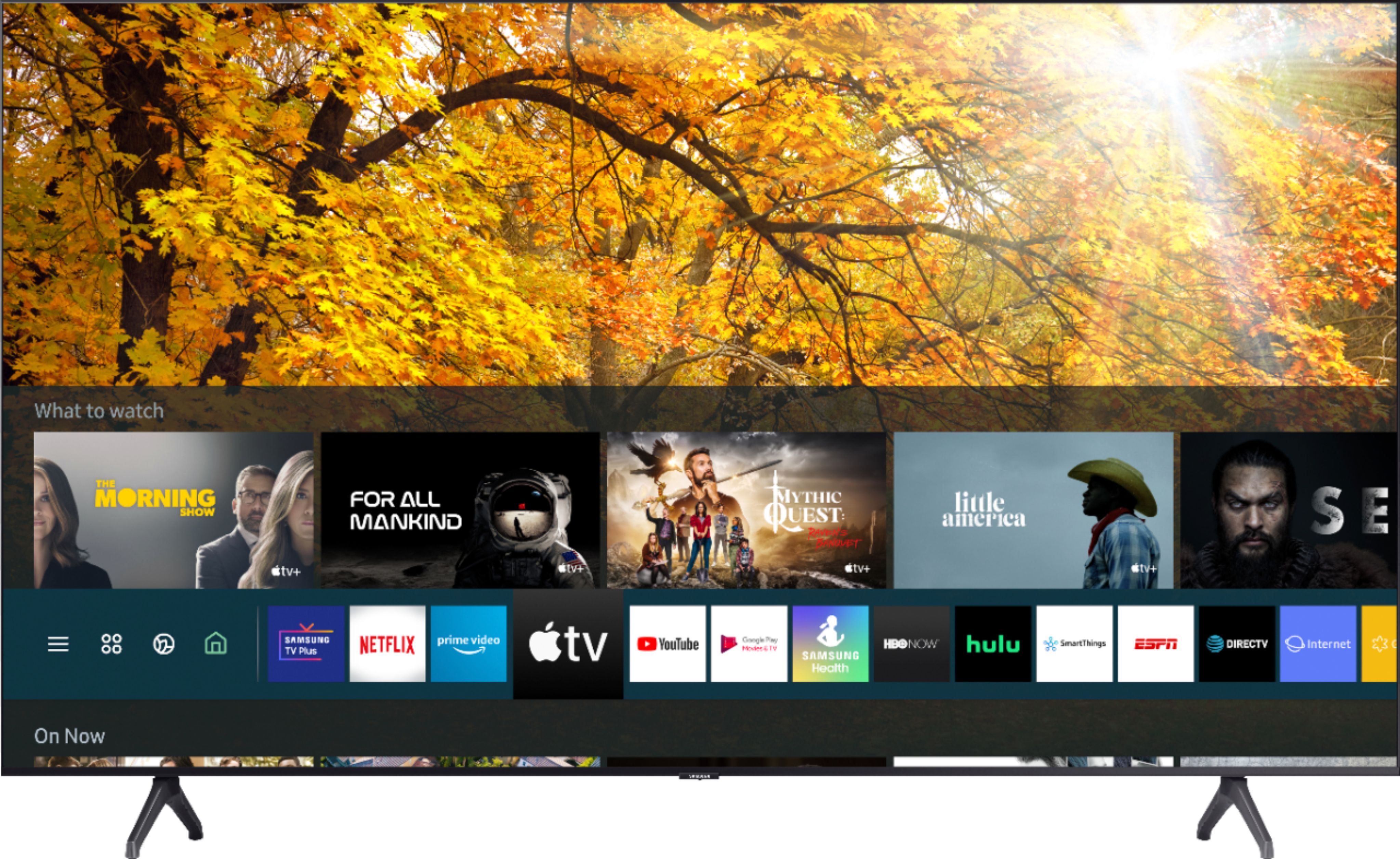
Customers admire the 43" Class 7 Series LED 4K UHD Smart Tizen TV's picture quality, ease of use, and its smart TV features. Many also appreciate the value for the price and the straightforward setup process. However, some users have noted challenges with the remote control's usability and occasional issues with internet connectivity and sound volume. A few customers also reported concerns about the TV's long-term reliability.
This summary was generated by AI based on customer reviews.
Unhappyj
||Posted . Owned for 1 month when reviewed.This reviewer received promo considerations or sweepstakes entry for writing a review.Viewed from an angle the picture is washed out it is not correctable with adjusted color settings.
I would recommend this to a friendBrand response from Samsung
Posted .Unhappy:
I am very sorry to see that you are not completely happy with the Samsung TU7000. Your thoughts are important to us and will be shared with our internal teams.
You may want to consider our Q80T and Q90T Series, featuring Ultra Viewing Angle engineered to reduce glare and enhance color for a vibrant picture no matter where you sit.
Should you ever have questions or need help with TV features, specs, or operation, we are here to help.
1) Phone: 1-800-SAMSUNG (ask for TVs), available 8AM – 12AM EST 7 days a week
2) LiveChat: https://www.samsung.com/us/support/#contact_us_for_support
3) Facebook Messenger: https://www.facebook.com/samsungsupport
4) Twitter: https://twitter.com/SamsungSupport
5) The Samsung Members Community is also a great resource for getting help from Samsung moderators and customers: https://us.community.samsung.com
If you have not already done so, we invite you to register your new Samsung product at: https://www.samsung.com/us/account/signin/?redirect=https%3A%2F%2Fwww.samsung.com%2Fus%2Fsupport%2Fregister%2F
Registering your product gives you access to easy warranty support, convenient opt-in to special promos and offers, faster troubleshooting and service, and quick notification of system updates.
~ Samsung Solutions
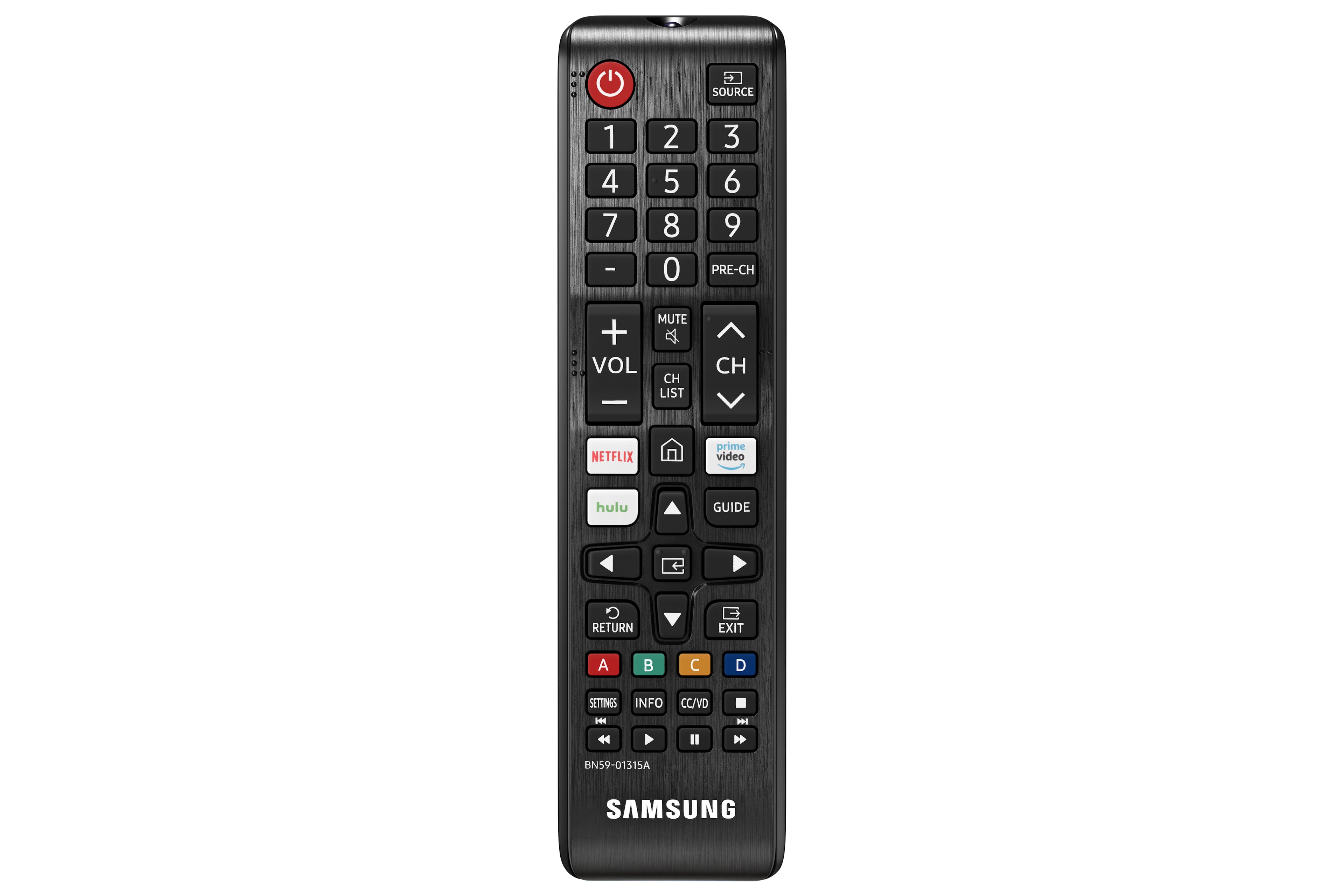
- Cons mentioned:Remote control
Very bad!
||Posted . Owned for 1 month when reviewed.This reviewer received promo considerations or sweepstakes entry for writing a review.My screen flashes and hurts your eyes. I bought this BRAND NEW! Also, the screen navigation lags and remote buttons are delayed when pressed. I've owned nothing but Samsung in the past but this experience has me question their quality.
No, I would not recommend this to a friendBrand response from Samsung
Posted .Ozzie:
If your TV is flickering or dimming sporadically, you may need to disable some of the energy efficiency features.
Disable Ambient Light Detection, Power Saving Mode, Motion Lighting, or Contrast Enhancer.
Settings > General> Eco Solution> Ambient Light Detection
Settings > General> Eco Solution> Power Saving Mode
Settings > General> Eco Solution> Motion Lighting
Settings > Picture > Expert Settings > Contrast Enhancer
Run Picture Test. When the tested image quality is normal, check the signal of the connected device. Settings > Support > Device Care > Self Diagnosis > Picture Test
To address your lag issue, you may want to run the self-diagnosis tool.
Go to Settings > Support> Device Care > Start Device Care
This service checks memory and frees up unused cached memory and closes background apps. I hope this helps to solve your concerns. If the issues persist, please reach out to Samsung Customer Support:
1) Phone: 1-800-SAMSUNG, Available 8AM -12AM EST (7 Days a Week)
2) LiveChat: https://www.samsung.com/us/support/#contact_us_for_support
3) Facebook Messenger: https://www.facebook.com/samsungsupport
4) Twitter: https://twitter.com/SamsungSupport
5) The Samsung Members Community is also a great resource for getting help from Samsung moderators and customers: https://us.community.samsung.com
If you have not already done so, we invite you to register your new Samsung product at: https://www.samsung.com/us/account/signin/?redirect=https%3A%2F%2Fwww.samsung.com%2Fus%2Fsupport%2Fregister%2F
Registering your product gives you access to easy warranty support, convenient opt-in to special promos and offers, faster troubleshooting and service, and quick notification of system updates.
~ Samsung Solutions
Unable to download Terms and Services Agreement
||Posted . Owned for 3 weeks when reviewed.This reviewer received promo considerations or sweepstakes entry for writing a review.Having trouble Downloading terms and services so I can use the smart apps. May have to return it.
No, I would not recommend this to a friendBrand response from Samsung
Posted .MsMira:
Thank you for purchasing the Samsung TU7000 TV and for your review. I am very sorry you are experiencing issues downloading the Terms and Conditions during the setup process. Please try resetting your TV by pressing the Settings button. Then go to General > Reset.
I hope this helps. Should you need further assistance, please contact Samsung Customer Support.
1) Phone: 1-800-SAMSUNG (ask for TVs), available 8AM – 12AM EST 7 days a week
2) LiveChat: https://www.samsung.com/us/support/#contact_us_for_support
3) Facebook Messenger: https://www.facebook.com/samsungsupport
4) Twitter: https://twitter.com/SamsungSupport
5) The Samsung Members Community is also a great resource for getting help from Samsung moderators and customers: https://us.community.samsung.com
If you have not already done so, we invite you to register your new Samsung product at: https://www.samsung.com/us/account/signin/?redirect=https%3A%2F%2Fwww.samsung.com%2Fus%2Fsupport%2Fregister%2F
Registering your product gives you access to easy warranty support, convenient opt-in to special promos and offers, faster troubleshooting and service, and quick notification of system updates.
~ Samsung Solutions
Terrible, don’t recommend it, worst tv ever, awful
||Posted . Owned for 1 month when reviewed.This reviewer received promo considerations or sweepstakes entry for writing a review.I bought it used that was on me but I was hoping for it to be working good. But when I turned it on it started to work and the setup part was easy but then it was glitchy, the tv turned off by itself completely on its on
No, I would not recommend this to a friendBrand response from Samsung
Posted .Hi Elijah,
Thank you for purchasing the Samsung TU7000 TV. I'm sorry to hear you're experiencing a power cycling issue where your TV turns on and off repeatedly.
Please try a few troubleshooting steps that may help solve the issue:
1) Check the power cable for damage and proper connection.
2) If the cable is bent, broken, kinked, pinched, pressed excessively (possibly by a heavy object on top), or damaged, this is likely the cause of the issue. Replace the cable.
3) Unplug the TV from the wall outlet for 30 seconds, then plug it back in.
4) If the power cycling allows enough time between powering on and off, try updating the TV to the latest firmware. There is a risk, however. If the TV turns off during the software update, it could damage the TV. Updates can take up to 30 minutes, depending on network speed, so if the TV is not turning off too frequently, try updating the software.
The TV will likely need service if the issue persists after these steps. Samsung is committed to providing the best possible product experience, quality, and value. We back this Samsung TV with a 1-year limited manufacturer's warranty, including authorized repair for manufacturer defects, if purchased brand-new directly from an authorized seller.
Please get in touch with us so that we can better investigate your issue and assist you with a solution or replacement. Call us at 1-800-SAMSUNG, 8 AM - 12 AM EST, seven days a week. Or visit us on the Samsung website and click on the 'Support' link for:
1) LiveChat with an agent
2) Manuals, Software, & Warranty Info
~ Samsung Advisor
Good TV
||Posted . Owned for 1 month when reviewed.This reviewer received promo considerations or sweepstakes entry for writing a review.Didn’t have the correct holes for a wall mound. Other than that great TV.
I would recommend this to a friendConsidering returning
||Posted . Owned for 3 weeks when reviewed.This reviewer received promo considerations or sweepstakes entry for writing a review.The color is way too dark. For instance, if there is a scene where the movie if tv show is outside in the dark. You can hardly make anything out. I tried adjusting the color and lighting but it did not help. If a person of dark color were in a dark area, the only thing you can see is their beautiful smile! I would say the quality really isn’t that great.
No, I would not recommend this to a friendBrand response from Samsung
Posted .BarbaraAnne:
Thank you for purchasing the Samsung TU7000 and for your review. I am very sorry you are viewing scenes that appear too dark. A new firmware update has been released to address this issue. You may also need to manually reboot your TV after the update by either unplugging the AC cord or by pressing and holding the power button on the remote until the TV powers off and back on.
Using your TV's remote, navigate to Settings, and select Support. Select Software Update, and then select Update Now. New updates will be downloaded and installed on your TV. Updates usually take a few minutes; please do not turn off the TV until the update is complete. When the update is finished, the TV will restart automatically. If there aren't any new updates, select OK to exit.
You may want to enable automatic updates for convenience.
Select Settings > Support > Software Update, then select Auto Update.
If you would like to update your software using USB, please check for the latest version at: https://www.samsung.com/us/support/owners/product/crystal-uhd-tvs-tu7000-2020
Instructions for how to update firmware are detailed here: samsung.com/us/support/answer/ANS00062224/
If you need further assistance or have any questions, please contact Samsung Customer Support.
1) Phone: 1-800-SAMSUNG, Available 8AM -12AM EST (7 Days a Week)
2) LiveChat: https://www.samsung.com/us/support/#contact_us_for_support
3) Facebook Messenger: https://www.facebook.com/samsungsupport
4) Twitter: https://twitter.com/SamsungSupport
5) The Samsung Members Community is also a great resource for getting help from Samsung moderators and customers: https://us.community.samsung.com
If you have not already done so, we invite you to register your new Samsung product at: https://www.samsung.com/us/account/signin/?redirect=https%3A%2F%2Fwww.samsung.com%2Fus%2Fsupport%2Fregister%2F
Registering your product gives you access to easy warranty support, convenient opt-in to special promos and offers, faster troubleshooting and service, and quick notification of system updates.
~ Samsung Solutions
Unable to connect to streaming like amazon prime
||Posted .This reviewer received promo considerations or sweepstakes entry for writing a review.Tried everything but can’t connect to prime video or other apps.
No, I would not recommend this to a friendBrand response from Samsung
Posted .Wholla:
Thank you for choosing this Samsung TU7000 4K Smart TV. I apologize for the issues you are experiencing with your apps.
The issue with the Apps may be related to your network connection and quality.
We suggest you try the following:
1. Use 5G WiFi if possible
2. Try wired LAN if available
3. Try repositioning the router so there are no obstacles between your TV and the router
4. Please be sure you have the latest firmware update which enhances network connectivity. Version 1115.1 is now available at: https://www.samsung.com/us/support/owners/product/crystal-uhd-tvs-tu7000-2020
Instructions for how to update firmware are detailed here: samsung.com/us/support/answer/ANS00062224/
Additionally, if you are receiving the error message, "Something went wrong" with Amazon Prime, Samsung is aware of the problem and is working towards a solution.
In the meantime, you may also want to try power-cycling your TV:
1) Power off your TV using the remote or by pressing the power button on the TV.
2) Next, unplug your TV from the power source. If your TV is connected to a surge protector, power it off.
3) Wait 30 seconds, and then plug your TV back in.
4) Power on the TV using the remote or the power button.
For further assistance, please contact Samsung Customer Support.
1) Phone: 1-800-SAMSUNG, Available 8AM -12AM EST (7 Days a Week)
2) LiveChat: https://www.samsung.com/us/support/#contact_us_for_support
3) Facebook Messenger: https://www.facebook.com/samsungsupport
4) Twitter: https://twitter.com/SamsungSupport
5) The Samsung Members Community is also a great resource for getting help from Samsung moderators and customers: https://us.community.samsung.com
If you have not already done so, we invite you to register your new Samsung product at: https://www.samsung.com/us/account/signin/?redirect=https%3A%2F%2Fwww.samsung.com%2Fus%2Fsupport%2Fregister%2F
Registering your product gives you access to easy warranty support, convenient opt-in to special promos and offers, faster troubleshooting and service, and quick notification of system updates.
~ Samsung Solutions
Great tv.
||Posted . Owned for 3 weeks when reviewed.This reviewer received promo considerations or sweepstakes entry for writing a review.Grear tv, only thing is there was , is no bluetooth on it. Its not samsungs fault…
I would recommend this to a friendStop working
||Posted . Owned for 5 months when reviewed.This reviewer received promo considerations or sweepstakes entry for writing a review.It was good til it lasted , less than a year the screen went blank, and didn’t tune on .
No, I would not recommend this to a friendBrand response from Samsung
Posted .Olive99:
Thank you for purchasing the Samsung TU7000 TV. I am very sorry that you are experiencing issues turning your TV on. You may want to try the following troubleshooting steps:
1) Make sure that the AC power cord is securely plugged in to the TV and the wall outlet.
2) Make sure that the wall outlet is working and the power indicator at the bottom of the TV is lit and glowing a solid red. If it is off, the TV either does not have power, or it is on and the screen is black. If it is blinking, your TV may need service.
3) Try pressing the TV Controller button at the bottom of the TV to make sure that the problem is not with the remote control.
4) If the TV turns on, your issue may be with the remote control
Samsung is committed to providing the best possible product experience, quality, and value. We back this Samsung TV with a 1-year limited manufacturer's warranty, including authorized repair for manufacturer defect, if purchased brand-new directly from an authorized seller.
For further assistance with troubleshooting or warranty service, please contact Samsung Customer Support.
1) Phone: 1-800-SAMSUNG (ask for TVs), available 8AM – 12AM EST 7 days a week
2) LiveChat: https://www.samsung.com/us/support/#contact_us_for_support
3) Facebook Messenger: https://www.facebook.com/samsungsupport
4) Twitter: https://twitter.com/SamsungSupport
5) The Samsung Members Community is also a great resource for getting help from Samsung moderators and customers: https://us.community.samsung.com
If you have not already done so, we invite you to register your new Samsung product at: https://www.samsung.com/us/account/signin/?redirect=https%3A%2F%2Fwww.samsung.com%2Fus%2Fsupport%2Fregister%2F
Registering your product gives you access to easy warranty support, convenient opt-in to special promos and offers, faster troubleshooting and service, and quick notification of system updates.
~ Samsung Solutions
Purchased IN Haste! Should have stuck with ROKU
||Posted . Owned for 3 weeks when reviewed.This reviewer received promo considerations or sweepstakes entry for writing a review.Do not like this television and I have been TOO busy to get it returned. Bought it for my senior father and it is definitely not user friendly. Even my 29yr old gamer nephew has difficulty negotiating the menu/settings. Do not like!!! Planning on returning very soon.
No, I would not recommend this to a friendBrand response from Samsung
Posted .BadMove:
Thank you for purchasing the Samsung TU7000 TV and for your review. Your thoughts regarding the ease of use is important to us and will be shared with our internal teams.
Should you ever have questions or need help with TV features, specs, or operation, please contact Samsung Customer Support for help.
1) Phone: 1-800-SAMSUNG (ask for TVs), available 8AM – 12AM EST 7 days a week
2) LiveChat: https://www.samsung.com/us/support/#contact_us_for_support
3) Facebook Messenger: https://www.facebook.com/samsungsupport
4) Twitter: https://twitter.com/SamsungSupport
5) The Samsung Members Community is also a great resource for getting help from Samsung moderators and customers: https://us.community.samsung.com
If you have not already done so, we invite you to register your new Samsung product at: https://www.samsung.com/us/account/signin/?redirect=https%3A%2F%2Fwww.samsung.com%2Fus%2Fsupport%2Fregister%2F
Registering your product gives you access to easy warranty support, convenient opt-in to special promos and offers, faster troubleshooting and service, and quick notification of system updates.
~ Samsung Solutions
Very Slow
||Posted . Owned for 1 month when reviewed.This reviewer received promo considerations or sweepstakes entry for writing a review.The tv is insanely slow and stop connecting to the WiFi but other than that’s its a tv
No, I would not recommend this to a friendBrand response from Samsung
Posted .lilJahp:
Thank you for purchasing the TU7000 TV and for your review. I am sorry that you are finding your unit to be slow.
You may also want to optimize the smart TV performance by running the Device Care option under the Support Menu. Go to Settings > Support> Device Care > Start Device Care
This service checks memory and frees up unused cached memory and closes background apps.
You may want to go through these steps to check your WiFi connection:
1) Check the distance between the TV and your modem or access point. The distance should not exceed 50 ft. (15.2 m).
2) Minimize interference by not using or turning off wireless devices. Also, verify that there are no obstacles between the TV and the modem or access point. (WiFi strength can be decreased by appliances, cordless phones, stone walls/fireplaces, etc.)
3) Perform a network test to check if there is a network problem. Press the Home button on your remote. Navigate to Settings > Support > Device Care > Self Diagnosis> Smart Hub Connection Test
4) Try a cold reboot of your TV by pressing and holding the power button for 5+ seconds until the TV turns off and on again.
5) Please also be sure you have the latest firmware update. You may want to enable automatic updates for convenience. Select Settings > Support > Software Update, then select Auto Update.
For further assistance or service, please contact us via any of the following options:
1) Phone: 1-800-SAMSUNG (ask for TVs), available 8AM – 12AM EST 7 days a week
2) LiveChat: https://www.samsung.com/us/support/#contact_us_for_support
3) Facebook Messenger: https://www.facebook.com/samsungsupport
4) Twitter: https://twitter.com/SamsungSupport
5) The Samsung Members Community is also a great resource for getting help from Samsung moderators and customers: https://us.community.samsung.com
If you have not already done so, we invite you to register your new Samsung product at: https://www.samsung.com/us/account/signin/?redirect=https%3A%2F%2Fwww.samsung.com%2Fus%2Fsupport%2Fregister%2F
Registering your product gives you access to easy warranty support, convenient opt-in to special promos and offers, faster troubleshooting and service, and quick notification of system updates.
~ Samsung Solutions
Great tv for spare bedroom.
||Posted . Owned for 3 weeks when reviewed.This reviewer received promo considerations or sweepstakes entry for writing a review.Love this tv we purchased for guest room. Nice having the apps for guest to enjoy streaming
I would recommend this to a friendBrand response from Samsung
Posted .Sara:
Thank you for purchasing the 2020 TU7000 4K Smart TV. The Crystal Processor 4K transforms everything you watch to 4K. Its crisp, clear picture is 4x the resolution of Full HD. If you are experiencing specific issues which caused you to give this a 3-star rating, please know Samsung Customer Support is here to help.
1) Phone: 1-800-SAMSUNG (available 8AM -12AM EST, 7 days a week)
2) LiveChat: https://www.samsung.com/us/support/#contact_us_for_support
3) Facebook Messenger: https://www.facebook.com/samsungsupport
4) Twitter: https://twitter.com/SamsungSupport
5) The Samsung Members Community is also a great resource for getting help from Samsung moderators and customers: https://us.community.samsung.com
If you have not already done so, we invite you to register your new Samsung product at: https://www.samsung.com/us/account/signin/?redirect=https%3A%2F%2Fwww.samsung.com%2Fus%2Fsupport%2Fregister%2F
Registering your product gives you access to easy warranty support, convenient opt-in to special promos and offers, faster troubleshooting and service, and quick notification of system updates.
~ Samsung Solutions
Ok
||Posted . Owned for 5 months when reviewed.This reviewer received promo considerations or sweepstakes entry for writing a review.I like it. Sometimes gets stuck and have to cut it off and on so that’s a bit annoying
I would recommend this to a friendBrand response from Samsung
Posted .Teddy:
I am sorry that you are experiencing issues with your TU7000 4K Smart TV.
Your TV has several self-diagnosis tools built in that can help solve problems with signal, network, picture, or sound. Go to Settings > Support> Device Care > Start Device Care
You may also want to clear out your TV's temporary storage space by pressing and holding the Power button for 6 seconds until your TV turns off and back on again.
Please also be sure you are running the latest firmware. You can check to see what software version your TV is using and if there is an available update through the settings on your TV. Go to: Settings>Support>Software Update.
I hope this helps. Should you need further assistance, please contact Samsung Customer Support.
1) Phone: 1-800-SAMSUNG (ask for TVs), available 8AM – 12AM EST 7 days a week
2) LiveChat: https://www.samsung.com/us/support/#contact_us_for_support
3) Facebook Messenger: https://www.facebook.com/samsungsupport
4) Twitter: https://twitter.com/SamsungSupport
5) The Samsung Members Community is also a great resource for getting help from Samsung moderators and customers: https://us.community.samsung.com
If you have not already done so, we invite you to register your new Samsung product at: https://www.samsung.com/us/account/signin/?redirect=https%3A%2F%2Fwww.samsung.com%2Fus%2Fsupport%2Fregister%2F
Registering your product gives you access to easy warranty support, convenient opt-in to special promos and offers, faster troubleshooting and service, and quick notification of system updates.
~ Samsung Solutions
Frequent reboots required and no cable box connect
||Posted . Owned for 1 month when reviewed.This reviewer received promo considerations or sweepstakes entry for writing a review.I'm surprised at the frequency with which I have to unplug this tv in order for it to perform routine operations such installing apps. Rebooting with the power button held down from “on” through “off” until back “on” has rarely corrected the issues I've thus far encountered. It does not recognize/find the Spectrum/Charter cable tv box/DVR connected to it via HDMI cable on either of the tv's two(2) HDMI ports, even after unplugging the tv several times to reboot it. But a DVD player is easily recognized and works fine on either HDMI port with the same cable I tried to use for the cable tv box/DVR. And the same cable box/DVR was connected with the same HDMI cable and worked without any problems on the Samsung tv that this one replaced. The quality of the screen's display is what I expected, so that brings the “quality” aspect for it up to a “fair” rating, otherwise I'm rating it “poor” overall. I could not recommend this one to a friend.
No, I would not recommend this to a friendBrand response from Samsung
Posted .Vick:
Thank you for purchasing Samsung’s TU7000 TV and for sharing your experience with setup. Most cable and satellite boxes today can be connected with HDMI. If your cable box has component connections, the first thing you may want to do is contact your cable company and see if there is an upgraded box available. If not, you can still get up to a 1080p (Full HD) picture with component connections, but for many TVs you will need a component to HDMI adapter if the TV does not support component out of the box.
1) Make sure the TV and cable or satellite box are turned off.
2) Connect an HDMI cable to your cable or satellite box’s HDMI out port, which should be located on the back.
3) Connect the other end of the HDMI cable to any of the empty HDMI ports on your Samsung TV.
Now depending on your TV, a few different things may happen:
Your TV may automatically recognize that you connected a cable or satellite box and not only switch to the source, but change the name of the source to the name of your cable box. You can now watch TV and control the cable box with your Samsung Smart TV remote.
Note: This only works when using an HDMI connection.
If nothing happens, you need to either press Source on your remote, or navigate to source using the on screen menu to change to the HDMI port that you connected your cable or
satellite box to.
For detailed instructions, please visit: https://www.samsung.com/us/support/answer/ANS00078931/#:~:text=Make%20sure%20the%20TV%20and,ports%20on%20your%20Samsung%20TV.
I hope this helps. If you are still experiencing issues with connection, please contact Samsung Customer Support.
1) Phone: 1-800-SAMSUNG, Available 8AM -12AM EST (7 Days a Week)
2) LiveChat: https://www.samsung.com/us/support/#contact_us_for_support
3) Facebook Messenger: https://www.facebook.com/samsungsupport
4) Twitter: https://twitter.com/SamsungSupport
5) The Samsung Members Community is also a great resource for getting help from Samsung moderators and customers: https://us.community.samsung.com
If you have not already done so, we invite you to register your new Samsung product at: https://www.samsung.com/us/account/signin/?redirect=https%3A%2F%2Fwww.samsung.com%2Fus%2Fsupport%2Fregister%2F
Registering your product gives you access to easy warranty support, convenient opt-in to special promos and offers, faster troubleshooting and service, and quick notification of system updates.
~ Samsung Solutions
Review Display
||Posted .This reviewer received promo considerations or sweepstakes entry for writing a review.My 5 year old Samsung HD has a better pictute thsn this one. Took it back.
No, I would not recommend this to a friendWorks Ok
||Posted . Owned for 1 month when reviewed.This reviewer received promo considerations or sweepstakes entry for writing a review.It is very slow when we select or flip from one to another. Could be more user friendly too
I would recommend this to a friendBrand response from Samsung
Posted .Anna:
Thank you for sharing your experience with the TU7000 TV. I am sorry that you are experiencing some delayed response when using your remote.
Have you tried Device Care option? Go to Settings > Support> Device Care > Start Device Care
This service checks memory and frees up unused cached memory and closes background apps.
I hope this helps to solve your concerns. Should you need further assistance, please contact Samsung Customer Support:
1) Phone: 1-800-SAMSUNG (available 8AM -12AM EST, 7 days a week)
2) LiveChat: https://www.samsung.com/us/support/#contact_us_for_support
3) Facebook Messenger: https://www.facebook.com/samsungsupport
4) Twitter: https://twitter.com/SamsungSupport
5) The Samsung Members Community is also a great resource for getting help from Samsung moderators and customers: https://us.community.samsung.com
If you have not already done so, we invite you to register your new Samsung product at: https://www.samsung.com/us/account/signin/?redirect=https%3A%2F%2Fwww.samsung.com%2Fus%2Fsupport%2Fregister%2F
Registering your product gives you access to easy warranty support, convenient opt-in to special promos and offers, faster troubleshooting and service, and quick notification of system updates.
~ Samsung Solutions
Not what I was looking for
||Posted . Owned for 2 weeks when reviewed.This reviewer received promo considerations or sweepstakes entry for writing a review.I was unimpressed with the quality of the picture.
No, I would not recommend this to a friendBrand response from Samsung
Posted .Hi Nancy,
We appreciate you sharing your experience with the TU7000 TV. Your feedback regarding image quality is important to us and will be shared with our internal teams. Please try adjusting the below image settings to improve your picture.
First, let's ensure your firmware is up to date. Please go to Settings> Support > Software Update. You can easily update your firmware from here.
Next, go to Home > Settings > Picture > Picture Mode and select the mode that best fits your usage:
1) Standard: Is the default mode suitable for general viewing environments.
2) Natural: Reduces eye strain for a comfortable viewing experience.
3) Movie: It is suitable for watching TV or movies in a dark room.
4) Dynamic: Makes the picture brighter and clearer in bright viewing environments.
5) Filmmaker Mode: You can watch the source content (e.g., movie) as it is. If the image is defined as Filmmaker Mode, it will automatically switch to Filmmaker Mode while watching.
You can also go to Settings > Picture > Expert Settings > to manually fine-tune your image.
If you need more help, Samsung is here for you. Call us at 1-800-SAMSUNG, 8 AM - 12 AM EST, seven days a week. Or visit us on the Samsung website and click on the ‘Support’ link for:
1) LiveChat with an agent
2) Manuals, Software, & Warranty Info
~ Samsung Advisor
Nice tv
||Posted . Owned for 1 month when reviewed.This reviewer received promo considerations or sweepstakes entry for writing a review.Just wish Amazon Prime worked. We have to keep switching to Fire Stick. Doable, but anoying
I would recommend this to a friendBrand response from Samsung
Posted .Larr:
I am sorry for the issue you are having with Amazon Prime. Samsung is aware of the error message, “Something went wrong,” and is working towards a solution.
In the meantime, please try power-cycling your TV:
1) Power off your TV using the remote or by pressing the power button on the TV.
2) Next, unplug your TV from the power source. If your TV is connected to a surge protector, power it off.
3) Wait 30 seconds, and then plug your TV back in.
4) Power on the TV using the remote or the power button.
For further assistance, please contact Samsung Customer Support.
1) Phone: 1-800-SAMSUNG, Available 8AM -12AM EST (7 Days a Week)
2) LiveChat: https://www.samsung.com/us/support/#contact_us_for_support
3) Facebook Messenger: https://www.facebook.com/samsungsupport
4) Twitter: https://twitter.com/SamsungSupport
5) The Samsung Members Community is also a great resource for getting help from Samsung moderators and customers: https://us.community.samsung.com
If you have not already done so, we invite you to register your new Samsung product at: https://www.samsung.com/us/account/signin/?redirect=https%3A%2F%2Fwww.samsung.com%2Fus%2Fsupport%2Fregister%2F
Registering your product gives you access to easy warranty support, convenient opt-in to special promos and offers, faster troubleshooting and service, and quick notification of system updates.
~ Samsung Solutions
WiFi settings
||Posted . Owned for 3 weeks when reviewed.This reviewer received promo considerations or sweepstakes entry for writing a review.WiFi settings have been giving me issues. Every time I go to connect it says error.
I would recommend this to a friendBrand response from Samsung
Posted .Twin13:
Thank you for purchasing the Samsung TU7000 TV and for your review. I am very sorry that you are experiencing WiFi connection issues. You may want to go through these steps to check your network connection:
1) Check the distance between the TV and your modem or access point. The distance should not exceed 50 ft. (15.2 m).
2) Minimize interference by not using or turning off wireless devices. Also, verify that there are no obstacles between the TV and the modem or access point. (WiFi strength can be decreased by appliances, cordless phones, stone walls/fireplaces, etc.)
3) Perform a network test to check if there is a network problem.
Press the Home button on your remote. Navigate to Settings > Support > Device Care > Self Diagnosis> Smart Hub Connection Test
4) Try a cold reboot of your TV by pressing and holding the power button for 5+ seconds until the TV turns off and on again.
5) Please also be sure you have the latest firmware update. You may want to enable automatic updates for convenience. Select Settings > Support > Software Update, then select Auto Update.
For further assistance or service, please contact us via any of the following options:
1) Phone: 1-800-SAMSUNG (ask for TVs), available 8AM – 12AM EST 7 days a week
2) LiveChat: https://www.samsung.com/us/support/#contact_us_for_support
3) Facebook Messenger: https://www.facebook.com/samsungsupport
4) Twitter: https://twitter.com/SamsungSupport
5) The Samsung Members Community is also a great resource for getting help from Samsung moderators and customers: https://us.community.samsung.com
If you have not already done so, we invite you to register your new Samsung product at: https://www.samsung.com/us/account/signin/?redirect=https%3A%2F%2Fwww.samsung.com%2Fus%2Fsupport%2Fregister%2F
Registering your product gives you access to easy warranty support, convenient opt-in to special promos and offers, faster troubleshooting and service, and quick notification of system updates.
~ Samsung Solutions
Best Buy's, return policy is horrible.
||Posted . Owned for 3 months when reviewed.This reviewer received promo considerations or sweepstakes entry for writing a review.The TV has an issue with the color and of course I missed the return widow because I didn't immediately open the box, and I'm not a rewards member to get extended return time. Samsung is correcting the issue directly. I will be directly from Samsung next time.
I would recommend this to a friendBrand response from Samsung
Posted .BKA1:
I am very sorry that you experienced issues with your TU7000 Crystal UHD TV and are currently waiting for it to be serviced. I understand your frustration and appreciate your patience. Should you have any issues with your TV after service is complete, please contact Samsung Customer Support.
Call us at 1-800-SAMSUNG (ask for TVs), available 8AM - 12AM EST, 7 days a week.
For additional support resources, visit us on the Samsung website and click on the ‘Support’ link in the upper right corner of the homepage for:
1) Chat with Us/Product Help: To begin a chat or find solutions, choose ‘TVs & Home Theater’ and select your model & topic.
2) Manuals, Software, & Warranty Info
Samsung is committed to providing the best possible product experience, quality, and value, and we are always here to help with any of your questions or concerns.
~ Samsung Advisor