Customer Ratings & Reviews
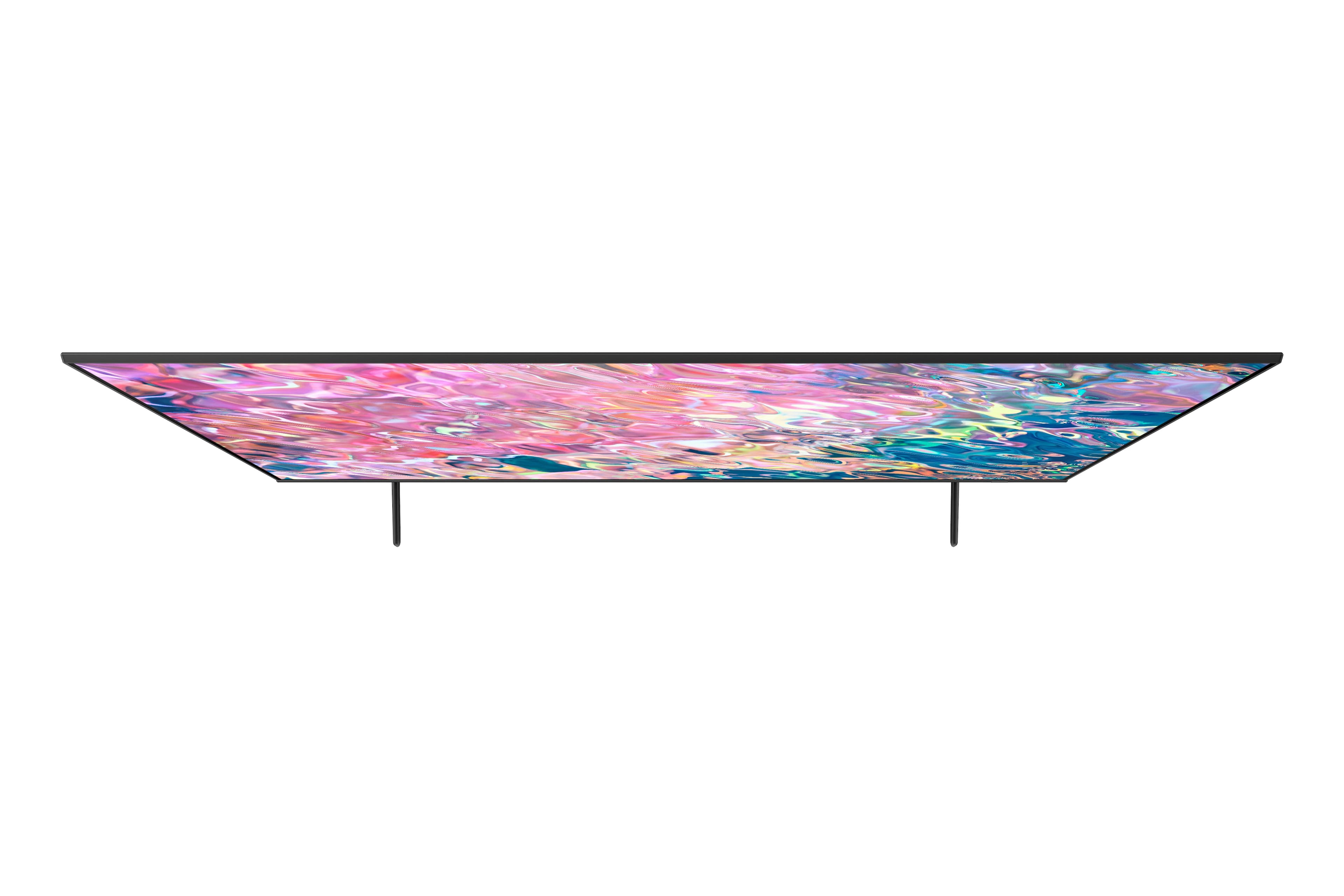
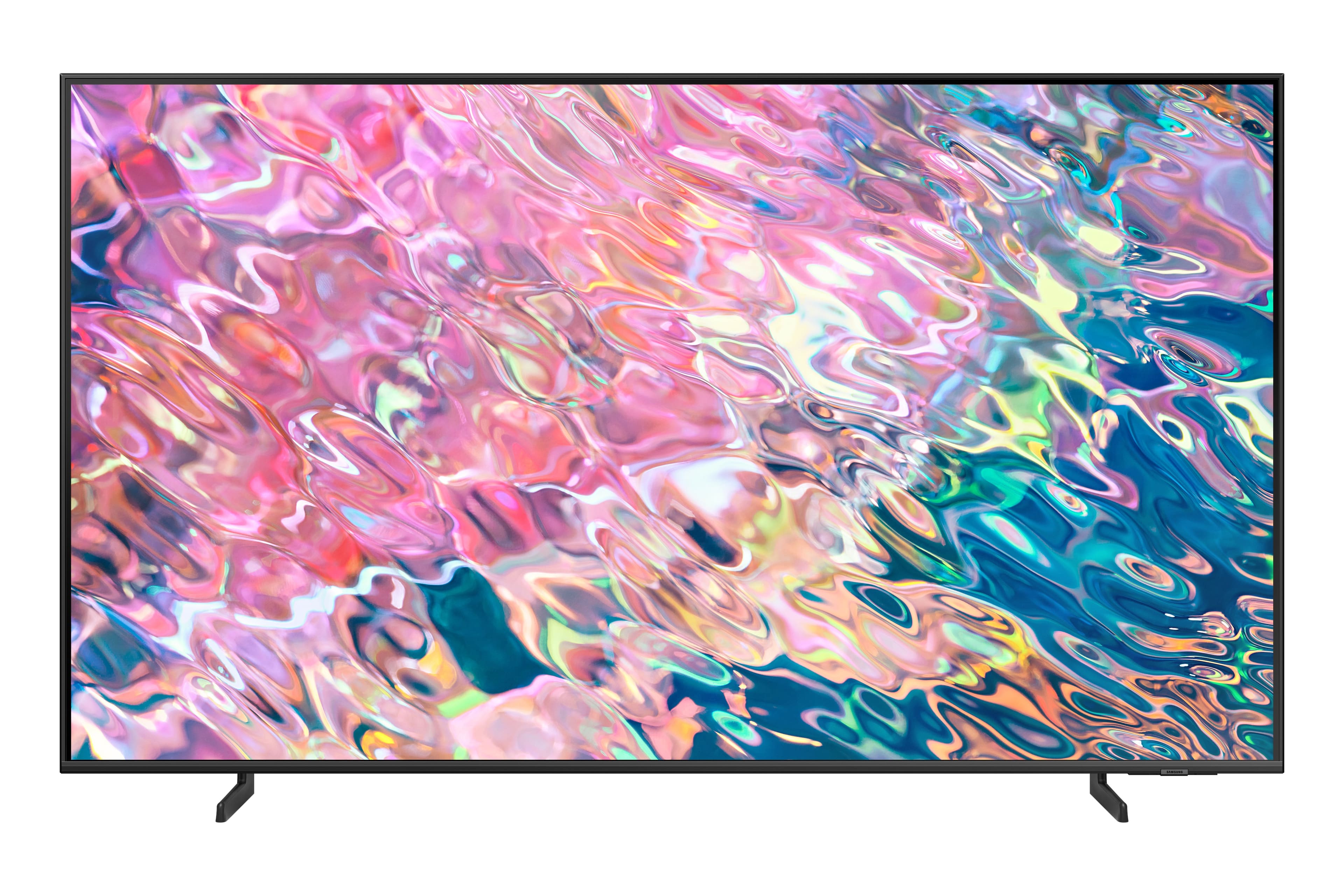
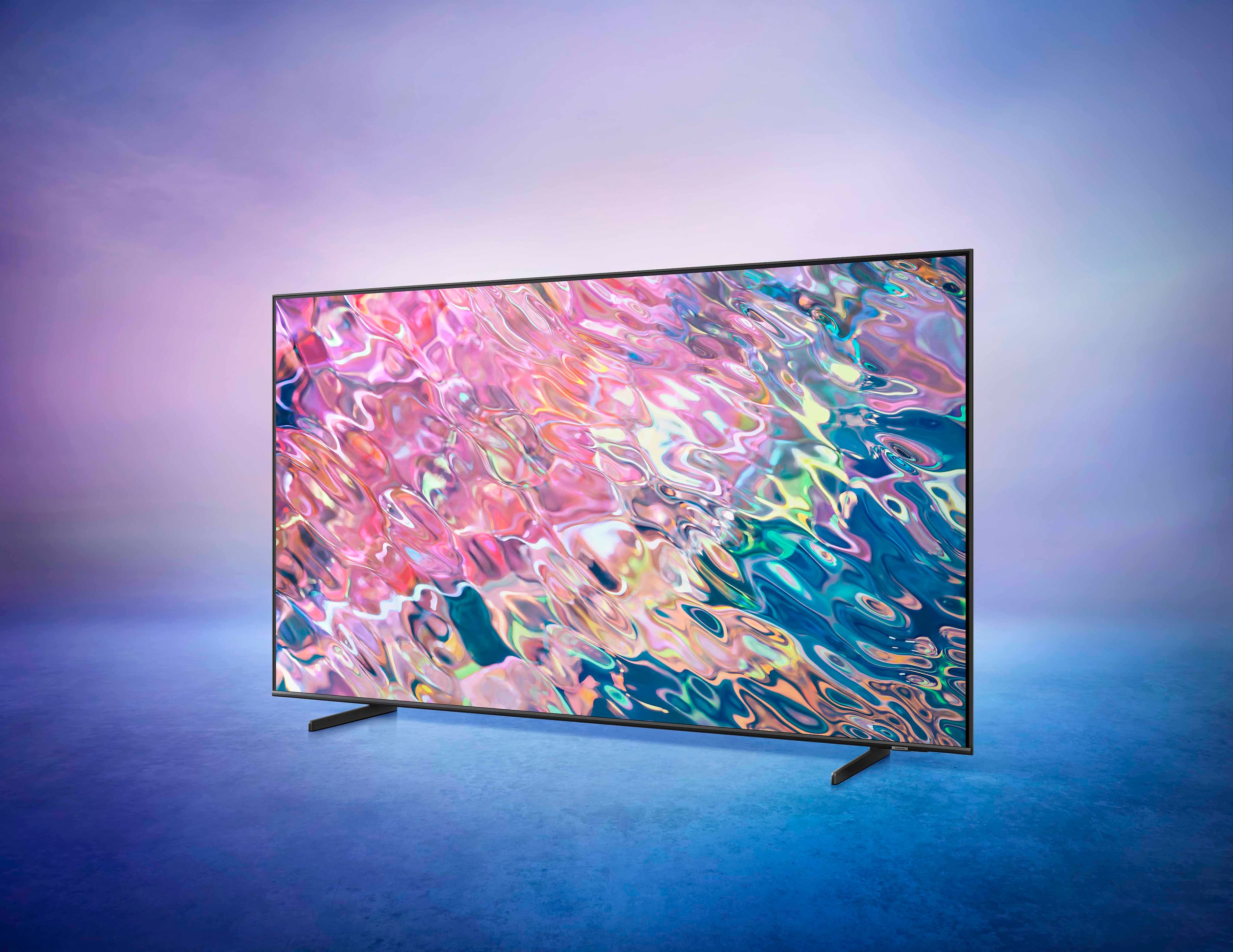







- Model:
- QN43Q60BAFXZA
- SKU:
- 6502237
Rating by feature
- Picture Quality
Rating 4.8 out of 5 stars
- Sound Quality
Rating 4.4 out of 5 stars
- Brightness
Rating 4.8 out of 5 stars
Customers are saying
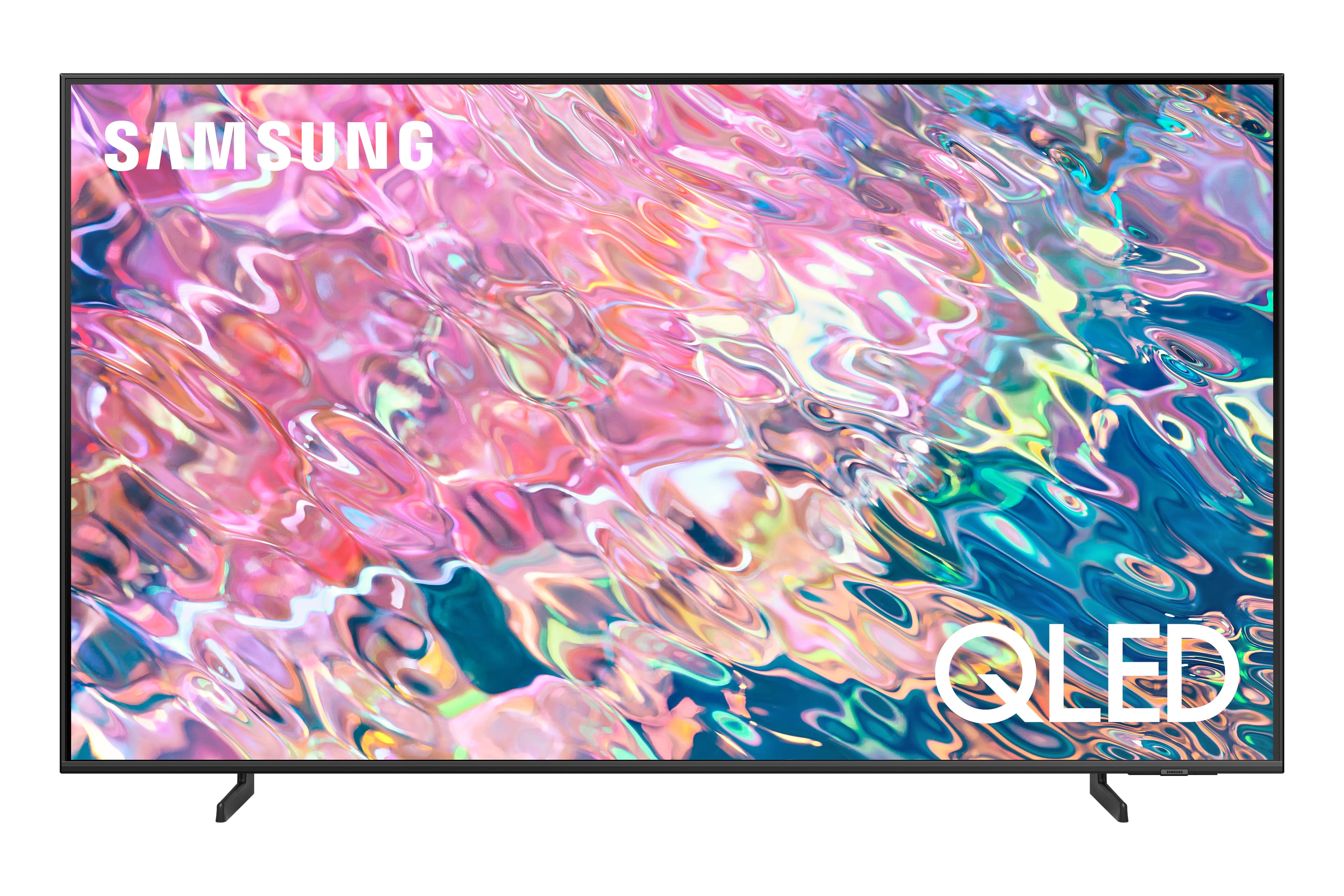
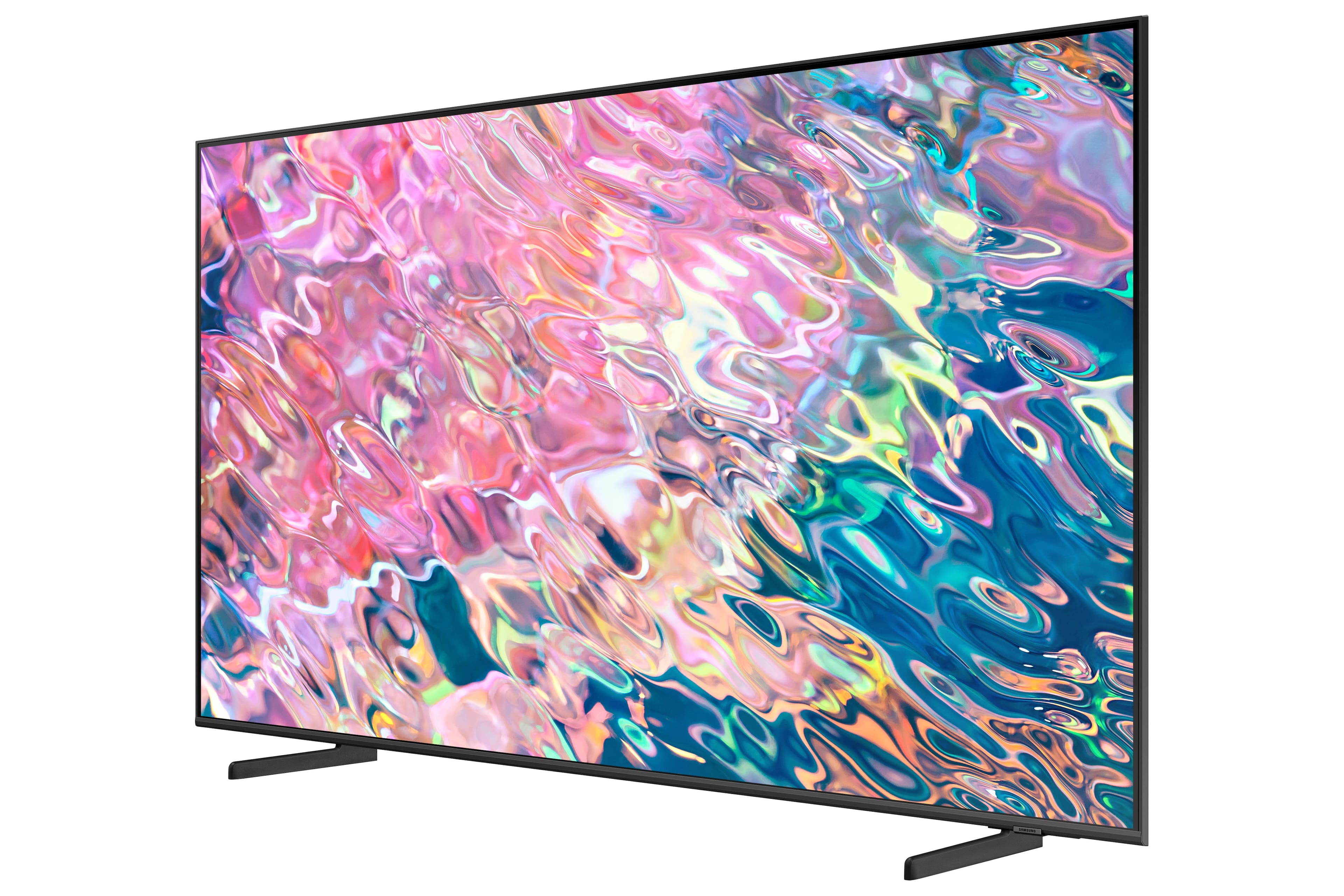
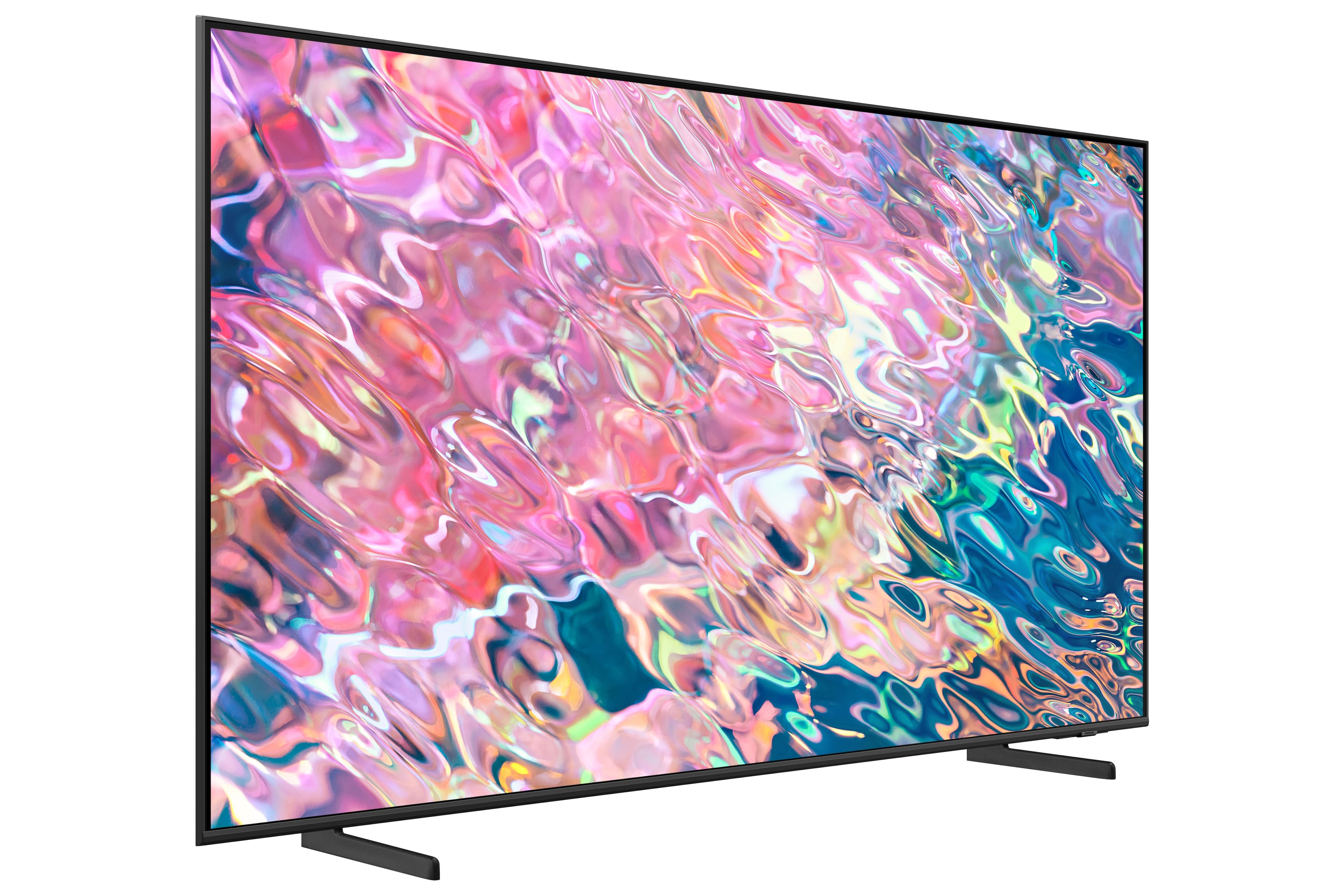
Customers commend the 43” Class Q60B QLED 4K Smart Tizen TV for its exceptional picture quality, describing it as amazing, vibrant, and realistic. They also appreciate the easy setup process and the vibrant colors the TV produces. However, some customers have expressed concerns about the remote control, viewing angles, speakers, and slow performance when running certain applications.
This summary was generated by AI based on customer reviews.
Did not Keep
||Posted . Owned for 5 months when reviewed.This reviewer received promo considerations or sweepstakes entry for writing a review.Unfortunately had to return this TV so I did not get to use. According to Geek Squad they did think this would fit space.
No, I would not recommend this to a friendBad television
||Posted . Owned for 7 months when reviewed.This reviewer received promo considerations or sweepstakes entry for writing a review.Television is not but 7 months old and already stopped working.
No, I would not recommend this to a friendBroken
||Posted . Owned for 7 months when reviewed.This reviewer received promo considerations or sweepstakes entry for writing a review.When I got the TV, it started up and then it just went black and never came on again.
No, I would not recommend this to a friendJunk
||Posted . Owned for 3 weeks when reviewed.This reviewer received promo considerations or sweepstakes entry for writing a review.Worked for one day then took a crap!!!! Not worth the money
No, I would not recommend this to a friendbad tv screen colors
||Posted . Owned for 1 week when reviewed.This reviewer received promo considerations or sweepstakes entry for writing a review.samsung is known for its excellence but this product has very bad colors. and display.
No, I would not recommend this to a friendTv
||Posted . Owned for 1 month when reviewed.This reviewer received promo considerations or sweepstakes entry for writing a review.Had a lot of pixels even for double the price of the regular Samsung! No difference what so ever.
No, I would not recommend this to a friendBrand response from Samsung
Posted .LisaF,
Thank you for sharing your thoughts on the picture quality of your Q60B TV. To ensure you’ve got the latest image quality updates, please confirm that your TV is up to date with the latest firmware version. You can check by going to: Home > Menu > Settings > Support > Software Update.
If the picture you’re seeing is still not to your liking after updating firmware, there are several picture settings you may want to try adjusting.
Go to Home > Menu > Settings > All Settings > Picture > Picture Mode
...and select the mode that best fits your usage:
1) Standard: Is the default mode suitable for general viewing environments.
2) Movie: Is suitable for watching TV or movies in a dark room.
3) Dynamic: Makes the picture brighter and clearer in bright viewing environments.
4) Filmmaker Mode: You can watch the source content (e.g., movie) as it is. If the image is defined as Filmmaker Mode, it will automatically switch to Filmmaker Mode while watching.
You can also go to: Home > Menu > Settings > All Settings > Picture > Expert Settings to manually fine tune your image.
For further assistance with settings adjustments, please contact Samsung Customer Support at 1-800-SAMSUNG, 8AM - 12AM EST, 7 days a week. Or visit us on the Samsung website and click on the ‘Support’ link for:
• LiveChat
• Manuals, Software, & Warranty Info
~ Samsung Specialist
title
||Posted .This reviewer received promo considerations or sweepstakes entry for writing a review.The audio on this TV is too low. You have to to the maximum.
No, I would not recommend this to a friendBrand response from Samsung
Posted .Hi,
Thank you for choosing the 2022 Q60B QLED TV and for your review. There are several volume features you can enable/disable/adjust to your liking.
– Auto Volume automatically adjusts the sound to a certain level when changing channels or switching to another external input.
– Adaptive Volume automatically adjusts to a specific volume level while you are watching TV. The TV analyzes your volume usage history by time to automatically adjust the volume when you use an app or switch to an external input source.
– Several Sound Modes are likewise available to meet your personal preferences: Menu > Settings > All Settings > Sound > Sound Mode
I hope this helps. For further assistance, please contact Samsung Customer Support at 1-800-SAMSUNG, 8AM - 12AM EST, 7 days a week. Or visit us on the Samsung website and click on the ‘Support’ link for:
• LiveChat
• Manuals, Software, & Warranty Info
~ Samsung Specialist
Toooooooo…….much blooming.!!!
||Posted . Owned for 3 weeks when reviewed.This reviewer received promo considerations or sweepstakes entry for writing a review.Found out that this was the entry level model and it showed right out of the box. Get for your kids game room or something. But if like watching movies, sports, or streaming 4K content you’ll need to step up to a higher tier.
No, I would not recommend this to a friendBrand response from Samsung
Posted .TeVeesbestfriend,
Thank you for sharing your thoughts on the picture quality of your Q60B TV. To ensure you’ve got the latest image quality updates, please confirm that your TV is up to date with the latest firmware version. You can check by going to: Home > Menu > Settings > Support > Software Update.
If the picture you’re seeing is still not to your liking after updating firmware, there are several picture settings you may want to try adjusting.
Go to Home > Menu > Settings > All Settings > Picture > Picture Mode
...and select the mode that best fits your usage:
1) Standard: Is the default mode suitable for general viewing environments.
2) Movie: Is suitable for watching TV or movies in a dark room.
3) Dynamic: Makes the picture brighter and clearer in bright viewing environments.
4) Filmmaker Mode: You can watch the source content (e.g., movie) as it is. If the image is defined as Filmmaker Mode, it will automatically switch to Filmmaker Mode while watching.
You can also go to: Home > Menu > Settings > All Settings > Picture > Expert Settings to manually fine tune your image.
For further assistance with settings adjustments, please contact Samsung Customer Support at 1-800-SAMSUNG, 8AM - 12AM EST, 7 days a week. Or visit us on the Samsung website and click on the ‘Support’ link for:
• LiveChat
• Manuals, Software, & Warranty Info
~ Samsung Specialist
So Disappointing
||Posted . Owned for 3 weeks when reviewed.This reviewer received promo considerations or sweepstakes entry for writing a review.Looks like it may be a returned/restocked tv, how can I tell if it is new, which is what I purchased. Came in brown box, not as my previous samsungs that came in new colored packaging. The tracking movements are terrible, difficult to watch as actors move across the screen, volume control is terrible, have to put it on 100 for some channels. 3 Previous samsungs were excellent. Will never purchase another after this one. My last one is a Q60 55" QLED and would give 4 stars to that one.
No, I would not recommend this to a friendBrand response from Samsung
Posted .frustrated,
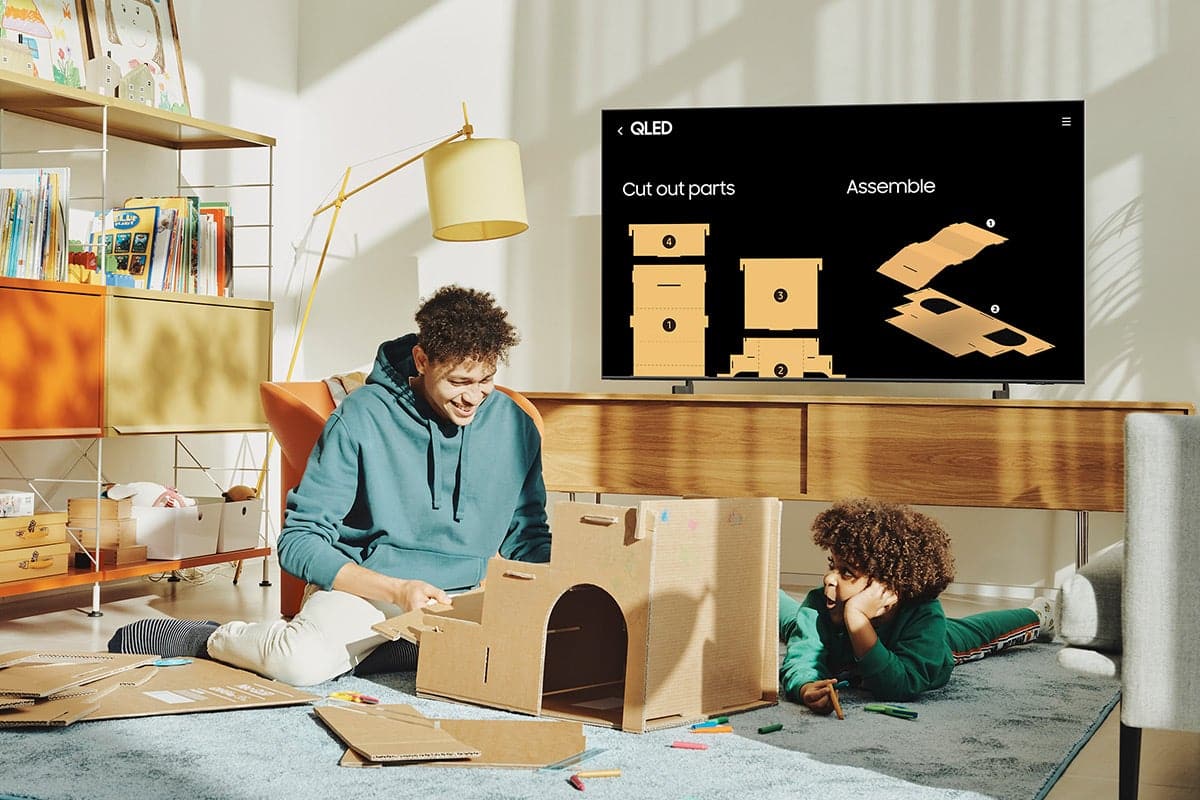
Do not worry - your TV arriving in a brown box is normal. This year, we have introduced Samsung Eco-packaging for our TVs. Your TV box is specially designed to be upcycled for your contribution to the environment. You can also make various household items with your product packaging!
To ensure performance is fully optimized, please check to ensure you've got the latest firmware updates installed. You can check this by going to: Home > Menu > Settings > Support > Software Update.
For optimal motion image performance, you may want to adjust the picture clarity setting by going to: Menu > Settings > All Settings > Picture > Expert Settings > Picture Clarity Settings
- Off: Picture Clarity Settings will always be off
- Auto: Picture Clarity Settings will automatically activate and deactivate based on the type of program being watched
- Custom: Allows custom adjustments and settings to be used. By selecting the Custom option, you can access these advanced settings for Judder Reduction, LED Clear Motion, and Noise Reduction.
The Auto Volume function automatically adjusts the sound to a certain level when changing channels or switching to another external input. Go to: Menu > Settings > All Settings > Sound > Expert Settings > Auto Volume = On
You may also want to perform a Sound Test under Support > Device Care > Self Diagnosis > Sound Test
If you need more help, Samsung is here for you. Please call us at 1-800-SAMSUNG, 8AM - 12AM EST, 7 days a week. Our LiveChat agents are also available by clicking on the ‘Support’ link on our website.
~ Samsung Specialist
Not my favorite tv
||Posted . Owned for 1 month when reviewed.This reviewer received promo considerations or sweepstakes entry for writing a review.Bought this tv but was not happy with it. Liked the LG nano better for numerous reasons. So i bought that one instead.
No, I would not recommend this to a friendBrand response from Samsung
Posted .Joeydvdcase,
It's unfortunate to hear you weren't fully satisfied with Samsung's Q60B TV. Should you ever decide to give Samsung TVs another try and have questions or need help with settings, setup, or features, please know we’re here to help. Call us at 1-800-SAMSUNG, 8AM - 12AM EST, 7 days a week.
LiveChat with an agent as well as manuals, software, and warranty info can be found at the ‘Support’ link on our Samsung website.
We hope to regain you as a customer in the future.
~ Samsung Specialist
A Disappointment
||Posted . Owned for 3 weeks when reviewed.This reviewer received promo considerations or sweepstakes entry for writing a review.Our previous TV, a 43" Toshiba, had a far sharper picture and better color. This set is a disappointment.
No, I would not recommend this to a friendBrand response from Samsung
Posted .BobK,
Thank you for sharing your thoughts on the picture quality of your Q60B TV. To ensure you’ve got the latest image quality updates, please confirm that your TV is up to date with the latest firmware version. You can check by going to: Home > Menu > Settings > Support > Software Update.
If the picture you’re seeing is still not to your liking after updating firmware, there are several picture settings you may want to try adjusting.
Go to Home > Menu > Settings > All Settings > Picture > Picture Mode
...and select the mode that best fits your usage:
1) Standard: Is the default mode suitable for general viewing environments.
2) Movie: Is suitable for watching TV or movies in a dark room.
3) Dynamic: Makes the picture brighter and clearer in bright viewing environments.
4) Filmmaker Mode: You can watch the source content (e.g., movie) as it is. If the image is defined as Filmmaker Mode, it will automatically switch to Filmmaker Mode while watching.
You can also go to: Home > Menu > Settings > All Settings > Picture > Expert Settings to manually fine tune your image.
For optimal clarity, you may also want to adjust the picture clarity setting by going to: Menu > Settings > All Settings > Picture > Expert Settings > Picture Clarity Settings
Should you need further assistance with features or other product usage, please reach out to Samsung Support at 1-800-SAMSUNG, 8AM - 12AM EST, 7 days a week.
LiveChat with an agent as well as manuals, software, and warranty info can be found at the ‘Support’ link on our Samsung website.
~ Samsung Specialist
Pretty, just not useful
||Posted . Owned for 2 months when reviewed.This reviewer received promo considerations or sweepstakes entry for writing a review.This tv will not connect to our internet, but to be honest it looked like a return. So its not fair to leave a bad review, it has a chip on the corner. Going to return it for another one just like it. Fingers crossed.
No, I would not recommend this to a friendBrand response from Samsung
Posted .Jimmy,
Thank you for sharing your experience with Samsung's Q60B TV. If purchased brand-new and unopened, please contact Samsung Customer Support and a representative will gladly help you. If purchased in open-box condition, we recommend contacting Best Buy directly for assistance. We hope your issue is resolved in a timely manner.
Should you ever have questions or need help, Samsung is here for you. Just give us a call at 1-800-SAMSUNG, 8AM - 12AM EST, 7 days a week. Our LiveChat agents are also available by clicking on the ‘Support’ link on our website.
~ Samsung Specialist
Poor Picture
||Posted . Owned for 1 month when reviewed.This reviewer received promo considerations or sweepstakes entry for writing a review.Disappointed in the Quality of the picture in this TV. I have older Samsung TV’s that the picture is better. I went to an 8k cable, still no improvement.
No, I would not recommend this to a friendBrand response from Samsung
Posted .Hi Poorpicture,
Thank you for sharing your thoughts on the picture quality of your Q60B TV. To ensure you’ve got the latest image quality updates, please confirm that your TV is up to date with the latest firmware version. You can check by going to: Home > Menu > Settings > Support > Software Update.
If the picture you’re seeing is still not to your liking after updating firmware, there are several picture settings you may want to try adjusting.
Go to Home > Menu > Settings > All Settings > Picture > Picture Mode
...and select the mode that best fits your usage:
1) Standard: Is the default mode suitable for general viewing environments.
2) Movie: Is suitable for watching TV or movies in a dark room.
3) Dynamic: Makes the picture brighter and clearer in bright viewing environments.
4) Filmmaker Mode: You can watch the source content (e.g., movie) as it is. If the image is defined as Filmmaker Mode, it will automatically switch to Filmmaker Mode while watching.
You can also go to: Home > Menu > Settings > All Settings > Picture > Expert Settings to manually fine tune your image.
For further assistance with settings adjustments, please contact Samsung Customer Support at 1-800-SAMSUNG, 8AM - 12AM EST, 7 days a week. Or visit us on the Samsung website and click on the ‘Support’ link for:
• LiveChat
• Manuals, Software, & Warranty Info
~ Samsung Specialist
Do not buy this!
||Posted . Owned for 3 weeks when reviewed.This reviewer received promo considerations or sweepstakes entry for writing a review.Terrible tv, audio does not sync with picture, remote very confusing, picture quality not as good as it was in store. Very sorry I purchased this set.
No, I would not recommend this to a friendBrand response from Samsung
Posted .Jladyoz,
Please be sure your Q60B TV's firmware is up to date with version 1303, as this includes various performance and connectivity updates. You can check this by going to: Home > Menu > Settings > Support > Software Update.
If you’re still hearing an audio delay across all sources/channels and you have a receiver, soundbar, or other speakers connected to your TV, you can access the Audio Delay settings to increase the audio delay. Go to: Menu > Settings > All Settings > Sound > Expert Settings > Digital Output Audio Delay
Our 2022 TVs have an audio Pass-Through feature, which allows the audio signal to be sent out unprocessed to an external soundbar or receiver connected to the TV. The external device then processes the audio, thereby eliminating the added step of processing by the TV, which adds delay.
On your TV, go to: Menu > Settings > All Settings > Sound > Expert Settings > Digital Audio Output Format > Pass-Through
You may also want to try adjusting the following settings to improve your picture.
Go to Home > Settings > Picture > Picture Mode
...and select the mode that best fits your usage:
1) Standard: Is the default mode suitable for general viewing environments.
2) Natural: Reduces eye strain for a comfortable viewing experience.
3) Movie: Is suitable for watching TV or movies in a dark room.
4) Dynamic: Makes the picture brighter and clearer in bright viewing environments.
5) Filmmaker Mode: You can watch the source content (e.g., movie) as it is. If the image is defined as Filmmaker Mode, it will automatically switch to Filmmaker Mode while watching.
You can also go to: Settings > Picture > Expert Settings > to manually fine tune your image.
To assist you in the learning the various features, functions, and settings of the remote, you can download the Solar Cell Remote Guide directly from Samsung’s website under ‘Support’ (top right corner) > Manuals & Software > TVs & Home Theater. From there, you can select the Q60B under QLED 4K TVs > B Model Lineup. Additionally, you can find other guides and manuals to further assist you with your TV’s features.
If you need more help, Samsung is here for you. Please call us at 1-800-SAMSUNG, 8AM - 12AM EST, 7 days a week. Our LiveChat agents are also available by clicking on the ‘Support’ link on our website.
~ Samsung Specialist
remote control
||Posted . Owned for less than 1 week when reviewed.This reviewer received promo considerations or sweepstakes entry for writing a review.T.V. remote was unnecessarily complicated and difficult to set-up. We will be returning the television.
No, I would not recommend this to a friendBrand response from Samsung
Posted .BlakeS,
We appreciate you sharing your experience with your Q60B TV. To further assist you in learning the various features, functions, and settings of your TV and remote, you can download the Q60B TV's User Manual, e-Manual, Remote Control Leaflet, and Quick Setup Guide on Samsung's website under ‘Support’ (top right corner) > Manuals & Software > TVs & Home Theater. From there, you can select the Q60B TV under QLED 4K TVs > B Model Lineup to download the guides you would like. The e-Manual is also embedded into the TV itself under Menu > Settings > Support > Open e-Manual.
If we can help with anything else, please call us at 1-800-SAMSUNG, 8AM - 12AM EST, 7 days a week. LiveChat with an agent as well as manuals, software, and warranty info can be found at the ‘Support’ link on our Samsung website.
~ Samsung Specialist
TV
||Posted . Owned for 1 month when reviewed.This reviewer received promo considerations or sweepstakes entry for writing a review.It started turning itself off about a month after I bought it. Had to exchange it out.
No, I would not recommend this to a friendBrand response from Samsung
Posted .Hi,
We appreciate you sharing your experience with the sound issues you initially had faced, but I hope your Q60B TV is now performing as expected. Thank you for being a loyal Samsung customer.
Should you have questions or need assistance with settings, setup, or features with your new TV, please know we are always here to help. Call us at 1-800-SAMSUNG, 8AM - 12AM EST, 7 days a week. Or visit us on the Samsung website and click on the ‘Support’ link for:
• LiveChat
• Manuals, Software, & Warranty Info
~ Samsung Specialist
- Pros mentioned:Ease of use, Picture quality
Great Picture
Posted .This reviewer received promo considerations or sweepstakes entry for writing a review.I love it's size, picture, and ease of use. I hate the speakers. The sound isn't the quality I would have thought for Samsung. Hooked it up to a soundbar
I would recommend this to a friend - Pros mentioned:Ease of use, Picture quality
Exactly what we wanted.
Posted .This reviewer received promo considerations or sweepstakes entry for writing a review.Easy to setup and use, awesome picture and the features we wanted. Very nice replacement for an old Sony.
I would recommend this to a friend - Pros mentioned:Picture quality
Perfect overall
Posted .This reviewer received promo considerations or sweepstakes entry for writing a review.Perfect overall! Couldn't ask for better picture, quality, and sound. Perfect size tv for our 10 x 12 room.
I would recommend this to a friend - Pros mentioned:Picture quality
Samsung is the best
Posted .This reviewer received promo considerations or sweepstakes entry for writing a review.beautiful picture, works great, only thing is the instructions, very small otherwise a great buy and perfect
I would recommend this to a friend