Customer Ratings & Reviews
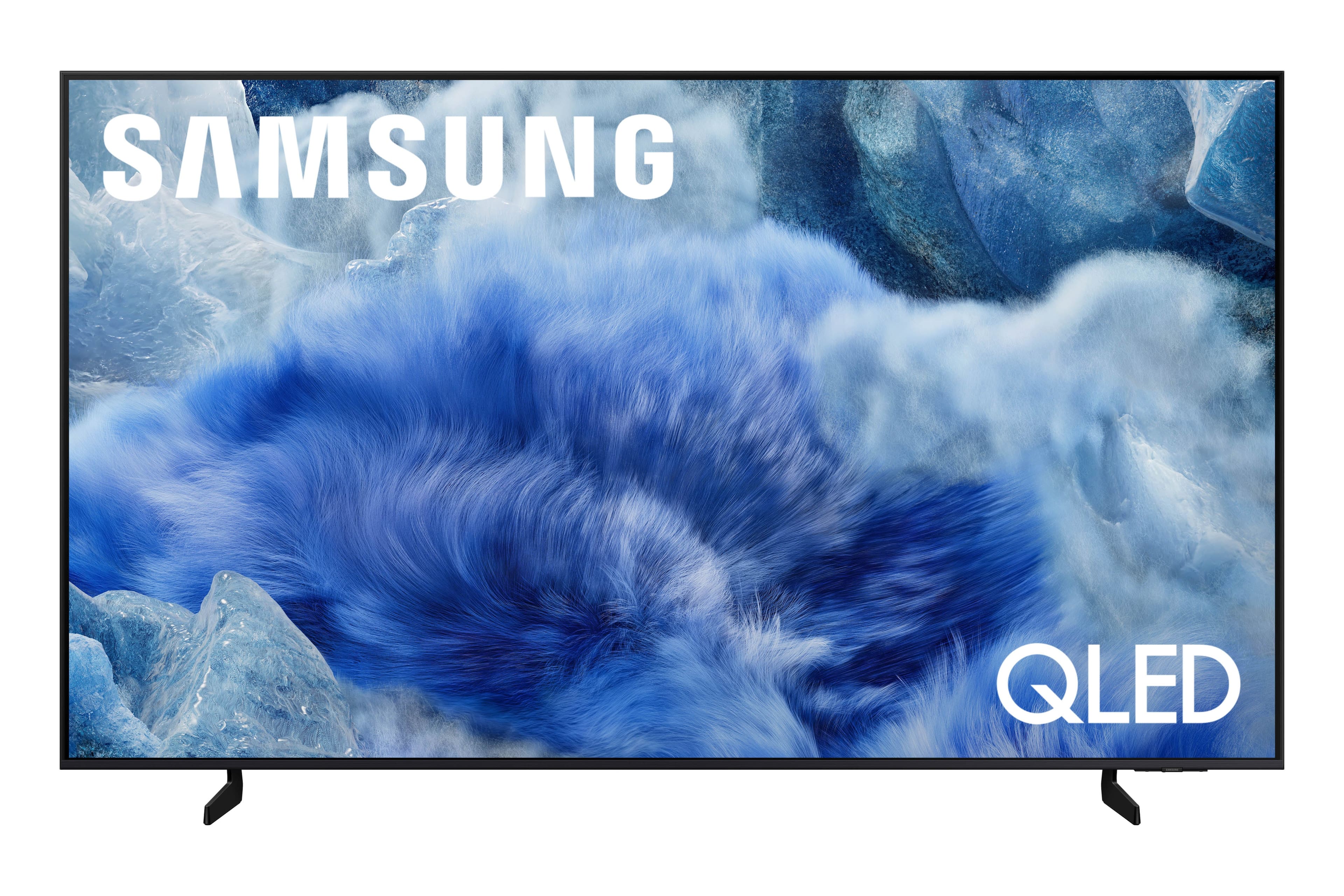
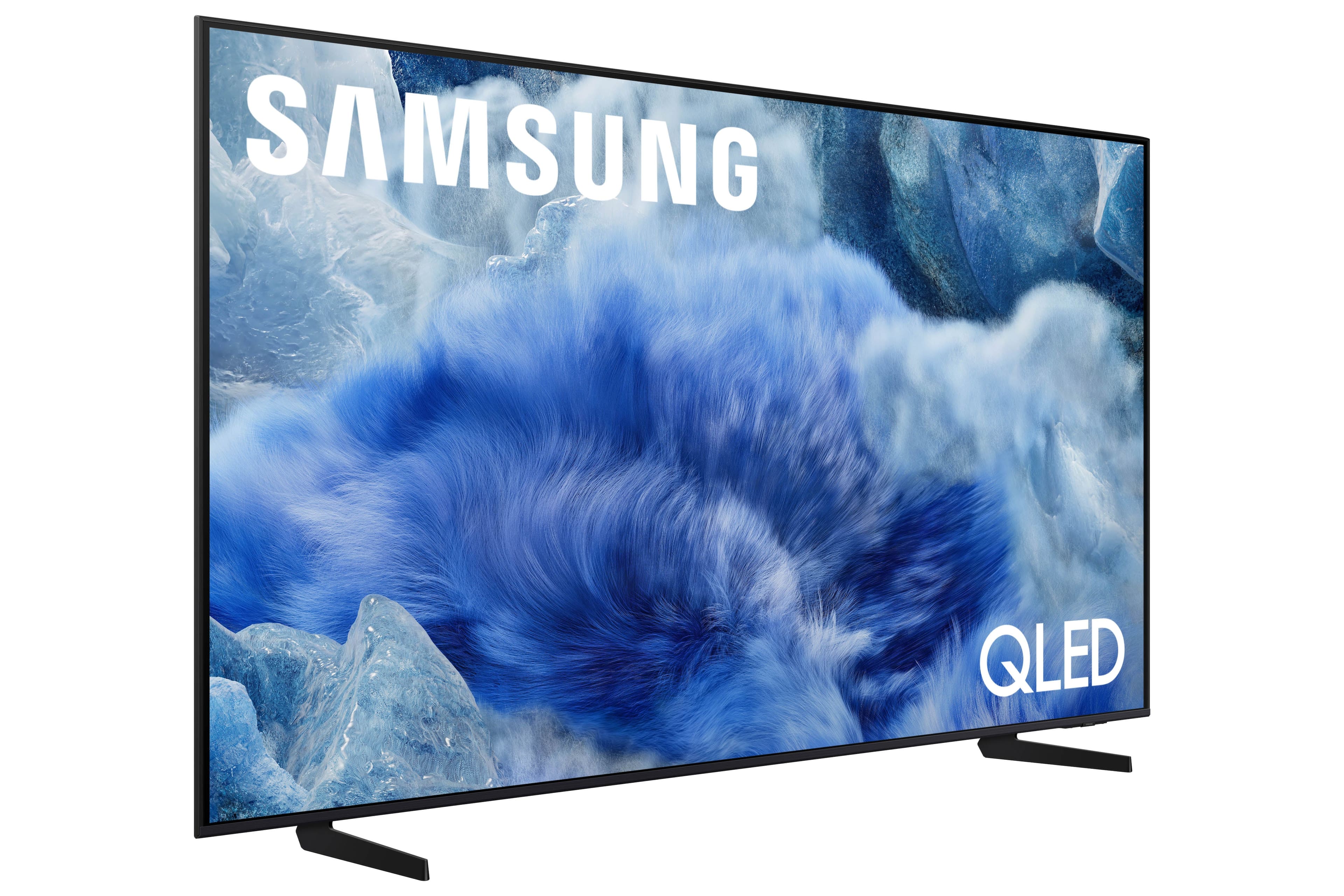
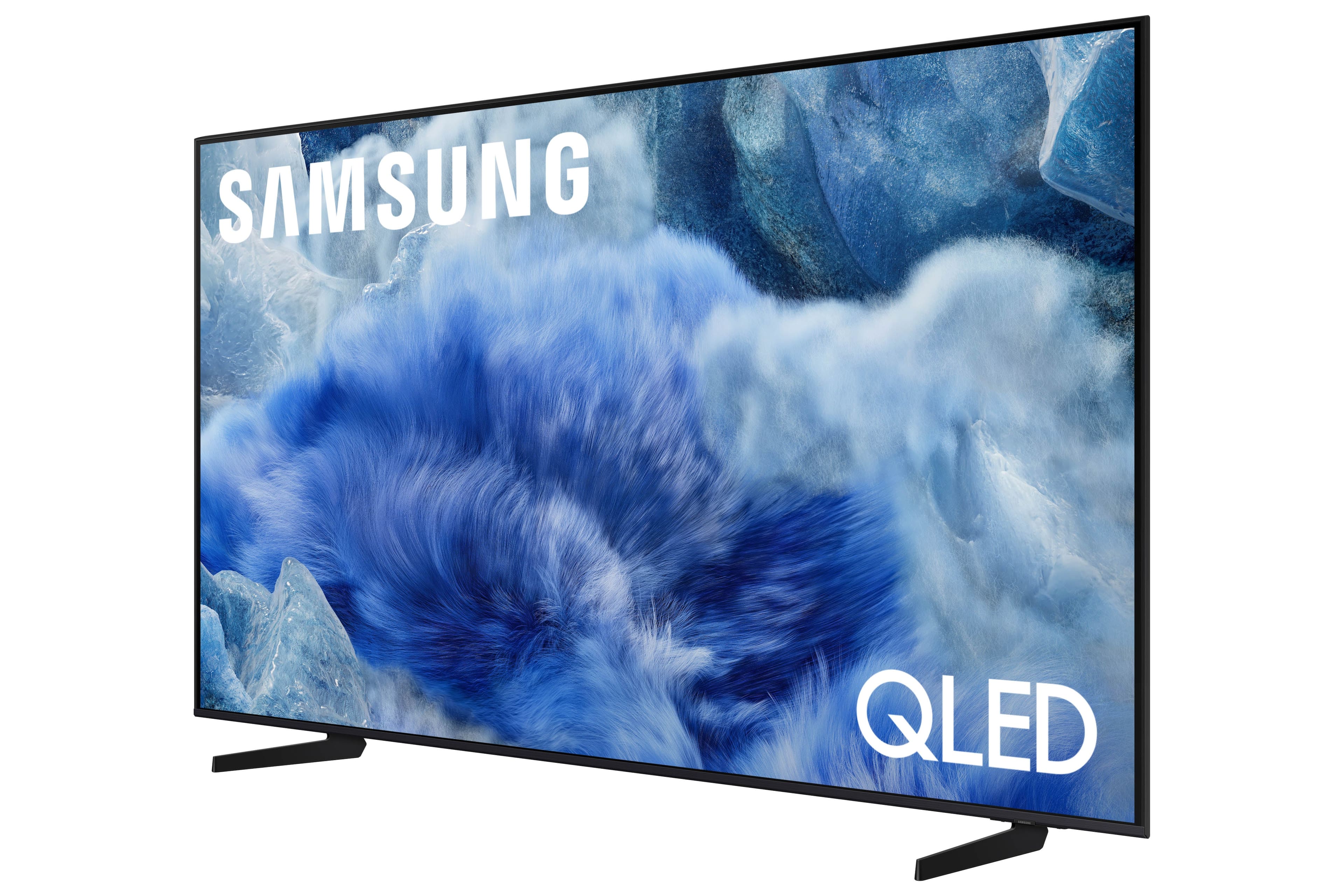
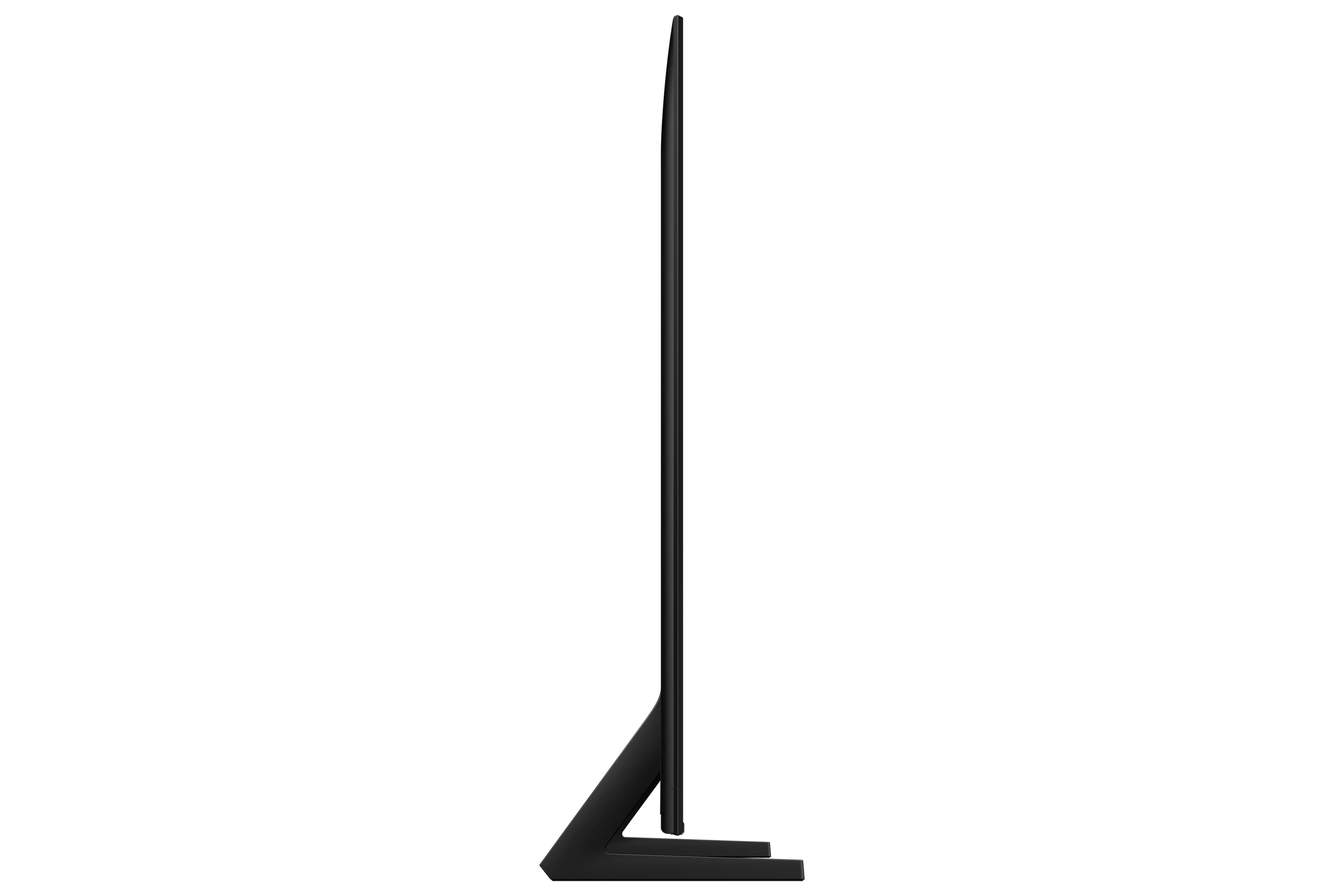
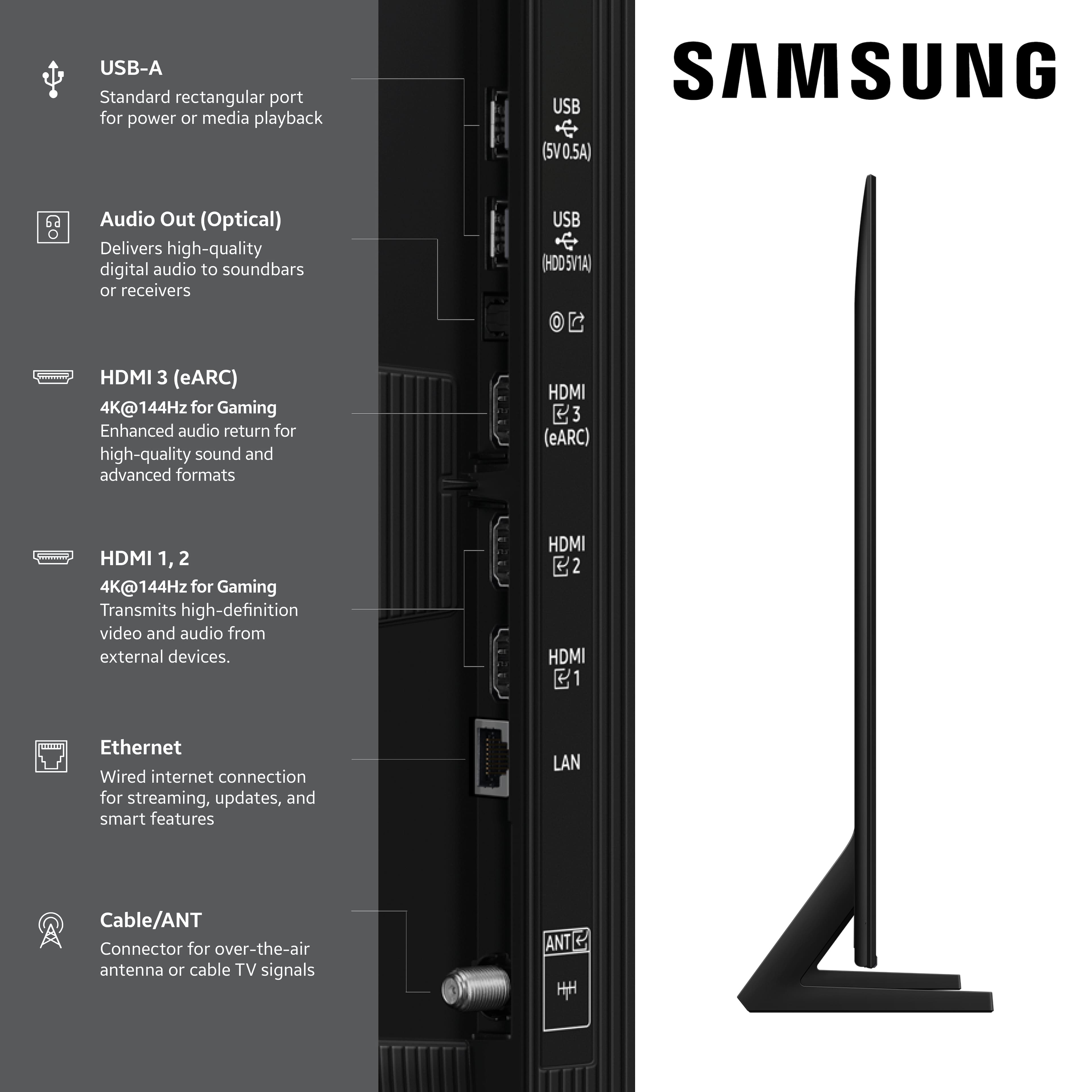
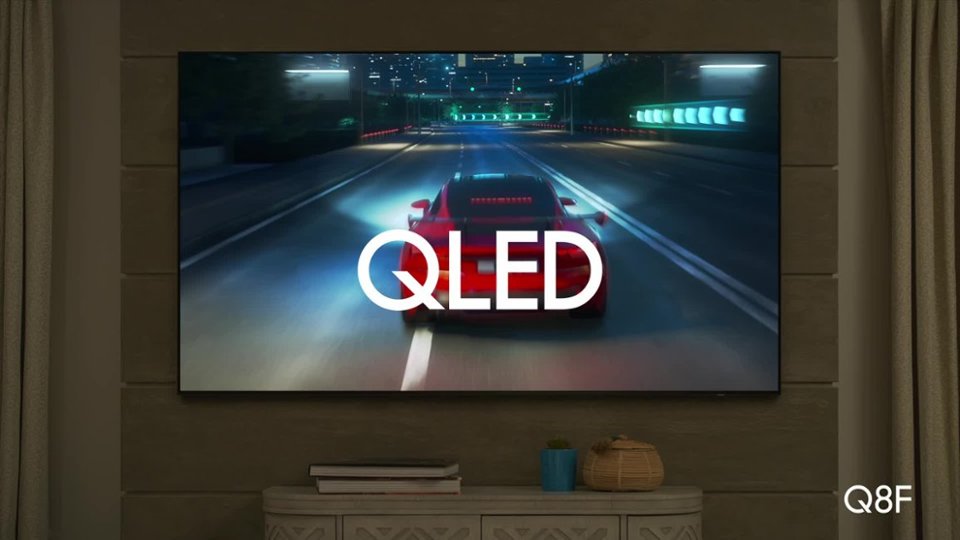
 100% Color Volume 100% Color Volume with Quantum Dot Over a billion colors that don't fade, even in the brightest scenes *QLED televisions can produce 100% Volume in the DCI-PS colorspace, the format most cinema screens and HDR movies for television.](https://pisces.bbystatic.com/image2/BestBuy_US/images/products/684f880e-f8dd-4c6c-91d9-5f55b1534a3c.jpg)


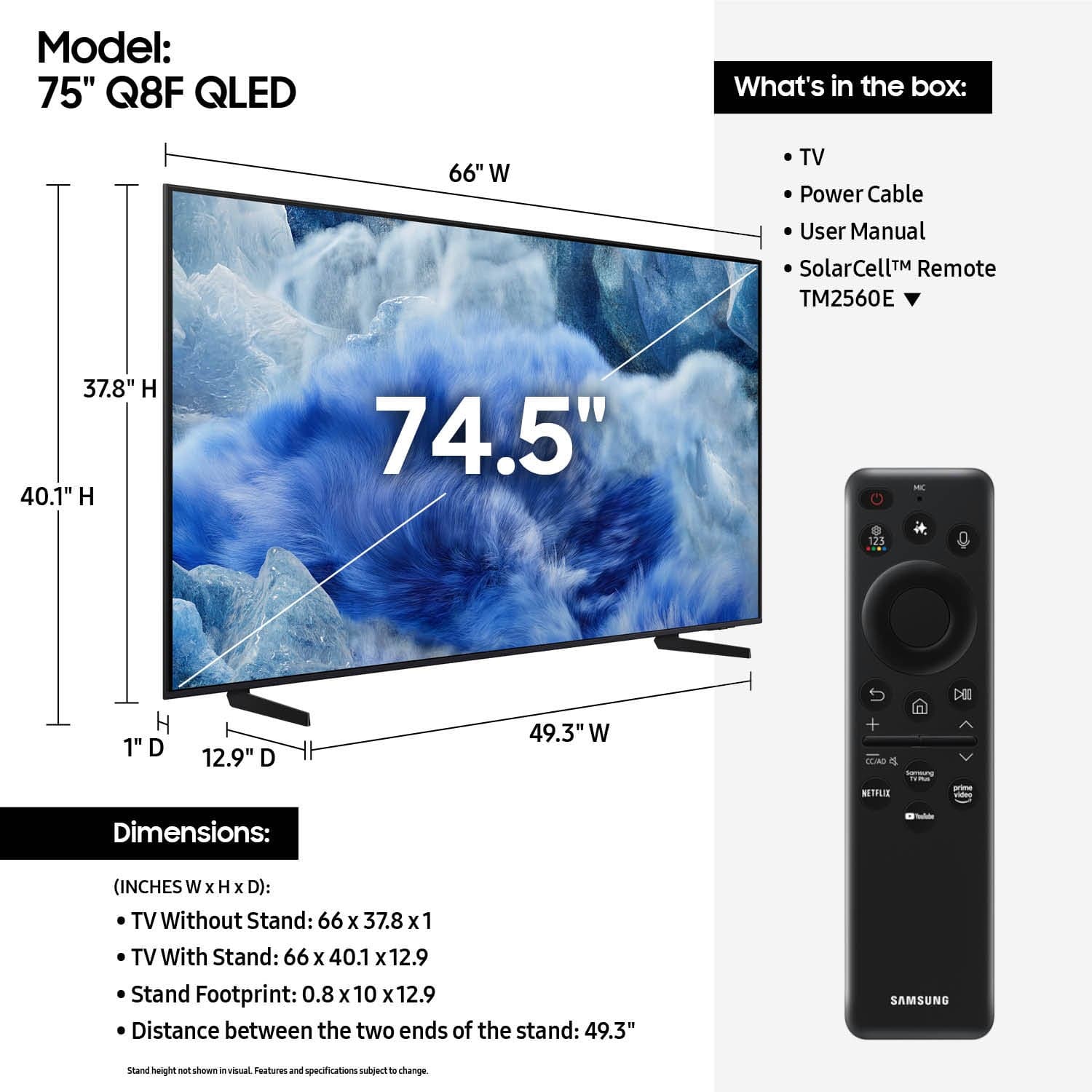
- Model:
- QN75Q8FAAFXZA
- SKU:
- 12161477
Rating by feature
- Picture Quality
Rating 4.8 out of 5 stars
- Sound Quality
Rating 4.8 out of 5 stars
- Brightness
Rating 4.9 out of 5 stars
Samsung Tv
||Posted . Owned for 1 month when reviewed.This reviewer received promo considerations or sweepstakes entry for writing a review.The Samsung tv is wonderful.The service was perfect
I would recommend this to a friend75 inch qled
||Posted .This reviewer received promo considerations or sweepstakes entry for writing a review.Purchased this TV after returning a faulty floor model tv. The main draw was the 120 refresh rate for those who are also into casual gaming.
I would recommend this to a friendQled review
||Posted . Owned for 3 weeks when reviewed.This reviewer received promo considerations or sweepstakes entry for writing a review.It’s good but not my taste of quality I needed but
I would recommend this to a friendGreat tv
||Posted . Owned for 3 weeks when reviewed.This reviewer received promo considerations or sweepstakes entry for writing a review.Great tv, the operator system is a lot to get used to but once you do it's great
I would recommend this to a friendVery Clear Picture, Under investigation for Color
||Posted . Owned for 1 month when reviewed.This reviewer received promo considerations or sweepstakes entry for writing a review.Nice clear screen. Not difficult to mount. However, the colors are off a little. Not sure it is from the camera or the TV setting. Under investigation.
I would recommend this to a friendRichard weisberg
||Posted . Owned for 1 month when reviewed.This reviewer received promo considerations or sweepstakes entry for writing a review.Excellent service and competent sales person could not have been more pleased
I would recommend this to a friendBest Buy is the best about Electronics
||Posted . Owned for 3 weeks when reviewed.This reviewer received promo considerations or sweepstakes entry for writing a review.Good and I always buy stuffs at best buy. Even though it’s really expensive.
I would recommend this to a friendDisappointed
||Posted . Owned for less than 1 week when reviewed.This reviewer received promo considerations or sweepstakes entry for writing a review.Love the tv but it was not in stock so they ordered it for delivery. The guy told us when they delivered it they would set it up free of charge. I was surprised but happy and repeated it to verify and he said yes no charge. When it came it was on time but they said it was a drop off. They sat it where I requested and left We are 80 years old and disappointed. Fortunately our daughter knew how to set it up
I would recommend this to a friendBrand response from Samsung
Posted .Gabby,
We’re sorry to hear about your experience. For assistance, we recommend reaching out directly to Best Buy, as they’ll be best equipped to help resolve the issue. We hope it’s taken care of promptly.
If you need help with your Samsung TV once the issue is resolved, please reach out to 1-800-SAMSUNG, 8AM – 12AM EST, 7 days a week, or connect via LiveChat on our website under ‘Support’.
~ Samsung Specialist
Brightness
||Posted .This reviewer received promo considerations or sweepstakes entry for writing a review.It’s not bright enough the picture looks like it’s off when it’s max bright
No, I would not recommend this to a friendBrand response from Samsung
Posted .EliseoL,
We’re sorry to hear you’re not fully satisfied with the picture quality on your Samsung Q8F TV. If the image appears too dark, we suggest disabling certain energy-saving features, which can automatically adjust brightness and affect how the screen looks.
Go to: Settings > All Settings > General & Privacy > Power and Energy Saving, then turn off Brightness Optimization, Energy Saving Solution, Motion Lighting, and/or Contrast Enhancer.
You can also adjust the Picture Mode to better suit your environment: Settings > All Settings > Picture > Picture Mode
• Standard – Default mode for general viewing
• Dynamic – Brighter and clearer, ideal for well-lit rooms
• Movie – Best for dark room viewing
• Eco – Energy-saving mode
• Filmmaker Mode – Preserves content as intended by creators
To fine-tune brightness, go to: Home > left directional key > Settings > All Settings > Picture > Expert Settings, then adjust the Brightness level (0–50) to your preference.
Lastly, please make sure your TV is running the latest firmware: Home > Home > left directional key > Settings > Support > Software Update > Update Now
We hope these tips help improve your viewing experience. If you need further support, feel free to contact us at 1-800-SAMSUNG, 8AM – 12AM EST, 7 days a week. LiveChat is also available via the ‘Support’ link on our website.
~ Samsung Specialist
Samsung
||Posted . Owned for 2 weeks when reviewed.This reviewer received promo considerations or sweepstakes entry for writing a review.Got it home, set it up. On the 14 th day i turned it on, no picture just sound! Called best buy, they were no help. Called samsung they weren't much better. Couldn't understand them sometimes, then they would get irratated with us. I think it had something to do with the solar remote. They said check the batteries. I said it's solar powered. I will never buy another thing from best buy. They don't take returns.
I would recommend this to a friendBrand response from Samsung
Posted .RichardG,
Thank you for sharing your experience with your TV. If you're not hearing sound or if the sound cuts out and you're using only the TV’s built-in speakers (no soundbar or external device), try the following steps:
1. Check volume and mute settings, and make sure the Sound Output is set to TV Speaker: Settings > All Settings > Sound > Sound Output > TV Speaker
2. Run a Sound Test to help diagnose the issue: Settings > Support > Device Care > Self Diagnosis > Sound Test
3. Cold boot your TV by holding the power button on the remote until the TV turns off and back on (Or unplug the TV from power for 30 seconds, then plug it back in)
4. Reset sound settings to default: Settings > All Settings > Sound > Expert Settings > Reset Sound
5. Update your TV’s software in case a firmware issue is affecting audio: Settings > Support > Software Update > Update Now
If none of these steps restore your sound, please contact us for further assistance. You can reach Samsung Support at 1-800-SAMSUNG, 8AM – 12AM EST, 7 days a week. LiveChat is also available via the ‘Support’ link on our website.
~ Samsung Specialist
Not clear or sharp
||Posted . Owned for 1 week when reviewed.This reviewer received promo considerations or sweepstakes entry for writing a review.It was not clear at all. It was fuzzy, I traded it in for a LGQNED. I even tried to adjust the TV settings and it did not work for me.
No, I would not recommend this to a friendBrand response from Samsung
Posted .Erica892,
We're sorry to hear that your experience with the Q8F TV led to a return. Your feedback matters to us and will be shared with our product team.
If you decide to explore Samsung TVs again in the future, we’re always here to support you - whether it’s setup, features, or troubleshooting. Reach us anytime at 1-800-SAMSUNG (8AM – 12AM EST, 7 days a week), or visit the ‘Support’ section of our website for LiveChat, manuals, and more.
~ Samsung Specialist
75 inch Samsung TV
||Posted .This reviewer received promo considerations or sweepstakes entry for writing a review.I am not happy because TV doesn’t have a quality and pictures is not clear
No, I would not recommend this to a friendBrand response from Samsung
Posted .AnoushM,
We appreciate your feedback on the picture quality of Samsung’s Q8F TV. If the image doesn’t quite match your preferences, there are several adjustments you can make to better suit your viewing environment and content type.
First, please ensure your TV is running the latest firmware, as updates may include important picture quality enhancements. Go to: Home > Left directional button > Settings > Support > Software Update > Update Now
To explore picture mode options, navigate to: Home > Left directional button > Settings > All Settings > Picture > Picture Mode. Options include:
• Standard – Ideal for general viewing
• Dynamic – Brighter and more vibrant for well-lit spaces
• Eco – Optimized for energy efficiency
• Movie – Best for viewing in low light
• Filmmaker Mode – Preserves the content creator’s intent and disables motion smoothing for supported content
You can further customize your image by going to: Settings > All Settings > Picture > Expert Settings, where you can adjust Brightness, Contrast, Color Tone, Sharpness, Contrast Enhancer and more.
If you’d like help finding the best picture settings for your preferences, please don’t hesitate to contact Samsung Support at 1-800-SAMSUNG, available 8AM – 12AM EST, 7 days a week. You can also LiveChat with an agent or explore additional resources on our website by clicking the ‘Support’ link.
~ Samsung Specialist
Samsung 75" QsF
||Posted . Owned for 1 week when reviewed.This reviewer received promo considerations or sweepstakes entry for writing a review.Terrible purchase. The picture blinks in and out frequently and the colors can be fuzzy at times. Will return for a different TV.
No, I would not recommend this to a friendBrand response from Samsung
Posted .Hello,
It’s unfortunate to hear you’re having trouble with your Q8F TV. To help us identify the cause and provide the most effective solution, please reach out so we can gather more information. You can contact us at 1-800-SAMSUNG, available daily from 8AM - 12AM EST. You can also chat with a LiveChat agent by clicking the ‘Support’ link on our website for:
• Live Chat
• Manuals, Software, & Warranty Info
• Creating a Service ticket
~ Samsung Specialist
NON WORKING REMOTE
Posted .This reviewer received promo considerations or sweepstakes entry for writing a review.I am very happy with my samsung 75" TV. However it was EXTREMELY DIFFICULT to set up! Came with ABSOULUETLY NO SET UP INSTRUCTIONS. I was not aware that the TV did not require a cable box. The remote failed and Samsung did not replace it. I do not understand. Pretty sure the TV HAS A 1 year waranty perhaps Best Buy will honor it and replace the defective device
I would recommend this to a friend