Customer Ratings & Reviews
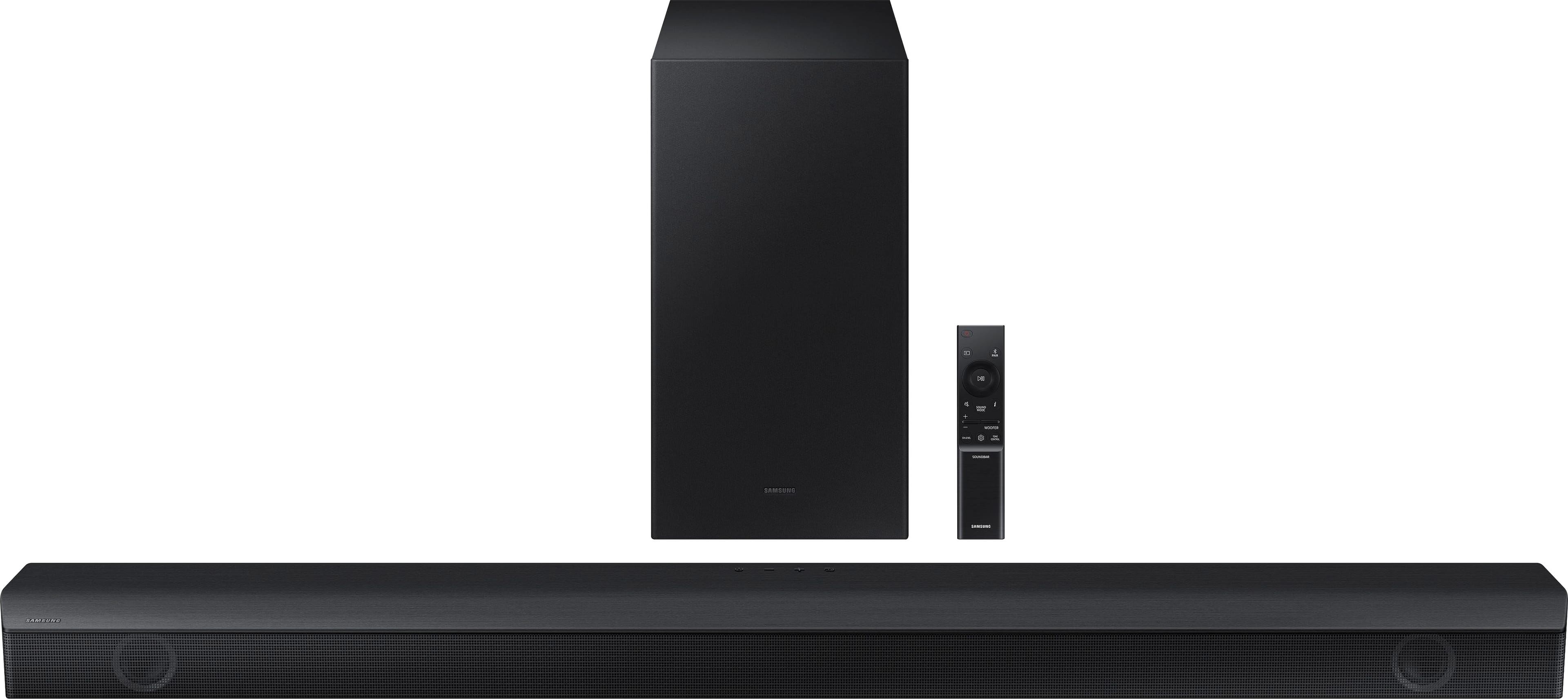
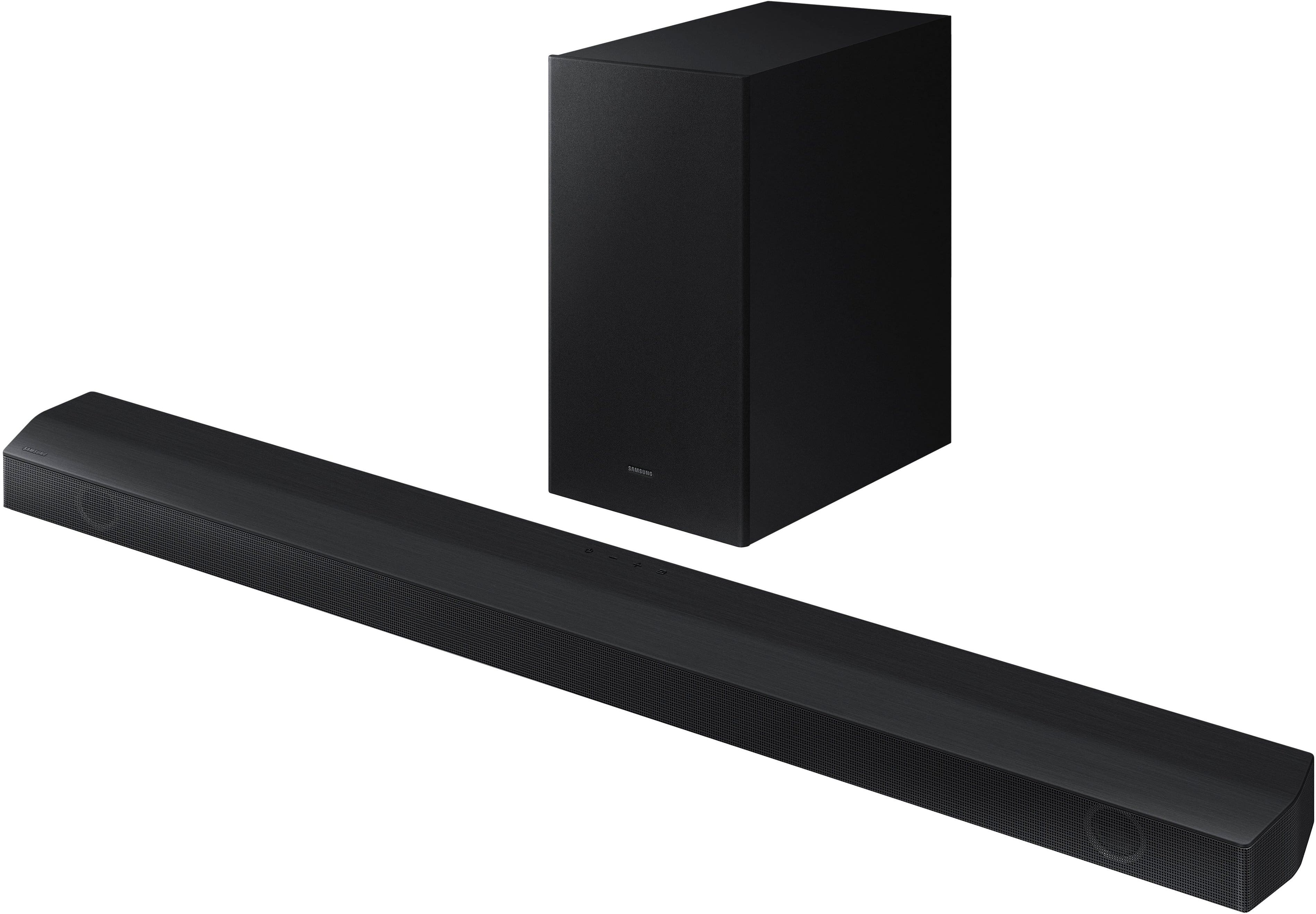
- Model:
- HW-B650/ZA
- SKU:
- 11003552
Rating by feature
- Value
Rating 4.7 out of 5 stars
- Quality
Rating 4.6 out of 5 stars
- Ease of Use
Rating 4.7 out of 5 stars
Sound bar
||Posted . Owned for 1 week when reviewed.This reviewer received promo considerations or sweepstakes entry for writing a review.Love the sound quality best purchase by far this year
I would recommend this to a friendWouldn't pay more than $100 for this
||Posted . Owned for 1.5 years when reviewed.This reviewer received promo considerations or sweepstakes entry for writing a review.Worked let for about 2 years. Then stopped working
No, I would not recommend this to a friendBrand response from Samsung
Posted .Hello MylesD,
Thank you for sharing your review of the HW-B650 Soundbar. We value your feedback and will share it with our teams.
There are a few steps you can take to troubleshoot your Soundbar.
First, you will want to download the latest software for your Soundbar. You can download the firmware directly from Samsung’s website by clicking “Support” in the top right corner. Then go to “Manuals & Software” > “TVs & Home Audio” > “Home Audio” > “Sound Bars”. From there, you can select the HW-B650 under Standard Series.
Download the update and install it via USB thumb stick to your soundbar. If you need additional help, there are how-to instructions on this page. Please know that Samsung Customer Service is here to assist as well.
Alternatively, you can download SmartThings on your iOS or Android device. This will allow you to update your Soundbar automatically or manually right from your phone or tablet.
Please verify that you are running the latest firmware on your TV. You can check to see what software version your TV is using and if there is an available update through the settings on your TV. Go to: Menu > Settings > Support > Software Update.
First, try doing a soft reset, unplug the soundbar from the outlet for roughly 30 seconds and then plug it back in.
If this still does not correct your issue, then do a hard reset. With the Soundbar on, press the + & - Volume buttons on the body of the soundbar at the same time for at least 5 seconds. INIT OK” appears on the display and then the Soundbar is reset.
While the Soundbar is On, press both the Vol+ and Vol- buttons on the unit simultaneously until the display shows "INIT", then release. If this doesn’t work, then try using the remote control: While the Soundbar is ON, press and hold the SOUND CONTROL ("Gear") button on the Soundbar remote for 10 seconds. You will see "150HZ" on the display. Keep pressing until you see "INIT" on the display, then release.
If you need more help, Samsung is here for you. Please call us at 1-800-SAMSUNG, 8AM - 12AM EST (Ask for Soundbars), 7 days a week. Live Chat with an agent as well as manuals, software, creating a service ticket, and warranty info can be found at the ‘Support’ link on our Samsung website.
~ Samsung Solutions
Sound bar 3
||Posted . Owned for 1 month when reviewed.This reviewer received promo considerations or sweepstakes entry for writing a review.Pleased with the sound quality of sound bar Great add on to Samsung TV
I would recommend this to a friendSound bar
||Posted . Owned for 3 weeks when reviewed.This reviewer received promo considerations or sweepstakes entry for writing a review.Just what wanted sounds perfect.the sound is unreal
I would recommend this to a friendSAMSUNG SPKR
||Posted . Owned for 8 months when reviewed.This reviewer received promo considerations or sweepstakes entry for writing a review.Excellent performance. Feel the theatre experience.
I would recommend this to a friendSoundbar
||Posted . Owned for 3 weeks when reviewed.This reviewer received promo considerations or sweepstakes entry for writing a review.Great sounding product!!! Would recommend to buy!!
I would recommend this to a friendSoundbar
||Posted . Owned for less than 1 week when reviewed.This reviewer received promo considerations or sweepstakes entry for writing a review.Good Soundbar I love the Subwoofer. I was ready to buy it this black Friday
I would recommend this to a friendExceptional soundbar!
||Posted . Owned for less than 1 week when reviewed.This reviewer received promo considerations or sweepstakes entry for writing a review.This is a great soundbar. The sound is exceptional.
I would recommend this to a friendAwesome!
||Posted . Owned for 2 months when reviewed.This reviewer received promo considerations or sweepstakes entry for writing a review.Best surround sound ever the clarity and sound definition!
I would recommend this to a friendSound bar
||Posted . Owned for 3 weeks when reviewed.This reviewer received promo considerations or sweepstakes entry for writing a review.Sound bar is awesome. Rattles the house like u r in a movie theater.
I would recommend this to a friendAmazing speaker
||Posted . Owned for 5 months when reviewed.This reviewer received promo considerations or sweepstakes entry for writing a review.Amazing sound quality! Highly recommended speaker.
I would recommend this to a friendLooks great on the wall and good sound as well
||Posted . Owned for less than 1 week when reviewed.This reviewer received promo considerations or sweepstakes entry for writing a review.Good sound and at this price its a steal! No problems setting it up!
I would recommend this to a friendGood for this price
||Posted . Owned for 3 weeks when reviewed.This reviewer received promo considerations or sweepstakes entry for writing a review.Good item for this price, good sound, good subwoofer
I would recommend this to a friendSounds great!
||Posted . Owned for 1 week when reviewed.This reviewer received promo considerations or sweepstakes entry for writing a review.Love it. Sounds great. Has all the features i need.
I would recommend this to a friendSoundbar
||Posted . Owned for 1 month when reviewed.This reviewer received promo considerations or sweepstakes entry for writing a review.Much better sound than my $1500.00 Bose sound system I was replacing
I would recommend this to a friendGood but not perfect
||Posted . Owned for 5 months when reviewed.This reviewer received promo considerations or sweepstakes entry for writing a review.Sound is fantastic but sometimes has a hard time syncing with my tv. And yes my tv is Samsung also.
I would recommend this to a friendBrand response from Samsung
Posted .Hello JonG,
Thank you for sharing your experiences with the HW-B650 Soundbar. I am sorry to see that you are not completely happy with your purchase.
First, try using a brand new HDMI cable as this will offer the best audio and user-experience available to this soundbar.
If you have not tried the SYNC command on your provided Soundbar remote, press the SOUND CONTROL button (which looks like a gear). From here you will keep pressing the button until you see AUDIO SYNC. Using the UP/DOWN buttons on the remote will allow you to set set the audio delay between 0~300 milliseconds.
If your Samsung TV is from the year 2020, 2021, 2022, or 2023 then it will have a feature called Audio Pass-Through. You can use this feature to correct your audio-sync issue if you are connecting to a Samsung TV. On your TV go to: Settings > Audio > Expert Settings > Digital Audio Output Format > Pass-Through.
Should you ever have questions or need help, please call us at 1-800-SAMSUNG (ask for Soundbars), available 8 AM – 12 AM EST, 7 days a week.
For additional support resources such as downloading a full manual, visit us on the Samsung website and click on the ‘Support’ link in the upper right corner of the homepage.
~Samsung Solutions
Sound Bar System
||Posted . Owned for 1 month when reviewed.This reviewer received promo considerations or sweepstakes entry for writing a review.Good sound quality! East hook up and link up to the tv.
I would recommend this to a friendSamsung sound bar
||Posted . Owned for 3 weeks when reviewed.This reviewer received promo considerations or sweepstakes entry for writing a review.It sounds really good I just wish the voices were a bit more clear and louder
I would recommend this to a friendBrand response from Samsung
Posted .JuanL,
Thank you for sharing your review of the HW-B650 Soundbar. We value your feedback and will share it with our teams.
Here are a few tips to help optimize your soundbar and enhance your audio experience.
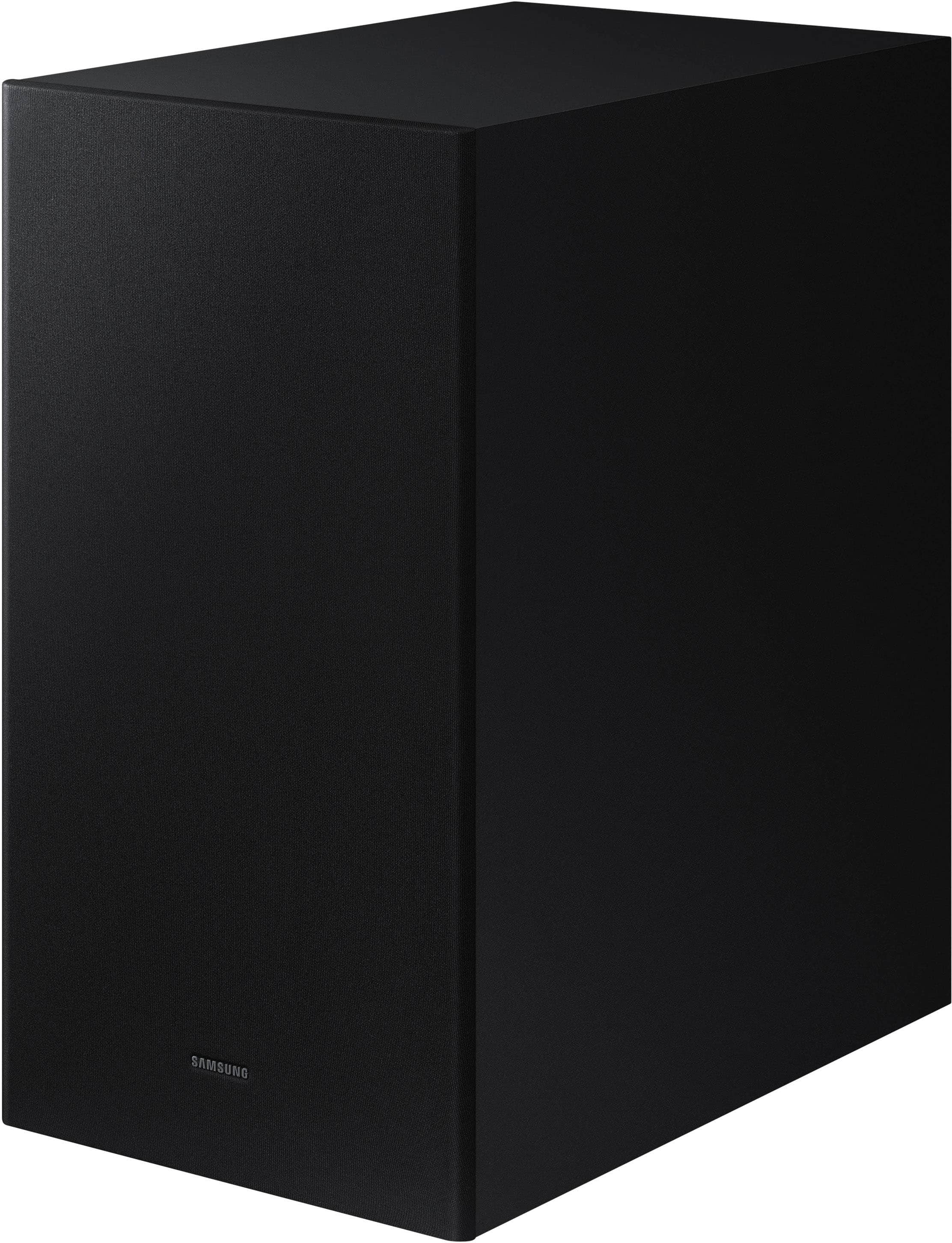
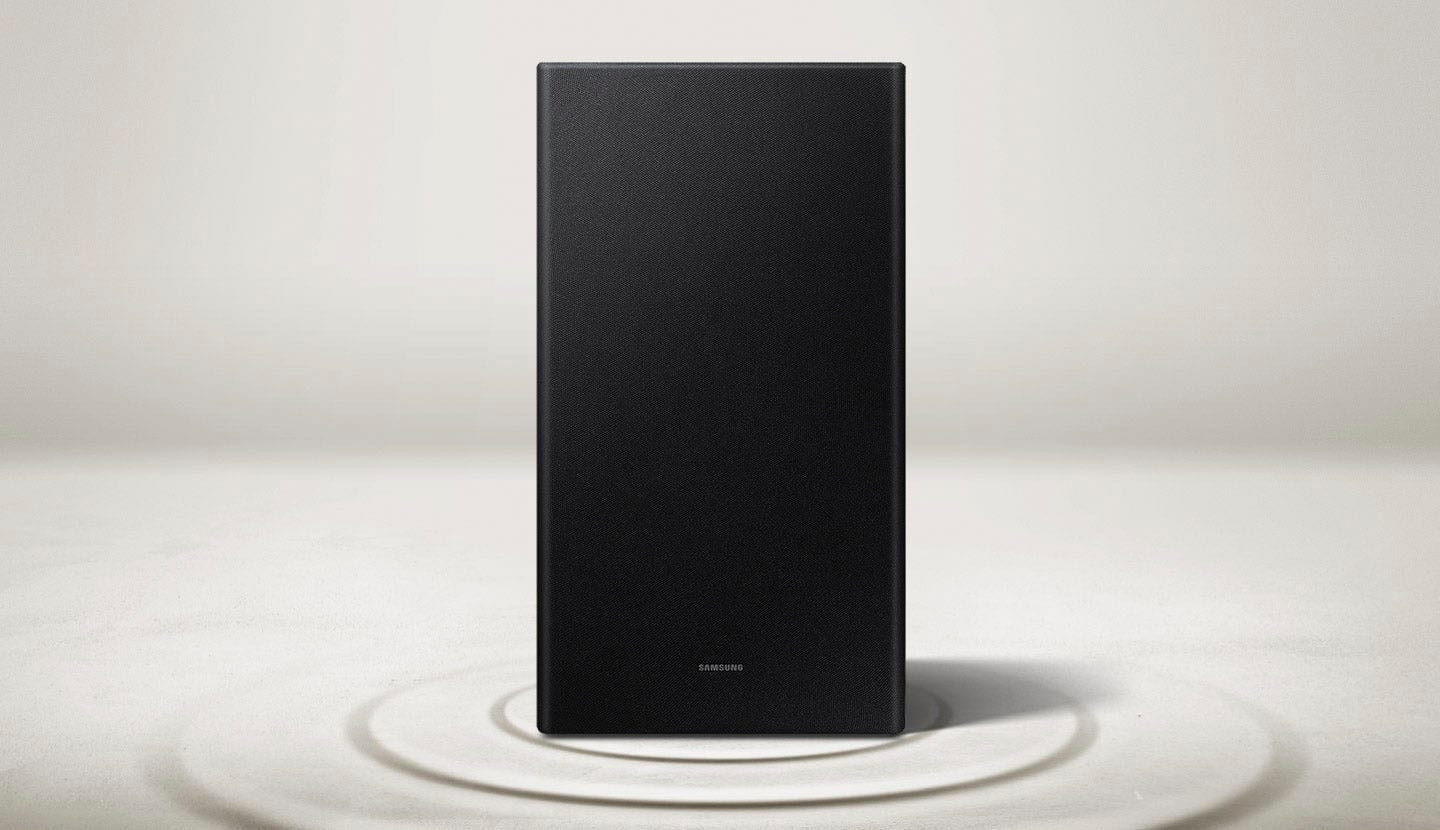
Your HW-B650 Soundbar features a powerful bass with a 6.5” wireless subwoofer & Adaptive Sound which optimizes the sound based on the content.
By pressing the SOUND CONTROL button (which looks like a gear), you can set the audio function. The desired settings can be adjusted using the Up/Down buttons.
AUDIO SYNC - NIGHT MODE ON/OFF - VOICE ENHANCE ON/OFF
AUDIO SYNC
To synchronize your soundbar audio and TV, press the SOUND CONTROL button to select AUDIO SYNC and then set the audio delay between 0~300 milliseconds by using the Up/Down buttons. (Not available in “USB” or “BT” mode.)
NIGHT MODE ON/OFF
This mode is optimized for nighttime viewing with the settings adjusted to bring the volume down but keep the dialog clear.
VOICE ENHANCE ON/OFF
This mode is makes it easier to hear spoken dialog in movies and TV.
The NIGHT MODE, and VOICE ENHANCE audio function can be turned ON/OFF by
using the Up/Down buttons.
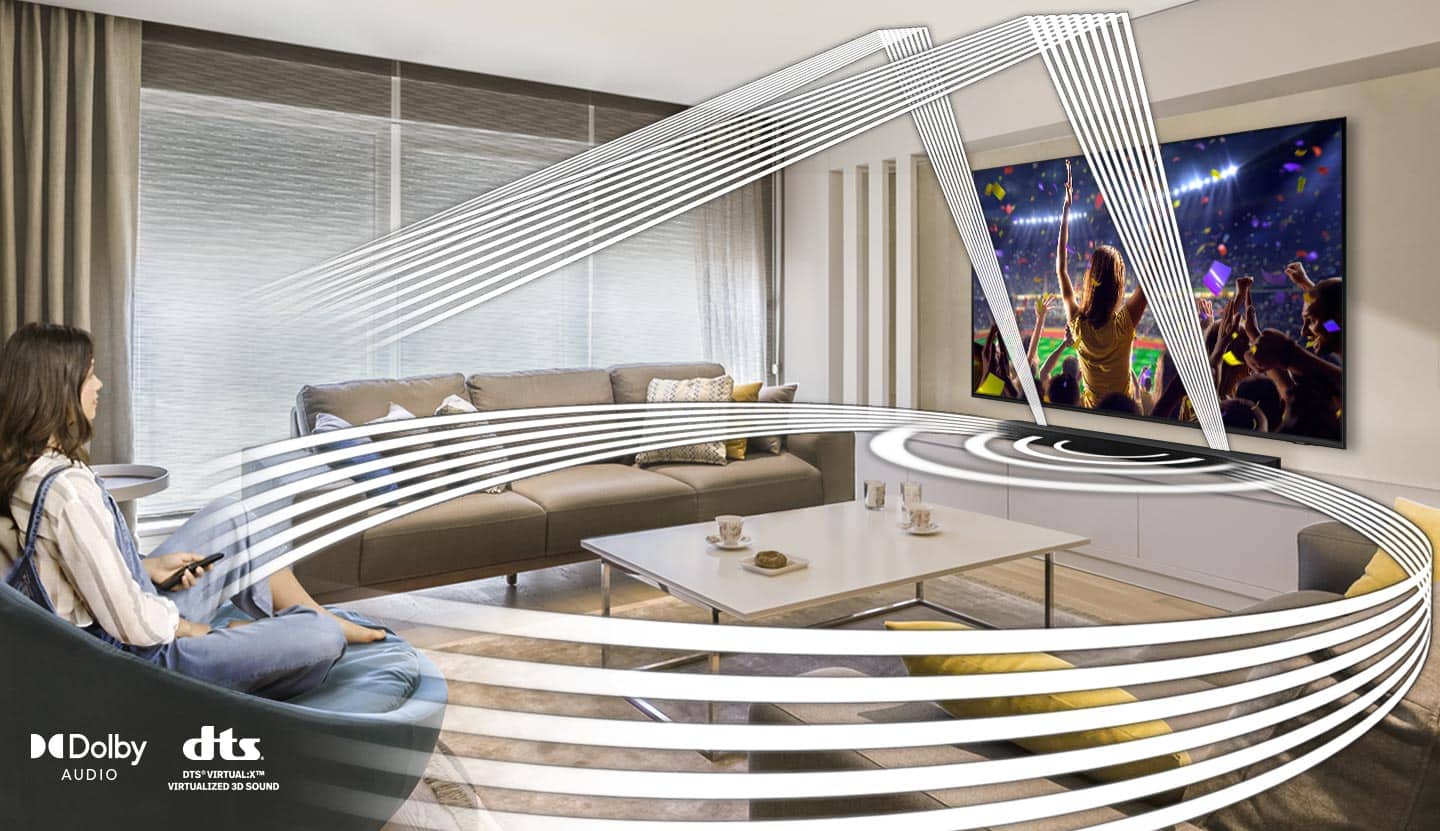
You can optimize your audio performance to your liking by pressing the SOUND MODE button on your soundbar remote, and then selecting the desired sound effect by choosing SURROUND SOUND, BASS BOOST, GAME, ADAPTIVE, DTS VIRTUAL:X, STANDARD.
By pressing the TONE CONTROL button, you can adjust the volume of the treble or bass sound. Press the button to select TREBLE or BASS and then adjust the volume between -6~+6 by using the Up/Down buttons.
Press and hold the SOUND CONTROL button for about 5 seconds to adjust the sound for each frequency band. 150Hz, 300Hz, 600Hz, 1.2kHz, 2.5kHz, 5kHz, and 10kHz are selectable using the Left/Right buttons and each can be adjusted to a setting between -6 to +6 using the Up/Down buttons. (Make sure the Sound mode is set to “STANDARD”.
Additionally, using the WOOFER button on the remote, you can adjust the subwoofer’s volume between -6 to +6 by toggling the button up or down. To set the subwoofer volume level to 0, press the button down.
If you’d like more help with settings, please know we’re here to help! Call us at 1-800-SAMSUNG (Ask for Soundbars), 8AM - 12AM EST, 7 days a week. Or visit us on the Samsung website and click on the ‘Support’ link for:
• LiveChat
• Manuals, Software, & Warranty Info
~ Samsung Solutions
Nice item
||Posted . Owned for 1 month when reviewed.This reviewer received promo considerations or sweepstakes entry for writing a review.I love it because is great sound great we are enjoying
I would recommend this to a friendGood system
||Posted . Owned for 3 weeks when reviewed.This reviewer received promo considerations or sweepstakes entry for writing a review.My friend was able to add this to my TV and it works great so far. I wish they had included the two speakers like the Vizio I first purchased for less money. The only problem with that unit was it was not compatible with my Samsung TV even after two people tried to set it up. I purchased 2 speakers and they were not able to set them up with the woofer so I have to return the speakers, ugh!!!
I would recommend this to a friend