Customer Ratings & Reviews
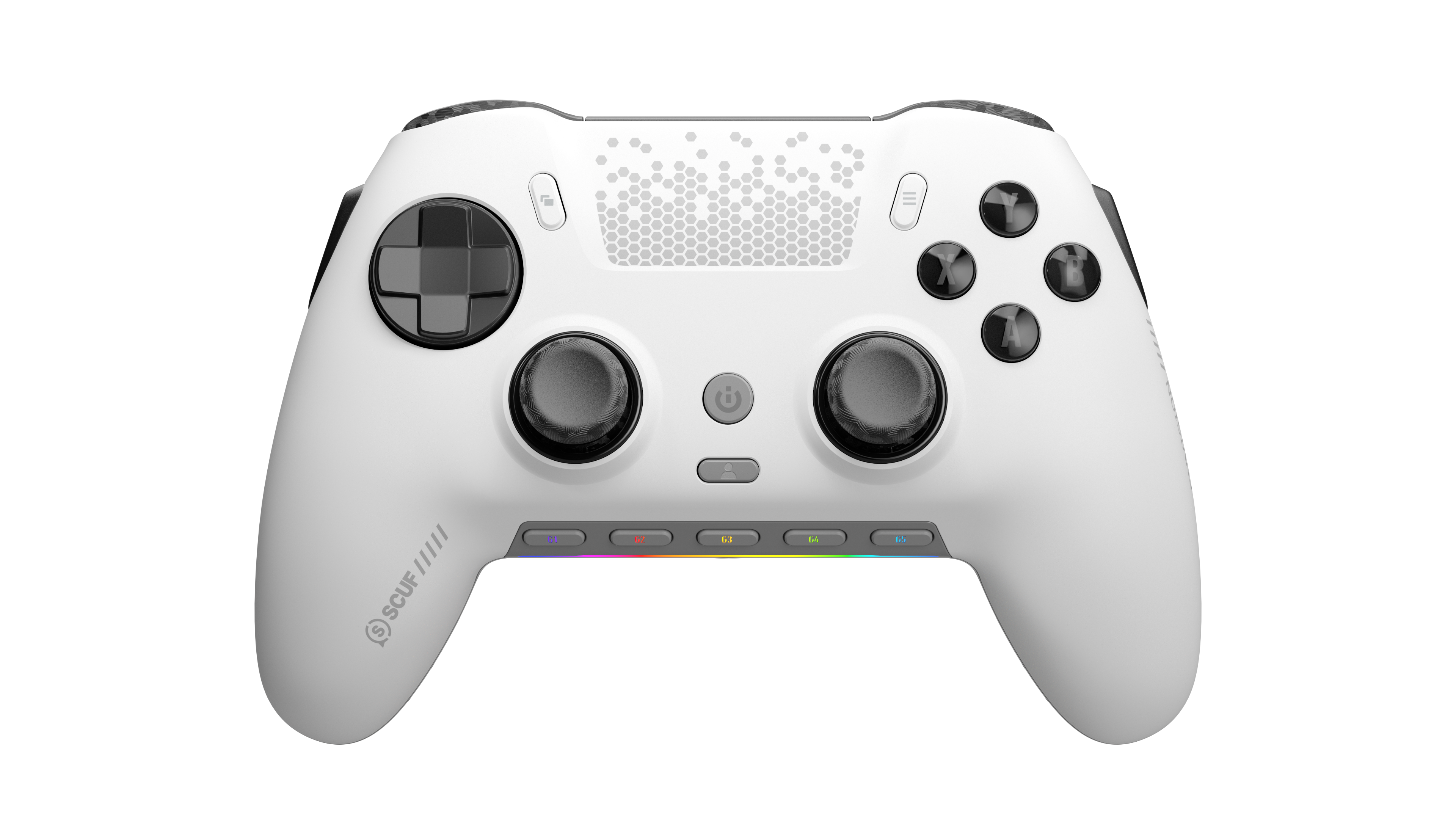


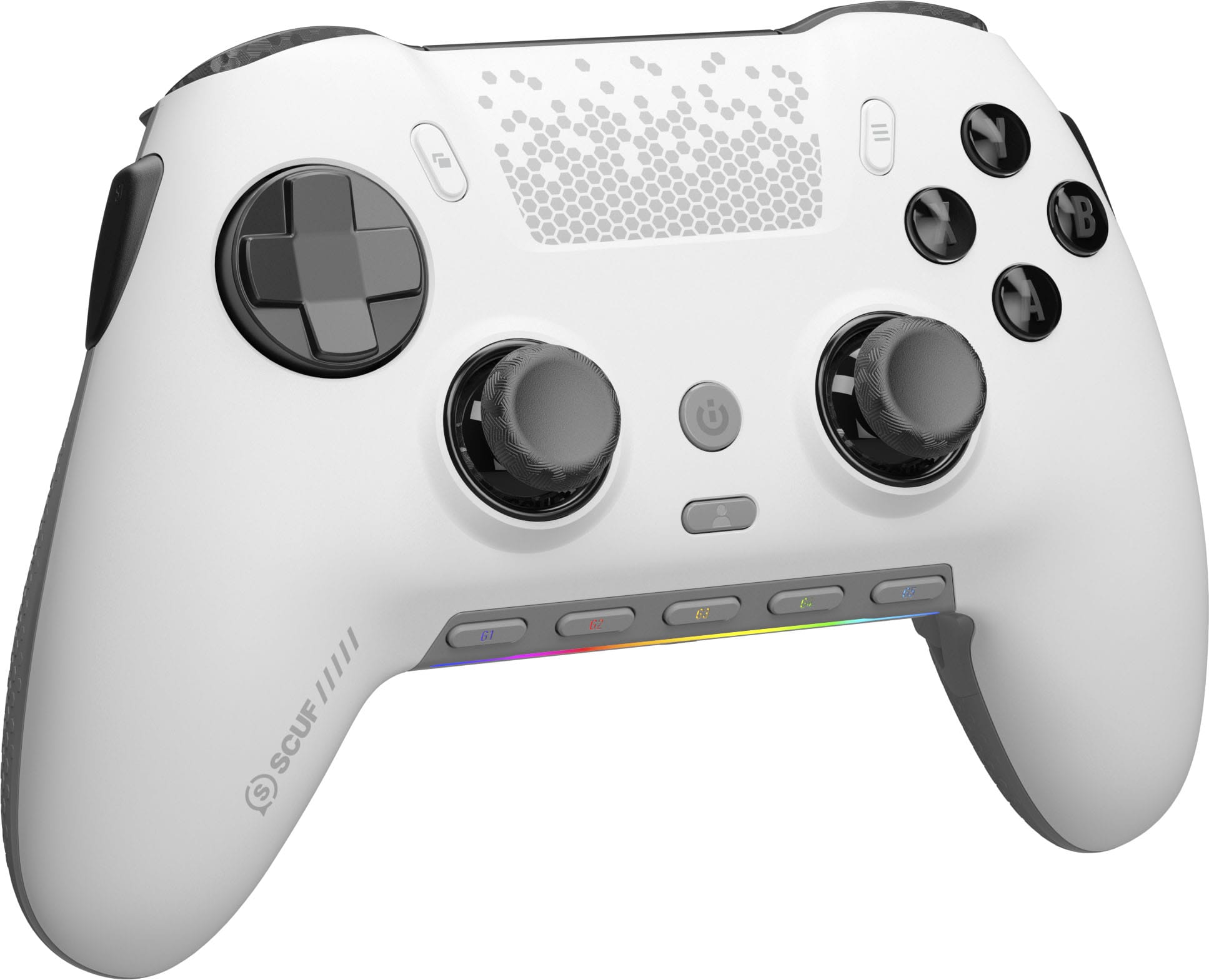
- Model:
- 601-178-04-062-NA
- |
- SKU:
- 6589600
Customer reviews
Rating 4.5 out of 5 stars with 216 reviews
(216 customer reviews)Rating by feature
- Value4.3
Rating 4.3 out of 5 stars
- Quality4.6
Rating 4.6 out of 5 stars
- Ease of Use4.3
Rating 4.3 out of 5 stars
Rated 5 out of 5 stars
Really Good
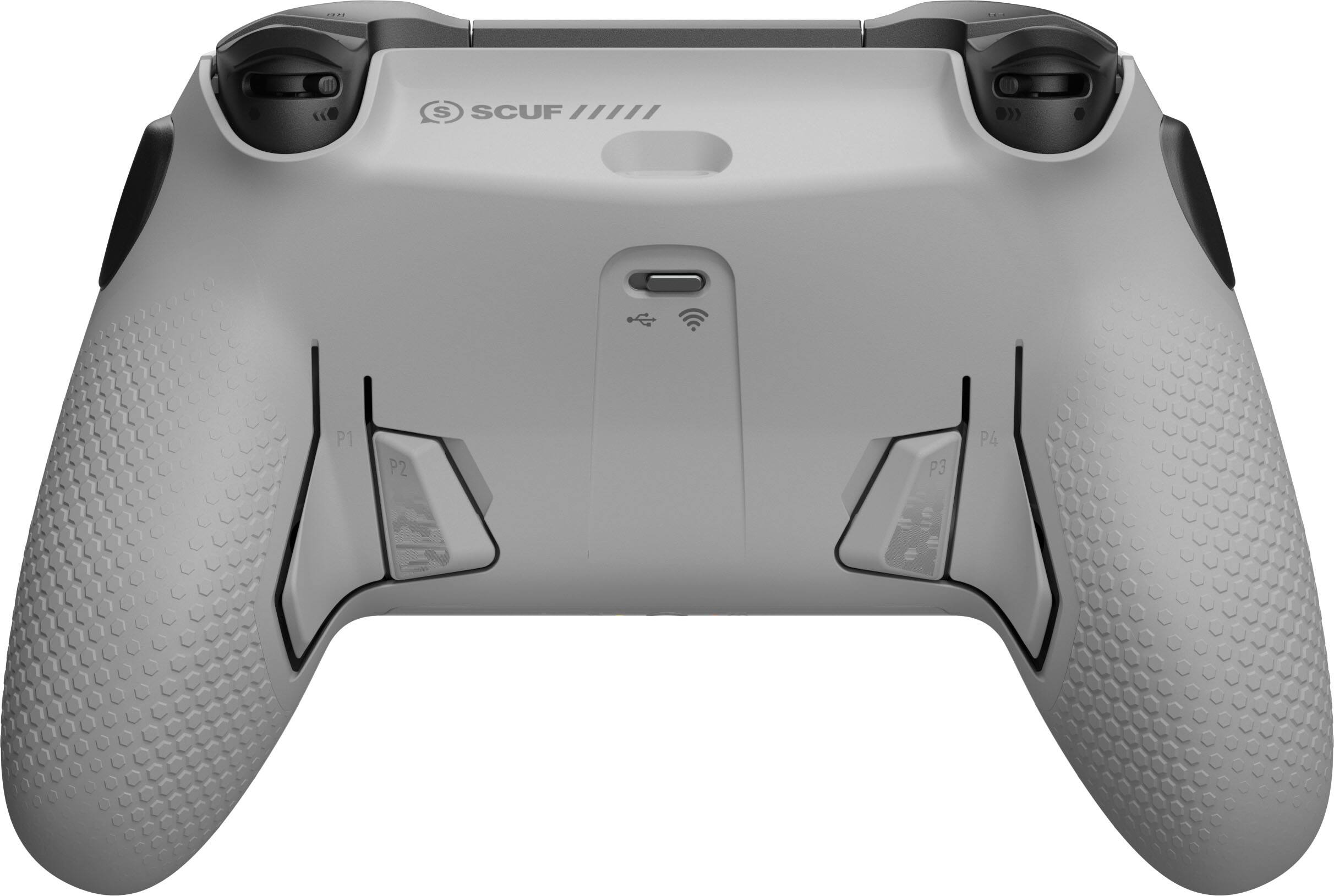
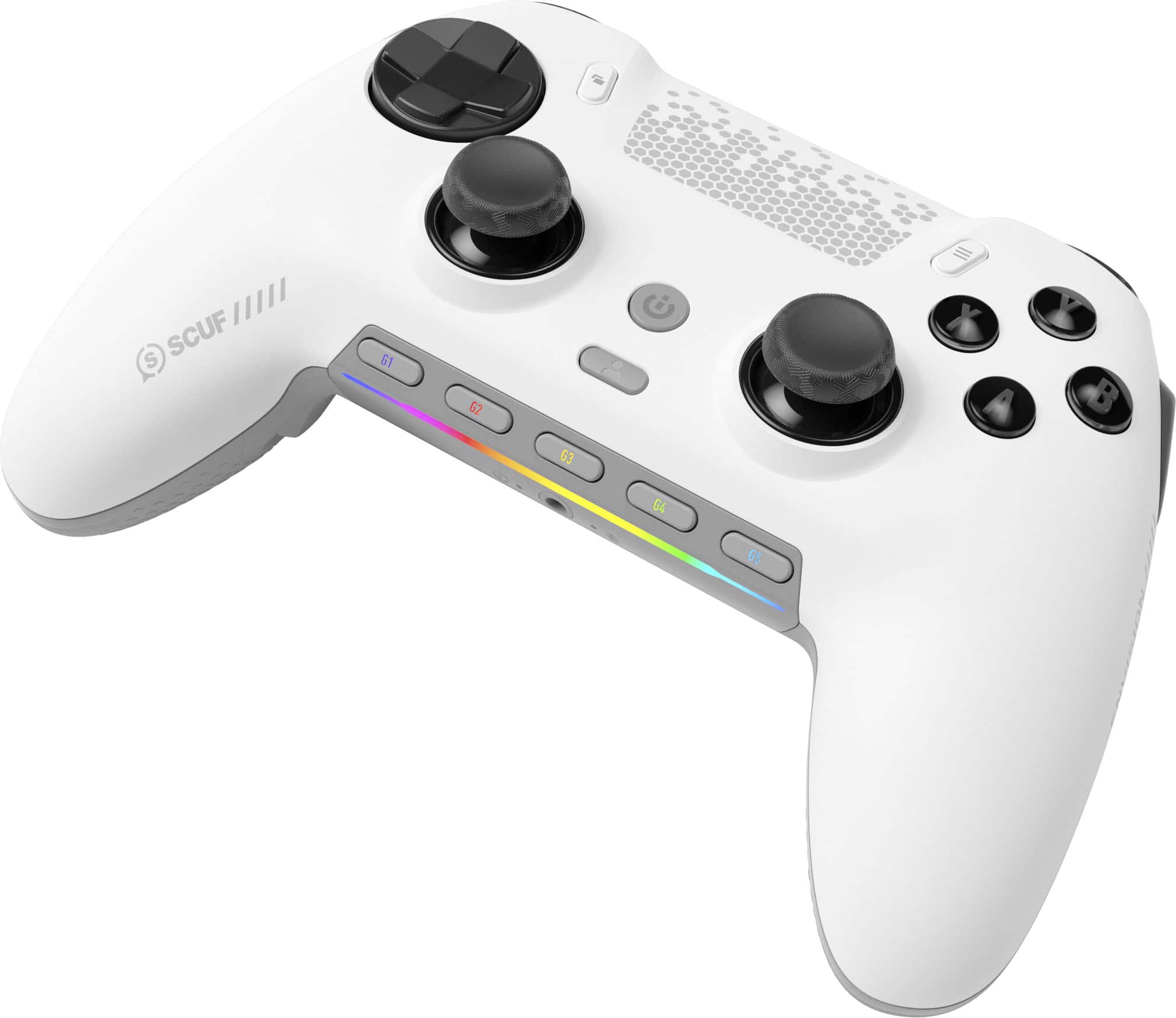
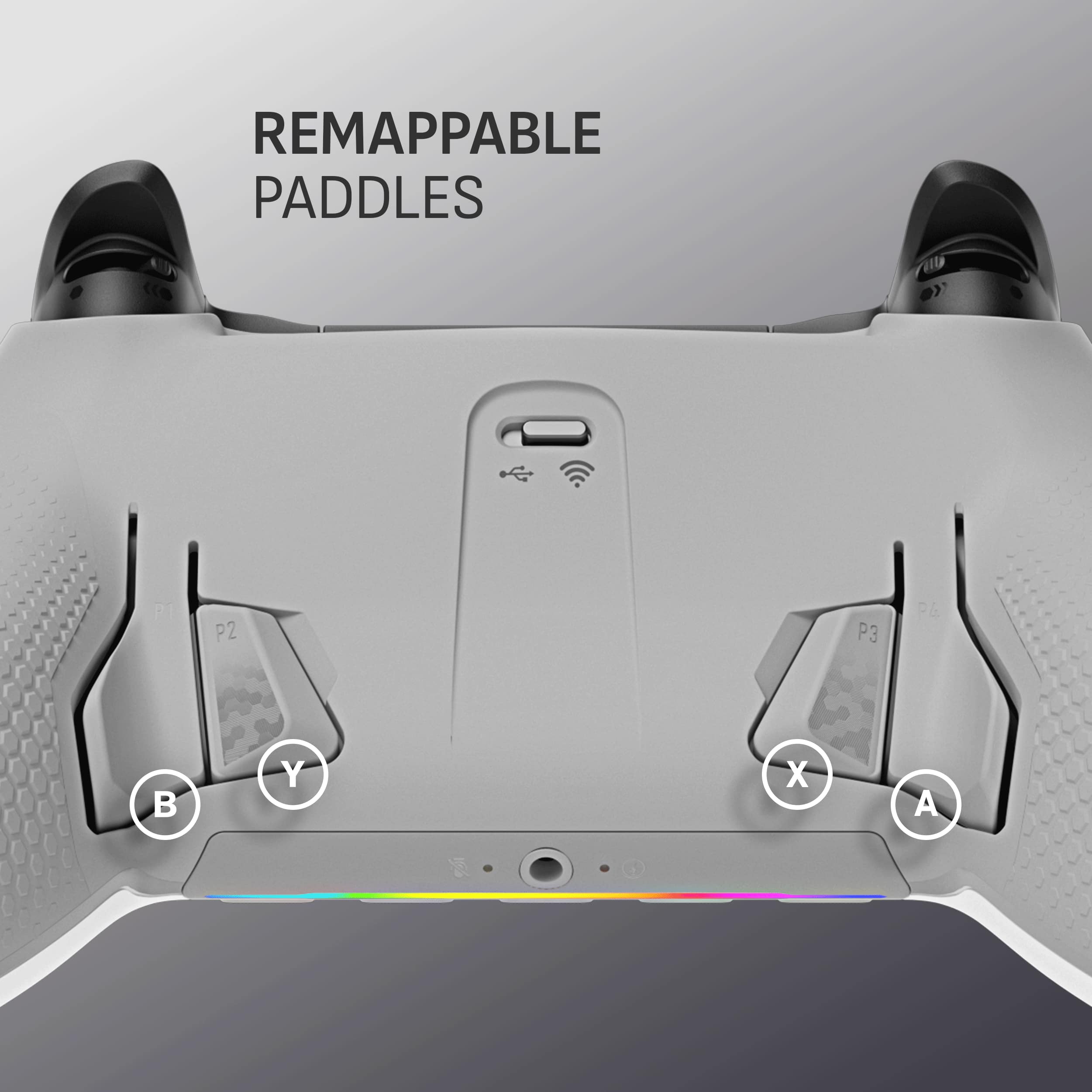
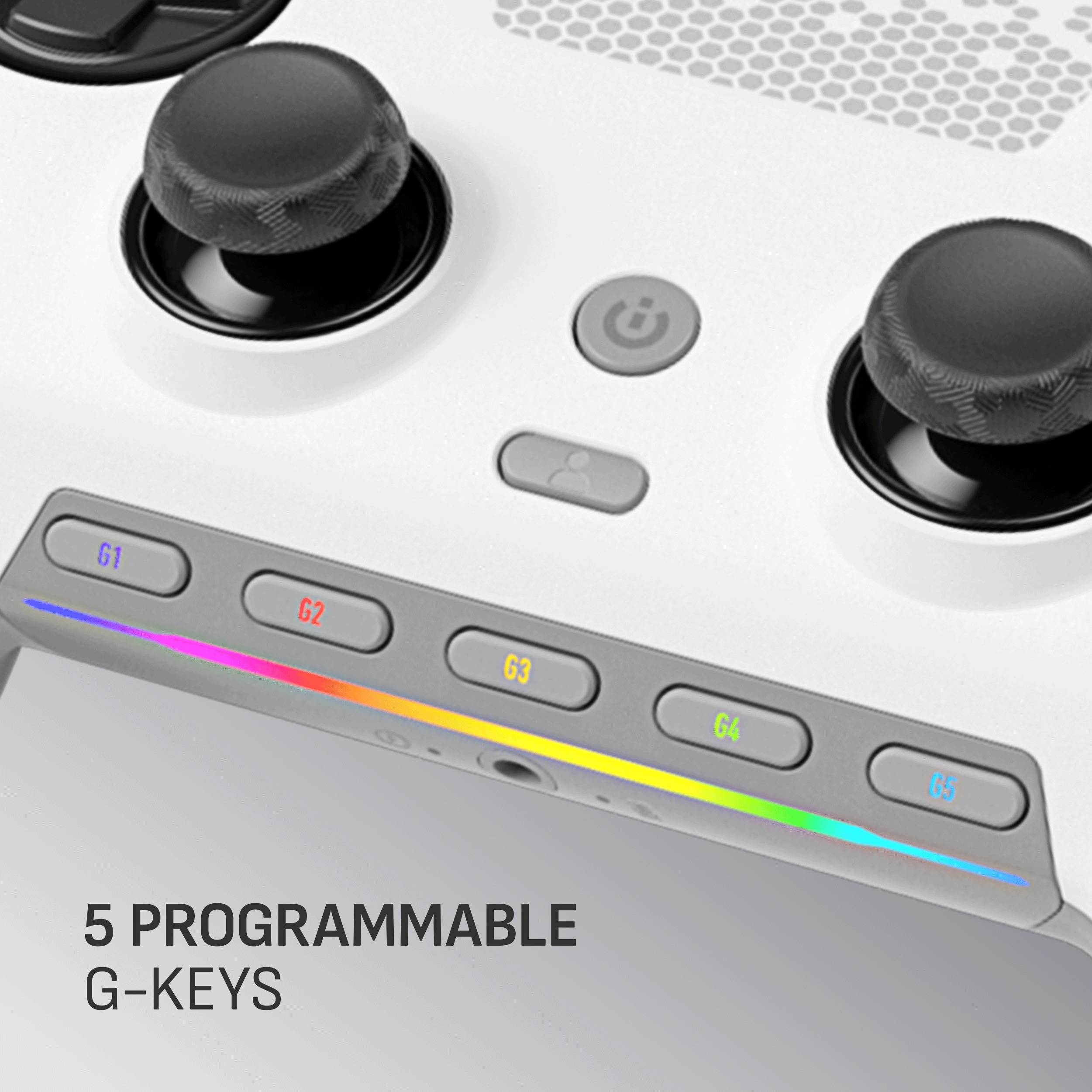
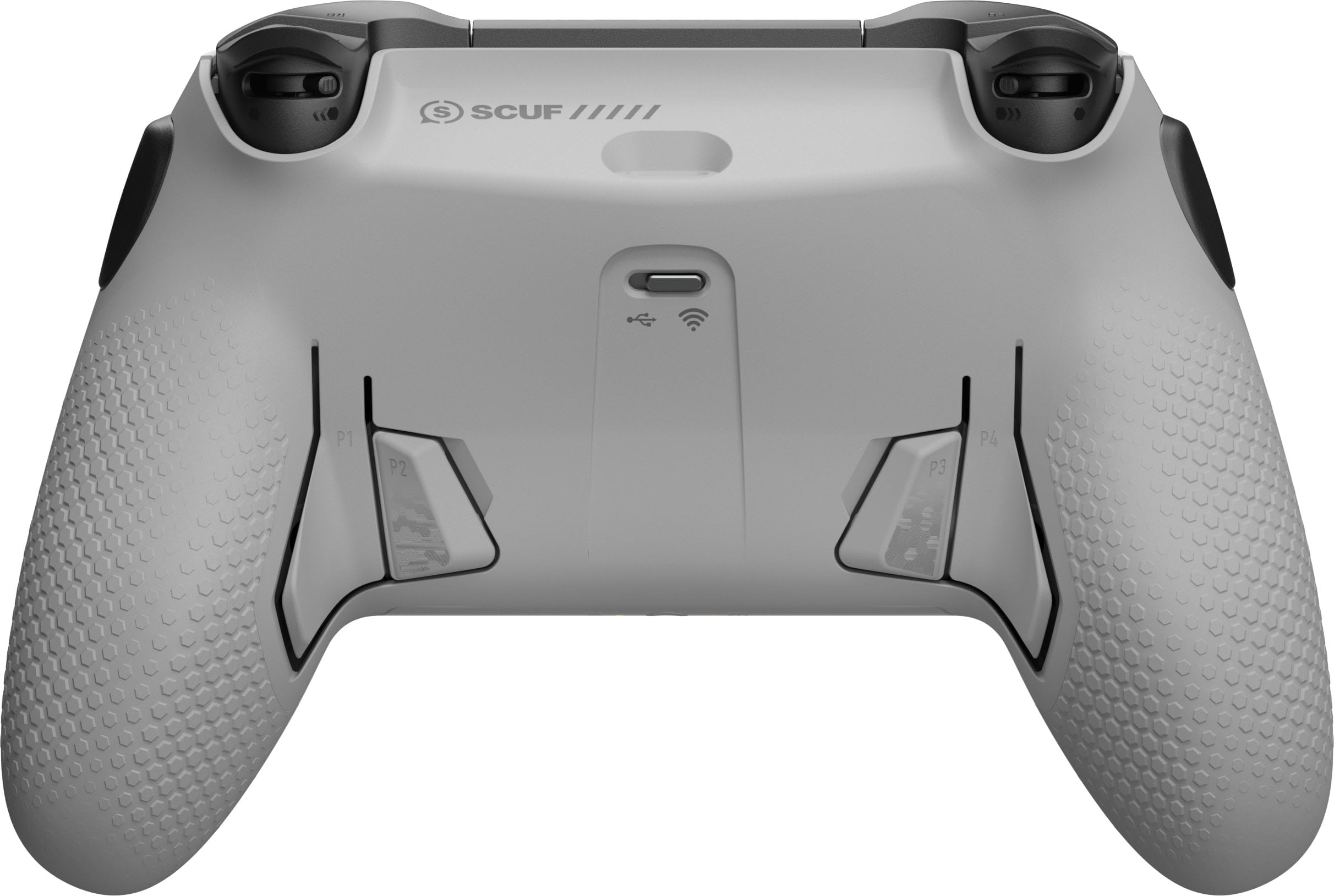
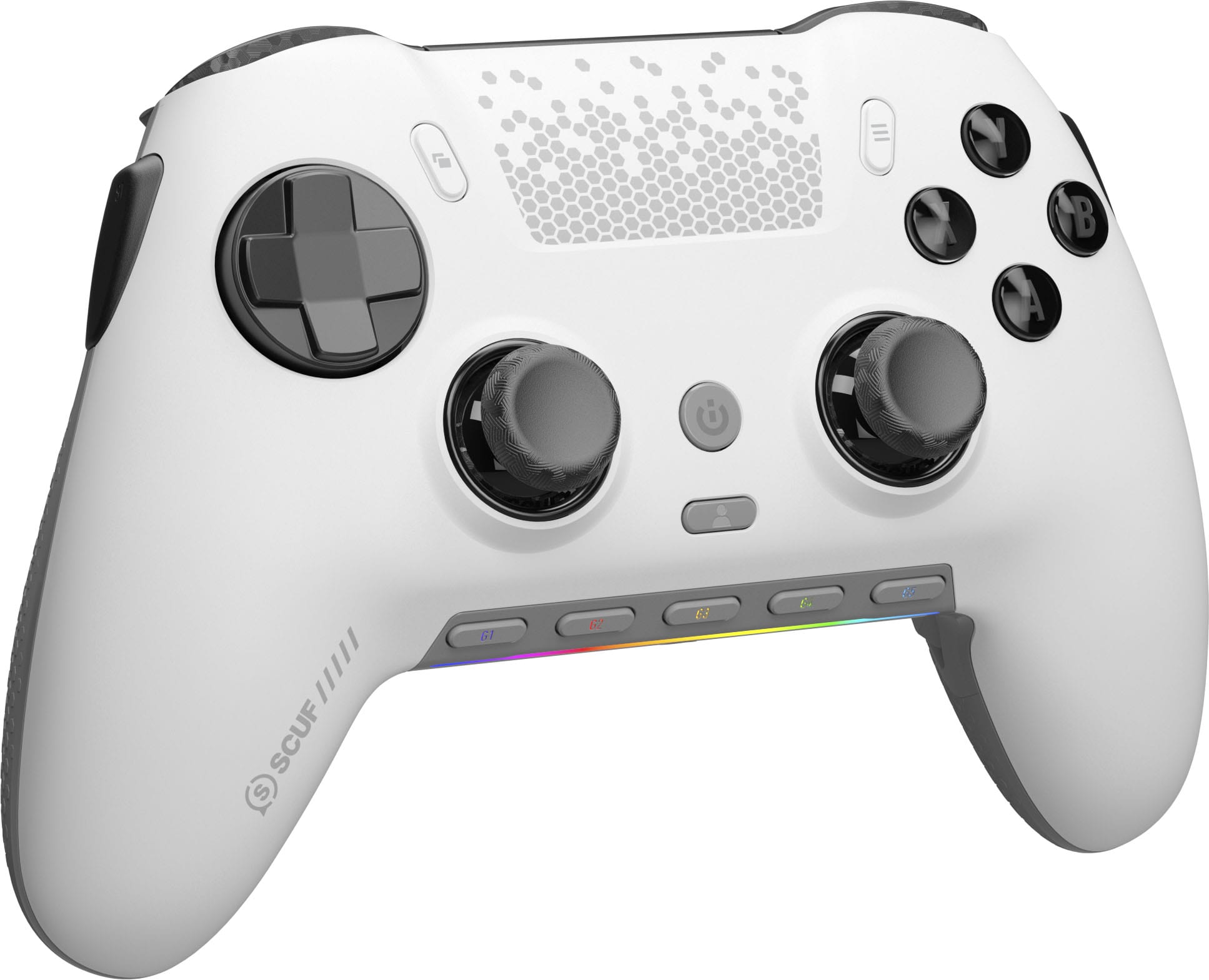
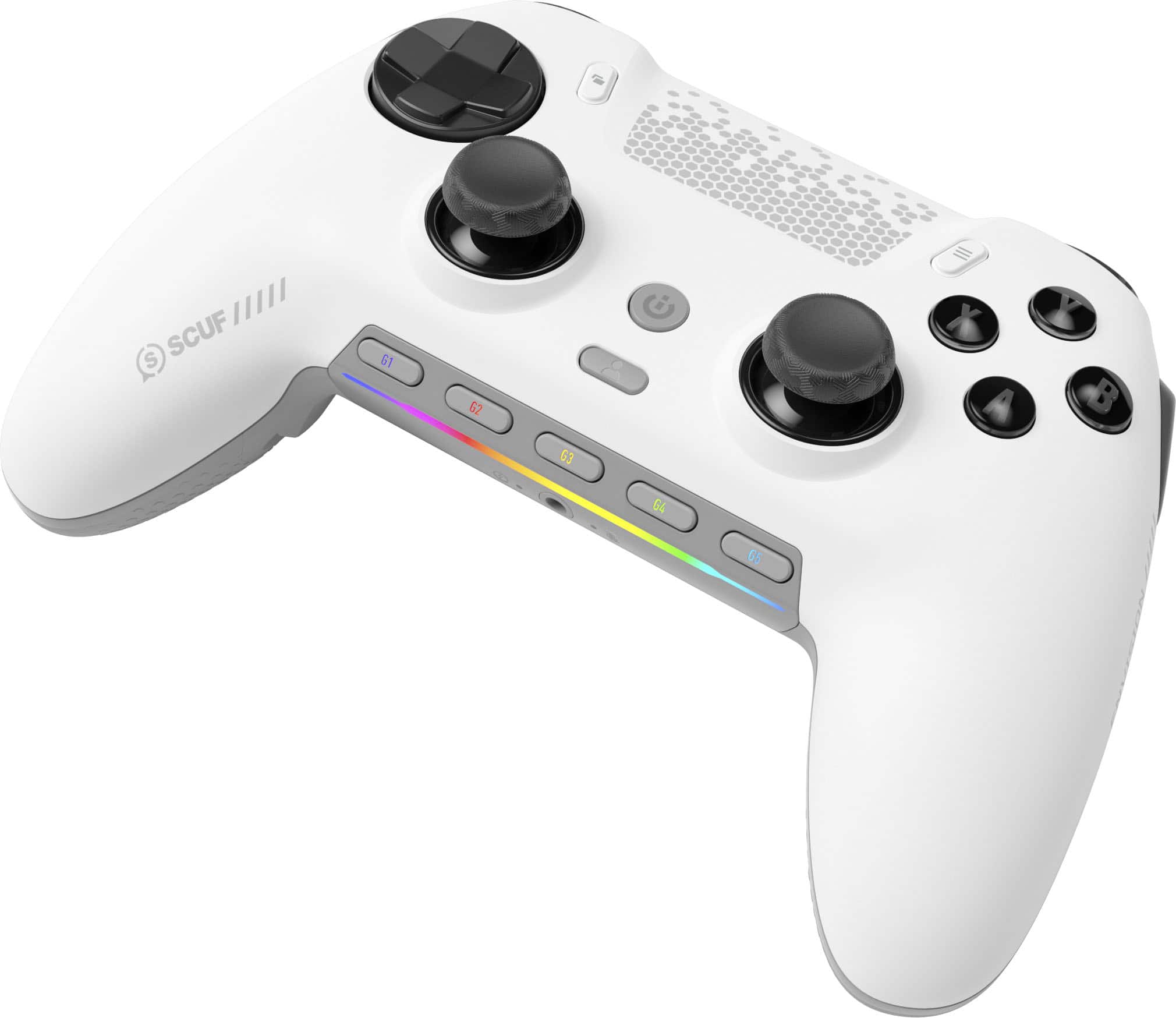
||Posted . Owned for 1 month when reviewed.This reviewer received promo considerations or sweepstakes entry for writing a review.So far so good if you play on pc it is a game changer you can customize everything with the app , sensitivity, dead zones, buttons ( remapping with the back paddles ), side buttons (comes with 2 extra) it is Hall effect so no stick drift for a while, comfortable on hand, pro sticky grip , I just wish is was TMR.
This review is from SCUF - ENVISION PRO v2 Wireless Gaming Controller for PC with Anti-Drift Thumbsticks - Steel Gray
I would recommend this to a friendRated 5 out of 5 stars
Great Controller for PC, potentially the best.
||Posted .This reviewer received promo considerations or sweepstakes entry for writing a review.Incredible customization. Hall effect sticks fix the drift I had on the original. It seems like they worked out a lot of other bugs I had on the original. Only complaint is the vibrations are still REALLY weak for a controller at this price and I wish that had been improved for when I want that.
This review is from SCUF - ENVISION PRO v2 Wireless Gaming Controller for PC with Anti-Drift Thumbsticks - Steel Gray
I would recommend this to a friendRated 5 out of 5 stars
Excellent PC controller!
||Posted . Owned for 1 week when reviewed.This reviewer received promo considerations or sweepstakes entry for writing a review.Seems to be a very solid controller, and coming from being a console controller user, it feels really good. The handles are slightly thinner than a console controller, but easy to adjust to. Rear paddle placement and customization options are excellent!
This review is from SCUF - ENVISION PRO v2 Wireless Gaming Controller for PC with Anti-Drift Thumbsticks - Steel Gray
I would recommend this to a friendRated 5 out of 5 stars
Best controller!!
||Posted . Owned for 2 weeks when reviewed.This reviewer received promo considerations or sweepstakes entry for writing a review.Feels very high quality! The customization with th icue app and the mappable buttons on the back make it very versatile, being able to master shooters and story mode games!!
This review is from SCUF - ENVISION PRO v2 Wireless Gaming Controller for PC with Anti-Drift Thumbsticks - Steel Gray
I would recommend this to a friendRated 5 out of 5 stars
Enjoy the game control, love it
||Posted . Owned for 1 month when reviewed.This reviewer received promo considerations or sweepstakes entry for writing a review.Myself and my kids love it they fight over it all the time. Easy to set up, and I think anyone can do it. And it is worth the money I pad for it. At first I was not sure but now I love it. Your kids are really going to enjoy it. Im about to buy another one for my Son in college. Go for, if you dont enjoy it you can return it but you will be glad you got it. Thanks ENJOY IT.
This review is from SCUF - ENVISION PRO v2 Wireless Gaming Controller for PC with Anti-Drift Thumbsticks - Steel Gray
I would recommend this to a friendRated 5 out of 5 stars
Great controller
||Posted . Owned for 2 weeks when reviewed.This reviewer received promo considerations or sweepstakes entry for writing a review.Amazing features for pc and perfectly optimized for the pinnacle performance on intense fast paced games
This review is from SCUF - ENVISION PRO v2 Wireless Gaming Controller for PC with Anti-Drift Thumbsticks - Breach
I would recommend this to a friendRated 5 out of 5 stars
PC controller
||Posted . Owned for 3 weeks when reviewed.This reviewer received promo considerations or sweepstakes entry for writing a review.My son loves it works well and he always wanted it makes it easier when using iylt with hi PC gaming was the best thing I bought yet he says
This review is from SCUF - ENVISION PRO v2 Wireless Gaming Controller for PC with Anti-Drift Thumbsticks - Steel Gray
I would recommend this to a friendRated 4 out of 5 stars
Great quality just not ideal for rocket league
||Posted . Owned for 3 weeks when reviewed.This reviewer received promo considerations or sweepstakes entry for writing a review.The Scuf Envision Pro is an impressive controller overall — the build quality feels premium, the grip is super comfortable, and the triggers and paddles are very responsive. You can tell it’s made for serious gamers. That said, I ran into issues using it for Rocket League. The mechanical face buttons are extremely sensitive and fast, which sounds great in theory but actually caused problems with double inputs and inconsistent control during gameplay. For precision-based games like Rocket League, it’s almost too responsive. I still think it’s an excellent controller for shooters or games that benefit from quick inputs, but for Rocket League players, it might take away more control than it adds. Great product overall — just not the best fit for every game.
This review is from SCUF - ENVISION PRO v2 Wireless Gaming Controller for PC with Anti-Drift Thumbsticks - Steel Gray
I would recommend this to a friendRated 4 out of 5 stars
Best pro controller ive used
||Posted .This reviewer received promo considerations or sweepstakes entry for writing a review.Great controller, rivals the PlayStation edge for me. I like the mechanical clicky buttons but they are not for everyone. Icue software is the inly drawback, a bit annoying to set up
This review is from SCUF - ENVISION PRO v2 Wireless Gaming Controller for PC with Anti-Drift Thumbsticks - Steel Gray
I would recommend this to a friendRated 5 out of 5 stars
Envision pro v2
||Posted . Owned for 2 weeks when reviewed.This reviewer received promo considerations or sweepstakes entry for writing a review.Wonderful feel and overall quality is great. The omcron buttons are spectacular
This review is from SCUF - ENVISION PRO v2 Wireless Gaming Controller for PC with Anti-Drift Thumbsticks - Steel Gray
I would recommend this to a friendRated 4 out of 5 stars
Very responsive. A few issues
||Posted . Owned for 1 week when reviewed.This reviewer received promo considerations or sweepstakes entry for writing a review.The controller is very nice and responsive my inky complaint for giving it 4 stars is when i went to the website on the box to download the sofware for the controller onto my conputer the website was bot found on google chrome, but on microsoft edge it worked. After downloading the software I updated the drivers and restarted my computer. After the restart I got on my game i was playing to test the controller and the B button would not work. I went back into the software settings multiple different times and no fix, i exchanged for another. After the same process I started my game up again and again the B button would not work. I researched online for a fix and found something about steam contoller settings. I went into the steam controller settings and turned it on and after that the B button along with every other button works now.
This review is from SCUF - ENVISION PRO v2 Wireless Gaming Controller for PC with Anti-Drift Thumbsticks - Steel Gray
I would recommend this to a friendRated 5 out of 5 stars
Scuf Controller
||Posted . Owned for 3 months when reviewed.This reviewer received promo considerations or sweepstakes entry for writing a review.Good for Competitive gaming. Definitely can help you with shooter type games
This review is from SCUF - ENVISION PRO v2 Wireless Gaming Controller for PC with Anti-Drift Thumbsticks - Breach
I would recommend this to a friendRated 5 out of 5 stars
Review
||Posted . Owned for 1 month when reviewed.This reviewer received promo considerations or sweepstakes entry for writing a review.Great controller love the icue app to fine tune for fps games
This review is from SCUF - ENVISION PRO v2 Wireless Gaming Controller for PC with Anti-Drift Thumbsticks - Breach
I would recommend this to a friendRated 5 out of 5 stars
Beat controller
||Posted .This reviewer received promo considerations or sweepstakes entry for writing a review.Been using this controller for awhile now and i love it works great with my pc
This review is from SCUF - ENVISION PRO v2 Wireless Gaming Controller for PC with Anti-Drift Thumbsticks - Steel Gray
I would recommend this to a friendRated 5 out of 5 stars
Great Controller
||Posted . Owned for 2 weeks when reviewed.This reviewer received promo considerations or sweepstakes entry for writing a review.Very conforyable to use, buttons feel great and you can use it wireless of wired pending on situations
This review is from SCUF - ENVISION PRO v2 Wireless Gaming Controller for PC with Anti-Drift Thumbsticks - Steel Gray
I would recommend this to a friendRated 5 out of 5 stars
very nice controller.
||Posted . Owned for 4 months when reviewed.This reviewer received promo considerations or sweepstakes entry for writing a review.It's easier to make this controller work than to map xbox controllers to my PC. My only issue, which isn't really much of an issue, more of an inconvenience, is the buttons on the back are in places where I accidently press them fairly often. So I'll accidentally throw a grenade when trying to hide, and that kind of stuff. But I do get used to it, it just take some adjustment.
This review is from SCUF - ENVISION PRO v2 Wireless Gaming Controller for PC with Anti-Drift Thumbsticks - Steel Gray
I would recommend this to a friendRated 5 out of 5 stars
Love it
||Posted . Owned for 3 weeks when reviewed.This reviewer received promo considerations or sweepstakes entry for writing a review.My son loves it. It makes it easier for some of his games
This review is from SCUF - ENVISION PRO v2 Wireless Gaming Controller for PC with Anti-Drift Thumbsticks - Steel Gray
I would recommend this to a friendRated 5 out of 5 stars
Best controller for the money
||Posted . Owned for 2 weeks when reviewed.This reviewer received promo considerations or sweepstakes entry for writing a review.Build quality is outstanding responsive buttons good feel, no stick drift. So good I'm buying another one for my son.
This review is from SCUF - ENVISION PRO v2 Wireless Gaming Controller for PC with Anti-Drift Thumbsticks - Steel Gray
I would recommend this to a friendRated 5 out of 5 stars
Awesome controller!
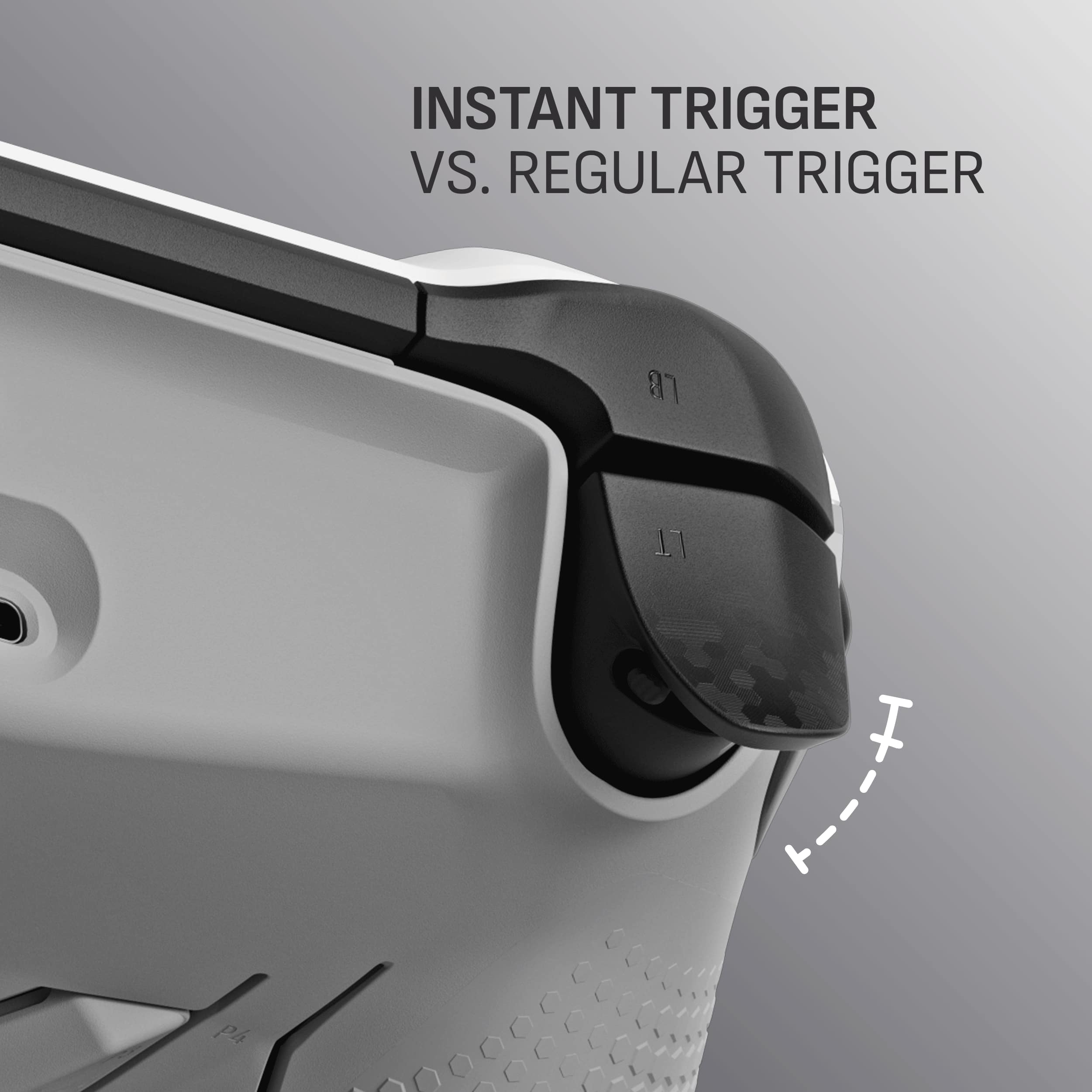
||Posted .This reviewer received promo considerations or sweepstakes entry for writing a review.I love this controller, the short mouse click triggers are a game changer and 0 stick drift so far with the new halo sticks!
This review is from SCUF - ENVISION PRO v2 Wireless Gaming Controller for PC with Anti-Drift Thumbsticks - Breach
I would recommend this to a friendRated 5 out of 5 stars
Best out of three
||Posted . Owned for 1 week when reviewed.This reviewer received promo considerations or sweepstakes entry for writing a review.My son tried out three controllers and he said this was the best one We went to Best Buy two times to pick a bunch of them out. Glad we can finally stop.
This review is from SCUF - ENVISION PRO v2 Wireless Gaming Controller for PC with Anti-Drift Thumbsticks - Breach
I would recommend this to a friend