Mac Flash Drives
-
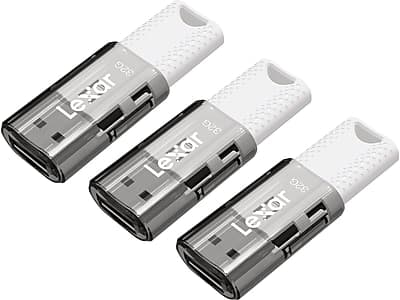
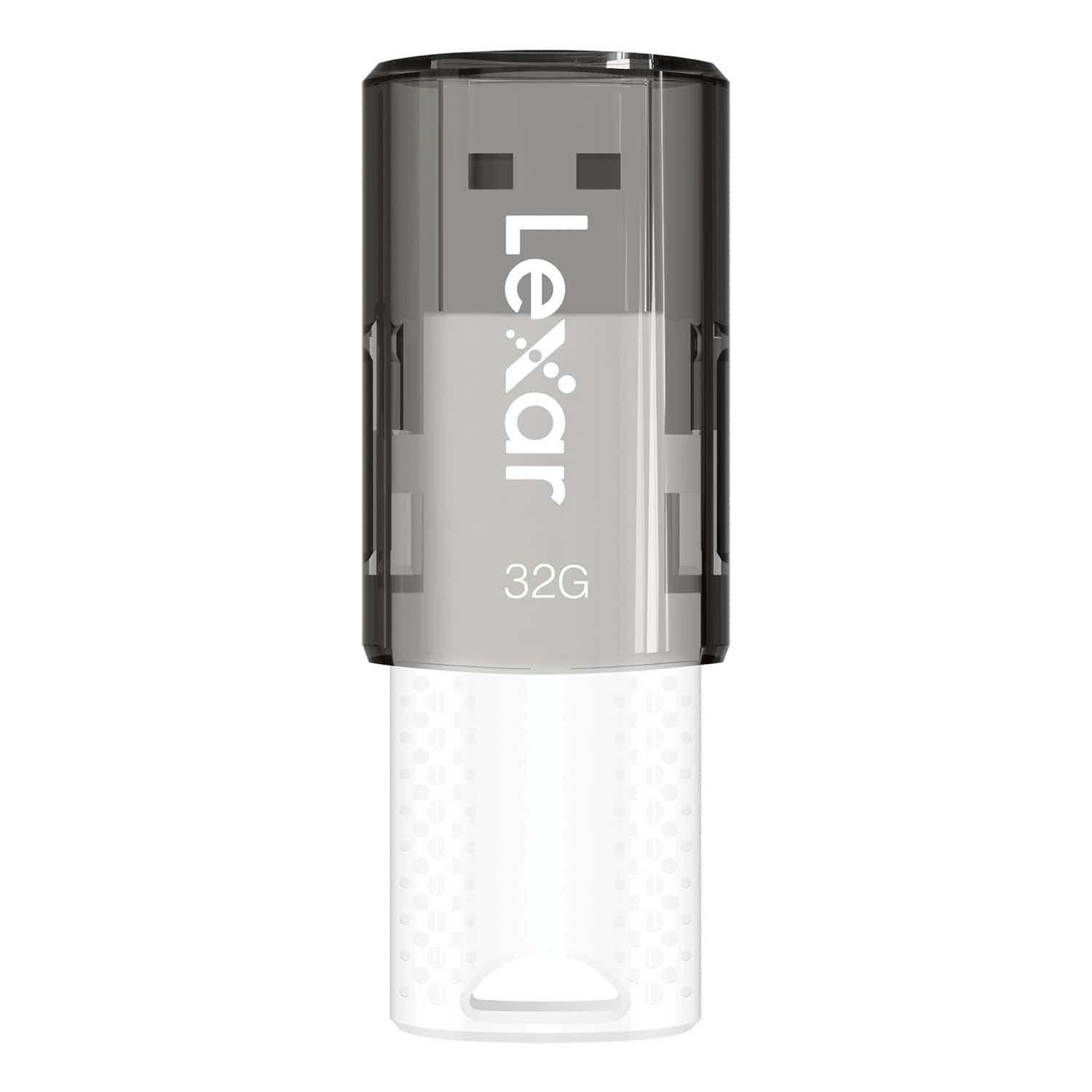
Lexar - JumpDrive S60 32GB USB 2.0 Type A Flash Drive, 3/Pack - Gray/White
SKU: J36XPKZT2Wis to be expected as they are USB 2.0, but they were cheap and perfect for what I need them forBest...Great quality and price!!! Delivery was very timely!!
See all USB Flash DrivesProduct Description
A pack of three gray and white USB 2.0 flash drives offering 32GB portable storage each.Your price for this item is $22.36Save $0The previous price was $22.99 -
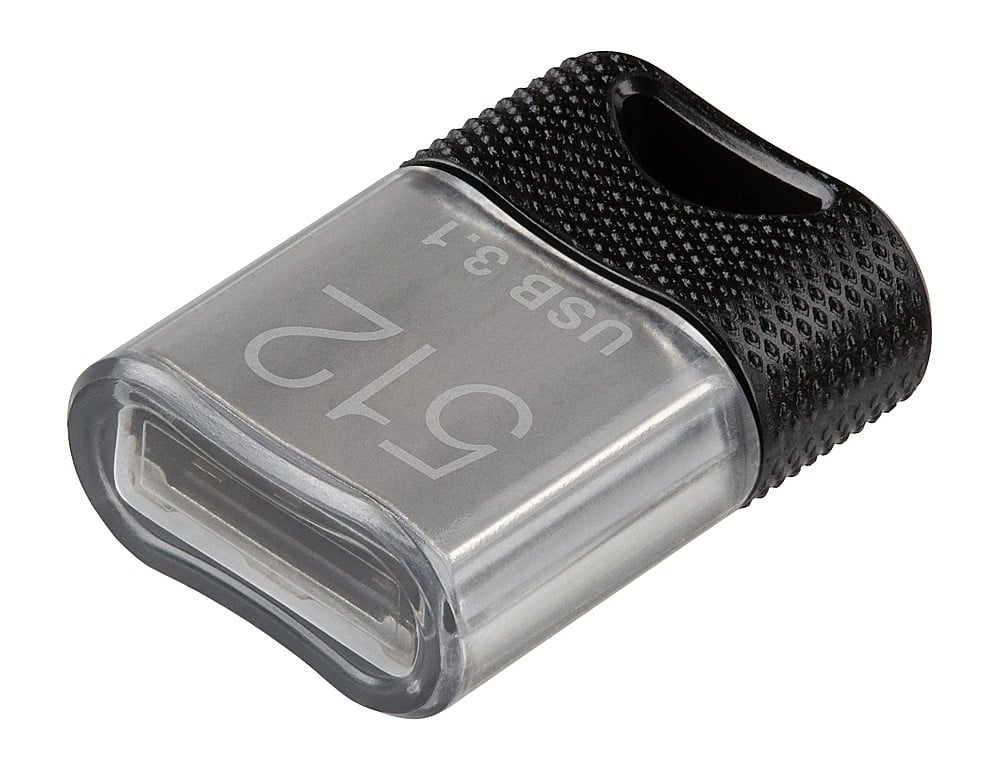
PNY - 512GB Elite-X Fit USB 3.1 Flash Drive - 200MB/s - Black
SKU: JXF2C423TSLittle, amazingly and powerfully, is the best usb ....Great flash drive...Absolutely love it. Just what I needed!
See all USB Flash DrivesProduct Description
A micro-sized black USB 3.1 flash drive offering 512GB storage and up to 200MB/s read speeds.Your price for this item is $82.99 -
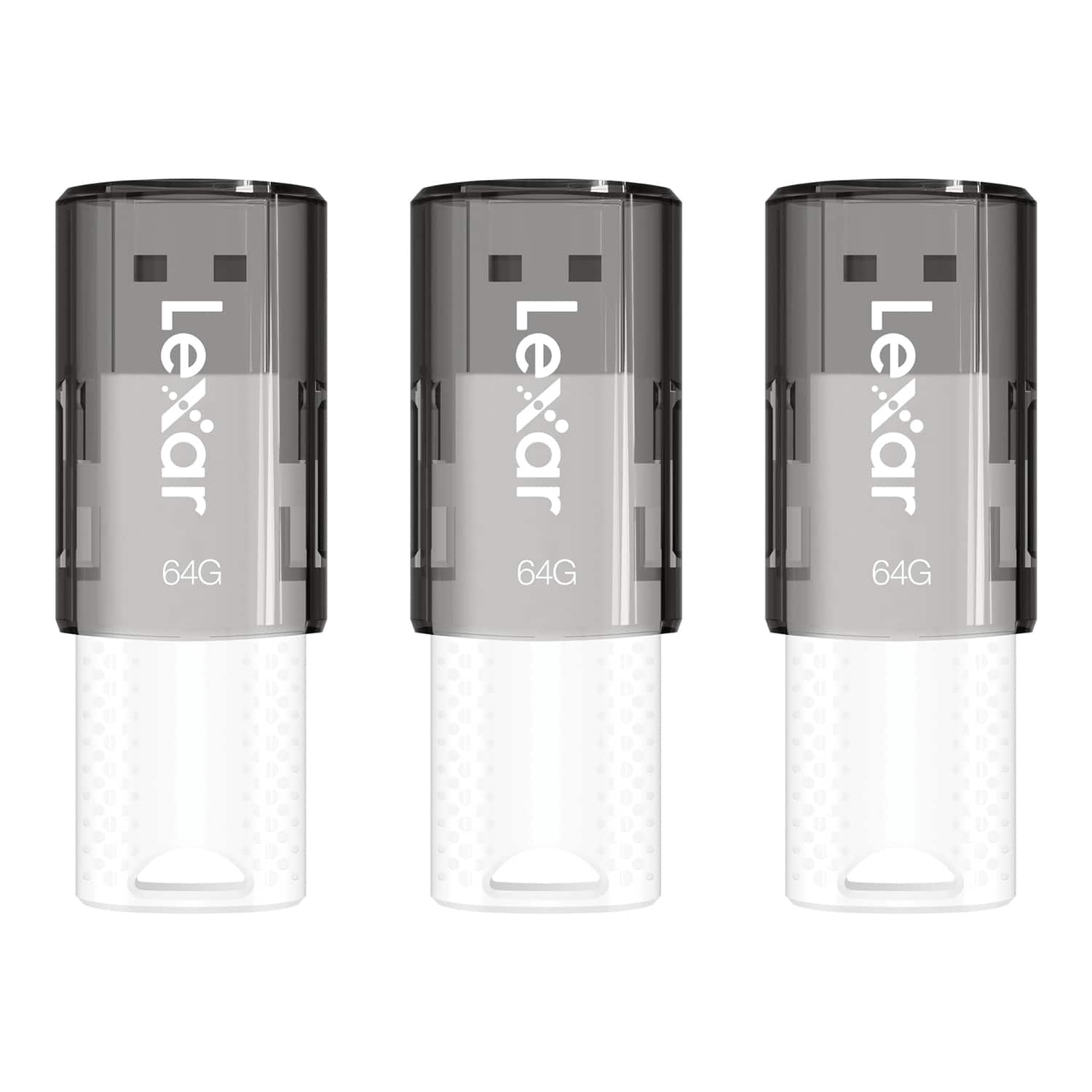
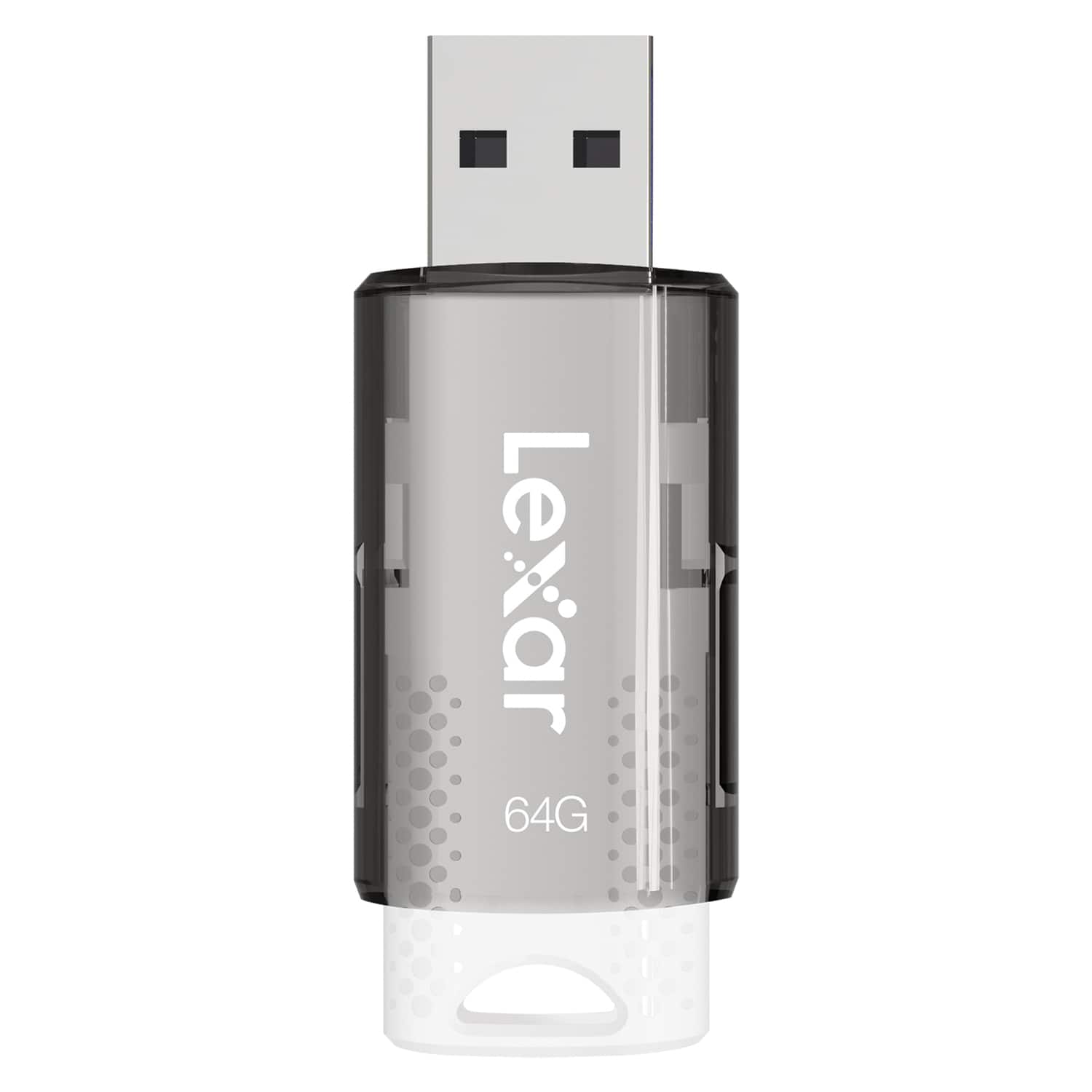
Lexar - JumpDrive S60 64GB USB 2.0 Flash Drive, 3 Pack - Black
SKU: J36XPKZT33With the $10 Best Buy Customer credit they are a bargain. They work!...work as expected and the price was great - I would purchase again
See all USB Flash DrivesProduct Description
A set of three black USB 2.0 flash drives offering 64GB each and a protective sliding cover.Your price for this item is $28.29Save $1The previous price was $29.99 -
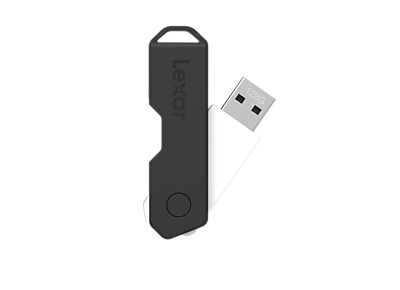
Lexar - Twist Turn2 128GB USB 2.0 Type-A Flash Drive, (JDTT2-128ABNABK) - Black
SKU: J36XPKKKW5Great value for the price...Great value for the price. Cool feature with the twist and turn.
See all USB Flash DrivesProduct Description
A black USB 2.0 flash drive with 128GB storage and a durable, rotating capless design.Your price for this item is $26.99 -
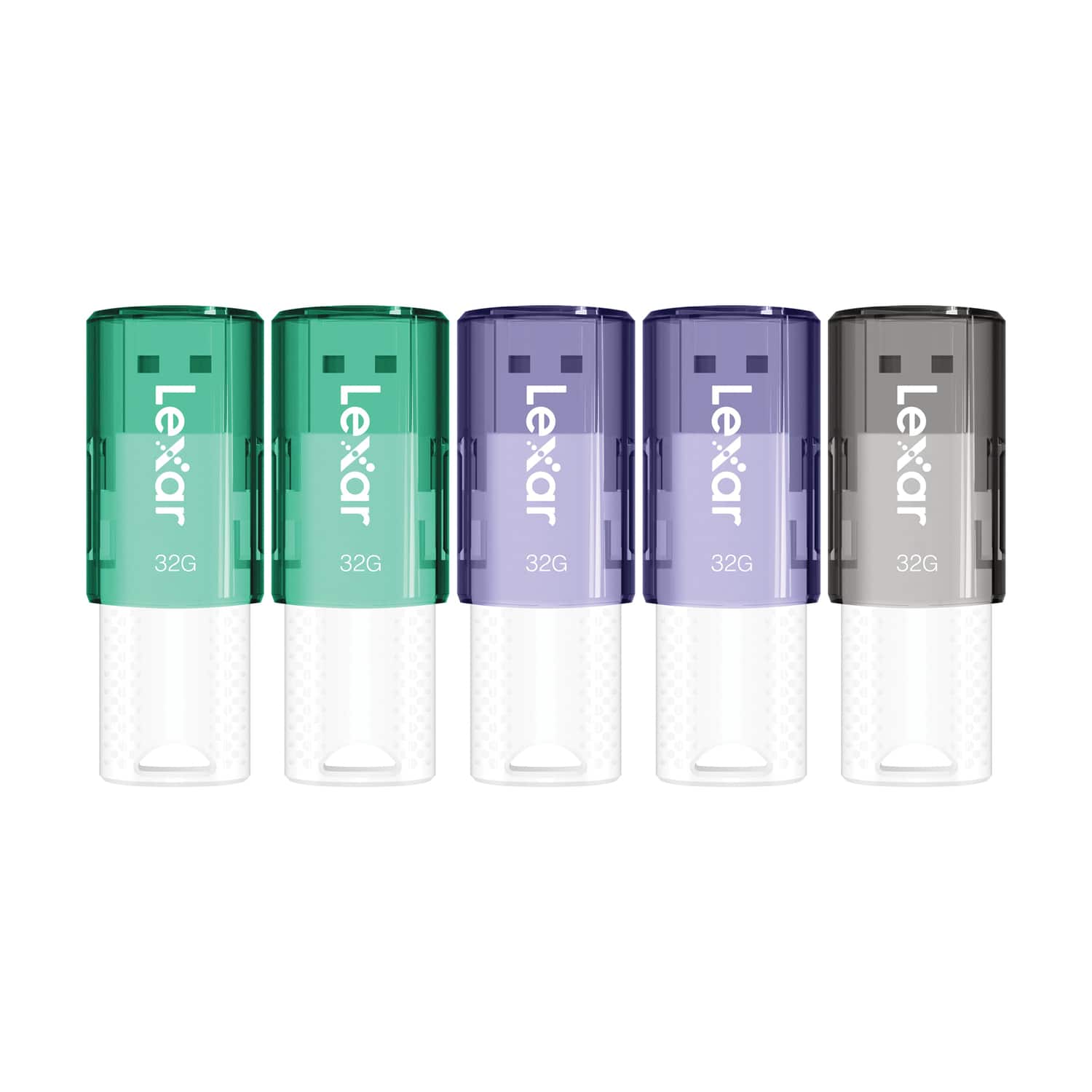
Lexar - JumpDrive S60 32GB USB 2.0 Flash Drives, 5 Pack - Multicolored
SKU: J36XPK4C8QSee all USB Flash DrivesProduct Description
A multicolored 5-pack of USB 2.0 flash drives offering 32GB storage each with protective sliding covers.Your price for this item is $39.99Save $8The previous price was $48.49 -
Lexar - JumpDrive S60 USB 2.0 Flash Drive 64 GB - White
SKU: J36XPKZTC3Great Black Friday purchase
See all USB Flash DrivesProduct Description
A white USB 2.0 flash drive with 64GB capacity and a protective sliding cover for secure file storage.Your price for this item is $21.32 -
Lexar - JumpDrive S60 USB 2.0 Flash Drive 32 GB - White
SKU: J36XPKZTJ8See all USB Flash DrivesProduct Description
A white USB 2.0 flash drive with 32GB storage and a protective sliding cover for easy file transfer.Your price for this item is $25.73 -
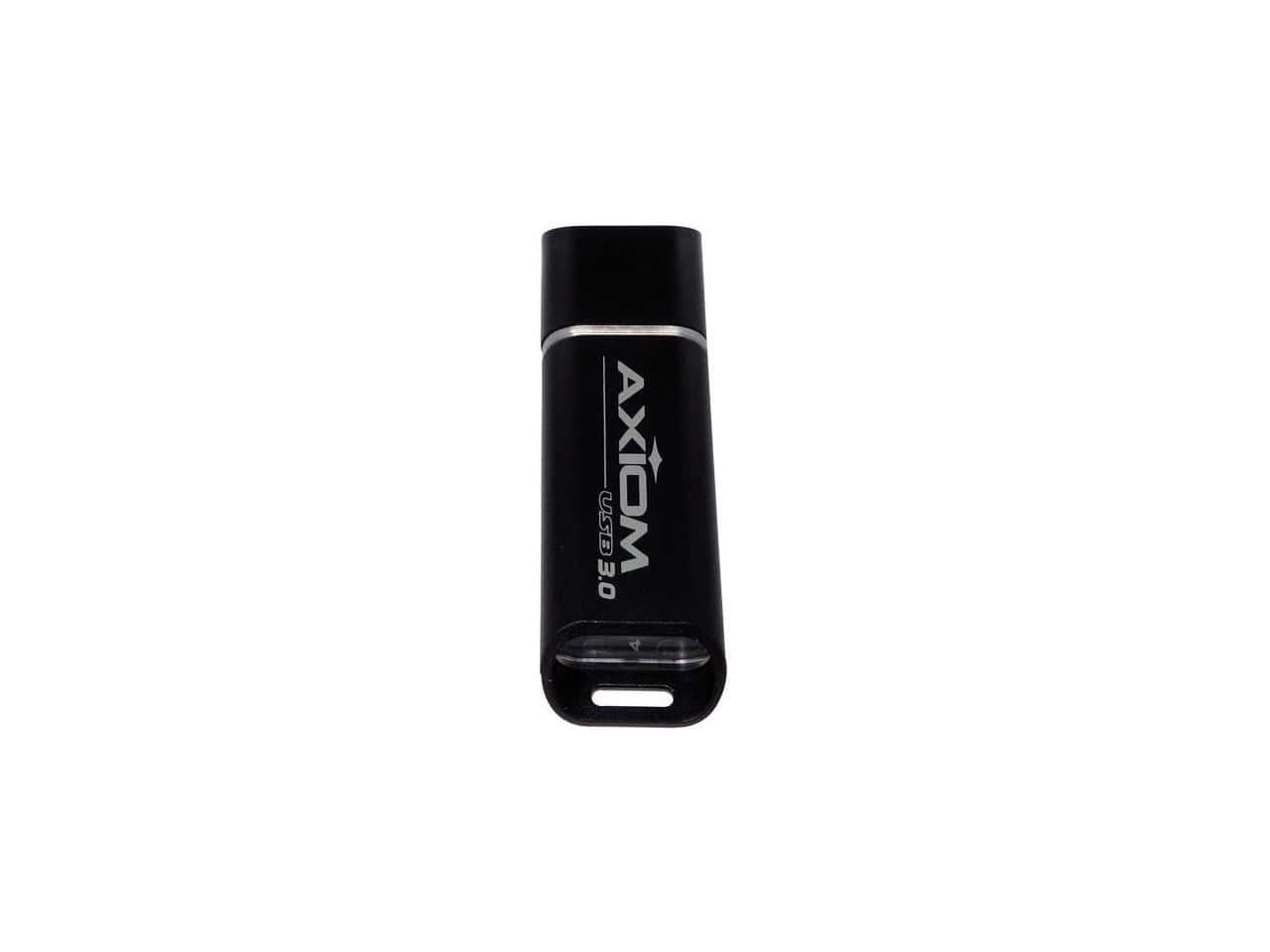
AXIOM - 128GB USB 3.0 Flash Drive - Black
SKU: J369852V2YSee all USB Flash DrivesProduct Description
A high-speed black USB 3.0 flash drive offering 128GB of reliable portable storage.Your price for this item is $39.99Save $2The previous price was $41.99 -
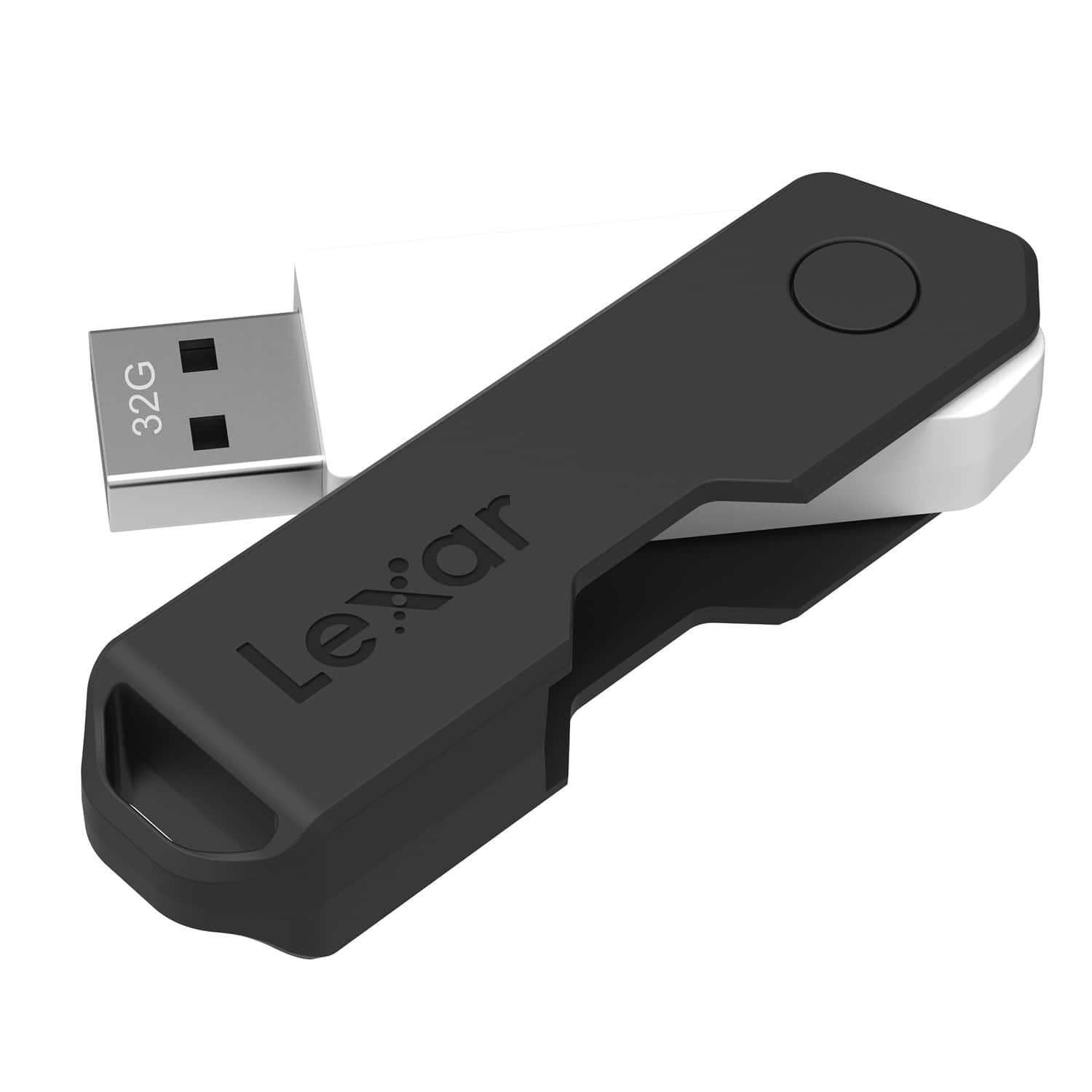
Lexar - JumpDrive TwistTurn2 USB 2.0 Flash Drive 32 GB - Black
SKU: J36XPKKKTYSee all USB Flash DrivesProduct Description
A black USB 2.0 flash drive with 32GB storage and a capless, rotating protective design.Your price for this item is $21.92 -
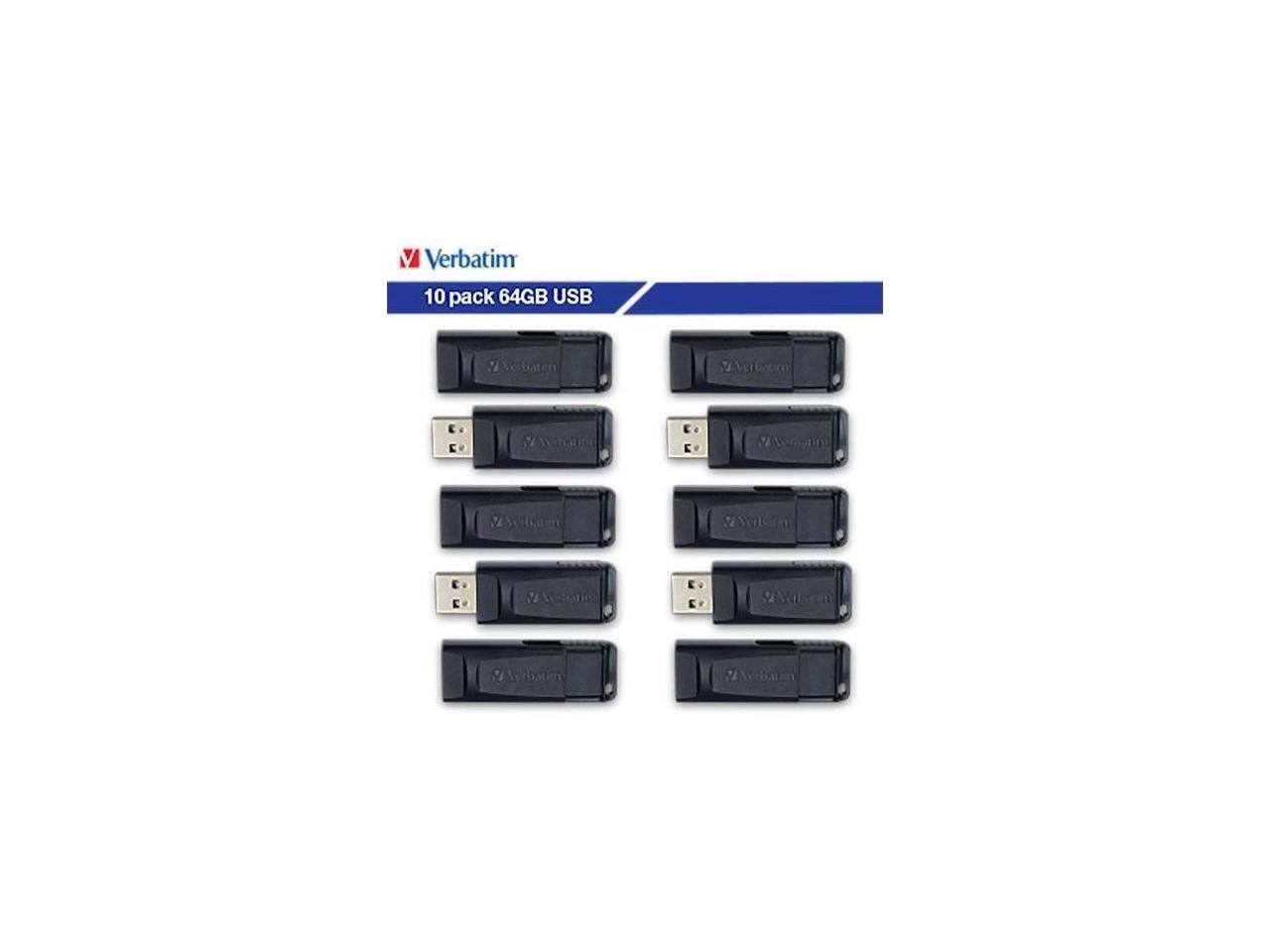
Verbatim - 64GB Store 'n' Go USB Flash Drive 10pk 70895 - Black
SKU: J72FJWLYLGSee all USB Flash DrivesProduct Description
A pack of ten black USB-A 64GB flash drives with retractable, antimicrobial, cap-less design for secure storage.Your price for this item is $129.99Save $6The previous price was $136.96
Best Sellers
Related Pages


FAQ
Many Mac flash drives are formatted for macOS by default, but several models offer cross-platform compatibility. Some drives feature exFAT formatting, which works seamlessly with both Mac and Windows systems. You can also reformat most flash drives to suit your preferred operating system using your computer's disk utility tools.
Most Mac flash drives are plug-and-play, meaning they do not require any additional software or drivers. Simply insert the drive into your Mac's USB or USB-C port, and it should appear on your desktop or in Finder automatically.
Mac flash drives come with various connectors, including USB-A, USB-C, and some with dual connectors for increased versatility. If your Mac has only USB-C ports, look for flash drives designed specifically for USB-C or consider using an adapter for USB-A drives.
While flash drives can be used for manual file backups, they are generally not recommended for use with Time Machine due to limited storage capacity. However, you can use them to copy and store important files, photos, or documents from your Mac.
To safely eject a Mac flash drive, drag its icon to the Trash (which will turn into an Eject symbol) or click the Eject button next to the drive in Finder. Wait until the drive disappears from your desktop or Finder before physically removing it from your Mac.