Aluratek - Alarm Clock with Nightlight and Qi Wireless Charging - Black
About this product
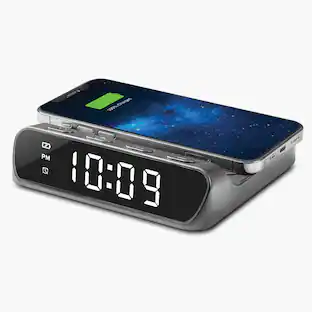
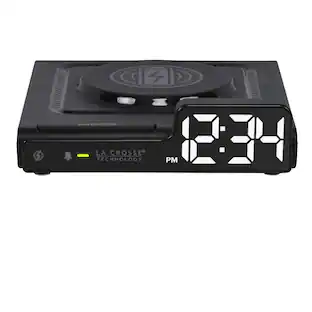
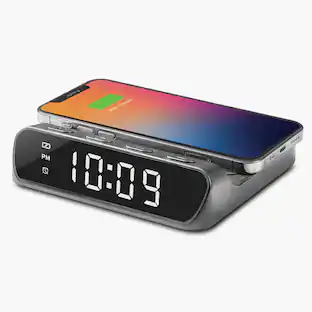
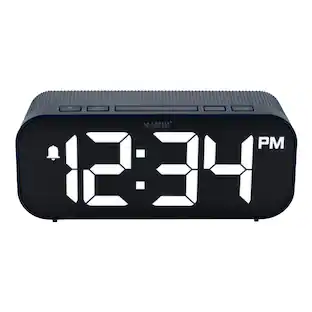
Wake up in time with this Aluratek alarm clock. The LED screen with an integrated night light displays the time clearly and lets you adjust to three different levels of brightness. This Aluratek alarm clock charges your mobile devices through the built-in Qi wireless charging pad and the built-in USB port.
Qi wireless charging
Charge your wireless charging enabled smartphone while you work or sleep by simply placing it directly on the charging pad.
Alarm clock with nightlight
The large LED screen displays the time and features an integrated nightlight with three brightness levels. You can set one custom alarm.
Additional USB charging
Charge a second USB powered device using the built-in USB port on the back of the unit. Charge two devices at the same time. (charging cable not included)
- BrandAluratekModel NumberABQC03FProduct NameAlarm Clock with Nightlight and Qi Wireless ChargingColorBlackWarranty - Parts1 yearWarranty - Labor1 year
Reviews
Rating 4.1 out of 5 stars with 470 reviews
Customer Images
The vast majority of our reviews come from verified purchases. Reviews from customers may include My Best Buy members, employees, and Tech Insider Network members (as tagged). Select reviewers may receive discounted products, promotional considerations or entries into drawings for honest, helpful reviews.
Compare similar products
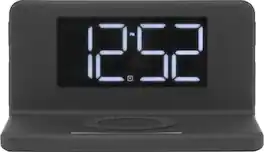
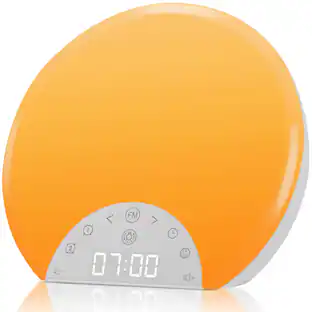
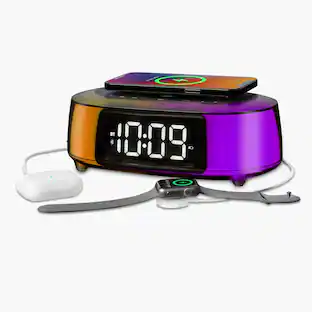
Wake up in time with this Aluratek alarm clock. The LED screen with an integrated night light displays the time clearly and lets you adjust to three different levels of brightness. This Aluratek alarm clock charges your mobile devices through the built-in Qi wireless charging pad and the built-in USB port.

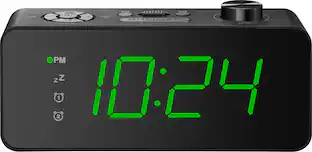
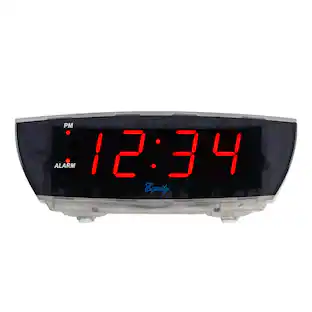
Keep your phone out of the bedroom at night by going “old school” with a traditional alarm clock. The Insignia NS-ALCL24 Digital AM/FM Dual Alarm Clock with 4-Level Dimmer has all the essentials you need. Program up to two different alarms, setting the volume and alarm sound (standard alarm or radio) for each. The green LED display is easy to read in the dark with a 4-level dimmer to customize the display’s brightness to your space. The integrated AM/FM radio can store up to 20 presets for easy listening as you get ready for the day. Your simple solution for getting up on time is just a click away.

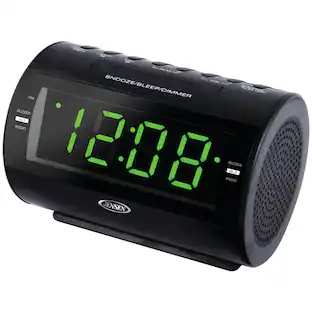
The MX-CR160 is a versatile Bluetooth clock radio featuring a USB charging function for added convenience. It comes equipped with an FM PLL radio that allows you to save up to 20 preset stations. The 0.9-inch amber LED display is complemented by a dimmer function with two brightness settings, ensuring optimal visibility. The clock radio supports a dual alarm function, letting you choose between radio or buzzer alarms, and includes a 90-minute sleep function. It also offers a snooze and sleep timer feature for a tailored wake-up experience. For additional reliability, the clock backup function operates using two AAA batteries (not included). The MX-CR160 provides a 3.5mm auxiliary input jack and delivers 1.2W x 2 output power with 10% total harmonic distortion. It is powered by an AC/DC adapter compatible with 100-240V 50/60Hz and 5V 1.8A. The USB charging function supports iPhones and smartphones with a 5V/1A output. The package includes an AC adapter and user manual.
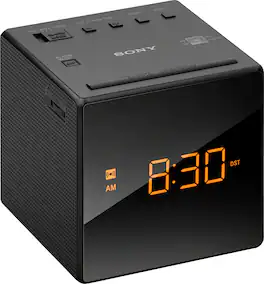
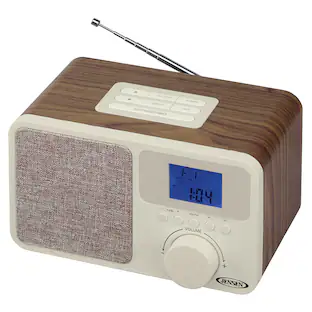
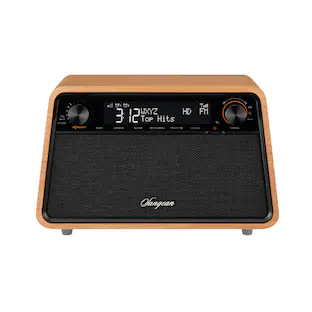
Stylish AM/FM Clock-radio with automatic time setting, brightness control, and gradual alarm
| Pros for Aluratek - Alarm Clock with Nightlight and Qi Wireless Charging - Black | |||
|---|---|---|---|
| There were no pros for this product— | Size, Ease of Use, Overall Performance, Brightness, Readability | There were no pros for this product— | Size, Sound Quality, Ease of use, Alarm, Display |
| Cons for Aluratek - Alarm Clock with Nightlight and Qi Wireless Charging - Black | |||
| There were no cons for this product— | Button Layout | There were no cons for this product— | Radio Reception, Timekeeping |
Specs
Find more like this
 $38.99The price was $39.99
Customers ultimately bought
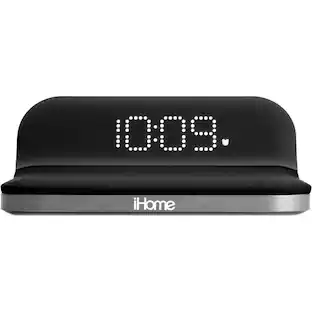 $79.95The price was $95.99
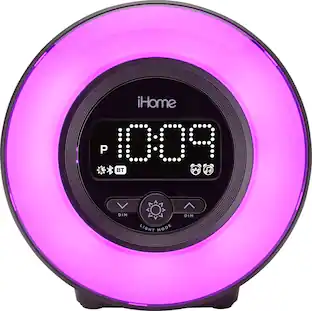
Your sound, your style Sponsored
Discover related products
 $84.99The price was $94.95
 $52.99The price was $64.99
 $22.30The price was $48.00
 $29.95The price was $37.23
 $23.88The price was $26.36

Keep exploring
 $68.00The price was $70.00
 $80.00The price was $90.00