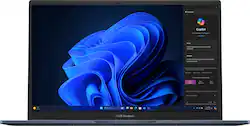
ASUS Vivobook Laptop. Enjoy everyday activities with this ASUS notebook PC. The Intel Core i3 processor and 8GB of RAM let you run programs smoothly.
Q: What is the resolution of the ASUS Vivobook Laptop's display?
A: The ASUS Vivobook Laptop's display has a resolution of 1920 x 1080, which is also known as Full HD.
Q: What is the maximum battery life of this ASUS Vivobook?
A: The ASUS Vivobook has a battery life of up to 10 hours.
Q: Does the ASUS Vivobook have a backlit keyboard?
A: No, the ASUS Vivobook does not have a backlit keyboard.
Q: How much storage space does this ASUS notebook PC have?
A: This ASUS notebook PC has a 128GB SSD for storing your files and data.
Q: What type of operating system does this ASUS notebook PC come with?
A: This ASUS notebook PC comes with the Windows 11 Home in S mode operating system.
Q: What is the screen size of this ASUS Vivobook Laptop?
A: This ASUS Vivobook Laptop features a 14-inch display screen.
Q: Are there two ram slots? Can I upgrade the ram to 16 gb?
A: Yes, for this model, X1404ZA-I38128, it has an extra slot. It can detect up to 24 GB of RAM. Additionally, if you were wondering, the storage space is also expandable up to 4TB.
Q: How do I get this out of S Mode? Every time I try it tells me something went wrong.
A: I ran into that "something went wrong" error many times when trying to use the Microsoft method of disabling S mode on my new Windows 11 Home - Vivobook. As a Linux technician, this was quite frustrating. I need to be able to install multiple browsers and Windows Sub-system Linux (from the Windows Store!) to able to work. That is not possible in S Mode. I also learned that you can't just use function keys to access the BIOS menu any longer. My 17yo daughter helped me find an accurate YouTube video to assist. First, I edited the Registry Hive Key to disable the policy that forces S Mode to be enabled. If you're not familiar - BE EXTREMELY CAUTIOUS IN THE REGISTRY! This gentleman (CyberCPU Tech) shows how to do that part, as well as if you are having trouble opening the Registry Editor thanks to Windows security measures: https://youtu.be/ZTWKvDF1dqI. He indicates that you may not need to do anything else in order to disable S Mode. I had to also use Windows Settings >> System >> Recovery to "Restart Now" (related to Advanced startup) in order to access the BIOS. This article may be helpful with that part: https://www.wikihow.com/Turn-Off-S-Mode-in-Windows-11. I used the second method, "Without a Microsoft Account", even though I have a Microsoft account and was logged into it at the time. From the blue landing page, use "Troubleshoot" to see the Advanced Options to get into "UEFI Firmware Settings", aka BIOS. Once the BIOS menu opens, look at the top for the "Security" tab. On the Security tab you should find "Secure boot" enabled. Disable it, save & exit. Double check in Windows >> Settings >> System >> About to verify that S Mode is no longer present. Best of luck!