Rating 4.6 out of 5 stars with 164 reviews
4.6- Build Quality (44)
- Processor Speed (23)
- Battery Life (18)
- Heat Dissipation (7)
- Weight (15)
- Portability (12)
- Size (5)
- Port Selection (3)
- Screen Brightness (3)
Customer Images
The vast majority of our reviews come from verified purchases. Reviews from customers may include My Best Buy members, employees, and Tech Insider Network members (as tagged). Select reviewers may receive discounted products, promotional considerations or entries into drawings for honest, helpful reviews.

- Rated 5 out of 5 stars
A Teacher’s Dream Machine!
As a special education teacher, I juggle lesson planning, grading, video creation, and virtual meetings every day. The Surface Laptop Studio 2 handles it all with ease! The i7 processor, 16GB RAM, and RTX 4050 let me multitask smoothly and create high-quality instructional videos without lag. The touch-screen and Studio Mode make recording lessons and annotating work a breeze. Plenty of storage, gorgeous display, and incredible versatility — perfect for educators who need power and creativity in one device!
Posted by Cantos
- Rated 5 out of 5 stars
Convenient and Powerful Laptop
The Microsoft Surface Laptop Studio 2 offers exceptional convenience for both work and creativity. Its versatile 14.4" touch screen makes it easy to switch between laptop, tablet, and studio modes, catering perfectly to my productivity and design needs. I love how fluid and quick it is to transition between different tasks, thanks to the responsive touch display and the powerful Intel Core i7 processor. The GeForce RTX 4050 also delivers impressive performance for graphics-heavy tasks. Additionally, the sleek design and lightweight build make it easy to carry around, providing flexibility whether I'm in the office, at home, or on the go. This laptop combines power and convenience like no other!
Posted by Ray7
- Rated 5 out of 5 stars
Best Windows laptop out there
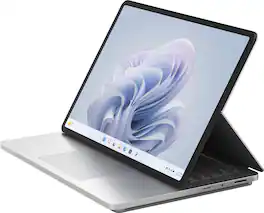
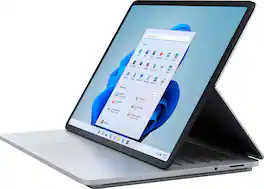
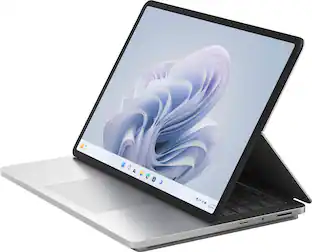
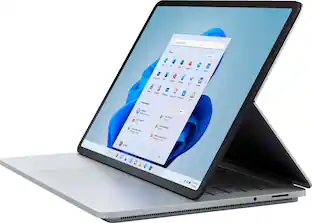
This laptop blew my mind! Some items I always wish I could find on a Windows laptop are battery life, amazing screens, processing power, and graphics, build quality, and amazing speakers. This laptop does it all! I want those features as I do not always enjoy sitting at a desktop to do my work while I type, do photography, or take notes, this laptop is a jack of all trades and master of many! Pros: -Stylish -Amazing screen -Amazing speakers -Wonderful keyboard -Accurate pen input -Multiple screen modes -Fast processor and good GPU -Sturdy build -Great battery life Cons: -Heavy -The screen underside can feel flimsy when folding -Very hard to upgrade the SSD -No pen included Setup: The unboxing experience is premium. The box is extremely sturdy, and everything is very neatly wrapped. It feels like Christmas unwrapping this device as so much thought is put into the packaging. Inside you will find the laptop, a 127W power brick (with an additional USB-A port on it), and documentation. The Slim Pen 2 is sold separately. First impressions: This device is heavy! That is a good and bad thing. Good since it feels sturdy and well-built, but it is not going to be used as a tablet even in canvas mode. The power adaptor attaches similarly to Mag-Safe via the Surface Connector and will attract into the slot from about an inch away. It is easy to pull out though in the event someone trips on it. There are two USB-C 4.0 / Thunderbolt4 connections on the left side and both support Power Delivery if you use a different adaptor. The USB-A port is 3.1 The right side has a Surface Connector, headphone jack, and a Micro SD slot. The lid is a bit tough to lift from the device and I do wish there was a bit more of an indentation to lift the screen with. I have found the best way to lift the screen is two-handed from the corners to avoid getting fingerprints on the camera. Wi-Fi 6E is included here as well as well as Bluetooth 5.3. The form factor is the most intriguing aspect of this device. The normal laptop mode is a bit bulky, but it is easily a high-quality laptop. When you extend the screen forward, you will set it to a media mode where the keyboard is covered but you can still access the mouse. This mode is ideal for presentations, controller gaming, and watching movies. The last mode is a canvas mode which is perfect for note taking. This mode does not put the screen perfectly flat but allows for easy handwriting and drawing with a slight angle. It is not ideal for use as a tablet due to its heft, but it works amazing on a table. Speakers: The audio is outstanding. I was a bit concerned initially since the speakers are under the keyboard with no speaker grill, but they perform well even when the screen is lowered to the media or canvas positions. There is a wide sound stage and playing games such as Diablo 4 projects the sound in a very fulfilling stereo space. I thoroughly enjoy listening to music on this device while working. Screen/touch: The screen is amazing at 2400x1600. The screen is essentially always at 120hz even in battery mode unless you turn it down in settings. The 3:2 aspect ratio is great for reading books and web pages. The screen is very much optimized for touch input and works very well whether you are using your fingers or a Slim Pen 2. I found handwriting to be extremely accurate with no jagged lines in OneNote and palm rejection was perfect in my use case. I would love to have had this laptop in college for notetaking. Creative types will love it for art. The screen does buckle a lot with palm pressure when in the collapsed canvas mode, but it did not cause any concern. There is a magnet at the bottom lip to hold a Slim Pen 2. The screen colors are accurate and great for photo editing. The Slim Pen 2 is a must-have with this laptop as it allows you to fully utilize the touch features, it is a shame it is not included. While playing with settings, I was surprised that HDR, when enabled, does not produce the usual dull colors for non-HDR content such as desktops and regular photos. Most PC’s only do well when HDR mode when viewing HDR content, this laptop allows you to leave the setting on all the time and get the best of both worlds, it is not enabled by default though. Ensure you use the HDR Calibration tool that Microsoft provides though as by default it is too bright of a profile in HDR content which I found strange. The hinge mechanism is interesting. When you flip it upside down, it is simply a layer of fabric with wires running underneath it. Any stability is due to magnets in the various positions. I am unsure how the underside will last with time, but it feels like an effective mechanism at first glance. Keyboard/mouse: The keyboard is my new favorite for typing. Keys have satisfying depth and a nice clicky sound. This results in very few errors. The touchpad is amazing. It is haptic similar to how Apple does on MacBook allowing you to click anywhere on the touchpad with accuracy. Great job on this Microsoft! Performance: Windows 11 runs smooth as butter on this device. With no bloatware installed the OS is extremely fast and stable. I had zero glitches when using it and only noticed a slowdown when I loaded 15 YouTube pages on my web browser as it filled up the RAM. There are nice tweaks on this device such as when you place the screen in a touch-friendly mode, the taskbar gets slightly larger for finger-friendly use. Some laptops I have used pen inputs with have a lag when you open a pen menu, I saw no such lag on this laptop. The hard drive I received is a 512GB model. Performance was about 3244 MB/s read and 2749 MB/s write. Upgrading the SSD is possible but is it not intended to be done by the user per the Microsoft website. There are tutorials on how to do it online. RAM is LPDDR5x which under default settings was able to read at 59,849 MB/s and write at 75,422 MB/s according to AIDA64 Extreme. The RAM is not upgradable. The fan is never loud in my opinion even when stressed. The processor is a beast with 14 cores pushing 20 threads. For everyday use and photo editing, this is a dream processor for me. It does a great job in games as well. I was able to keep up with my RAW editing workflow with ease. Geekbench: Single-core plugged in: 2123 Multi-core plugged in 10395 Single-core battery: 975 (default settings) Multi-core battery: 6097 (default settings) Monero mining: 4350 hs/s 15-minute average. There is also a NPU in this device which does not have many uses at the moment but accelerates camera features such as tracking and background blur. You can see the NPU idle most of the time in Task Manager until you activate those features when it comes to life pushing about 50-70% of its abilities. The Nvidia GeForce 4050 is great for games achieved the following scores: Wildlife Extreme: 14286 Solar Bay: 32572 Raytracing feature test: 20.5 FPS Overwatch 2 2400x1600: 90FPS max settings Diablo 4 2400x1600: 60FPS with DLAA, 100FPS with DLSS Quality mode Battery: The battery will easily last all day at work. I do recommend you disable 120hz if you are on the road a lot as it will greatly extend your battery on this bright screen. The device runs very cool on battery. The battery is only 58WH, but this device feels very optimized allowing for all-day use so long as you are not using the RTX 4050 when on battery. Camera/security: The camera is 1080p and provides great quality. When paired with the NPU, it adds some neat effects. I was surprised by how good the auto-tracking feature is. It can easily identify when there is a single person or two people in the frame and adjusts accordingly. The eye positioning feature was a little bit weird but subtle enough that it works well. The camera includes Windows Hello which works faster than other devices I have used in the past.
Posted by psyclopps
- Rated 4 out of 5 stars
Premium laptop with the ultimate flexibility
Pros Quiet fans even under load No intake vents to block on the bottom Focuses hot exhaust air to the sides Premium feel Good quality screen Screen bright for most uses 120Hz refresh rate Excellent trackpad Good keyboard Repairable with official parts Hard drive upgradable Can double as a gaming PC with external monitor Speakers are overall very good and adapt to form factor Good battery life for basic tasks Wi-Fi 6E capable Thunderbolt 4 support Doesn’t drain battery when asleep so far Includes micro-sd card slot Flexible form factor Cons Slow SSD for class Screen not as bright as most laptops in the class Screen backlight brightness and darkens in slow noticeable steps Webcam has lots of noise Speakers have no low end Weight reduces portability Keys not easily readable with backlight off Nvidia controls don’t always recognize when discrete graphics are needed Sharp drop in performance on battery Most professional cameras use full sized SD cards and not micro Pen should be included Screen is very reflective The Surface Laptop Studio 2 tries to have a feature set as long as its name. The largest changes you likely already know are beefed up internal specs, updated trackpad, and the addition of a USB-A port and Micro-SD slot. Out of the box it feels noticeably heavier than other laptops but not excessively so. Included is a beefed-up power brick that can now deliver 127 watts. A small issue on this unit was the right Shift key was slightly lower than the other keys on the keyboard and seemed like it might be a problem. After several hours of use the space bar was functioning normally and was at the same height as the others. Another issue was the USB-A was reluctant to release a mouse plugged into it. It almost feels like the metal around the port was a little tight. Thankfully the port has also begun to loosen up with continued use. Setup Setup is straightforward. Opening the lid can be done with one finger without the body tipping and even with the hinged screen design. The moment you open the lid the laptop turns on and starts the setup process. There are no other additional registration screens or software installers to mess with. However, Windows 11 does add more unwelcomed preinstalled apps. Thankfully those are easy to uninstall. Overall setup was quick with very little time waiting on screens where Windows works to get things up and running. Screen The first thing you notice is the screen. Text and images are sharp with good color. Black levels are surprisingly good for an IPS screen. They aren’t OLED good but still respectable. One thing that slightly takes away from the premium feel is changing screen brightness. In high end laptops screen brightness changes smoothly but on the Laptop Studio 2 there is a noticeable stepping of brightness. Of course, it is nitpicking but for a premium laptop that takes away from things slightly. The screen can get bright enough for almost any situation but isn’t class leading. The screen is rated at 120Hz which will feel butter smooth in most cases. Keyboard and Trackpad Typing on the keyboard is very nice with a good amount of travel and a distinct activation point. Key travel is consistent where even pressing on a corner of the space bar causes the entire space bar to travel down together. The trackpad is the real star of this show. Without even considering accessibility improvements, it is arguably the best trackpad on any laptop. Instead of the diving board mechanism, it has haptic feedback. With light pressure anywhere on the trackpad to click you get a soft but distinct tap feeling letting you know you clicked. No mushy click that varies depending on where you are on the trackpad. It also has excellent palm rejection and overall makes using a trackpad feel truly enjoyable. Speakers The speakers are good for the form factor but not great. Microsoft has done a nice job making speakers sound good and adapt depending on what mode you are using the laptop. Audio is good and voices are very clear. What is lacking is bass. Of course, laptops aren’t known for bass, but newer ones have at least some. The Laptop Studio 2 seems to have little if any bass. It works good in most situations but for extended movies, gameplay, or music enjoyment you will likely want headphones or separate speakers for some low end. SSD One area where it feels like the Laptop Studio 2 is lagging is SSD performance. The best speeds that could be achieved in performance mode plugged in was just short of 3,600 MB/s read and 2,790 MB/s write speeds. It appears versions of this laptop with a larger SSD might be hitting over 5,000 so this could be improved with an upgrade. Repairs and upgrades are a standout area for this laptop. Not only can the SSD be upgraded, but Microsoft offers official repair parts for sale. Of course, they recommend the services be done by authorized staff, but they do offer parts for sale if you have the skills and are willing to take on the task. While upgrading PC laptops isn’t unusual, official repair parts are rare and greatly appreciated. Battery Like any Windows laptop, battery life varies wildly. Under light loads with all the battery saving tips recommended by Windows applied you should easily get a full day assuming you don’t have some application running in the background constantly. Temps stay cool and the fans either don’t turn on or are inaudible. Older Windows laptops often would wake from sleep when you closed the lid. This could mean you would slip your laptop into a bag only to take it out hot and with a dead battery. So far, the Laptop Studio 2 seems to be doing good at preserving battery when the lid is closed. The moment you open it up it wakes up. While not instant, it is reasonably quick and without battery drain. Performance With the processor and GPU upgrade the big question is how fast is the Laptop Studio 2. The included RTX 4050 maxes out at 80 watts putting it in the middle of the pack with the 4050 series mobile maxing out at 115 watts. To get maximum performance you must choose performance mode and put the laptop in tent mode. Microsoft purposely limits laptop mode in case you are resting your hands on the deck, or it is sitting in your lap. In tent mode with performance mode activated it can ramp the fans to full speed and fully utilize the processor and graphics. The fans push a surprising amount of air out of the sides at full tilt. Thankfully the only sound you hear is air rushing. No bearing whine or other sounds. And that air sends the heat out in jets to the left and right of the laptop. In performance tests the Laptop Studio 2 returned a Cinebench Single Core score of 1840 and a Multi Core score of 13392. Not the fastest performer but respectable. Trying out Forza Motorsports returned 60FPS with settings on medium and ray tracing on at full resolution of the screen. Of course, the RTX 4050 isn’t going to push the full resolution of the screen with Ultra settings but still the Surface Laptop Studio 2 has the horsepower for gaming. The one catch is that since the drivers are supplied through Microsoft instead of Nvidia games sometimes complain about out-of-date drivers. Of course, you could install the driver direct from Nvidia but you may not get the optimizations Microsoft has done for the laptop. One thing was observed was during faster paced gaming something looked slightly off. It was like things didn’t seem as sharp as they should. After checking it seems like the screen might be 120Hz but it seems to be a slower refresh rate from some early reports. Thankfully it mainly was visible in FPS games. If this is an issue for you and you like the flexibility of the laptop an easy workaround would be to use an external gaming monitor. Overall, performance was very good but not class leading. Final Thoughts Microsoft is trying to make the Surface Laptop Studio 2 a jack of all trades and for the most part they have done a good job. For most use cases it does very well even if not the standout. For a niche of users this can be the perfect all in one system. Every system has compromises in some way, and it seems like Microsoft has done a respectable job of balancing the compromises of the Laptop Studio 2. It would still be nice if next time they can improve screen response times and put a full-sized SD-card slot. Otherwise, the Surface Laptop Studio 2 is a great laptop for a niche of content creators that want the ultimate flexibility in a laptop.
Posted by CraigB
- Rated 5 out of 5 stars
Premium Grade Design - Versatile Form Factor
This is the second generation of the Surface Studio Laptop, which follows similar design characteristics to the first gen. The aesthetics and convertible hinge are carried through to this generation to deliver a well refined and professional looking device. I used the original surface many years ago along with my Zune and Windows Phone, so I have a soft spot for Microsoft’s in-house designs. With that being said, I would be hard pressed to find someone that would see this as anything less than a premium tier laptop. Specs on the Surface Studio 2 are pretty solid, but not ground breaking for the price. The GPU is an NVIDIA 4050, which is a good entry level GPU but nothing crazy as far as gaming or rendering performance. The CPU is an i7-13700H which is a 14 core-20 thread CPU with a 2.4 GHz stock frequency (boosts to 5 GHz). This is a solid CPU with plenty of performance to spare – I have the desktop version of this processor (i7-13700KF) and it has terrific performance. It comes with 16GB of LPDDR 5200 RAM that is soldered to the mainboard. With this setup the RAM is not upgradeable, but at least it runs in dual channel and the 5200 speed is decent. The screen is a 14.4” 2400x1600 (2K) 120Hz display with 10-point multitouch input, full sRGB, and Display HDR400 support. The internal storage of this model is only 512GB, which isn’t a lot. You may look to upgrade the SSD (PCIe Gen4 2280) at some point if you are finding that lacking. The way the specs are bundled with RAM, SSD size, and GPU I can see someone being good with the 4050 and 16GB, but needing 1TB+ of storage, which isn’t a configuration that is offered. All of these items together make for a well spec’d laptop, but its something that could be outmatched by a gaming laptop with a much lower price point. This laptop is aimed at creators and is designed with the aesthetics of a premium device being the main driver for adoption. This is not a laptop for casual users, but for power users in the creator space. Design of the Studio 2 looks fairly similar to the first gen based on side-by-side comparisons I have seen. Teardown videos mention some internal changes that help with repairability – reduction of screw counts, more user accessible. I have not taken the back cover off like I do for most laptops to check out their internals (too afraid to damage it). However, the body is very sturdy feeling and the material of choice is aluminum with a brushed silver finish (called Platinum by MS). The stout construction leads to a dense feeling laptop weighing in at 4.37lbs. This is the second heaviest laptop in my possession with only a 17” gaming laptop being 2 pounds heavier. The Studio 2 doesn’t come with a ton of ports but it does have 2 USB4/Thunderbolt 4 Type-C ports (DisplayPort and Power Delivery), a single USB 3.1 Type-A port, 3.5mm headset port, and a MicroSD reader. The charging brick also has a USB port to charge any auxiliary items. Connectivity wise the Studio 2 supports WiFi 6E and Bluetooth 5.3. I have a 6E router, which really gives a nice boost to the devices that sit on the 6 GHz band because it is much less crowded by other device traffic. The stepped design of the base allows for better airflow to the internal components, and it recesses the vent outlets inboard. While sitting on your lap the bottom of the Studio warms up a bit, but nothing major. The Studio seems to handle the thermal load well – the aluminum chassis likely helps to spread the heat around instead of making a hotspot. The top of the chassis (keyboard/touchpad) doesn’t appear to feel any warmer while using the machine. The features that can make or break a laptop like this – keyboard, touchpad, and webcam are excellent across the board. The keyboard feels great to the touch and was better than most laptops I have used. The keys are slim – a little over a 1 mm tall, and the key actuation depth was around 0.8mm of travel. There is a slight detent that the key rides over and the keystroke is registered just below that depth. Actuation force is also low, but the detent keeps away any errant presses. The touchpad is great in this iteration of the Studio. From what I can tell it is an all new design that improves upon the last gen. The touchpad provides accurate registration of finger gestures no matter what I was attempting. Left click and right click are easily interpreted, which is usually my biggest frustration with touchpads. The haptic feedback is a welcome feature, and its amazing how that little bit of tactic feedback changes the experience. I am not usually a fan of touchpads as I like the ergonomics of mice more, but I can certainly tolerate using it here. The webcam is a 1080p wide view lens setup. The hardware and software work well together. Microsoft touts the features like automatic framing and Eye Contact, which worked just fine on the few video calls I made. The camera handles face-to-face convos just fine and it worked well in a “presenting” where I could stand back. Audio captured by the built in mics was decent, and it filtered background noise about as well as could be expected. I have had some fun messing around with the surface in its different modes, which was my favorite feature in the original Surface that I had used years ago. The trick hinge that Microsoft uses to switch from laptop to tablet works wonderfully, but it takes some getting used to. The display angles to roughly 135° while acting as a normal hinge. You have to have the screen open close to 90° before you can split the back cover hinge and bring the display forward. The screen stops about ¼” above the track pad and sticks in place to a magnet spot on the chassis. You can continue to pull it forward while hinging it back to bring it fully into a tablet mode. All of this can be done with 1 hand, but I felt more in control using 2 hands. The dual hinge feels robust and the screen chassis doesn’t flex much if you try to open/close/etc. with one hand. Upon getting the Studio 2 I knew I wanted to pick up a pen for it. The Studio 2 works with any of the surface pens but it was made to be more compatible with the Slim Pen 2. My local Best Buy had a few in stock so I snagged it. The Slim Pen 2 has a nifty little docking point just under the front lip of the laptop that also acts as a wireless charger. The body of the Studio 2 has a couple of points where the pen will stick to besides its dock, so you have options for where you place it while actively working. Windows 11 brings in some more functionality for the pen (my last experience was Windows 7, I think). Journal and Whiteboard are new to me, but I had used a Surface pen for previously on OneNote and Paint. Using the pen for writing Math Equations is honestly something I wish I had back in college for all of those lab reports I wrote. I occasionally write guides/papers now for work that require inserting math equations, and this would make life so much easier. The inking to text works fantastic, and I have terrible handwriting. Whiteboard doesn’t have ink to text but rather lets me jot things down in a flow-of-conscience sort of way. This all works pretty well and the delay between writing and it showing up on screen is imperceptible. I have some experience with using pens on my Wacom tablet and my Samsung Galaxy Tab S8 Ultra, and I would put this just above in terms of writing quality and convenience. I wish I could comment on using this for artistic work, but I have not a shred of artistic ability. I did mess around with it in paint and made some goofy drawings to show my kids. I have plans to get my Photoshop Elements license ported over to the Studio so I can see what I am able to work on in it. For professional work I have used it to mark up some PDF’s and review some Solidworks Models in the e-Drawings viewer. Using the pen was great for marking up PDF’s and made it super simple to add signoffs with my own signature. It eliminates the need to print a document, sign it, scan it, and send it back. With the e-Drawings the multipoint touchscreen was really the best way forward outside of a mouse or 3D mouse. So if I was out and about or traveling I would be capable of doing my work without needing to bust out the peripherals. As far as entertainment goes I really liked kicking the screen into the angled stand mode. Watching movies or episodes of a show is really nice – I have no better way of describing it than that. Its better than watching on a tablet with a kickstand or on a regular laptop screen. The angled screen position brings the image closer, and the laptop body gives it the stability to rest nicely on my lap. The screen clarity was excellent, and the HDR content looked pretty good. I plopped down on my couch and watched the final Attack on Titan episode when it came out. The experience was great. The sound from the speakers was clear enough and the little bit of subwoofer the Studio has makes a nice little bump. The speakers don’t sound tinny/thin and had a nice sound to them. I had the speakers set to use Dolby Atmos for built-in speakers (default sound profile) for 3D spatial audio. This is great for TV and movies, but I tend to turn it off for strictly music because it muddies things a bit. As far as my impressions go this is a well-crafted premium grade device. The Studio 2 looks every bit the part of a professional device. The pen, while not needed (or included), really makes the Studio 2 shine. I can see this being a great laptop for creators, professionals that need to look the part, and students heading off to college. I wish I would have had a device like this when I did my undergrad. The only thing to keep in mind is to pick the device configuration you will require since there is effectively no upgradeability outside of putting in a larger SSD. I think this version hits a pretty good sweet spot for all the features when compared to the cost – the higher spec’d models go up in price quick.
Posted by DaveW