Rating 4.2 out of 5 stars with 44 reviews
4.2- Camera Quality (22)
- Ease of use (19)
- Battery Life (14)
- Size (5)
- Weight (4)
- Flight Stability (8)
- Wind Resistance (8)
- Control (3)
Customer Images
The vast majority of our reviews come from verified purchases. Reviews from customers may include My Best Buy members, employees, and Tech Insider Network members (as tagged). Select reviewers may receive discounted products, promotional considerations or entries into drawings for honest, helpful reviews.
- Rated 3 out of 5 stars
Good for beginners
Excellent for beginners. Could get a little messy when it’s windy.
Posted by JoseN
- Rated 5 out of 5 stars
Easy to fly
I like the done it's liteweight movement's are really nice the zoom on the camera is great for viewing in distance and the circle mode is a cool feature to. Over all i love the done
Posted by Leftysadventures
- Rated 5 out of 5 stars
Super Light, Limited Distance, Long Battery
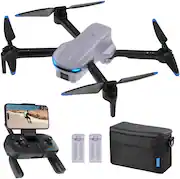
I have always wanted to try out a drone however wanted something entry level as I was worried of crashing it. I came across this drone with a good price point so decided to try it out. I am so glad that I did as it was very easy to setup, get started and comes with easy to use software. Out of the box it was very easy to setup by expanding the wings and the antennas. There is an area to place your phone as you will be using it as your main viewer when it comes to the camera. The wings felt well made and snaps into place without much force. As for the controller, all the buttons are simple pressed, there are 2 wheels at the top that are snug so feel like they will last. The joysticks on the controller have short range of motion without much resistance. There is a battery charge indicator on the controller which is nice to know where its at. Speaking of the battery , both the battery for the drone and the battery for the controller seems to have lasted for quite some time. I was very impressed of how many hours I was able to run it. My guess was due to how light the device is, it does not take much energy to fly. Another huge plus is that this drone comes with an extra battery pack which helps you remain outside flying for longer. The video and picture quality was good, not extremely impressive however I under this is an entry level unit so didn't expect extreme quality. Depending if you have an SD card , it can go up to 1080p picture / recordings. If you do not have an SD card inserted it scales down to 720p. The pictures save within the application and is easy to access if you are not using an SD card. Speaking of the application, it was very easy to use and provided a lot of onscreen features. My favorite is the voice commands, that was fun to use. The drone comes with some pre-set fly patterns which was very cool to watch with an easy click of a button. Overall this is a great drone for those who wish to try drones out. A huge plus was including an extra battery and spare propellers. I definitely recommend this product!
Posted by TechTux
- Rated 3 out of 5 stars
Entry Level Drone
--- SETUP --- The Snaptain E10 1080p Drone is easy to set up. It comes assembled and in a storage pouch. Charge one of the two included batteries and the remote with a USB-C cable, plug the battery, and you’re ready to start your flight! --- FEATURES --- 18 minute flight time, Full 1080p HD video recordings, remote control operated via a phone app, 0.9 mile distance limit, auto-landing, low battery landing, circle recording, and hover. --- EXPECTATIONS and PERFORMANCE --- This drone is very light. It also comes in a perfectly sized pouch where you can fit the drone, the bulky remote, the two included batteries, and the protective casings for the blades. The pouch conveniently fits everything you need in such a small space, that you can put that pouch inside most average sized purses or small backpacks with ease. With its lightness comes a few drawbacks. The plastic drone feels cheap and fragile to the touch. It is recommended that you don’t use this drone against strong winds, and this was true in my experience. I took out the drone during the snowy winter we had in TN. Though it was snowy, it didn’t feel too windy. Once I flew the drone above the apartments, it struggled to hover in place of where I wanted to. Controlling it wasn’t easy at high altitudes and it did feel like I could eventually lose it if I left it in the air for too long. The controls themselves feel a bit off too. If you have ever played a game like GTA where you control a helicopter, that feels natural for a drone. Other drones I own control like a video game helicopter. This one controls like tank controllers. What this means is that you use the same joystick to move forward and to turn. For example, if I want to go straight and turn right, I have to move the joystick forward, then price right on the same joystick, causing the drone to pause while it turns. This feels unnatural in a drone. It would be preferable if I could go straight with one joystick while I turn right with the other joystick. This way, the motion is fluid and not choppy. Other buttons on the controller do feel good and are responsive. There are two dials that allow you to control the camera to look up or down at angles. There’s a button for hover mode, auto-landing, and circle around an object. The circling around was a hit or miss. The first time I tried it, the circle was way too wide and it would only have been helpful in a big open area space. I wanted to try recording while in a dance studio that is big in size, but it got too close to walls and it wouldn’t have worked out. The second time I tried it, I was outside. It wouldn’t recognize what I wanted for it to circle, and it never did. The app is used for you to see what the camera sees. When the drone is hovering, the image is ok and looks steady. While in flight, there is a clear delay from what the drone sees to what you’re seeing in the app. On frequent occasions, the app has trouble keeping up with what the drone sees. This causes missed or blurry frames that get recorded that way. The app does have a tutorial on how to use the drone, and it is a bit confusing to navigate. Once you figure it out, you have to keep choosing your specific drone to get the app to function properly, it doesn’t automatically recognize the drone you have. --- APPROVAL --- This drone might be good if you want to learn how to fly a drone and what it might feel like for you or a young teen. It is most definitely an entry-level drone, but I don’t think I’d recommend this drone to anyone unless you see it as a toy or novelty.
Posted by Trobadour
- Rated 5 out of 5 stars
Nice starter drone...only crashed 3 times on Day 1
The Snaptain E10 Drone is my first drone and I have waited for this moment for a long time. I received the drone and promptly started to charge up the batteries and the controller to make sure everything is fully charged. I then started reading the instructions, downloaded the app, and watched tutorial video for the drone. The next day after work, I was ready for my first drone flight. It was a little windy outside and the instructions stated not to fly in windy conditions, so I decided not to fly it too high. I went to the backyard and mostly stayed within the backyard and more than likely no higher than 10 feet off the ground. One of the best features of the drone is a one button take-off and landing. When you press this button, it hovers at around 5 feet. Some slight movement while hovering but nothing major in my opinion. I moved the drone around the backyard and turned the drone left and right with no issues. Next, I decided to take the drone higher to maybe 20-25 feet. Unfortunately, even though the wind was light, it was enough to push the drone further away than I wanted it to go. I had to counter the wind and bring it back inside the backyard. Of course, I overcorrected several times and I did have a few crashes. Fortunately, there was no damage to the drone that required repairs. There have only been windy and rainy days since, so I haven't flown the drone anymore since my initial flight. Recording video and taking pictures with the drone is very easy with a one-touch button. You can view the pictures and video on the app or on your phone. The pictures and video are in 1080P. Not as clear as 4K, but it's still a clear picture and video based on the price. Another feature Snaptain provided with the drone is an overlay for the remote to help with the controls until you feel more comfortable with them. Considering this is my first drone, I have rate this drone with 5 stars. It is the perfect stater drone to learn and get comfortable. I would recommend it and I looking forward to the clear weather that is coming this week so I can fly it more.
Posted by JStory17