Holiday deals. Holideals?Either way, start saving.Shop now

Skip to contentGo to Product Search
Main Content

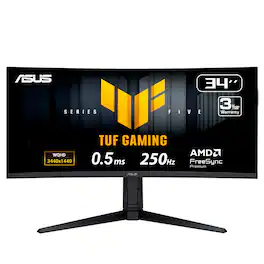
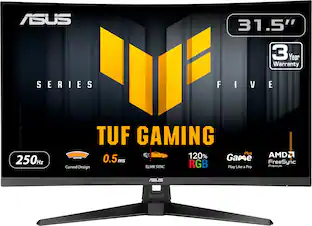
ASUS - TUF Gaming 34" 2K VA 250Hz 1ms Curved Ultrawide Gaming Monitor with FreeSync Premium and HDR (DisplayPort, HDMI) - Black

Model: VG34WQML5A
SKU: 6685334
Sold byBest Buy

About this product

TUF Gaming VG34WQML5A is a 34-inch Ultra Wide QHD (3440 x 1440) 1500R curved gaming monitor that delivers five advanced upgrades for top-tier gaming. It features a lightning-fast 250 Hz refresh rate (OC) and 0.5-millisecond response time (OC). It also features AMD FreeSync Premium for ultrasmooth imagery, enhanced color performance, smart TUF Gaming AI optimization, and effortless control via DisplayWidget Center—keeping you ahead of the competition.
Highlights

Features

  • Immersive 34" Curved Ultrawide Monitor

    34-inch WQHD (3440 × 1440) 1500R curved gaming monitor with up to 250Hz overclocked refresh rate, designed for professional gamers and immersive gameplay

  • Ultra-Responsive Gameplay

    0.5ms (min.) response time helps reduce ghosting for smoother, more fluid gaming experiences

  • Tear-Free Adaptive Sync

    FreeSync Premium delivers seamless, tear-free gameplay with variable refresh rate (VRR) enabled by default

  • ELMB SYNC Motion Clarity

    ASUS Extreme Low Motion Blur Sync (ELMB SYNC) technology combines motion blur reduction with VRR for sharper visuals and smoother gameplay

  • HDR 400 Visual Enhancement

    DisplayHDR 400-certified HDR support enhances contrast and detail in both bright and dark scenes

  • Intuitive Display Controls

    DisplayWidget Center provides easy access to monitor settings and OSD controls using a mouse

  • AI-Powered Gaming Enhancements

    TUF Gaming AI technology intelligently optimizes gaming with AI-powered features designed to enhance the overall experience

  • What's in the Box

    Includes DisplayPort cable, HDMI cable, USB Type-B to Type-A cable, power cord, quick start guide, and warranty card

  • 3-Year Rapid Replacement Warranty

    ASUS Rapid Replacement (ARR) warranty includes three years of coverage with cross-shipping service for added peace of mind

Specifications

  • Refresh Rate
    250Hz
    Maximum Resolution
    3440 x 1440
    Response Time
    1 milliseconds
    Panel Type
    VA
    Synchronization Technology
    FreeSync Premium (AMD Adaptive Sync), G-SYNC Compatible (NVIDIA Adaptive Sync)
Sponsored

Reviews

Rating 4.9 out of 5 stars with 26 reviews

5 star rating. 23 reviews4 star rating. 3 reviews
100% would recommend to a friend

Top Mentions

  • Display Quality (10)
  • Ease of Setup (6)
  • Ergonomics (6)
  • Connectivity (3)
  • Motion Clarity (3)

Customer Images

The vast majority of our reviews come from verified purchases. Reviews from customers may include My Best Buy members, employees, and Tech Insider Network members (as tagged). Select reviewers may receive discounted products, promotional considerations or entries into drawings for honest, helpful reviews.

  • Rated 5 out of 5 stars

    Excellent monitor in all respects

    This is a very nice monitor, but it takes a little getting used to (but just a little). After working with it for about a week, I have grown to love it. It is a curved monitor, and I’ve read that some people don’t like curved monitors. But I do. I have two of them on my desk---this one and one that has a more conventional aspect ratio. I used them both for everything while this new Asus monitor is for gaming. What took a little getting used to is this monitor’s a very lopsided aspect ratio, measuring 31 inches wide by 13 inches high for a diagonal measure of 34 inches. This gives it an aspect ratio of about 2.4 to 1, which, in whole numbers, is about 12 to 5. More conventional monitors are more square, often having an aspect ratio of 1.75 to 1, more typically expressed as 16 to 9. So, yes, it is a very wide monitor. As far as for everyday use, this monitor is just fine. Documents can fill the entire width of the screen, as can other types of programs, or they just take up as much screen space as they need. There is downloadable software for this monitor called DisplayCenter Widget, and it is a must have. It downloads and installs quickly, and it provides an enormous degree of customization. There’s too much to describe here, so I’ve included a couple of screenshots showing the top-level menu screen and then an example of one of the submenus. Once could spend half a lifetime experimenting with all of the possible settings. In the week I’ve had the monitor, I’ve barely scratched the surface. Suffice it to say that, as a gaming monitor, this can’t be beat. Images are crisp and bright, and movement is always sharp. Out of the box, setup was simple. The base connects to the post with a couple of thumbscrews, and the post attaches to the back of the monitor with four provided Phillips screws. A small, fairly useless L-shaped Phillips screwdriver is provided in case you find yourself trying to set up this monitor on a desert island and you’ve forgotten your toolbox, but I found it much easier to get a regular Phillips screwdriver to tighten the screws. Also, and I would say unnecessarily, four plastic caps are provided to snap over the screw heads once tightened to give the back of the monitor a cleaner look. But who looks at the back of a monitor, ever? But I installed them. A cleaner back-of-monitor I’ve never seen! Included in the box along with the monitor and power cable are one HDMI cable, one DisplayPort cable, and a USB-3 extension cable, the last of which, if connected to a USB-3 port on your computer (the rectangular port with the blue tab inside) and to the provided port on the back of the monitor, provides two USB-3 ports on the back of the monitor. They’re not the easiest to get at, so I likely won’t use them when I need to quickly attach a flash drive or something like that, but they’re there if needed. They'd be a great place, for example, to connect a mouse, keyboard, or USB speakers. Total connectivity on the back of the monitor includes the two USB-3 ports (assuming you connect the provided cable), two HDMI ports, two DisplayPort ports, and a headphone jack. Most monitors I’ve purchased have come with a single video cable, usually HDMI, no matter how many different kinds of video ports are provided. It’s kind of nice that cables for both possible types of video connection are provided here. Gamer or not, you won’t go wrong with this monitor, and you’ll have endless fun with it. At least, I have been!

  • Rated 5 out of 5 stars

    Best 34" monitor you will love!

    ASUS - TUF Gaming 34" 2K VA 250Hz 1ms Curved Ultrawide Gaming Monitor with FreeSync Premium and HDR (DisplayPort, HDMI) - Black Number one....... look no further! WOW what a monitor... The Asus 34" curved monitor has 2 HDMI ports and 2 Display ports AND a USB built in Hub! Very easy to assemble, and comes with a philipp metal screwdriver, one HDMI cable, one Display port cable, and one USB cable. You download the Asus Display widget center to adjust all kinds of adjustments, even an AI auto mode that adjusts to what you are watching or doing. Color, RGB, anything you can think of just about is their. Picture quality is stunning ! No motion blur, no ghosting, no clouding, just a perfect picture.... Picture is perfect from everything.....web surfing, watching movies, playing games, everything is just stunning. COD is butter smooth gaming with no lag what so ever... up to 250htz is stunning butter smooth. This monitor is great, huge and contours to you due to the curve. The monitor on the stand goes up and down to adjust to your height. Very very nice monitor with nothing bad about it.

    Posted by Dontech

  • Rated 5 out of 5 stars

    Feature-packed ultrawide monitor

    Asus’s 34” TUF Gaming ultra-wide WQHD monitor is a fantastic display. I’ve steadily come to love the ultra-wide format, and the 3440x1440 resolution is ideal for balancing image sharpness while allowing the panel’s high refresh rate to be usable. Out of the box, the monitor was (relatively) easy to set up–at least for the base. I found the attachment of the monitor stand to the rear of the monitor to be surprisingly difficult, with very stiff screws. It took a lot of effort–the included screwdriver wasn’t much use, either–to get it attached. I’ve definitely had easier times with the physical setup. I was very pleased with the generous allotment of included cabling–HDMI, DisplayPort, and a USB A to B cable for the USB hub on the back (itself another thoughtful inclusion). Connectivity on the back is really quite generous, with two HDMI 2.1 ports, two DisplayPort 1.4 ports, a headphone jack, and the aforementioned USB hub. The 34” display uses a VA panel, which is my usual preference for TVs but I’ve also come to like quite a bit in monitors. VA panels have the advantage of excellent contrast, though usually at the expense of viewing angles. But I didn’t notice any problematic degradation. The brightness is relatively modest at 400 nits, but the high contrast still helps provide a solid HDR experience. The panel supports FreeSync Premium variable refresh rate, but I found VRR worked just fine with an Nvidia card. Crucially, Windows defaulted to just a 60Hz refresh rate–a common occurrence for users of high refresh rate monitors. People will buy them, never check the refresh rate settings, and just assume that high refresh rates are meaningless because they don’t see a difference. So make sure to adjust this immediately. Windows detected VRR automatically (range 49-250Hz), but I had to manually enable the maximum, 250Hz refresh rate. Make sure to enjoy the features you’re paying for! Asus touts the use of their display widget, a Windows app that allows you an enormous amount of customization and options settings. You can access it via the settings toggle underneath the bottom bezel, but it’s a daunting task to navigate it that way. I’ve rarely seen an OSD with so many options, so the Windows app is certainly very convenient as it’s much easier to interact with. As I said before, curved monitors were something I didn’t think I’d like but have come to love. They’re also great for productivity as well–sometimes, moving back to a 16:9 display can feel confining. But the heart of a widescreen like this lies in immersion for FPS games and for huge views in strategy games. Racing games, too, really benefit from this form factor. Really, once you get used to it, you may find it hard to use anything else. Overall, this is a great monitor. Quirks of installation aside–dump the included screwdriver for sure–once you use it, it’s wonderful. I like the high contrast display, the stand feels sturdy and well-built, and the high refresh rate is a great feature. I like it that Asus didn’t skimp on connectivity, and that they in turn included both DP and HDMI cables--it's a little thing, but thoughtful. Highly recommended.

    Posted by DFN80

  • Rated 5 out of 5 stars

    Smooth 250Hz Gaming on a Big, Sharp Ultrawide

    I needed a large monitor for gaming and content creation with a fast refresh rate and accurate colors. I also do a fair amount of remote work from home. The ASUS TUF Gaming monitor is a 34" VA 250Hz curved monitor with a 0.5ms response time (great for FPS games). It has an ultrawide 3440 x 1440 screen. It runs at 240Hz out of the box with an overclock option that boosts it to 250Hz. There are impressive specs here. Let's see what it is, how it looks, and how it performs. - Design, Build, Unboxing - In the box is the 34" VA widescreen monitor. There's a DisplayPort cable, High Speed HDMI cable, power cord, USB Type-B to A cable for the USB hub and updates. , quick start guide, and the warranty information. Packing is good but not too eco-friendly (some of this is necessary to protect the screen I believe). The stand uses V-shaped legs that are skinny but long. They measure 23 7/8" corner to corner. They have a wide base but you can still use the space around the legs for a few items. The curve is 1500R which is enough to wrap the edges toward you. With the bezel, the monitor measures 31 7/8" wide 14.5 inches tall, and 34 7/8" diagonally including the bezel. The stand also has a good range of height adjustment. At its lowest point the bottom of the screen sits about 2 inches off my desk, and at its highest it's about 7.25 inches. That's a little over 5 inches of vertical travel. Tilt goes forward and back without any trouble. Swivel works but the range is small, about 10 degrees each way. If you want to turn it any more you will end up moving the whole stand. There's an ASUS logo on the bottom bezel with a small power light under it, and the menus are controlled with a joystick. It also has a VESA 100 x 100 mount if you would rather put it on an arm. The overall design looks good, it has a nice curve, tilt and swivel. and the legs don't take up too much space. I would like to see a little bit more swivel. There's also an area for cable control in the stand. - Specs & Features - On paper, this is an impressive monitor. It's a 34" Fast VA panel at 3440 x 1440 QHD, with a 21:9 aspect ration and a 1500R curve. It runs 250Hz overclocked. It's 400 nits (plenty bright), 4000:1 contrast, 10-bit color, and 130% sRGB coverage. It's DisplayHDR 400 certified with HDR10support. To keep gameplay smooth it supports AMD FreeSync Premium and Adaptive-Sync, plus ASUS ELMB sync motion blur reduction. The screen has an anti-glare coating and it's TUV certified for flicker-free and low blue light (which helps with long gaming sessions). For the connections you get two DisplayPort 1.4 inputs and two HDMI 2.1 inputs. It's nice to have four inputs so you don't have to constantly swap cables. For Example, I can plug into my desktop PC, but also have a plug-in for my work laptop available when I want to work from home and use the monitor. There's a 3 port USB hub and two 2-watt speakers. There's a VESA 100 x 100 mount, a 1/4 inch tripod socket and a Kensington lock slot. There's a 3 year warranty as well. - UI/Software - The menu has a lot of options and it's laid out for easy navigation. At the top of every page is a status bar showing your resolution, refresh rate, picture mode, input, and whether HDR is on. The gaming tab is where the action is: -250Hz overclock toggle -Variable overdrive with five levels & off (I used 3) -ELMB and ELMB Sync with clarity level and position settings (ELMB stands for Extreme Low Motion Blur and it reduces eye tracking motion blur in fast moving scenes. It basically turns of the backlight at intervals and syncs with the refresh rate which makes movement appear sharper. ELMB works at fixed refresh rates but ELMB sync works with Adaptive/Free/G-Sync. I keep it on while gaming to help keep the game as sharp as possible.) -GamePlus which has an FPS counter, crosshair, sniper zoom, timer, stopwatch, and a display alignment grid -GameVisual picture modes, including Scenery, Racing, Cinema, RTS/RPG, FPS, sRGB, MOBA, and Night Vision -Image and Color tabs have brightness, contrast, ASCR dynamic contrast, aspect ratio (16:9, square, or 21:9 takes advantage of the entire screen. There's a four level blue light filter and VividPixel sharpening. You can choose a color space (sRGB, DCI-P3, or Wide Gamut, there are four color temperatures, and you can adjust saturation. HDR settings are grayed out until you turn HDR on in your Windows settings. -The MyFavorite tab lets you assign shortcuts to the joystick directions and save 2 custom setting profiles. It's great if you want to have a gaming setting and a content creator setting or work/productivity setting. - Performance - I started with the UFO tests. With overclock on, the refresh rate test measured 250.013 Hz so it's definitely hitting the mark. I also ran the frame skipping test and took 3 photos of it, and all three showed a clean run with no skipped frames. The scaling test confirmed it was running at native 3440 x 1440 at 100%. On the main UFO motion test, all five overdrive levels looked good to me. I didn't see a big difference between them so the Level 3 default is where I left it. The UFO test does show how much smoother high frame rates look compared to the slower rows and my takeaway is to push your frame rate as high as your PC can handle at this resolution. For gaming performance I played Hades II, and it looked great. The frame filled the whole 3440 x 1440 screen with no black bars on the sides. Running at 250 fps looked exceptional, with no blur or ghosting that I noticed. Colors were vivid and the detail at this resolution is sharp. I also tried HDR. It's DisplayHDR 400 certified, but personally SDR looked better to me so it depends on what you're looking for and what you are actually doing with this monitor, whether it be Gaming, Content creation, photo editing, etc. The sound is a great feature. I typically used headphones when I'm on the computer but there are times I'm simply browsing the web and just need sound. There's no definitive bass, but the speakers do the job and I appreciate not having to pull out the headphones every time I want to hear sound. One more tip, if you want it at the brightest most vibrant pre-setting, turn on scenery or cinema mode. - Pros/Cons - * Clean motion with no blur or ghosting * Sharp 3440 x 1440 resolution, and it uses the full ultrawide screen * Deep Menu with useful gaming tools and 2 custom profile slots * Height adjustment and swivel * Four video inputs, headphone jack, and a USB hub * Built-in speakers are great for basic use - Suggestions/Needs Improvement - * I'd like swivel range and tilt to be a little larger * Speakers could use a little more bass The ASUS TUF Gaming 34" Monitor does what a gaming Ultrawide should do. The 250Hz is accurate and clean, motion looks smooth with no ghosting in my testing. The 3440 x 1440 resolution is sharp and immersive in games that support 21:9. There's swivel, tilt, height adjustment and sound which are all appreciated. The menu gives you a lot of control and in my case I was able to make a few adjustments to get the monitor looking exactly how I wanted. If you want a fast, curved, affordable ultrawide with plenty of options for tuning, this is the one. I recommend it.

    Posted by NanoEthan

  • Rated 5 out of 5 stars

    The VG34WQLM5A with ELMB Sync is a winner

    Asus’s VG34WQLM5A is a 34” curved ultrawide monitor that’s a value focused gaming monitor. What it offers a 400 nit HDR capable VA panel that can overclock to a 250hz refresh rate. It does this while also supporting VRR/GSync, app control and a technology called ELMB Sync. That last point is the real special sauce, and might just be worth the compromises this monitor has - especially at this price point. So before we get into the special sauce, let’s cover the basics. Asus has produced a pretty standard sized 34” panel. If you’ve ever used a 34” ultrawide, this will feel familiar. The curve of the panel itself is a gentle 1500R, so this feel quite tame compared to more aggressive curves. One big highlight of the packaging is the monitor stand. It offers tilt, swivel and height adjustments with 5-20 degrees, 10 degrees, and ~5” respectively. Not only that, but the stand rotates (although you can’t rotate without the display hitting the desk, it does help with finding inputs) , which is a wonderful feature set for any monitor. While the stand itself is made of plastic, it doesn’t look cheap. This is a great feature set for a stand for a budget monitor. Another feature I’d like to call out before talking about the display itself: speakers. Yes this monitor has teeny tiny speakers that barely make noise. Why do I like calling this out? Well, if I’m diagnosing a computer, or just want basic PC noises/indicators this is a great feature. I don’t need amazing speakers - just having some output without having to hook anything else up is a great utility. Like a built-in iGPU on a CPU, it’s nice when you need it. Digging in a bit to the panel; this is a Fast VA, offering a clear RGB subpixel arrangement. Text is crisp, and visual quality with the 3440x1440 resolution is quite nice. I can run 100% DPI and use it quite comfortably in Windows. The default refresh rate is 120Hz, but if you enable the overclock setting (first setting in the OSD), this sucker can legitimately do 250Hz (verified using test UFO frame skip test). The panel has inputs for DisplayPort, and 2xHDMI 2.1 ports. The monitor also boasts 3 port USB Hub, which is a nice touch. Unfortunately it doesn't have multiple outputs to chain to each input, but a KVM at this price point isn’t something I’d expect. Hooking this monitor up, the first thing I’d suggest is downloading the Asus Display Widget Center. This software lets you configure practically any setting of your monitor right from a nice app in windows. You can quickly select different settings, enable/disable VRR, just like from the OSD. This is a helpful tool, and I love to see the tightly integrated software offering. Seems like this should have been something standard years ago, but still is a rarity in the monitor world. Now let’s discuss the simply magical feature ELMB Sync. This technology is absolute magic. If you’ve been in the monitor scene, ULMB or Ultra Low Motion Blur, technology is nothing new. What this is, is basically a backlight strobing technique that creates a more pronounced transition between frames instead of the perceived blurring that occurs when LCD pixels transition state. This has the side effect of reducing total brightness of the monitor, but if you game in a light controlled room (or at night) this is no big deal. This technology generally can’t be used with VRR because the variable nature of the framerate, so it’s always been a technology you’d swap on when you have a game that your computer can easily run and you want to reduce blur. This is unfortunate because it’s usually buried in the monitor’s OSD. While ELMB has existed before (basically the ULMB but Asus brand), ELMB Sync brings integration of VRR to the table. Ok, why do I say it’s the black magic of this monitor? With this technology turned on (with VRR), you get the best of both worlds. While you do end up with a dimmer monitor, the overall experience is smooth with much less blur. I found whipping around in Counter Strike 2, I had more accurate shots than without. I will say, when enabling VRR, there’s a weird flicker if ELMB isn’t turned on (which is counter intuitive). I’d recommend always having ELMB on when using VRR with this monitor due to this perceived bug. Overall, this is a solid monitor. The fundamentals, resolution, features, and especially the excellent ELMB Sync technology mean that this is an excellent gaming monitor that shines above a lot of others. This is certainly no OLED or Mini-LED, but it does offer a great feature set for the price. With great inputs, internal speakers in a niche, and a great stand - the VG34WQLM5A hits a lot of high points. Highly recommended.

    Posted by aarondr

Compare similar products

ASUS - TUF Gaming 34" 2K VA 250Hz 1ms Curved Ultrawide Gaming Monitor with FreeSync Premium and HDR (DisplayPort, HDMI) - Black
4.9(26)

TUF Gaming VG34WQML5A is a 34-inch Ultra Wide QHD (3440 x 1440) 1500R curved gaming monitor that delivers five advanced upgrades for top-tier gaming. It features a lightning-fast 250 Hz refresh rate (OC) and 0.5-millisecond response time (OC). It also features AMD FreeSync Premium for ultrasmooth imagery, enhanced color performance, smart TUF Gaming AI optimization, and effortless control via DisplayWidget Center—keeping you ahead of the competition.

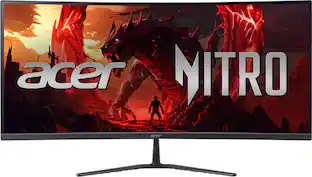
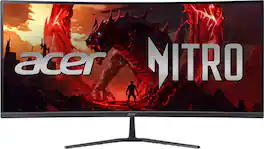
Acer - Nitro ED340CUR Gaming 34” 1500R 21:9 Curved QHD 200Hz 1ms FreeSync Premium Gaming Monitor with HDR10 (DisplayPort, HDMI) - Black

Acer's Nitro ED340CUR 34" curved panel monitor with Ultra Wide QHD resolution delivers the incredible. Through AMD FreeSync Premium technology, the game’s frame rate is determined by your graphics card, not the fixed refresh rate of the monitor, giving you a serious competitive edge. Smooth, tear-free gameplay!! Crisp, true-to-life colors come alive with the amazing 3440 x 1440 resolution, allowing you to enjoy High-Definition entertainment in the comfort of your home. The wide view angle technology lets you share what's on your screen with friends and family as colors stay true no matter what angle you're viewing from. Incredible 100,000,000:1 contrast ratio and rapid response time ensure your games, work and movies are smooth and look as epic as possible.
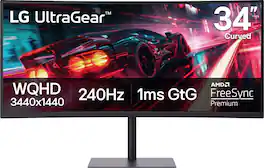
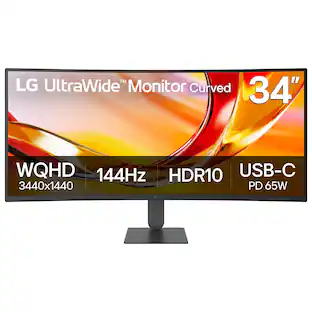
LG - UltraGear 34" Curved WQHD 240Hz FreeSync Premium Gaming Monitor with DisplayHDR400 (HDMI, DP, USB-C, USB-A) - Black
4.9(62)

Dominate the game with the 34” UltraGear WQHD (3340x1440) Gaming Monitor, built for speed, precision, and pure visual impact. The 21:9 UltraGear curved (1500R) display gives you more room to play and multitask, with a virtually borderless design that keeps you locked into the action. React instantly with a blistering 240Hz refresh rate and 1ms response time—perfect for competitive gamers who live in the milliseconds. Vivid color pops with HDR10, DisplayHDR 400, and up to 95% DCI-P3 color gamut, while AMD FreeSync Premium ensures buttery-smooth, tear-free visuals across PC and next-gen consoles. Connectivity made easy with USB-C, HDMI (x2), and DisplayPort. Plus, hear every detail with built-in speakers. Designed for battle and built for comfort—with a slim bezel, height, tilt and swivel adjustable stand that keeps your setup clean and dialed in.
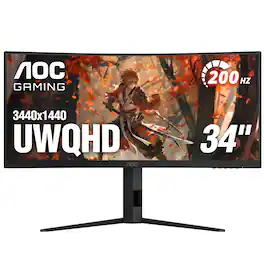
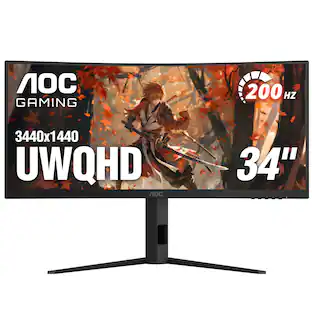
AOC - CU34G4HV 34" VA Panel Curved Gaming Monitor, LED, WQHD (3440x1440), 200Hz, 0.5ms, Freesync - Black

AOC CU34G4HV 34” Curved Ultrawide Gaming Monitor with WQHD 3440 x 1440 resolution delivers expansive visuals and ultra-smooth gameplay, featuring a 1500R curved VA panel, HDR10 visual enhancement, and up to 200Hz refresh rate with 0.5ms response time for fast-paced action. The 21:9 ultrawide aspect ratio and VA Wide View provide immersive viewing with consistent image quality across wide angles. In addition, this monitor includes height adjustment and VESA mount compatibility for ergonomic comfort, along with 2 HDMI 1.4 and 1 DisplayPort 1.4 inputs plus an earphone port for flexible connectivity.

Pros for ASUS - TUF Gaming 34" 2K VA 250Hz 1ms Curved Ultrawide Gaming Monitor with FreeSync Premium and HDR (DisplayPort, HDMI) - Black
Ergonomics, Connectivity, Display Quality, Ease of Setup, Motion ClarityOverall Performance, Screen Size, Refresh Rate, ImmersionOverall Performance, Refresh Rate, Screen Size, Connectivity, Stand AdjustabilityOverall Performance, Screen Size, Refresh Rate, Ergonomics, Resolution
Cons for ASUS - TUF Gaming 34" 2K VA 250Hz 1ms Curved Ultrawide Gaming Monitor with FreeSync Premium and HDR (DisplayPort, HDMI) - Black
There were no cons for this product—There were no cons for this product—There were no cons for this product—Audio Output

Specs

Be the first to ask a question.

We’ll try to get your question answered within 24 hours by a Best Buy customer or brand representative.

No content
Sponsored