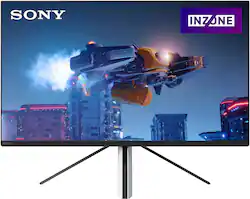
Sony - 27" INZONE M3 Full HD HDR 240 Gaming Monitor with NVIDIA G-SYNC - White
- Key Specs
- Refresh Rate: 240Hz (The number of frames per second the device can produce natively without enhancement. Higher rates help produce smooth, seamless pictures.)
- Maximum Resolution: 1980 x 1080 (Maximum resolution refers to the highest number of pixels that a screen can process and display. Higher resolution signals produce more detailed images.)
- Panel Type: IPS (Technology that affects response time and image quality.)
- Synchronization Technology: G-SYNC (NVIDIA Adaptive Sync) (Generally, these technologies allow syncing between a computer/console game's frame rate and the device's refresh rate for a smoother display without tearing.)
- Screen Size: 27 inches (Size of the screen, measured diagonally from corner to corner.)
- Display Connector(s): 2 x HDMI 2.1 (The number and type of connectors used to connect to an external display.)
- General
- Brand: Sony
- Model Number: SDMF27M30
- Product Name: 27" INZONE M3 Full HD HDR 240 Gaming Monitor with NVIDIA G-SYNC
- Color: White
- Operating System Compatibility: Not Applicable
- Display
- Refresh Rate: 240Hz (The number of frames per second the device can produce natively without enhancement. Higher rates help produce smooth, seamless pictures.)
- Maximum Resolution: 1980 x 1080 (Maximum resolution refers to the highest number of pixels that a screen can process and display. Higher resolution signals produce more detailed images.)
- Native Resolution: 1920 x 1080 (Native resolution of a screen refers to its single, fixed resolution. Sometimes screens must scale an image up or down in order to fit the native resolution. This can cause a loss of resolution or detail.)
- Contrast Ratio: 1000:1 (Measured difference between a displayed image's brightest whites and darkest blacks. The larger the first number, the more detail and color that can be displayed.)
- Display Type: LCD
- Panel Type: IPS (Technology that affects response time and image quality.)
- Synchronization Technology: G-SYNC (NVIDIA Adaptive Sync) (Generally, these technologies allow syncing between a computer/console game's frame rate and the device's refresh rate for a smoother display without tearing.)
- Aspect Ratio: 16:9 (The measurement of the width of a screen compared to the height of a screen, expressed as a ratio.)
- Curved Screen: false
- Brightness: 400 candela per square meter (A measure of the total light output.)
- Screen Size: 27 inches (Size of the screen, measured diagonally from corner to corner.)
- High Dynamic Range (HDR): true (An HDR-compatible 4K TV or other HDR-compatible product displays HDR video content when it's available from sources like 4K Ultra HD Blu-ray Discs and 4K streaming services.)
- High Dynamic Range Format: VESA Certified DisplayHDR 400, Hybrid Log-Gamma (HLG) (There are a few HDR formats that tell the TV or other HDR-compatible product how to best utilize its capabilities to display HDR content. HDR technology can support one or multiple formats, each with various benefits to picture quality.)
- Connectivity
- Number of HDMI Inputs (Total): 2
- Display Connector(s): 2 x HDMI 2.1 (The number and type of connectors used to connect to an external display.)
- Compatibility
- Wall Mountable: true (The product is able to be secured to a wall. Some products are designed ready to mount, while others may require additional hardware/accessories for installation.)
- VESA Wall Mount Standard: 100mm x 100mm (VESA wall mount standards refer to the spacing of screw holes built into a TV in order to fit with standard TV wall mounts. These standards are implemented into most TVs and monitors.)
- Features
- Tiltable: true
- Adjustable Stand Height: true
- Built-In Webcam: false
- Integrated Speaker(s): true
- Dimensions
- Product Height With Stand: 18.85 inches
- Product Height Without Stand: 14.29 inches
- Product Width: 27.2 inches (The out of box width of the item. Width is measured as the horizontal distance from one side of the item to the other as it would be primarily used or placed.)
- Product Depth (With Stand): 9.76 inches
- Product Depth Without Stand: 2.87 inches
- Product Weight: 13.66 pounds (The out of box weight of the item.)
- Stand Included: true
- Power
- Power Consumption: 103 watts
- Certifications Listings & Approvals
- ENERGY STAR Certified: false (Devices carrying the ENERGY STAR service mark, such as computer products and peripherals, kitchen appliances, and other products, generally use 20% to 30% less energy than required by federal standards.)
- EPEAT Qualified: false (The Electronic Product Environmental Assessment Tool (EPEAT) was designed to provide an environmental assessment tool for purchasers. In order to qualify for EPEAT, a product must meet all 23 required criteria.)
- Warranty
- Warranty - Parts: 1 year
- Warranty - Labor: 1 year
- Other
- UPC: 027242925342
With the INZONE M3 gaming monitor, react fast with super smooth 240Hz refresh rate. DisplayHDR 400 certification and over 99% coverage of the sRGB spectrum fills your games with a wide range of rich, vibrant colors for breathtaking immersive gaming. Support for Nvidia G-SYNC and HDMI 2.1 VRR compatibility virtually eliminates screen tearing for smoother gameplay. Built for next-level gaming performance, the INZONE M3 puts you a step ahead of your competitors.
- Aim precisely, shoot first with 240Hz refresh rate: React fast than your opponents with super smooth motion. With a refresh rate of up to 240Hz, you'll gain that vital split-second advantage that helps you track rivals precisely and shoot first.
- Eliminate screen tearing with NVIDIA G-SYNC and VRR: Adjusting the display refresh rate to match the variable frame rates of gaming devices, INZONE M3 monitor with NVIDIA G-SYNC and HDMI 2.1 Variable Refresh Rate compatibility virtually eliminates screen tearing for a smoother, more fluid gameplay.
- DisplayHDR 400 certified, immersive viewing: See a broader range of colors, darker shadows and brighter highlights. With DisplayHDR 400 certification, scenes are reproduced in vivid shades with rich accurate contrast and high peak brightness of 400 nits for more immersive and atmospheric gaming.
- A wide range of vibrant colors for gaming realism: With over 99% coverage of the sRGB spectrum, the INZONE M3 gaming monitor fills your games with a wide range of rich, vibrant colors. More shades and hues make scenes extremely realistic for dramatic, immersive gaming.
- Rapid action with 1ms GtG response time: Perform at a whole new level on an IPS display with ultra-fast 1ms GtG response speed. Less ghosting and blur allows you to see what’s happening with absolute clarity so you can make lightning-fast decisions and react immediately.
- Exclusive features for PlayStation 5: Pair the INZONE M3 with your PS5 to get a fantastic gaming experience and features made specifically for PS5. With Auto HDR Tone Mapping, your INZONE gaming monitor automatically recognizes your PS5 console and optimizes HDR settings during initial setup.
- Designed to fit the way you play: The unique, low-depth tripod stand provides total gaming comfort while optimizing desk space for peripherals. The stand is also height and tilt adjustable to get the best viewing experience. Integrated cable management keeps your desktop clean and distraction free.
- Easily connect and control your gaming system: Power up your gaming rig and connect all your peripherals in no time. A variety of input options including two HDMI 2.1 ports, DisplayPort™ 1.4 and USB Type-C (DisplayPort Alternate Mode) gives you the connectivity you need.
- All your monitor settings, software controlled: Quickly and easily adjust monitor settings with just a few clicks of the mouse using the INZONE Hub PC software. As well as tweaking settings, you can also assign specific picture modes to individual PC applications and games.
- Aim precisely, shoot first with 240Hz refresh rate: React fast than your opponents with super smooth motion. With a refresh rate of up to 240Hz, you'll gain that vital split-second advantage that helps you track rivals precisely and shoot first.
- Eliminate screen tearing with NVIDIA G-SYNC and VRR: Adjusting the display refresh rate to match the variable frame rates of gaming devices, INZONE M3 monitor with NVIDIA G-SYNC and HDMI 2.1 Variable Refresh Rate compatibility virtually eliminates screen tearing for a smoother, more fluid gameplay.
- DisplayHDR 400 certified, immersive viewing: See a broader range of colors, darker shadows and brighter highlights. With DisplayHDR 400 certification, scenes are reproduced in vivid shades with rich accurate contrast and high peak brightness of 400 nits for more immersive and atmospheric gaming.
- A wide range of vibrant colors for gaming realism: With over 99% coverage of the sRGB spectrum, the INZONE M3 gaming monitor fills your games with a wide range of rich, vibrant colors. More shades and hues make scenes extremely realistic for dramatic, immersive gaming.
- Rapid action with 1ms GtG response time: Perform at a whole new level on an IPS display with ultra-fast 1ms GtG response speed. Less ghosting and blur allows you to see what’s happening with absolute clarity so you can make lightning-fast decisions and react immediately.
- Exclusive features for PlayStation 5: Pair the INZONE M3 with your PS5 to get a fantastic gaming experience and features made specifically for PS5. With Auto HDR Tone Mapping, your INZONE gaming monitor automatically recognizes your PS5 console and optimizes HDR settings during initial setup.
- Designed to fit the way you play: The unique, low-depth tripod stand provides total gaming comfort while optimizing desk space for peripherals. The stand is also height and tilt adjustable to get the best viewing experience. Integrated cable management keeps your desktop clean and distraction free.
- Easily connect and control your gaming system: Power up your gaming rig and connect all your peripherals in no time. A variety of input options including two HDMI 2.1 ports, DisplayPort™ 1.4 and USB Type-C (DisplayPort Alternate Mode) gives you the connectivity you need.
- All your monitor settings, software controlled: Quickly and easily adjust monitor settings with just a few clicks of the mouse using the INZONE Hub PC software. As well as tweaking settings, you can also assign specific picture modes to individual PC applications and games.
Whats Included
- Gaming Monitor
- AC Power Adapter
- AC Power Cord
- Setup Guide
- Operating Instructions
- DP Cable
- Color Calibration Factory Report
- Warranty Card
- INZONE sticker
- Gaming Monitor
- AC Power Adapter
- AC Power Cord
- Setup Guide
- Operating Instructions
- DP Cable
- Color Calibration Factory Report
- Warranty Card
- INZONE sticker
Q: What is the screw size of the screws used to assemble the stand?
A: Hi there, Thank you so much for your inquiry. Here are the specs of the screw: M4 type, length 8-12mm. Head diameter must be 7-7.5mm to fit however, we do not recommend using a different type of screw with the INZONE M3 (SDMF27M30). Regards, Carl
A: Hi MichaelZ, Thank you for your questions, unfortunately the panel information you are asking is not disclosed at this time. You may be able to find these information on 3rd party review websites. The answer to your 2nd question is the M30 is a 1080P resolution monitor. If you require 4K resolution we recommend the M90 INZONE monitor which has a native resolution of 4K. Regards, Carl