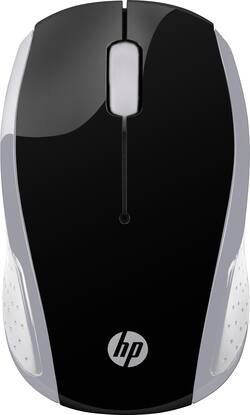
HP - 200 Wireless Optical Mouse - Silver
- Key Specs
- Maximum Sensitivity: 1000 dots per inch (Mouse sensitivity is measured in dots per inch (DPI). The higher the DPI, the more sensitive the mouse is and may be more useful for high-density pixel screens. Lower DPI typically means more precision and accuracy in mouse movement.)
- General
- Product Name: 200 Wireless Optical Mouse
- Brand: HP
- System Requirements: Apple MacOS X 10.x, Google Chrome OS, Microsoft Windows 7 or later (The software that a product must have for it to be able to integrate with another product.)
- Model Number: 2HU84AA#ABA
- Features
- Mouse Type: Standard
- Performance
- Mouse Operation: Other
- Handedness: Ambidextrous
- Tracking Method: Optical (There are several types of computer mice, optical and laser being among the most common. Optical mice detect less detail and provide more precise and accurate movement. Laser mice detect more detail and can be used on a wider variety of surfaces, but are more sensitive to small movements.)
- Maximum Sensitivity: 1000 dots per inch (Mouse sensitivity is measured in dots per inch (DPI). The higher the DPI, the more sensitive the mouse is and may be more useful for high-density pixel screens. Lower DPI typically means more precision and accuracy in mouse movement.)
- Connectivity
- Wireless Connectivity: Radio Frequency (RF) (The manner in which a device sends data to another device over a short distance without the use of wires or cables.)
- Operating System Compatibility: Chrome, Mac, Windows
- Power
- Mouse Power Source: Battery-powered
- Rechargeable Battery (Mouse): false
- Battery Size: Other (The battery size required for operation.)
- Dimensions
- Product Height: 1.3 inches (The out of box height of the item. Height is measured as the vertical distance from the bottom of the item to the top as it would be primarily used or placed.)
- Product Width: 2.3 inches (The out of box width of the item. Width is measured as the horizontal distance from one side of the item to the other as it would be primarily used or placed.)
- Product Weight: 77.96 grams (The out of box weight of the item.)
- Warranty
- Manufacturer's Warranty - Parts: Not available
- Manufacturer's Warranty - Labor: Not available
- Other
- UPC: 191628416462
Make precise movements with this HP wireless mouse. Its contoured shape provides all-day comfort for left or right-handed users, and it has a red LED and a 1000 dpi optical sensor for exceptional accuracy while navigating among programs. This silver HP wireless mouse has a reliable 2.4GHz wireless connection for untethered operation.
- Optical technology: LED lights scan the surface beneath the mouse to detect movement with a fair amount of accuracy, suitable for everyday computing and browsing.
- 2.4GHz wireless connection: This mouse connects to your computer using a wireless USB receiver and works up to 33 feet away.
- Maximum of 1000 dpi: Lets you find the perfect sensitivity.
- Ambidextrous design: Can be used comfortably whether you're right- or left-handed.
- Compatible with most Chromebook, Windows and Mac computers: Works across a wide array of computers.
Whats Included
- HP 200
- USB wireless receiver
Q: How do you unlock battery cover?
A: On the bottom of the mouse next to the battery compartment there is a slight indention for a fingernail or another instrument. Place your fingernail in the indention and push away from the center of the mouse while pulling up at the same time. That should open the cover. When you insert the batteries be sure the silver strap is on the outside part of the compartment and the end-tab part of the the strap is above the batteries. This will aid in removing the batteries if you should need to replace them. You would just pull up on the tab to remove the batteries.
Q: should i turn mouse off when not using computer
A: I would to save battery. The Mouse is going to be constantly sending information to, and looking for information the transmitter.
A: Just insert the USB pin that came with the mouse in the usb port of the laptop and mouse is ready to use.
A: Should be fine as long as you didn't crack anything inside. That's basically a 'handle' that goes under the battery to help you remove it when swapping out a dead battery.
A: Yes and yes. I am using it with my dell. Both the track pad and mouse work simultaneously in Windows 10.
Q: where would i keep the usb so i dont loose it?
A: In the bottom of the device, there is a battery compartment where the USB is secured. You will not have a issue losing it.
A: While we try to provide devices with as discrete of a presence as possible, we understand that our clients' needs come first. This particular mouse may not be the best choice since it is not configured with a "silent/mute" feature to the keypad/wheel. We recommend checking out models specifically designed with this in mind.