A:Answer Not needed. It generally just works fine.
If you notice something funny, refresh the device until you're happy. If a step doesn't help, try the next stronger measure:
(1) Restart the Chromebook. Check for the latest version of Chrome and restart if you have a new version.
(2) "Reset" the browser settings. (I skip this and go straight to step 3.)
(3) Go into the advanced settings and do a PowerWash in less than 10 minutes:
Your Chromebook will be restored to like new.
It will check for the latest updates and apply them.
It erases anything in your local Downloads folder.
If you keep "sync" on, your wallpaper, bookmarks, passwords, time zone, language and other settings will be applied from the cloud when you login.
(4) Download the operating system from Google to a USB stick (using a different computer) and completely reinstall the Chrome operating system. I've never needed this.
Security and feature updates are pushed to you, but you can get them a bit earlier by regularly pressing "Check for Updates."
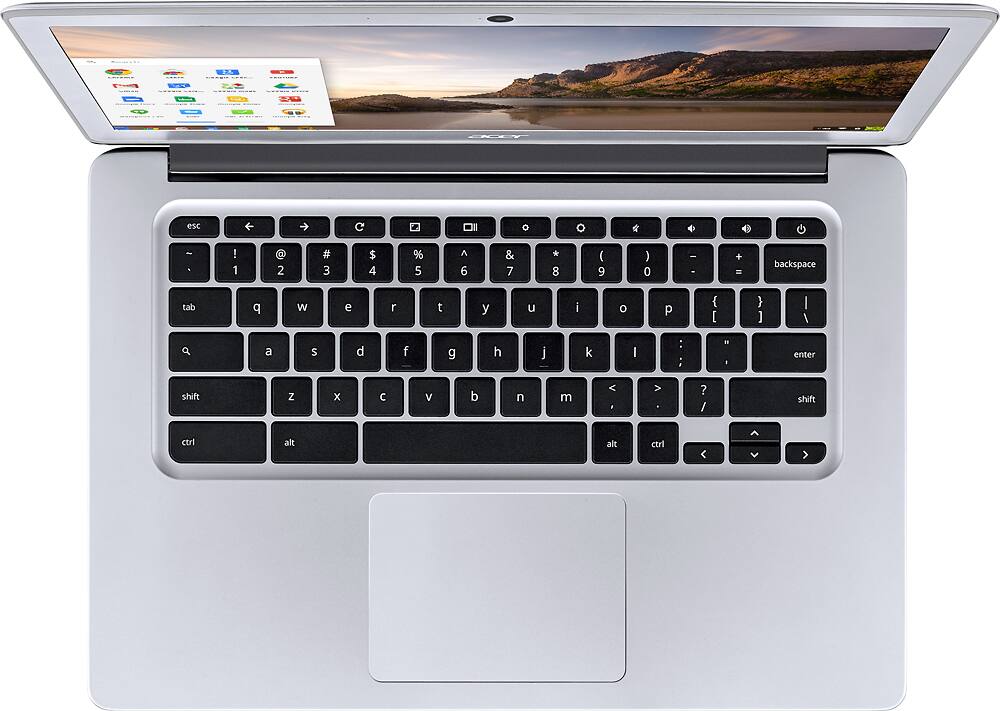
Report issues to Google, attaching a screen print and optional "system information" by pressing [Alt][Shift][i].
There's a "Protect you and your device from dangerous sites" setting. Leave it on.