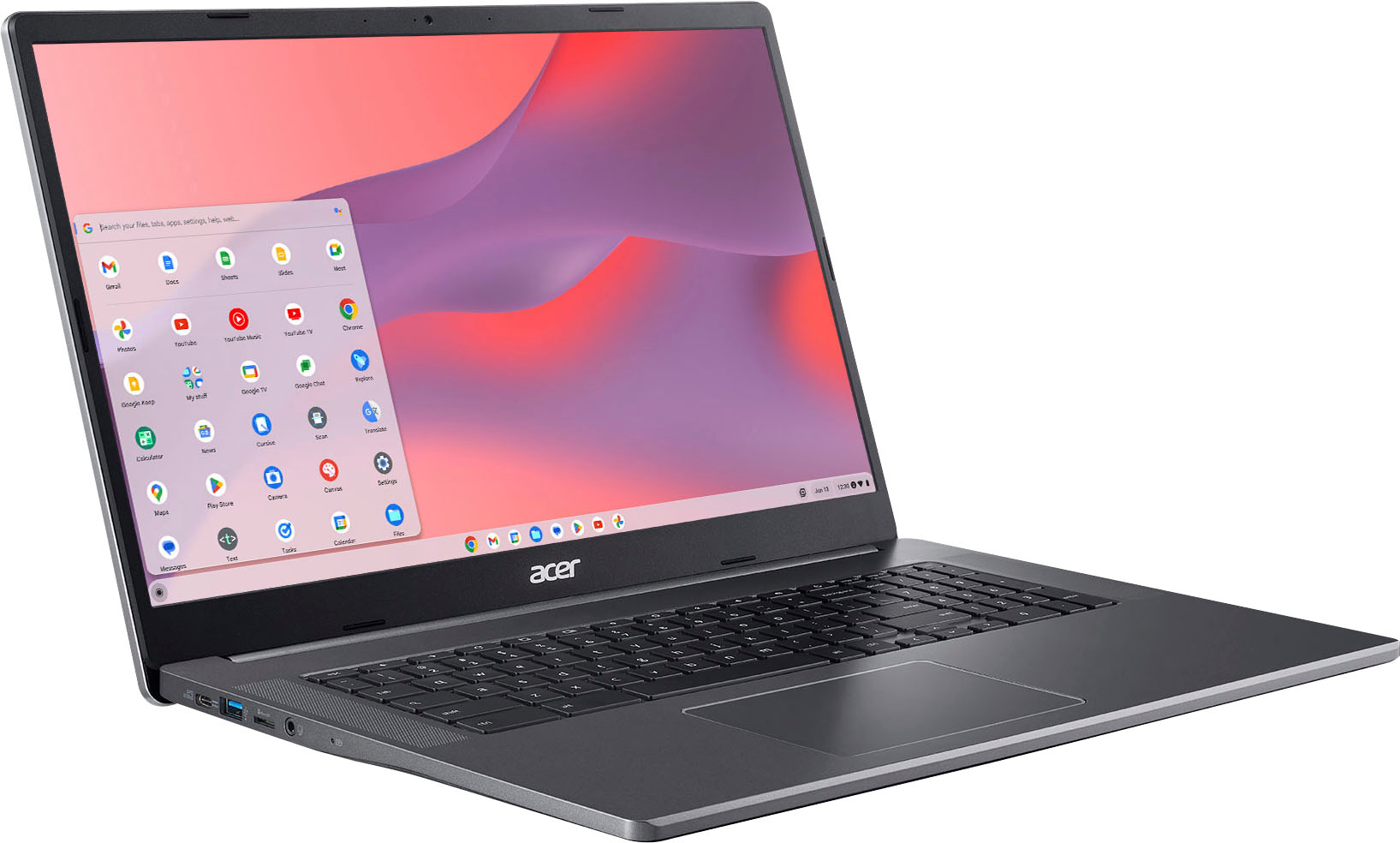
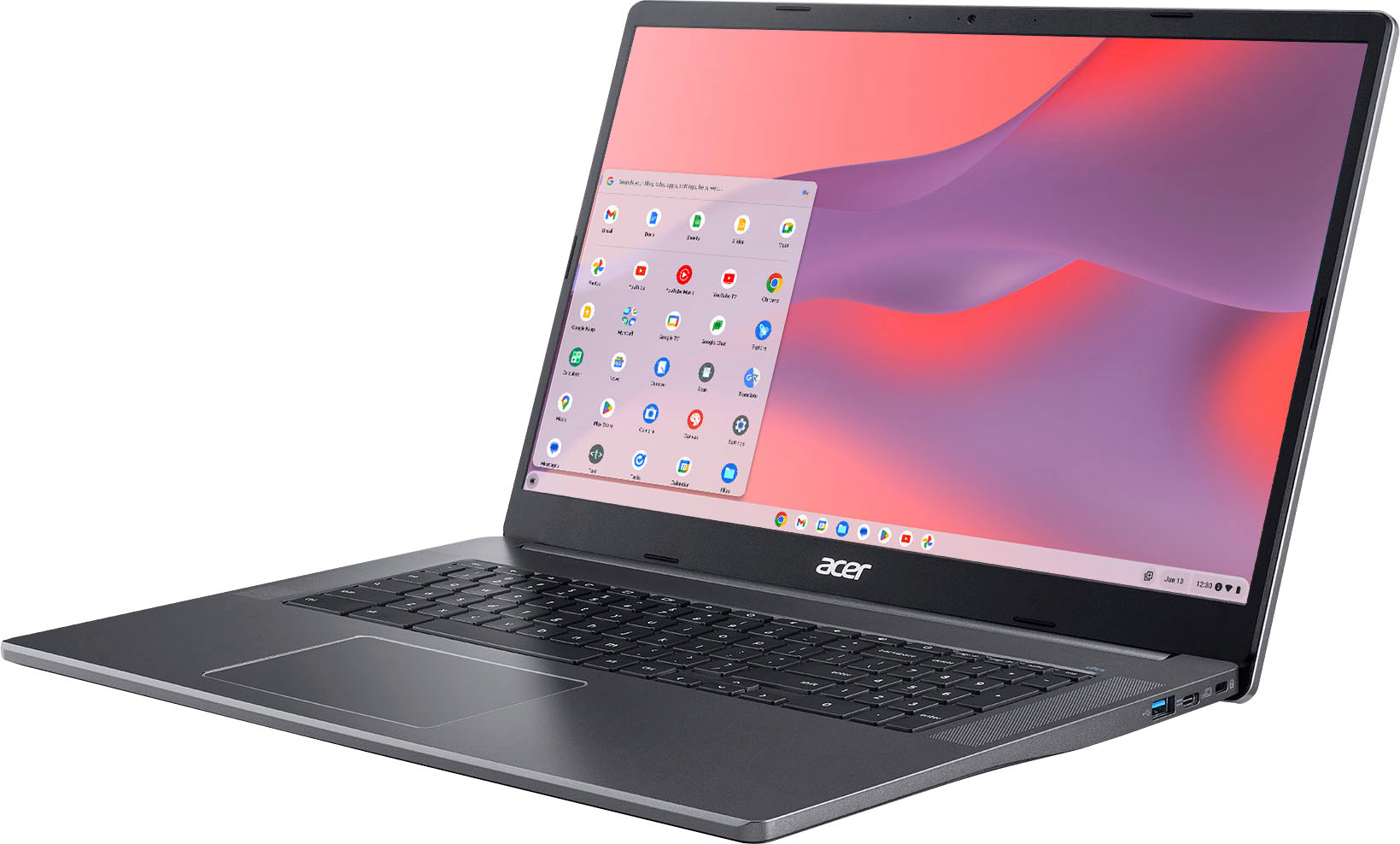
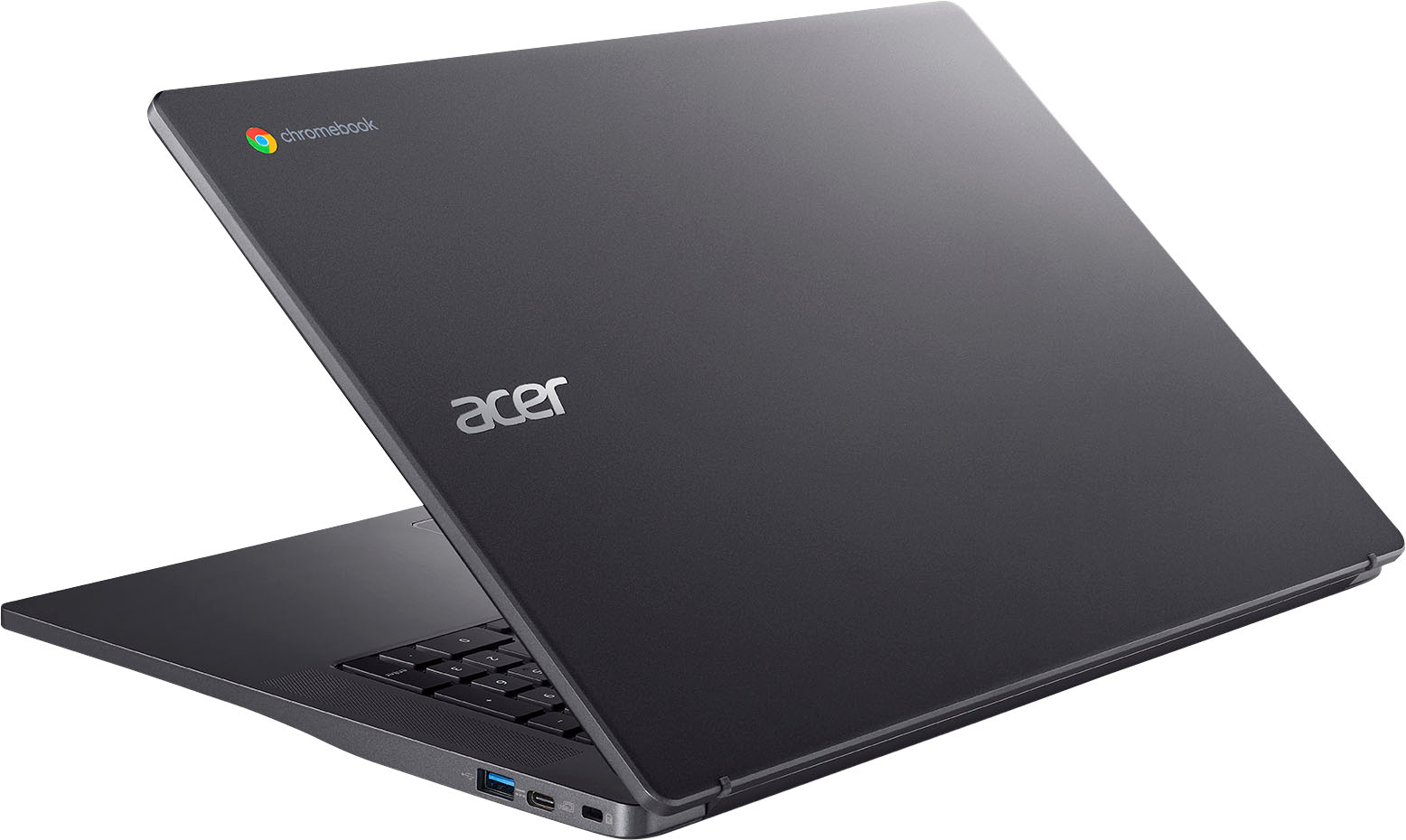
A:AnswerThis Chromebook has two USB-C ports that both support these features:
Connects a USB Type-C™ AC adapter to
supply power to the system (20V; 45W).
Connects to USB devices with a USB Type-C connector.
Supports:
USB 3.2 Gen 1 (up to 5 Gbps)
DisplayPort over USB-C
USB charging 5/9/15/20 V; 3 A
A:AnswerUnlike a Windows laptop, Chromebooks do not need antivirus protection because you cannot download or run .exe files on these devices. Here is a link that has information on this you might find helpful: https://www.chromebookhq.com/antivirus-for-chromebook/
A:AnswerNo this is not normal. I would suggest after it is fully charged, to use it until it is fully drained of power and charge it again. If you have the same results, I would return it to Best Buy for an exchange
A:AnswerI bought it new. I don't know that I would recommend it. It totally locked up once (cursor would not move - like Windows 98b), and on 3 occasions (so far) the screen has gone black. When that happens you need to hold the power button for 2-3 minutes to get it to power back up. I've rebooted a few times because it got so slow.
A:AnswerWe have confirmed this Chromebook has a total of 4 USB ports, not six. We were unable to see where Best Buy shows this has a 128GB storage, as they do state this has a 64GB eMMC. Here is a link with the specifications you might find helpful: https://www.acer.com/ac/en/US/content/professional-model/NX.AYBAA.001
A:AnswerHello chasej14. Thank you for your question. The Intel® Pentium® Silver N6000 Processor has a base processor speed of 1.10 GHz and can reach up to 3.30 GHz. This processor does not come with Intel® Turbo Boost Technology. You can check more technical specifications about this processor here:
***https://www.intel.com/content/www/us/en/products/sku/212330/intel-pentium-silver-n6000-processor-4m-cache-up-to-3-30-ghz/specifications.html***
Thank you for choosing Intel!
A:AnswerYes you can as I have downloaded HULU and works great. How to download apps on a Chromebook
1. Open the Play Store from the Launcher.
2. Browse apps by category there, or use the search box to find a specific app for your Chromebook.
3. After you've found an app, press the Install button on the app page.
4. The app will download and install to your Chromebook automatically.
A:AnswerYou should be able to do this, yes. Under "Connected devices," next to "Android phone," select Set up. Confirm that you want to connect your phone and then enter your password. Follow the steps. Once completed, you'll get a confirmation on your phone.
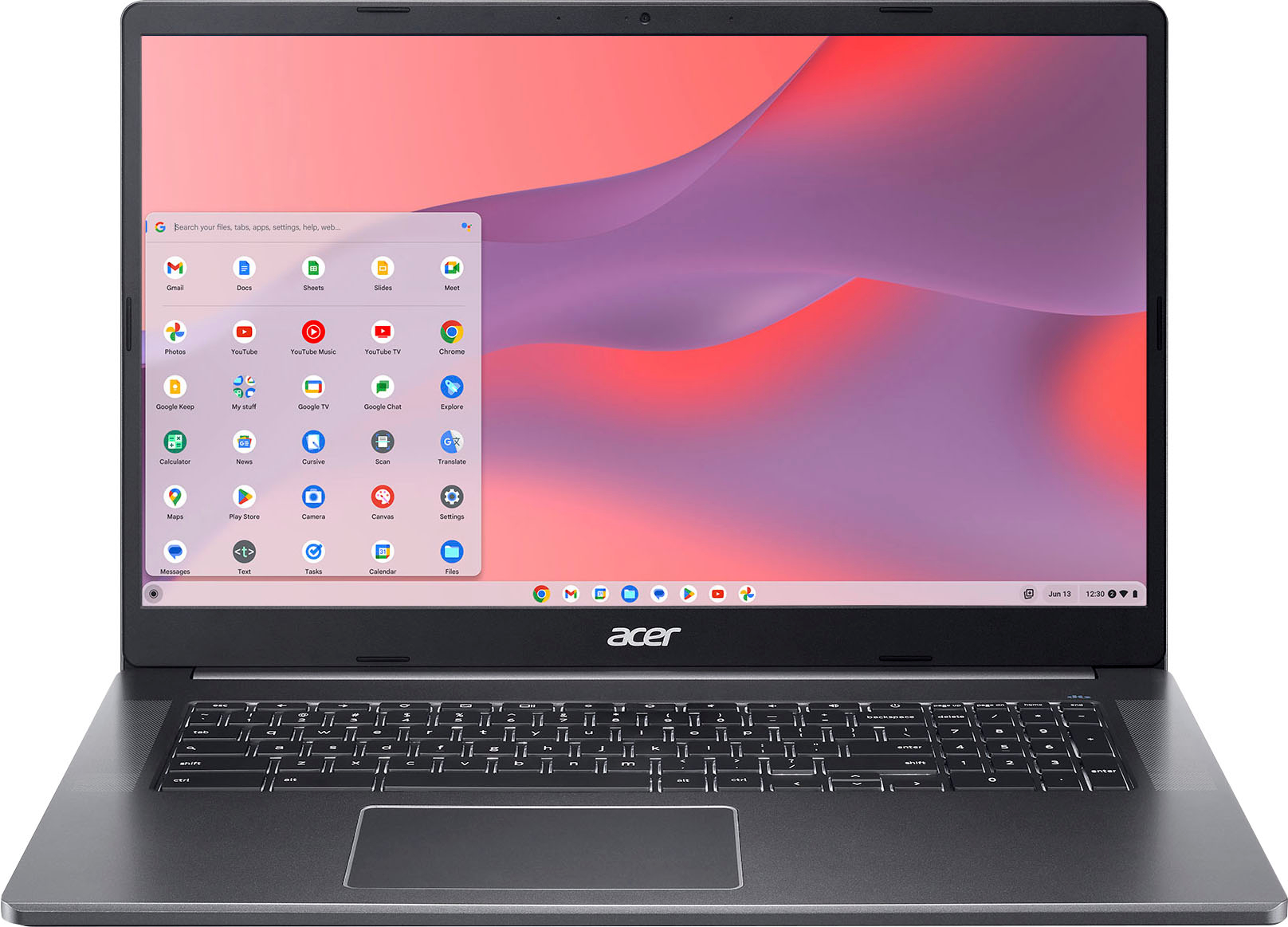
A:AnswerIt's not really the question to ask. It should be more like does your HP printer work with Chromebooks because HP would be the one making the software. I would check for printer drivers compatible with Chromebooks or Chrome OS
A:AnswerAny app available in the chrome store will work on this laptop - yes, Adobe Photoshop is in the Chrome store. It basically runs android apps, not full blown software