A:AnswerYes. You can put your .jpg photos on a 32GB (nothing larger) USB thumb drive, insert into the frame and import those photos to the frame. They can also play directly from the card. Contact [email protected] if you need tips on import, export, delete, setup and other features.
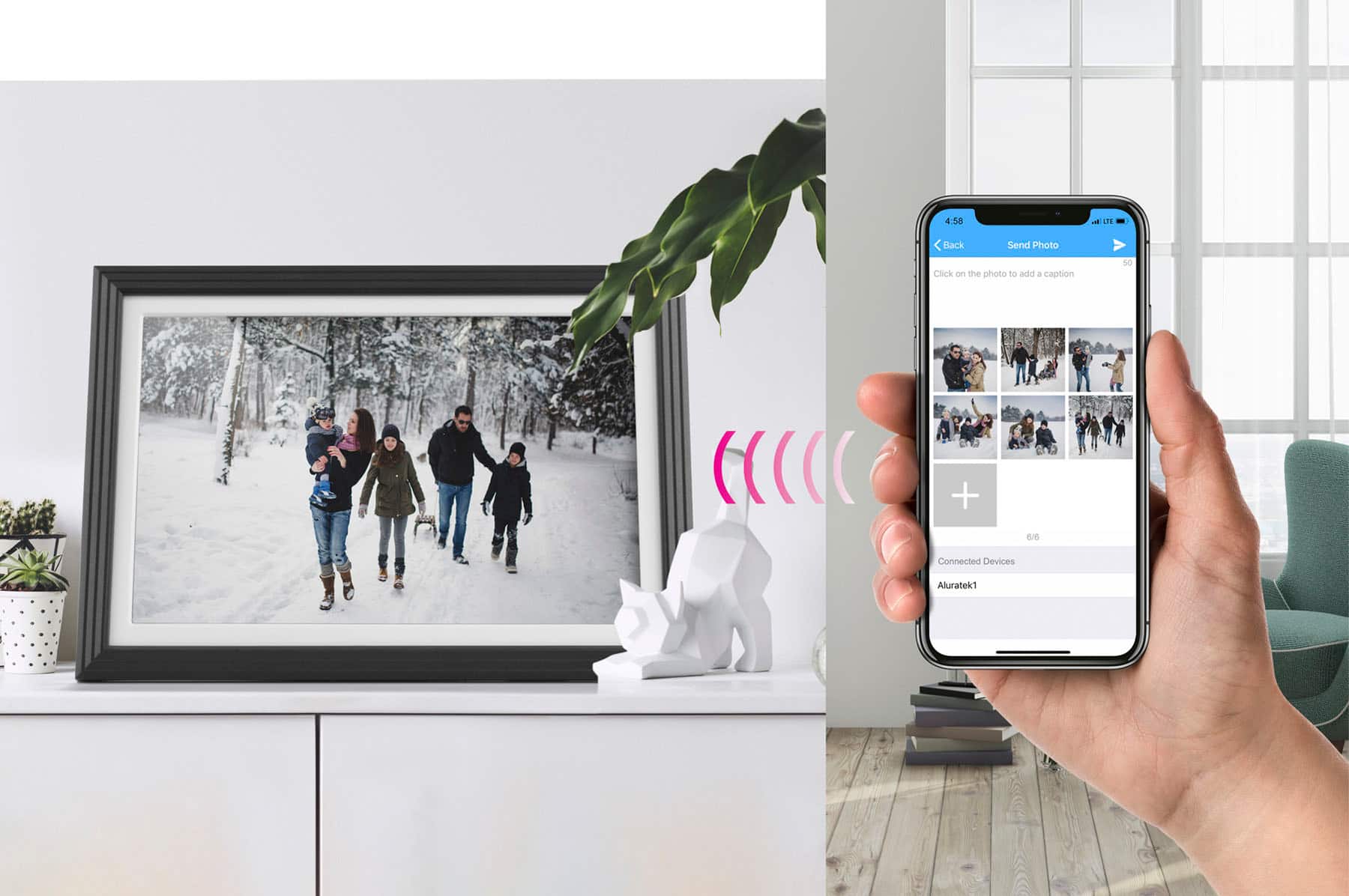
A:AnswerThere are several ways. You can use the phone and download the Smart Frame app. Sign-Up and login. Then go to the Devices tab, complete the 3 tabs and bind to the frame. As long as the frame is connected to WIFI you can send photos using the phone app, or you can send an email.
For more info contact [email protected].
A:AnswerThere really isn't. If you do the slideshow in Sequential mode then it will not repeat any photos until the end. In Random mode you're going to get some repeats because that's the randomness of the frame essentially blindly picking photos to show.
A:AnswerYes, you can delete individual photos, or any number of photos without deleting all photos. You can also import and export photos before deleting a small number of them, or all of them. Contact [email protected] for more info and tutorials.
A:AnswerVideos can only be played in the video section and not in the slideshow. They can play in order in that section. For background music get a 32GB or smaller SD card or USB thumb drive, add .mp3 or .wav audio files to the memory card. Insert into the frame. Now go into settings > Album Settings on the frame and make sure Background music is turned ON. The frame will play the audio files directly from the card while photos are showing.
A:AnswerSee if the following helps. Or contact me at [email protected] --->>>
IMPORTANT
If you are the FIRST PERSON to setup the frame and it is new then click the Plus Sign (+) next to MY DEVICES
If you are an ADDITIONAL (Someone else setup the frame) user then click the + sign next to BOUND or OTHER devices.
Fill in the tabs
If you click MY DEVICES then there are 3 tabs to complete, Device Name, Email Address, and Frame ID
If you click BOUND or OTHER DEVICES (for 2nd setup and additional setups) then there are 2 tabs to complete. See TAB 1 and TAB 3 from below. Additional users do not complete TAB 2.
TAB 1:The device name can be something like frame1, kitchen frame, Moms Frame, etc. Anything you want it to be.
TAB 2: Make up an email. We have already included the @wififrame.com. All you need to enter is the front end, something like "johndoe1956photo." If the binding does not work then often this is one of the things to change. Make it unique since thousands of users set these up. NOTE: IF YOU ARE NOT THE FIRST PERSON TO SETUP THE FRAME THEN YOU DO NOT ENTER AN EMAIL ADDRESS.
TAB 3: The 3rd tab is where you will input your Frame ID. This can be found on your Photo Frame under settings->device-info. Letters should be UPPERCASE.
Once completed tap on Bind or Submit
----------------------------------
BACK TO THE FRAME
Go back to your photo frame and go to SETTINGS > USER MANAGEMENT. The pending user request will show ON THE FRAME in this settings area called User Management. Wait for the Pending User Request to come in. Tap ACCEPT.
- 2 circular icons will appear under USERS. DO NOT delete these unless instructions by Aluratek Tech Support Staff.
- 1 icon ONLY will appear for additional users setting up under BOUND or OTHER Devices in the DEVICE tab on the Phone app.
CHECK WIFI
- If the binding request does not show under PENDING USER REQUESTS then check the WIFI connection on the frame or check for the 2 icons just in case they automatically set. Otherwise go into settings > WIFI on the frame. Tap on the network you are connected and Tap on FORGET. Then turn off the WIFI on the frame (toggle button at the top right of that page) for 1 minute. Then turn on and login again. It will ask for password again as long as you wait 1 minute.
WIFI HOT SPOT
You can also try using a WIFI HOT SPOT from your cell phone. You may need to do this to bypass your home WIFI, especially if your home WIFI is 5G only (unless you have one of our dual band frames). If you use a hot spot be sure to send a 2.4G signal (or on iPhone check Maximize Compatibility after turning on the hot spot. Also check Allow Others to Join so the frame can connect to the spot.
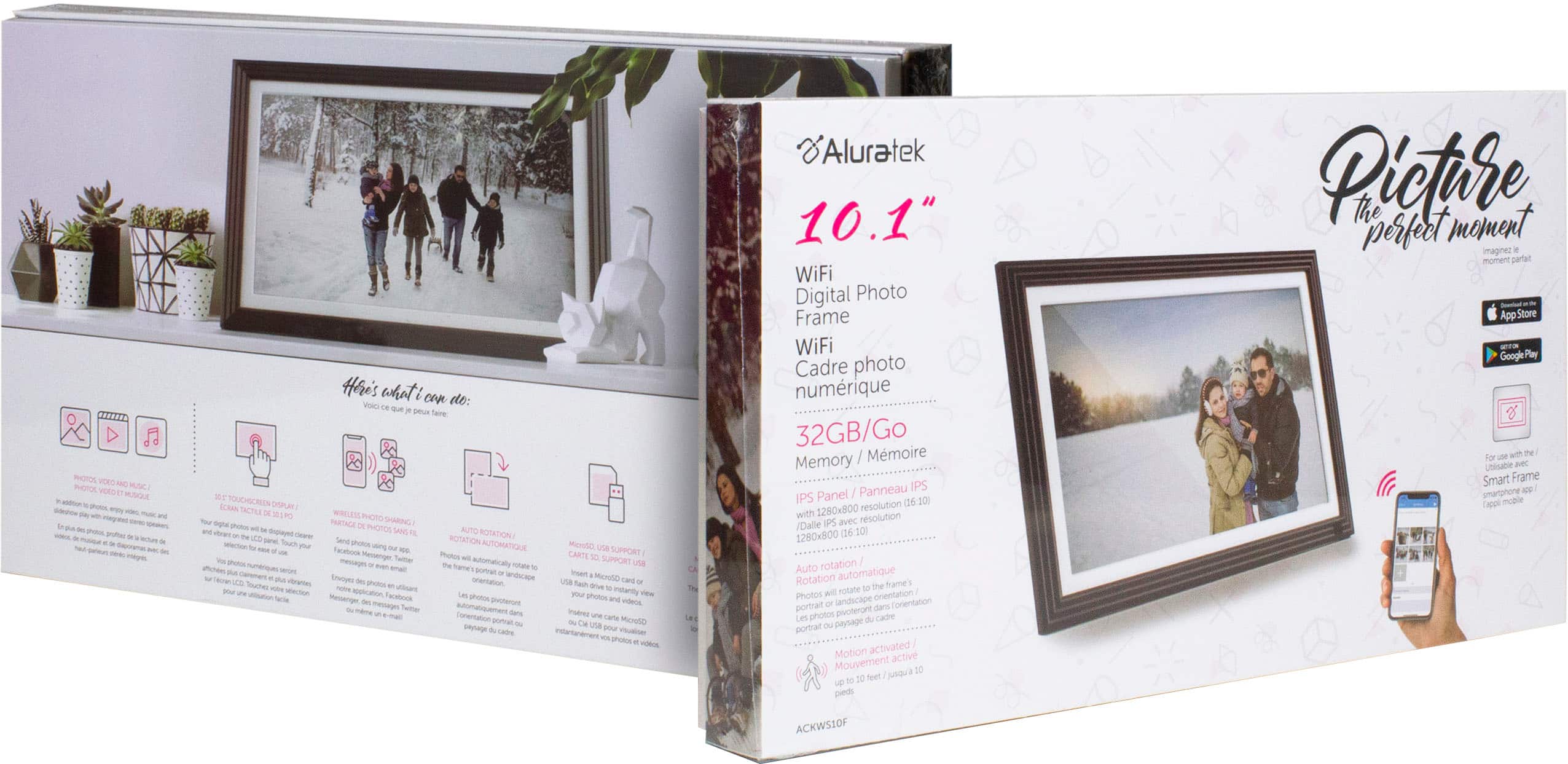
A:AnswerYes, the AWS10F is a WIFI frame so you can use the Smart Frame app on your phone to send photos to the frame. You will need to bind your phone app to the frame first. See our directions but you can always contact us at [email protected] for tutorials and more info. Once photos are sent to the frame they reside on the Frame's Internal Storage. We do not use a cloud service like Google or Apple. You can already take advantage of those with your cell phones. You can use 32GB SD cards or USB thumb drives. Photos should be in .jpg format.
A:AnswerNo. The frame would need an HDMI port with output capabilities for sending photos are video. You can, however get our PicStick and connect this to a TV HDMI port. The PicStick uses the same phone app as our FrameTime frames. It can also take USB or SD memory cards and show photos or video that way.
A:AnswerYes, the frame will do the best it can to determine the size and orientation of your .jpg photos. Sometimes it's best to turn full screen mode to OFF. This puts the frame in auto mode and it will do it's job of determining the orientation and scale of the photos. For more info or tutorials contact [email protected].
A:AnswerMost of our frames can use 32GB or smaller USB thumb drives or SD cards. Photos should be in .jpg format.
Some frames can import and export to these cards, others will only show the photos off the memory card.
A:AnswerYes. You can send .jpg photos to the frame using your phone app, a 32GB memory card (USB / SD), or by directly connecting to a computer using USB cable. Contact [email protected] if you need setup instructions, tips, or other assistance.
A:AnswerThe AWS10F will mostly look for .jpg photos. You can use FTP in the Settings > PC Control tab (if you are familiar with FTP transfers) and copy photos directly from the computer into the frame wirelessly. All .jpg photos go to the Internal Storage folder. From there the frame will play all the photos in a slideshow. I don't think this unit will just play a specific folder. Our ACKWS10F and some of the other AWS series frames allow you to create folders once you have the photos uploaded. Maybe check out those models at our website, www.aluratek.com.
A:AnswerYes. They aren’t great, basically what you would expect from a tablet’s speakers. They do work though, and it can play music and videos with sound.