A:AnswerVia the app you can send videos up to 200MB, via email the video size can be as large as your email providers allows, if connected to a computer or inserting a SD card the file size can be as large as you want.
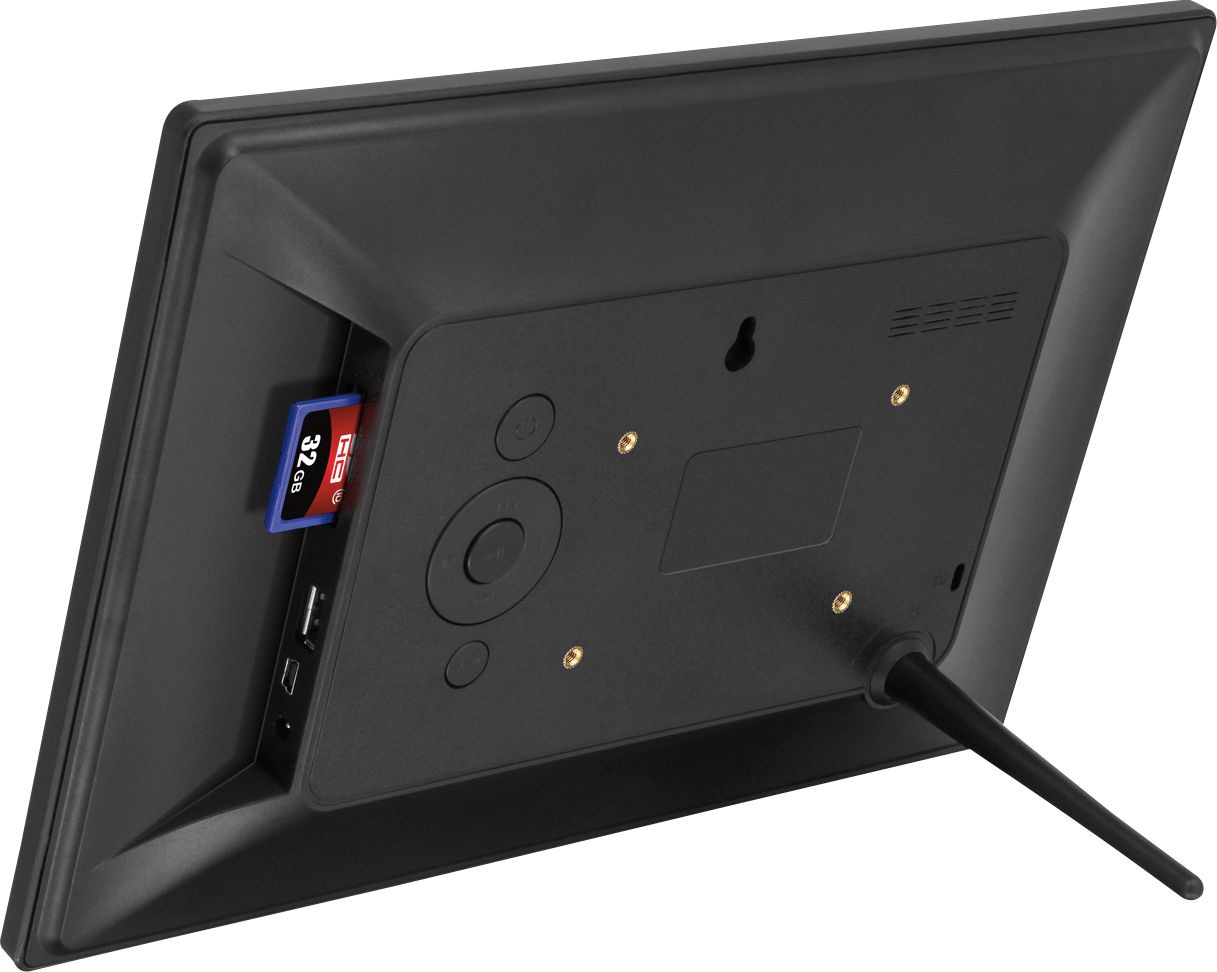
A:AnswerWe do not recommend doing this. Technically, if the drive is self powered the frame can read it, however, it will be very slow to access the photos.
A:AnswerThe frame itself needs a wi-fi access point (e.g., home router). Photos can be sent to the frame from your mobile over a 4G or 5G network (doesn't require wi-fi to do this.)
A:AnswerThe picture frame requires 110v for the adapter, so it does not work on battery. It seems to have an internal battery since it saves the pictures when it is unplugged, but it requires house current to display anything.
A:AnswerWe did send a couple short videos to the frame from the app. Unfortunately, the videos are large enough they used a lot of the internal memory. It might be worth using an SD card or USB thumb drive with videos on it.
A:AnswerI would look at the settings. In "album settings", first make sure the "Slide Show" is toggled ON, Green.
There is also a place to select which location to find photos. I apologize, I don't have the frame in front of me. We bought as a gift for our parents and set it up for them before giving it to them. But there is a place to select Internal, USB, or SD, or all. Make sure you are looking at all or the correct location.
Hope this helps!
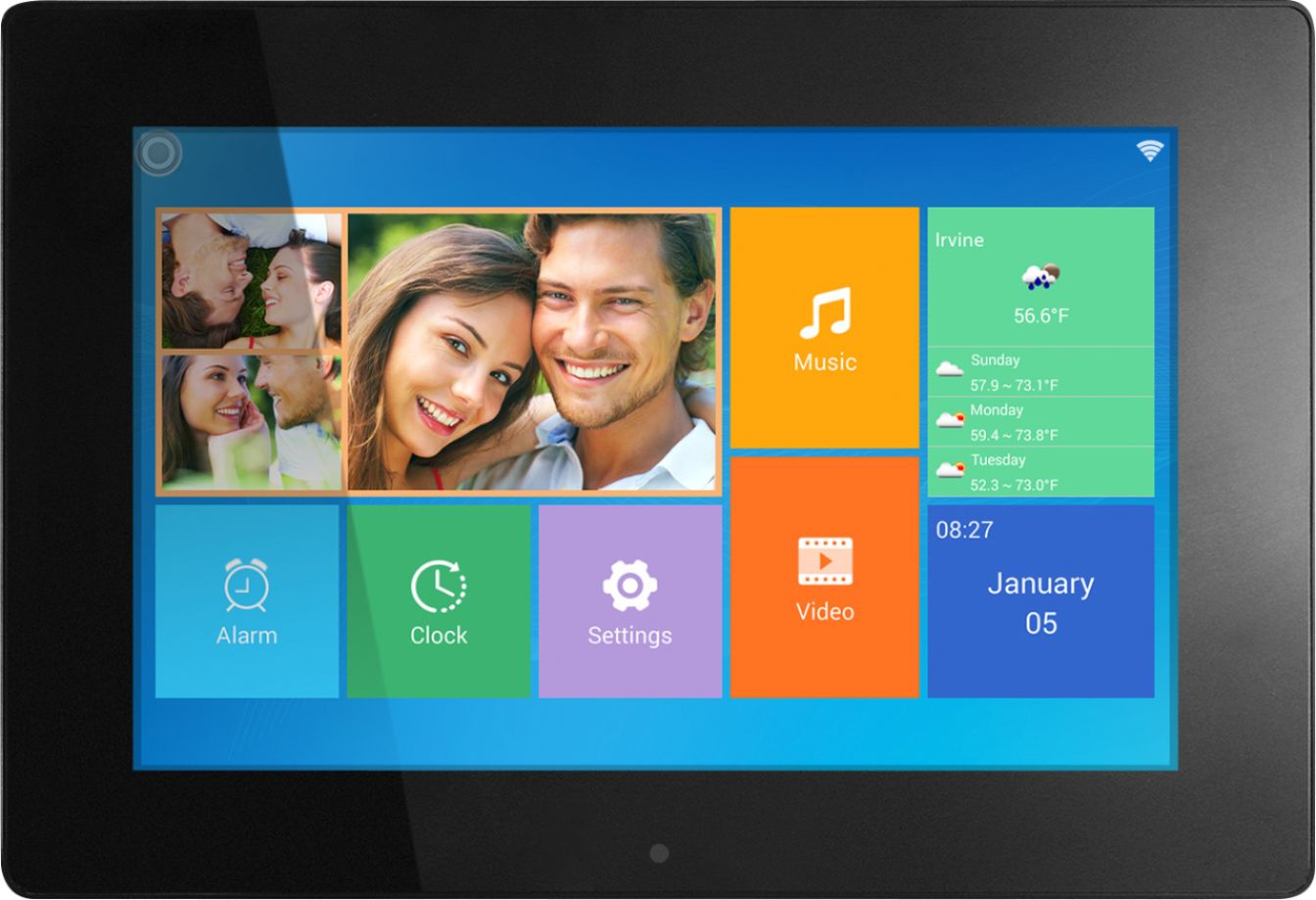
A:AnswerNo, the frame will have a unique email address they can send to our they can download the app on their smart phone and bind that way to upload.
A:AnswerIt is completely automatic - just plug it in and enjoy the pictures. You must put in the pictures and settings, of course; but she does not need to do anything else.