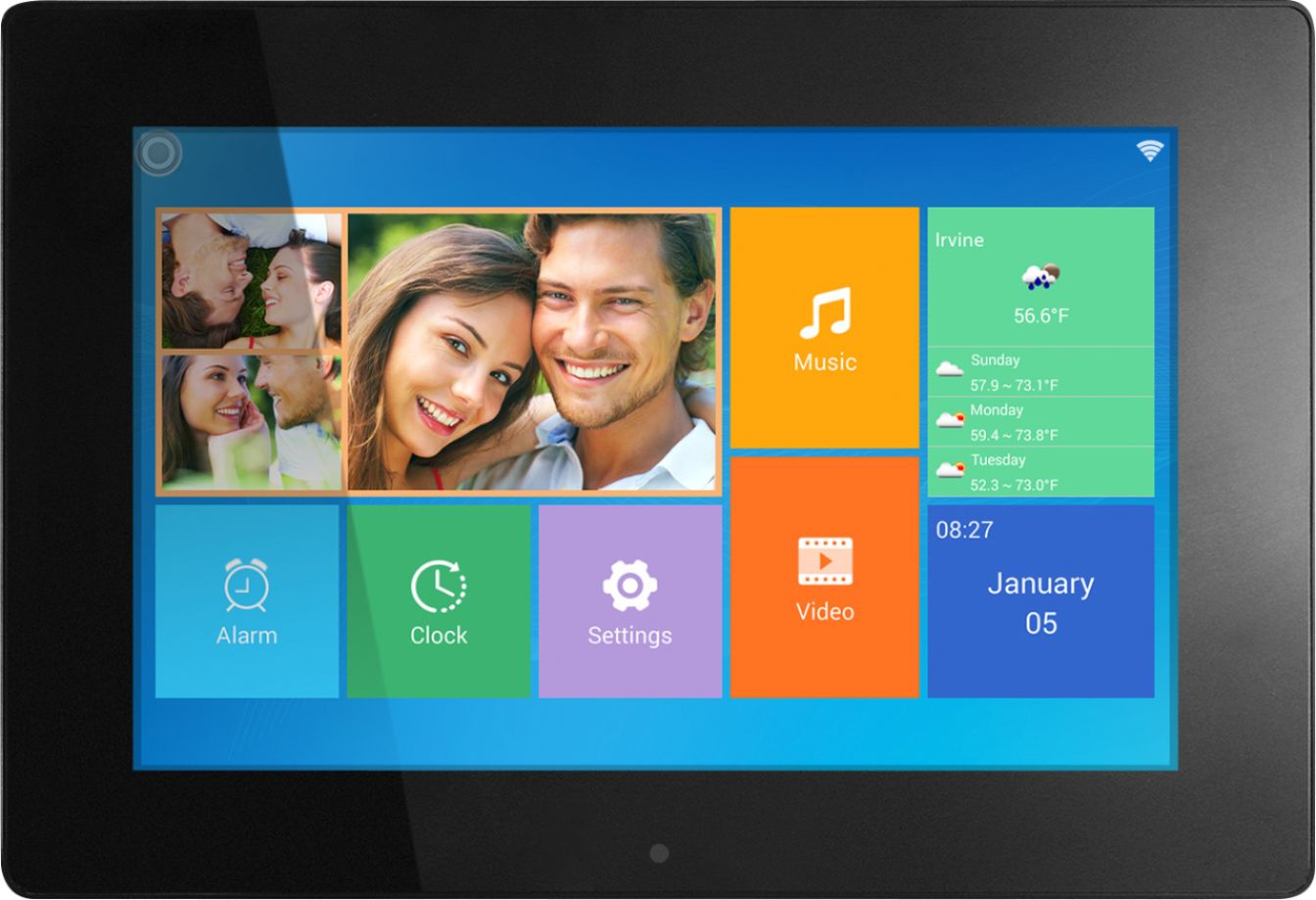
A:AnswerI’m not sure about the catalog idea. Sorry
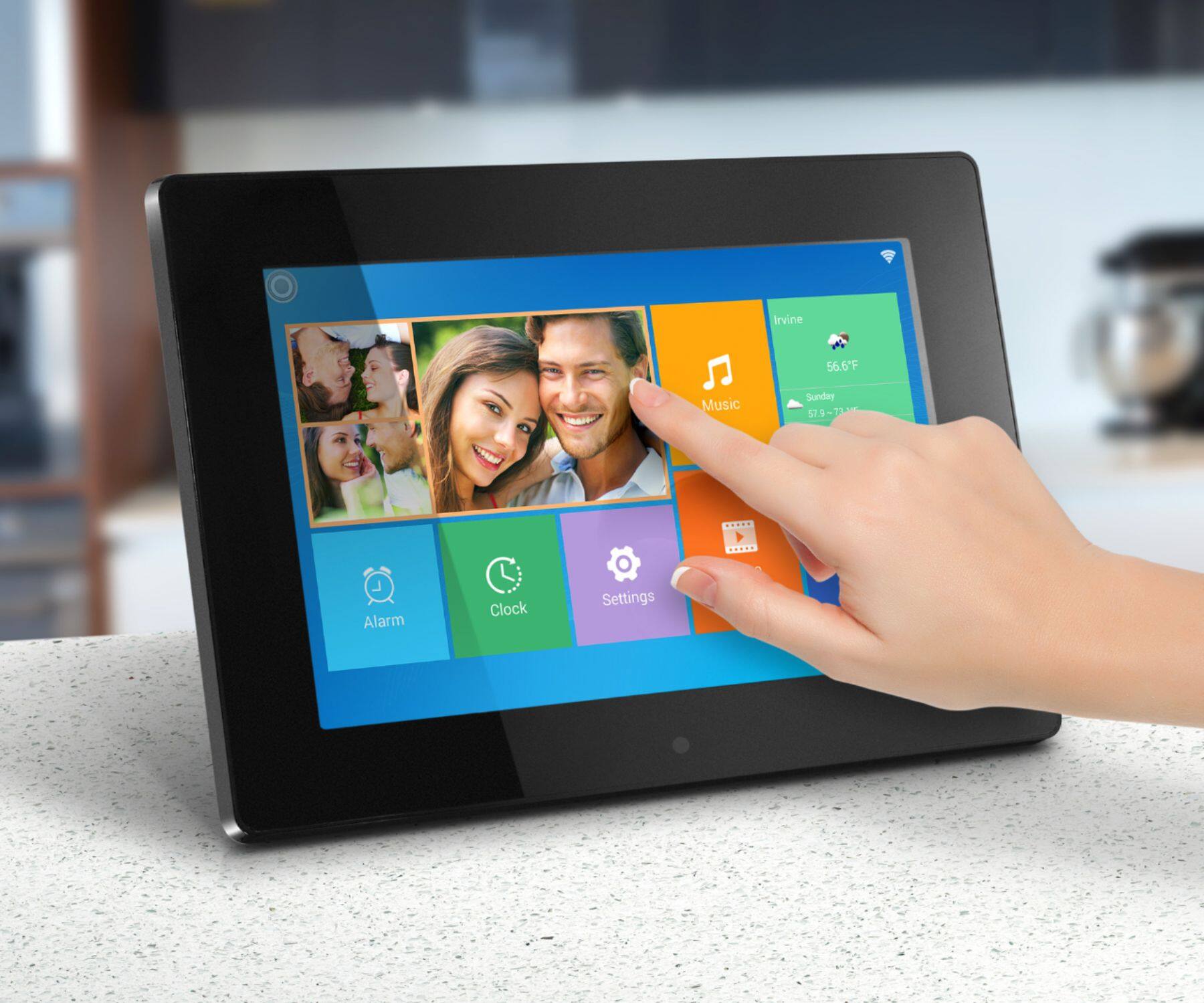
But I know that you can touch the photo you want to look at & make it larger. You will need to shrink it back to its original size before you’re done looking at it however...
A:AnswerMake sure your frame is updated to the latest version. Go to: Settings > About > "check for update". After that the captions should show up automatically.
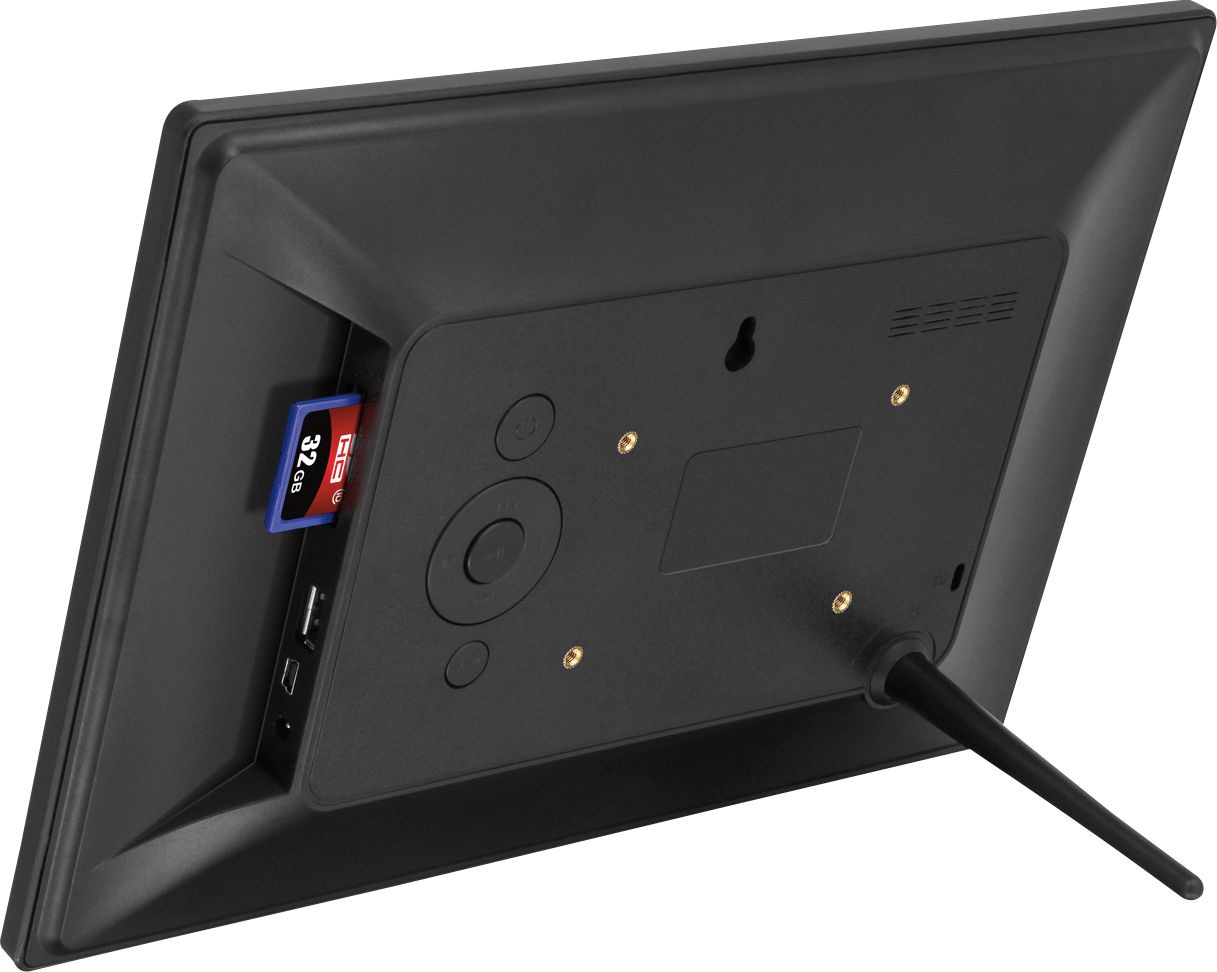
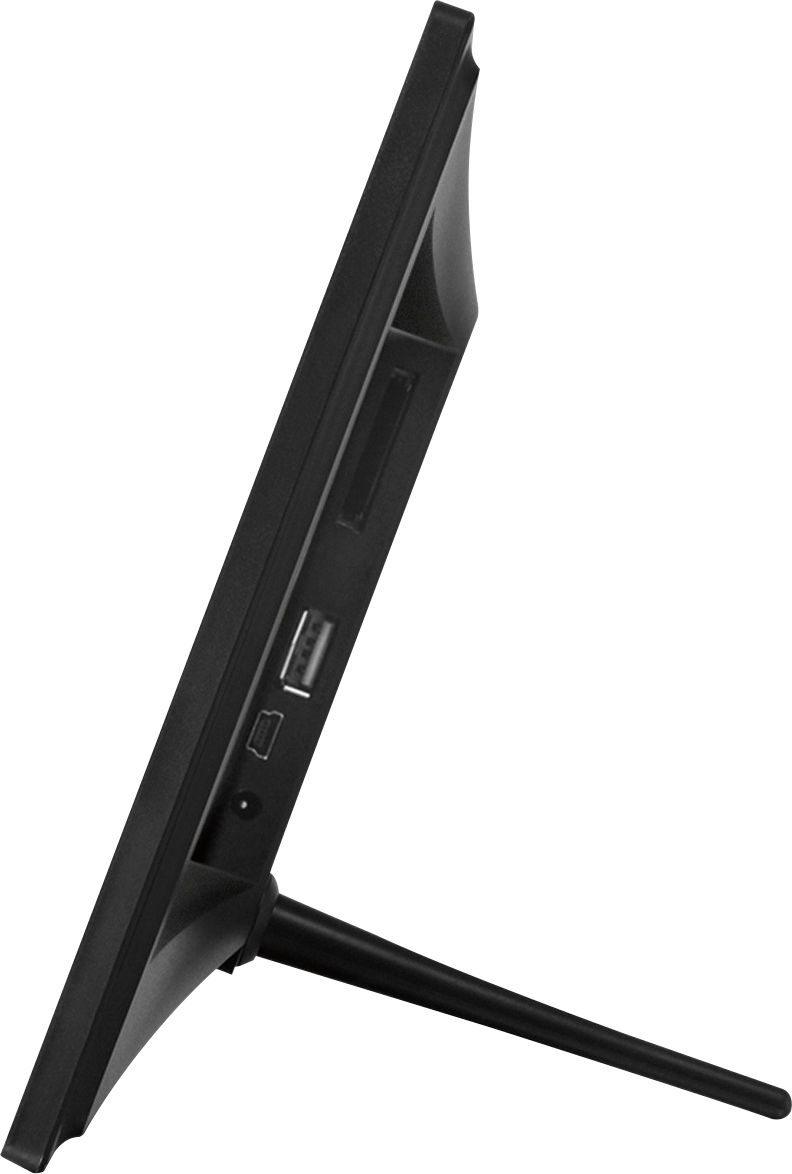
A:AnswerNot directly from Photos to the frame. There are 2 methods to accomplish this. 1) you can download the photos to a SD card or USB memory stick and then insert that into the frame. 2) download the images out of Photos and save them somewhere on your computer. Using an app called "Android file transfer" you can connect the frame to your Mac with a USB cable and the frame will show up as a hard drive. You can then transfer the photos directly to the frame.
A:AnswerIt depends on the size and format of your photos. It has 16gigs of internal memory which is plenty for photos. I’ve uploaded 4 years worth of digital photos and have not reach the limited yet. You can upload from anywhere as it uses WiFi.
A:AnswerThe photos need to be managed on the frame once it is transferred to the frame via the app. The slideshow will show add the pictures but you can't delete them from the app.