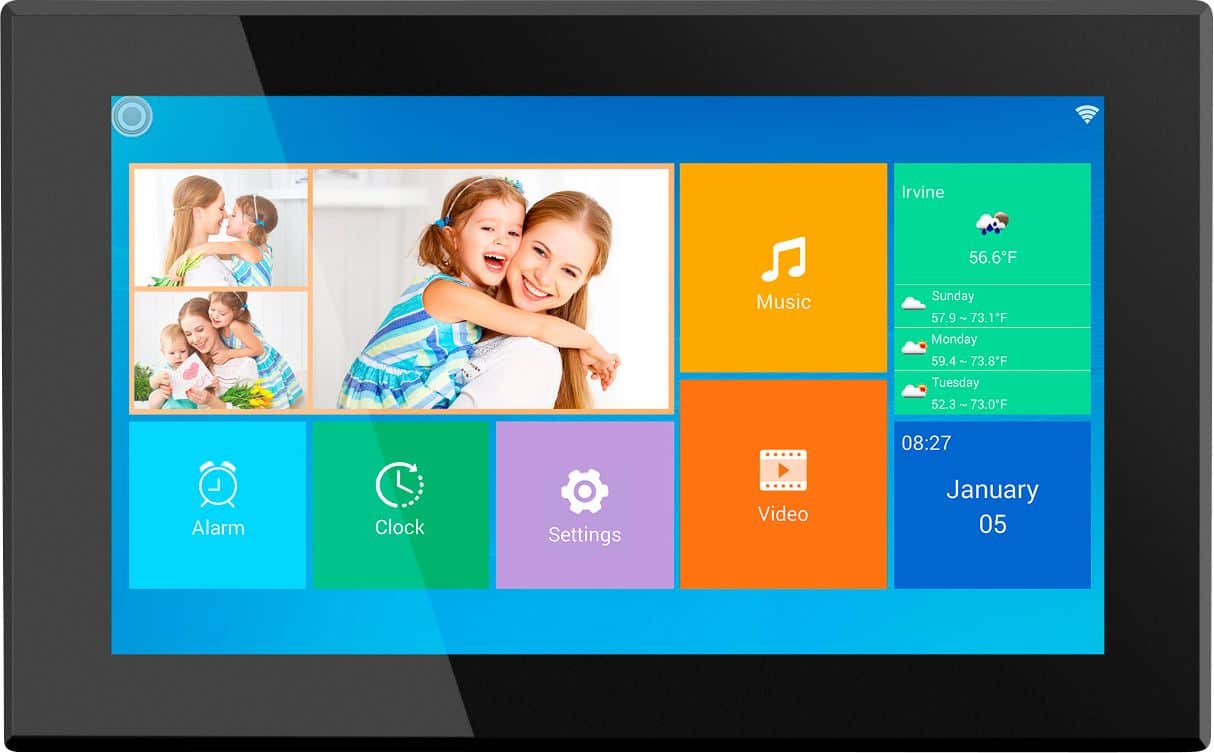
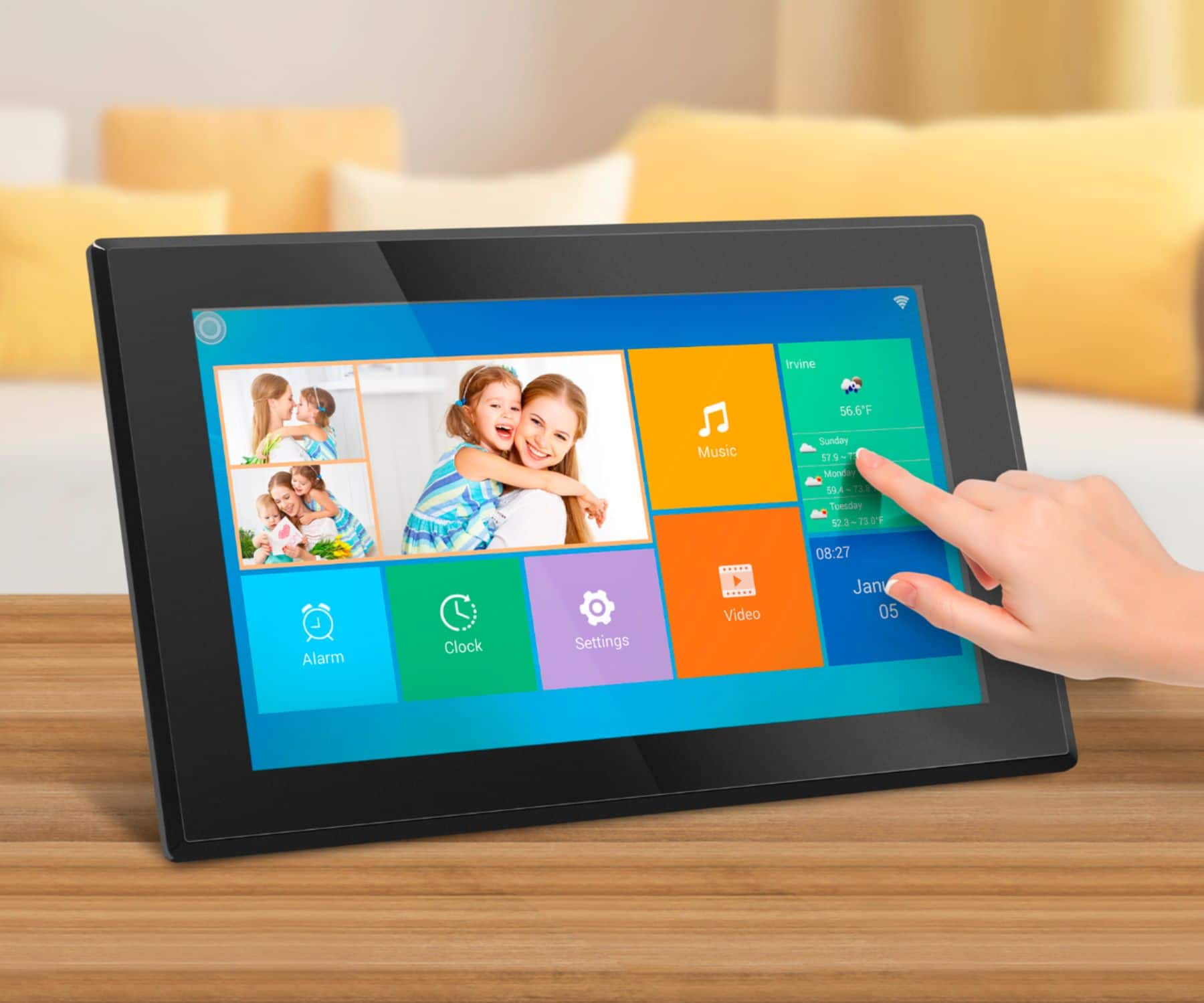
A:AnswerMake sure your frame is updated to the latest version. Go to: Settings > About > "check for update". After that the captions should show up automatically.
A:AnswerThe photos need to be managed on the frame once it is transferred to the frame via the app. The slideshow will show add the pictures but you can't delete them from the app.
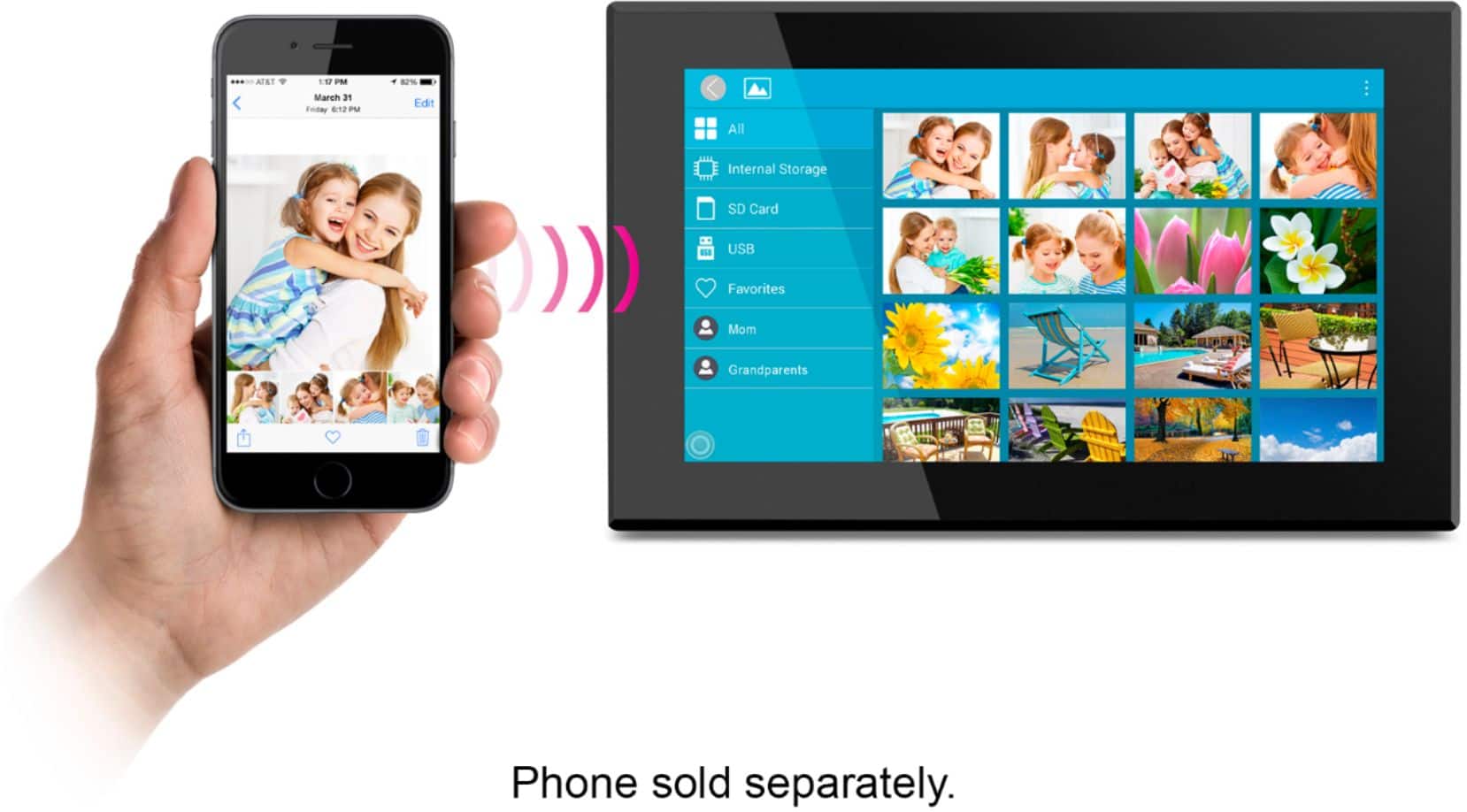
A:AnswerYes, to display all photos in the slideshow, please make sure that you select "All" in the photo menu where you see the thumbnail of the pictures. And yes, this only applies to the wifi models.
A:AnswerSorry, all our frames require a power adapter. But for the smaller size frames, you can power the frame with a powerbank with a USB to DC cable but you will need to recharge the powerbank most likely everyday.
A:AnswerFor this model, there is no QR code. Once the frame is connected to the internet, there will be a frame/device ID that you to enter in the Aluratek Smart Frame app for the pairing.