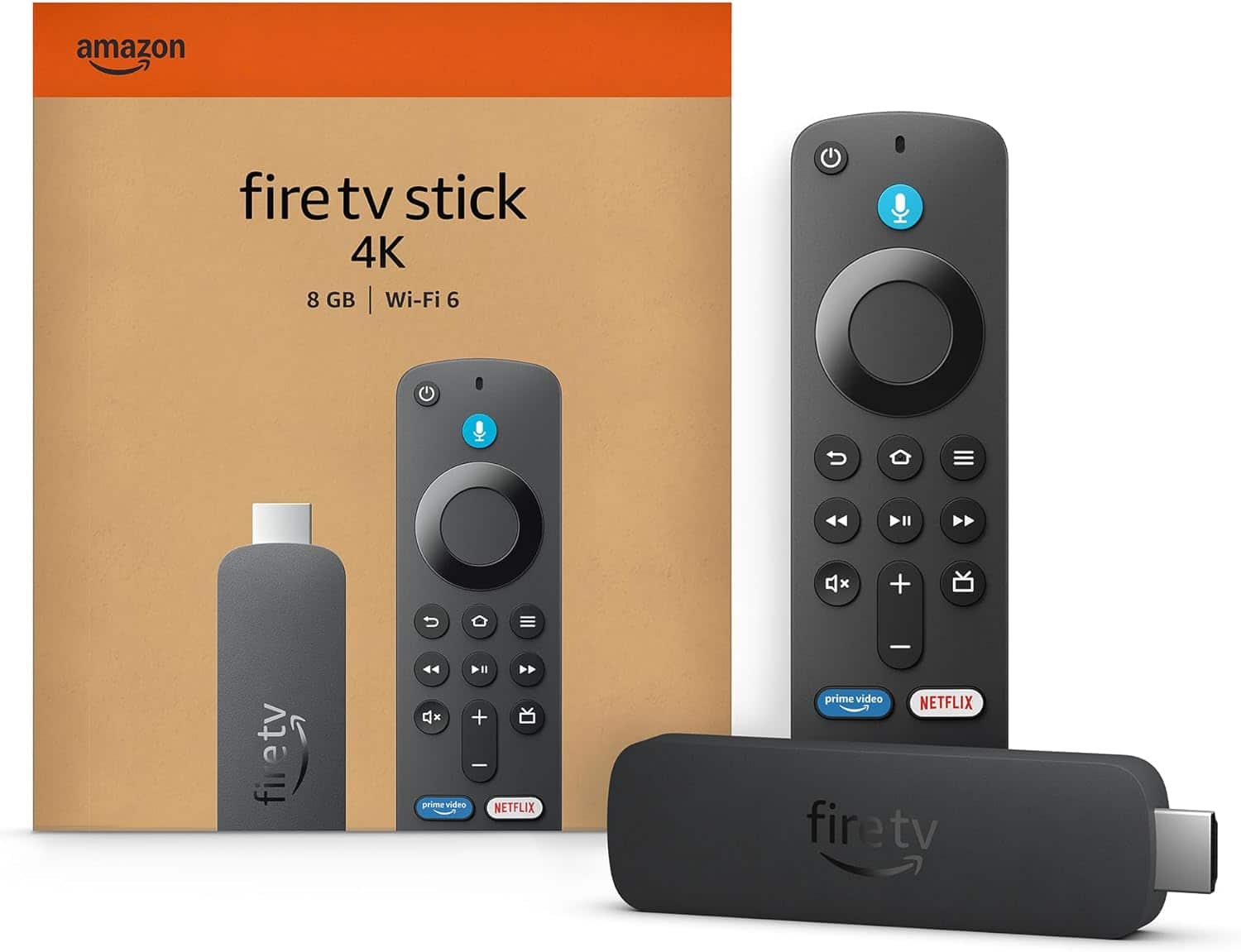
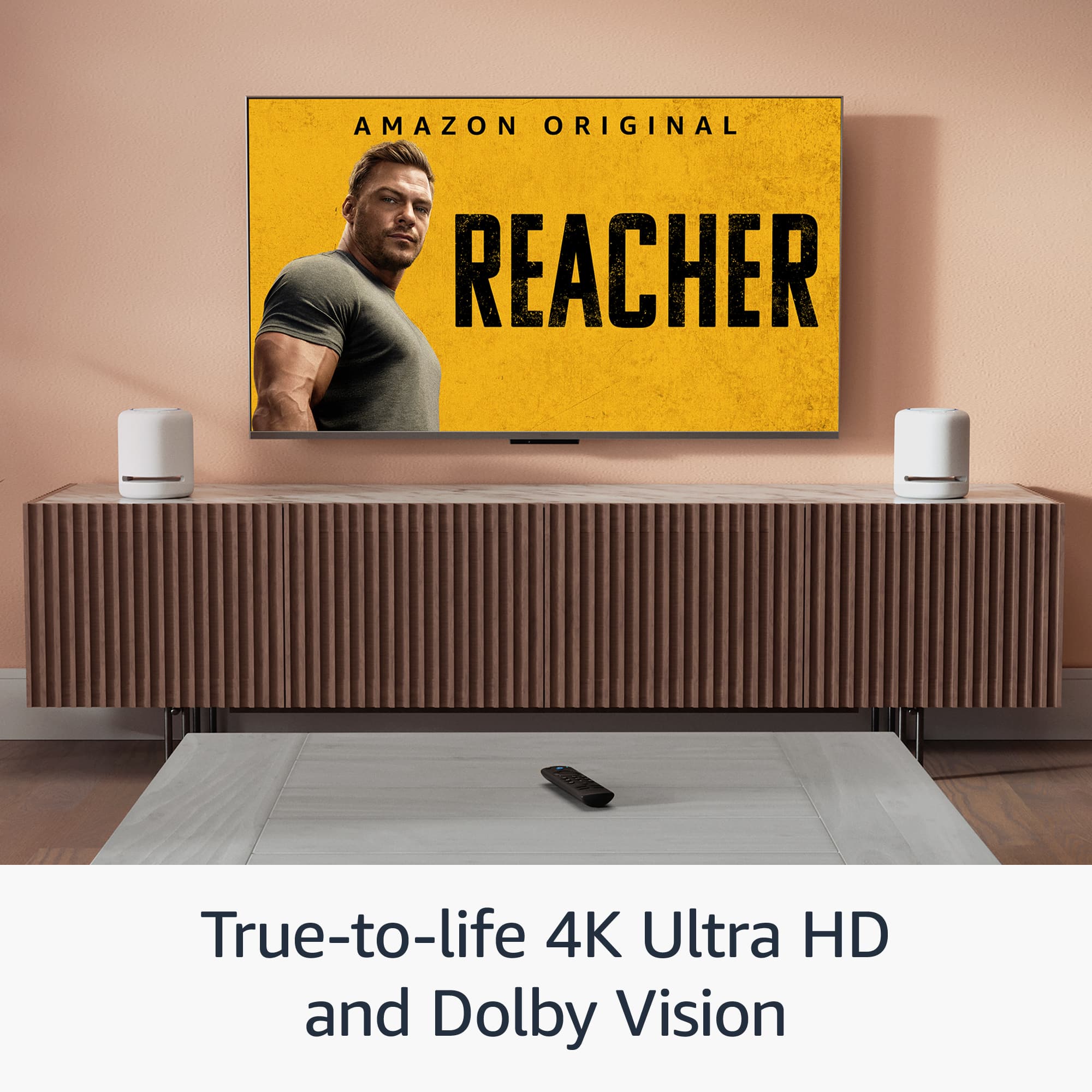
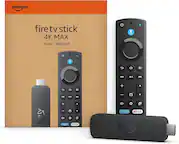
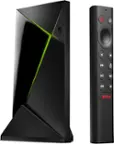
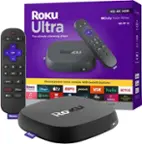
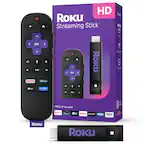
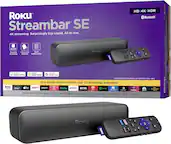
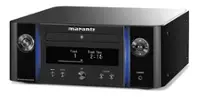
A:AnswerHello and thank you for asking this question. Fire sticks can be used with surround sound systems like soundbars and receivers. Even Echo speakers can be paired with Fire sticks for wireless surround sound. I hope this answers your question and that you have a great day.
A:AnswerBrandi
Make sure your Smart TV is compatible with your cell phone before you can mirror on your Smart TV screen. Fire TV Stick will not help with mirroring through your cell phone, because you lack a WiFi connection. The WiFi needs to be on the same wavelength as your Fire TV Stick and cell before mirroring. Sometimes, you need to download the Mirroring App.
A:AnswerYes! I use it on my Vizio TV which used to be a floor model. I just had to make sure it was in the right port and I have my TV on the right settings and it was easy to set up.
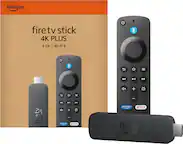
A:AnswerHello Moira and thank you for your question! Yes, as long as you have a free HDMI port, the Amazon FireTV Stick 4K streaming device will work on your Samsung TV. Hope this helps! Have a great day!
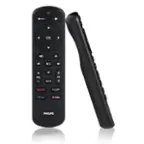
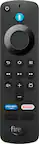
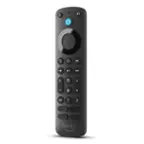
A:AnswerHello! Thanks for reaching out about using an Insignia Fire TV remote with Fire TV Stick 4K. You will need to pair this remote to the Fire Stick. To do this, follow these steps: Go to Settings on your Fire TV;
Select Controllers & Bluetooth Devices;
Select Amazon Fire TV Remotes;
Select Add New Remote;
Select the remote you want to pair;
Hold down the Home button on the new remote for ten seconds;
The remote's light should start blinking, indicating it's in pairing mode;
Wait for an on-screen confirmation that the remote has been paired. Hopefully this is helpful. Happy Holidays!