A:AnswerHello MJ, yes this Kindle has special offers, however you can opt out of the special offers after purchase by doing the following: Go to Manage Your Content and Devices.-- Select Devices. --
Under Special Offers, click Remove offers.-- A pop-up window then displays the price to remove special offers.-- Select End Offers and Pay the Fee to proceed. Hope this helps!
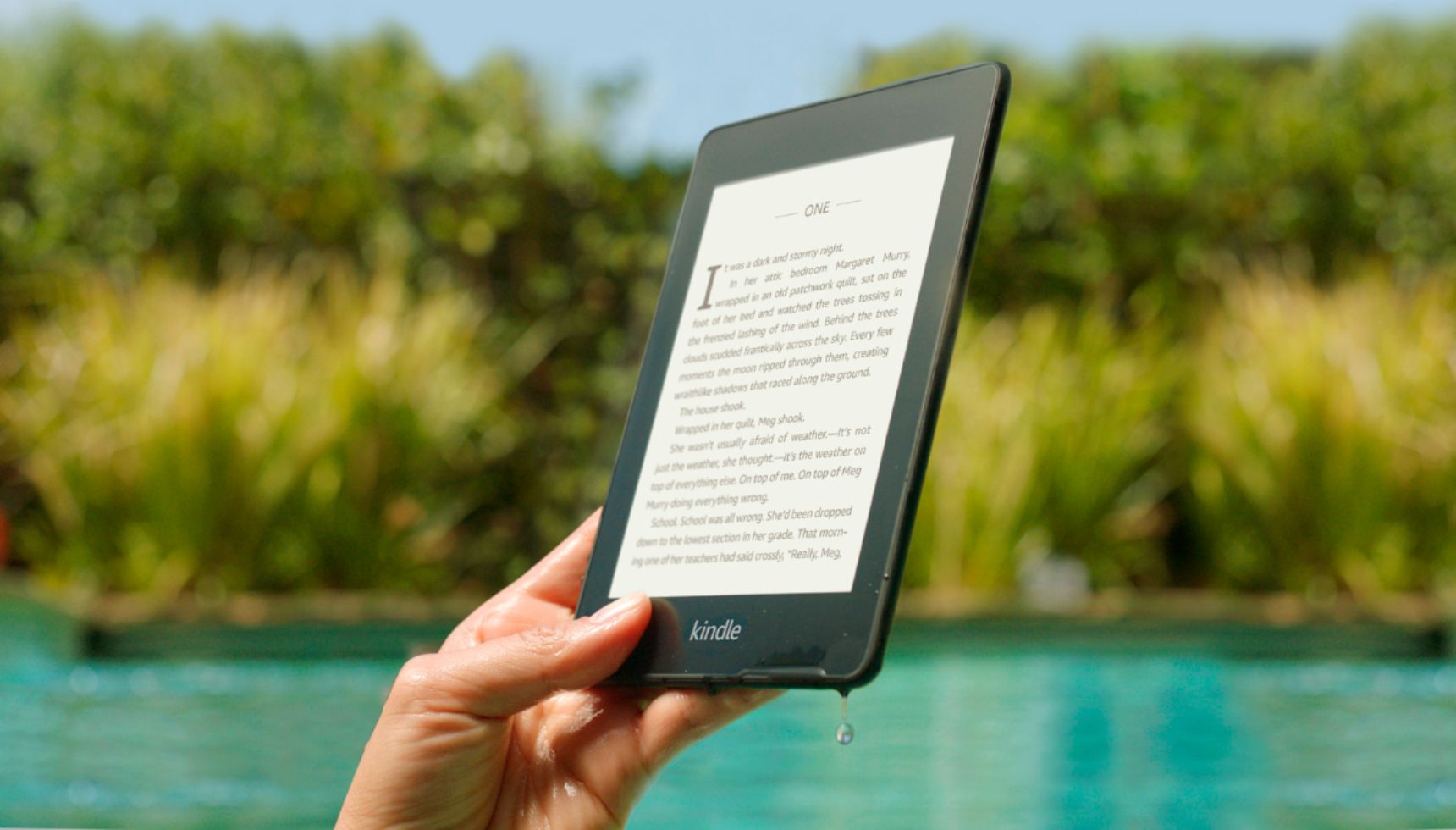
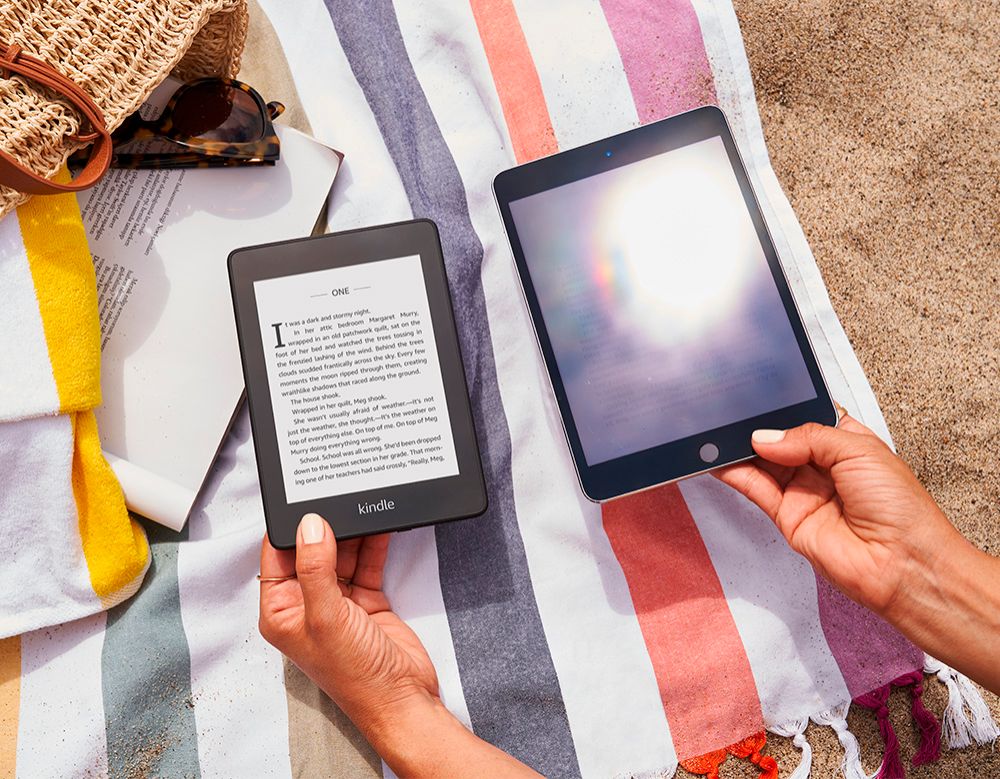
A:AnswerNo. That's precisely why I purchased this instead of reading with an app on my phone or tablet. No matter how bright it is, you can still read easily. When it gets dark, just turn on the back light and read all night, too!
A:AnswerHello! It looks like the device you are looking at here comes with the special offers. Those Special Offers are displayed as a screensaver when your Kindle e-reader is in sleep mode. If you are wanting to remove them, here is how to do that: 1. Open your Alexa app and go to Manage Your Content and Devices. 2. Select Devices, and then select your device. 3. Under Special Offers, click Remove offers. A pop-up window then displays the price to remove special offers. Select End Offers and Pay the Fee to proceed. I hope that helps answer your question! Have a great day!
A:AnswerThe books are also stored on your Amazon account on your computer. You can remove the book from the device and still have access to it in Amazon.
A:AnswerIt doesn't have apps as such, although it does have a web browser. For apps you need something like the Kindle Fire. It has a German dictionary but it only gave me the option of turning one dictionary on at a time so I don't know whether it would translate something for you.
A:AnswerHello, gcubbage1!
You would only need it to be on WiFi to purchase and download books and to set up the device. Once books have been downloaded, you would have access to them whether you are on or off WiFi. I hope that helps! Have a great day!
A:AnswerHi there! Most Kindle content and personal documents are eligible for Text-to-Speech. If Text-to-Speech capability is available for your book, you'll see Text-to-Speech: Enabled on the product detail page before you purchase your book. While reading, tap the center of the screen, and then tap the menu icon Aa in the upper right corner. Tap More, and then tap the switch next to Text-to-Speech to turn it on. In your Kindle book, tap the screen to show the progress bar, and then tap the Play button next to the progress bar to hear the text read aloud. To increase or decrease the reading speed of the Text-to-Speech voice, tap the Narration Speed icon. You can listen to the Text-to-Speech voice through the external speakers on your device or through your earphones plugged into the headphone jack. Tip: If you're reading a book in another language, you can download a Text-to-Speech voice for that language without leaving the book. Tap the download prompt at the bottom of the progress bar to install the Text-to-Speech voice.
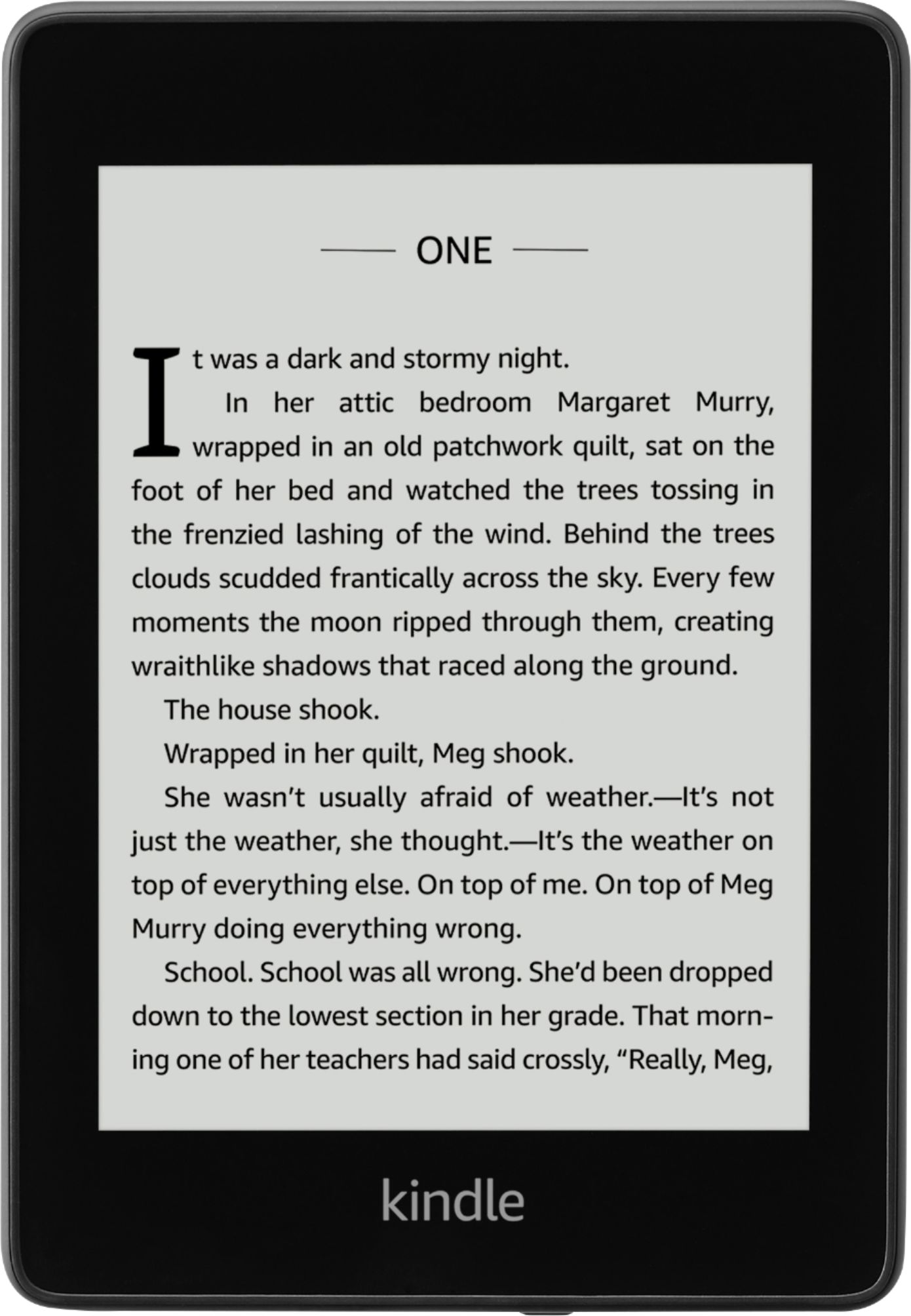
A:AnswerHello Bobik! The pages in a physical book and pages on an e-book are not the same as everyone has their own font preferences. With that being said, you are able to change what displays at the bottom left of the screen by tapping it. It cycles through nothing displayed, page number, minutes left in the chapter, minutes left in the book, location number, and back to nothing. I hope this helps answer your question and that you have a phenomenal day!
A:AnswerHello Bobik! At this time Kindle does natively support FB2 or EPUB formats. The formats currently supported are as follows: Kindle Format 8 (AZW3), Kindle (AZW), TXT, PDF, unprotected MOBI, PRC natively; HTML DOC, DOCX, JPEG, GIF, PNG, PMP through conversion; Audible audio format (AAX). I hope this answers your question and that you have a phenomenal day!
A:AnswerNo. The usb to wall plug AC adapters are universal. Depending on the watage capabilities the time it takes to charge may vary by adapter, but it will not harm the kindle.