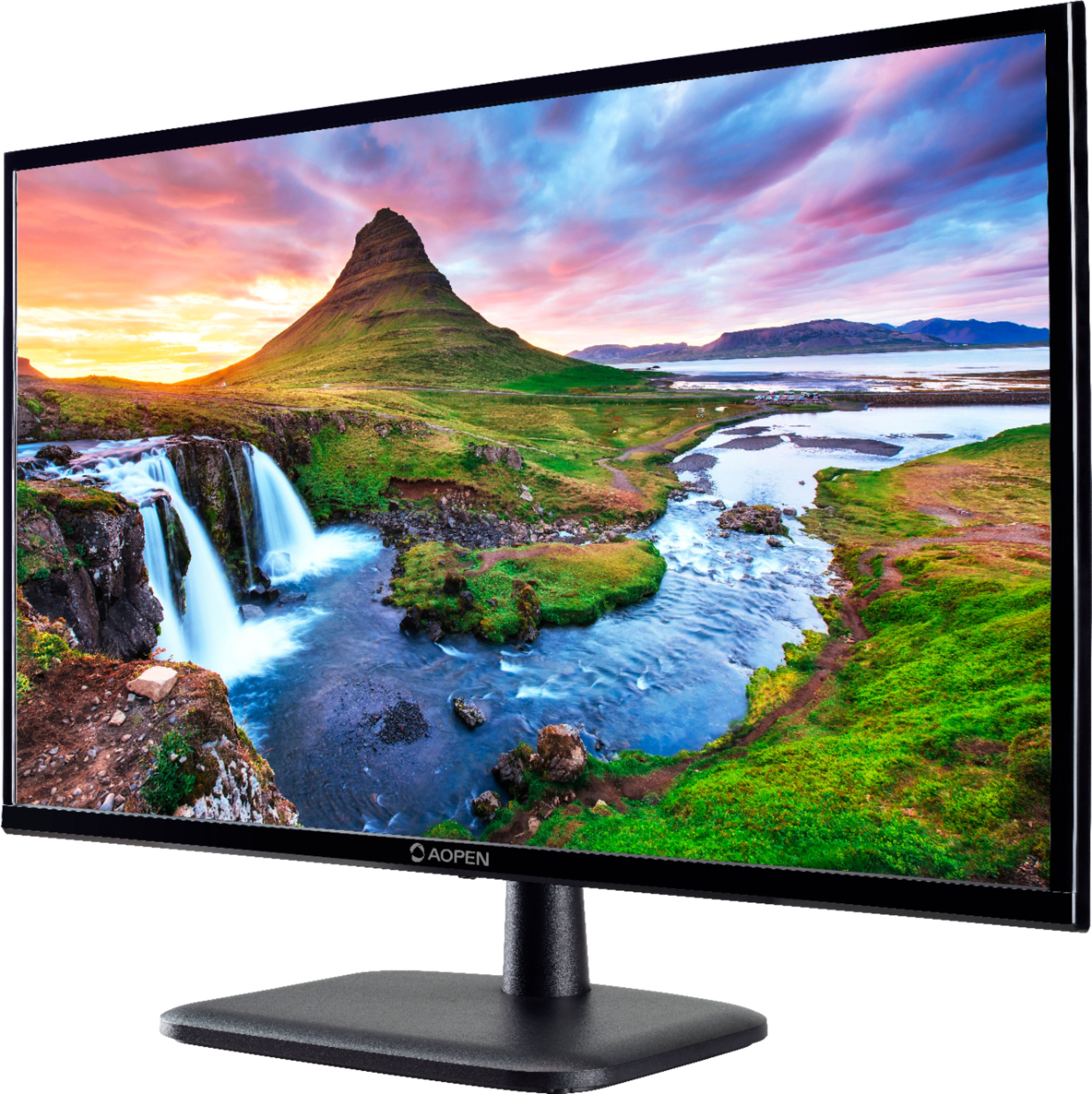
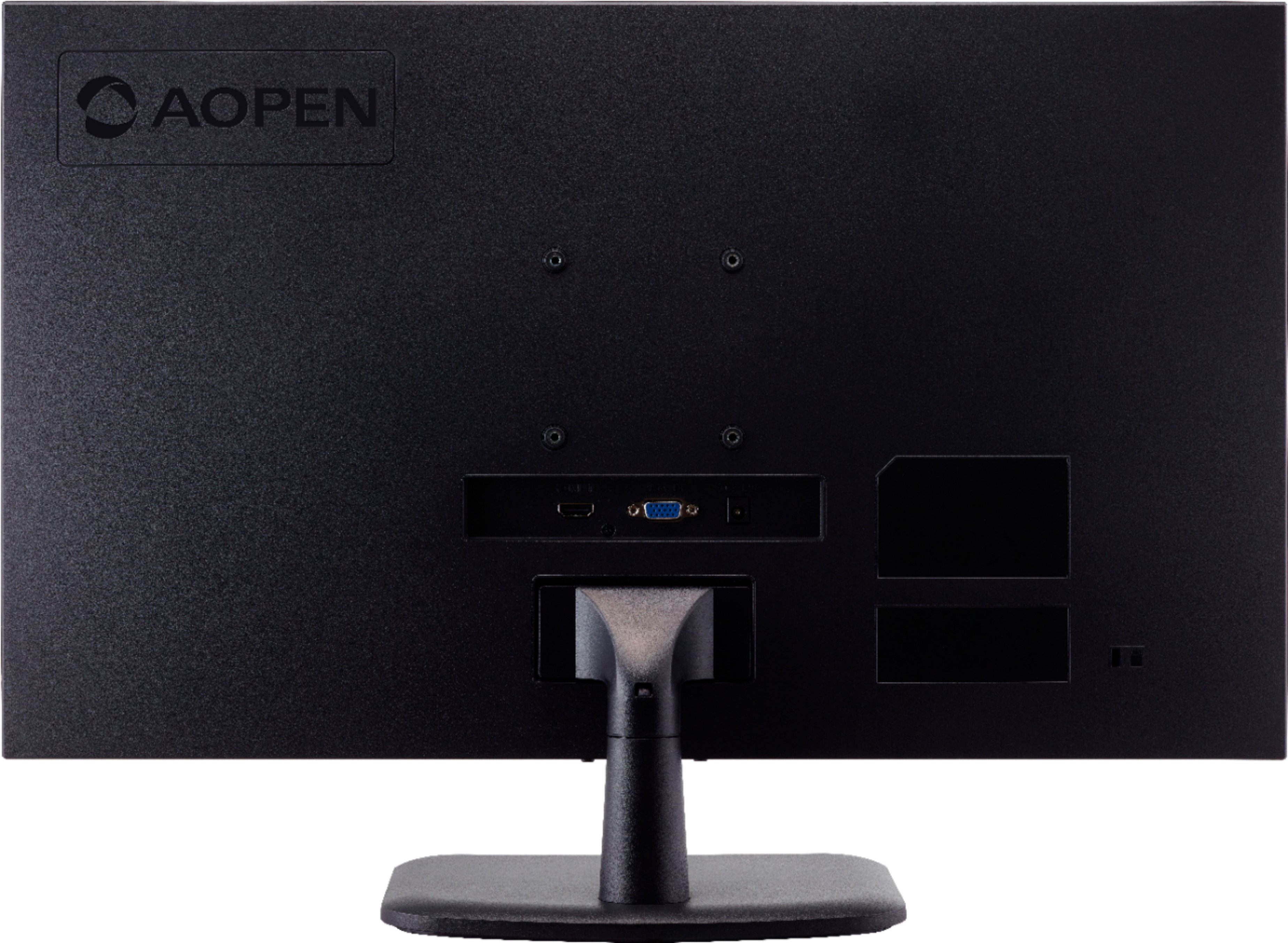
A:AnswerI would say probably since it does have an hdmi port so I think that if you put the Xbox cords into the back of it it'll work but I could suggest a better monitor because this is not the best bang for your buck for gaming and I just think you should get a better monitor so I guess just get what you can but to answer your question I'm not sure so get something that tells what it can do better
A:AnswerThere are 5 buttons under the front center of the monitor, right in front of the monitor pedestal. All 5 are used for MODE settings on this monitor. They are labeled #5 to the far left and #1 to the far right. #5 also doubles as the ON/OFF button. If the monitor is OFF, press #5 to turn it on, if the monitor is ON, then press and hold #5 button for approximately 3 seconds and the monitor will turn off. If you just press #5 and release, it will go into its mode settings for that button and NOT turn off.
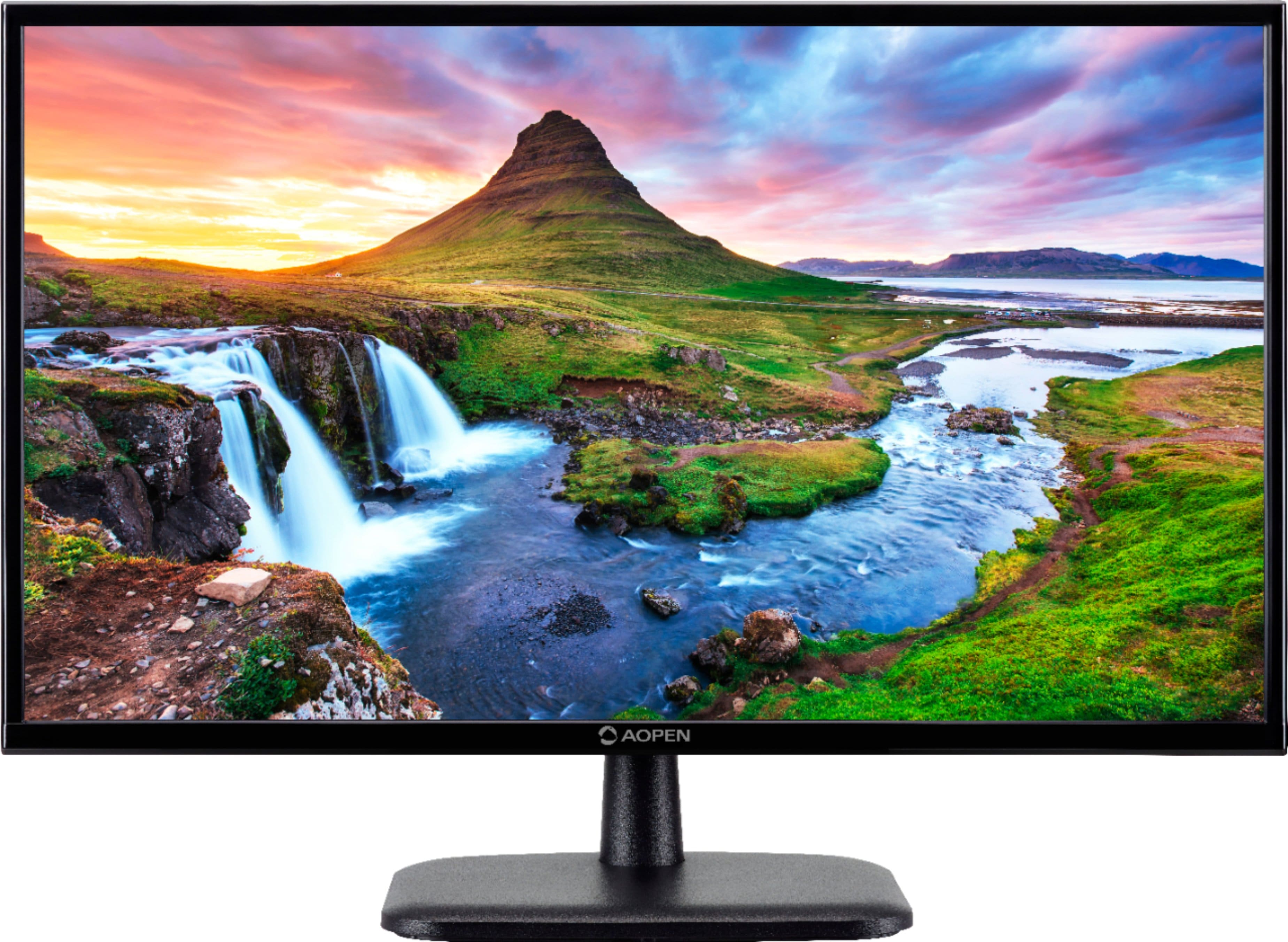
A:AnswerThis depends on your laptop. If your laptop has 2 display outputs, then yes, you can use two monitors. Otherwise you might need to purchase a docking station for your laptop to support 2 monitors.
A:AnswerIf you are only concerned with roblox and minecraft, this will do great, as it can do 60 hz (60 frames per second) at 1080p. Minecraft and roblox require very low specs to play because they don't have outstanding graphics. Remember though, you have to have a PC/gaming console to connect to this, it is only a monitor like a small tv.
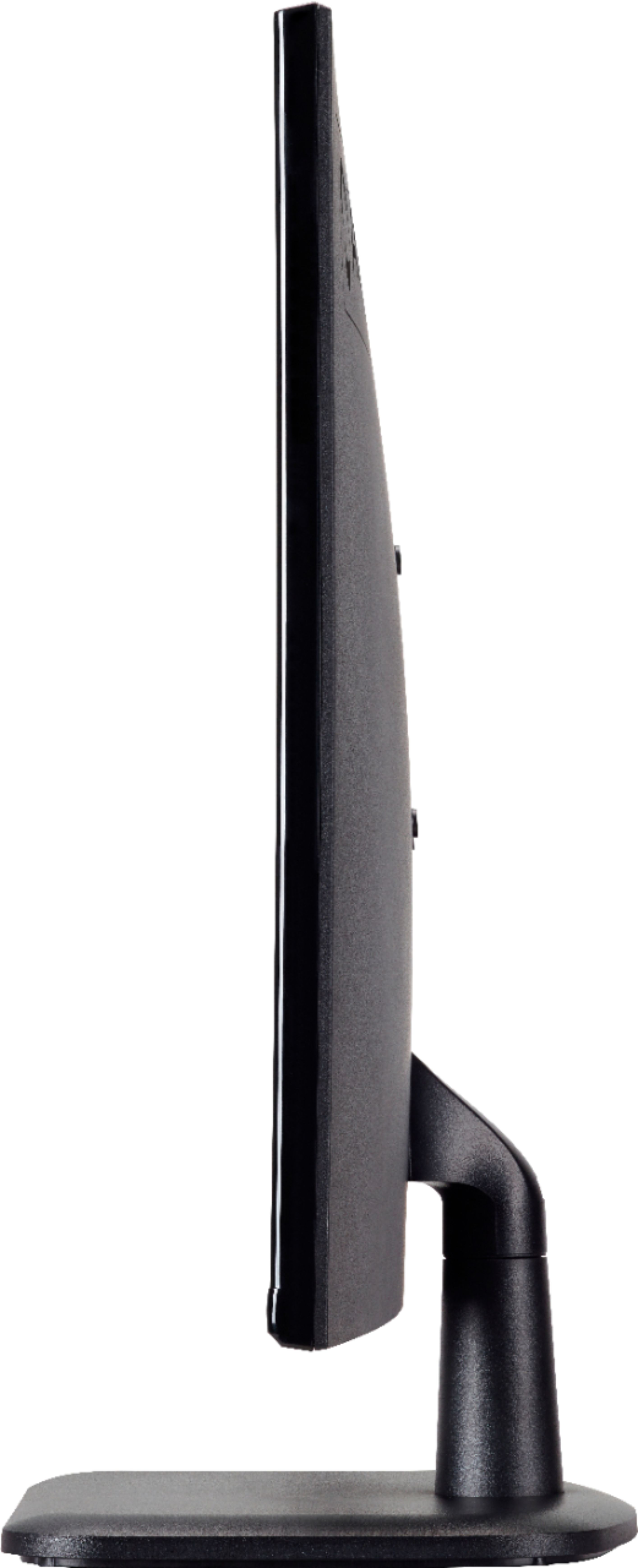
A:AnswerStraight up and down {no up/down adjustments} it is 15-1/2" from bottom of base to top of monitor. Depending on the tilt, that number will be a little less. It tilts forward and backward approximately 45 degrees in each direction.