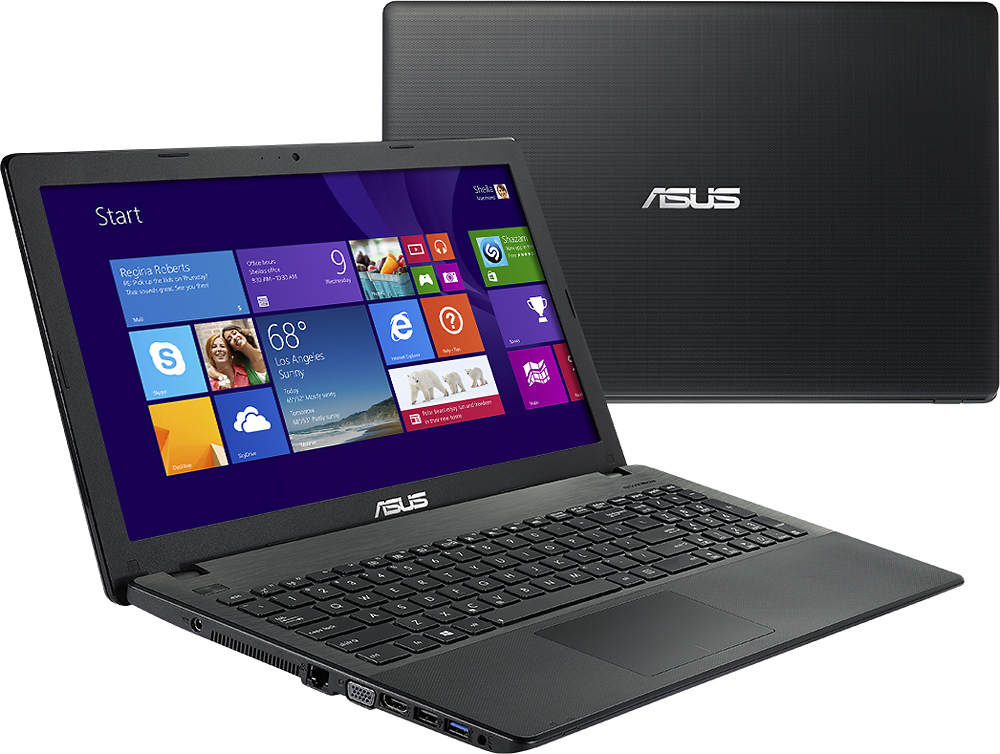
A:AnswerI have seen both answers to this question, that you can and can't add RAM. Possibly it depends on different configurations of the same model. since I know that it is available both with and without an optical drive (mine, purchased years ago from another dealer, came without one). As an example, I looked on the Kingston website and it says 4GB is the maximum, with one slot, while Crucial tells you that there are two slots and 8GB is the maximum. I can tell you that mine was upgradeable, to at least 8GB, possibly more, but it is nerve wracking to do it if you have never opened up a consumer level laptop before. First, you have to remove 9 screws on the bottom that are three different lengths (which means you have to put them back in the same places you removed them from). Then, you separate the two halves of the base (carefully, don't break anything). Next you have to detach three delicate cables from the motherboard. Then you have to detach three other cables from the motherboard, in addition to the connectors to the WLAN chip. Then remove the HDD. Then another bunch of screws holding the motherboard. Finally, you can remove and flip the MOBO and, if you're lucky, there will be the one stick of RAM to be exchanged. If you've successfully done all this without damaging anything or killing yourself, you now have to do it all in reverse. Warning: the worst parts of the reassembly are the cables and connectors (I had an especially bad experience with the WLAN connectors). Advice: before you snap the two halves of the base together, try to power it on; if you did EVERY. SINGLE. THING. right and it boots up without issue, great, congratulations. If not, you have to do it all over again and prey you haven't just wasted $200+. BTW, I was only able to assay this task by way of a set of very helpful videos on YouTube, which I highly recommend before you do the same thing.
A:AnswerTry this
How to Restore an ASUS Laptop to the Factory Settings
by Ruri Ranbe, Demand Media
Your business might need to restore an ASUS laptop to its factory settings for a variety of reasons. Formatting the hard drive and reinstalling the operating system can eliminate virus infections, revive the computer from system failure, and even improve computing performance. Erasing the contents of the drive is also critical if you intend to sell the laptop; if you neglect to do this, the next owner will be able to access your critical business data. ASUS laptops contain a recovery partition that includes software designed to restore the laptop to its original condition.
Step 1
Power on or reboot the ASUS laptop. When the ASUS logo screen appears, press "F9" to access the hidden partition.
Step 2
Press "Enter" when Windows Boot Manager appears. Choose your language from the options and click "Next."
Related Reading: How to Restore Factory Settings on a Zebra Thermal Printer
Step 3
Review the on-screen messages and then click "Next." Select one of the following options: "Recover Windows to First Partition Only," "Recover Windows to Entire HD" or "Recover Windows to Entire HD With Two Partitions."
Step 4
Click "Next" and follow the on-screen instructions to restore the ASUS laptop to the factory defaults.
A:AnswerYes, but you will have to buy or obtain the Win 7 licensed version. I just installed Linux Mint on this machine and it works fine. If you can get Linux on it, I'm sure Win 7 will work.
A:AnswerI also was without a power cord on a recent business trip, lucky for me there was a best buy close by and was able to pick up a universal set which included the one I needed , a tad spendy but also had adaptors for a lot of other products I own which made it worth while for me. (around $50)
A:Answerno word or excel. I purchased an Office 365 Home monthly subscription at a cost of $9.99 (USD) (plus any applicable taxes). I use mostly Excel which in the Office 365 package is "bulky", slow, with no help screens available, and a lot of previous features either not available or hidden. e.g., I had to spend an hour with Micro help just to learn how to adjust the column width. I'll probably shop around for something better & more user-friendly. The only positive feature is that your work is saved to the cloud so you don;t have to worry about backing up.