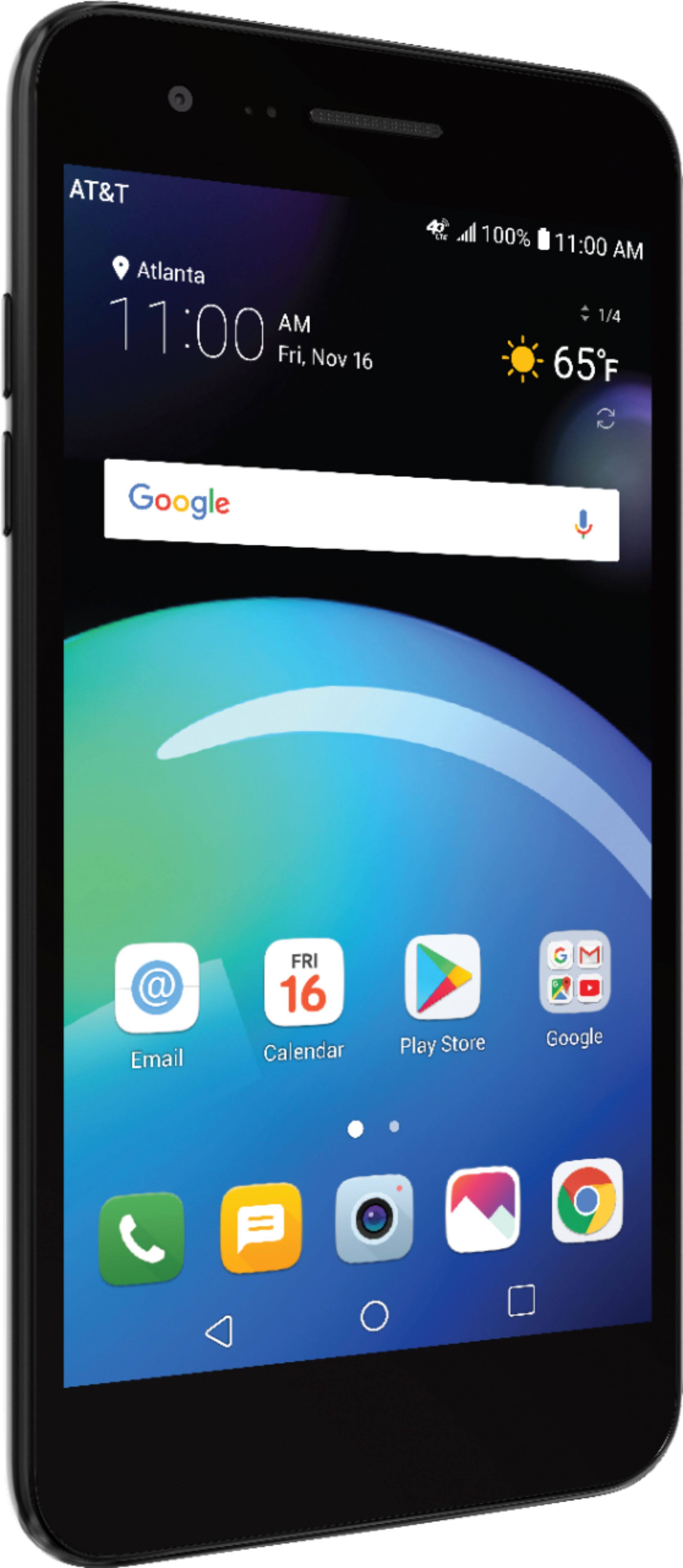
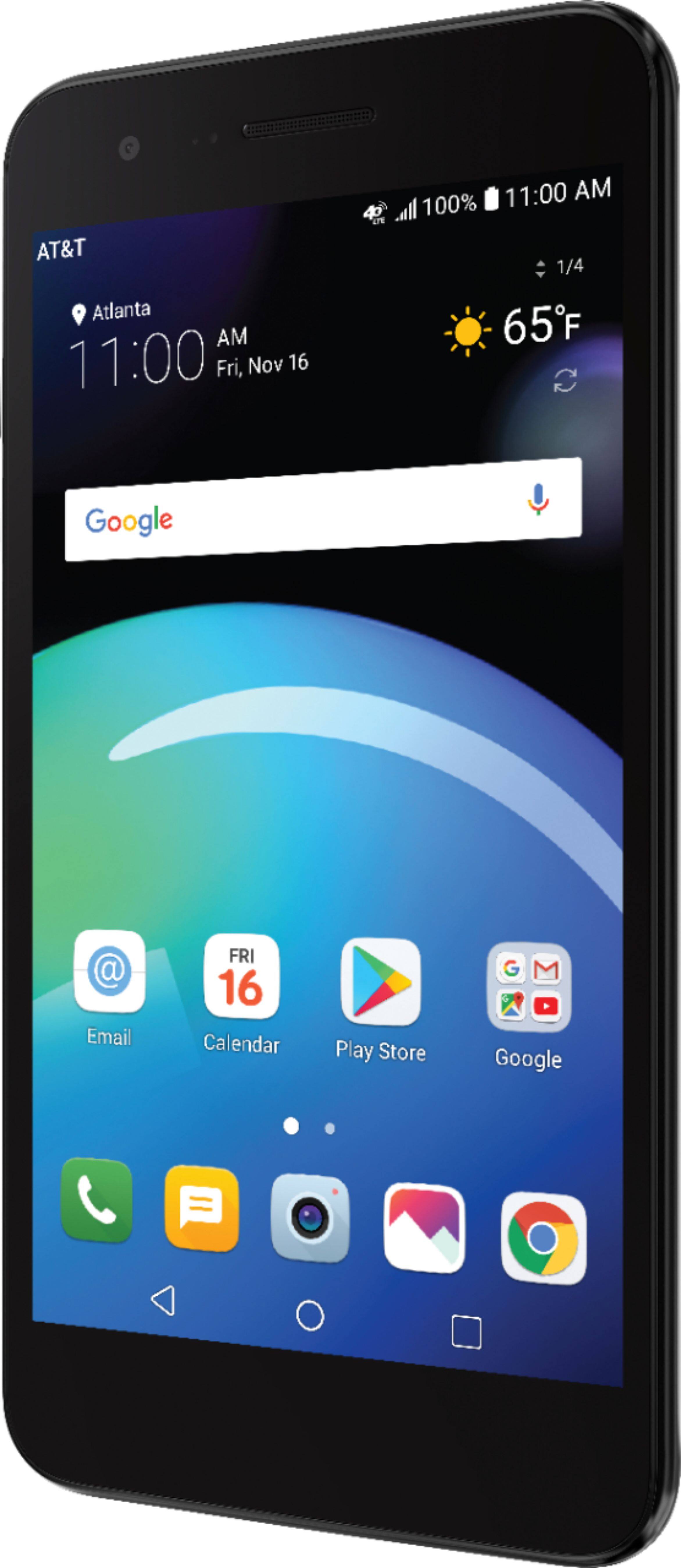
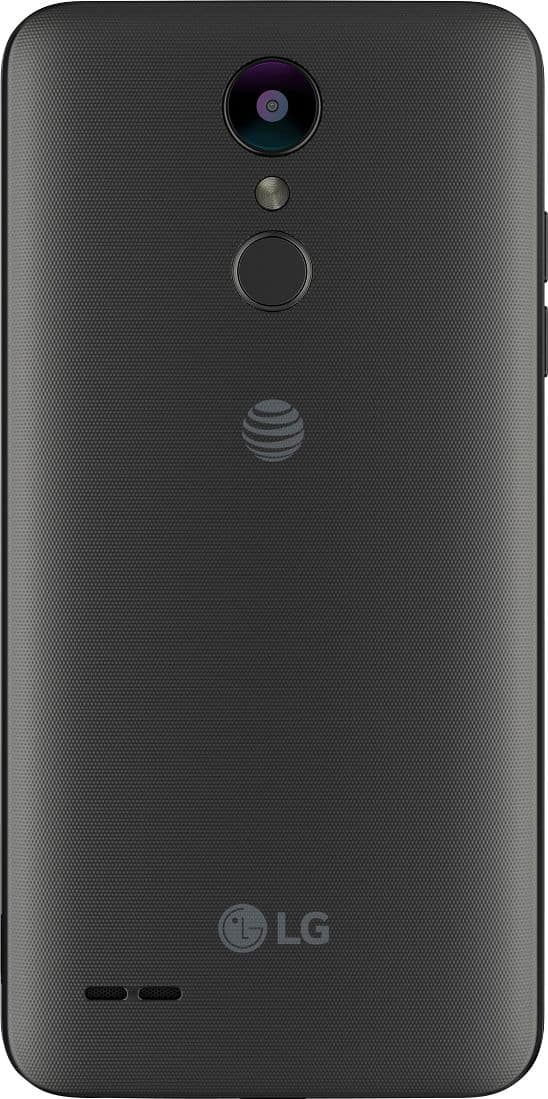
A:AnswerYou need to put the controller into pairing mode by pressing the Xbox button and holding down the sync button simultaneously. After that, go into the settings for the AT&T Prepaid - LG Phoenix 4 with 16GB Memory Prepaid Cell Phone - Titan Black and select Bluetooth to open the Bluetooth menu & select the controller from a list of available devices...^IFV
A:AnswerThe W x H x D dimensions for the AT&T Prepaid - LG Phoenix 4 with 16GB Memory Prepaid Cell Phone - Titan Black can be found under 'Dimensions' in its specifications on its product page on the Best Buy site. They are listed as: Product Height - 5.7", Product Depth - 0.32". The width is 2.9"...^IFV
A:AnswerAs long as you have your sim card your phone number transfers to the new phone. The sim card is micro, so if your card is older and larger you'll have to go to the AT&T store for a new one. They don't charge for it and they'll also help you do the transfer of your old phone info at no charge.
A:AnswerThe AT&T Prepaid - LG Phoenix 4 with 16GB Memory Prepaid Cell Phone - Titan Black is not an unlocked phone. You would need to make a request to AT&T to have them unlock it for you. They have a set of conditions that have to be met for them to unlock the phone for you...^IFV
A:AnswerYes. The speakerphone button is on the call screen, lower left. If you are familiar with the Phoenix 3, it is in the same spot, but the screen looks a little different. The Phoenix 4 screen is a solid color (green). I am attaching the ATT link about the speakerphone with pictures . You should be able to view the manual on ATT or LG's site and you should be able to view a video on either site or on YouTube. ATT has some video tutorials on YouTube. Hope this helps.
https://www.att.com/devicehowto/tutorial.html#!/stepbystep/id/stepbystep_KM1266393?make=LG&model=LGLMX210APM
https://www.att.com/ecms/dam/att/devicesupport/LGPhoenix4-LM-X210APM.pdf
https://www.att.com/device-support/index/LG/LGLMX210APM/
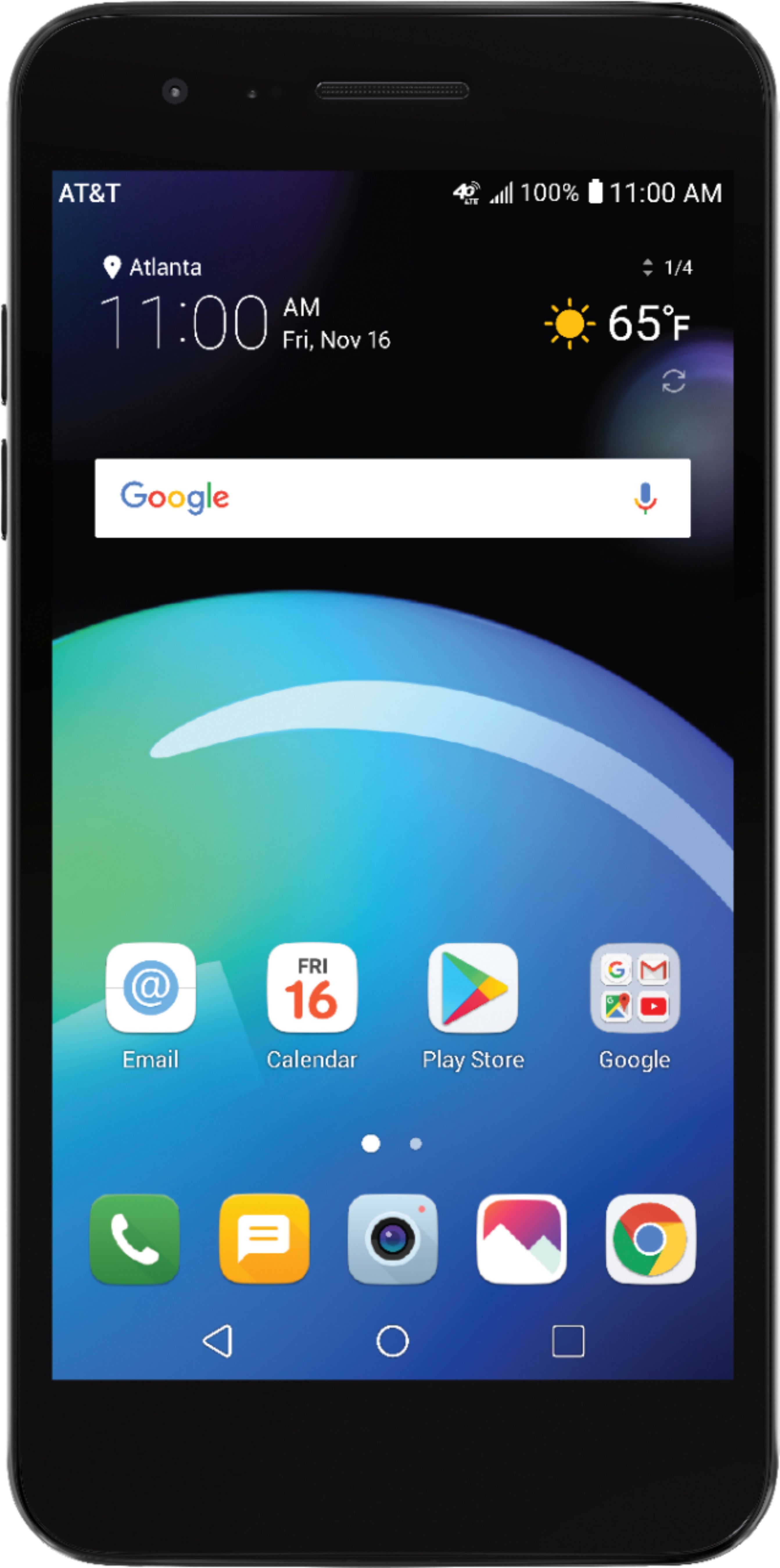
A:AnswerYou don't have to. If you have service with AT&T- you can simply buy one of these and put your existing SIM card in it. If your SIM card is a different size- you go to an AT&T store and they will program one, with your current phone number, that is the correct size for your phone.
A:AnswerIt’s operated by android and it should have Conversation view text unless if something wrong happened in the sittings I suggest to backup your phone then Do a factory reset
A:AnswerThe LG Phoenix 4 has Android™ 7.1.2 Nougat. All updates must go through approval processes and are then issued by the carrier you are connected to. If a device is set to receive an update, it will be scheduled by the carrier once they are done with testing and approval. If you need any support, please feel free to give us a ring at 1-800-793-8896 or you can contact us on Twitter at @LGUSSupport or on Facebook at @LGUSSupport. ^CP
A:AnswerOn the truck's display, push the "Menu" button and scroll to "Set-Up" and select installing phone and follow directions. Also, since you have a 2019 GMC, go to the dealer and I am sure they can get it to work!
A:AnswerIf you're in need of some guidance with using your Phoenix 4, please head to our support page at @LGUSSupport on Twitter or shoot us a private message on Facebook at https://www.facebook.com/LGUSA/ so a specialist can help out. ^CP
A:AnswerThank you for reaching out to us. For best assistance with this inquiry, we recommend reaching out to AT&T directly. You can find their contact information here: https://www.att.com/contactus/ ^CP
A:AnswerYes you have to sign up for one of AT&T prepaid plans the cheapest one they offer is $35 you do get a phone number but you have to sign up for a prepaid plan on AT&T
A:AnswerYou can!
When you hit the phone button, there is a little video camera that you select and it will video call. I believe it is only to android phones. Even when you're in the call, just hit the video camera and the person can accept it if they would like to video chat.