A:AnswerNope. The best part is that it just shows up as a device the same way your built-in webcam does. You can use OBS or Zoom or any other software and the camera is available without any specific software. I'm using this with a Sony a6400 and it works wonderfully.
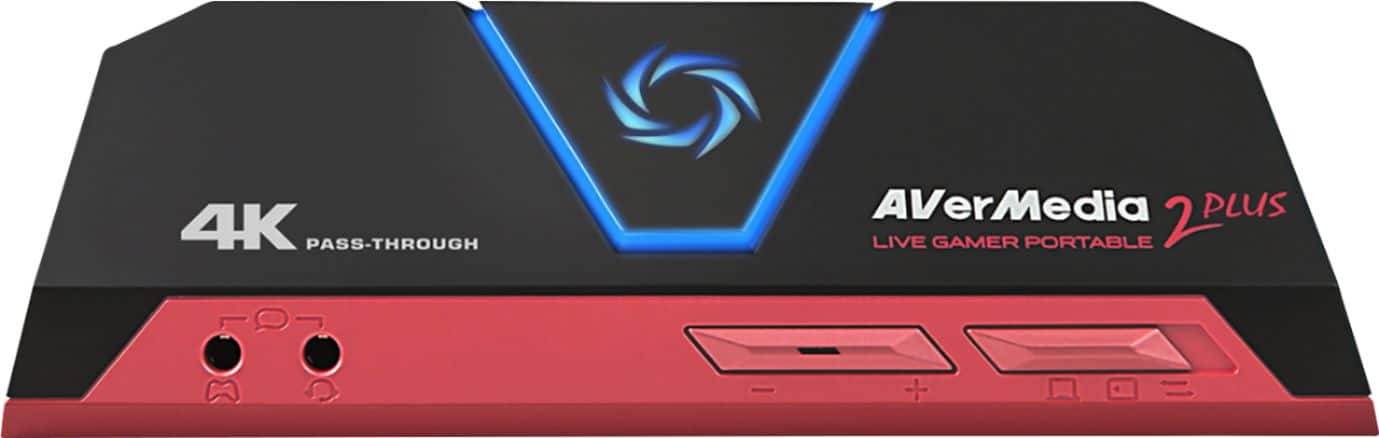
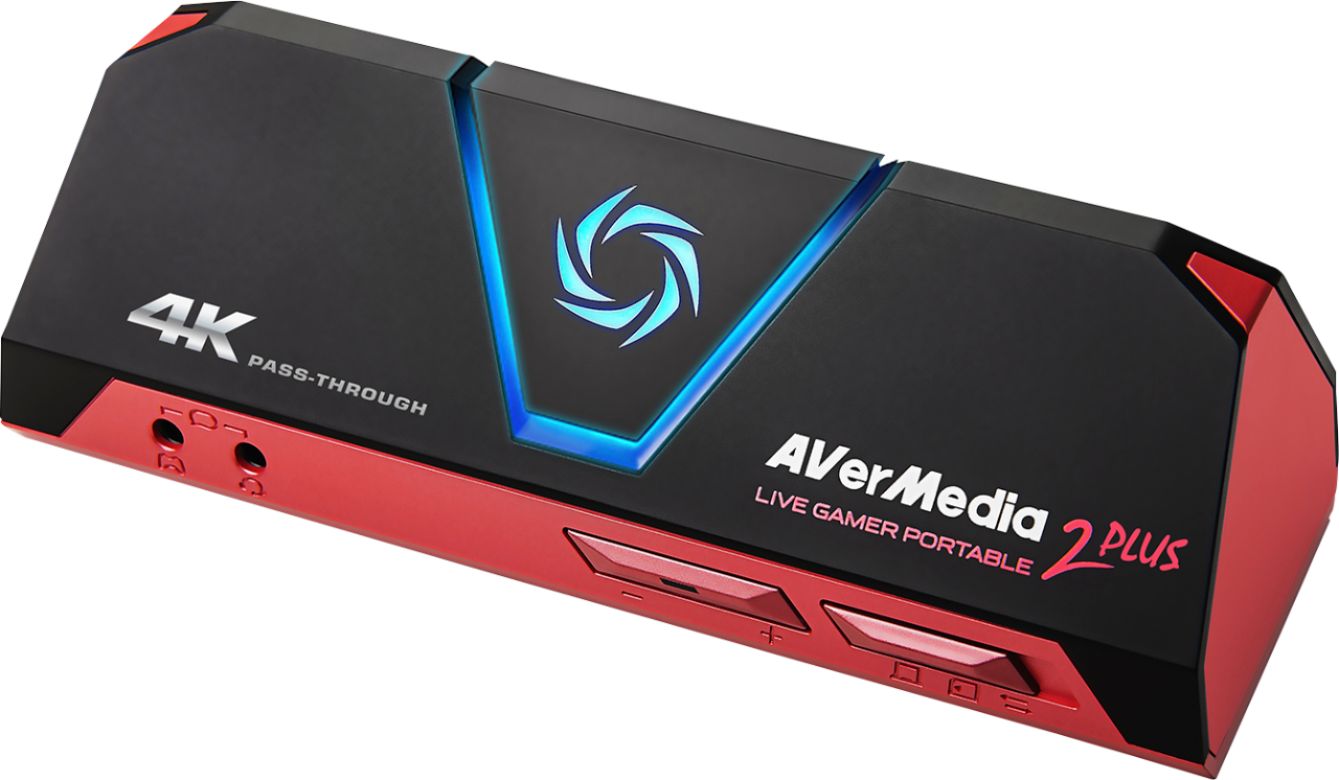
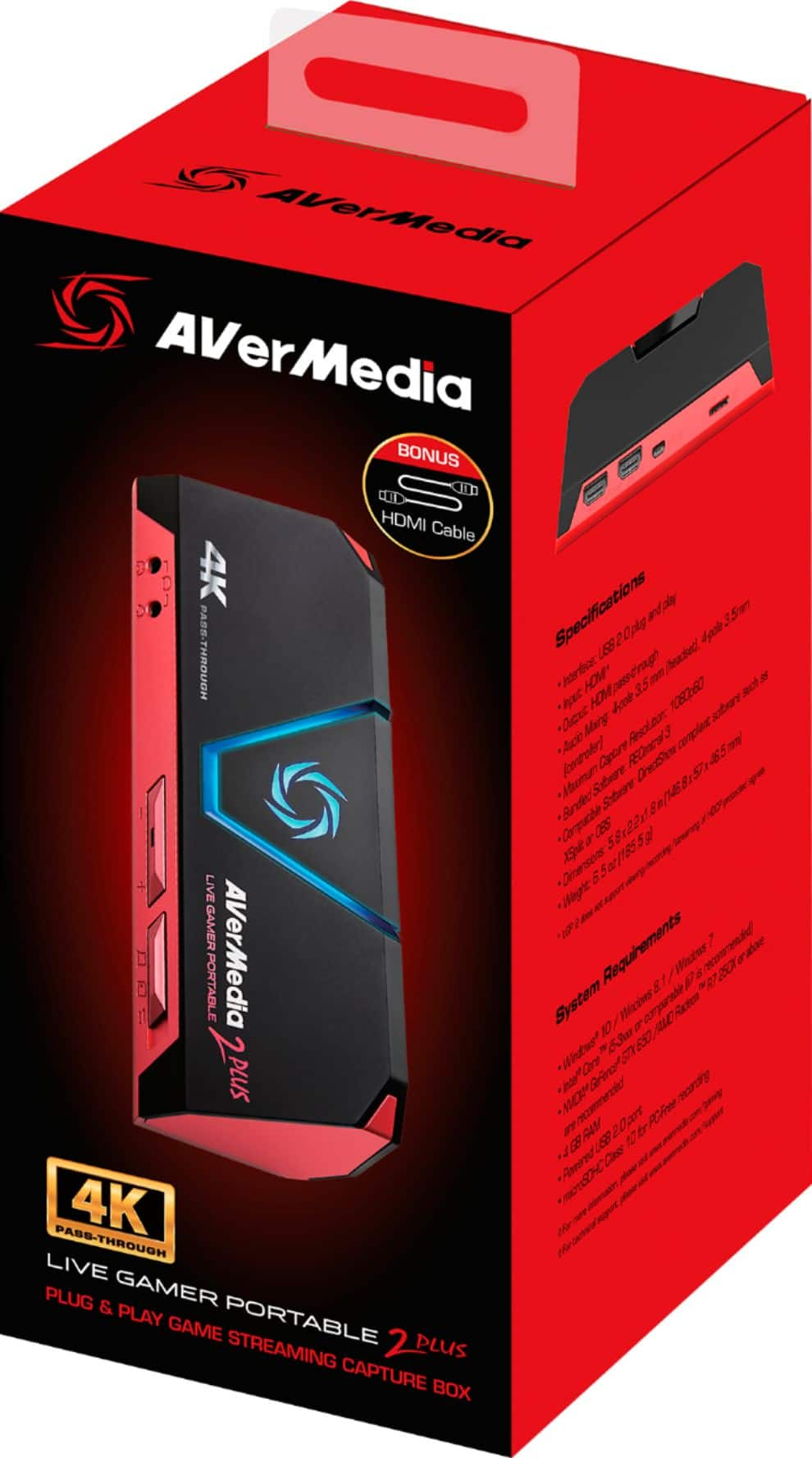
A:AnswerHi! I don't know much about that laptop specifically, but as far as I have seen and tested this capture card (Live Gamer Portable 2 Plus) will work with any device that can output HDMI signals that are not HDCP protected. My laptop is a Lenovo, but I've used this capture card to record gameplay footage for YouTube play-throughs using just the HDMI output from my laptop. The footage is pretty decent. I only use the PC-Free Mode with this capture card though to avoid slowing my laptop down.
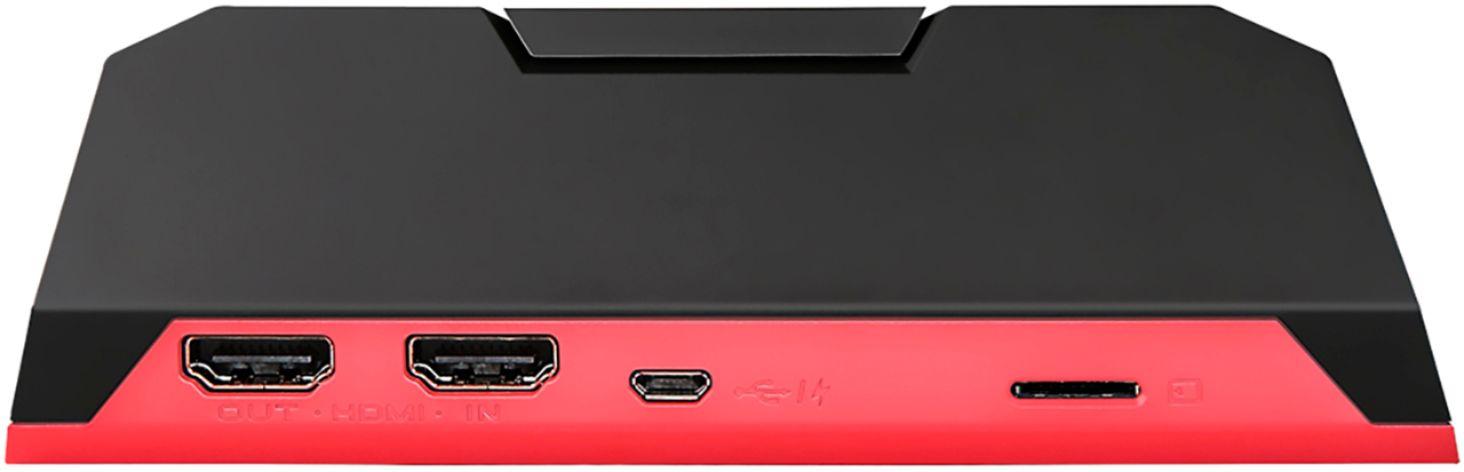
To answer your question, I don't see why it wouldn't work with your laptop as long as your laptop has an HDMI output port that doesn't output HDCP protected signals. If you use that port you can record games using the capture card independently from the laptop via its PC-Free mode (this requires a class 10 Micro SD card). This means you can record gameplay on a low spec laptop without affecting the footage or the game. If you don't want to use the HDMI output capture method, it does have a PC reliant capture mode. Check the compatibility of programs like AVerMedia RECentral 4 (the software made for this device) and OBS with your laptop for using that mode. I will say though that I have tried both of these programs and found that this card does put a decent load on the computer, which is why I always use its PC-Free mode.
I should mention though that how you go about using this capture card may create some hoops you have to jump through. For instance, when I record gameplay footage on my laptop using its HDMI out, my laptop can only output audio to either the card or my headset. This means in order to listen to my game audio and record at the same time, I have to record all the audio separately and then combine the audio and video in post. This doesn't bother me too much though because I found a very fast and effective way of doing that. This specific problem though is all to do with my setup. I mention it however because I can imagine that other weird scenarios like this could happen when using the card to capture laptop output. And that very well may be true for most capture cards.
Hope this helps!
If you have any more questions feel free to post them! I'll answer them as soon as I can and if need be I can run some tests with my card and tell you the results.
A:AnswerThe Capture card is designed to be used to capture an external device like a switch, xbox, ps4, and then stream that video via your PC onto whatever platform you choose to stream to. In this situation the only thing your PC is doing is relaying the video its receiving from the external device and projecting it wherever you send it to. it would only affect the CPU since your not actually using your GPU for the gaming portion.
Hope this helps clear up some confusion.
A:AnswerIt is a screen capture device. It allows data to transfer from a gaming device, in my case an iPad or iPhone, to my computer. I use it for showing what is on my phone or tablet. The device does not care what it is showing (live or prerecorded), it only cares about the source.
I hope that helps.
A:AnswerThese are the Mac Specs need for this device
Operating system: Mac10.11/10.12/10.13
Connection: USB 2.0 (UVC · UAC compatible, easy plug & play connection)
CPU: 2.8 GHz quad-core Intel® Core ™ i5 processor equivalent or better
* When recording / streaming 1080p / 60fps, when using PIP mode
we strongly recommend using Intel® Core ™ i7 Quad-Core.
RAM: minimum 8GB or over, 12GB is recommended
Software options: OBS Studio for MAC, Apple QuickTime Player
A:AnswerMaximum output is 60hz.
It displays at 4K maximum with no HDR passthrough
Recording maximum is 1080p60
You can record without having it attached to a PC which is a plus.
Also, Max SD Micro size is 128GB
A:AnswerPCs have been capable of connecting at least one external monitor for years now, so this device would not affect that. However, if your laptop has an HDMI port, it seems to me that you could use that to connect to the AverMedia, then connect the AverMedia (via the USB port) to a third monitor. I haven't tried this, however, so it's just an educated guess.
A:Answeryes u can stream 60 fps. Now when it comes to recording, yes to record to the capture card directly u must press record button on device if not threw pc (pc not needed).
I suggest record total gameplay then clipping the video after but if u have limited space and want to capture highlight moments u can try recording only when ready and then stop recording. But I don't believe it will capture 30 seconds before u start recording.
A:AnswerAs long as the camcorder in question used HDMI, and Zoom supported the LGP2 as an input device, then yes you would be able to do this. I do not use Zoom, so I can not say that it DOES support something like that. However, if it doesn't, there's likely a work around. Also, most digital camcorders come with the abillity to hook up directly to the computer and show like they are recording, I did this with a cheap digital camera back in 2005 with Yahoo Instant Messenger a lot, which also supported showing the elgato as a webcam for some reason. It really all depends on what Zoom defines as a valid input device (whether they just use the general Windows's "this is a camera" set up, or if they use their own Hardware list, which isn't likely but IS possible). This is more a question for Zoom than it is for here, and there are much cheaper alternatives... such as buying a $40-60 logitech webcam that supports zooming.