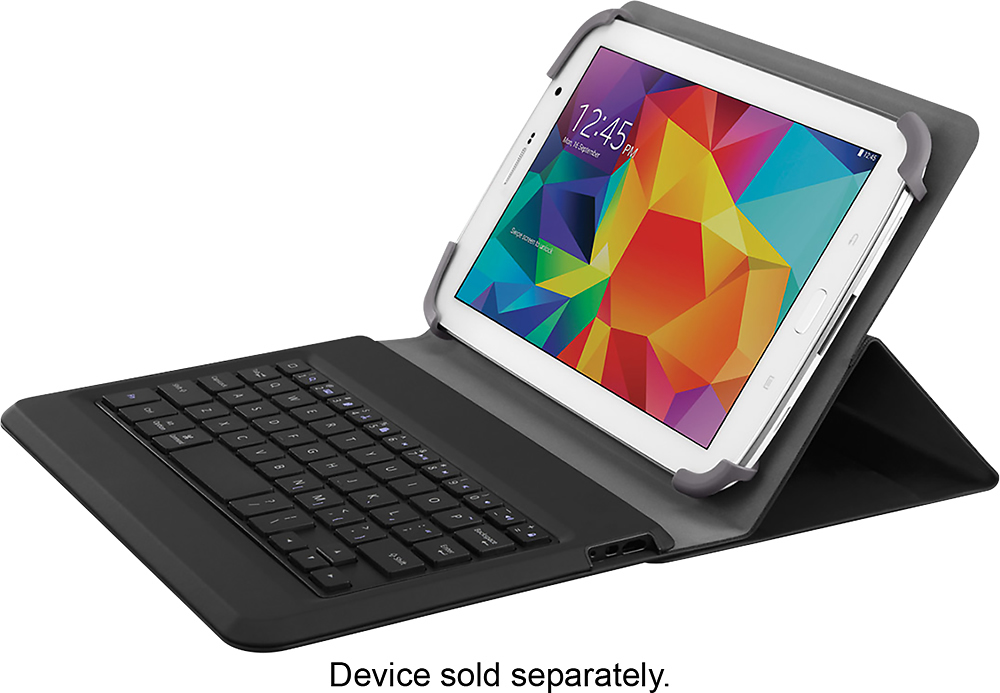
A:AnswerOn the top right corner of the keyboard there is a button that says "pair". While your tablet is searching hold that key down and it should prompt you to enter a code which will complete the syncing process.
A:AnswerThis should work with most Android Tablets, including yours.
01. Go into the settings menu.
02 Select Bluetooth > Set it to the OFF position.
03 Turn the BlueTooth keyboard On.
04 Next Turn Bluetooth ON.
05 You should see your keyboard listed under "Bluetooth" Devices.
06 Select the Option to "Pair" the devices.
Remember: Only one item can be paired to a blue tooth connection at a single given time. Example: if you have a Blue Tooth Speaker connected to your tablet: you have to shut it down in order to use the Keyboard.
A:AnswerHi Dbane. Yes, it will stay on if it's not paired. When you're trying to establish a connection, the LED will flash blue, then will stay solid for 2 seconds when the connection is successful, and turns OFF during operation. Since it can't detect any Bluetooth device, please make sure that the Bluetooth connection on your Asus pad is on. You may also try to pair it with another pad to isolate. Email us at [email protected] should you need further assistance.
A:AnswerHi. Just turn off the bluetooth on your tablet then turn if back on. You may also unpair then repair the case; just go to settings on your tablet then bluetooth, tap on the gear option then unpair then repair. Let us know if you need further assistance at [email protected] with your contact details and the link to this post.
A:AnswerIs this running on Windows OS? If yes, the keyboard is compatible only with devices specified on this link, http://www.belkin.com/us/F5L154/p/P-F5L154/.