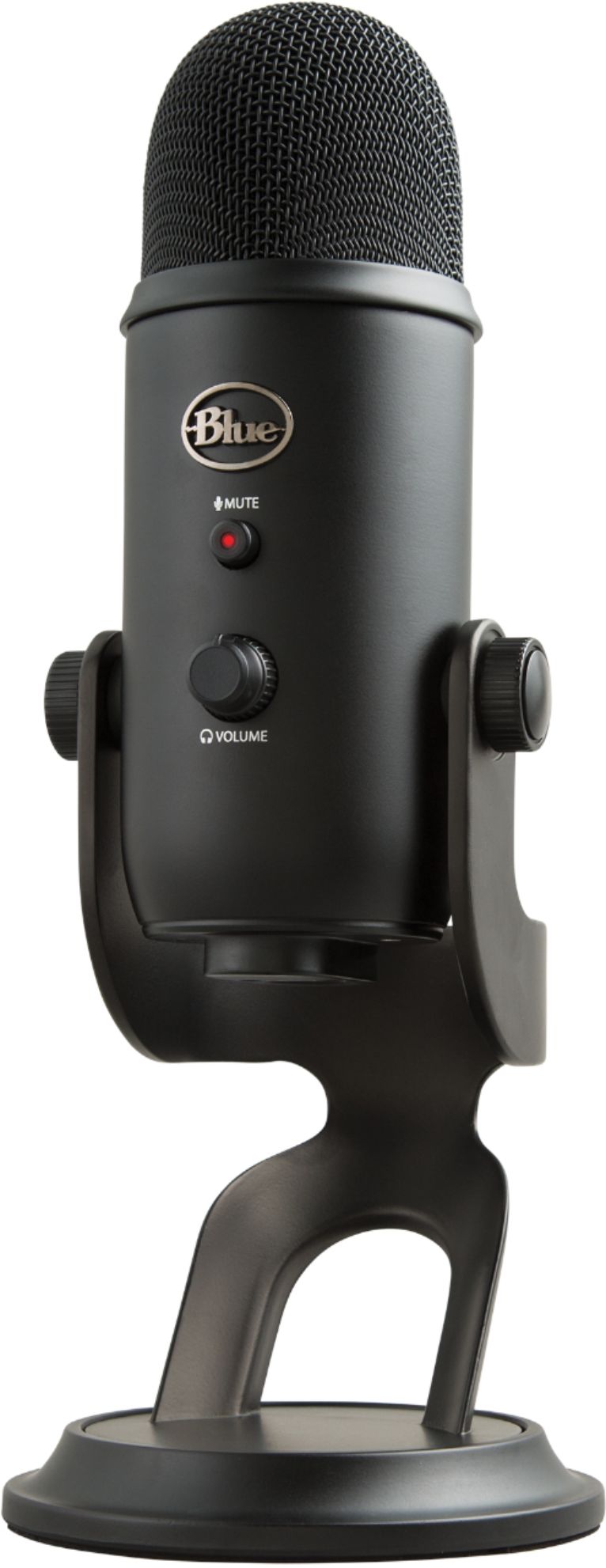
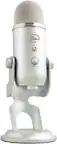
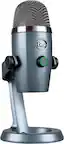
A:AnswerHello, An adapter will not reduce the quality of sound of the Yeti USB microphone. Just be sure that it is plugged directly to your Mac and not on a USB Hub or docking station.
A:AnswerHello justagirl! Absolutely, the Yeti USB Microphone included in the Pro Streamer Pack does come equipped with a 3.5mm headphone jack allowing you to listen to what you're recording in real-time.
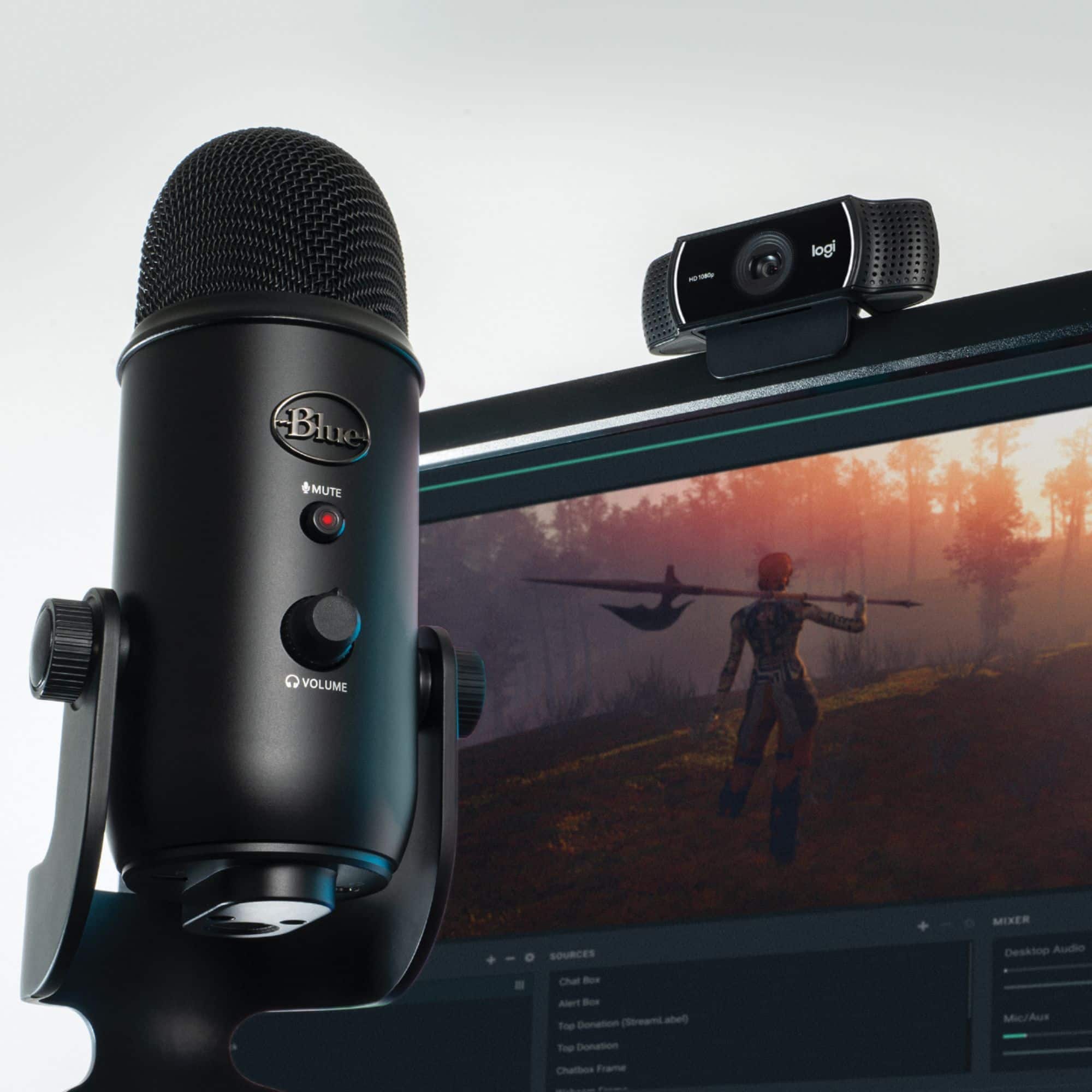
A:AnswerHi, both the Yeti microphone and C922 webcam in this bundle are easy to use and setup. Just plug them into an available open USB Type A port, and begin using them! -N from Logitech
A:AnswerHi Queenie, the Blue Microphone Bundle pack does not work with an iPad or a Samsung phone. Both the webcam and the microphone have to be plugged in with a USB port. These could be plugged into a laptop if that is available.
A:AnswerHello Tgstewart,
If you are using your microphone with the audio monitoring through the computer speakers, there is a potential for feedback. The Yeti microphone has 4 polar patterns, which are selected on the back of the mic. For your reference, I have attached a link to the support page for your Blue Yeti mic. There are many options for setting up your microphone, most likely the best polar pattern for your setup will be cardioid, with the back of the microphone facing the speakers. Feedback would be the result of the microphone picking up too much audio from the speakers. You will want to position the microphone so that it is not picking up too much sound from the speakers. A headset would be the best way to isolate the monitor from the mic, but there are many ways to approach audio depending on your preferences. I hope these suggestions and the product guides help in getting the setup that you are looking for. For further assistance, please visit the support website.
Best regards,
John at Blue/Logitech
https://support.bluedesigns.com/hc/en-us/articles/360033969774
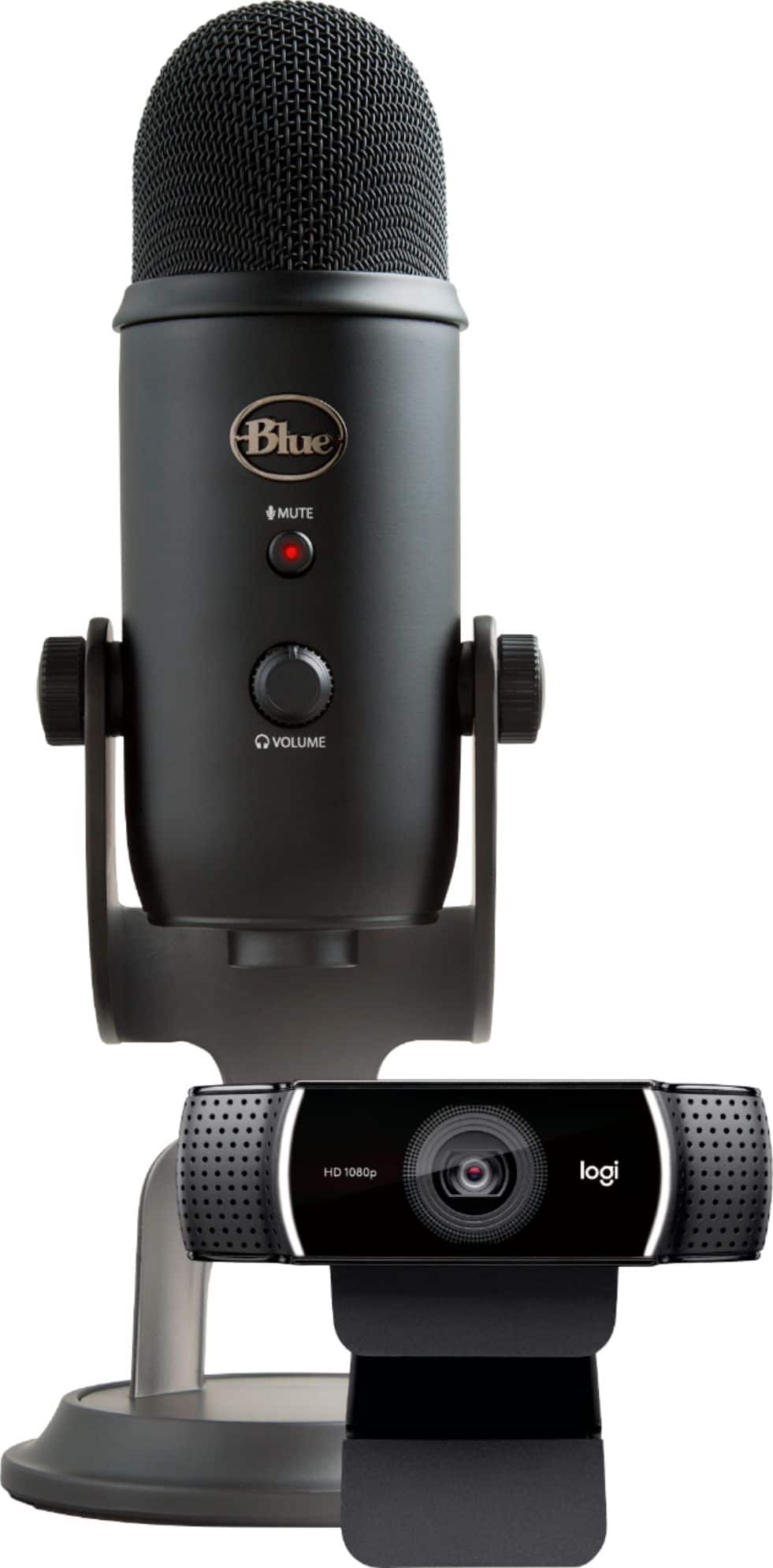
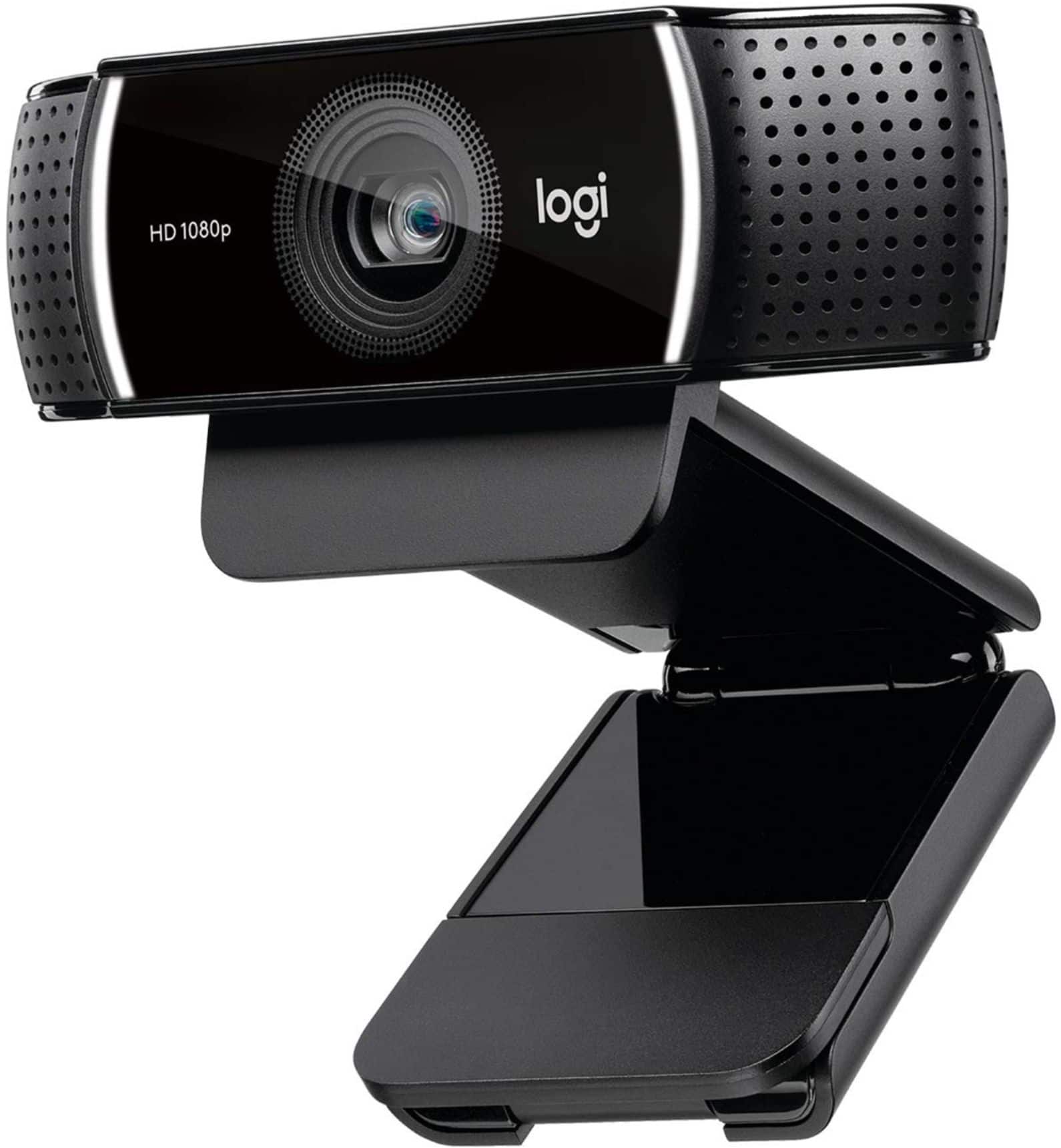
A:AnswerHello ts! The c922 Pro HD Webcam doesn't offer a telephoto lens option unfortunately. It does offer an autofocus and a digital zoom, but it's really meant to focus on a subject right in front of the camera, and not too far out.
A:AnswerHello John, in order to use the microphone from the Blue Yeti and not the webcam, you have to change the Audio Input settings on whatever program you are using. Whether it's Microsoft Teams, Zoom, Skype, or your web browser. Just make sure that the Blue Yeti microphone is selected, not the C922 Pro HD webcam. Have a great day.
A:AnswerHello, the easiest ways to disable the C922 will be to disable the camera in your computers options, or to simply unplug the webcam from your computer when not in use. Since it's a plug-and-play webcam, it shouldn't have issues reconnecting.
A:AnswerThere are different settings on the mic where you can change where the audio is being picked up from. For example you can change it to where it only picks up audio from the front of the mic, etc..