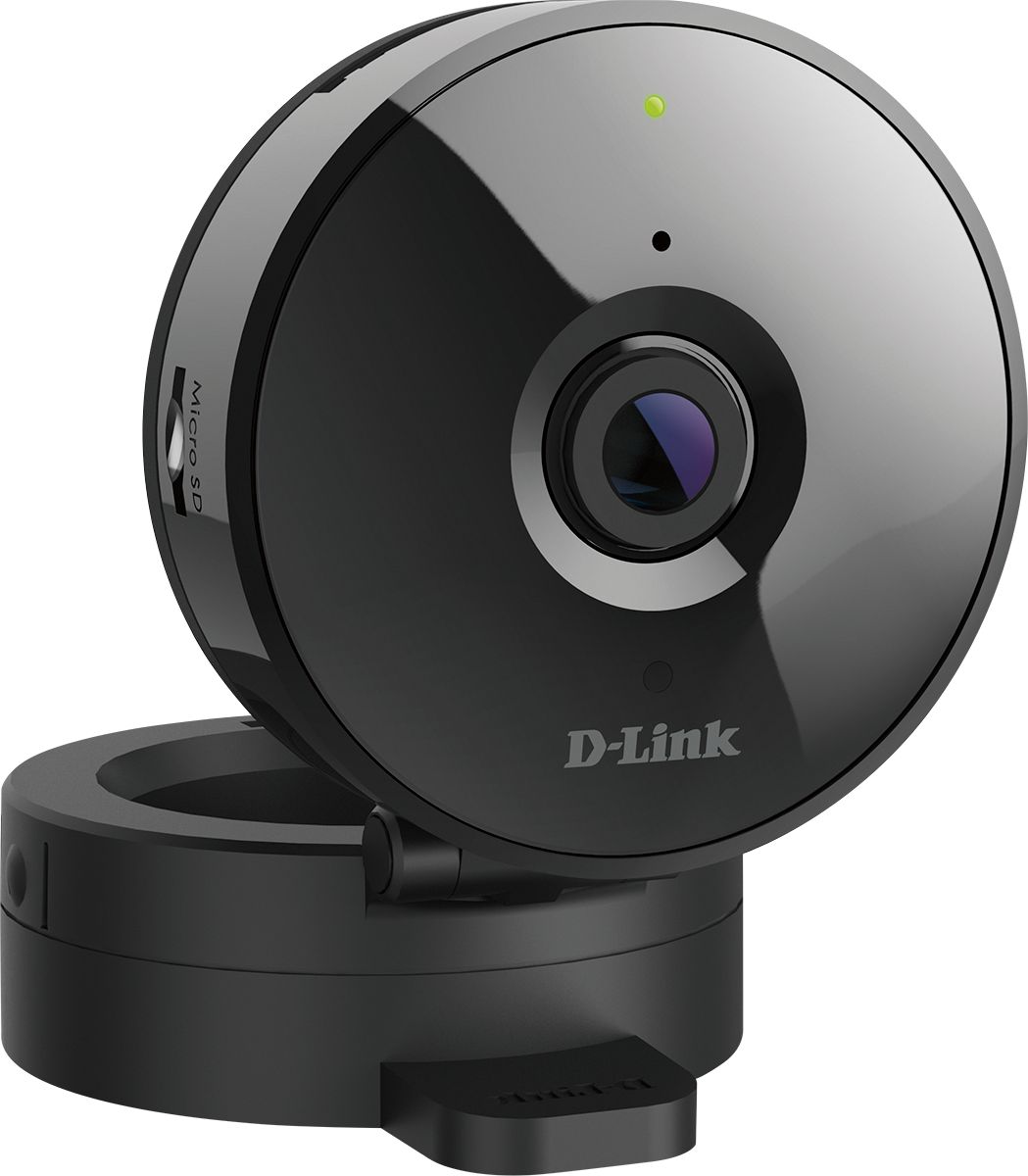
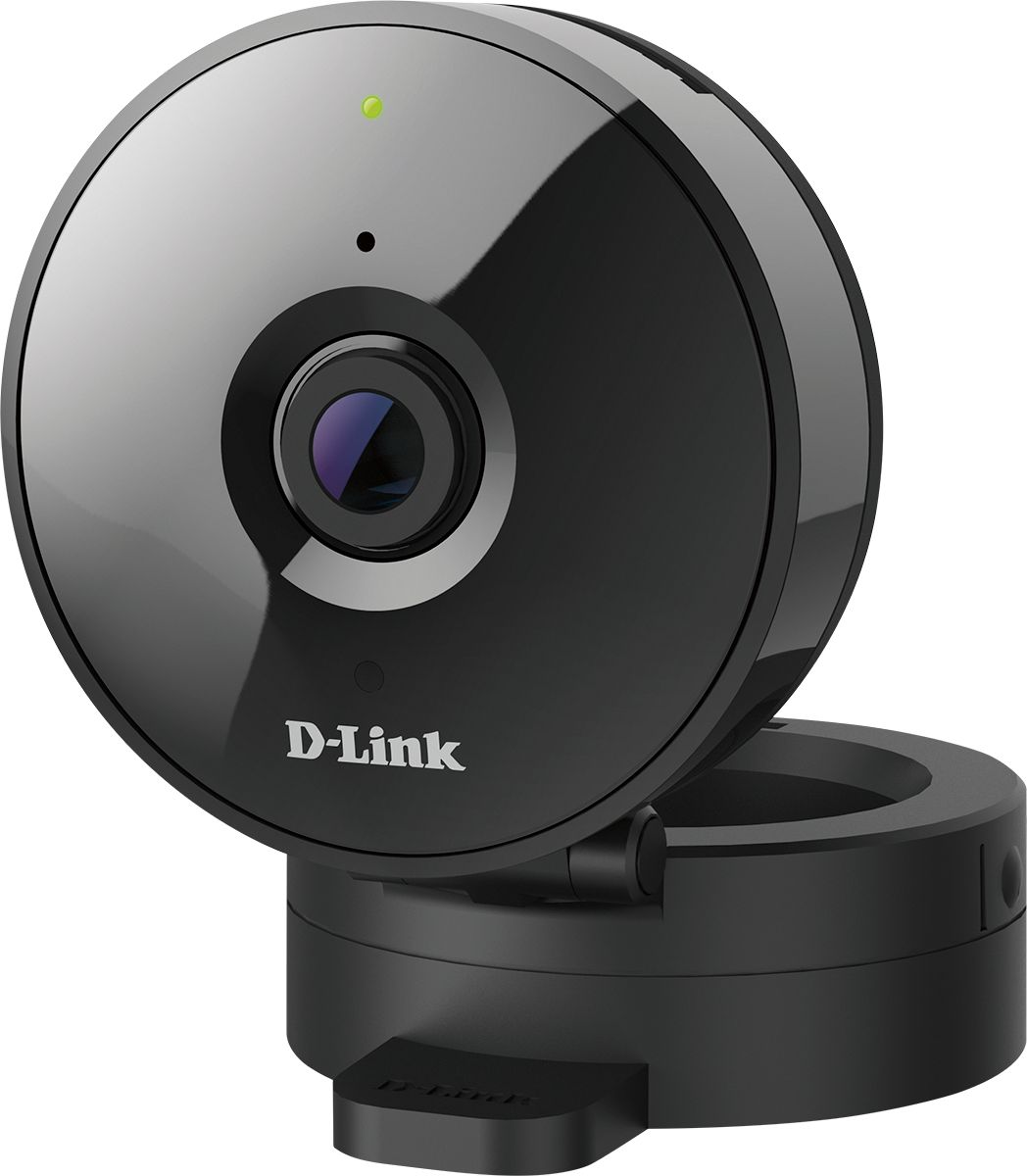
A:AnswerNo. This is not an outdoor camera it is only appropriate for indoor temperatures. You can’t take the infrared off and put it in the window so they can view outside and it does a so-so job. At night if there are street lights you can see a dimly lit surface area but it does fine in the daytime so if you want to see outside on your camera with this camera you can do that but you can’t put this camera outside.
A:AnswerMine sees great in the dark, but I'm using it indoors in my Mom's Kitchen. I wasn't aware it was for using outdoors. I have mine set for "Auto" Then it switches back and forth when night falls. Maybe the space you're trying to see at night is just too big.
A:AnswerNo it does not need WiFi but then you would have to be close to it in order for it to work or use a big memory card. You could not do live streaming to another person far away
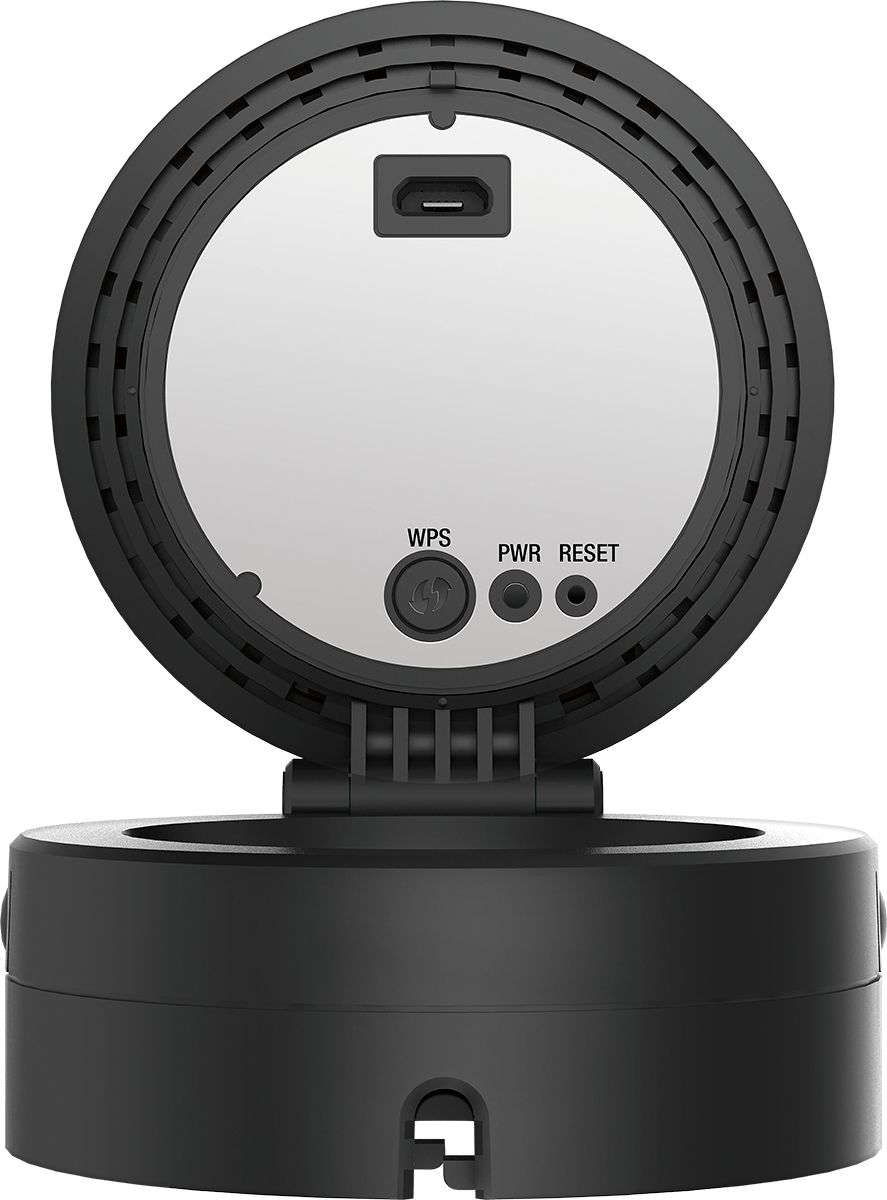
A:AnswerThere is a reset you can press in on the back and then start over and reconnect. Also I found if you eject the memory card and then put it back it, it will some times reconnect.
A:AnswerMy cameras have been operating now for 2 years. I have 64 GB cards in them and generally they are always recording . I find that I do have to keep an eye on the my recordings because sometimes they do go rogue and stop recording. I usually just reformat the card and continue recording. I did have one camera which needed a new card for some reason.
A:AnswerYou mention 'maintenance' so this leads me to believe you have the web interface login instructions (downloadable from dlink via FTP) for logging into cam settings via your PC. Do you not have the smartphone app installed? ("Mydlink Lite" from an app store).
I would suggest if you don't have a phone, borrow someone's and log into the camera that way (if they will let you install and then delete the app when you are done) and see if you can then set the settings. A reboot of the camera might help too (remove power cord, leave out 30 sec, plug back in and wait for it to reboot). I signed into the phone app, accessed my cam and found the Active Area grid settings right under 'Motion Detection'.
I often find with this tech stuff reboots seem to make the device pay attention and sometimes removing and reinstalling the cam works too. And also, the defaults for the new firmware might not be set to actually have motion detection set to ON, you'll have to set that first, then look for the Active Area grid.
My best advice for tech stuff is stumble your way through ALL the settings when you first get something so you can find out what's available, just being careful to remember how to undo changes if you do smth you don't like. That's how I found out all the defaults had changed.