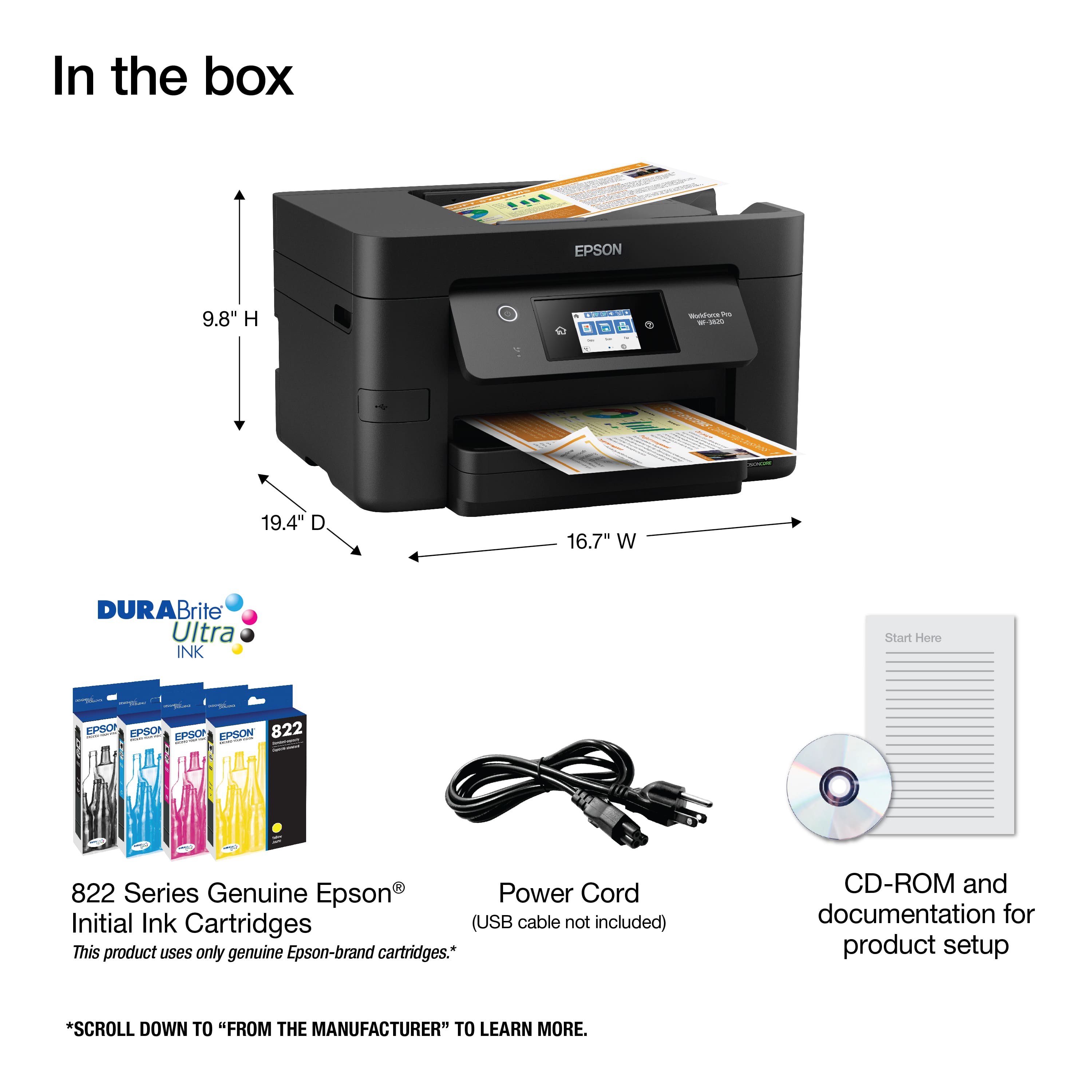
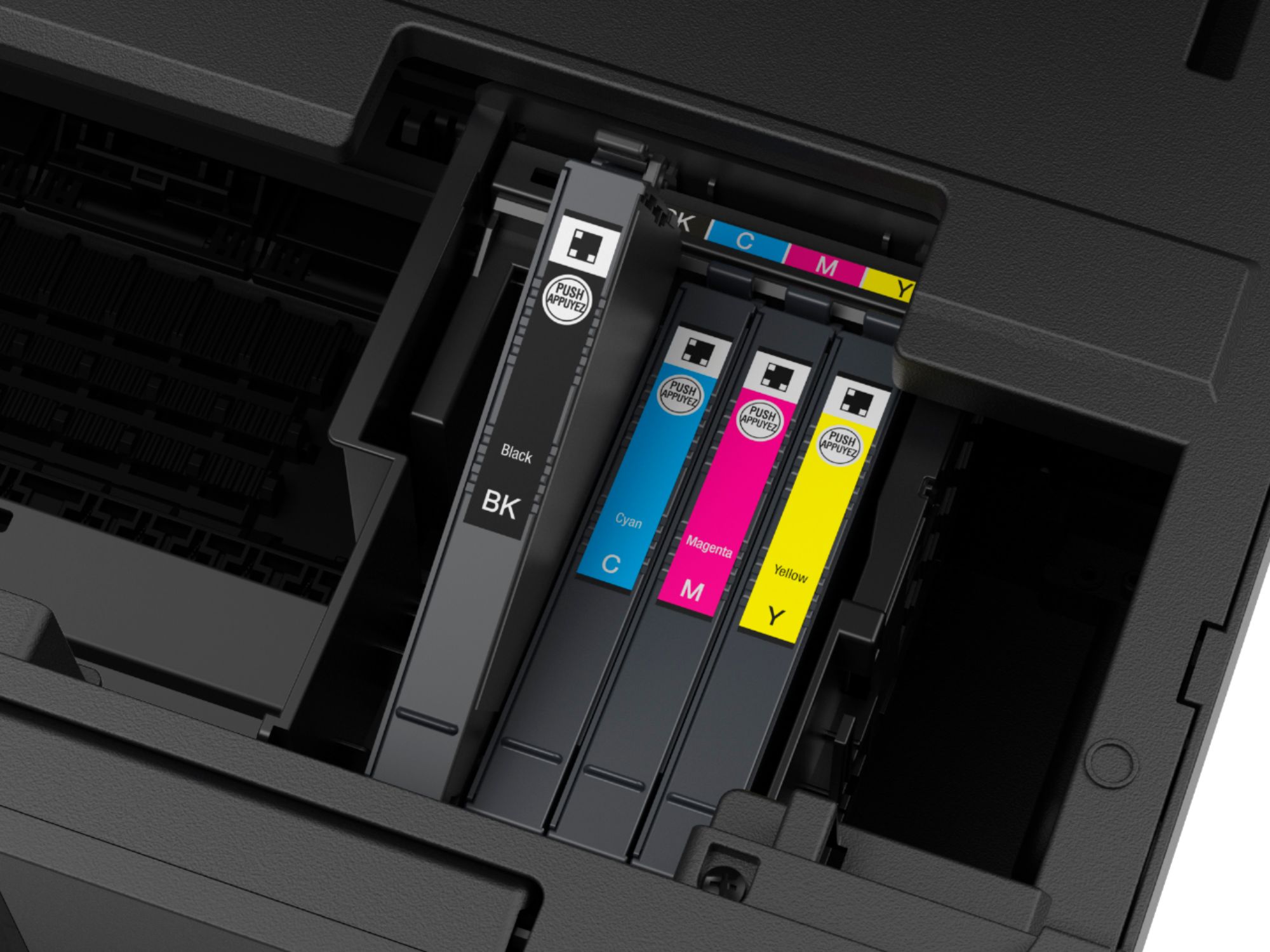
A:AnswerHi Joel, The WF-3820 has draft print settings in the printer driver. Using draft mode can save ink and can generally print faster than in default mode. Using default mode, you can expect Black: 350 pages, Color: 240 pages, using 822 cartridges; and Black: 1, 100 pages, Color: 1, 100 pages, using 822XL high-capacity cartridges. Visit the Epson support site if you want more information about the ISO methods we use to test ink yield. Regards, Mark - The Epson Team.
A:AnswerHi, If your labels are designed for ink jet printing and are on a common sheet size, such as letter they should work. Regards, Mark - The Epson Team.
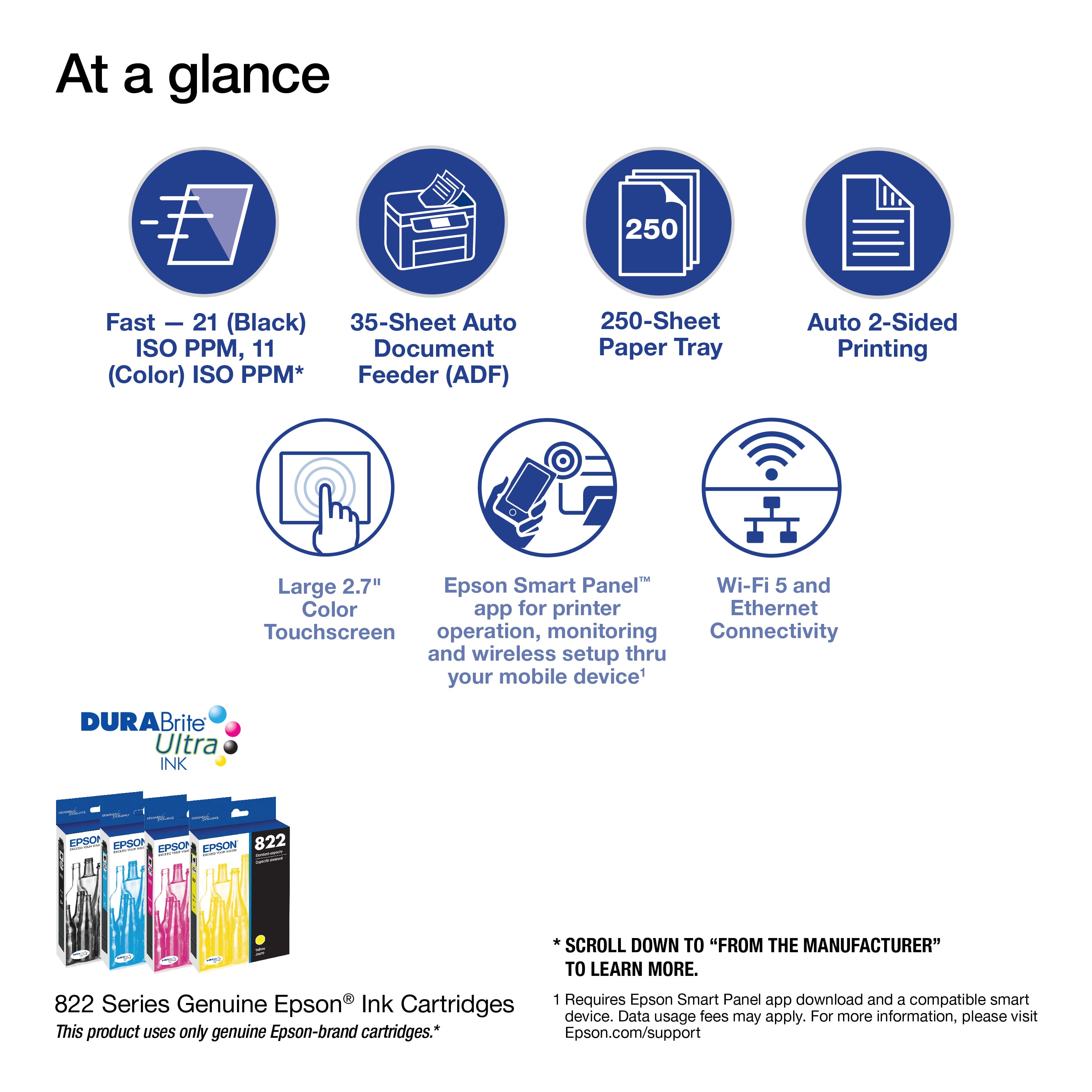
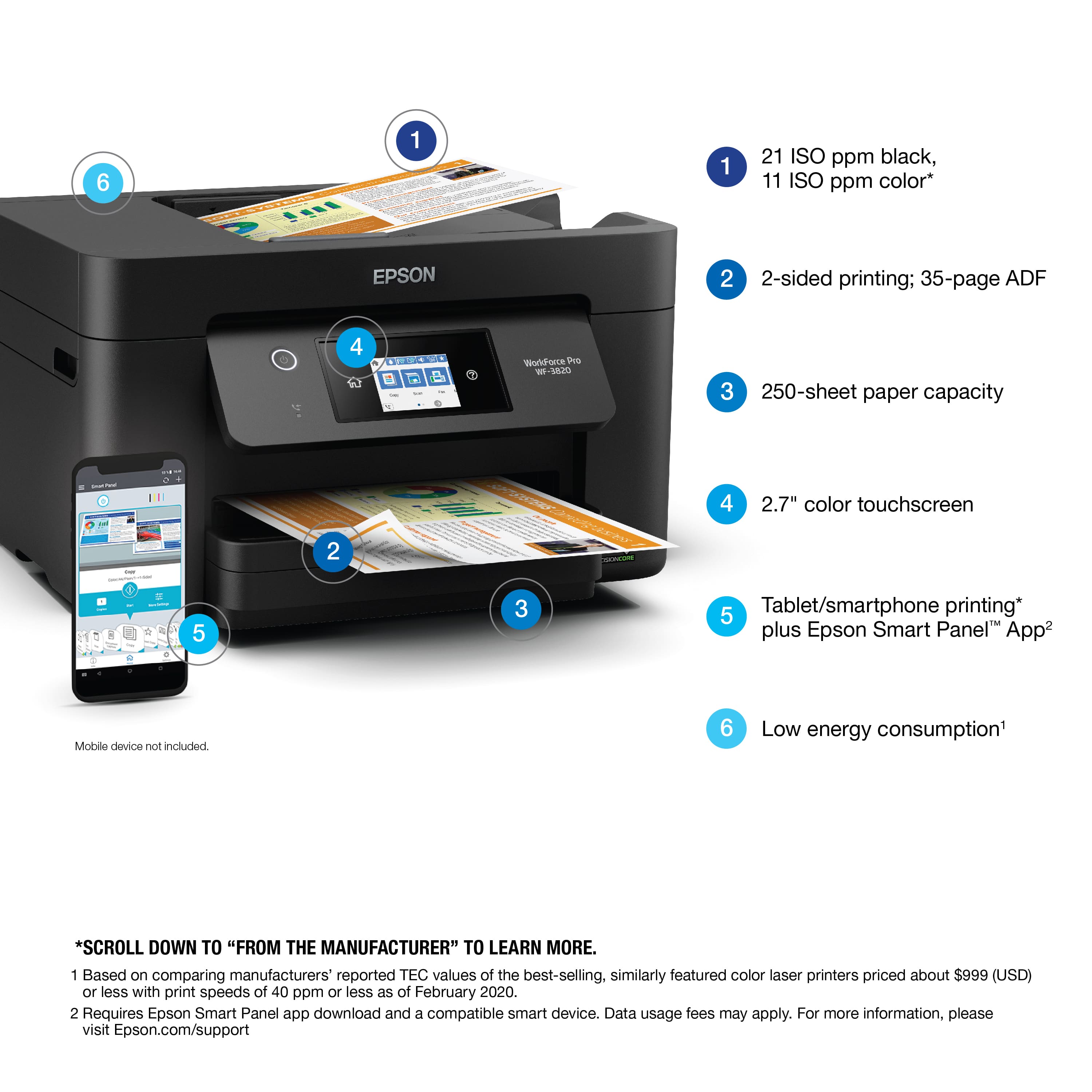
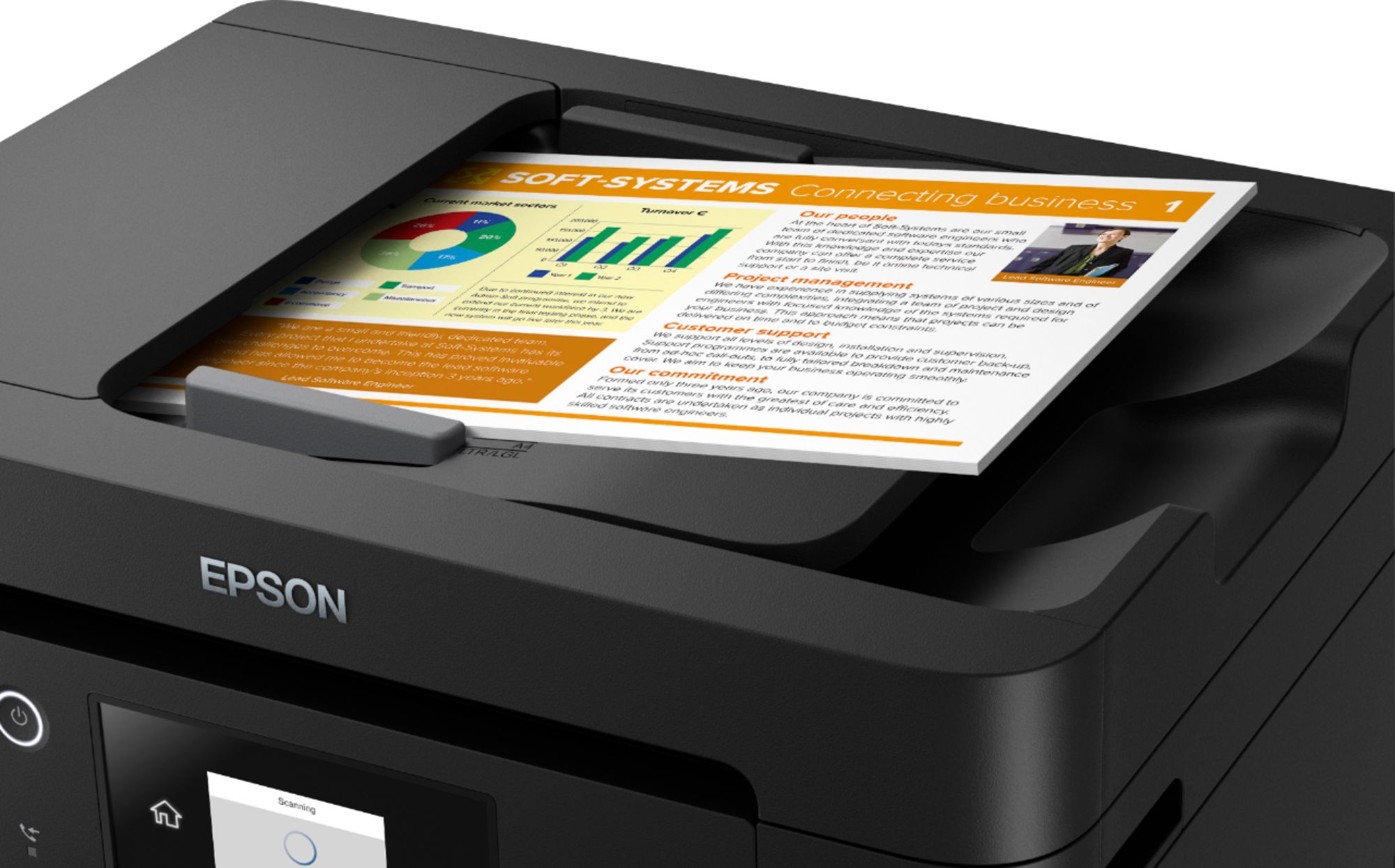
A:AnswerHi doug, yes you can put up to 35 sheets in the WF-3820's auto document feeder and scan them into a single document. Regards, Mark - The Epson Team.
A:AnswerHi, The WorkForce Pro WF-3820 can scan copies and faxes. If the faxes are on flimsy paper, you may need to scan them directly on the scan bed rather than feed them through the auto document feeder. Regards, Mark - The Epson Team.
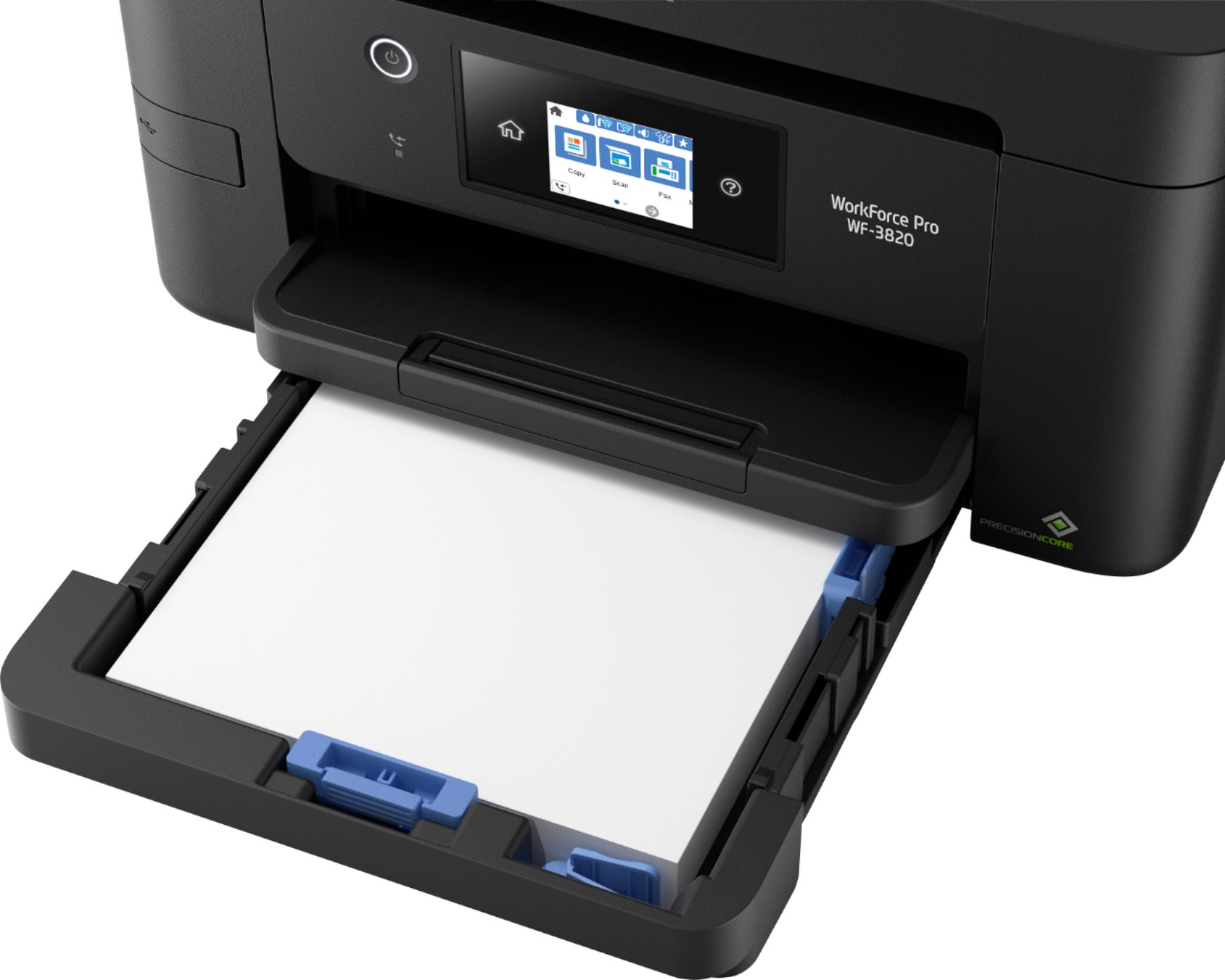
A:AnswerIt has only one tray which is adjustable in length to fit legal or letter. I am getting more used to putting the paper in the tray, and moving the length of the tray. I have not tested different weights or plastic film printing. It is a 180* turn from the paper tray to the print heads, so will try gradually the heavier weights.
A:AnswerHi BW, When a color ink cartridge is expended, you can temporarily continue printing from your computer using black ink. We recommend you replace the expended color cartridge as soon as possible. Regards, Mark - The Epson Team.
A:AnswerHi helen, The WF-3820 works with Windows 7. To get the latest drivers, please download them from the Epson Support site. Regards, Mark - The Epson Team.
A:AnswerHi, which epson workforce printer DOES print on 80lb cover paper, and does this printer have two paper trays to handle two different size paper, without having to switch? Thanks..
A:AnswerYes, I do it all the time and not a problem with Online Labels paper. It’s painful with thicker card-stock though. Even though it prints beautifully, I probably wouldn’t do greeting cards on this particular printer again. My next printer will be an upgrade for sure.
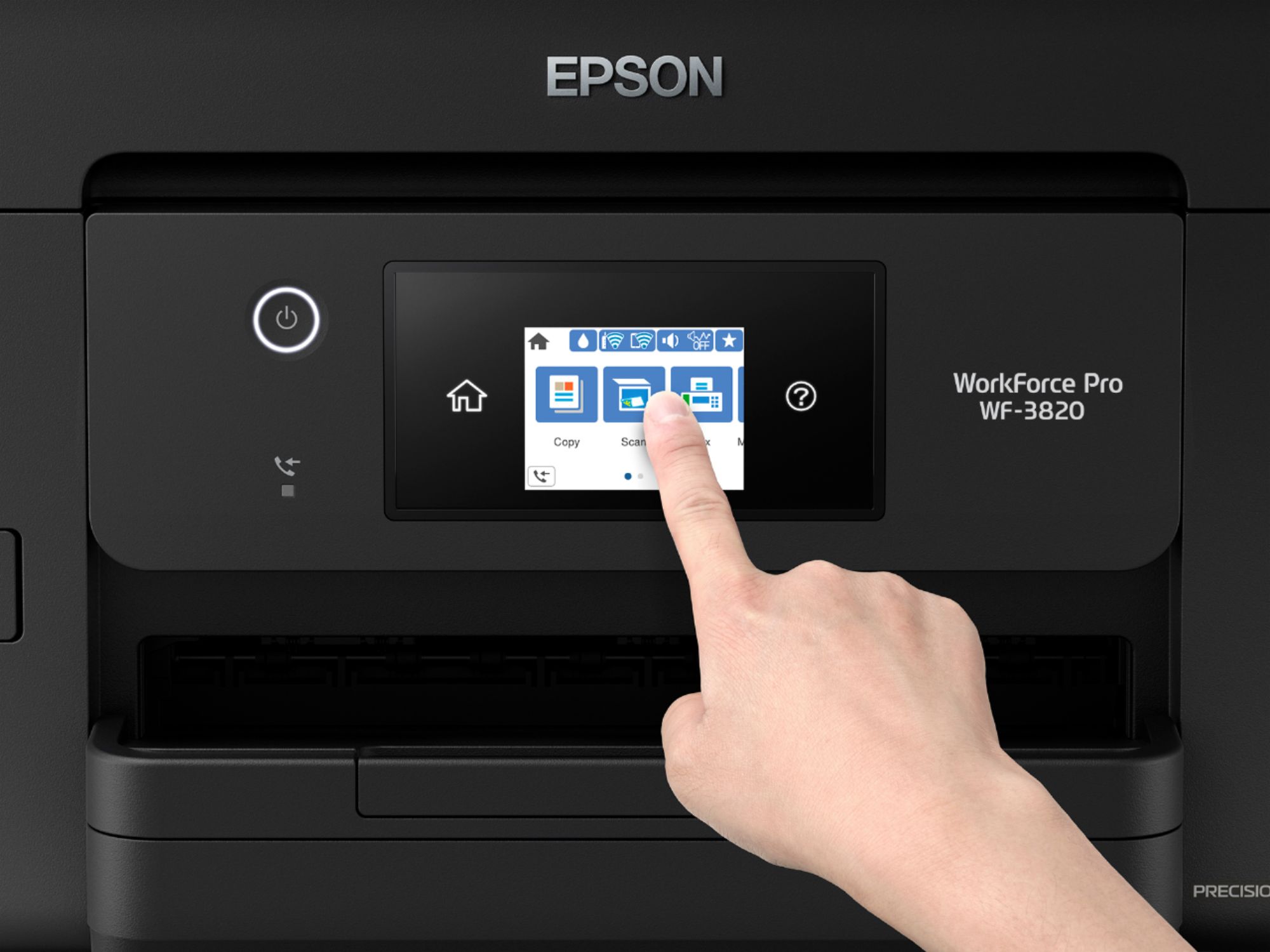
A:AnswerHello lad. We recommend initiating an ink cartridge change by going into the control panel for the WF-3820 and selecting Maintenance > Ink Cartridge(s) Replacement > Start. Then lift the scanner unit until you hear a click, and the carriage should slide over to replace the cartridges. If you are still having issues removing the cartridges, please contact our Technical Support team for additional assistance. Regards, Kevin - The Epson Team.
A:AnswerHi ghv521, The WorkForce Pro WF-3820 is Windows 11 compatible. Download the necessary drivers from the Epson support site. Regards, Mark - The Epson Team.
A:AnswerThe Epson response is probably incorrect. The manual for the WF3820 does not discuss or show a rear paper feeder. Moreover, other responders say there is no rear paper feeder.