A:AnswerIt is not recommended to use the Approach G10 while charging. For more information contact us at [email protected] or visit our Support Center, https://support.garmin.com/en-US/. Thanks Jenny
A:AnswerThe Approach G10 does not have bluetooth capabilities. For more information contact us at [email protected] or visit our Support Center, https://support.garmin.com/en-US/. Thanks Jenny
A:AnswerThe Approach S10 does not have activity tracking capabilities. For more information contact us at [email protected] or visit our Support Center, https://support.garmin.com/en-US/. Thanks Jenny
A:AnswerApproach series devices have a GPS feature that allows the device to track your location when performing activities. This GPS feature can also be used when setting the time and date on your device. During the initial set up, or anytime the time and date is not displayed correctly, the device will need to acquire a satellite signal in order to update the time and date. To acquire a satellite signal: Take the Approach outside, with a clear view of the sky. > Start a round of golf. Once the Approach acquires a signal, it will display a list of available courses. When this occurs the time and date will also be updated. For more information contact us at [email protected] or visit our Support Center, https://support.garmin.com/en-US/. Thanks Jenny
For more information and instructions on updating the time and date on your device using GPS or manually, refer to the full Owner’s Manual.
A:AnswerGarmin advises to remove devices from charging when they are at 100%. For more information contact us at [email protected] or visit our
Support Center, https://support.garmin.com/en-US/
Thanks Jenny
A:AnswerIt is package form the factory with a charging cable included. For more information contact us at [email protected] or visit our
Support Center, https://support.garmin.com/en-US/
Thanks Jenny
A:AnswerThe battery is not replaceable.
For more information contact us at [email protected] or visit our
Support Center, https://support.garmin.com/en-US/
Thanks Jenny
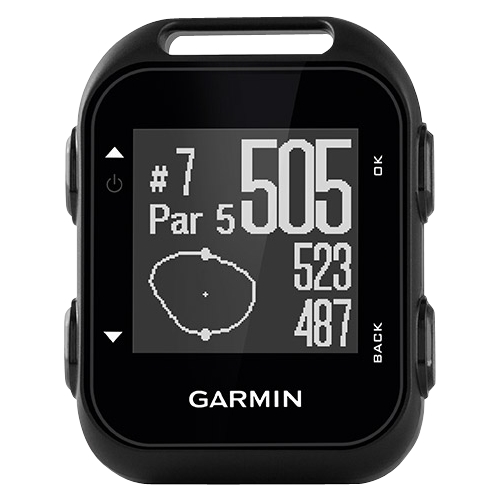
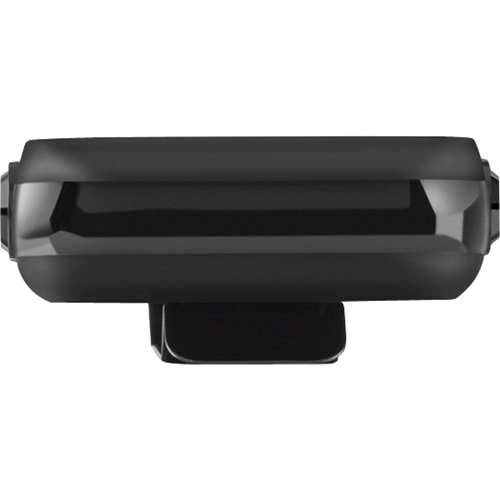
A:AnswerThe Approach G10 is a GPS Golf Data in Convenient Clip-on Form. For more information contact us at [email protected] or visit our
Support Center, https://support.garmin.com/en-US/
Thanks Jenny
A:AnswerYes, you can charge the Approach G10 in your car, you will need a car charger accepting USB connection. Charging time can vary depending on the charger but you can generally expect around 4 hours to completely charge a dead battery.
A:AnswerYou can adjust the screen orientation so it is easier to read in different positions, such as when the device is clipped to a belt.
From the main menu, select Settings > Orientation.
Select an option:
To use the default screen orientation, select Normal.
To invert the screen orientation, select Flipped.
For more information contact us at [email protected] or visit our
Support Center, https://support.garmin.com/en-US/
Thanks Jenny
A:AnswerHere is the Garmin Golf Courses Locator link:
https://www.garmin.com/en-US/golf-courses/?a2=US&state=&new=false&upd=false&q=&addr=
For more information contact us at [email protected] or visit our
Support Center, https://support.garmin.com/en-US/
Thanks Jenny
A:AnswerThe actual life of a fully charged battery depends on your use of GPS, the backlight, and power save mode. Exposure to extremely cold temperatures reduces battery life.
For more information contact us at [email protected] or visit our
Support Center, https://support.garmin.com/en-US/
Thanks Jenny
A:AnswerIf your Approach G10 is set to the wrong language and you need to change it, the easiest way for correction is to master reset the device rather than struggling through the menu structure in a language you may be unfamiliar with. For instructions on changing the language and resetting the Approach G10, please view the related content and follow the master reset instructions. All user settings, with the exception of saved scorecards, will be erased with a master reset.
If you would like to retain the settings on the G10, the following steps can be completed
1.Turn the G10 On, Upper Left Button
2.Tap the Down Button 2 Times
3.Tap the OK Button to Select
4.Tap the Down Button 5 Times
5.Tap the OK Button to Select
6.Tap the Up Button until English is listed
7.Tap the OK Button to Select
8.Tap the Back Button Once
9.Tap the Down Button 2 Times to return to Start Round
With the device in the wrong language, the above directions may be difficult. If you are unable to follow these directions a master reset is the next step which can be found with the link below.
https://internalsupport.garmin.com/en-US/?faq=Zl71GwS0Dm9QPCX8vmyrP8&productID=537057&searchQuery=wrong%20language&tab=topics
For more information contact us at [email protected] or visit our
Support Center, https://support.garmin.com/en-US/
Thanks Jenny