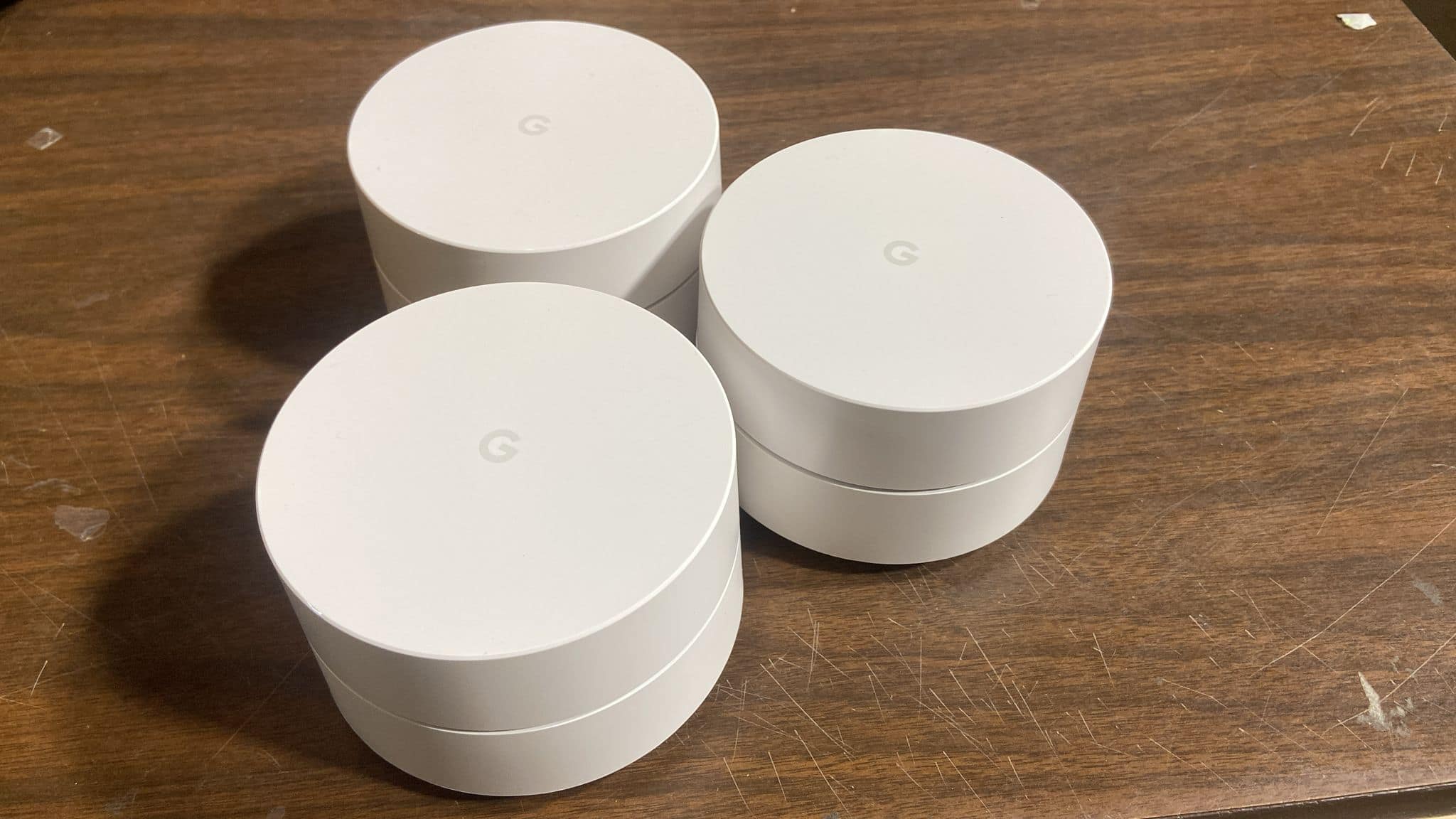
A:Answerit's all wireless - so no, it does not need to be plugged into your modem. It will connect wirelessly to the Google "pod" that is closest to your modem and connected.
A:AnswerYou have a cable modem. That modem could be just for TV Cable or TV Cable and phne. Or it could include internet. Cable providers do all three and for any of them, you would need a modem. So if you don't have internet service (which sounds like you dont), WifI will do you no good at atll.If you pay for internet service, then the WiFi will distrubute the service locally around your house so that you can pick up the internet wirelessly.
A:AnswerIt really depends on what you're currently using. If you're just using the built-in WiFi on the cable modem your ISP gave you, then yes. The WiFi on single-product modem-router combo is pretty reliably garbage, so the difference should be night/day. Also, "Mesh" router setups like this one allow you to use multiple units throughout a large house, so signal strength can be greatly improved if you find that a single node still doesn't reach parts of your house well enough. This product works pretty well and setup is easy via iOS/Android app. Just keep in mind that you might have to call your ISP to get it completely set up.
Other things to check:
**How much bandwidth do you have, compared with how much you're using? Your problem could be that simple. Go to an internet speed test site and check what speeds you're ACTUALLY getting. "Speedof.me" or "Speedtest.net" are a couple of examples. It's rare for your ISP to truly give you the "UP TO ___" speed you paid for, and sometimes it can get WAYYYYY slower during high-traffic times when other customers in your area are also using the internet heavily. My old ISP was was usually near-ish the "up to 100mbps," but in some afternoons, it would dip down as low as 8mbps. -REALLY bad
**Other things on your WiFi might be conflicting with his game. Find the address/login information for the router you're using. It's usually on a sticker on the router/manual/box. Then Google "Fortnite port forwarding." It may seem a bit daunting if you don't do any sort of networking, but I'm sure you'll see a ton of guides/videos walking you through it, and most router menus are easy enough to navigate. Basic premise is that you set a "static IP" (think of it like a permanent mailing address for his computer) then direct certain "ports" (like traffic lanes) on the router to have their stuff expedited directly to his computer. This is not always necessary, but it ~could~ make a big difference depending on your circumstances. This process will probably be the same for any game; just different ports.
A:AnswerIf the signal is good coming into the house, then Google WiFi will vastly improve the wireless signal around the rest of your home. I am very satisfied with what it did for my home.
A:AnswerIn short - yes and very well if your service provider is good. so WiFi can only be as good as the signal that your internet service provider gives you. Garbage in, garbage out. Assuming you have a decent service provider, then I can tell you that this is the best WiFi I've ever had as far as a good signal and great coverage of my home. As to PS4, yes it will connect to this WiFi mesh system just like any wireless system:
You can use either Wi-Fi to connect your PS4™ system to the Internet.
Select (Settings) > [Network] > [Set Up Internet Connection], and then follow the on-screen instructions to configure network settings.
Select [Use Wi-Fi], and then select [Easy] to view a list of available Wi-Fi networks. Select the Wi-Fi network you want to connect to (you will have se up your Google WiFi and given it a name), and then configure the settings. In other words selct the name of you WiFi Mesh system and then provide the password that you set up when setting up your WiFi. Its more simple than it sounds when you walk through it, but set up your wireless system before trying to connect your PS4.
If the Wi-Fi network you want to connect to is not found, select [Set Up Manually], and then configure the settings
A:AnswerThis is not internet. Internet has to be purchased from an internet provider - very often from you TV cable provider, but there are other options as well. Google Wifi's role in this is to take the internet signal from the internet provider's connection and distribute very well around your home wirelessly. So if your sitting in your living room, you can connect to the internet easily and effectively over the Google WiFi router which is then connected to your internet service provider.
The internet service provider will be a monthly charge for internet service.. The Google Mesh WiFi provides for great wireless connectivity all around your home and is a one-time purchase and set up (once you have internet service to your home.
A:AnswerNo.
2.4GHz & 5GHz have the same SSID. You cannot rename a single band. Devices switch automatically between each one to give you the faster connection relative to the band strength available at the device’s location.
2.4GHz is better range but slower speed.
5GHz is faster speed but lesser range.