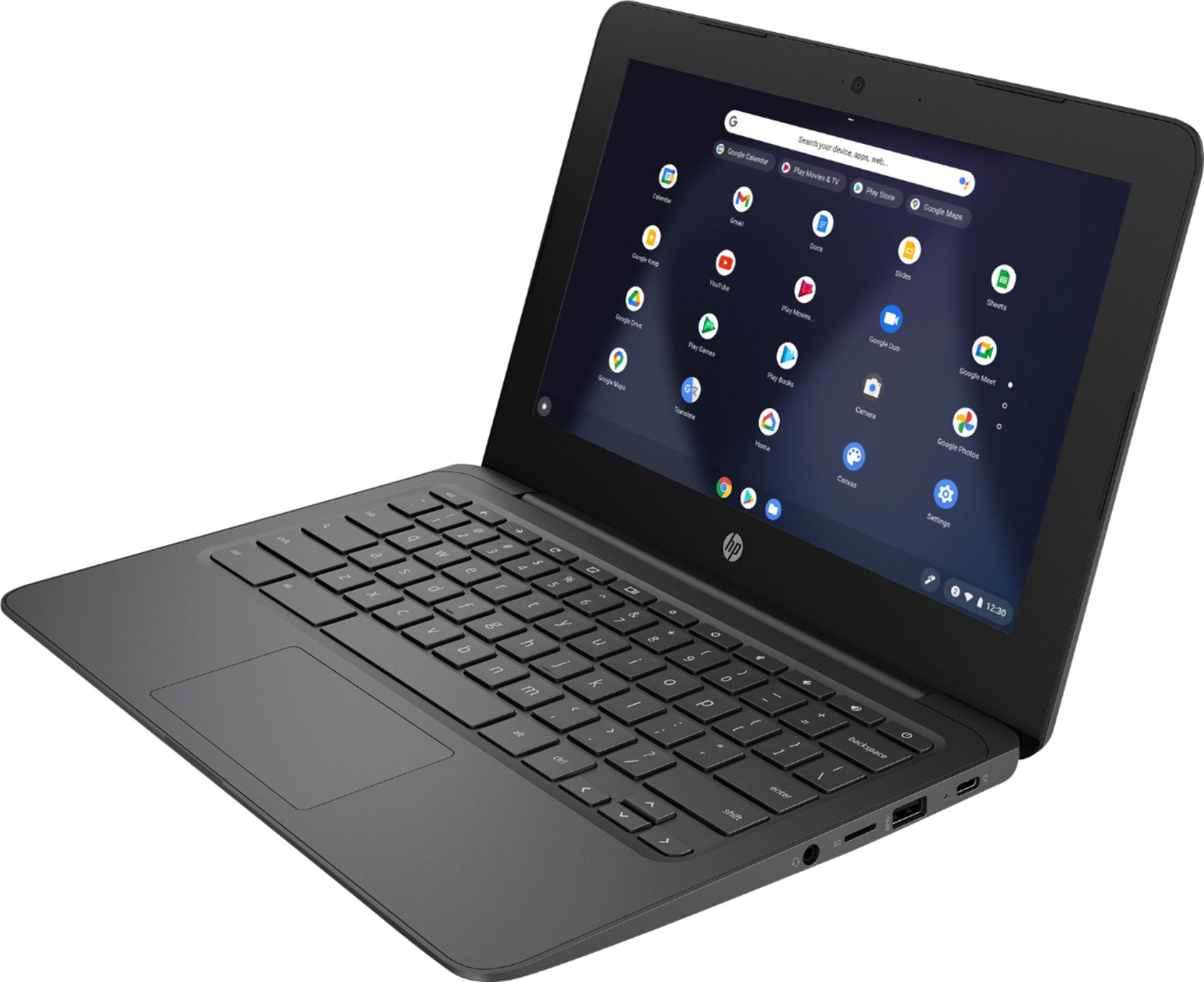
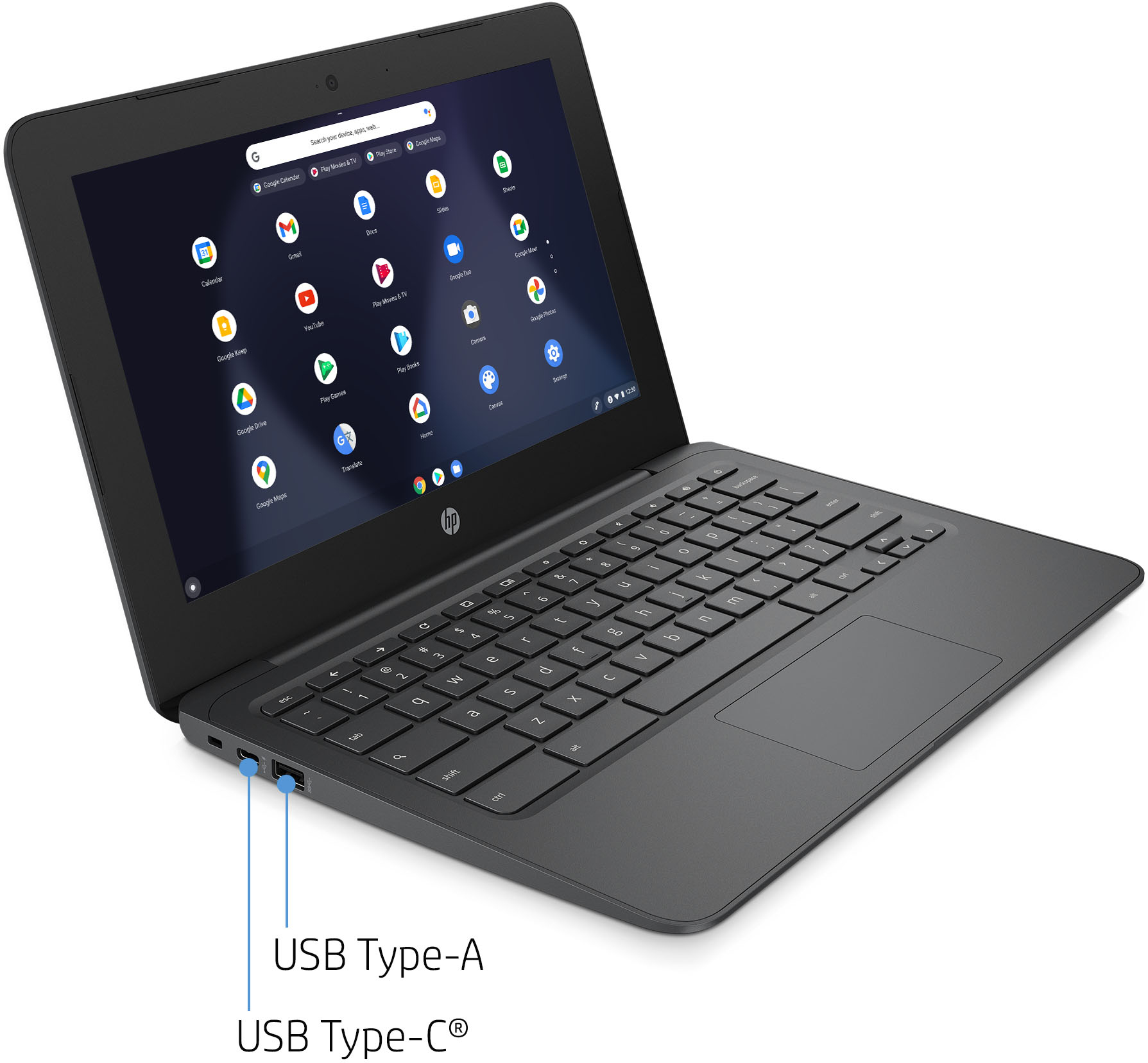
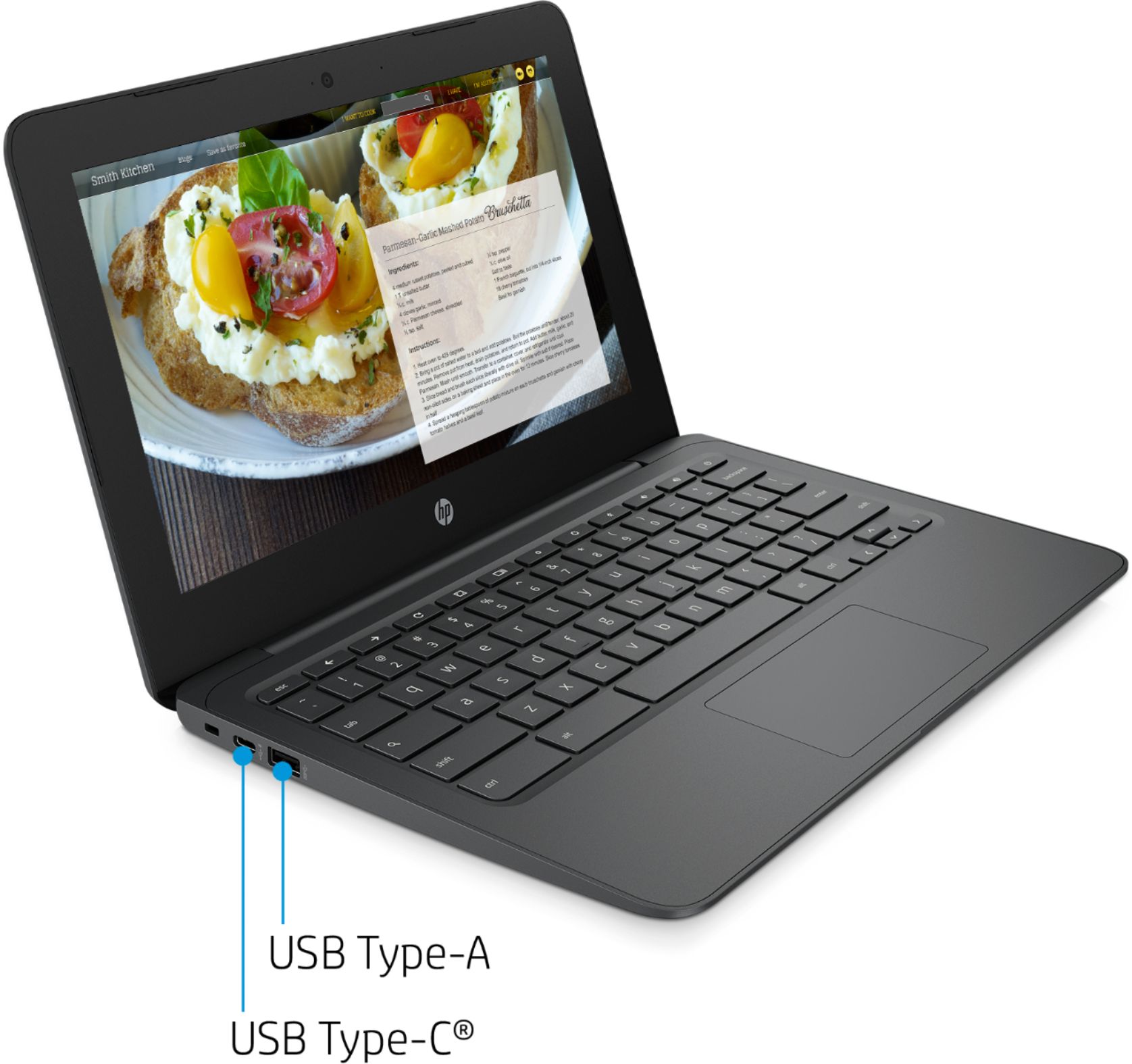
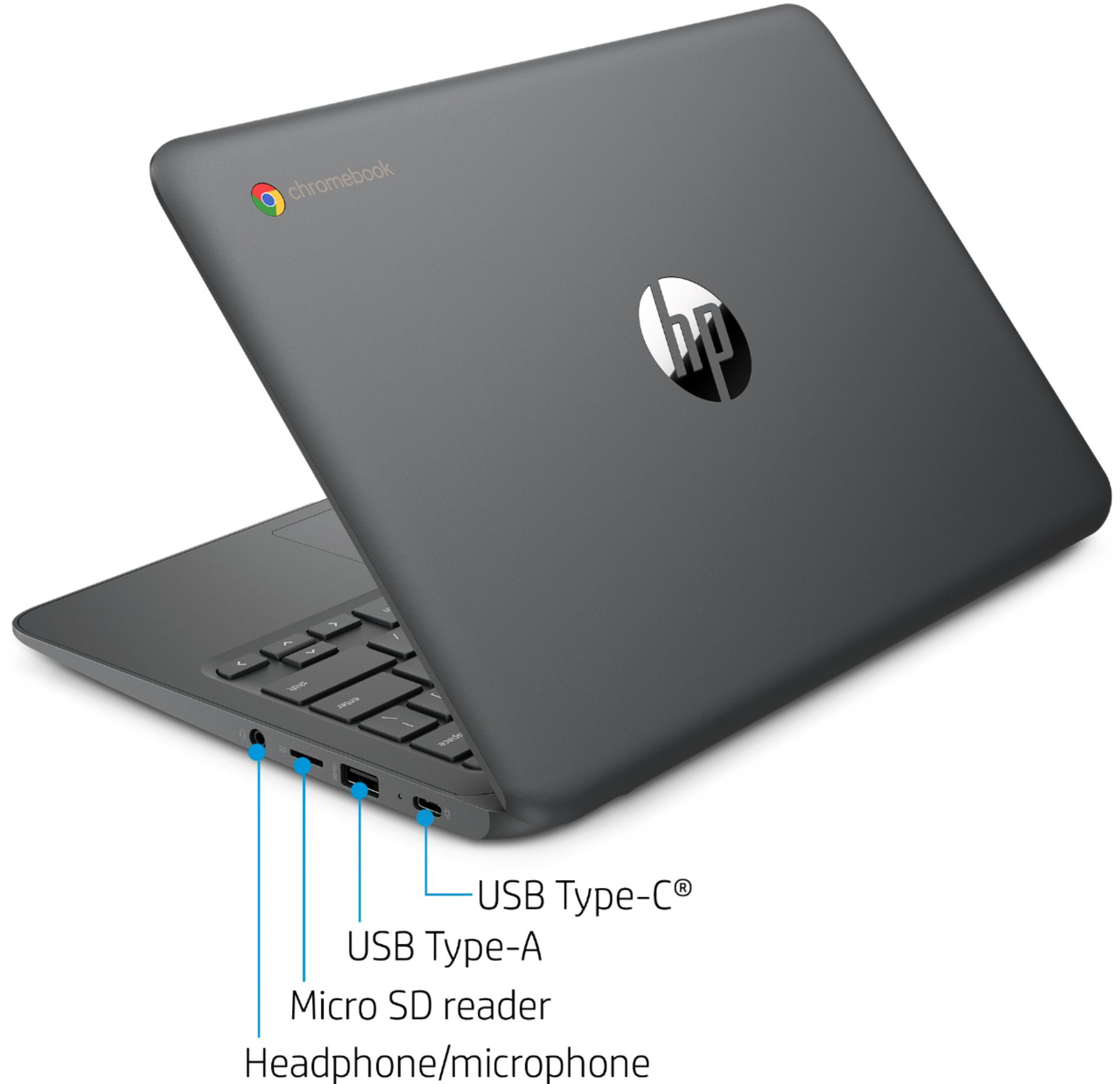
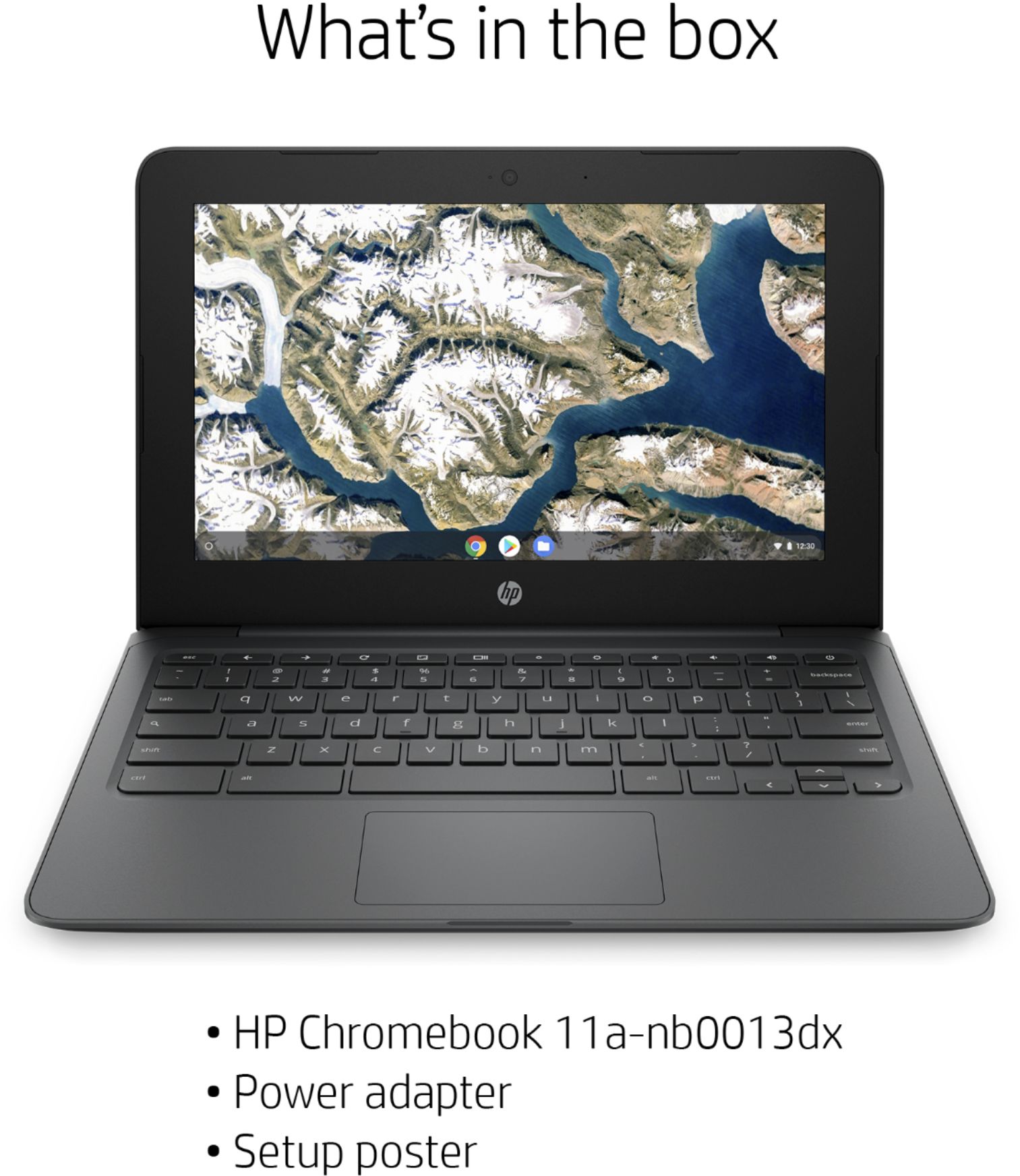
A:Answer Hello, yes, you can take photos with the Chromebook. Camera is a pre-installed app for taking pictures with your Chromebook webcam.
Use the following steps to take a webcam photo with the Camera app:
1.) Click the Launcher icon , and then click All Apps . In the app screen, click Camera.
2.)Click the Camera icon button below the image to take a photo.
3.) The following Camera app settings are adjustable:
4.) Change the way your image looks: 5.) Click the Filters icon button to display a list of available image filters. 6.) Click any filter name in the list to apply the filter to the webcam's live feed. 7.) Click Normal to remove the filter. Once an image is taken, filters cannot be removed or added. Search the Chrome Web Store for photo editing apps to apply filters to existing images, if desired.
8.) Change how many pictures the camera takes with one mouse click: 9.) Click the multi-frame icon button (Paparazzi) to take three photos in a row with each click of the camera button. 10.) Click the single frame icon button (Photo) to take a single photo. Thank you for being an HP customer!