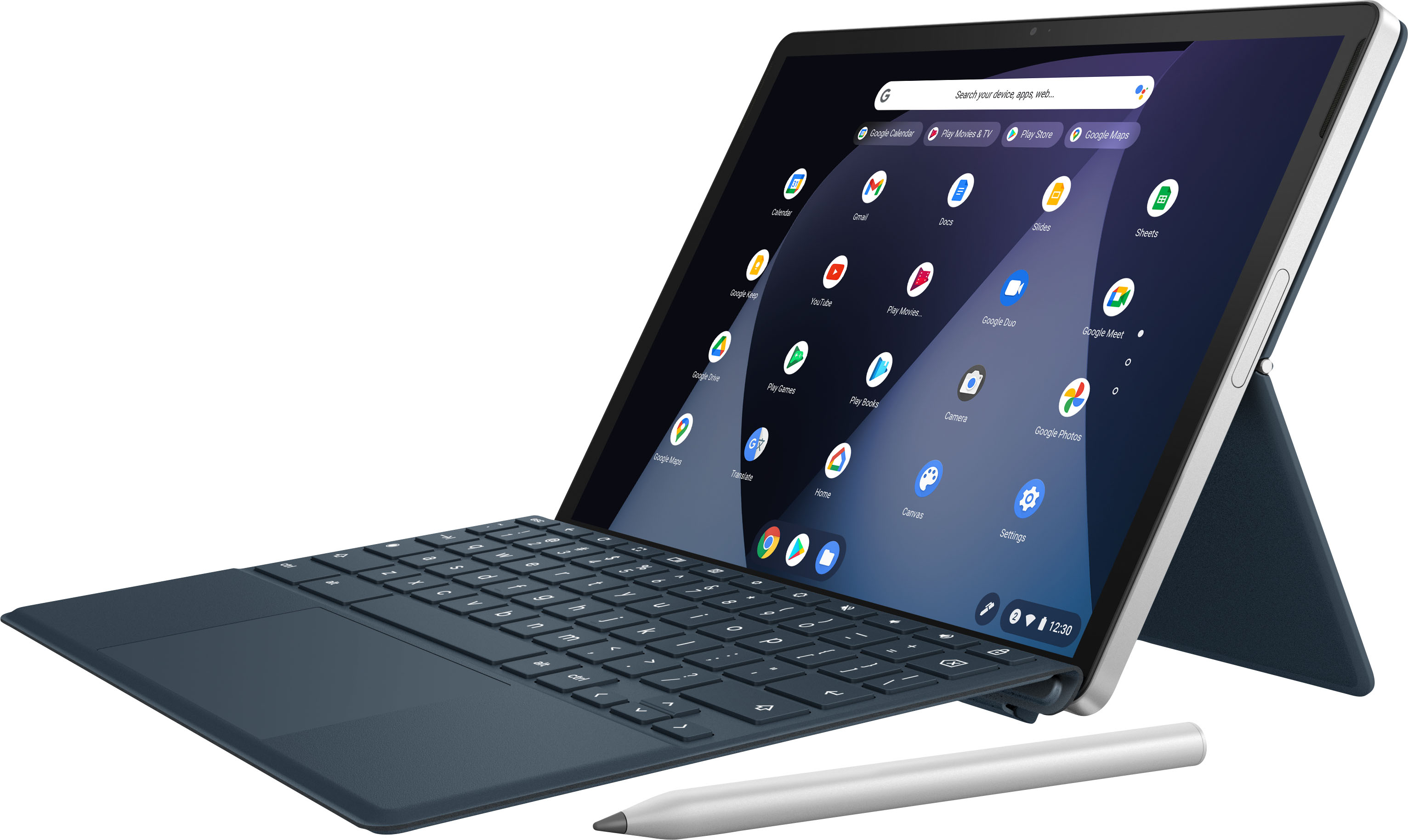
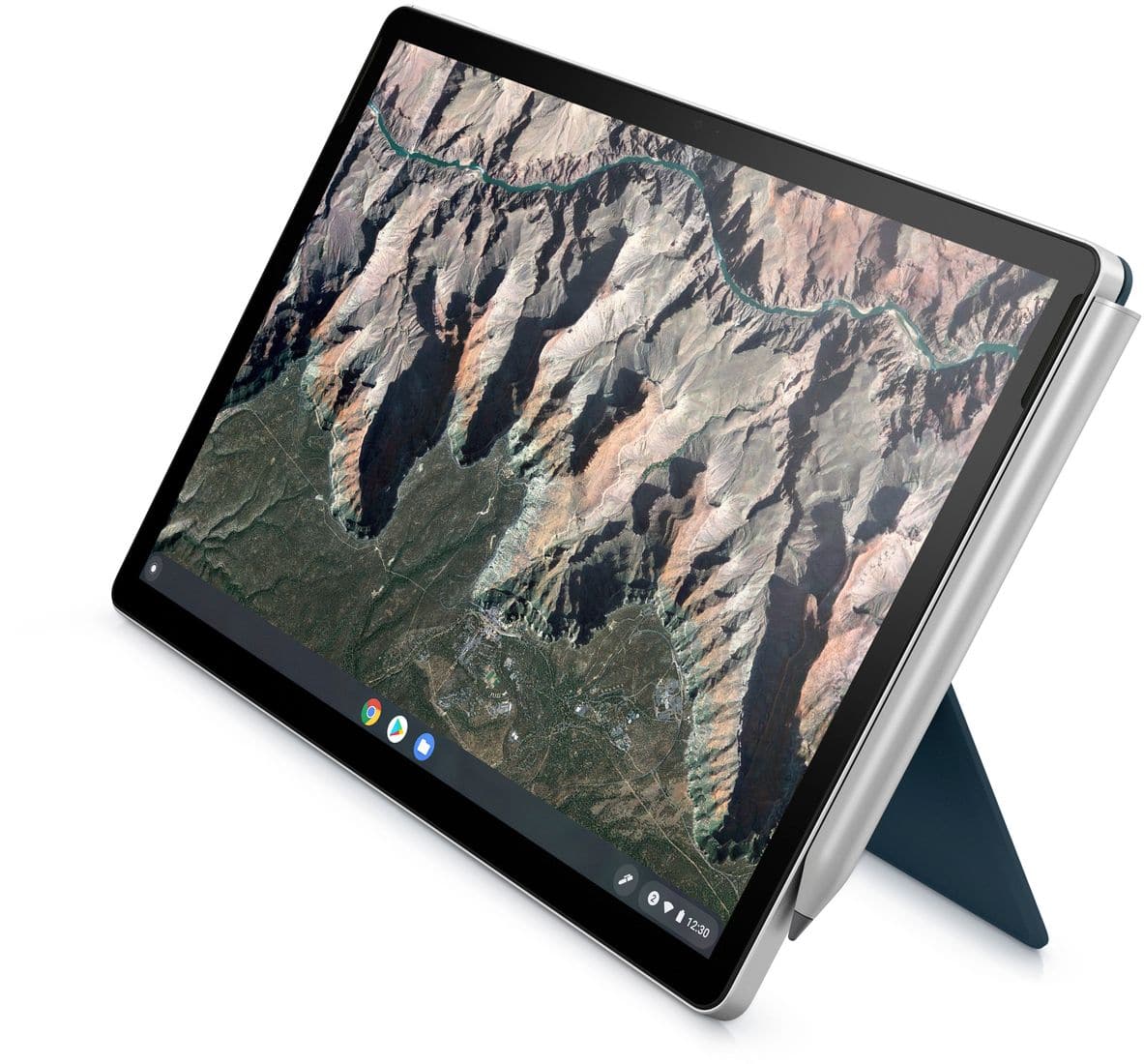
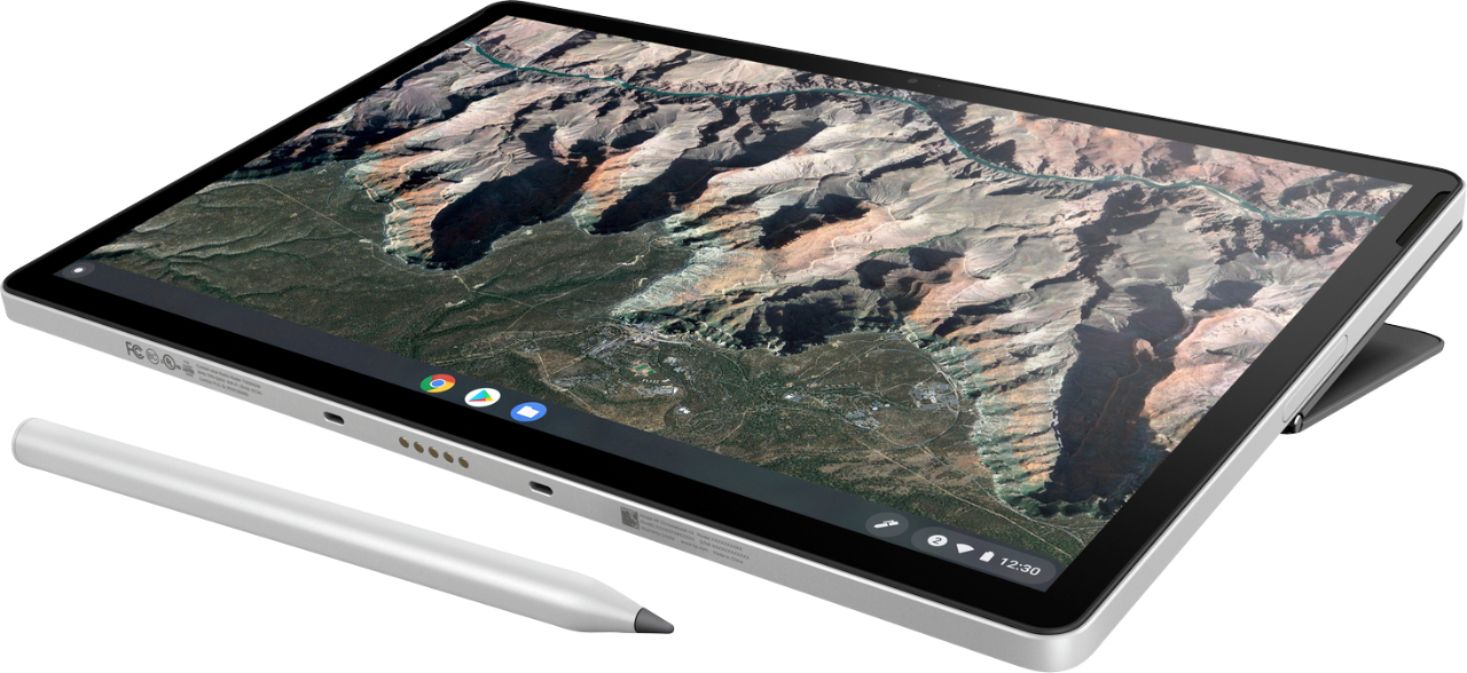
A:AnswerA styles allows you to write on the screen if you've got an app that supports that. It also allows you to select items on the screen with more precision that using a fingertip.
A:AnswerThank you for the question. Please see a USB-c to 3.5mm adapter here: https://www.bestbuy.com/site/belkin-rockstar-3-5mm-audio-usb-c-charge-adapter-black/6370541.p?skuId=6370541
A:AnswerThank you for the question, apologies for what you're experiencing. Please see instructions for setting up Linux here: https://support.google.com/chromebook/answer/9145439?hl=en
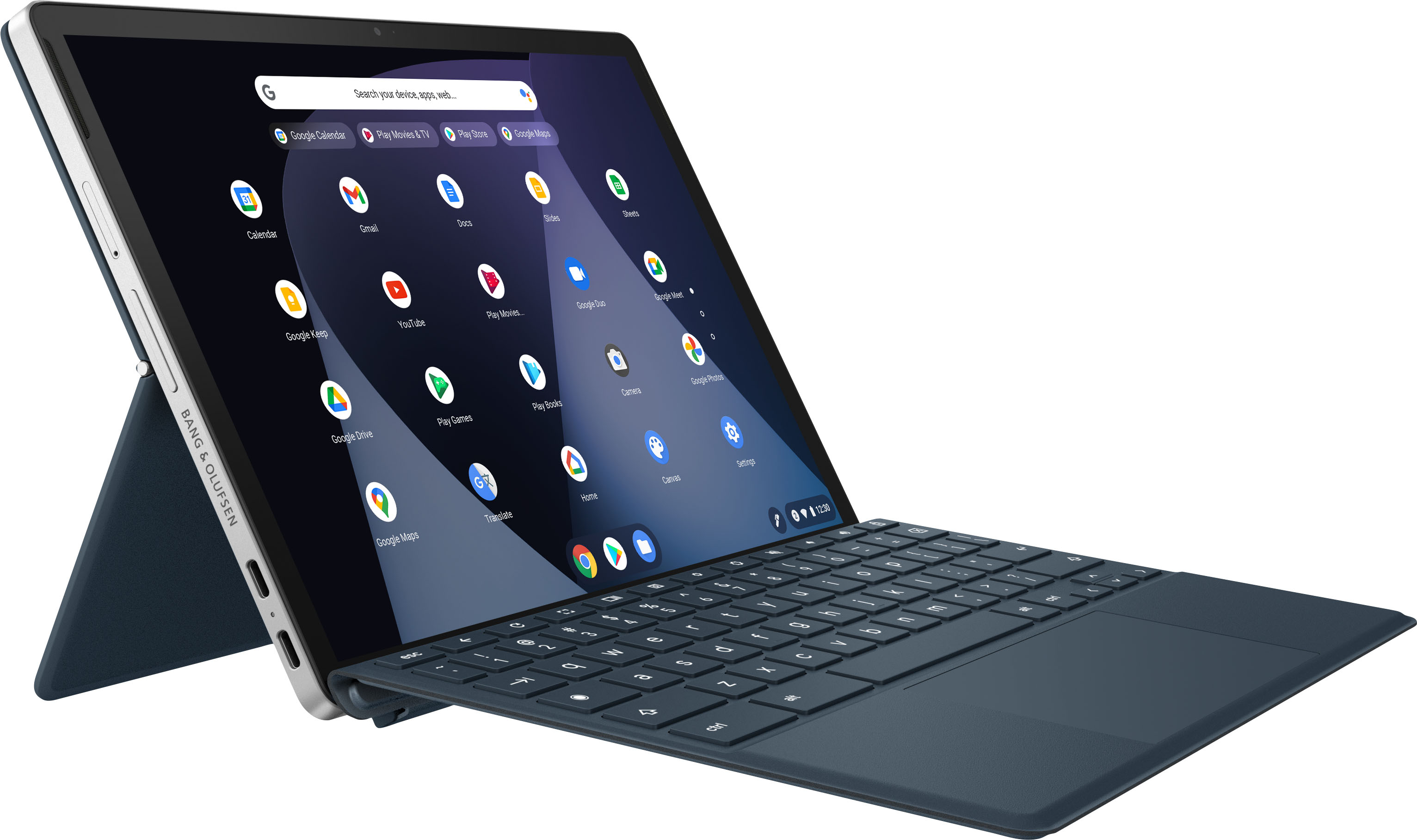
A:AnswerThank you for bringing this to our attention. Good catch, this model does not have a headphone jack. I have notified HP and Best Buy to correct the specs. There are however USB-C to 3.5mm audio jack adapters.
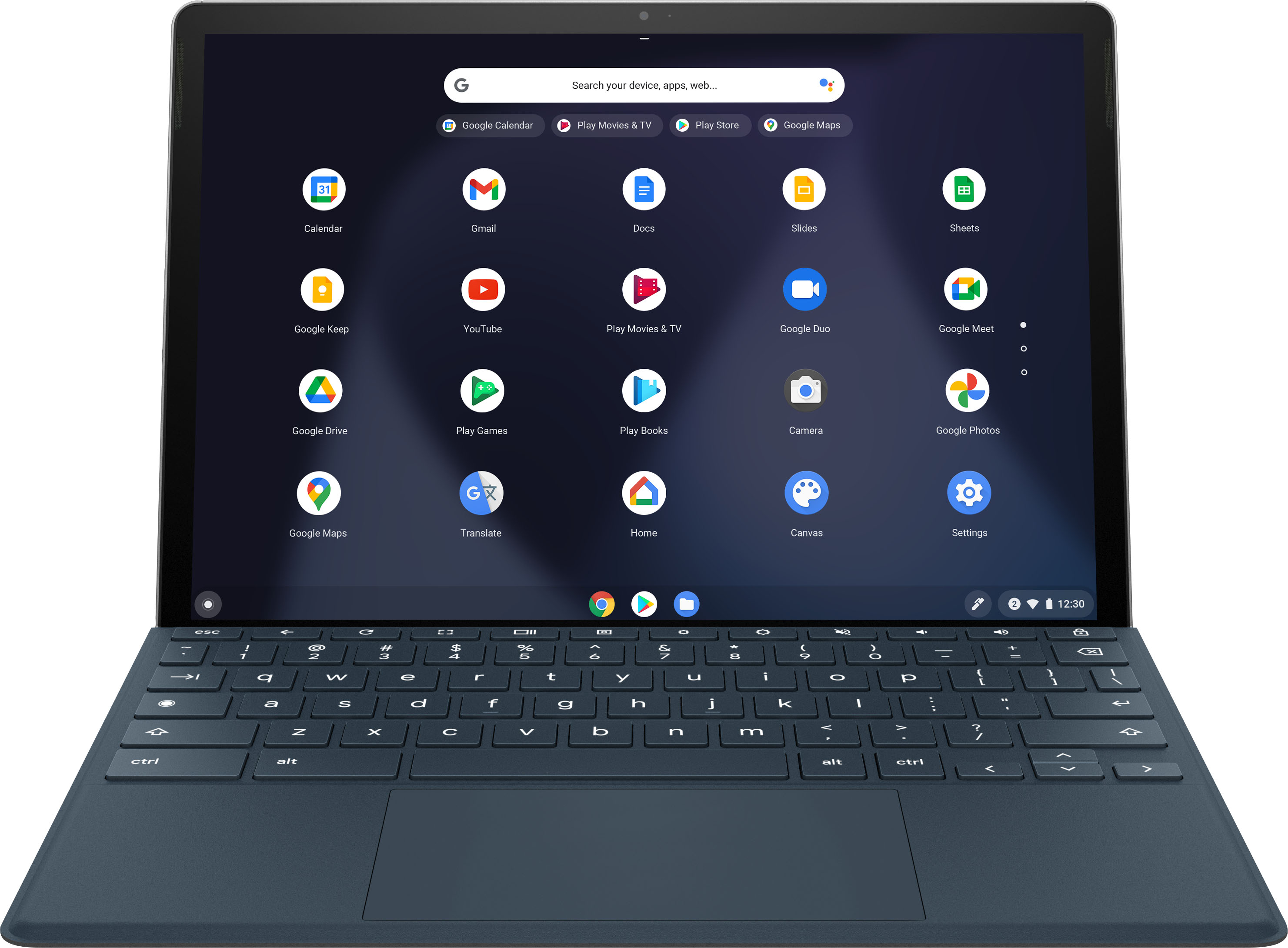
A:AnswerThank you for your question! This model does not have a backlit keyboard, but here are some similar Chromebooks with this feature: https://bit.ly/3gTvnL1
A:AnswerApologies for what you're experiencing. Please reach out to Support.HP.com for assistance with screen replacement. You can also call 800-474-6836.
A:AnswerThank you for the question. You'll need to change authentication settings. Learn ore here: https://support.google.com/googleplay/answer/1626831?hl=en#zippy=%2Cchange-authentication-settings-on-your-chromebook%2Cchange-authentication-settings-on-playgooglecom
A:AnswerIt charges on the right side. I haven't noticed anything that notifies it being charged, maybe check the indicator light next to the USB C ports?
A:AnswerThank you for t he question. If you have the HP Active Pen (USI) you will slide the charger door up to reveal the USB-C port. Once connected to your PC, the top will illuminate. See instructions and pictures here: http://h10032.www1.hp.com/ctg/Manual/c07002092.pdf
A:AnswerThe computer doesn't have an HDMI port, but it does have a USB-C port. You can plug the cable from the monitor into an HDMI to USB-C adapter, and plug that into the computer.