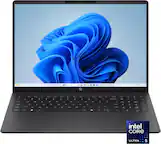
A:AnswerThis is always my first point of inquiry on any computer, so I took the time to do some research, since even the HP support team that answers questions such as these give incorrect or differing replies.
Unfortunately, there was no readily available information on this subject, so it appears that the only way to get it would be to use the upgrade tool that can be found on the sites that specialize in memory and storage, such as Crucial, Kingston, etc., and that means, of course, you have to buy the computer first. Kind of putting the horse before the cart.
So I tried asking both Gemini and MS Copilot. Gemini only gave some assured answers, mostly equivocating on the subject. Copilot was more sure (though that doesn't mean it is more correct). To summarize:
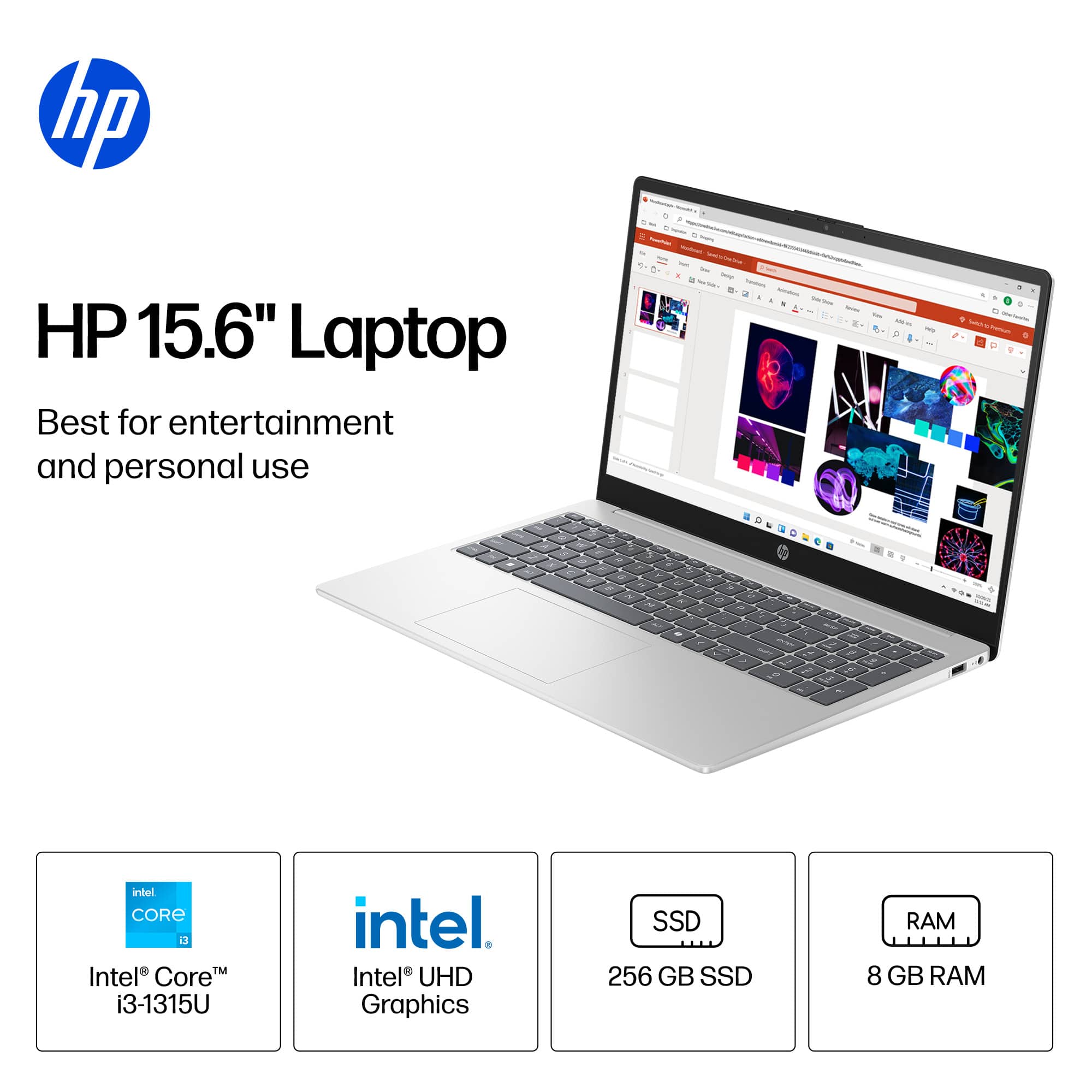
"Quick Answer: The HP 15-fd0153dx supports DDR4 RAM and can be upgraded beyond its factory configuration. Most HP 15-fd00xx series laptops ship with 8GB or 16GB installed, and users have successfully upgraded them to 32GB (2 × 16GB DDR4-3200 SO-DIMM)....
Notes
- HP documentation sometimes lists 16GB max, but community reports confirm 32GB works fine....
You can upgrade the factory drive (usually 256GB or 512GB) to a larger capacity like 1TB or 2TB NVMe SSD for faster performance and more storage....Official documentation often lists up to 1TB, but users have successfully installed 2TB NVMe SSDs without issue.
I should also note that Gemini's reply notes that any user-installed upgrades may void your warranty.
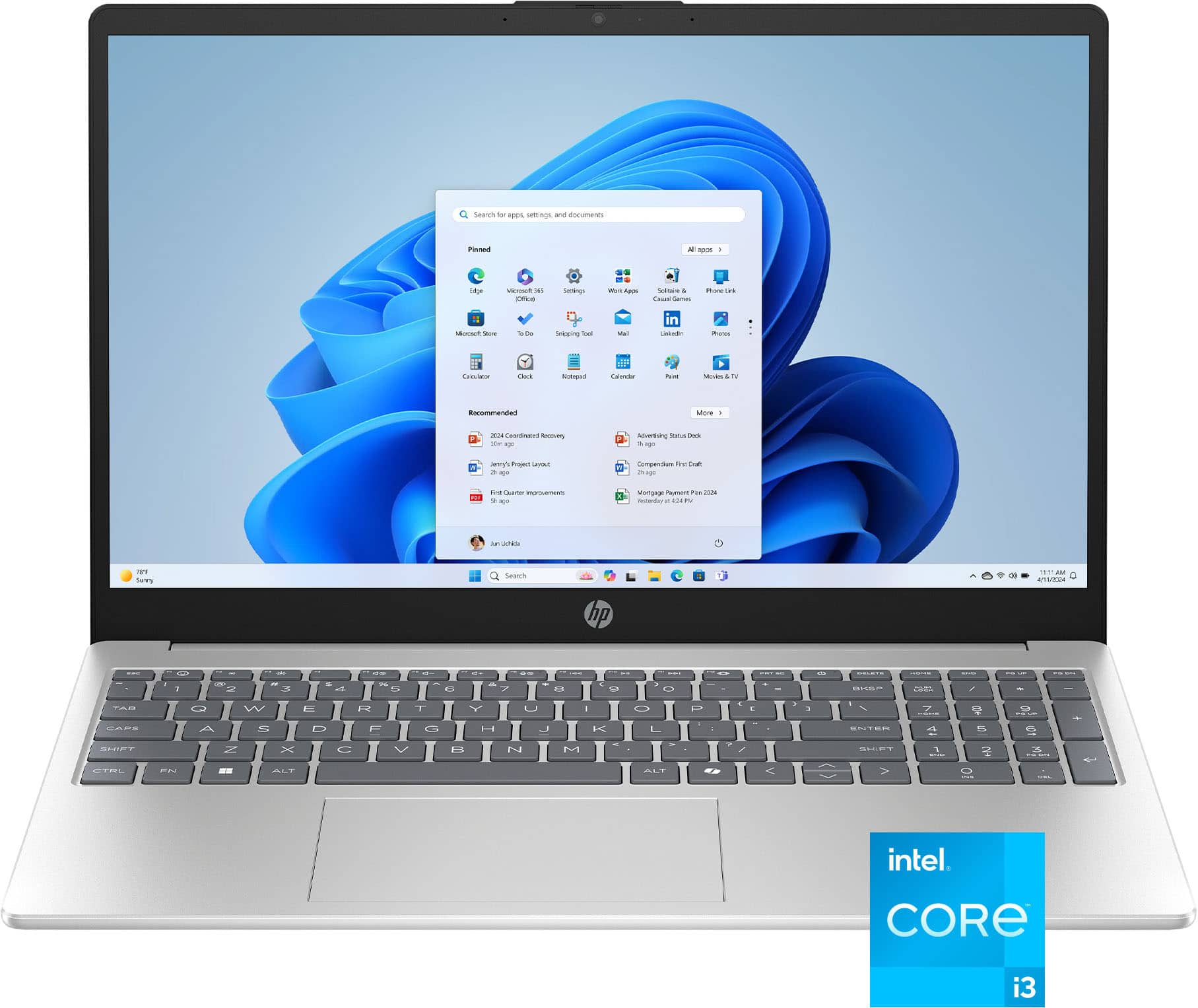
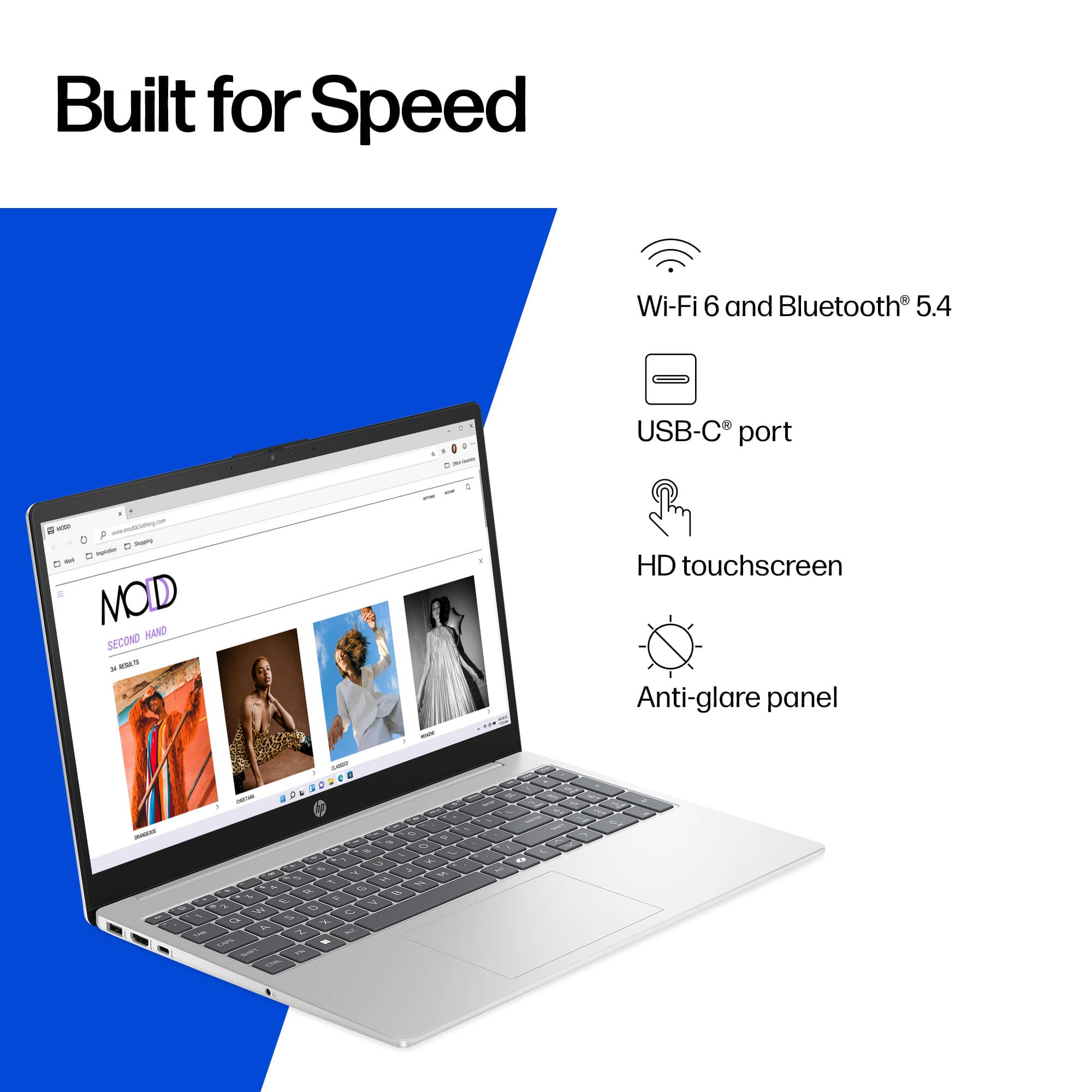
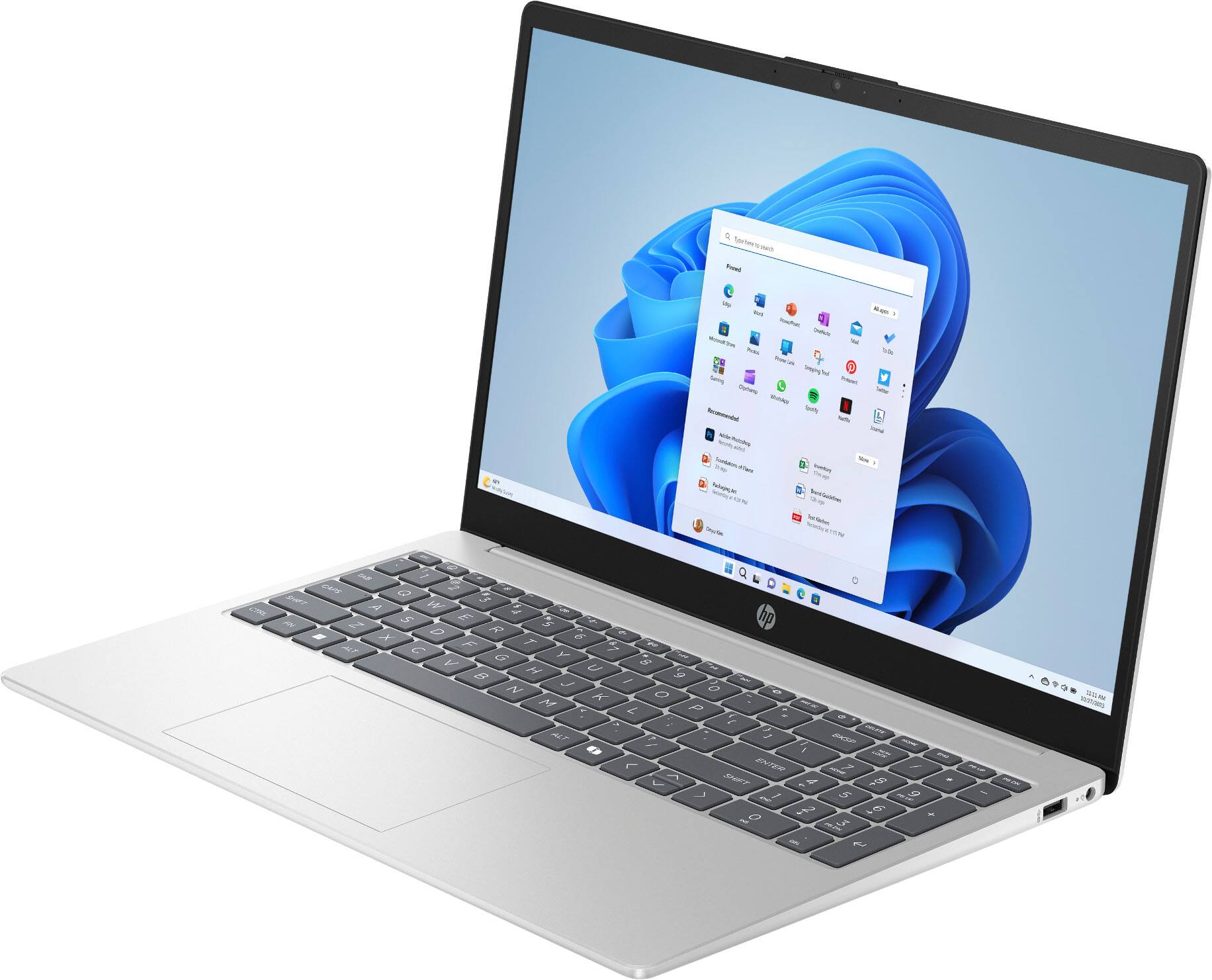
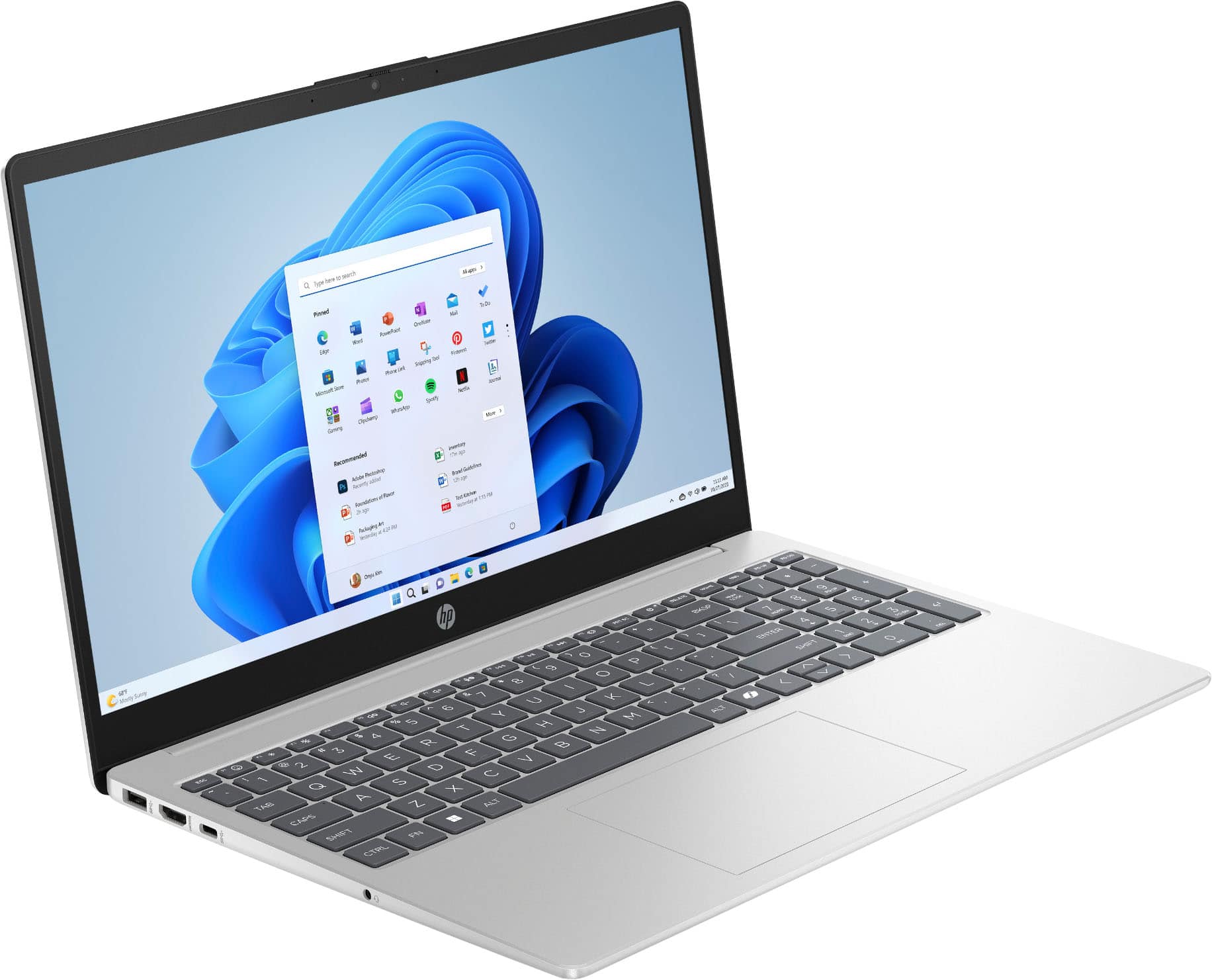
A:AnswerAll laptops have a space marked out, approximately in the center, called a touchpad, that acts as a mouse and gives you all the capabilities, in a different way, of one. Some models, like this one, also have a touchscreen. This behaves in the same way as your control of a smartphone.
On a side note, some laptops, particularly Lenovo models, also have a third option, a button in the center of the keyboard that you can also use to control the cursor and click on the screen.