A:AnswerYes, you can transfer your Office 365 to the new computer. The easiest method is to log into your https://www.office.com account on the new computer Go to your account. Select Subscriptions. Under Microsoft 365 (Office 365), select Install. Once you click on that Install, it will prompt you to download the software.
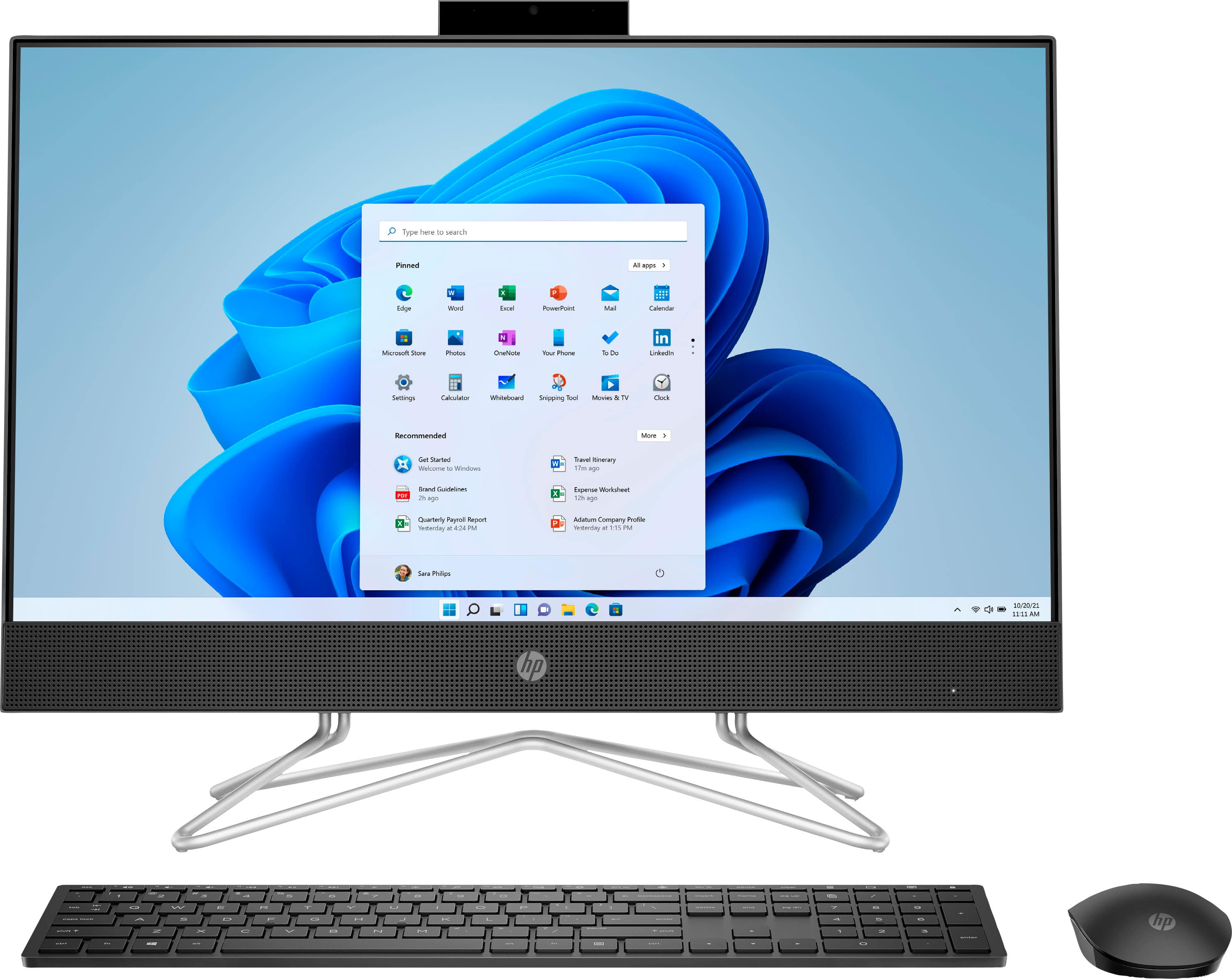
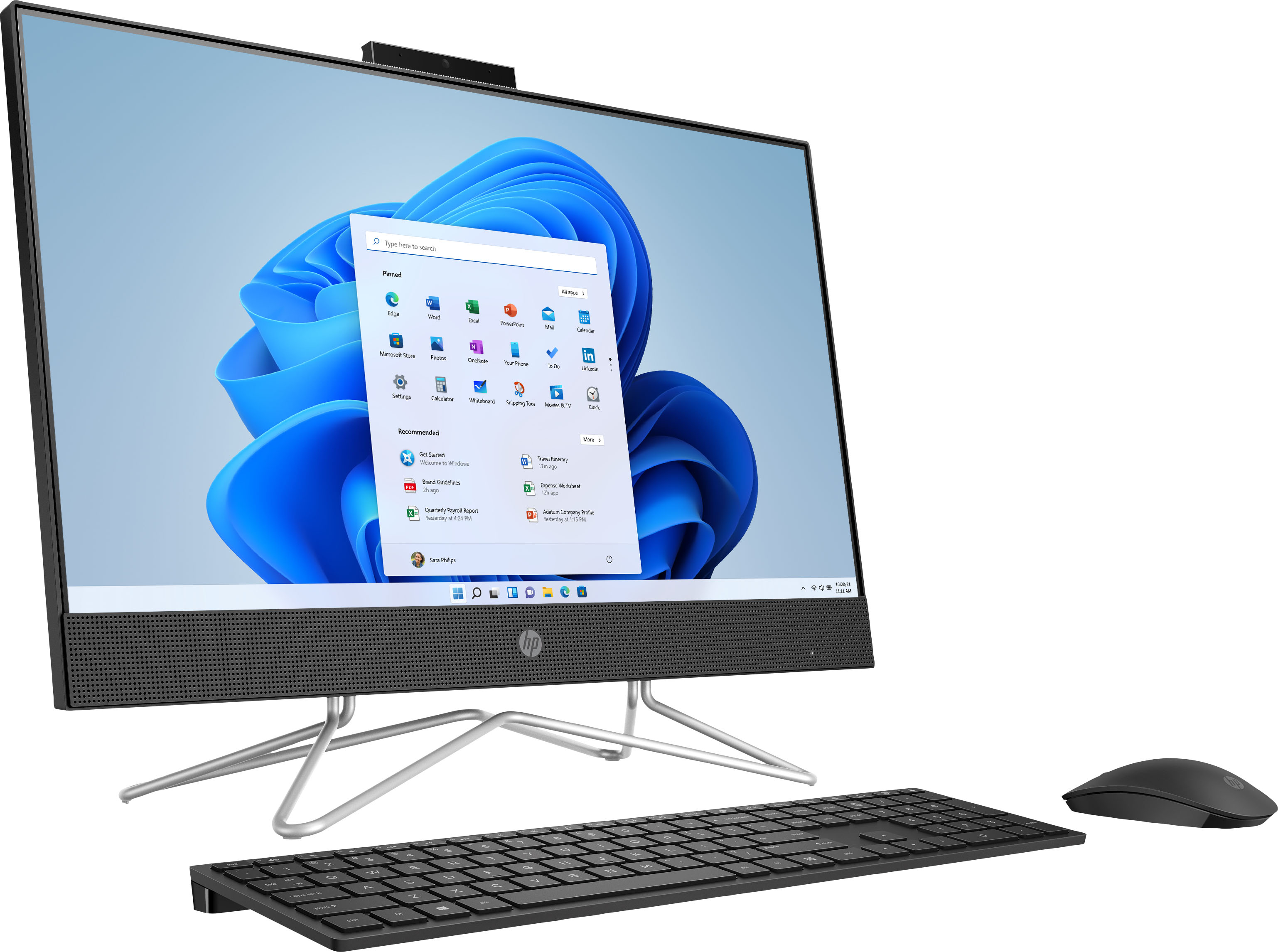
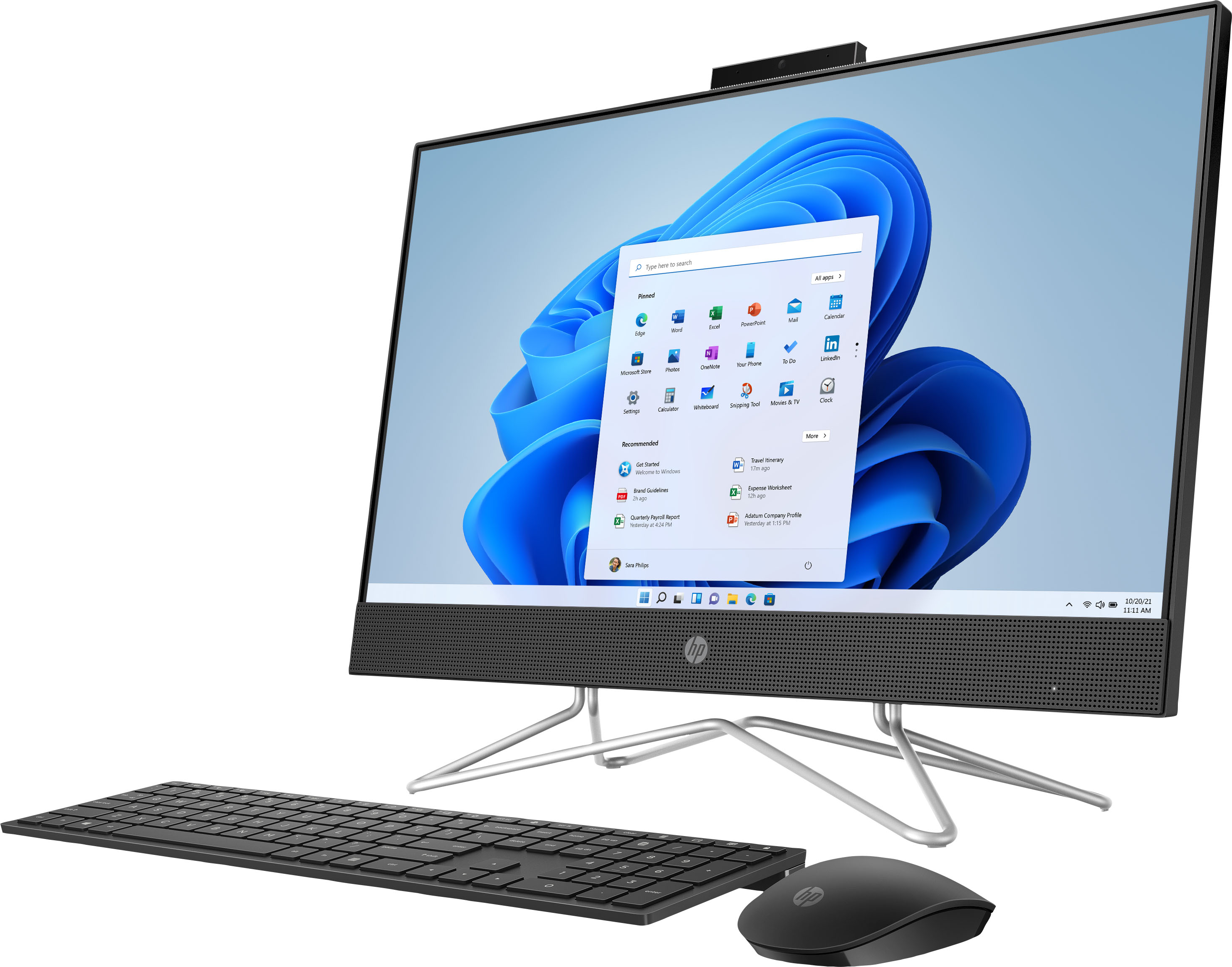
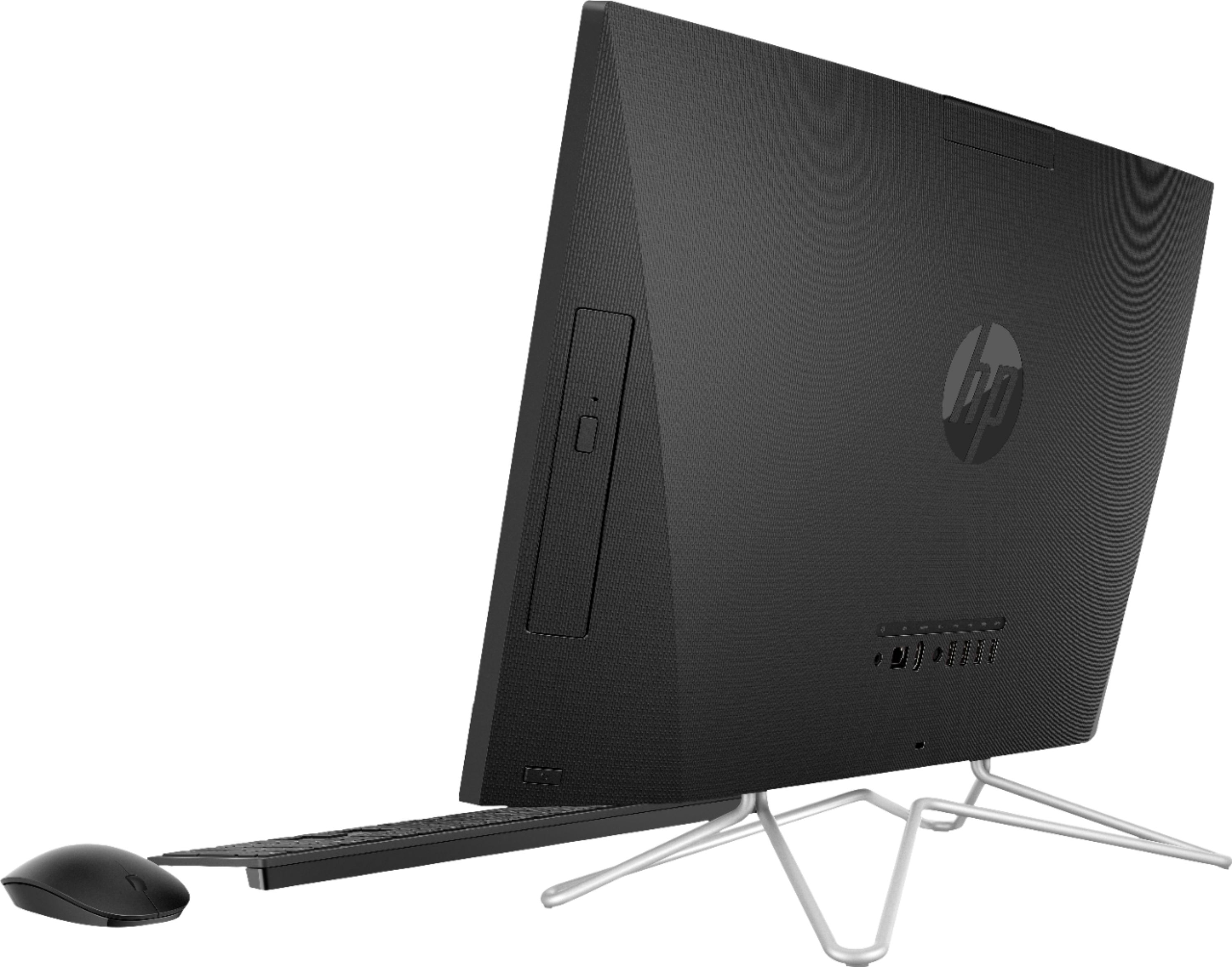
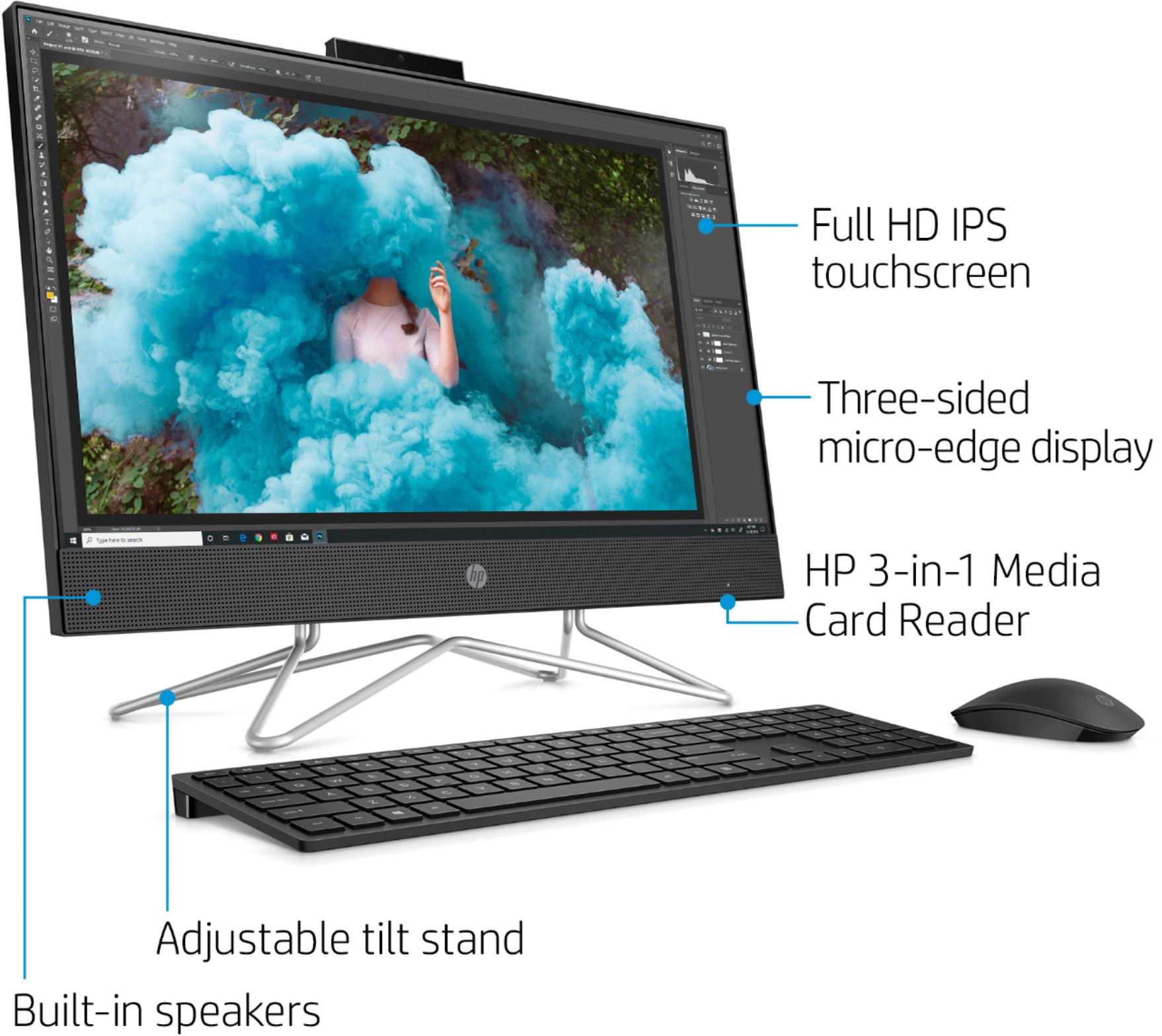
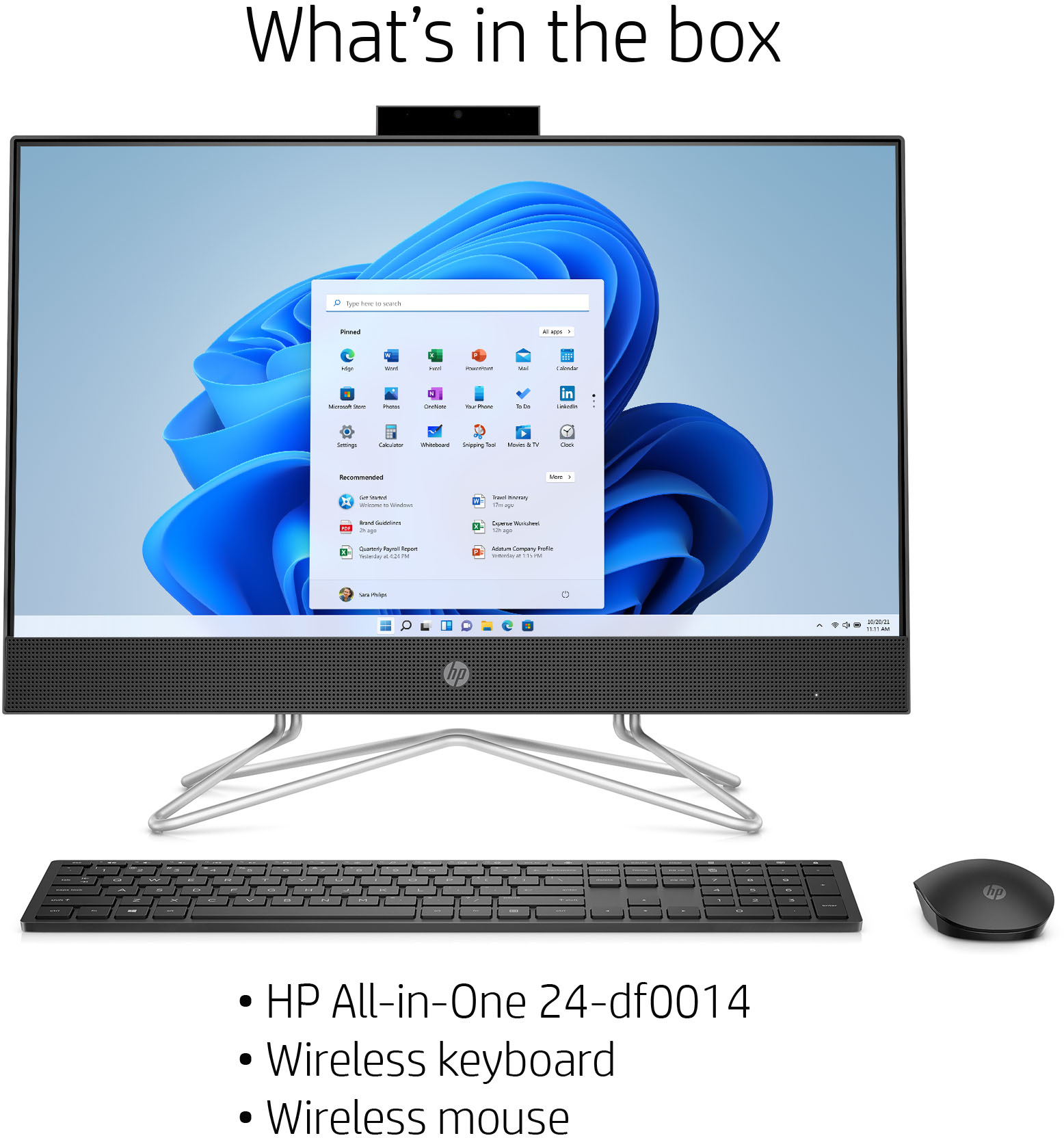
A:AnswerI just bought this computer and I absolutely love it. You can use both… The mouse and touchscreen. Computer comes with a mouse and keyboard. Don’t forget to put the little chip in that comes in the keyboard/mouse box.
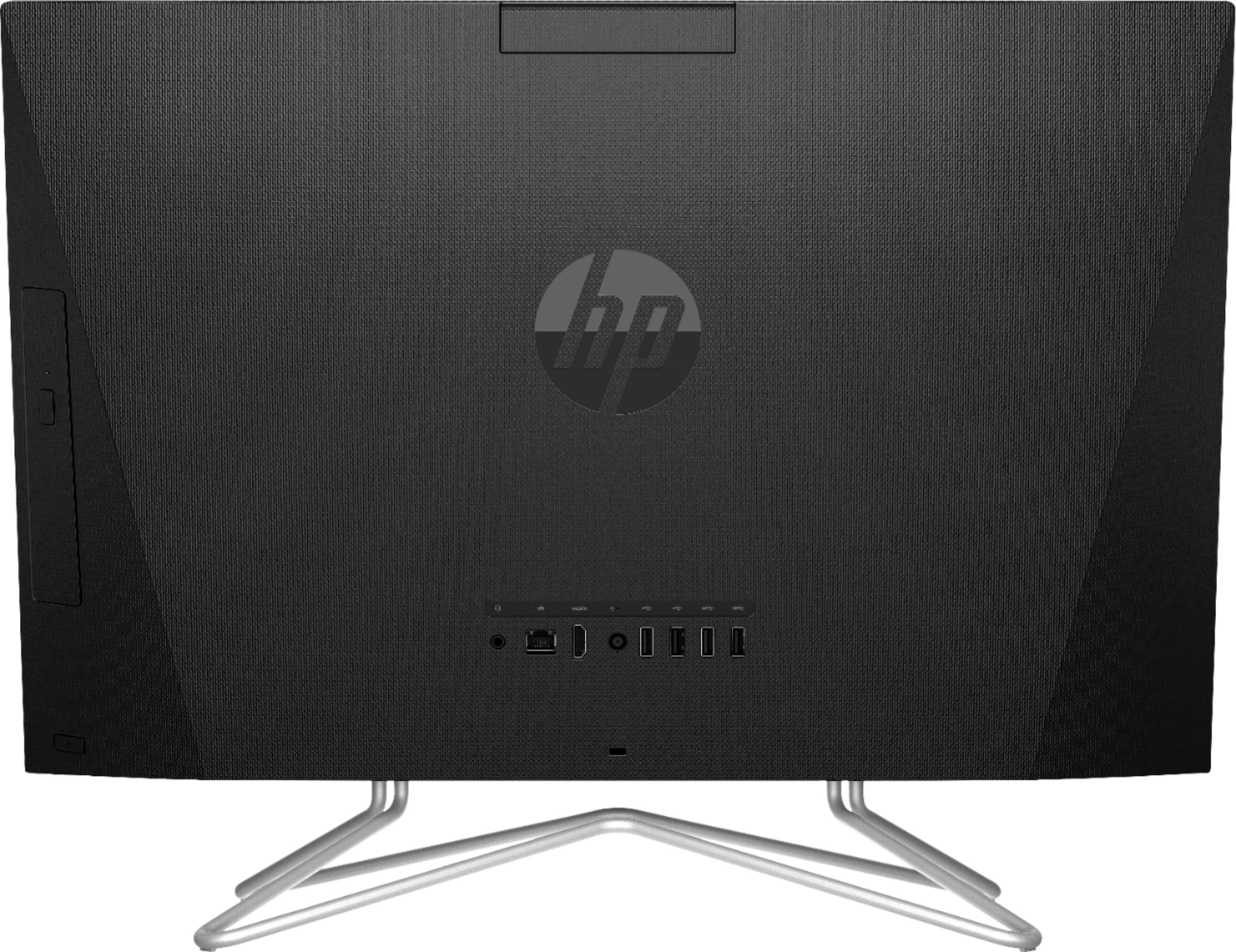
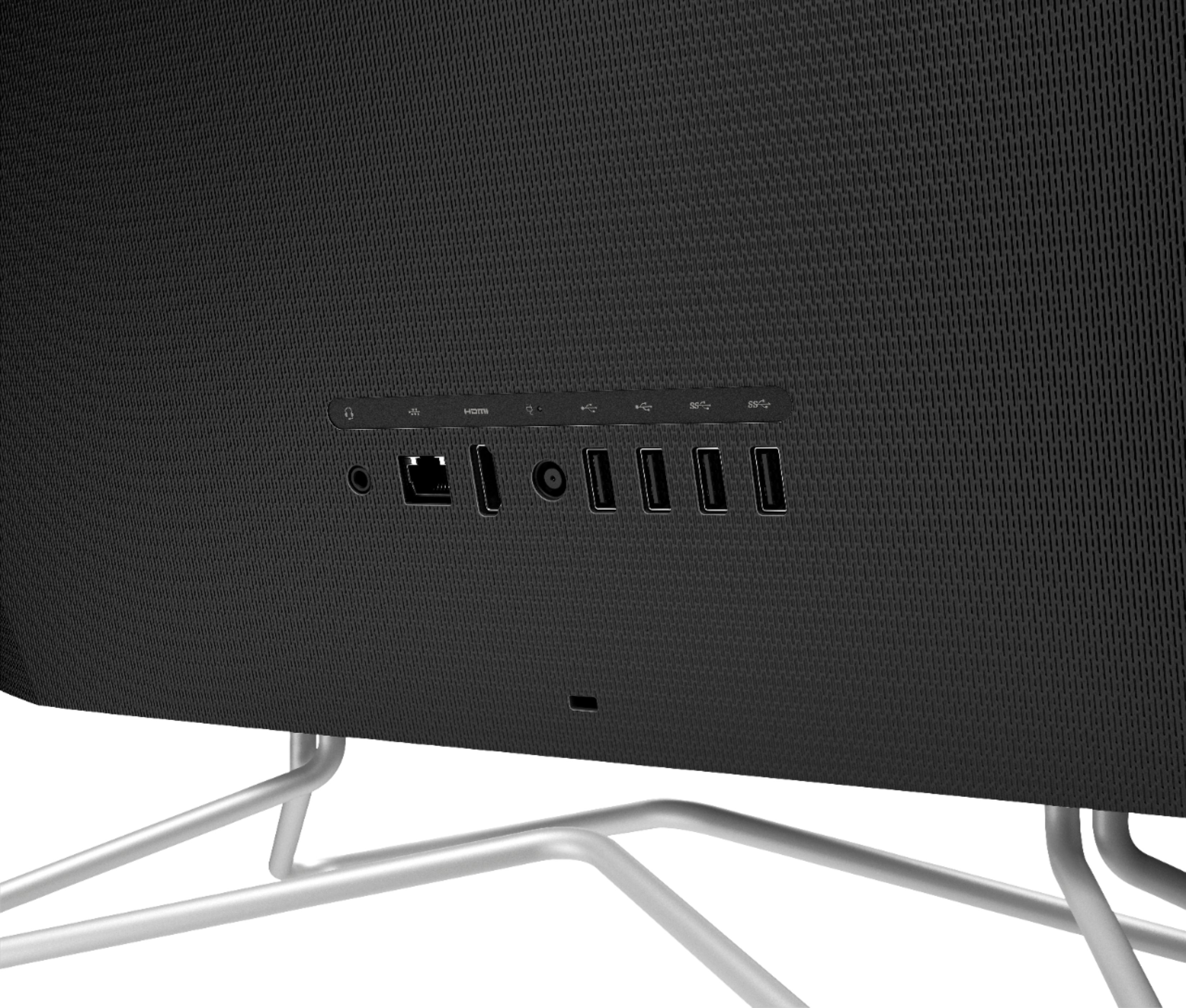
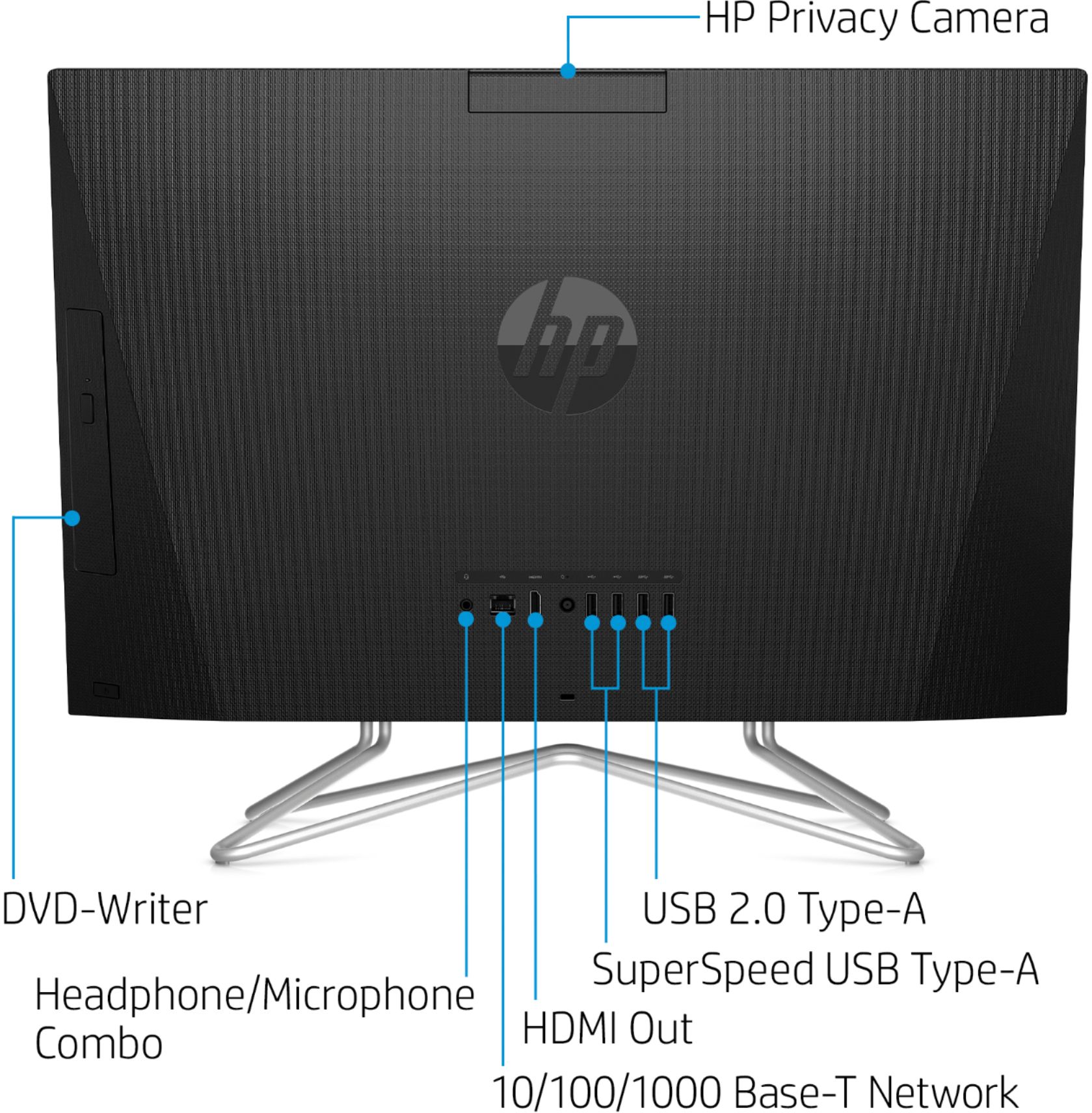
I have a wireless printer and that works perfectly but there are many outlets on the computer in which to attach things… USB ports etc.
Hope that helps. I know it’s hard to buy a computer from just looking at a picture but I couldn’t be happier with it and I think anybody who buys it will be very glad they bought it.
A:AnswerIt depends on the printer you have and if it supports Bluetooth printing. The computer does have Bluetooth, but most home printers us WiFi instead of Bluetooth, but there are exceptions.
A:AnswerI'm not computer savvy so I cannot answer your question. I do know that I love it! The keyboard takes a lot of getting used to since I'm used to the larger keyboard, but I'm learning.
A:AnswerYou're actually talking about two different products- Windows 10 and Microsoft 365 (formerly Microsoft Office).
Windows 10 is installed. Microsoft 365 has a 30 day trial.
A:AnswerThis HP all in one computer has an audio out 3.5mm jack that you can use with an adapter to get the 2 or 3 RCA jack output. You can also use more expensive USB digital audio devices that pug into USB and provide output jacks.
A:AnswerMake sure Bluetooth has been turned on. Here's how to turn Bluetooth on or off in Windows 10:Select the Start button, then select Settings > Devices > Bluetooth & other devices.
Select the Bluetooth switch to turn it On or Off as desired.